 The best VS Code extensions for JavaScript developers in 2026 include ES7+ Snippets for faster coding, Console Ninja for easy debugging, and Pretty TypeScript Errors for readable alerts. For web building and testing, Tailwind CSS IntelliSense and Thunder Client are the top choices to speed up your daily work.
JavaScript is the most popular language in the world(Python fans will say I am lying!!), but it is also the easiest to mess up. To stop wasting time on bugs and write cleaner code, you need the right setup.
We tested dozens of plugins to bring you the 15 must-haves for 2026. These tools improve your workflow and focus so you get work done faster, regardless of whether you use React, Node.js, or plain JavaScript.
Feel free to leave a comment below or contact us if you want to recommend an extension on this post.
Top Visual Studio Code Extensions for JavaScript Developers
1. ES7+ React/Redux/React-Native snippets
#1 Essential

What it does: It provides instant shortcuts for common JavaScript and React code blocks. Type rafce and hit Tab, and it instantly generates a full React Arrow Function Component.
Why you need it: It saves you from typing the same boilerplate code thousands of times. It is the gold standard for React developers; if you don’t have this, you are coding in slow motion.
ext install dsznajder.es7-react-js-snippets2. Pretty TypeScript Errors
Trending 2026

What it does: TypeScript errors are famous for being messy, unreadable blocks of text. This extension formats them into clear, human-readable English directly in your editor.
Why you need it: It stops the headache. Instead of squinting at a giant red wall of text to find the missing property, this tool highlights exactly what is wrong in a visual way.
ext install yoavbls.pretty-ts-errors3. Console Ninja
Viral Hit

What it does: It displays `console.log` output directly in your code editor, right next to the line that generated it. You see the values instantly without switching windows.
Why you need it: It keeps you in the “flow state.” You do not need to constantly Alt-Tab to Chrome to check if your variable is undefined. The answer is right there.
ext install WallabyJs.console-ninja4. Turbo Console Log
Utility

What it does: Automates the process of writing logs. Select a variable, press a hotkey (Ctrl+Alt+L), and it inserts a `console.log` with the variable name and value automatically.
Why you need it: Typing `console.log(“data”, data)` manually is slow and prone to typos. This extension handles it in a fraction of a second.
ext install ChakrounAnas.turbo-console-log5. Quokka.js
Prototyping

What it does: It creates a scratchpad where JavaScript/TypeScript runs instantly as you type. You can test logic or regex without setting up a file or running a server.
Why you need it: Perfect for testing snippets. If you are unsure how a specific Array method works, open Quokka and test it in seconds.
ext install WallabyJs.quokka-vscodeThe Modern Web Stack (React & Tailwind)
6. Tailwind CSS IntelliSense
Essential UI

What it does: It adds autocomplete for Tailwind classes. Start typing bg- and it shows you all the colors. It also allows you to hover over a class like p-4 to see exactly how many pixels of padding it applies.
Why you need it: You cannot memorize every Tailwind utility class. This tool makes writing CSS feel like filling in a form—fast, accurate, and typo-free.
ext install bradlc.vscode-tailwindcss7. ESLint
Standard

What it does: The industry standard for JavaScript code quality. It scans your code as you type and underlines potential bugs, security risks, or bad coding patterns in red.
Why you need it: It stops you from shipping broken code. Unlike Prettier (which just fixes style), ESLint actually understands your logic and warns you if you use a variable that doesn’t exist.
ext install dbaeumer.vscode-eslint8. Angular Language Service
Angular Essential
What it does: VS Code understands TypeScript by default, but it doesn’t understand Angular HTML templates. This extension adds intelligence (autocompletion and error checking) inside your component templates.
Why you need it: If you use Angular, this is mandatory. It lets you click “Go to Definition” inside your HTML files and warns you if you try to bind data to a variable that doesn’t exist.
ext install Angular.ng-template9. vscode-icons
Visuals

What it does: The most comprehensive icon pack for JavaScript developers. It has specific icons for every framework imaginable (Redux, Vue, Next.js, Jest, Babel, etc.).
Why you need it: While Material Theme is great, this pack is better for identifying complex JS framework files. It helps you scan your project tree faster.
ext install vscode-icons-team.vscode-icons10. Thunder Client
API Testing

What it does: A lightweight Postman alternative that runs inside VS Code. It lets you send HTTP requests to your Node.js backend without leaving your code.
Why you need it: Postman is heavy and requires a separate window. Thunder Client is fast, simple, and keeps your backend testing workflow integrated with your editor.
ext install rangav.vscode-thunder-clientBackend, Node.js & Maintenance
11. Qodo Gen
AI Testing

What it does: An AI agent that analyzes your JavaScript/Node.js functions and generates meaningful unit tests for them automatically. It finds edge cases you didn’t think of.
Why you need it: Writing tests is the most boring part of development. This tool does it for you, ensuring your backend code is bulletproof without spending hours writing boilerplate test suites.
ext install Codium.codium12. npm Intellisense
Time Saver

What it does: Autocompletes your import statements. When you type import ... from "rea...", it scans your node_modules and suggests “react” automatically.
Why you need it: You never have to manually check your package.json file to remember the exact name of a library you installed.
ext install christian-kohler.npm-intellisense13. Biome
2026 Trend

What it does: A high-performance formatter and linter built in Rust. It is designed to replace both Prettier and ESLint with a single tool that runs instantly.
Why you need it: This is the future of web tooling. If your large JavaScript project feels slow when saving files, Biome is the ultra-fast alternative you need.
ext install biomejs.biome14. Code Spell Checker
Quality Control

What it does: It catches spelling errors in your variable names, comments, and strings. It is smart enough to understand camelCase and snake_case.
Why you need it: A typo in a variable name like recieveData instead of receiveData can cause bugs that take hours to find. This tool fixes them before you even run the code.
ext install streetsidesoftware.code-spell-checker15. Version Lens
Updates
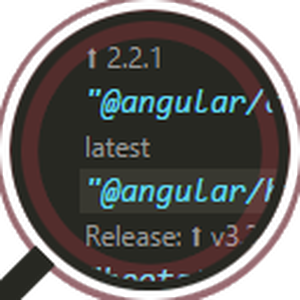
What it does: When you open your package.json file, it shows the latest available version of every package right above the version number you currently have installed.
Why you need it: Keeping dependencies updated is a chore. Version Lens turns it into a one-click process, helping you avoid security vulnerabilities in old packages.
ext install pflannery.vscode-versionlensHow to improve your JS Coding workflow
The days of relying solely on console.log and manual formatting are over. By combining ES7+ Snippets for speed, Console Ninja for debugging, and Tailwind IntelliSense for styling, you are not just writing code faster; you are writing better code.
Start by installing the “Essentials” (extensions 1-5), then slowly add the Pro tools as your projects grow, and good luck!
More VS Code Resources:
- Getting Started: The Ultimate VS Code Setup Guide
- ⚡ Speed: VS Code Cheat Sheet: Shortcuts, God Mode & PDF
- 🎨 Aesthetics: 20 Best VS Code Themes: Dark, Light & Aesthetic
- Universal List: Best VS Code Extensions for All Developers
- AI & Vibe Coding: Best AI Coding Extensions for VS Code
- Flutter: Extensions for Flutter Developers
- Python: Extensions for Python Developers
- Web Design: Extensions for Frontend Developers
- React: Extensions for React Native Developers
- C++: Extensions for C++ Developers
- WordPress: Extensions for WordPress Developers
Discover more from Windows Mode
Subscribe to get the latest posts sent to your email.
















Add your first comment to this post