 The best VS Code extensions for Flutter developers in 2026 include Flutter & Dart for core support, Pubspec Assist for managing packages, and Bloc or Riverpod for handling your app’s state. If you want to stop writing repetitive code, Awesome Flutter Snippets and Mason are important.
Flutter development has changed. We are no longer stuck using heavy software like Android Studio just to build mobile apps. Most developers have moved to VS Code because it is fast and stays out of your way.
But VS Code is empty when you first install it. To build professional apps, you need a setup that handles the boring stuff for you, like fixing typos, managing images, and writing code that connects to your database.
We analyzed the 19 most critical tools to help you build a fast, reliable mobile setup, whether you are a solo developer or part of a big engineering team.
Feel free to leave a comment below or contact us if you want to recommend an extension on this post.
What are the best Visual Studio Code extensions for Flutter?
These are the basic tools every Flutter developer needs. They handle the language, your libraries, and the health of your project.
1. Flutter & Dart (Official)
Essential

What it does: The official toolkit from Google. It gives you the “Hot Reload” button, the debugger, and all the basic shortcuts to write Dart code.
Why you need it: It includes a smart “Property Editor.” This means you can change things like padding or colors in a side panel, and it writes the code for you. It’s the easiest way to fine-tune your app’s look.
ext install Dart-Code.flutter2. Pubspec Assist
Productivity

What it does: Lets you add new libraries to your project without leaving VS Code. It automatically finds the latest version and keeps your list alphabetized.
Why you need it: Editing the `pubspec.yaml` file by hand is annoying because one extra space can break your whole project. This tool does the editing for you so your file stays clean.
ext install jeroen-meijer.pubspec-assist3. Version Lens
Maintenance
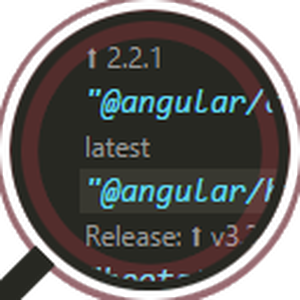
What it does: Shows you exactly which packages in your project are out of date. It overlays the current version number right inside your config file.
Why you need it: It helps you decide if you should update a package. You can see instantly if a major update is available that might break your app.
ext install pflannery.vscode-versionlensArchitecture & State Management
The “Brains” of your app. These tools ensure your code is organized and your data logic is easy to follow.
4. Mason
Templates

What it does: Uses “bricks” (templates) to generate entire folders and file structures.
Why you need it: Perfect for creating a “New Feature” with all its layers in one click. It ensures every part of your app looks the same, which is great for teamwork.
ext install FelixAngelov.mason5. Bloc
Logic

What it does: Automates the creation of the files needed for the BLoC pattern.
Why you need it: Writing Bloc files from scratch involves a lot of typing. This tool lets you right-click a folder and generate everything instantly, keeping your logic separated from your UI.
ext install FelixAngelov.bloc6. Riverpod Snippets
State

What it does: Provides shortcuts for the Riverpod state management library.
Why you need it: Riverpod requires specific code structures (Consumers, Providers). This tool writes them for you so you don’t have to memorize the syntax.
ext install robert-brunhage.flutter-riverpod-snippets7. Clean Arch Helper
Structure

What it does: Specifically designed for enterprise apps using “Clean Architecture.”
Why you need it: It automates the boring part of creating separate layers (Domain, Data, Presentation). It saves you hours of manual file creation.
ext install MHDN.flutter-clean-arch-featureData, JSON & Assets
Stop wasting hours on manual data mapping. These tools convert external data into Flutter code in seconds.
8. JSON to Dart Model
Data Mapping

What it does: You paste a JSON response from an API, and it builds the Dart classes for you.
Why you need it: Writing “Models” for your data is boring and easy to mess up. This tool does the conversion for you in seconds, making sure your app doesn’t crash because of a data mismatch.
ext install hirantha.json-to-dart9. Data Class Gen
Utility

What it does: Generates common methods like `copyWith` and `toJson` for your internal data classes.
Why you need it: In Dart, you often need to compare two objects or save them to a database. This extension writes the 50 lines of code required to do that for you.
ext install dotup.dart-data-class-generator10. Flutter Assets Generator
Type Safety

What it does: Scans your assets folder and creates a “safe” reference in your code.
Why you need it: No more app crashes because you mistyped an image filename like `logo.png`. This tool lets you pick the image from a list in your code editor.
ext install devmrasityilmaz.flutter-assets-gen11. Freezed Helpers
Automation
What it does: Provides shortcuts for the popular “Freezed” library.
Why you need it: Freezed is great for making your data safe, but the code is hard to type out. This tool writes the complex “Union Types” for you instantly.
ext install praveend.flutter-freezedUI, Style & Accuracy
Make your app look perfect. These tools handle the visuals, from seeing images in the sidebar to highlighting colors.
12. Image Preview
Visuals

What it does: Shows a tiny thumbnail of your images in the sidebar, right next to your code.
Why you need it: Flutter uses text paths for images (like `assets/logo.png`). It’s hard to remember which image is which. This tool lets you see exactly what you’re adding to your app without having to open the file.
ext install kisstkondoros.vscode-gutter-preview13. Flutter Tree
Workflow

What it does: Lets you build complex widget trees using a simple “one-line” syntax. It then expands that line into full Flutter code.
Why you need it: Writing nested code like `Child(child: Child())` is tedious. This lets you type it out quickly like `Column > Row > Text` and hit enter.
ext install marius-mc.flutter-treeQuality & Testing
Ship with confidence. These tools help you find bugs and track your testing progress directly in the editor.
14. Error Lens
Errors

What it does: Projects errors and warnings directly inline.
Why you need it: You fix mistakes as you type them instead of waiting for a failed build. In Flutter, it’s easy to miss a comma, and this makes that mistake impossible to ignore.
ext install usernamehw.errorlens15. Coverage Gutters
Testing

What it does: Shows you which lines of code are covered by your unit tests. Green means tested; red means you missed a spot.
Why you need it: If you are working on a serious app, you need to know if your tests are actually checking your code. This gives you that info at a glance.
ext install ryanluker.vscode-coverage-gutters16. Todo Tree
Debt

What it does: Collects all your `// TODO` and `// FIXME` comments into a single sidebar panel.
Why you need it: In a big mobile project, it’s easy to lose track of notes. This ensures you never forget to fix a “HACK” before shipping your app.
ext install Gruntfuggly.todo-tree17. Flutter Stylizer
Hygiene

What it does: Automatically reorders your methods and variables.
Why you need it: It puts the constructor first and the build method last. This helps your team stay consistent, so every file in your app follows the same order.
ext install gmlewis-vscode.flutter-stylizerAdvanced Tools
18. Thunder Client
API

What it does: A built-in “Postman” for VS Code. You can test your backend APIs without ever leaving your editor.
Why you need it: When your app isn’t getting data, you need to check if the server is broken. This lets you send a test request instantly to find out.
ext install rangav.vscode-thunder-client19. Advanced New File
Speed
What it does: Allows you to create files and folders using only your keyboard.
Why you need it: You just type the path, and it builds all the folders for you. It’s much faster than right-clicking in the file explorer over and over again.
ext install patbenatar.advanced-new-fileThe Mobile Developer’s Verdict
Switching to VS Code for Flutter is the best move you can make for your productivity. By using tools like Mason for architecture and JSON to Dart for your data, you spend less time wrestling with files and more time actually building your app.
More VS Code Resources:
- Getting Started: The Ultimate VS Code Setup Guide
- ⚡ Speed: VS Code Cheat Sheet: Shortcuts, God Mode & PDF
- 🎨 Aesthetics: 20 Best VS Code Themes: Dark, Light & Aesthetic
- Universal List: Best VS Code Extensions for All Developers
- AI & Vibe Coding: Best AI Coding Extensions for VS Code
- Web Design: Extensions for Frontend Developers
- JavaScript: Extensions for JavaScript Developers
- React Native: Extensions for React Native Developers
- Python: Extensions for Python Developers
- C++: Extensions for C++ Developers
- WordPress: Extensions for WordPress Developers
Discover more from Windows Mode
Subscribe to get the latest posts sent to your email.













Add your first comment to this post