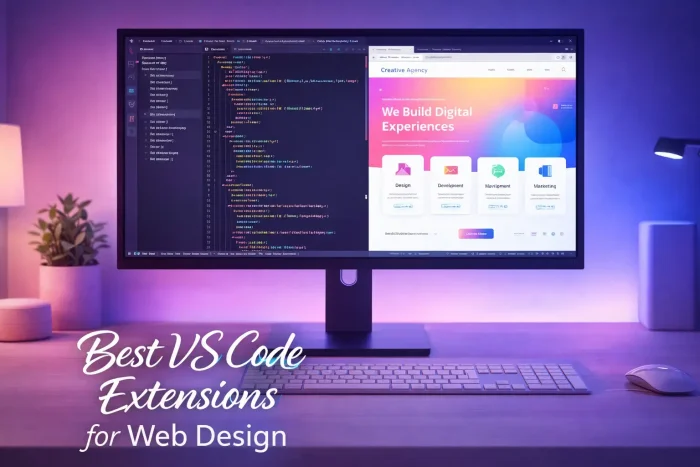
 The best VS Code extensions for Frontend Developers in 2026 include Live Preview for seeing your design inside the editor, Tailwind CSS IntelliSense for rapid styling, and Prettier for keeping your code clean. If you want to stop switching windows, Microsoft Edge Tools is the new standard.
Frontend development is visual. Unlike backend engineers who look at logs, we look at layouts, colors, and animations. The problem is the “Context Switch.” Every time you Alt-Tab from VS Code to Chrome to check a pixel change, you lose focus.
To fix this, you need a “Glass Editor”, a setup where your code and your design live in the same window.
We tested the top 19 tools used by professional UI engineers to help you build beautiful websites faster, without ever leaving VS Code.
Feel free to leave a comment below or contact us if you want to recommend an extension on this post.
What are the best Visual Studio Code extensions for Web Designers?
Stop hitting Alt-Tab. These tools bring your browser directly into your editor so you can design and code at the same time.
1. Live Preview (Microsoft)
Essential

What it does: Opens a real browser inside a VS Code tab. As you type HTML or CSS, the page updates instantly next to your code.
Why you need it: It turns VS Code into a design tool. You don’t need a second monitor or an external browser window. You can tweak pixels and see the result immediately.
ext install ms-vscode.live-server2. Live Server
Reliability

What it does: Launches a local development server and opens your project in your default browser (like Chrome).
Why you need it: While “Live Preview” is great for laptops, “Live Server” is king for multi-monitor setups. It also lets you view your site on your phone if it’s connected to the same Wi-Fi.
ext install ritwickdey.LiveServer3. Microsoft Edge Tools
Integration
What it does: Puts the “Inspect Element” DevTools inside VS Code.
Why you need it: The killer feature is “CSS Mirroring.” You can change a color or margin in the DevTools visual picker, and it automatically writes that change to your CSS file.
ext install ms-edgedevtools.vscode-edge-devtoolsDesign Hygiene
Keep your code clean. These tools handle the boring formatting work so you can focus on the visuals.
4. Prettier
Formatting

What it does: Automatically formats your HTML, CSS, and JavaScript every time you save.
Why you need it: It stops you from worrying about indentation. You can write messy code to get an idea down fast, hit “Save,” and Prettier snaps everything into perfect alignment instantly.
ext install esbenp.prettier-vscode5. ESLint
Quality

What it does: Finds bugs in your logic and enforces accessibility rules (like missing alt tags on images).
Why you need it: It acts like a spellchecker for your code. If you make a mistake that breaks the website, ESLint underlines it in red so you can fix it before opening the browser.
ext install dbaeumer.vscode-eslintSpeed & Structure
6. Auto Rename Tag
HTML Utility

What it does: When you rename an opening HTML tag (like changing <div> to <section>), it automatically updates the closing tag for you.
Why you need it: It removes the annoyance of hunting for the matching closing tag at the bottom of a long file. It makes changing your layout structure effortless.
ext install formulahendry.auto-rename-tag7. Path Intellisense
Files

What it does: Autocompletes filenames when you are linking images or stylesheets.
Why you need it: There is nothing worse than a broken image icon because you typed .jpeg instead of .jpg. This tool prevents that frustration by showing you the correct file path as you type.
ext install christian-kohler.path-intellisense8. Tailwind CSS IntelliSense
Styling

What it does: Provides instant autocomplete for Tailwind classes and shows you the CSS color or size values on hover.
Why you need it: Tailwind has thousands of class names. This tool acts as your memory, so you don’t have to check the documentation every time you want to add padding or change a text color.
ext install bradlc.vscode-tailwindcss9. Color Highlight
Visuals
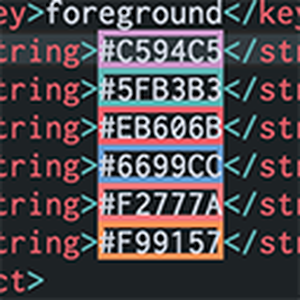
What it does: Finds every hex code (like #3498db) in your CSS and highlights it with that actual color.
Why you need it: Code is abstract. This makes it concrete. You can scan your file and instantly see if you are using the right shade of blue without needing to open the browser.
ext install naumovs.color-highlightAssets & Visuals
Designers work with images and icons. These tools let you manage them directly in the editor instead of opening Photoshop or Finder.
10. SVG Preview
Vector

What it does: Allows you to view and edit SVG icons directly in VS Code. You can zoom in, check transparency, and see live updates as you change the code.
Why you need it: SVG files are just code, but they are hard to visualize. This tool lets you tweak an icon’s color or stroke width without needing to open a heavy tool like Illustrator.
ext install simonsiefke.svg-preview11. vscode-icons
Navigation

What it does: Adds beautiful, distinct icons to your file explorer. A .css file gets a CSS logo, and a .js file gets a JS logo.
Why you need it: Your brain processes images faster than text. This helps you find the file you need instantly by scanning for color rather than reading every filename.
ext install vscode-icons-team.vscode-icons12. Peacock
Workflow
What it does: Changes the color of the VS Code border for each project.
Why you need it: If you have two windows open—one for “Client A” and one for “Client B”—this prevents mistakes. You can make one window Green and the other Red so you never edit the wrong project.
ext install johnpapa.vscode-peacock13. CodeSnap
Sharing

What it does: Takes beautiful screenshots of your code. Just highlight the text, and it creates a professional image with a nice background and shadows.
Why you need it: Perfect for sharing code on Twitter, LinkedIn, or in your design portfolio. It looks much better than a blurry screenshot of your entire screen.
ext install adpyke.codesnapDeep Debugging
14. Console Ninja
Essential

What it does: Shows your console.log output right next to the code line that generated it.
Why you need it: If you are debugging JavaScript logic, this keeps you in the editor. You don’t have to check the browser console to see if your variables are working.
ext install WallabyJs.console-ninja15. Error Lens
Errors

What it does: Highlights syntax errors and warnings inline.
Why you need it: It makes errors impossible to ignore. If you miss a semicolon or a bracket, the line turns red immediately, saving you from broken builds.
ext install usernamehw.errorlens16. Import Cost
Performance

What it does: Shows the file size of any library you import.
Why you need it: Designers care about site speed. This warns you if you are importing a massive library that will slow down your website.
ext install wix.vscode-import-cost17. Turbo Console Log
Speed

What it does: Automates typing logs. Select a variable, hit a shortcut, and it inserts a log with the line number.
Why you need it: It speeds up debugging. It also has a “Delete All Logs” feature so you can clean up your code instantly before publishing.
ext install ChakrounAnas.turbo-console-log18. Todo Tree
Task Manager

What it does: Collects all your // TODO comments into a list in the sidebar.
Why you need it: Great for design tweaks. You can leave a note like // TODO: Fix mobile padding and find it later without losing track of your tasks.
ext install Gruntfuggly.todo-tree19. Tailwind Formatter
Organization

What it does: Automatically sorts your Tailwind classes in a logical order (e.g., layout first, then colors).
Why you need it: It stops your HTML from looking like a mess. Your class lists become predictable and easier to read.
Myhtica.tailwind-formatter The Designer’s Verdict
The right extensions turn VS Code from a text editor into a visual design tool. By using Live Preview and Edge Tools, you close the gap between code and design, allowing you to build faster and with more confidence.
More VS Code Resources:
- Getting Started: The Ultimate VS Code Setup Guide
- ⚡ Speed: VS Code Cheat Sheet: Shortcuts, God Mode & PDF
- 🎨 Aesthetics: 20 Best VS Code Themes: Dark, Light & Aesthetic
- Universal List: Best VS Code Extensions for All Developers
- AI & Vibe Coding: Best AI Coding Extensions for VS Code
- Flutter: Extensions for Flutter Developers
- JavaScript: Extensions for JavaScript Developers
- React Native: Extensions for React Native Developers
- Python: Extensions for Python Developers
- C++: Extensions for C++ Developers
- WordPress: Extensions for WordPress Developers
Discover more from Windows Mode
Subscribe to get the latest posts sent to your email.
















Add your first comment to this post