Readers like you help support this site. When you make a purchase using links on our site, we may earn an affiliate commission. All opinions remain our own.
Vivaldi is a feature-packed Chromium browser for Windows that you can download from the official Vivaldi website or the Microsoft Store. Created by the original co-founder of Opera, it is designed specifically for power users who want total control over their browser, from tab placement to built-in mail, calendar, and feed reader.
While Chrome and Edge try to decide what is best for you, Vivaldi lets you customize everything. Want to view four websites side-by-side? Want native ad blocking and mouse gestures without extensions?
does all of it out of the box. In this guide, we walk you through its standout features, installation steps, troubleshooting tips, and FAQs.
If you need any assistance, feel free to contact us or drop a comment below.
Total Control
Deep UI customization
Tab Tiling
View sites side-by-side
Native Mail Client
Built into the sidebar
Privacy First
No Google tracking
📋 System Requirements
| Requirement | Details |
|---|---|
| Operating System | Windows 10 or Windows 11 (64-bit) |
| Processor | Intel Pentium 4 or later (SSE3 capable) |
| RAM | 4 GB minimum (8GB+ recommended) |
| Storage | ~600 MB available space |
| Account | Optional (Syncs bookmarks/settings) |
What Makes Vivaldi Different
Vivaldi uses the Chromium engine under the hood, meaning every Google Chrome extension immediately works. However, the UI layer built on top of that engine is entirely custom, allowing for features no other browser offers out of the box.
🧩 Workspaces and Drag-to-Tile
Vivaldi handles massive amounts of tabs better than anyone. You can group tabs into “Workspaces” (e.g., Work vs. Personal). You can also drag 2-4 tabs together to form a “Tile,” rendering multiple websites on your screen simultaneously inside one browser window.
📧 Vivaldi Mail, Calendar, and Feeds
Say goodbye to external email apps. Vivaldi has a highly capable IMAP/POP3 email client, a robust calendar system, and an RSS feed reader built directly into the browser’s side panel.
🎨 Unrivaled UI Customization
Do you want the address bar at the bottom? The tabs on the left edge? A dynamic neon theme that reacts to standard websites? Vivaldi’s settings menu is massive and provides true customization, unlike standard browsers that only offer basic light/dark modes.
⌨️ Keyboard Shortcuts and Mouse Gestures
Power users can navigate the web entirely without clicking. Vivaldi allows you to map custom hotkeys to virtually every function. It also features native “Mouse Gestures” – draw a shape while holding right-click to trigger actions like closing a tab or refreshing the page.
How to Download and Install Vivaldi Browser on Windows
1
Navigate to vivaldi.com and download the installer for Windows 64-bit.
2
When you run the installer, you can choose “Advanced.” This unique option allows you to install Vivaldi as a “Standalone” application directly to a USB drive if you want a fully portable browser.
3
Upon first launch, Vivaldi will ask you how “complex” you want the browser to be (Essentials, Classic, or Fully Loaded). It will also let you choose your tracker blocking preference instantly.
Vivaldi Screenshots Gallery
-
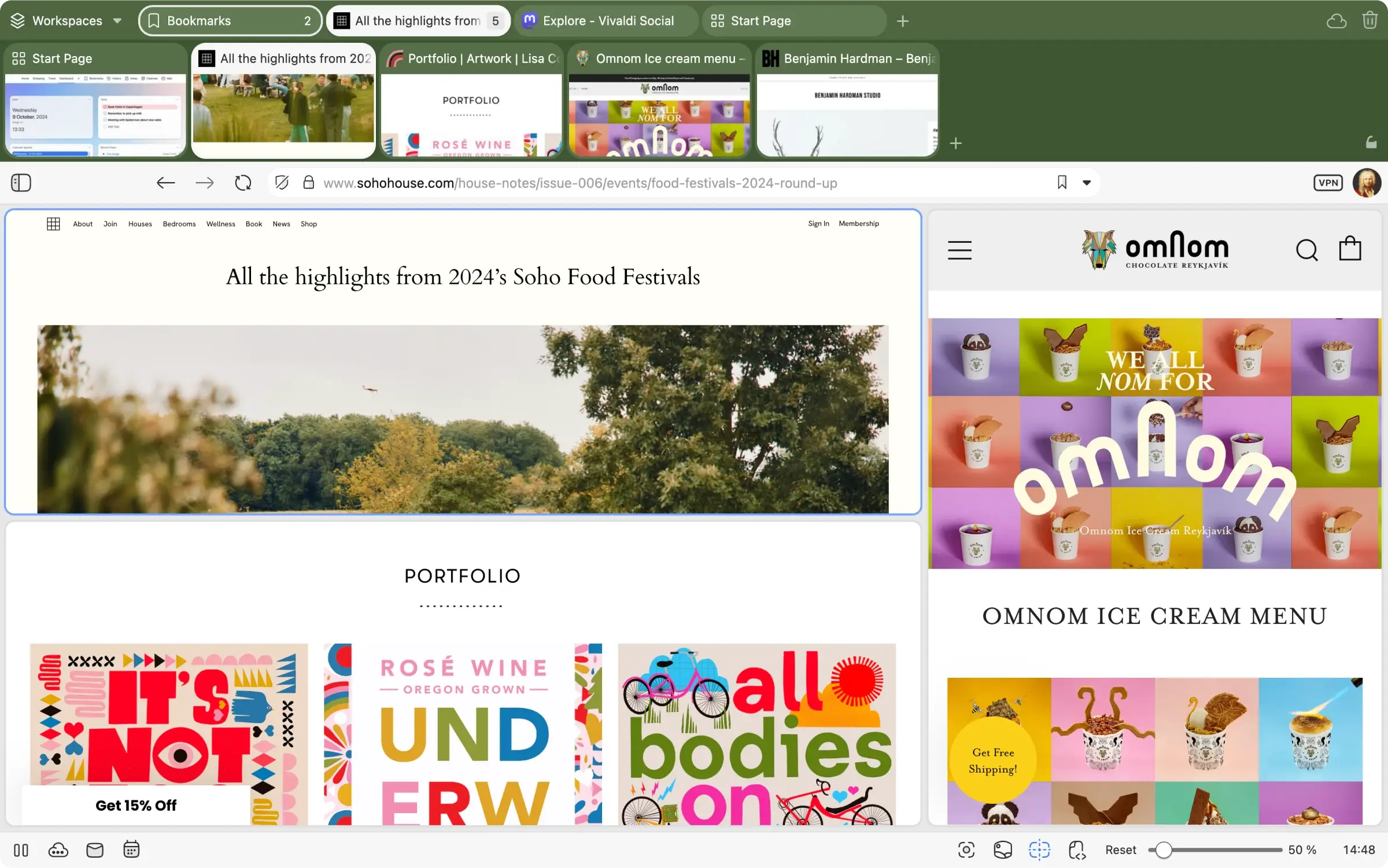
- Army green theme example from Vivaldi Browser for Windows – Features, Review & Free Download
-
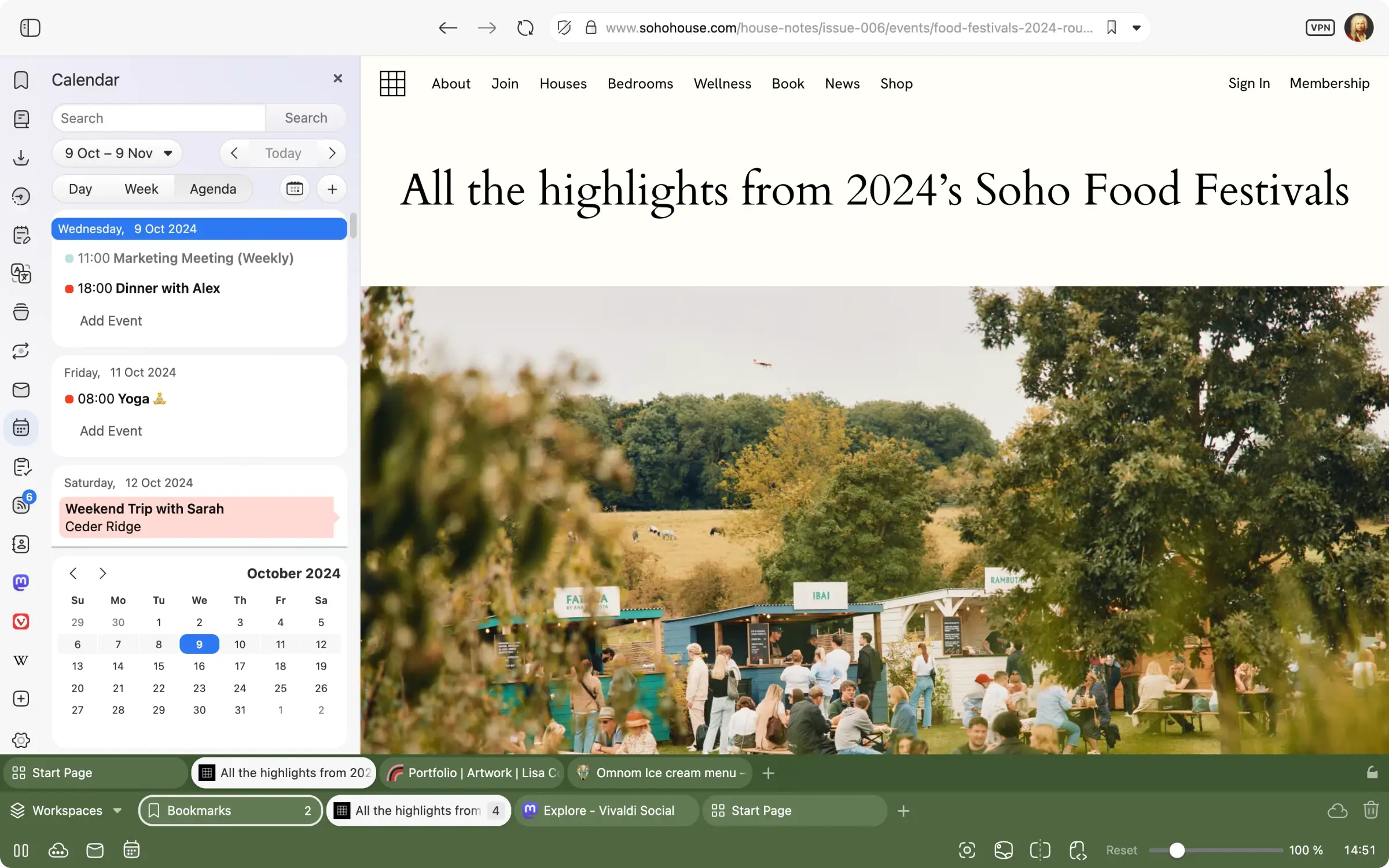
- Calendar from Vivaldi Browser for Windows – Features, Review & Free Download
-
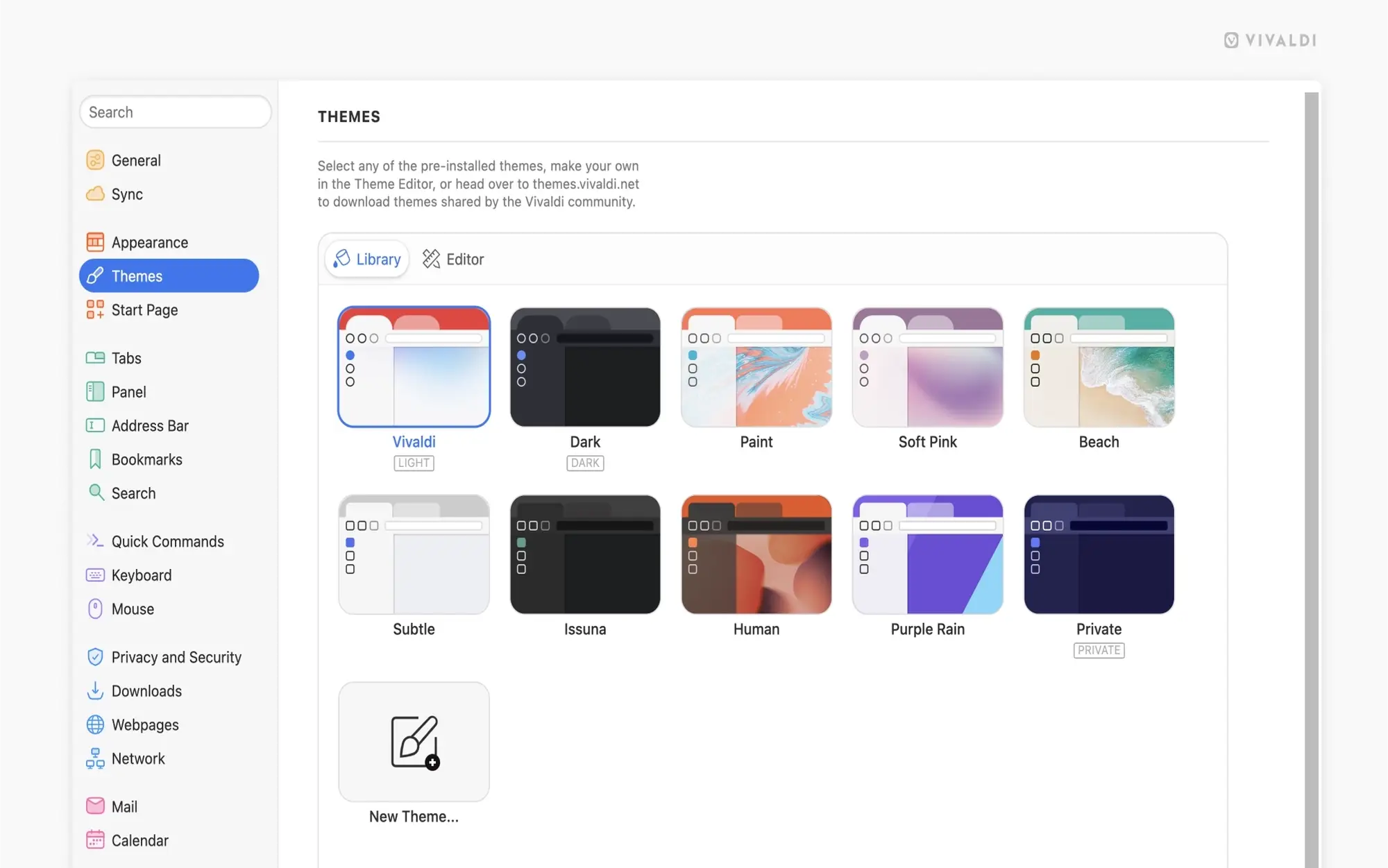
- Choose different themes from Vivaldi Browser for Windows – Features, Review & Free Download
-
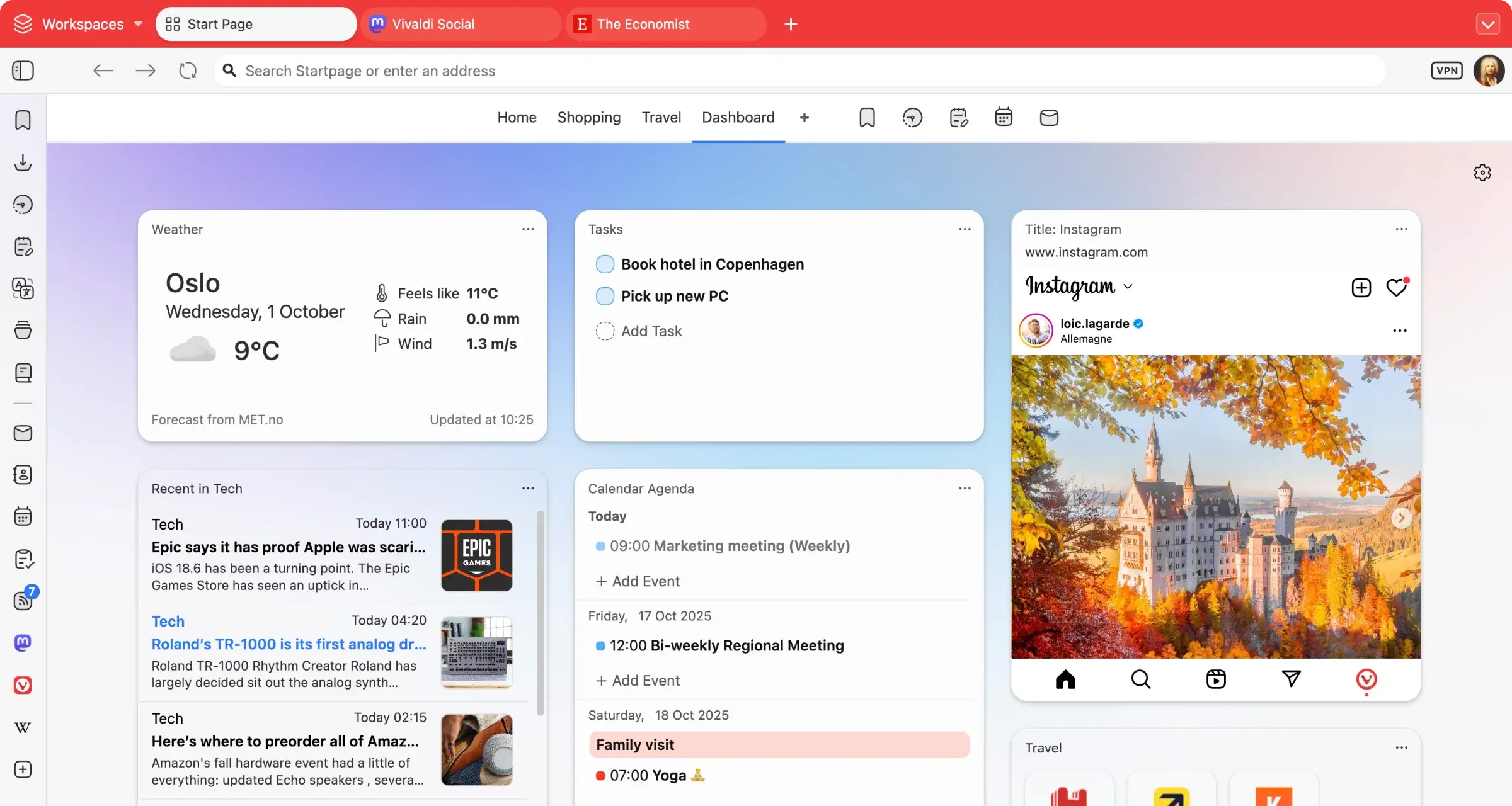
- Custom start page from Vivaldi Browser for Windows – Features, Review & Free Download
-
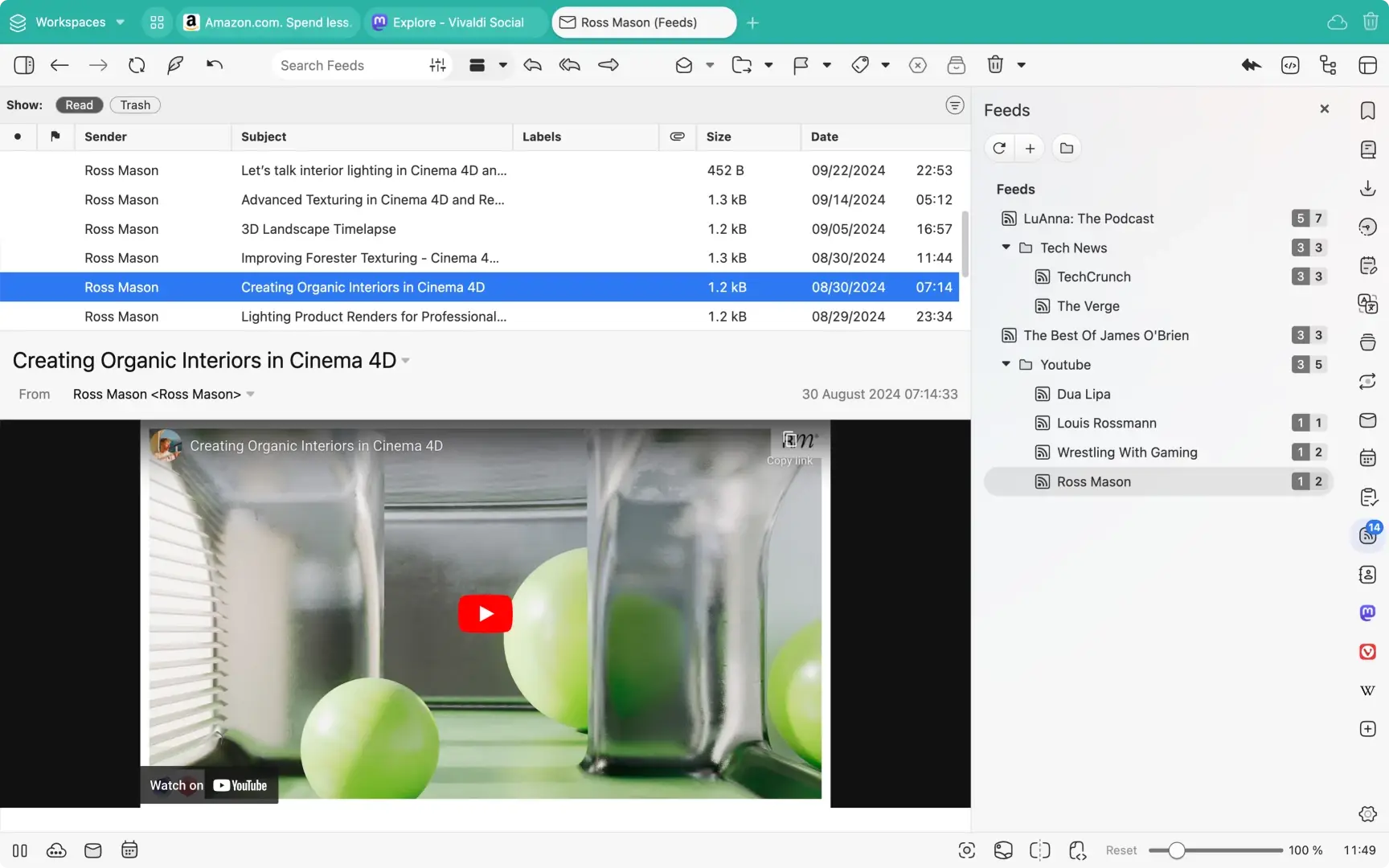
- Feed reader from Vivaldi Browser for Windows – Features, Review & Free Download
-
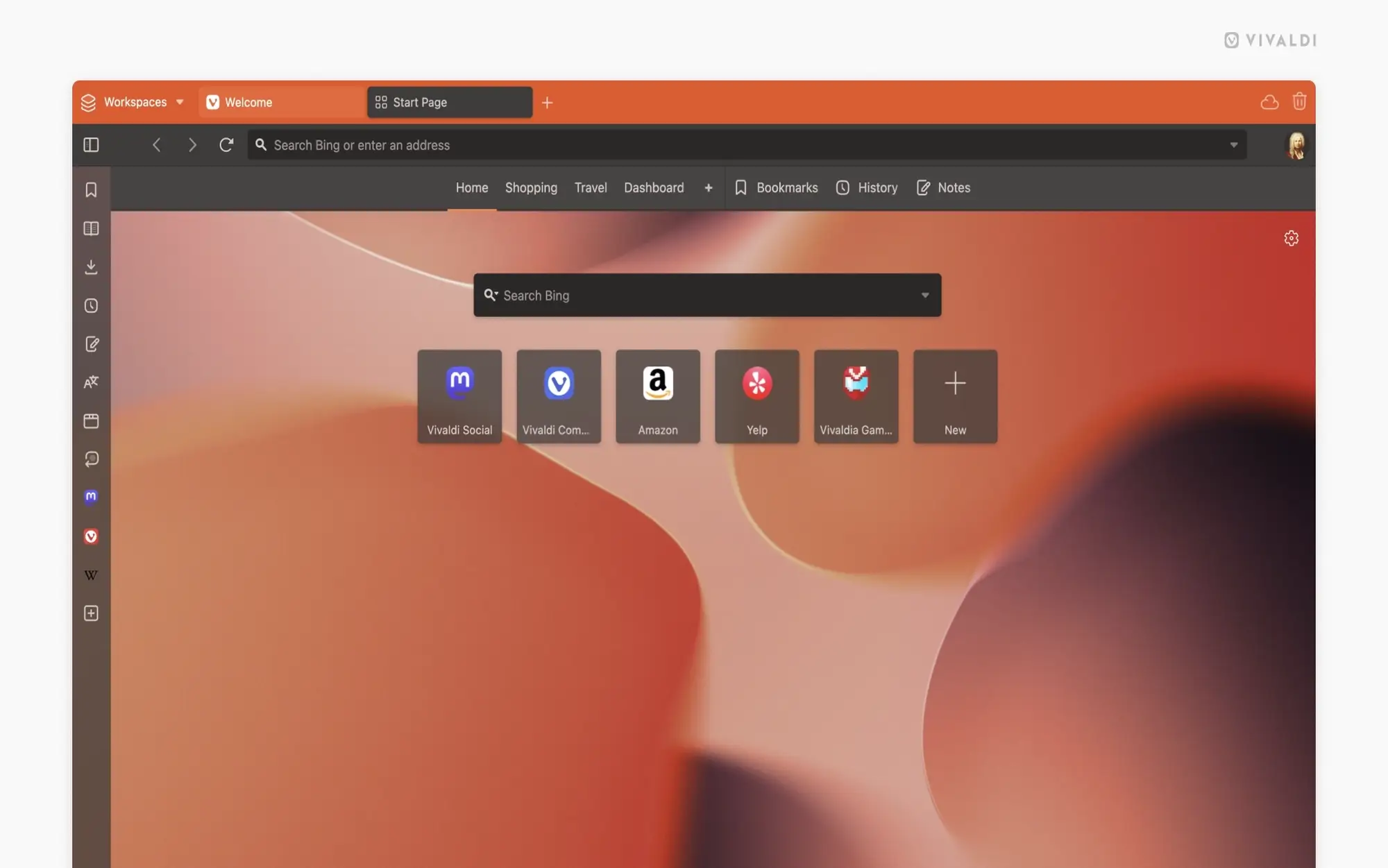
- Front page customized from Vivaldi Browser for Windows – Features, Review & Free Download
-
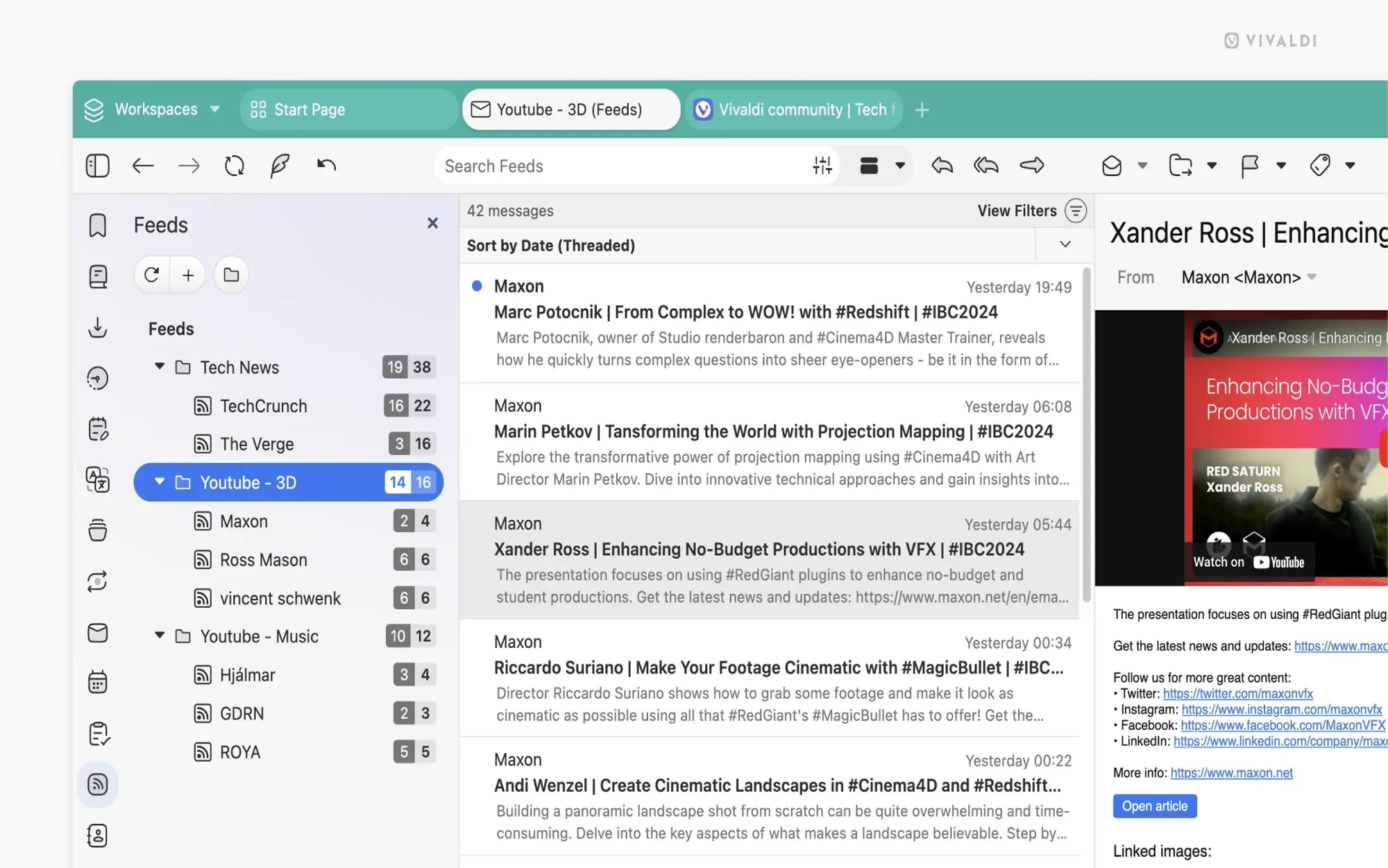
- Opening email in browser from Vivaldi Browser for Windows – Features, Review & Free Download
-
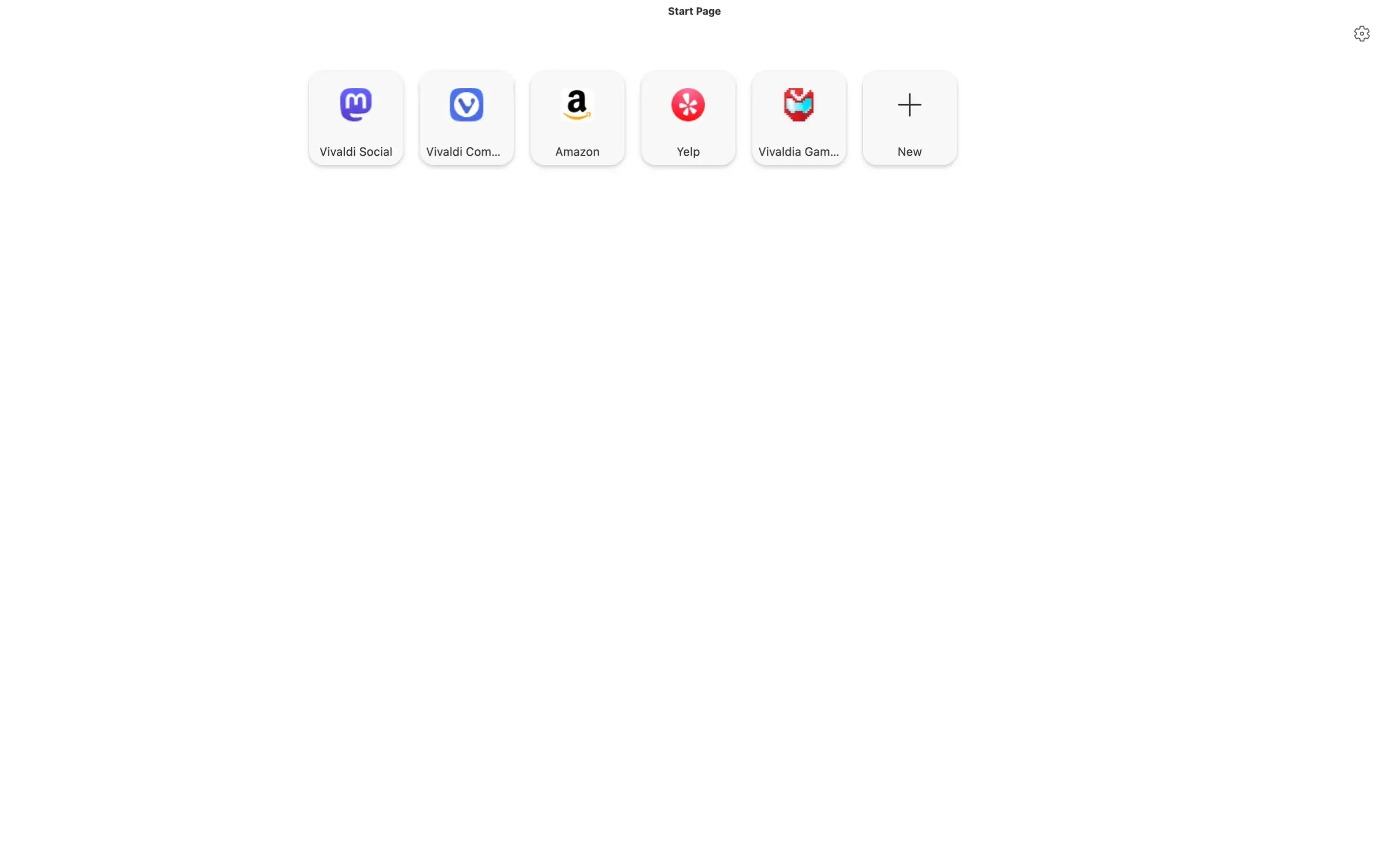
- Plain start page demo from Vivaldi Browser for Windows – Features, Review & Free Download
-
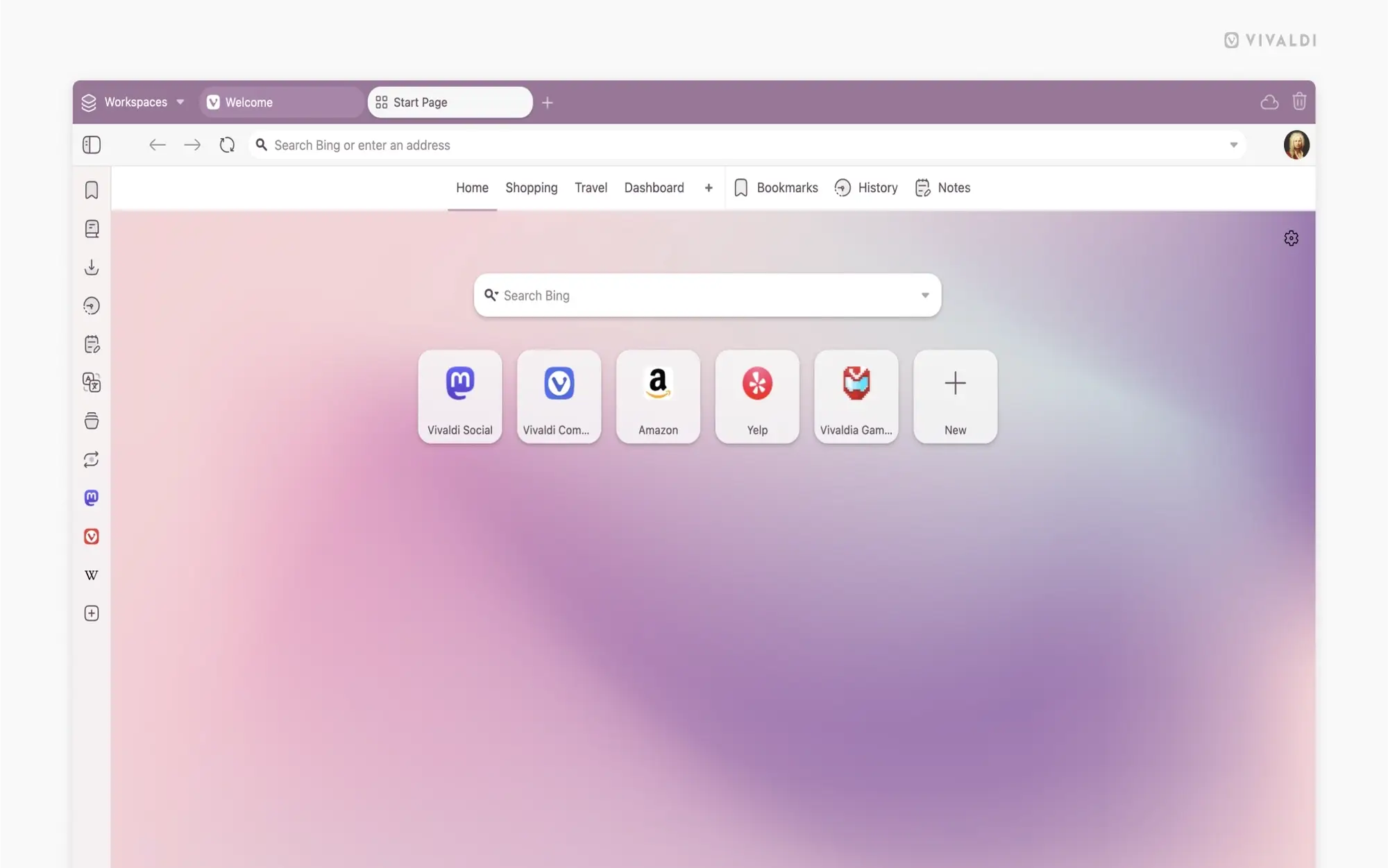
- Purple colored style from Vivaldi Browser for Windows – Features, Review & Free Download
-
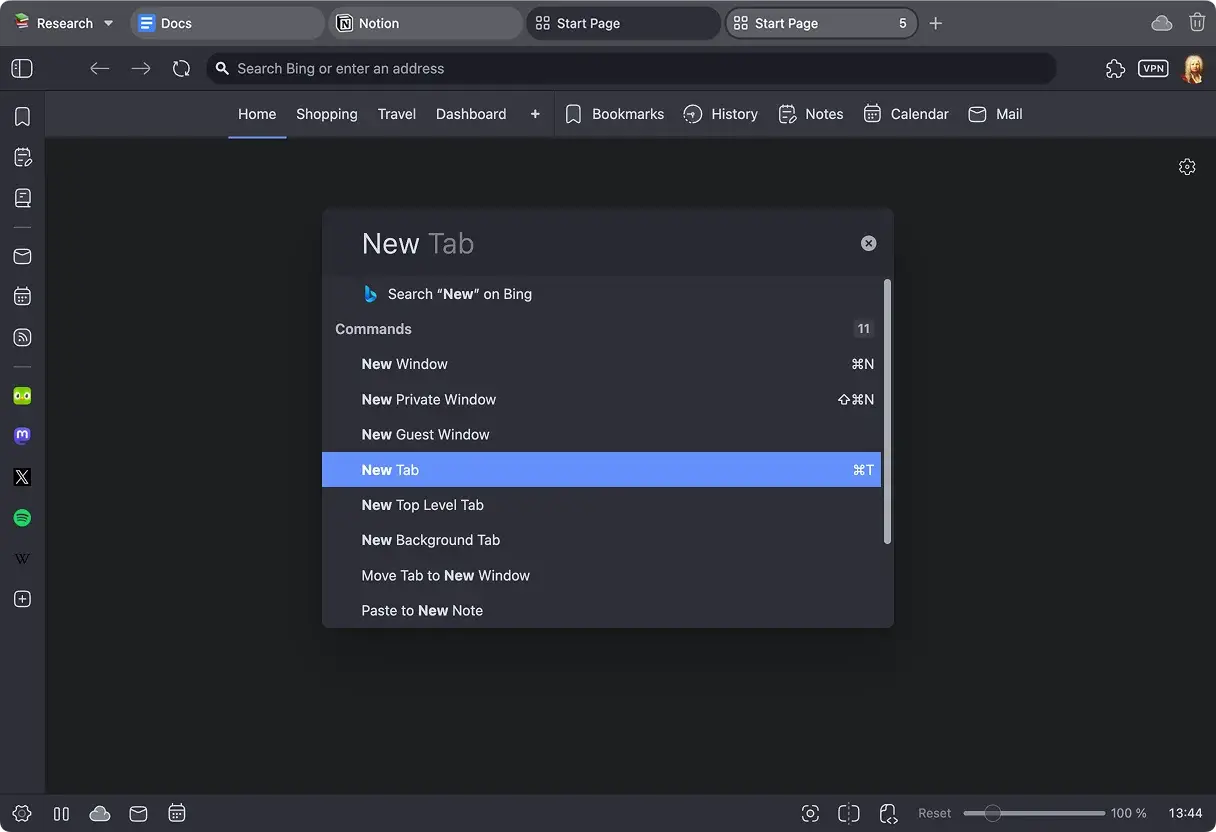
- Quick commands from Vivaldi Browser for Windows – Features, Review & Free Download
-
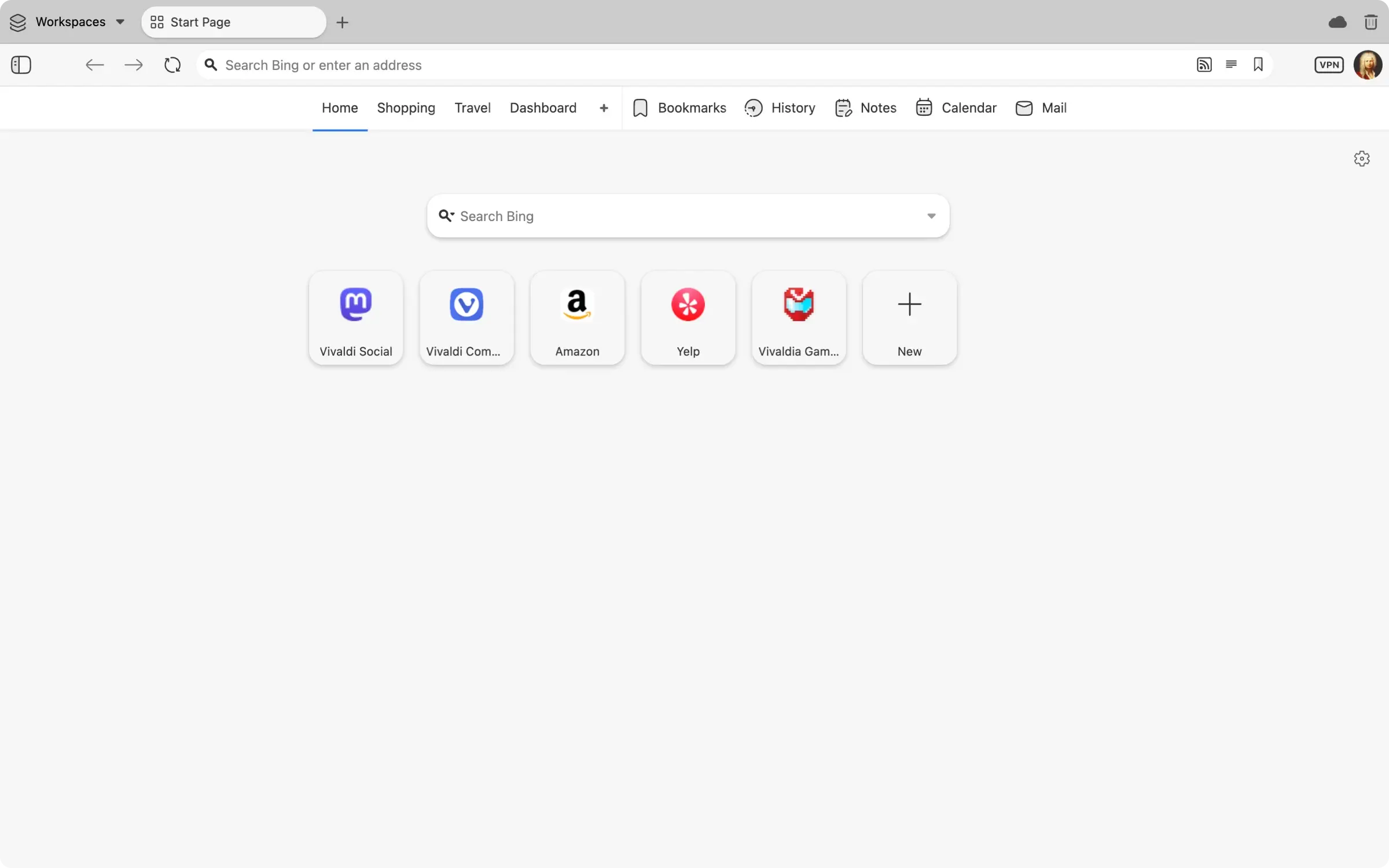
- Simple start page demo from Vivaldi Browser for Windows – Features, Review & Free Download
-
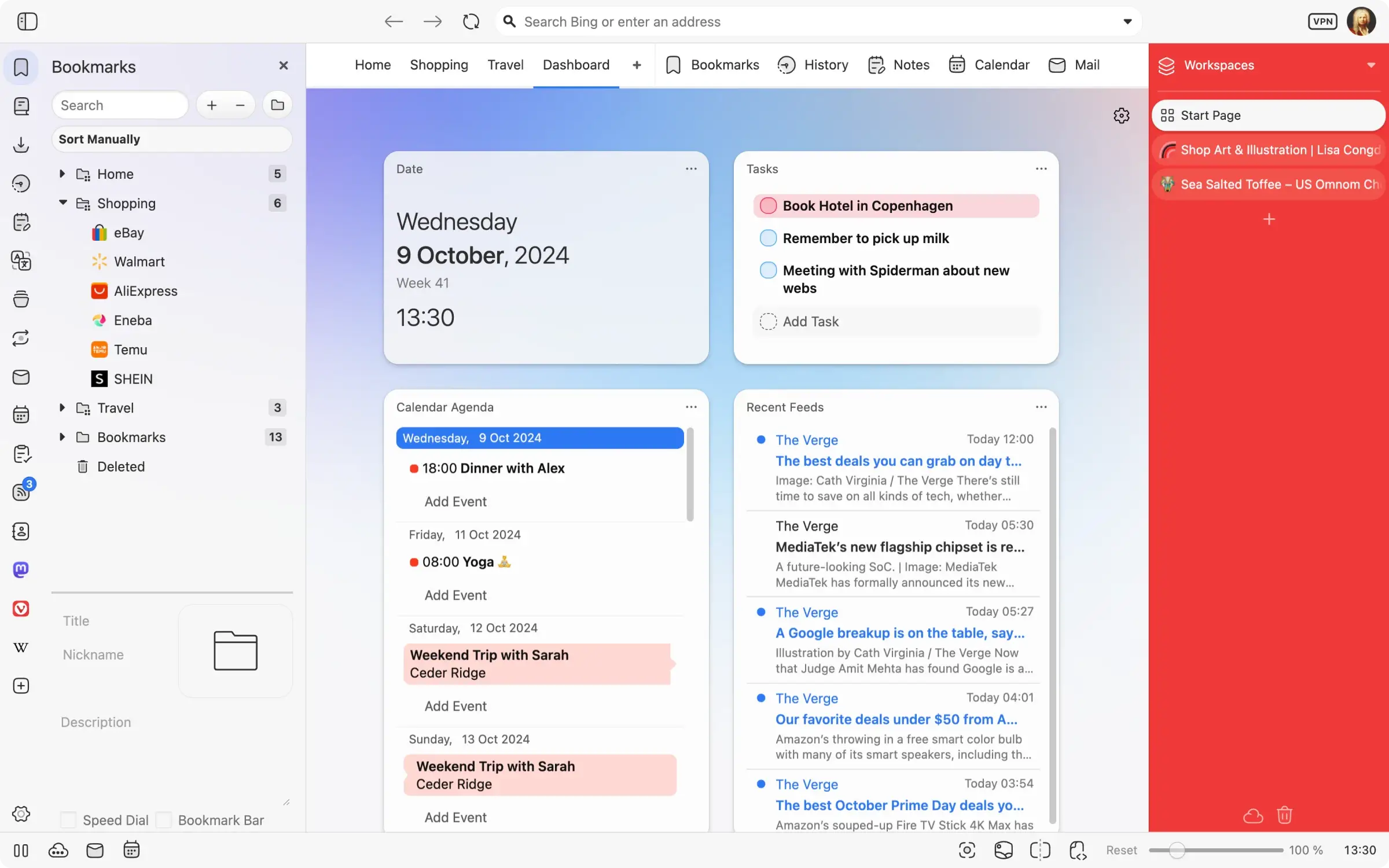
- Start page demo from Vivaldi Browser for Windows – Features, Review & Free Download
-
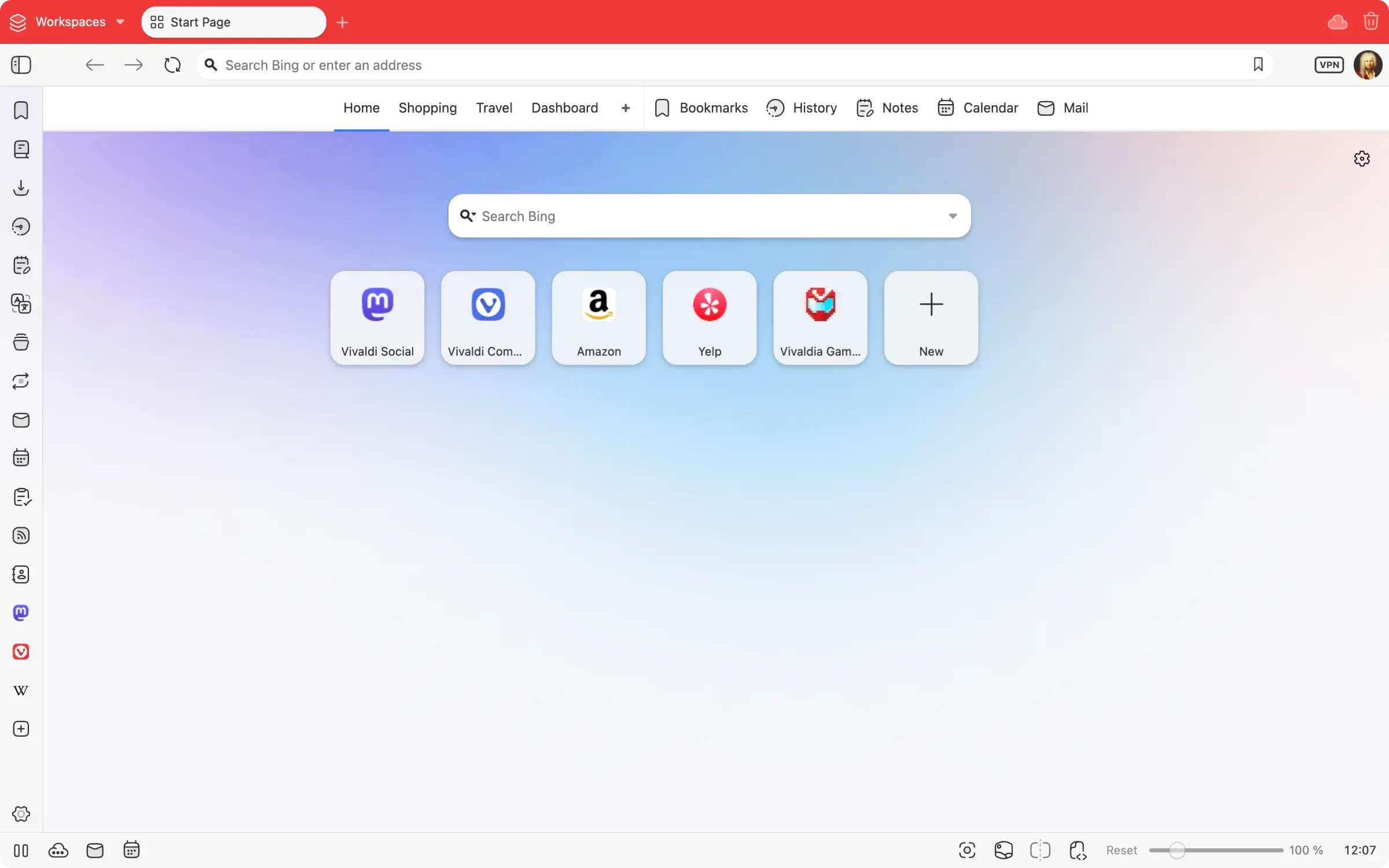
- Start page like chrome browser from Vivaldi Browser for Windows – Features, Review & Free Download
Video of Vivaldi Browser in Action
A video that highlights what makes Vivaldi a good browser to at very least, try it out!
Common Issues and Fixes
Because Vivaldi features a highly advanced, custom UI layer built over the core engine, it can occasionally experience sluggishness on older hardware compared to a barebones browser.
Vivaldi is lagging or causing high RAM usage
Because of its heavy feature set, Vivaldi consumes more baseline memory than Edge. To fix lag, go to Settings (the gear icon on the left panel) > Performance, and ensure Memory Saver is turned on. This aggressively hibernates background tabs. Limit the amount of Web Panels you keep actively running in the sidebar.
The browser is blinking white, crashing, or showing black screens
UI artifacting and visual crashes in Vivaldi are almost exclusively tied to older graphics card drivers conflicting with Chromium. Go to Settings > Webpages and uncheck Use Hardware Acceleration when available. Restart Vivaldi. This forces the browser to rely on your CPU rather than your GPU, ensuring much higher stability.
A specific website works in Chrome but is broken in Vivaldi
Since Vivaldi is built on Chromium, no website should “break.” If a site is failing to load or a login button is spinning infinitely, click the shield icon located inside the URL address bar and turn off Vivaldi’s built-in Tracker and Ad Blocker for that specific domain. The heavy blocking scripts often interfere with banking or complex login portals.

Frequently Asked Questions
Is Vivaldi built on Chrome?
Vivaldi is built on the open-source Chromium project (the same engine that powers Google Chrome), which means it is incredibly fast and supports nearly every Chrome extension. However, Vivaldi developers strip out Google’s tracking code.
Can I use Chrome extensions on Vivaldi?
Yes! Because it runs on the Chromium engine, you can install any extension directly from the Chrome Web Store.
Why is Vivaldi using so much RAM / Crashing?
Vivaldi is built using modern web technologies (React and Node.js) for its actual user interface, which makes it highly customizable but also more resource intensive than basic browsers. If you have less than 8GB of RAM, ensure you turn on the built-in “Memory Saver” feature in settings.
Does Vivaldi sell my data?
No. Vivaldi’s business model is completely different from Google. They generate revenue through partner search engines and bookmark placements, not by selling user behavior data. They do not track your browsing history.
Does Vivaldi have a built-in email client?
Yes. Vivaldi features a robust, native mail client (Vivaldi Mail), along with a calendar and feed reader built directly into the sidebar panel.
Community Poll: Share Your Thoughts
Helpful Resources and Community
Need help configuring customized themes or learning the keyboard shortcuts? These are the best hubs for Vivaldi users.
📚 Vivaldi Help Center
The official knowledge base detailing exactly how to use workspaces, tab tiling, and the highly advanced macro commands.
💬 Vivaldi Community Forum
Vivaldi has one of the most dedicated user bases. Join the forum to request features and download custom community UI mods.
🎨 Vivaldi Themes Hub
Browse and instantly install thousands of dynamic, user-generated UI themes.
🗨️ r/vivaldibrowser
The main subreddit for Vivaldi users to share tips, custom setups, troubleshoot issues, and discuss new releases.
Get Vivaldi Browser for Windows
The browser built specifically for power users. Unrivaled UI customization, superior tab management, and a built-in Mail/Calendar suite.
Compatible with Windows 11 and Windows 10 (64-bit)
Related Browsers: DuckDuckGo for Windows, UC Browser for PC, Yandex Browser for Windows, Opera Browser for Windows.
Discover more from Windows Mode
Subscribe to get the latest posts sent to your email.













Add your first comment to this post