Readers like you help support this site. When you make a purchase using links on our site, we may earn an affiliate commission. All opinions remain our own.
DuckDuckGo is a privacy-focused browser for Windows that you can download and install through the Microsoft Store or their official website. Unlike Chrome or Edge, it blocks hidden trackers by default, manages cookie pop-ups automatically, and uses about 60% less data on every page you visit.
What sets DuckDuckGo apart is how effortless privacy is. The famous Fire Button wipes your entire session in one click, and Duck Player lets you watch YouTube without being tracked or fed targeted ads.
In this guide, we cover the key features, a step-by-step installation walkthrough, common troubleshooting fixes, and frequently asked questions.
If you run into any issues along the way, feel free to contact us or leave a comment below.
Fire Button
Wipe session instantly
Block Trackers
Stop hidden scripts
Duck Player
Private YouTube viewing
Email Protect
Hide real addresses
📋 System Requirements
| Requirement | Details |
|---|---|
| Operating System | Windows 10 (May 2020 Update) or Windows 11 |
| Architecture | 64-bit systems only |
| Memory | 2 GB RAM minimum |
| Extensions | Not currently supported natively |
What Makes DuckDuckGo Different
Rather than making you hunt through dozens of menus to turn off data collection, DuckDuckGo has privacy deeply baked into the browser from the moment you turn it on. There are no complicated settings, it just protects you.
🔥 The Iconic Fire Button
Located right next to the search bar is a prominent flame icon. Clicking this will instantly close all of your open tabs and burn your browsing history and cookies for that session. You can “Fireproof” secure sites (like your email) to stay logged into them while burning the rest.
▶️ Duck Player for YouTube
Watching a video about a new car usually means seeing car ads for the next week. With “Duck Player,” YouTube videos are opened in a private, distraction-free window that prevents Google from logging what you watched to update your advertising profile.
🛡️ Passive Tracker Blocking
Most websites run invisible scripts from companies like Facebook and Google that watch what you read and buy. DuckDuckGo actively blocks these trackers before they can load, which also makes web pages load significantly faster because fewer scripts are running.
Cookie Pop-up Management
Tired of clicking “Reject All” on those annoying cookie banners on every new website? DuckDuckGo automatically attempts to select the most private options for you and hides the pop-up, creating a much cleaner internet experience.
How to Download and Install DuckDuckGo on Windows
1
Navigate to the official DuckDuckGo for PC download page and download the `.appinstaller` file.
2
Run the installer. During the initial setup, you will be offered the ability to securely import your passwords and bookmarks directly from Chrome, Edge, or Firefox.
3
You are ready to go. The browser will automatically start handling cookie pop-ups and blocking trackers on every site you visit.
Screenshots of DuckDuckGo
-
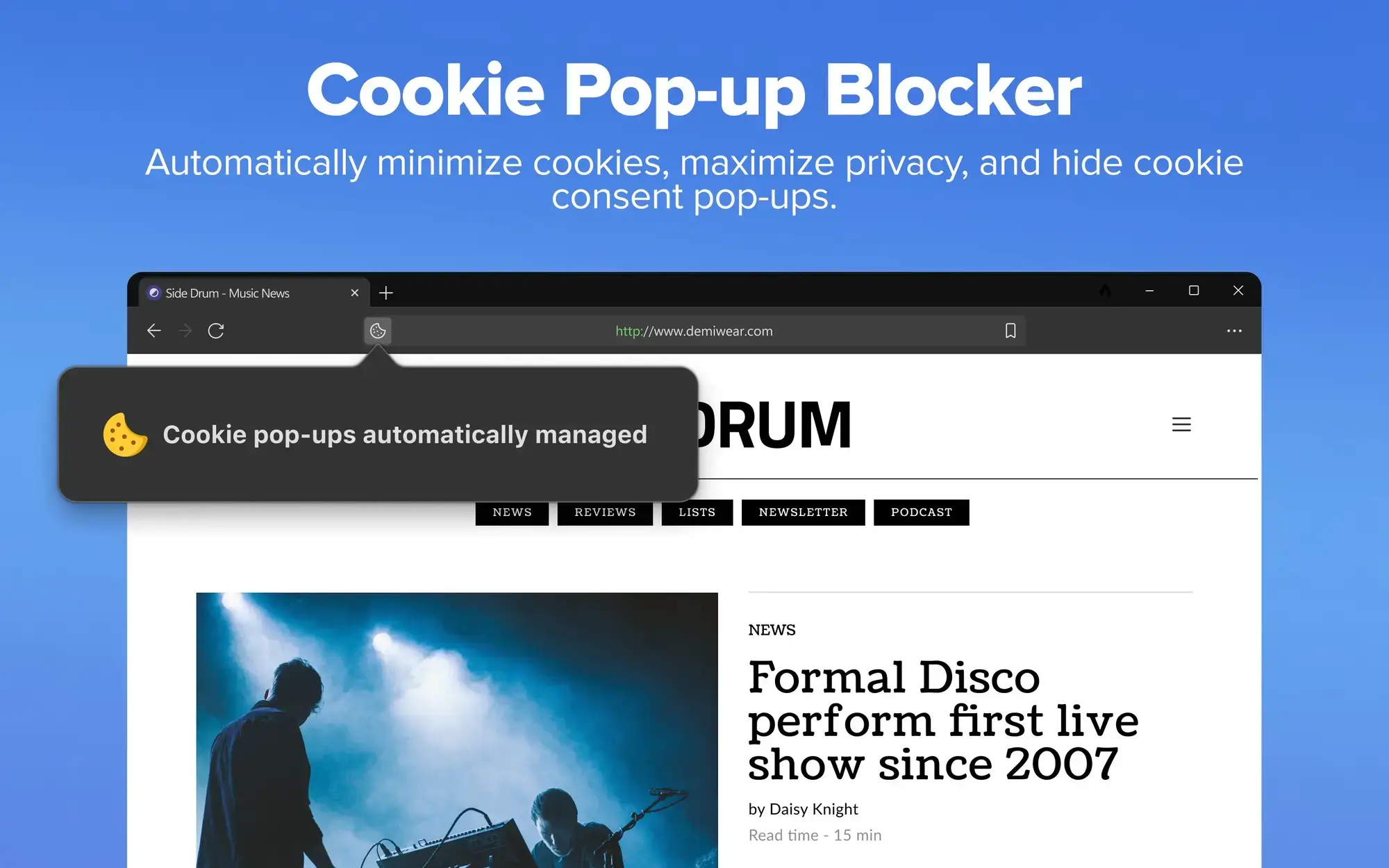
- Cookie pop up blocker from DuckDuckGo for Windows – The Ultimate Privacy Browser
-
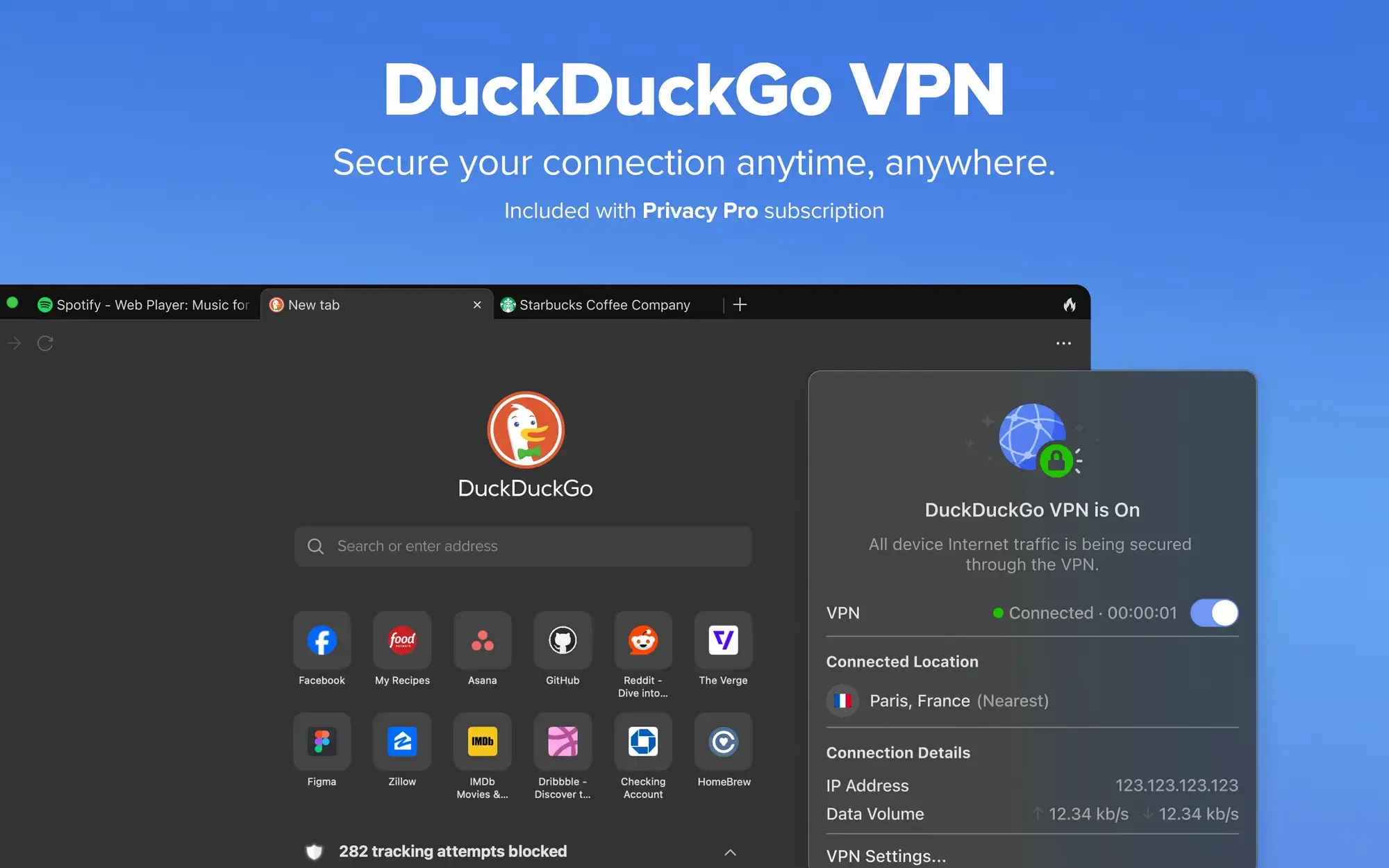
- Duckduckgo vpn from DuckDuckGo for Windows – The Ultimate Privacy Browser
-
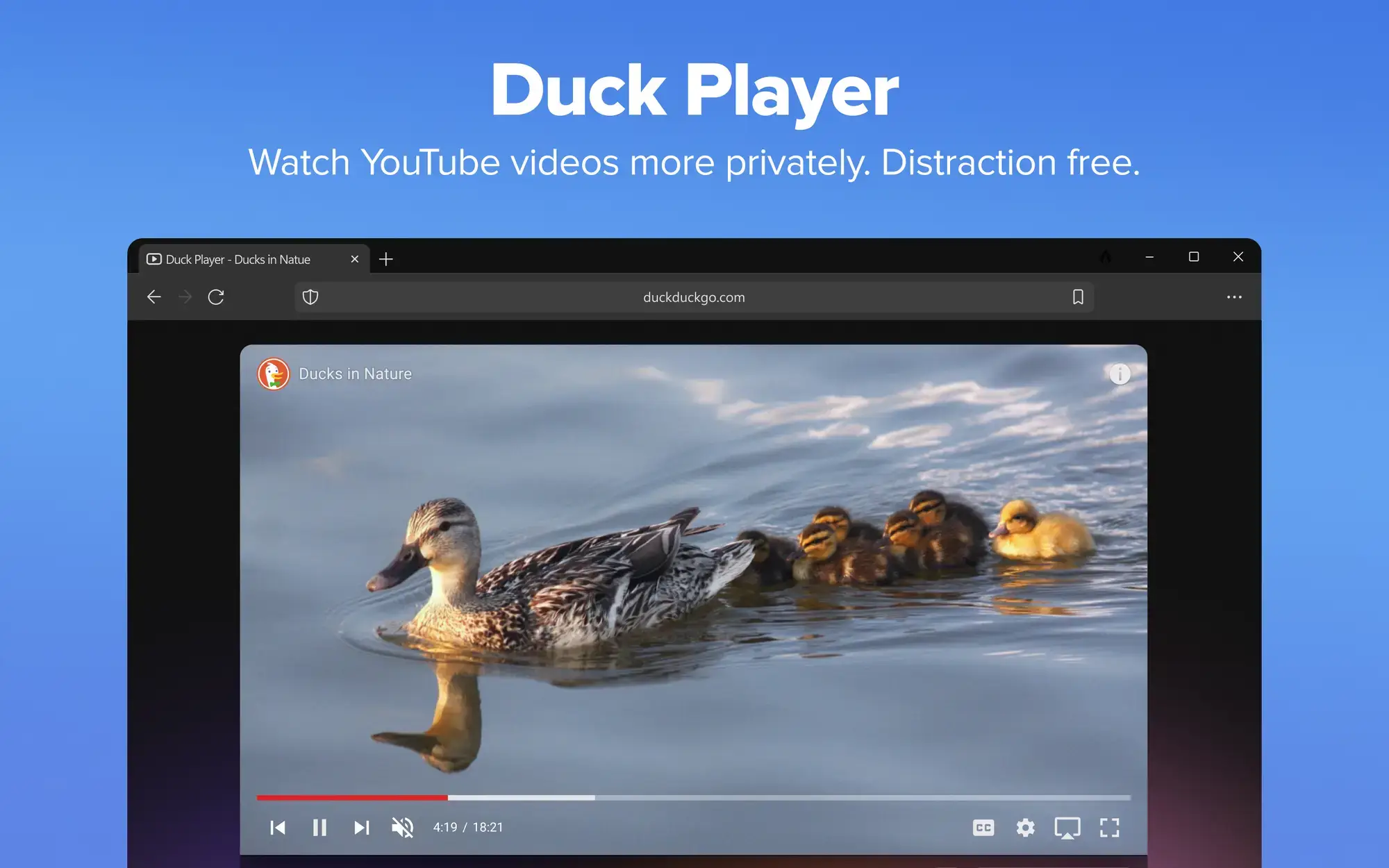
- Duck player from DuckDuckGo for Windows – The Ultimate Privacy Browser
-
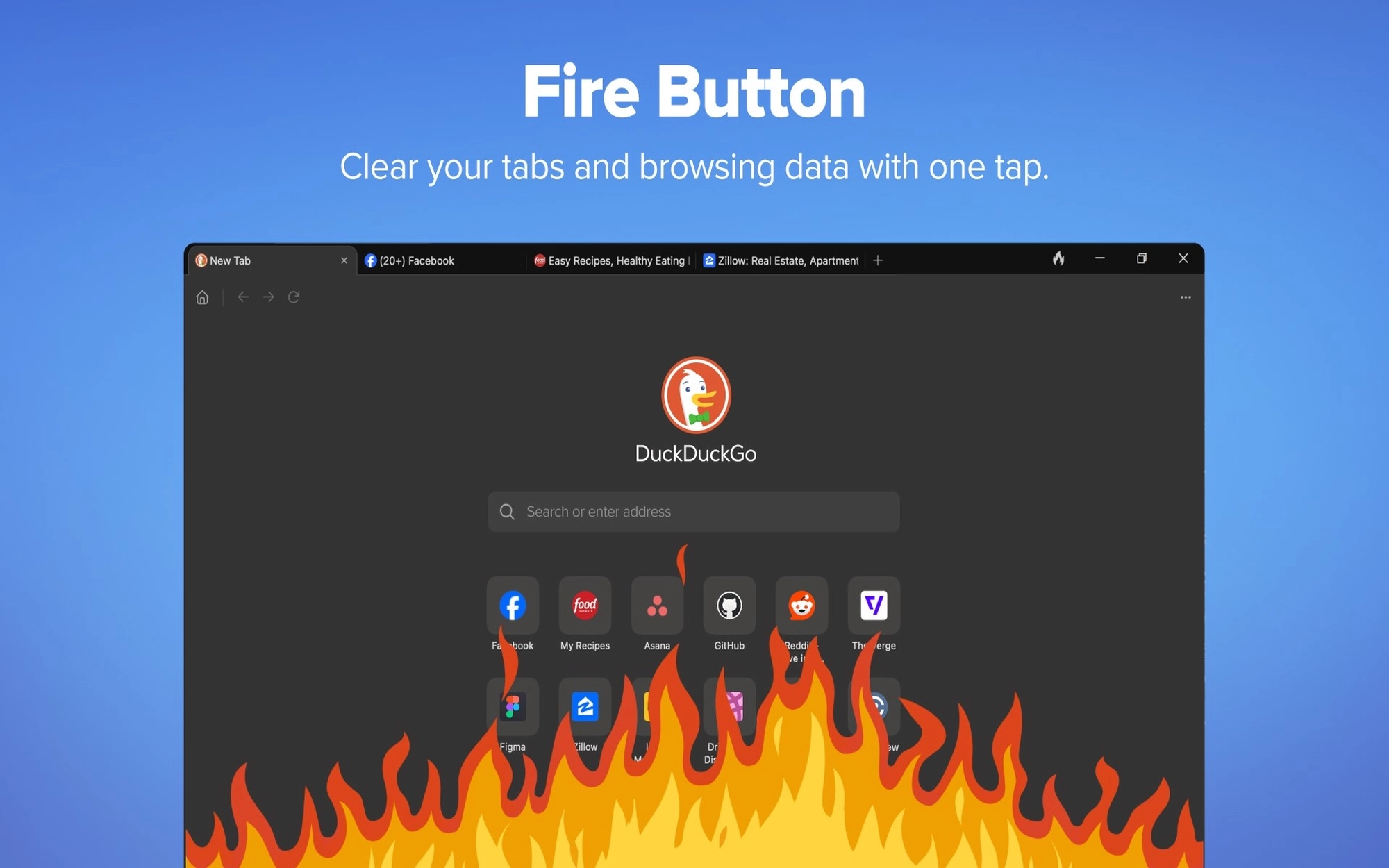
- Fire button from DuckDuckGo for Windows – The Ultimate Privacy Browser
-
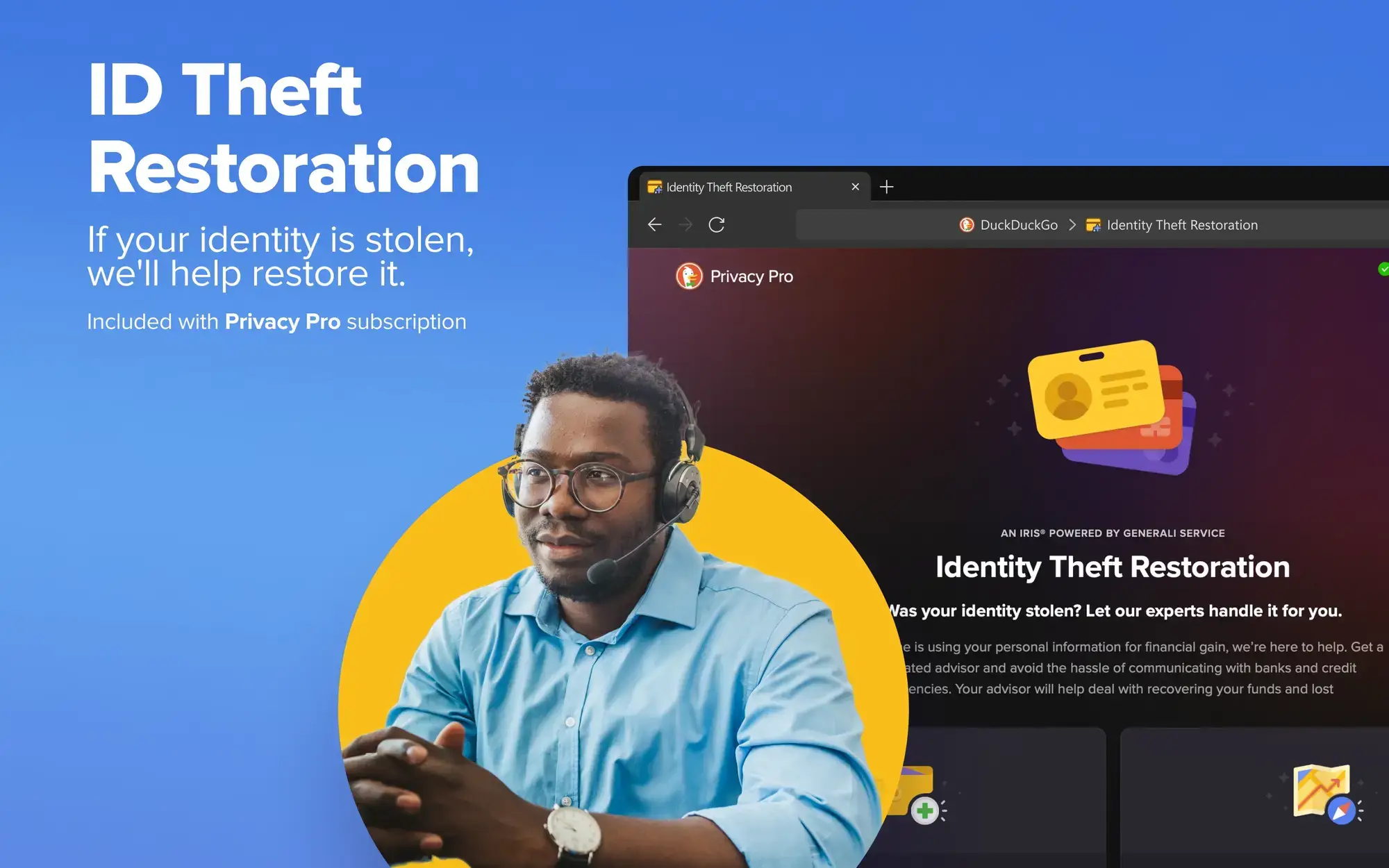
- Id theft restoration from DuckDuckGo for Windows – The Ultimate Privacy Browser
-
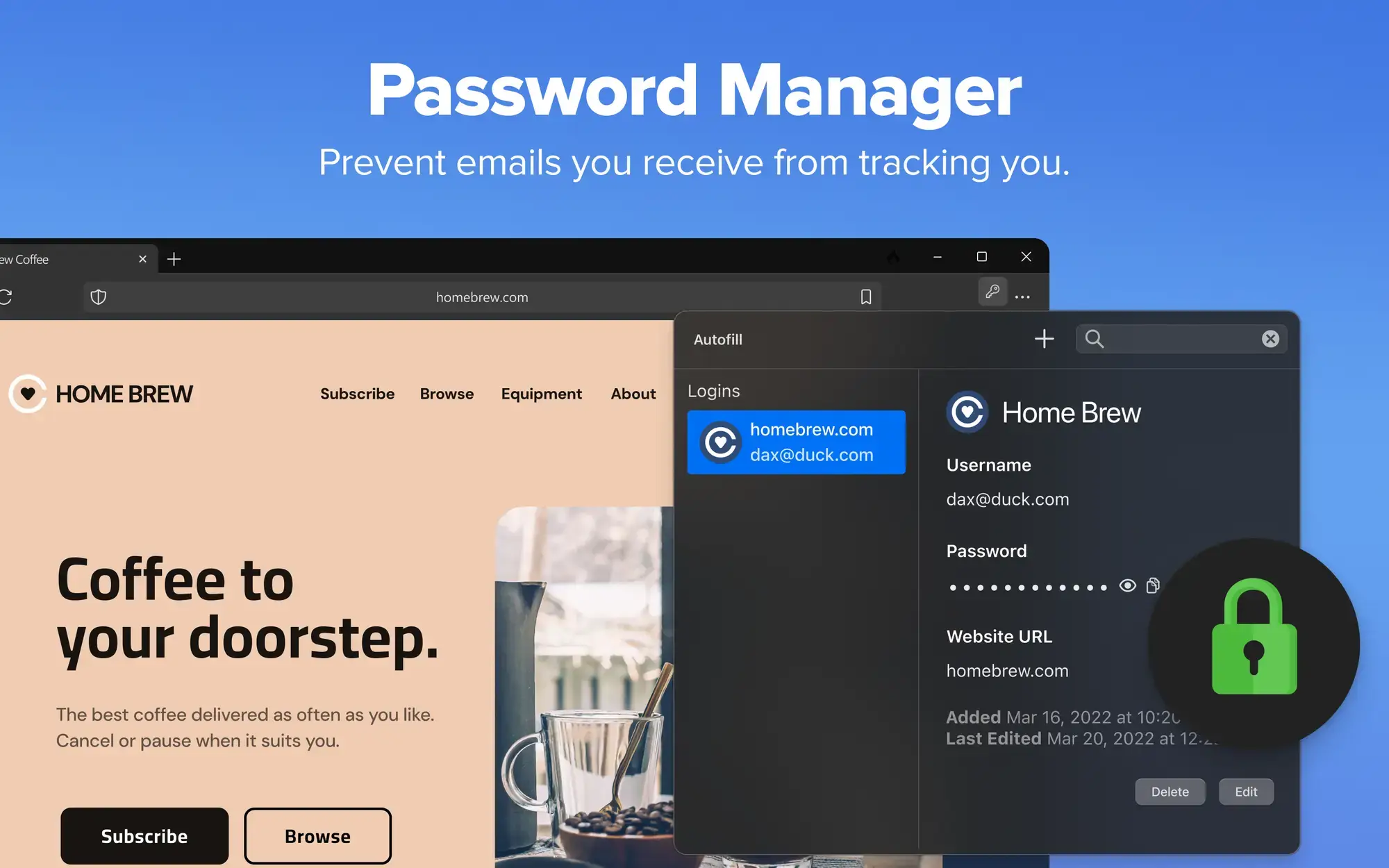
- Password manager from DuckDuckGo for Windows – The Ultimate Privacy Browser
-
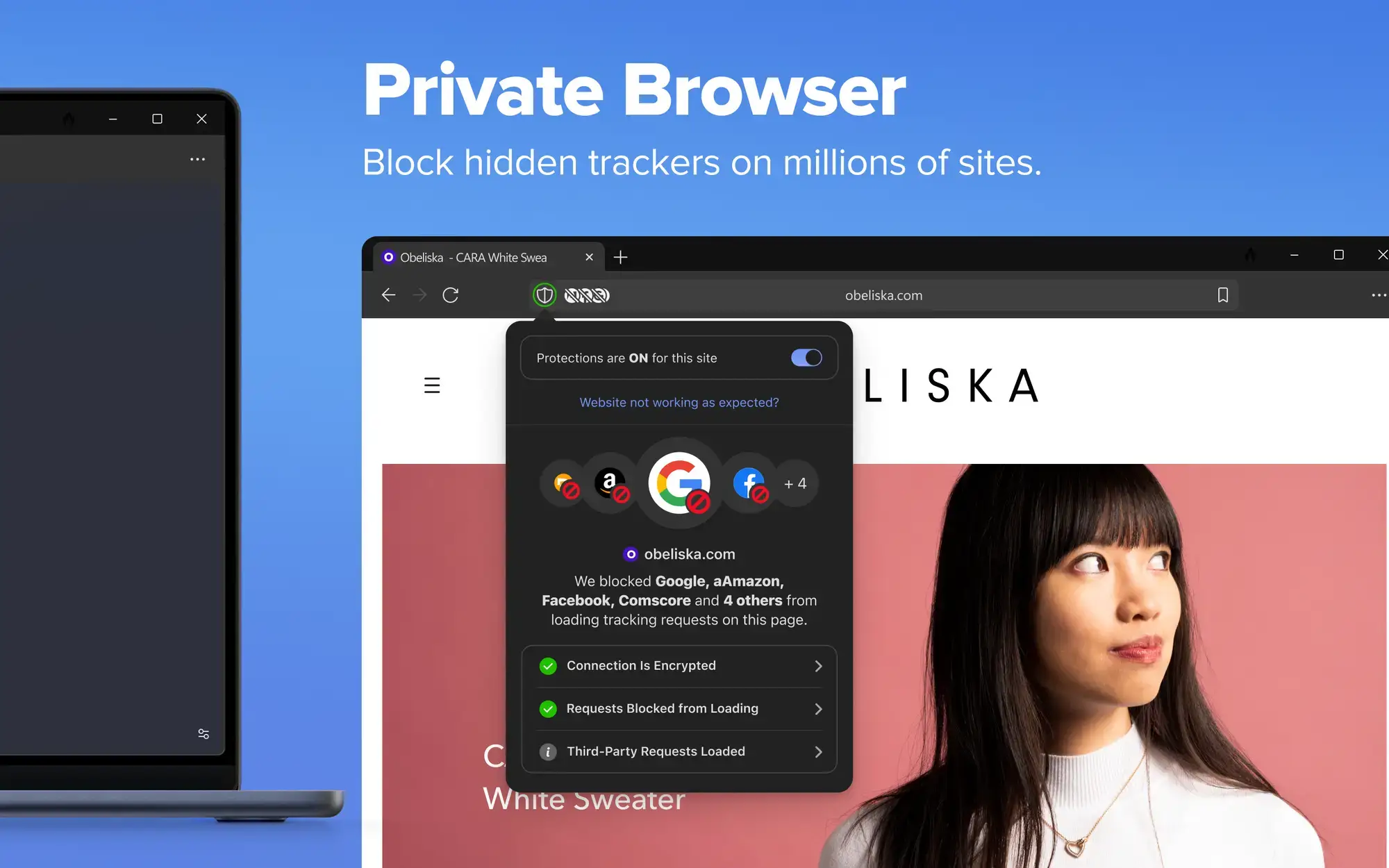
- Private browser hidden trackers from DuckDuckGo for Windows – The Ultimate Privacy Browser
-
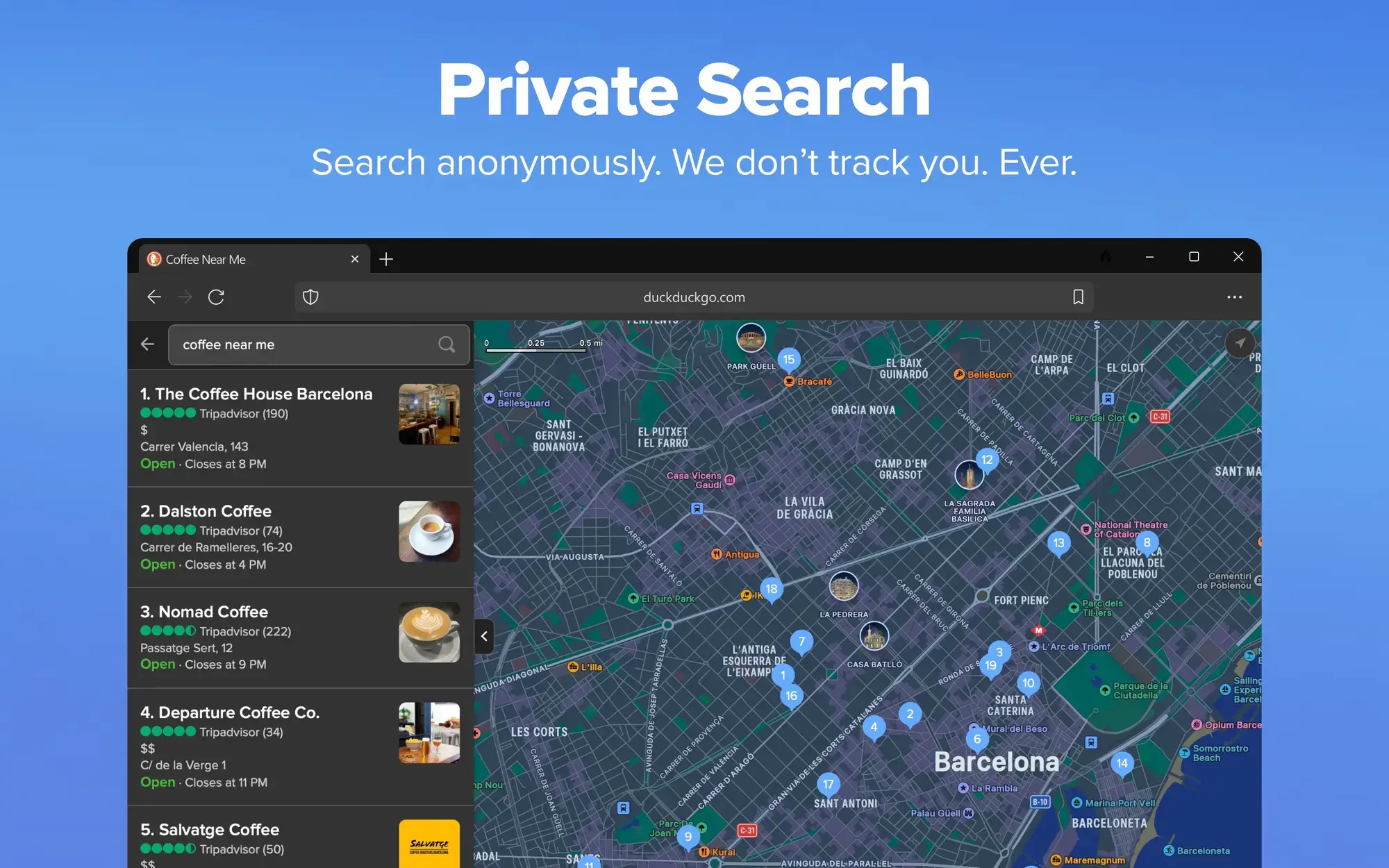
- Private search from DuckDuckGo for Windows – The Ultimate Privacy Browser
-
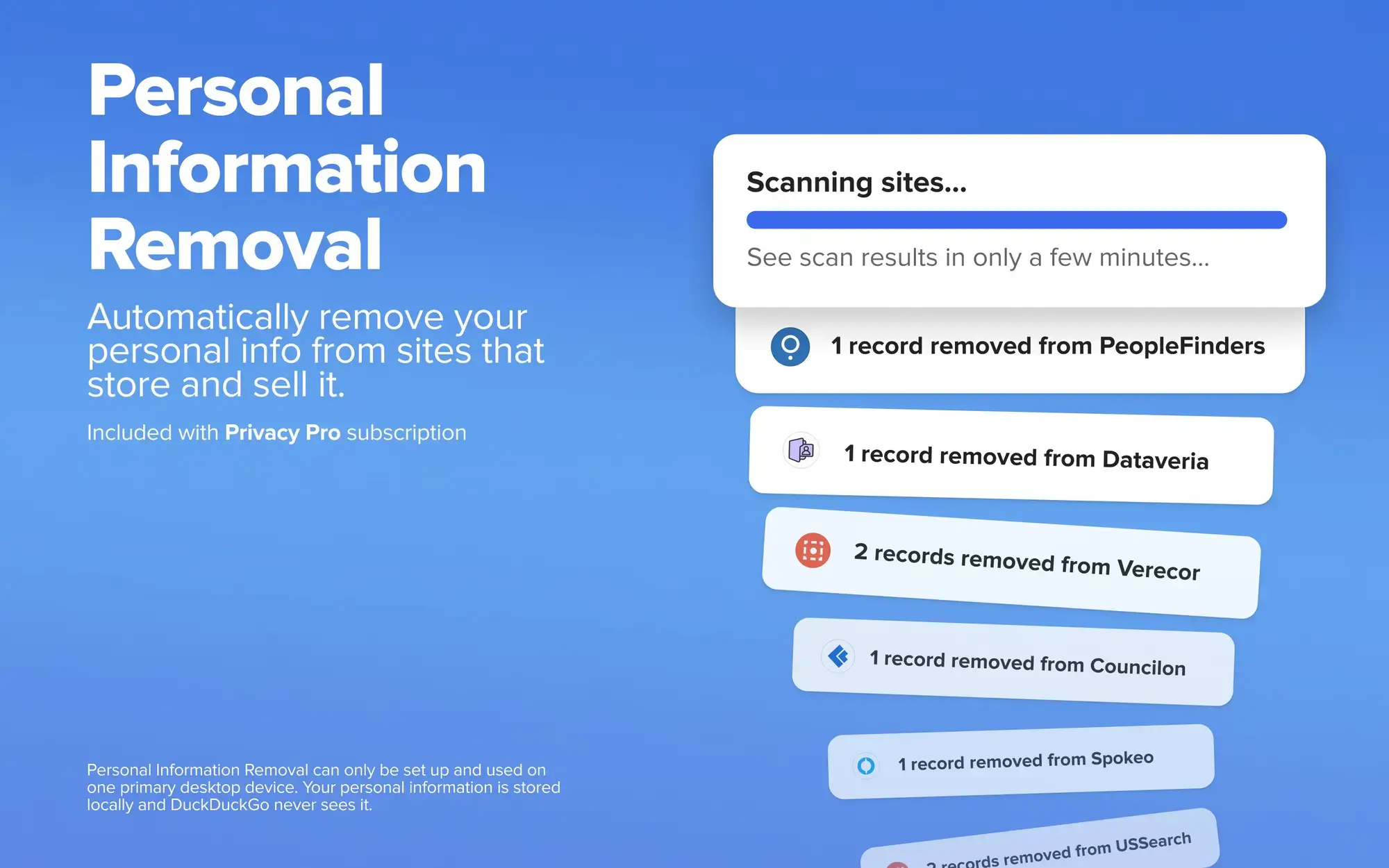
- Remove personal information from DuckDuckGo for Windows – The Ultimate Privacy Browser
Video of DuckDuckGo in Action
Watch a short video that basically showcases it’s main feature which is privacy and how it differs from the other search engines.
Common Issues and Fixes
Because DuckDuckGo is so aggressive with privacy, it can occasionally clash with website code or third-party computer programs.
Videos won’t play or the website looks broken
Because DuckDuckGo blocks almost all third-party tracking scripts, some websites may accidentally break if they rely on those scripts to load properly. The fix is simple: click the shield icon located to the left of your address bar and toggle “Privacy Protection” off for that specific page. It will reload and display normally.
Cannot install Google Chrome extensions
DuckDuckGo for Windows currently does not support third-party browser extensions. This is a deliberate security choice to prevent malicious extensions from violating your privacy. To compensate, they have built the most popular tools directly into the browser, such as an ad-blocker, password manager, and video pop-out player.
Browser will not open or is crashing frequently
If the browser refuses to open, it is usually because a previous session got stuck in the background. Press “Ctrl + Shift + Esc” to open your Task Manager, find any process labeled “DDG.exe,” and click “End Task.” Afterward, the browser should open normally. Also, ensure your Windows 10/11 system is fully updated.
Frequently Asked Questions
Is the DuckDuckGo browser safe to use on Windows?
Yes, it is incredibly safe. In fact, privacy is its entire purpose. Unlike Chrome or Edge, DuckDuckGo actively blocks third-party trackers (like those from Google and Facebook) from loading, keeping your data secure and your searches completely private.
What does the Fire Button do?
The famous “Fire Button” is a one-click reset for your privacy. Pressing it instantly closes all your open tabs, deletes your search history, and wipes all cookies from that current session, acting like a much faster “Incognito” mode.
Can I use Google Chrome extensions on DuckDuckGo?
Not currently. While DuckDuckGo for Windows is built on the same underlying technology as other modern browsers, it does not yet support third-party extensions to ensure malicious add-ons cannot compromise your privacy. Instead, it has features like ad-blocking and password management built right in.
Why do some websites look broken or fail to load?
Because DuckDuckGo blocks aggressive tracking scripts, it can sometimes accidentally block a script that a website needs to function properly. If a page breaks, you can easily click the shield icon next to the address bar and turn off “Privacy Protection” for just that specific site.
How does the Duck Player work?
When you click on a YouTube video, DuckDuckGo offers to play it in “Duck Player.” This specialized video player blocks targeted ads and stops Google from tracking your views to influence your personalized recommendations.
Community Poll: Share Your Thoughts
Helpful Resources and Community
📚 DuckDuckGo Help Pages
The official documentation covering browser settings, Duck Player configuration, Fire Button behavior, and privacy features.
💬 r/duckduckgo
The main subreddit for DuckDuckGo users. Get help with browser issues, discuss privacy features, and share feedback directly with the team.
📝 DuckDuckGo Blog
Stay up to date with new features, privacy reports, and product announcements straight from the DuckDuckGo team.
Get DuckDuckGo for PC
The privacy browser that finally stops the tracking. Watch YouTube privately, manage cookie pop-ups automatically, and wipe your history with the click of a button.
Requires Windows 10 or Windows 11 (64-bit)
Related Browsers: Vivaldi Browser for Windows, Tor Browser for PC, UC Browser for Windows
Discover more from Windows Mode
Subscribe to get the latest posts sent to your email.