

Readers like you help support this site. When you make a purchase using links on our site, we may earn an affiliate commission. All opinions remain our own.

GenClipboard is a free clipboard manager for PC from Genspark, available from its official site. It records everything you copy, then brings any of it back with one keyboard shortcut.
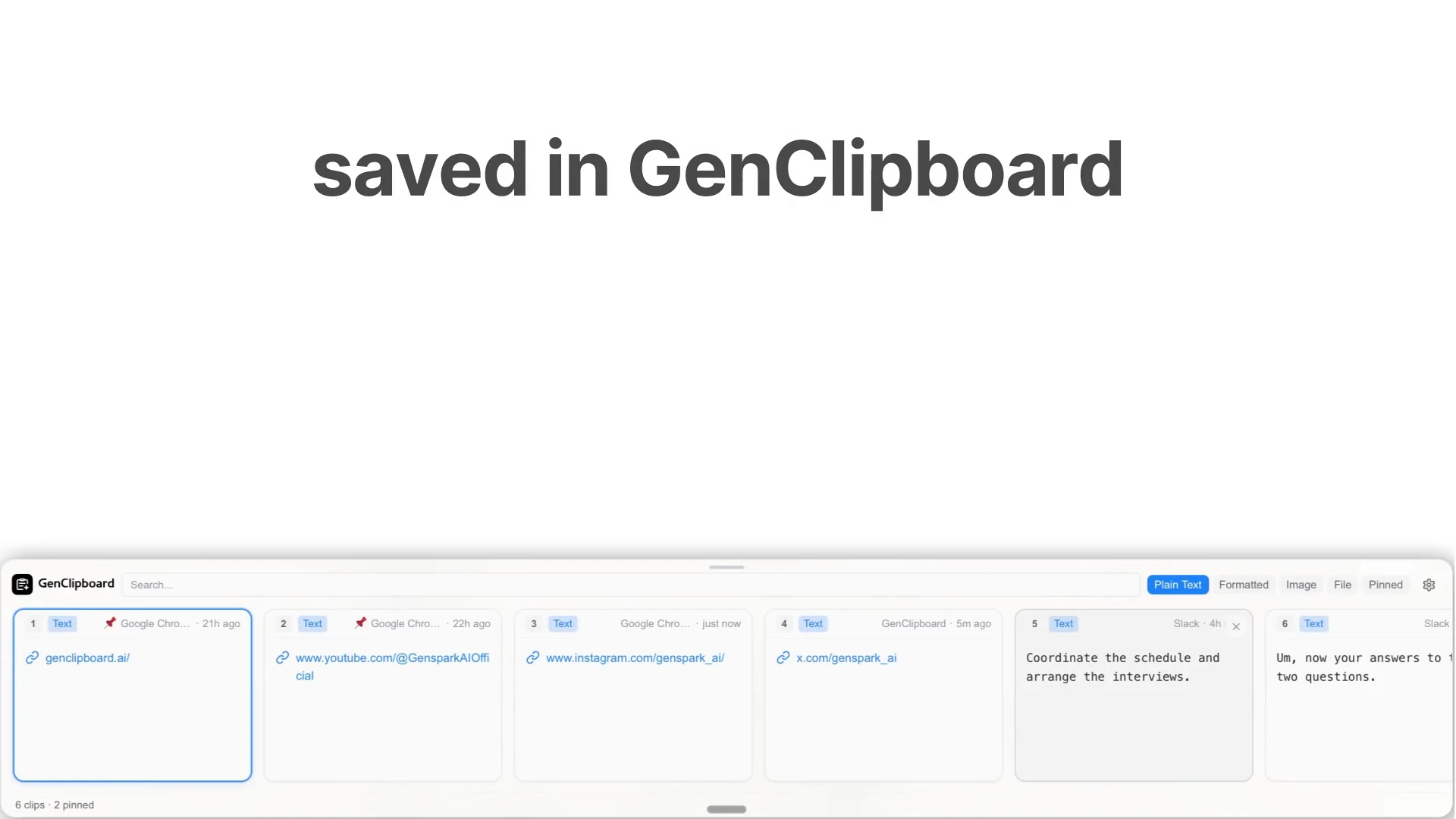
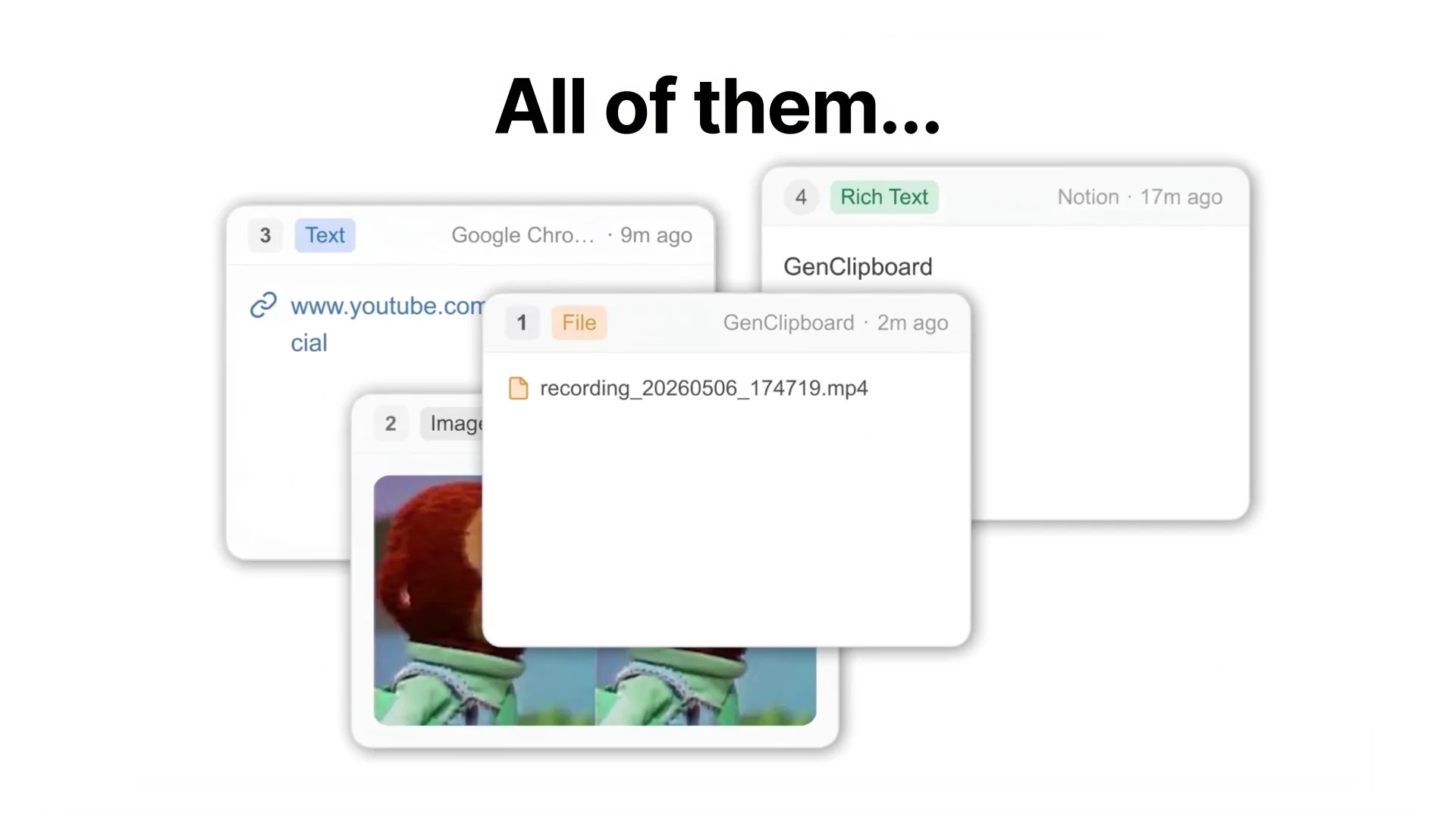
Text, formatted text, images, files and code all land in the same searchable list, tagged with the app they came from.
Windows already has a clipboard history behind Win+V, and it is thin. GenClipboard keeps thousands of clips and lets you search all of them by typing. Press the shortcut, type a few letters, then press a number key to paste straight back into the app you were using.
It also does four jobs most clipboard tools leave to other software: capture and mark up a screenshot, grab a long scrolling page as one image, record part of your screen as a video, and translate text you have highlighted anywhere on your PC. Your history is stored on your own drive, and syncing it to another machine is optional.
Already using it? Tell us in the comments what your pinned clips are. Got a question before you install it? Reach out to us directly.
What You Need to Know:
- The app is free and you do not need an account to install it or use the clipboard history
- Your clips are stored in a database on your own PC, and syncing them to another machine is a setting you turn on yourself
- It ships with a list of password managers it refuses to record from, and you can add your own apps to that list
How to Get GenClipboard on Windows
GenClipboard is not in the Microsoft Store. You download a signed installer from the official site and run it. There is no account step, and unlike the Mac version, the Windows build needs no extra system permission to work.
- Step 1. Open the official site at genclipboard.ai in your browser.
- Step 2. Pick the right Windows build. Most PCs need the standard 64-bit download. Choose the ARM64 file instead if your PC runs on a Snapdragon or other Arm processor.
- Step 3. Run the installer from your Downloads folder once it finishes. It is a small file and installs in seconds.
- Step 4. Clear the Windows warning if one appears. Select More info, check that the publisher name is shown, then choose Run anyway.
- Step 5. Copy something, anything. The app starts watching the clipboard straight away and runs quietly in the notification area.
- Step 6. Press Ctrl+Shift+V to open the panel. Type to search, use the arrow keys to move, press a number key to paste, and press Esc to close it.
Worth knowing: the installer comes straight from the developer rather than the Microsoft Store, so Windows SmartScreen may stop it the first time you run it. That filter flags installers it has not seen many people run yet, which is normal for a newer app. Our guide on what to do when SmartScreen blocks a download walks through it. Updates arrive inside the app after that, so you will not need to come back to the site.

What Is GenClipboard, Really?
GenClipboard is a small background app that keeps a copy of everything you copy. It is not a web service and it does not change how copy and paste work. Ctrl+C and Ctrl+V behave exactly as they always have. The app just stops throwing away the item you copied before this one.
It comes from Genspark, the AI company behind GenOffice, and it started life as a tool the company built for its own staff. Three things separate it from the clipboard history already sitting in Windows:
- The history is searchable. It stores thousands of clips in a database on your drive, and searches the full text of all of them as you type, including the name of the app each clip came from. You set the limit yourself.
- It is built to be typed at. One shortcut opens the panel, a number key pastes, and your hand never leaves the keyboard. Nothing here needs the mouse.
- It is light. The whole app is about 15 MB and barely touches your memory, so it is not another heavy program sitting in the background all day.
GenClipboard vs the Windows Clipboard
Windows has had its own clipboard history since 2018, sitting behind Win+V, and plenty of people never need more than that. It is worth being straight about where the built-in one is actually fine and where it runs out, because the gap is smaller than most reviews pretend.
| What you want to do | Windows clipboard (Win+V) | GenClipboard |
|---|---|---|
| How far back it goes | ✗ About 25 items, then the oldest drop off | ✓ Hundreds by default, thousands if you raise it |
| Finding an old clip | ✗ Scroll and hope. There is no search box | ✓ Type to search the text of every clip |
| What it remembers | ✗ Text, images and HTML, up to 4 MB each | ✓ Text, formatted text, images, files and code |
| Knowing where a clip came from | ✗ Not shown | ✓ Each clip is tagged with the app and the time |
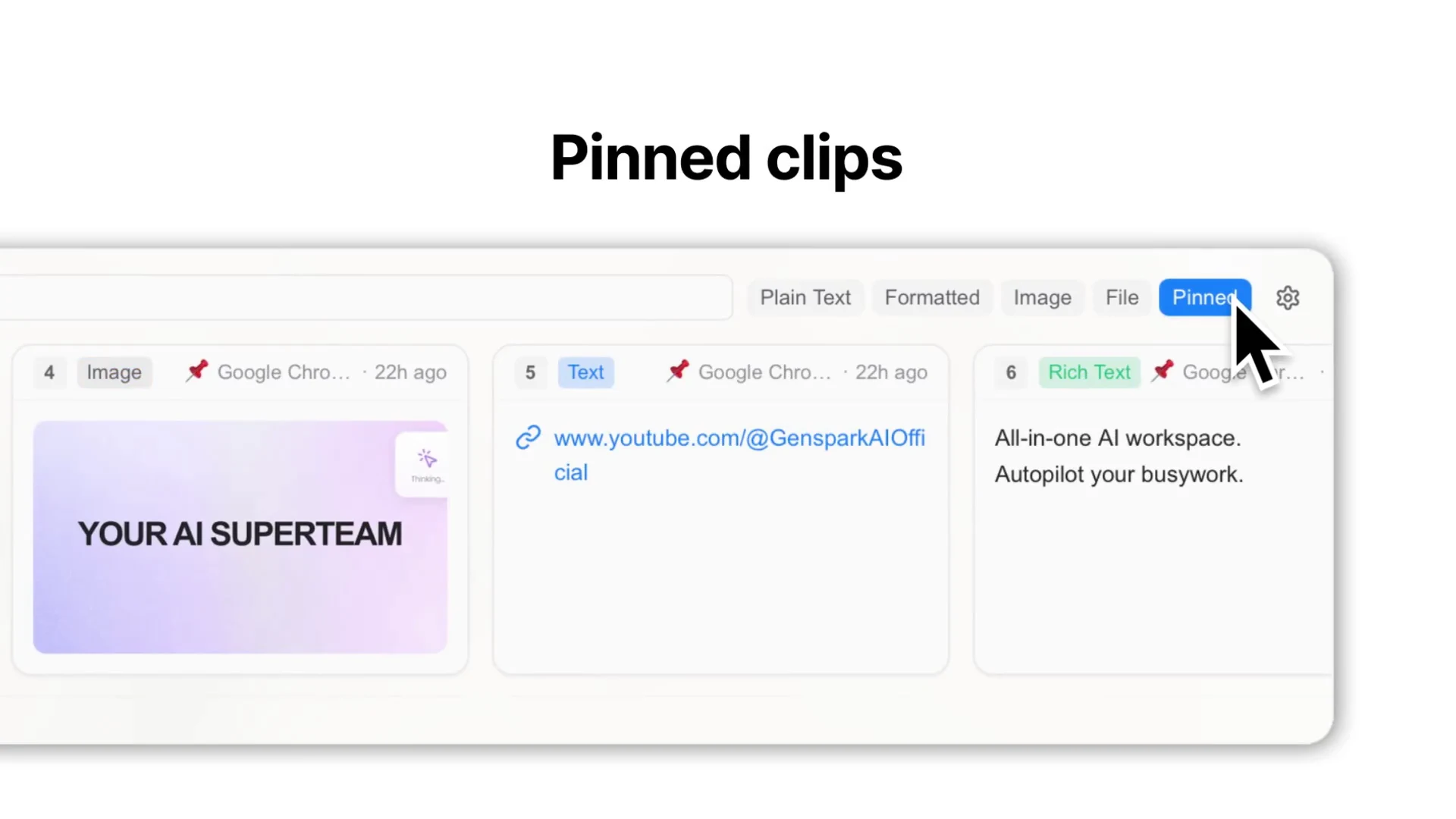
| Keeping clips for good | ✓ Pin an item and it survives a restart | ✓ Pin an item and it stays at the front |
| Screenshots and recording | ✗ Separate tools, then paste it back yourself | ✓ Capture, mark up and record inside the panel |
| Syncing to another PC | ✓ Yes, through your Microsoft account | ✓ Optional, and encrypted with your own password |
The honest summary: if you only ever reach back a few copies, Win+V is enough and you should keep using it. The moment you find yourself thinking “I copied that this morning, where did it go”, the built-in history cannot help you, because it has already dropped the item and could not have found it anyway. That single gap is the whole reason clipboard managers exist. If you would rather stay with Microsoft tools, our guide to the PowerToys clipboard manager covers the middle option.
What GenClipboard Looks Like: The Four Things It Does
Screenshots explain this app better than a feature list, because the whole point is the panel that appears over whatever you are working in. Here is each of its four jobs, what it looks like, and what it is actually good for.
Clipboard History
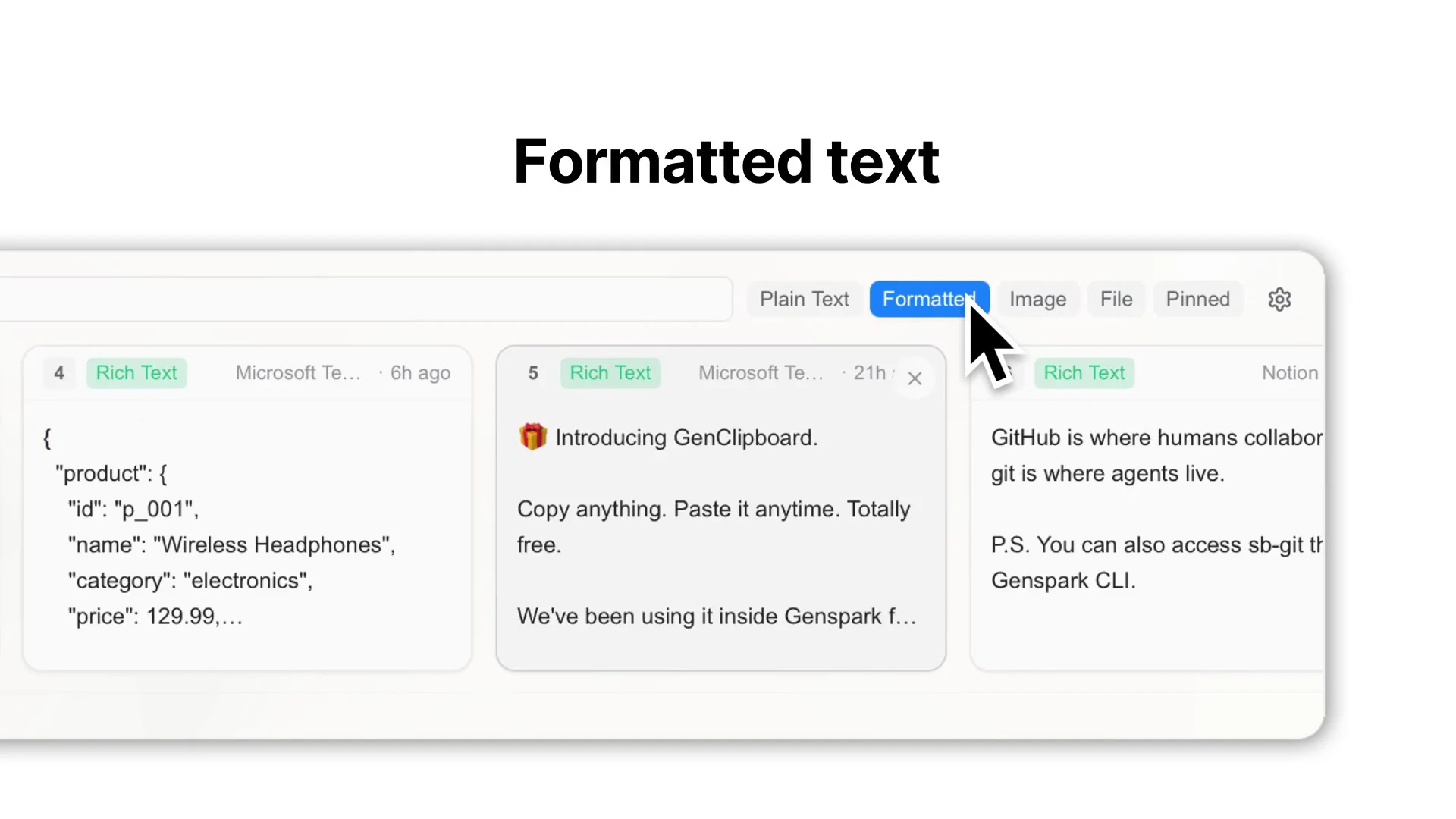
The main event. Press Ctrl+Shift+V and a row of cards slides up from the bottom of the screen, newest first. A search box runs along the top, and five filter buttons sit beside it: Plain Text, Formatted, Image, File and Pinned. Tap one and the row shows only that kind of clip.
Every card tells you four things before you read a word of it: its number, so you know which key pastes it, a colored tag for what kind of clip it is, the app it was copied from, and how long ago. A small control on each card removes it. The count of everything you have stored, and how many of those are pinned, sits in the corner.
Good for: anyone juggling several sources at once. Writers pulling quotes, developers moving snippets between files, and support staff sending the same three replies all day.
Screenshot and Annotate
A shortcut lets you drag a box around any part of the screen, and a small editor opens on the spot with arrow, rectangle, circle, line and text tools. Mark up what you grabbed, copy it, and the marked-up version goes into your history alongside everything else.
Good for: bug reports, showing a colleague exactly which field is wrong, and anything you would otherwise capture then reopen in a separate editor. Our guide on how to take a screenshot on Windows covers the built-in methods if you want to compare.
Screen Recording
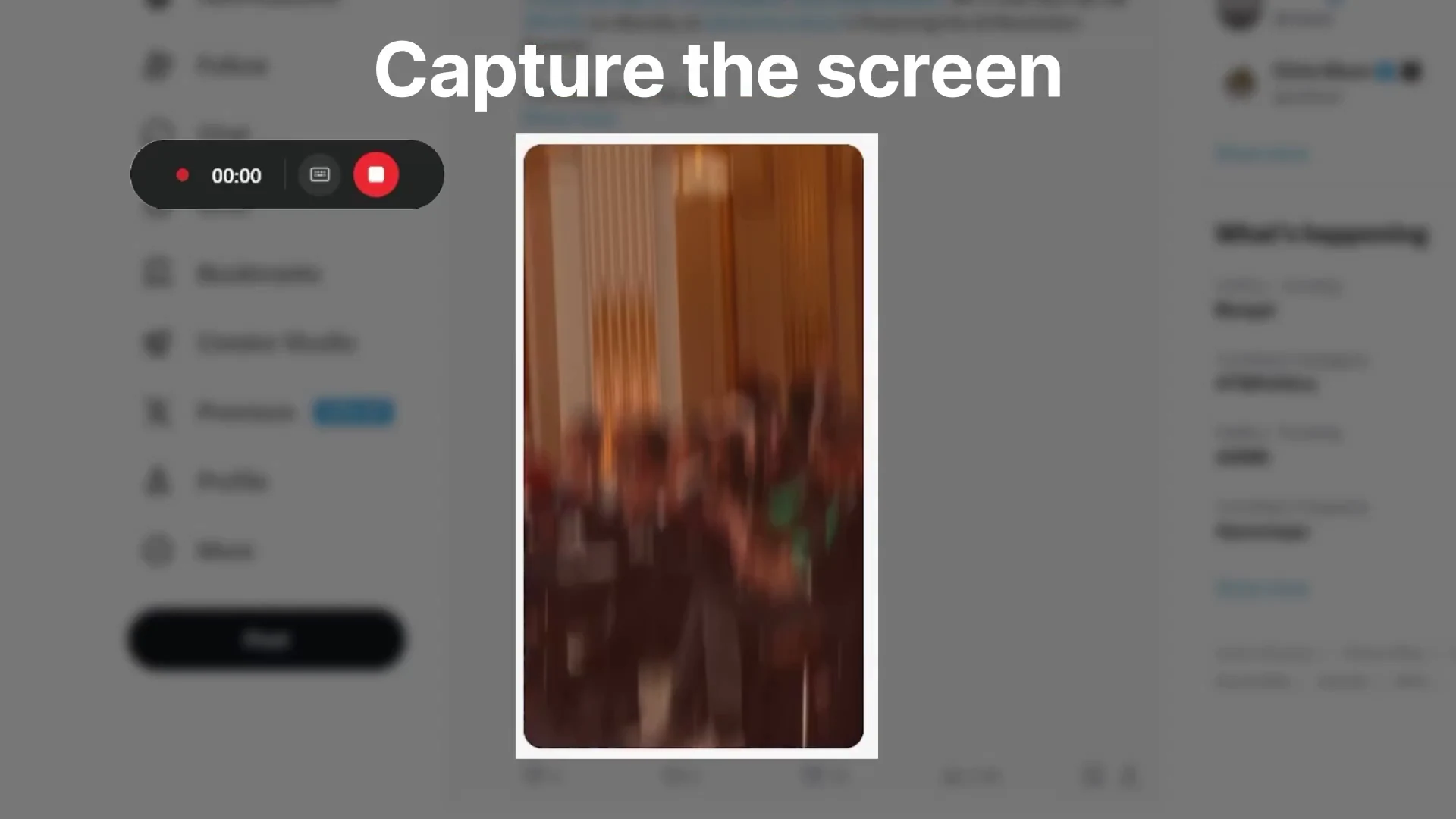
The same region select, but it records a video instead of a still. A small timer floats on screen while it runs, with a control to stop it, and you get an MP4 file to preview and copy when you finish. It is a short-clip tool, not a replacement for proper recording software.
There is a second capture mode hiding next to it that the website never mentions: scroll capture, on Shift+Ctrl+S. It grabs a long page that runs off the bottom of your screen and stitches it into one tall image, which is the thing Print Screen has never been able to do.
Good for: showing someone a bug that only happens in motion, or capturing a whole settings page, invoice or chat thread in one image instead of four.
Translation
Highlight text in any app, press a shortcut, and a small popup appears next to your cursor with the translation. You can swap the original for the translation on the spot or just copy both. It handles images too: it reads the words inside a screenshot and paints the translation back over them, keeping the original layout.
Good for: reading documentation, contracts or support threads in another language. This is the one feature that needs a free Genspark account, since the translating happens on their servers. Reading the words out of an image is done on your own PC by Windows OCR (the built-in tool that turns pictures of words into real text), so the picture itself never leaves your machine.
The pattern to notice: all four jobs finish the same way, by putting the result on your clipboard. Nothing exports to a folder you then have to go hunting for. Whatever you capture, mark up or translate is already sitting in the panel, ready to paste.
Who it suits
- Use it if you copy and paste all day and keep losing things, or you work across two languages.
- Skip it if Win+V already covers you. The built-in history is free, simpler and one less app running.
- Be careful if you copy passwords out of your browser rather than a password manager, because the app only skips managers it can name.
Key Features
Search Everything
Type a few letters to find any clip, including the app it came from
Pinned Clips
The snippets you reuse daily stay at the front of the list
Capture And Mark Up
Grab a region, draw on it, and it lands back on your clipboard
Record And Scroll Capture
Film part of the screen, or grab a long page as one tall image
Translate In Place
Highlight text anywhere and swap it for the translation
Optional Encrypted Sync
Share history between machines, with a password only you hold
Is GenClipboard Safe With Passwords and Secrets?
This is the question worth asking about any clipboard manager, and the honest answer here has two halves. One is reassuring. The other is not, and you should know it before you install anything that watches your clipboard.
What it gets right
- Your history stays on your PC by default. Clips are written to a database file on your own drive. Nothing is uploaded unless you switch sync on yourself.
- Sync is end-to-end encrypted. If you do turn it on, your clips are scrambled on your machine before they leave it, using a password that is never sent anywhere. Genspark stores the scrambled version and cannot read it.
- The usage data it reports is filtered. Genspark says its analytics deliberately strip out anything whose label mentions content, text, images, passwords, secrets, tokens, cookies or file paths, so a crash report cannot accidentally carry a clip out with it.
- It refuses to record from password managers, out of the box. There is a list under Settings, Data called Ignored Apps, and it arrives already filled in with 1Password, Keychain Access, KeePassXC, Bitwarden, Dashlane, LastPass and Enpass. Anything you copy from those never reaches the history at all. You can add your own apps to the list.
What you need to accept
The ignore list works on app names, not on the content itself. That gap matters more than it sounds. If you keep your passwords in Chrome or Edge rather than in a dedicated manager, the copy comes from the browser, the browser is not on the list, and the password gets saved like any other clip. The same goes for a key you paste out of a text file, a terminal, or an email.
Genspark is also open that the app keeps this sort of thing. Its own launch announcement lists text, links, passwords and code as the things GenClipboard remembers and makes searchable, and presents that as a feature. For a lot of people it is one. Just know that is the deal you are accepting.
There is one more thing to sit with. A clipboard manager is a keylogger-shaped tool by design, in that it sees everything passing through the clipboard. That is exactly what you are asking it to do. The risk is not the app misbehaving, it is anyone who gets to your unlocked PC being able to press one shortcut and read the last few thousand things you copied.
Four habits that keep this sensible
- Open Settings, Data and add anything else you copy secrets from to the Ignored Apps list. Your terminal and your browser are the two worth adding first.
- Use autofill rather than copying passwords at all. Nothing reaches the clipboard, so nothing gets recorded, whatever the list says.
- Lower Max Clipboard History in Settings. It arrives at 500, and a smaller number means anything sensitive ages out in hours instead of weeks.
- Delete a clip the moment you notice it should not be there, and use Clear All Data in the Data tab to wipe the lot in one go.
- Lock your PC with Win+L when you step away. That single habit protects your clipboard history and everything else on the machine.
Keyboard Shortcuts Worth Learning
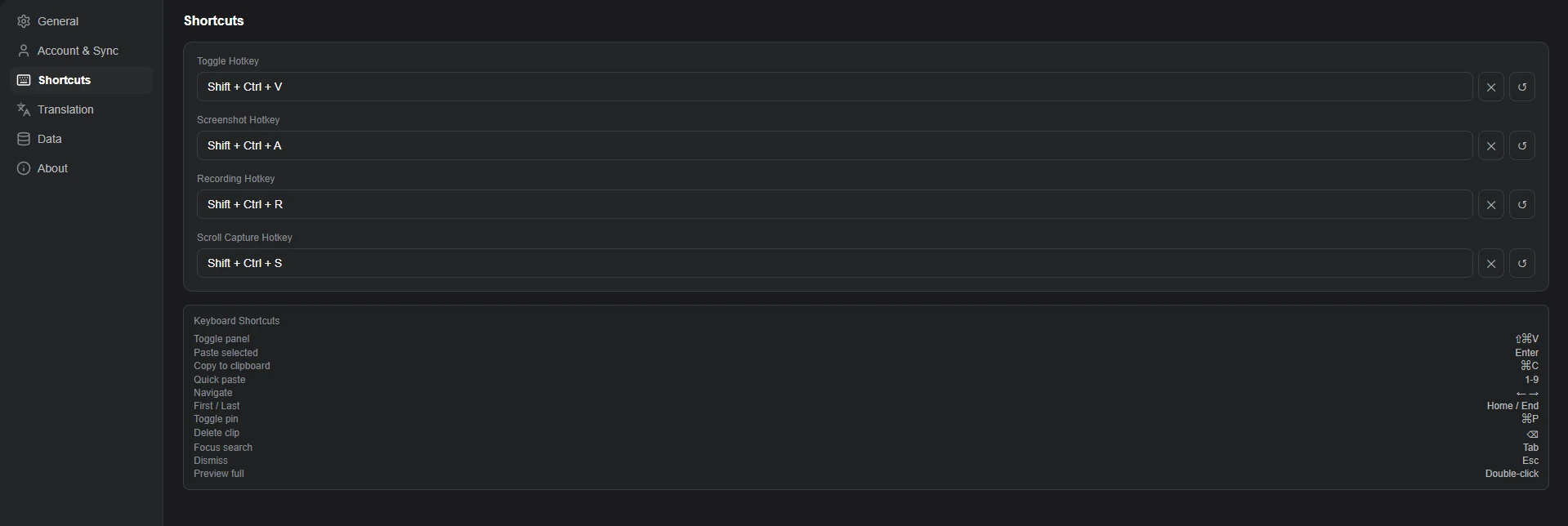
GenClipboard is built to be driven from the keyboard. The first four below are set under Settings, Shortcuts and work anywhere in Windows. The rest work inside the panel once it is open. All four of the top ones can be changed to whatever you prefer.
| Shortcut | What it does |
|---|---|
| Shift+Ctrl+V | Open or close the clipboard panel, from any app |
| Shift+Ctrl+A | Capture a region of the screen and open the markup editor |
| Shift+Ctrl+R | Record a region of the screen as a video |
| Shift+Ctrl+S | Scroll capture, for grabbing a long page as one tall image |
| 1 | Paste the first clip. Any number key from 1 to 9 pastes that clip |
| ←+→ | Move left and right between clips in the panel |
| Home | Jump to the newest clip. End jumps to the oldest |
| Enter | Paste the clip you have selected |
| Ctrl+P | Pin the selected clip, or unpin it |
| Tab | Jump into the search box |
| Backspace | Delete the selected clip from your history |
| Esc | Close the panel without pasting anything |
Ignore the shortcut list inside the app. Settings, Shortcuts has a reference list at the bottom, and on Windows it still prints the Mac symbols: a cloverleaf for Ctrl and a left-arrow key for Backspace. The boxes above it are correct, the list below it is not. We checked every key in the table above on Windows ourselves, so use that instead.

💡 Tip: Ctrl+Shift+V is already “paste without formatting” in some apps, so if the panel refuses to open somewhere, that clash is usually why. Change it in Settings to something your other apps are not using. Our Windows keyboard shortcuts guide is a good place to check what is already taken.
Five Settings Worth Changing on Day One
The defaults are reasonable but not what most people will want. These five are in Settings, reached from the small control at the right of the panel, and each one takes a second.

| Setting | Ships as | Why change it |
|---|---|---|
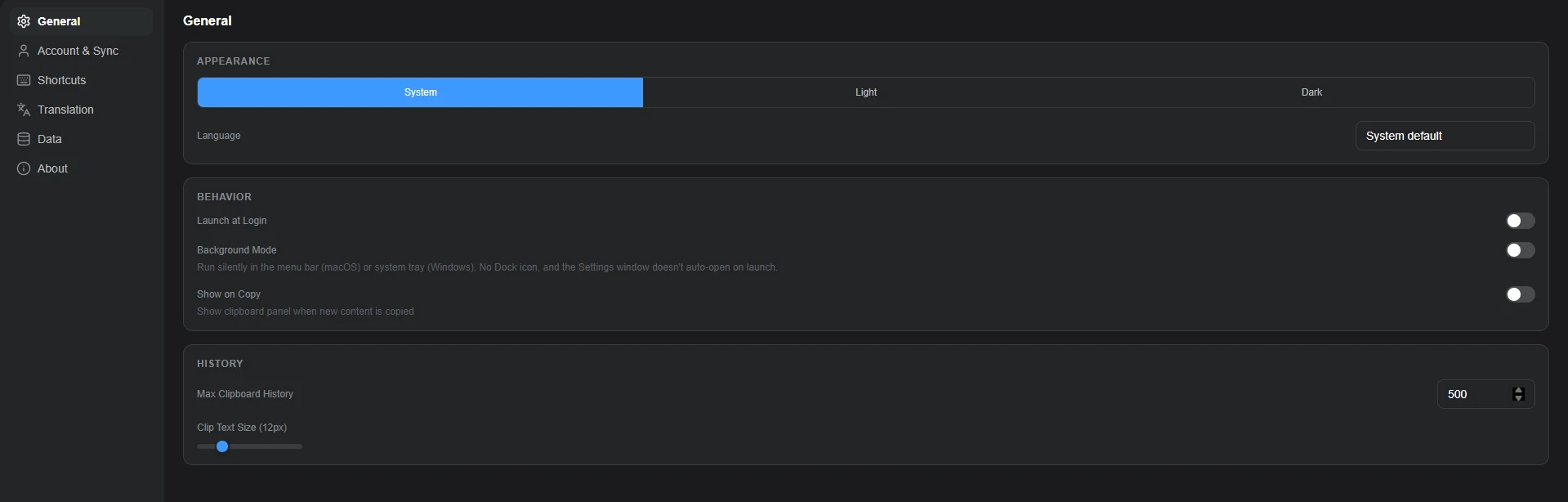
| Show on Copy | On | This makes the panel jump up every single time you copy anything. It is the setting most people will want off, and it is the first thing to turn off if the app feels intrusive. |
| Max Clipboard History | 500 | The app can hold far more than this. Raise it if you want a deep archive, or drop it if you would rather sensitive clips age out quickly. Your call, but do not leave it unconsidered. |
| Ignored Apps | Seven password managers | Under the Data tab. Add your terminal and your browser here if you ever copy credentials out of either, because neither is on the list by default. |
| Launch at Login | Off | A clipboard manager that is not running does not record anything, which means the clip you want will not be there. Turn this on if you intend to actually rely on it. |
| Translate hotkeys | Not set | Under the Translation tab. Both translate shortcuts ship blank, so that feature does nothing at all until you assign a key to it. This catches people out. |
The Data tab is also where you will find Export JSON, which writes your whole history out to a file, and Clear All Data, which wipes it.
Both of those are worth knowing about before you need them rather than after.


System Requirements
Genspark does not publish a formal spec sheet. The figures below are our estimate. The app is unusually small for what it does, so it asks very little of your PC.
| Requirement | Details |
|---|---|
| Operating System | Windows 10 or Windows 11. There are also macOS and Linux builds |
| Processor | 64-bit. Separate downloads for standard PCs and for Arm-based PCs |
| Memory | 4 GB is enough. This is a small background app, not a heavy one |
| Storage | Around 15 MB for the app, plus whatever your clip history grows to |
| Internet | Not needed for clipboard history. Required for translation and for sync |
Other Clipboard Tools Worth Knowing
GenClipboard is not the only option, and two of these have been around far longer. Here is how the main free ones line up on the things people actually pick between.
| Tool | Price | Searchable History | Images | Capture Tools | Sync |
|---|---|---|---|---|---|
| GenClipboard | Free | Yes, and you set the limit | Yes | Screenshot, scroll and recording | Optional, encrypted |
| PowerToys Advanced Paste | Free | No, it reshapes clips instead | Limited | No | No |
| Ditto | Free | Yes | Yes | No | Yes, over your own network |
| CopyQ | Free | Yes, with scripting | Yes | No | No |
Tips for Getting Started
Spend the first day just pressing the shortcut instead of scrolling back through apps to re-find things. The habit is the whole benefit, and it takes about a day to form.
Pin the three or four things you paste constantly, like your address, a support reply, or a block of code you keep reusing. They stop scrolling away.
Set your history limit deliberately rather than leaving it at the maximum. Smaller is safer, and most people never look further back than a day or two.
Try the capture tool on your next support email. Grabbing a region, circling the problem and pasting it in one move is faster than any of the built-in routes.
Leave sync switched off until you actually need the same clips on a second machine. One less thing leaving your PC while you decide whether you trust the app.
GenClipboard FAQ
Can I stop GenClipboard from recording something I copy?
What happens to my clipboard history if I uninstall GenClipboard?
Does GenClipboard replace Windows clipboard history, or run alongside Win+V?
Can I change the hotkey if Ctrl+Shift+V clashes with another app?
Is GenClipboard open source?
Does the translation feature cost anything?
What are the system requirements for GenClipboard?
Support and Community
Genspark runs an official Discord server where the team answers questions about its desktop apps, and posts release notes to the Genspark community site. Both are better than email if you have hit something odd.
More Windows software guides: Snipping Tool text extraction · Microsoft Teams keyboard shortcuts · Instant translation in Copilot