You download a .exe, it saves fine, then Windows blocks it the second you try to run it. That block comes from one of three places: Windows Defender SmartScreen, a newer Windows 11 feature called Smart App Control, or your third-party antivirus.
The file itself, its filename, and where you got it from all factor into which one flags it.
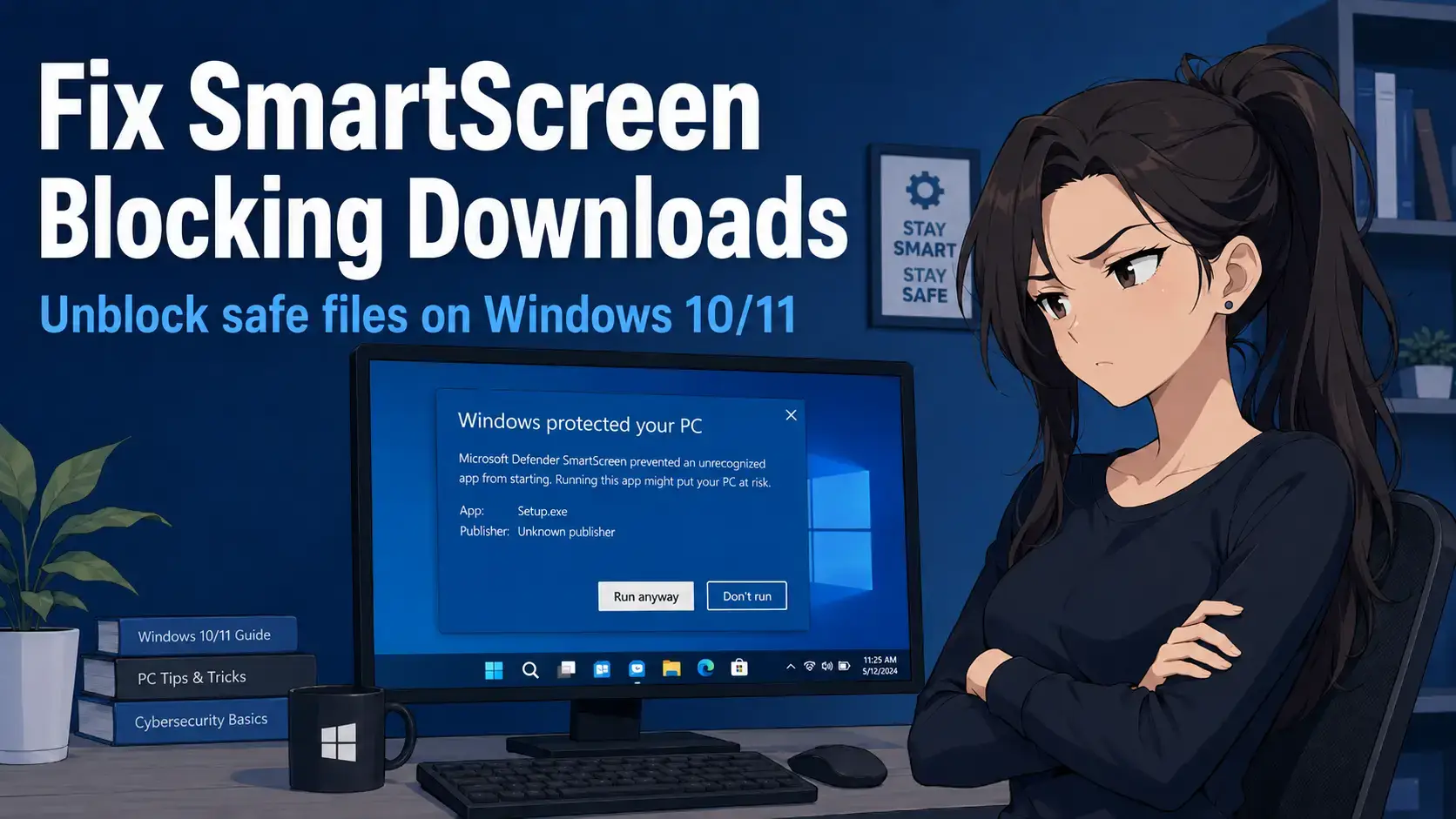
This happened to me with the Kimi Desktop app. I downloaded the .exe straight from their site, it saved with no issue, and the moment I double-clicked it to install, SmartScreen blocked it cold. Nothing wrong with the file, it was just new enough that Windows had not seen it run on enough PCs yet.
Below are the fixes for one file right now, plus how to turn off SmartScreen, Smart App Control, and antivirus false alarms for good.
Got a specific file or error giving you trouble? Leave a comment below or contact us directly and we will help you sort it out.
What Is Actually Happening at a Glance
- SmartScreen checks a downloaded file’s reputation and shows a warning you can click through with “Run anyway.”
- Smart App Control is stricter and blocks unsigned or unrecognized code with no override button at all. This is the more likely cause if a file seems to disappear with zero prompt.
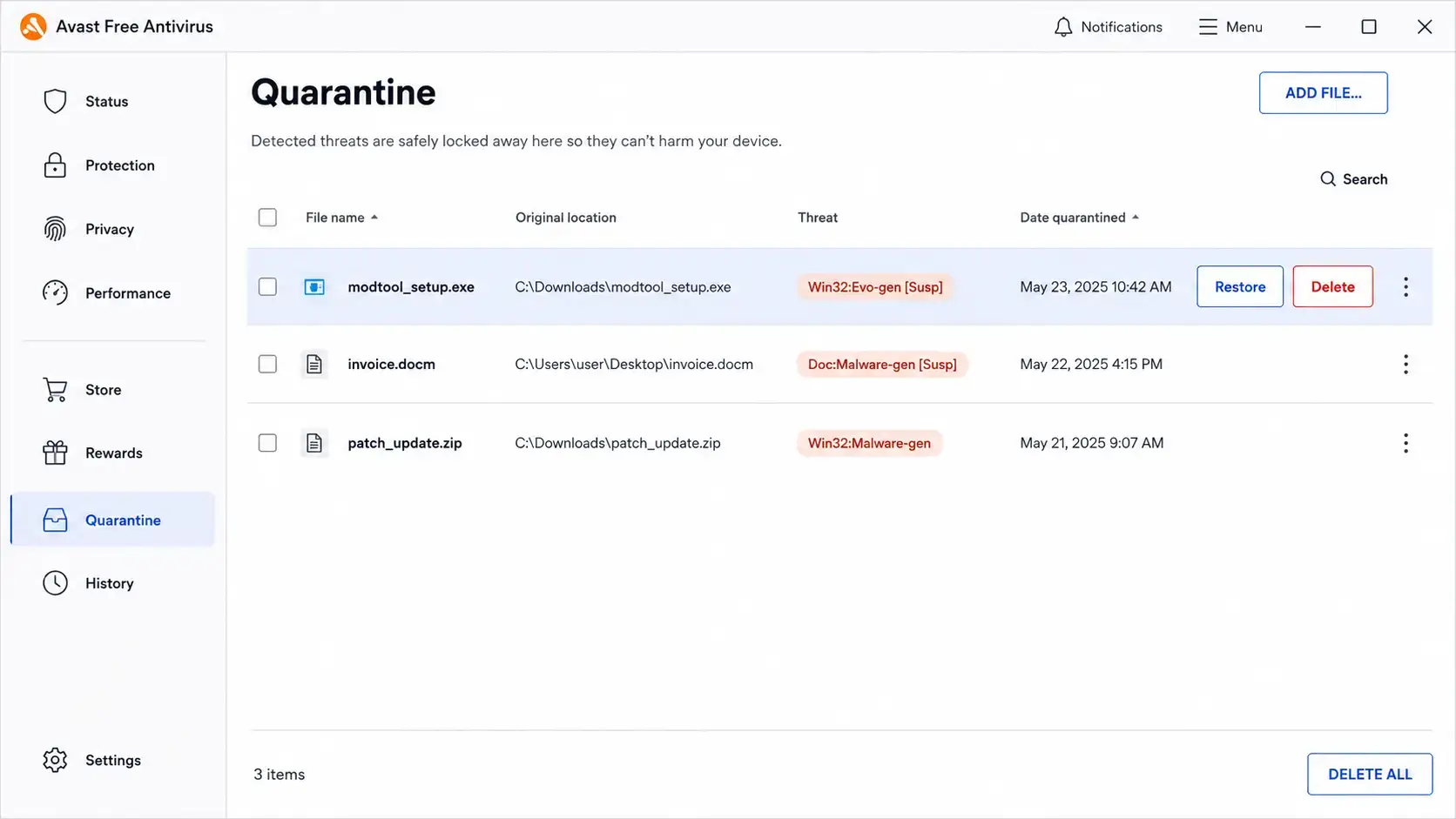
- Third-party antivirus (Avast, Norton, McAfee, and others) runs its own separate scanner and can quarantine a file the moment it downloads, before SmartScreen or Smart App Control ever see it. This is the single most common cause of a file “disappearing.”
- Your browser (Edge, Chrome) can also flag a download separately and hold it back before Windows even sees it.
- None of these tools permanently delete your file without a trace. Check your antivirus quarantine log and your browser’s download history first, the file is almost always sitting there marked as blocked.
- Affects Windows 10 and Windows 11. Smart App Control is Windows 11 only.
Cause
SmartScreen / Smart App Control
Affects
Windows 10 / 11
Difficulty
Beginner to intermediate
Time to Fix
2 min – 10 min
Reversible
Yes, fully
Where Did My File Actually Go?
Before changing any settings, figure out which of these four things happened. The fix is different for each one, and the first thing to check is not actually Windows.
Third-Party Antivirus Quarantined It (Most Common)
If you run Avast, Norton, McAfee, or similar software, check it first. These programs scan files the instant they download and silently move anything suspicious into a quarantine folder, often faster than SmartScreen even gets a look at the file. Open your antivirus app and look for a “Quarantine,” “Vault,” or “Threats found” section.
Browser Blocked the Download
Edge and Chrome check files as they download and can flag one as “dangerous” or “unverified” before it fully lands in your Downloads folder. Open your browser’s download history (Ctrl+J) and look for the file there. It is usually sitting in a paused or blocked state, not deleted.
SmartScreen Blocked It When You Tried to Open It
This is a common point of confusion. SmartScreen does not stop a download in progress, it waits until you double-click the .exe to install it. The file downloaded fine, sat in your Downloads folder with no problem, and only then did Windows show a blue “Windows protected your PC” screen when you tried to run it. This is the softer block. Click More info and you will see a Run anyway button, unless a stricter policy or Smart App Control is also involved.
Smart App Control Silently Blocked It
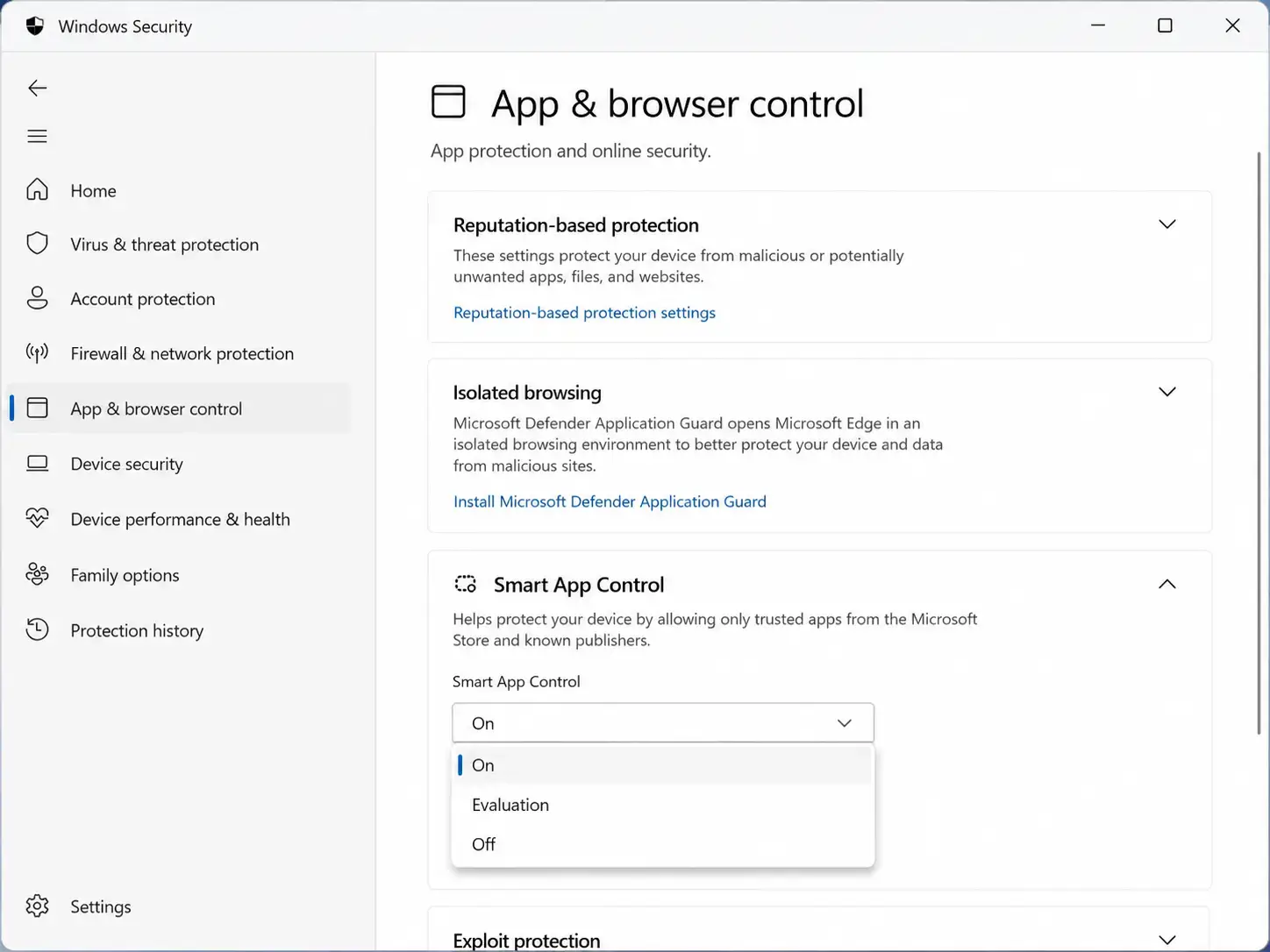
Smart App Control (Windows 11 only) checks every unsigned program and script and blocks it with no Run anyway option at all. If nothing happened when you double-clicked the file, no warning appeared, and your antivirus quarantine is empty, this is the likely cause.
What SmartScreen Commonly Blocks
If you are not sure whether SmartScreen is really your problem, here is a real example. I recently downloaded the Kimi Desktop app to see what the AI model was about. The download itself went through with no issue. The moment I double-clicked the installer to run it, Windows showed the “Windows protected your PC” warning and refused to open it until I clicked through manually. That timing, download completes fine, block only happens when you try to launch it, is the clearest sign you are dealing with SmartScreen rather than your antivirus or your browser.
A few categories of downloads trigger this constantly, not because they are dangerous, but because SmartScreen has not seen enough people run them yet to build up trust:
- New or lesser-known desktop apps, including new AI tool installers, that have not built up enough download volume for Microsoft’s reputation system to trust them yet.
- Game mods and mod manager tools downloaded from sites like Nexus Mods, since most mods are made by individual developers with no code signing certificate.
- Indie and open-source software from GitHub or a developer’s personal site, for the same reason: no certificate, no track record with Microsoft.
- Files from torrents almost always trigger a block, both because torrented files are unsigned and because torrent sources in general carry a worse reputation with SmartScreen than a direct developer download.
- Cracked or repackaged installers of any kind, which SmartScreen and antivirus software both treat as high risk regardless of whether the specific file is actually harmful.
- Portable apps and standalone .exe tools that skip a traditional installer, since these often come from smaller developers without a Microsoft-verified signature.
How to Fix SmartScreen Blocking Downloads
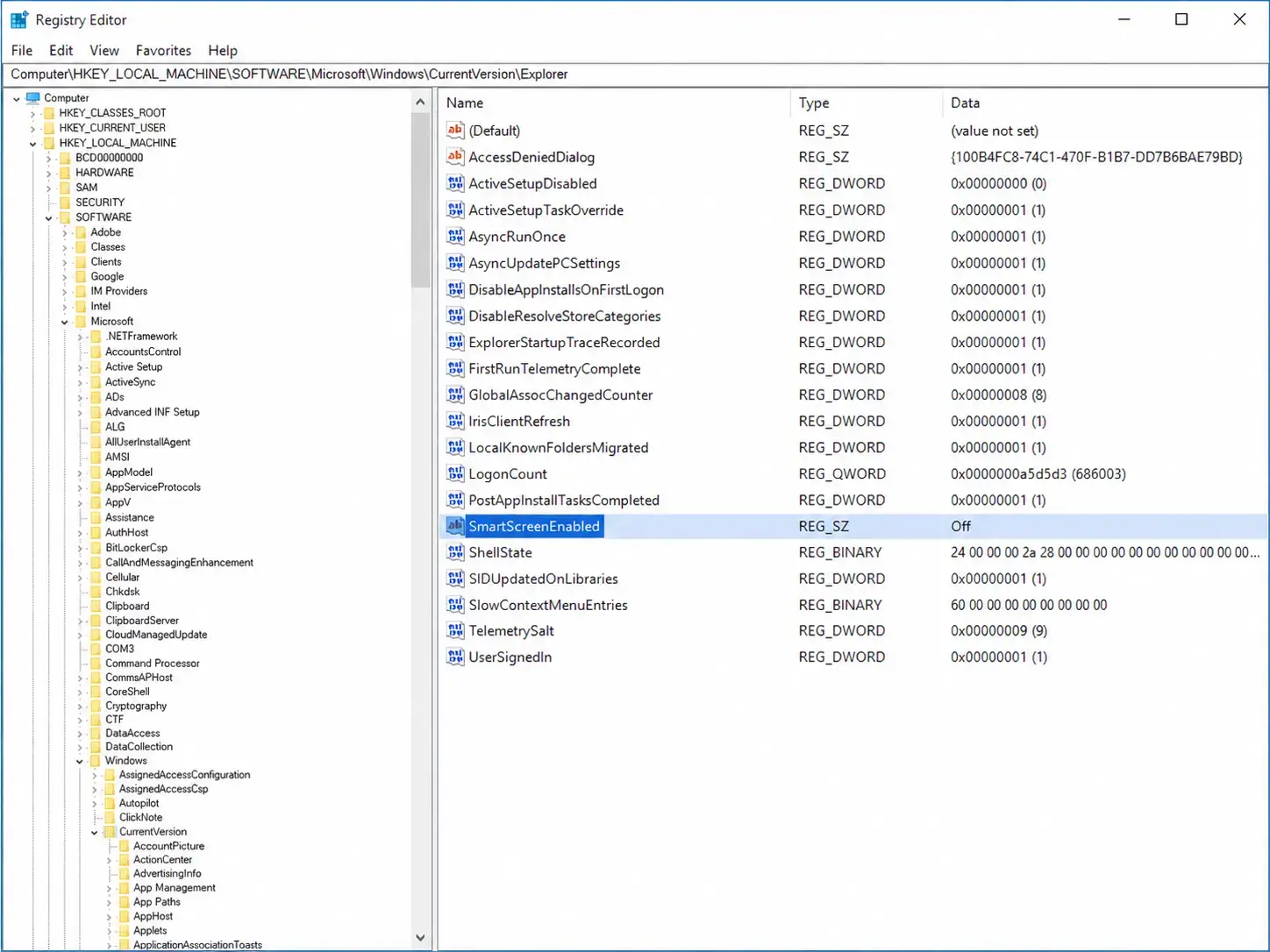
Work through these in order. Fix 1 checks the most common real cause, third-party antivirus. Fix 2 gets one file running right now. Fix 3 and Fix 4 stop the warnings going forward. Fix 5 is the permanent registry method for power users.
A Note on Safety Before You Turn Everything Off
Turning off SmartScreen and Smart App Control removes a layer of protection, not the only one. You are trading automated warnings for your own judgment about what you download. That is a fair trade if you know what you are getting, and a risky one if you do not.
Keep a real antivirus running in the background if you go this route, whether that is Windows Defender or a third-party option. For a second opinion that catches things your main antivirus sometimes misses, especially on files from smaller mod sites and forums, Malwarebytes Premium is worth running on anything you were not 100% sure about before you unblocked or restored it.
Quick Reference: Which Fix Do I Need?
| Situation | Use This Fix |
|---|---|
| I run Avast, Norton, McAfee, or similar antivirus | Fix 1: Check antivirus quarantine |
| One file I trust won’t open | Fix 2: Unblock in Properties |
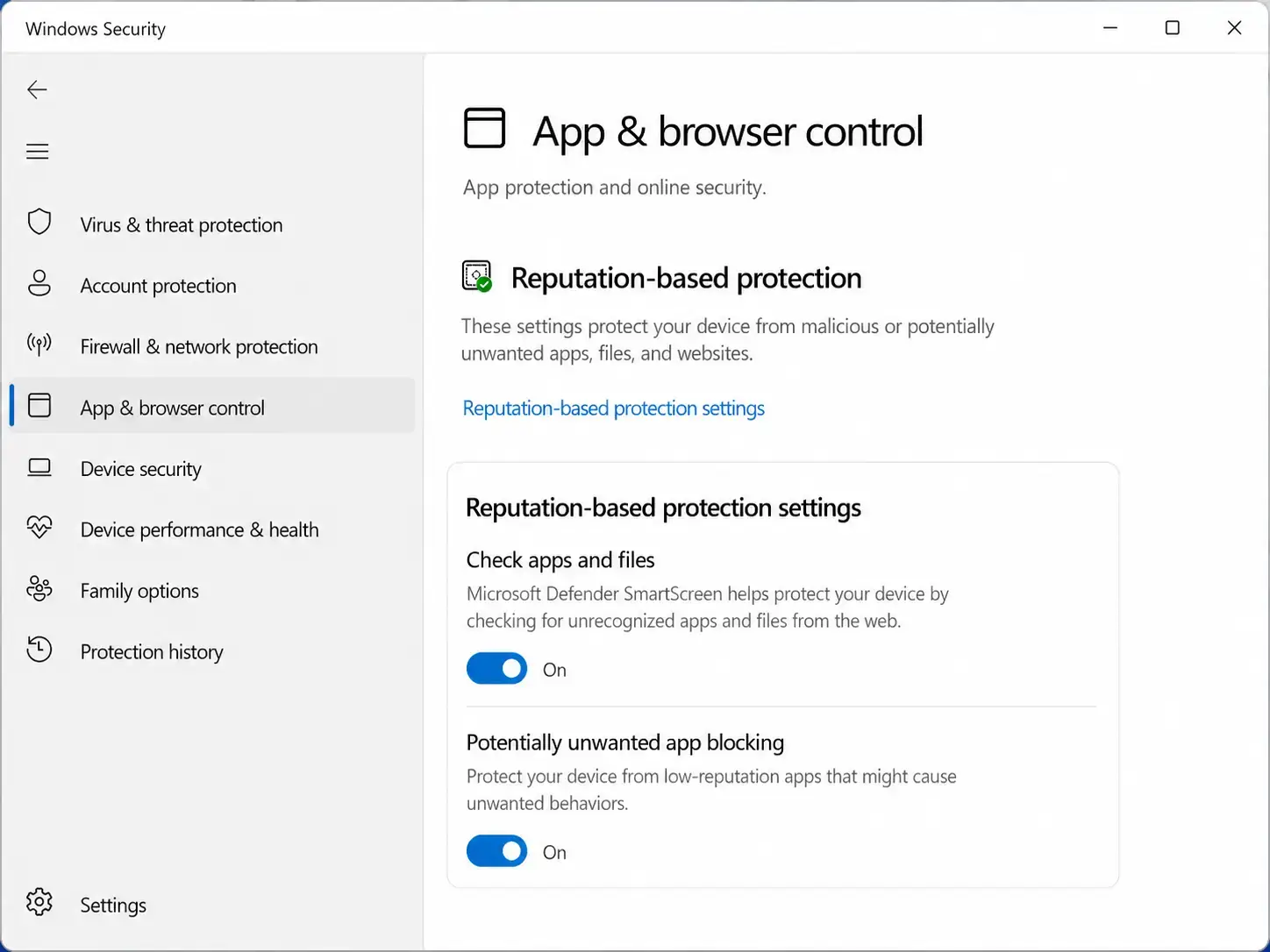
| Tired of clicking “Run anyway” every time | Fix 3: Turn off SmartScreen |
| File vanished, no warning shown at all, antivirus quarantine is empty | Fix 4: Turn off Smart App Control |
| Want it off for good, resistant to updates | Fix 5: Registry method |
Frequently Asked Questions
Why did Windows delete my download with no warning?
Windows almost never deletes a file with zero trace, and often it is not Windows at all. Third-party antivirus software like Avast, Norton, or McAfee runs its own real-time scanner and can quarantine a file the instant it lands in your Downloads folder, before you even see it. Smart App Control and your browser’s download check can also hold a file back. Check your antivirus program’s quarantine or “threats found” log first, that is where most “vanished” files actually end up.
Why does my antivirus keep quarantining safe apps and mods?
Third-party antivirus programs use their own detection rules, separate from SmartScreen and Smart App Control, and tend to be more aggressive with unsigned or lesser-known software. Game mods, indie tools, and open-source apps trip this constantly because they are not widely downloaded enough to build up a trusted reputation. Restoring the file from quarantine and adding an exclusion for the folder you download to usually stops it from happening again for that source.
What is the difference between SmartScreen and Smart App Control?
SmartScreen checks the one file you are about to run and shows a warning you can click through with “Run anyway.” Smart App Control is stricter. It checks every program, script, and library that file loads afterward, and it does not offer a “Run anyway” button. If a file seems to vanish with no prompt at all, Smart App Control is more often the real cause.
Is it safe to turn off SmartScreen permanently?
It is safe as long as you keep a real antivirus running and only download from sources you trust. SmartScreen is one layer of protection, not the only one. Power users who verify their downloads manually lose little by turning it off. Casual users who download random files from unknown sites should leave it on.
Will turning off SmartScreen also disable Smart App Control?
No. They are separate features with separate switches. Turning off SmartScreen in Windows Security does not touch Smart App Control, and turning off Smart App Control does not touch SmartScreen. If you want both off, you need to disable each one on its own.
Can I turn Smart App Control back on after disabling it?
Yes, as of an April 2026 Windows update. Before that update, disabling Smart App Control required a full Windows reinstall to turn it back on. Now it is a simple toggle in Windows Security, same as SmartScreen.
Does a Windows Update turn SmartScreen back on by itself?
Sometimes. Major feature updates occasionally reset security toggles to their default state. The registry method in this guide is more resistant to that than the toggle in Windows Security, but no method is completely update-proof. Check your setting again after any major Windows update if downloads suddenly start getting blocked again.
My file is unblocked but Windows still won’t run it. What now?
Right-click the file and check Properties again to confirm the Unblock box actually got applied and saved. If it did and the file still won’t launch, check whether Smart App Control is blocking it separately, since unblocking a file only clears the SmartScreen flag, not the Smart App Control one. A corrupted or incomplete download can also cause this. Re-download the file from the original source and compare the file size to what the source lists.
Related Windows Guides
- Malwarebytes Premium for Windows
- Best Antivirus Software for PC
- Fix: Error 0xc0000005 (Application unable to start correctly)
Still stuck? Leave a comment below or contact us directly and we will help you figure it out.
Discover more from Windows Mode
Subscribe to get the latest posts sent to your email.










Add your first comment to this post