Readers like you help support this site. When you make a purchase using links on our site, we may earn an affiliate commission. All opinions remain our own.
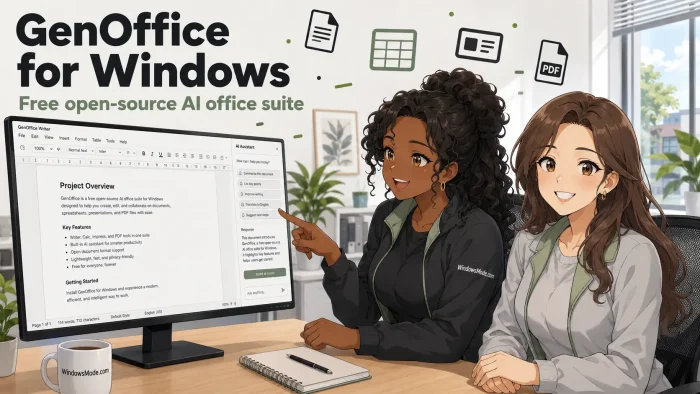
GenOffice is a free office suite for PC from Genspark, available from its official site and from GitHub.
It gives you four editors, Docs, Sheets, Slides and PDF, and they open the Word, Excel, PowerPoint and PDF files you already have. An AI assistant sits inside each editor, so you ask for a change in the document instead of pasting text into a chatbot in another tab.
The whole suite is free and ad-free, with no license fee and no watermarks. The AI features are the one part that costs something, because they run on Genspark credits tied to a Genspark account. Everything else, opening files, editing them, saving them, works without paying and without signing in.
Genspark publishes the full source code under the Apache 2.0 license, so anyone can read it, change it, or build their own version from it. The Windows build is a 64-bit installer, and there is a Mac build for Apple Silicon.
Already tried it? Tell us in the comments which editor held up best. Got a question before you install it? Reach out to us directly.
What You Need to Know:
- The office suite itself is completely free, with no ads, no watermarks and no account needed
- The AI features are the exception, they need a free or paid Genspark account and use credits
- Your files stay in standard formats, so nothing you make here is locked into GenOffice
How to Get GenOffice on Windows
GenOffice is not in the Microsoft Store. You download an installer directly from the official site or from the project GitHub page, and both serve the same signed file. You do not need an account to install it or to start editing.
- Step 1. Open the official site at genoffice.ai in your browser.
- Step 2. Choose the Windows download. The button marked for Windows gives you a file named GenOfficeSetup, and it is the 64-bit build.
- Step 3. Run the installer from your Downloads folder once it finishes.
- Step 4. Clear the Windows warning if one appears. Select More info, check that the publisher name is shown, then choose Run anyway.
- Step 5. Open GenOffice and pick an editor from the home screen, or open one of your own files straight away.
- Step 6. Sign in only when you want the AI. The editors work without an account. The assistant panel asks for a Genspark login the first time you use it.
Worth knowing: because the installer comes from GitHub rather than the Microsoft Store, Windows SmartScreen may block it on first run. That filter flags installers it has not seen many people run yet, which is normal for a newer app. Our guide on what to do when SmartScreen blocks a download walks through it. You can also grab the same file from the GenOffice releases page on GitHub.
What Is GenOffice, Really?
GenOffice is four desktop editors in one app, plus an AI assistant that works inside whichever file you have open. It is not a web app and it is not a Microsoft Office add-on. You install it, open a file, and it behaves like the office software you already know.
It comes from Genspark, an AI company that also runs a web based assistant of the same name. GenOffice is the desktop side of that, and the whole codebase is public. Three things separate it from the other free Microsoft Office alternatives:
- The AI is not bolted on. It edits blocks inside the document and keeps version snapshots, rather than handing you text to copy across.
- It guards your original file. When you save a Word document, only the paragraphs you changed get rewritten. Everything else is copied over byte for byte, so your layout, styles and tracked changes survive.
- The code is public. Apache 2.0, so you can read exactly what it does, fork it, or build it into something else.
🛡️ Is it safe? The installer is code-signed, the source code is public so anyone can audit it, and it does not patch Windows system files. The two honest caveats are that Windows may warn you on first install because the file is newer than most, and that anything you send to the AI panel leaves your PC and is processed on Genspark servers. See the FAQ below for both.
What GenOffice Looks Like: Docs, Sheets, Slides and PDF
Screenshots do more than a feature list here, because the whole point of GenOffice is where the AI sits. In each shot below, the editor works the way you expect and the assistant panel runs down one side of the same window. Here is what each of the four looks like and what it is actually good at.
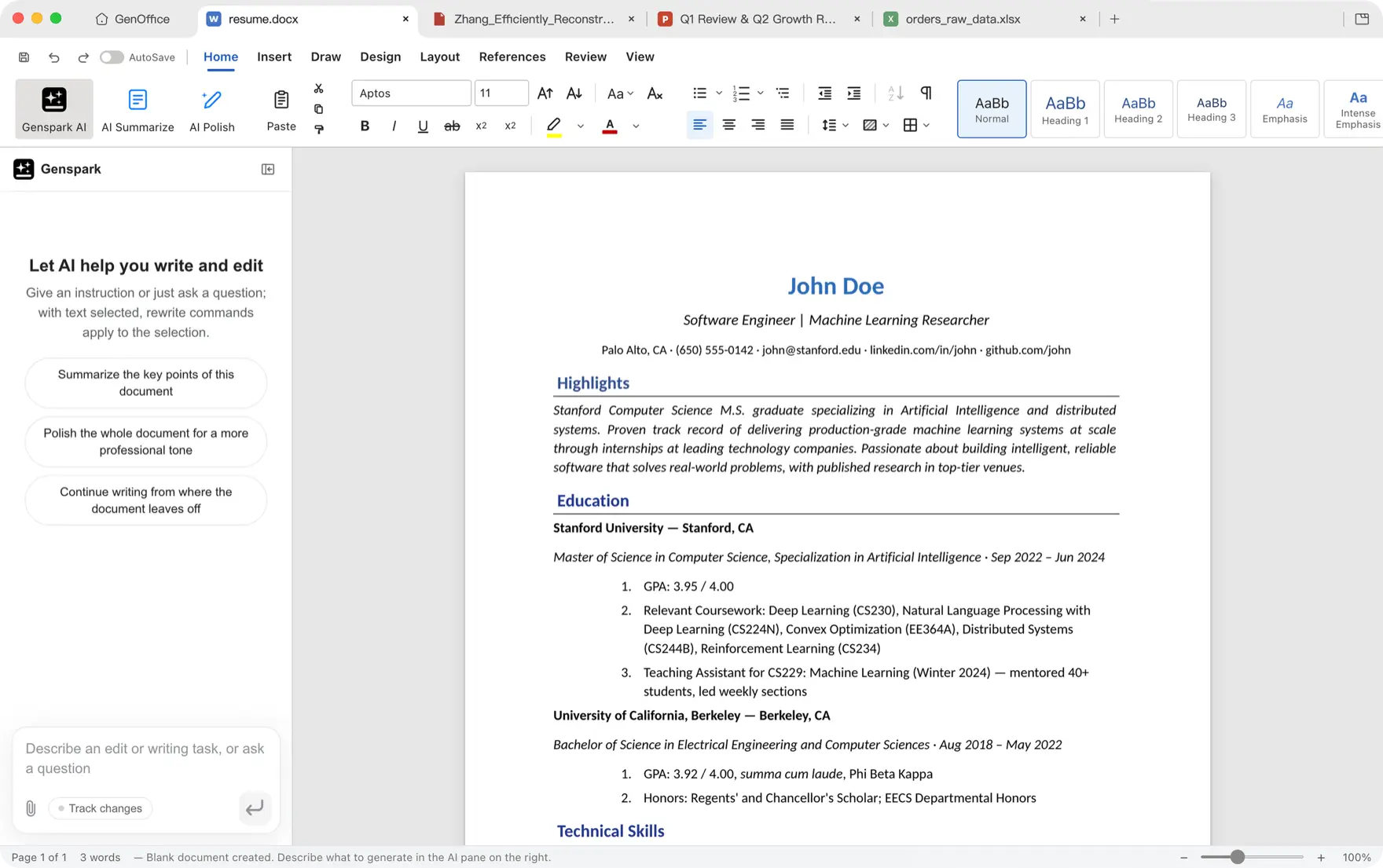
GenOffice Docs
Docs is a Word editor that opens and saves .docx files. Ask it to draft a section, tighten a paragraph, or rewrite something for a different reader, and the change lands in the document with a snapshot you can roll back.
Good for: resumes, reports, cover letters, and anything you would normally start from a blank page.
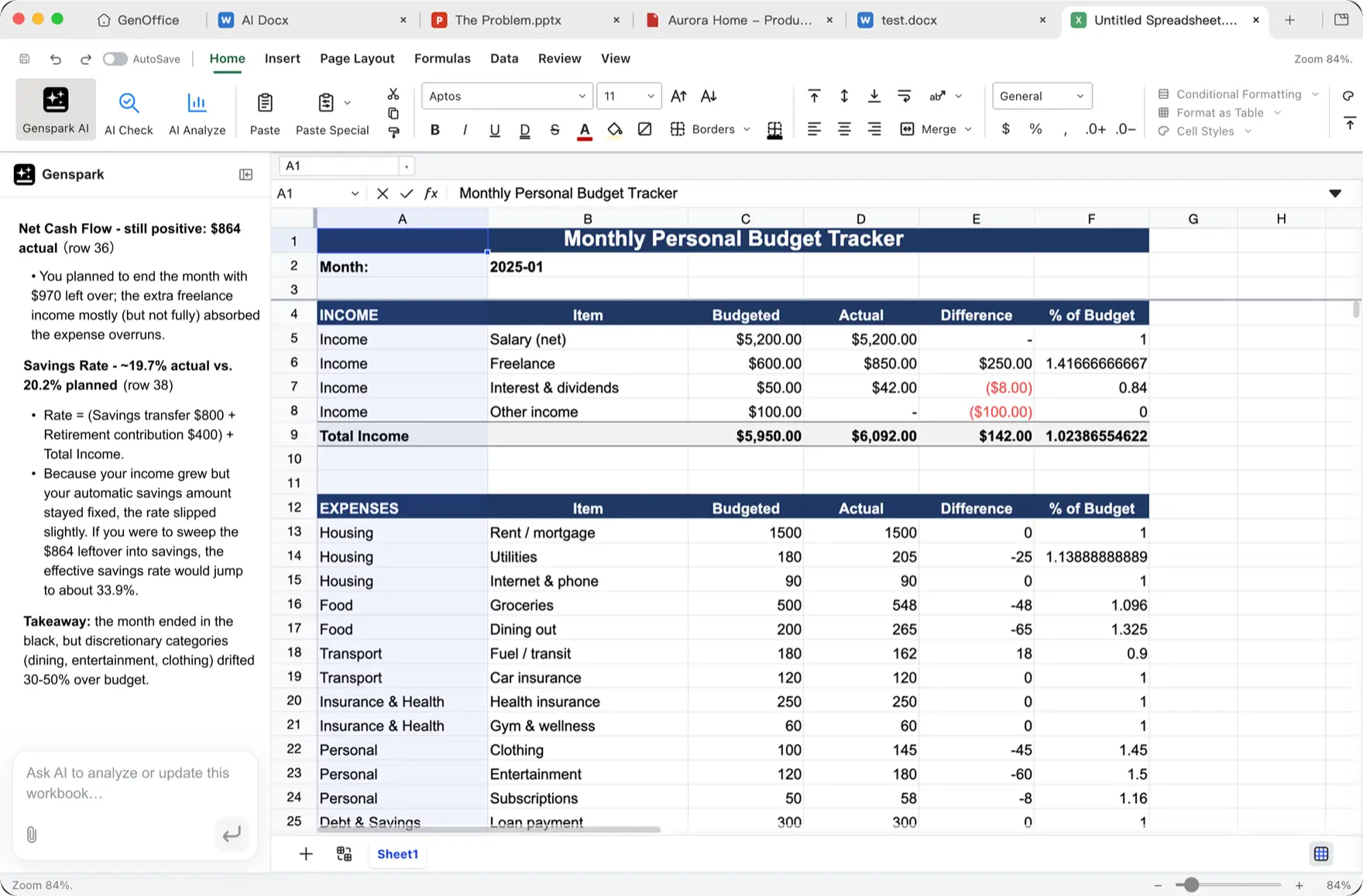
GenOffice Sheets
Sheets opens .xlsx files and writes formulas for you. Ask for a budget tracker or a monthly variance summary and the formulas appear in the cells, so you are not writing cell references by hand.
Good for: budgets, quick analysis of raw data you were sent, and pivot summaries.
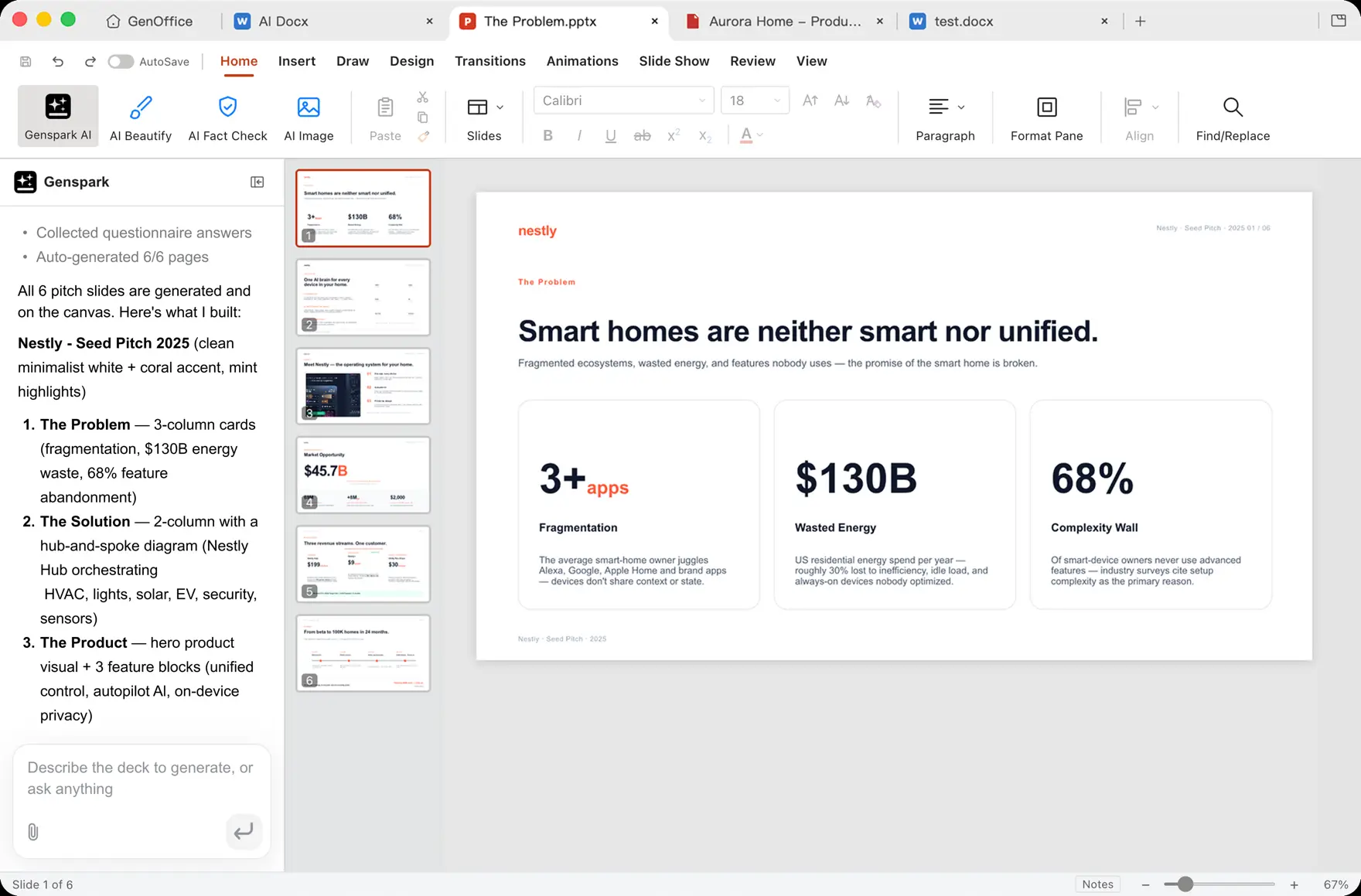
GenOffice Slides
Slides builds .pptx decks from a description. Give it a topic and it plans the running order, picks a look, writes each slide and drops the numbers onto the canvas as cards, leaving you a deck you can keep editing.
Good for: pitch decks, class presentations, and first drafts you would rather edit than start.
GenOffice PDF
The PDF editor handles annotations, forms, signatures and page operations, and lets you highlight any passage and ask about it on the spot. Long contracts and papers stop needing a second tab.
Good for: contracts, statements and research papers. If you only need to edit PDFs, see our roundup of free PDF editors for Windows.
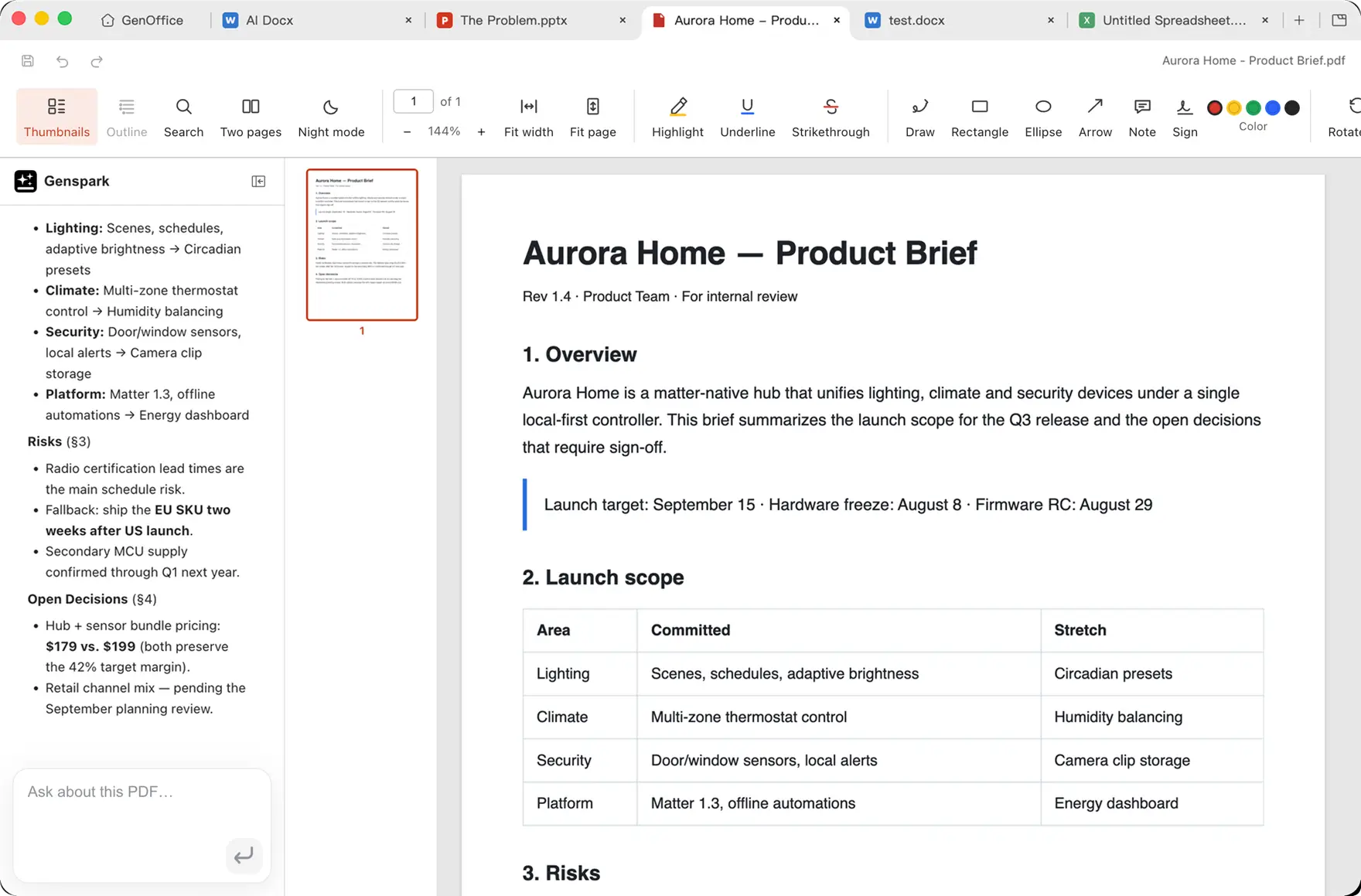
The pattern to notice: all four editors read and write the standard file formats, .docx, .xlsx, .pptx and .pdf. Nothing you make in GenOffice is locked into GenOffice. If you drop it tomorrow, your files still open in Word, Excel and PowerPoint.
Who it suits
- Use it if you want AI help inside your documents without paying for a Microsoft 365 or Copilot subscription.
- Skip it if your work cannot afford a hiccup. Keep the suite you already trust as the default for critical files.
- Be careful if you handle confidential documents, since the AI panel sends your text to Genspark servers.
Key Features
AI In Every Editor
One assistant panel across Docs, Sheets, Slides and PDF
Safe File Round Trip
Only edited paragraphs are rewritten, the rest is untouched
Standard File Formats
Reads and writes .docx, .xlsx, .pptx and .pdf
Snapshots And Diffs
See what the AI changed and roll it back
Real Office Tools
Pivot tables, charts, tracked changes, forms and signatures
Open Source
Apache 2.0, so you can read, fork or reuse the code
What the AI Features Cost
This is the part most write-ups skip. The office suite is free, but the AI panel spends Genspark credits, and those come from your Genspark account. The free account is enough to try it properly and enough for light use. Heavy use is not free.
| Genspark plan | Credits included | Who it suits |
|---|---|---|
| Free plan | A daily credit allowance | Trying it out, and the odd rewrite or summary |
| Plus plan ($$) | A monthly credit pool, several tiers to pick from | Regular use across documents, sheets and decks |
| Pro plan ($$$) | A much larger monthly pool, plus more cloud storage | Daily heavy generation and team-scale work |
💡 Tip: credit costs vary by task, and both the allowances and the prices change, so check the official Genspark plan page for current figures before you subscribe. If you only want AI writing help inside Windows and do not need the office suite, Microsoft Copilot is the other route worth comparing.
System Requirements
Genspark does not publish a formal spec sheet. The figures below are our estimate, based on the installer being a 64-bit build and the apps being built on Electron, which is the same technology behind apps like Slack and VS Code.
| Requirement | Details |
|---|---|
| Operating System | Windows 10 or Windows 11, or macOS on Apple Silicon |
| Processor | 64-bit (x64). There is no 32-bit or Arm build for Windows |
| Memory | 4 GB will run it, 8 GB or more is realistic with several files open |
| Storage | Around 1 GB free for the app |
| Internet | Not needed for editing. Required for anything the AI panel does |
GenOffice vs the Alternatives
| Suite | Price | Open Source | AI Built In | Edits Offline |
|---|---|---|---|---|
| GenOffice | Free | Yes | Yes, uses credits | Yes |
| LibreOffice | Free | Yes | No, add-ons only | Yes |
| ONLYOFFICE | Free / paid tiers | Yes | Yes, bring your own key | Yes |
| WPS Office | Free / paid tiers | No | Yes, on paid tiers | Yes |
| Microsoft 365 | Subscription | No | Yes, Copilot costs extra | Yes |
Official Video
Watch Genspark’s own introduction to GenOffice to see the AI panel writing inside a document, building a spreadsheet analysis from raw data, and generating a full slide deck from a single prompt.
Tips for Getting Started
Copy a real file you already have and open the copy first. Seeing how it handles your own formatting tells you more in two minutes than any feature list.
Ask the AI for one small change before you ask for a big one. A single paragraph rewrite shows you the snapshot and rollback flow while the stakes are low.
Point Sheets at raw data you were sent rather than a blank grid. Cleaning up someone else’s export is where it saves the most time.
Use the PDF highlight and ask feature on a long contract. It is the fastest way to understand what the app is for.
Keep an eye on your credit balance in your Genspark account for the first week, so you learn which tasks are cheap and which ones are not.
GenOffice FAQ
Do I need a Genspark account to use GenOffice?
Can I use GenOffice without ever touching the AI?
Will GenOffice mess up the formatting of my Word documents?
Why does Windows warn me when I install GenOffice?
Is GenOffice really open source, and can I fork it?
Does GenOffice work offline?
Can I keep GenOffice and Microsoft Office installed at the same time?
What are the system requirements for GenOffice?
Support and Community
Because the project is open, reporting a bug genuinely changes it. Open a bug report or read what others have hit on the GenOffice issues page on GitHub, or talk to other users on the official Genspark Discord server.
More Windows software guides: OpenOffice for Windows · Trio Office for Windows · Microsoft Office 2021 for Windows · GenClipboard for PC
Discover more from Windows Mode
Subscribe to get the latest posts sent to your email.














Add your first comment to this post