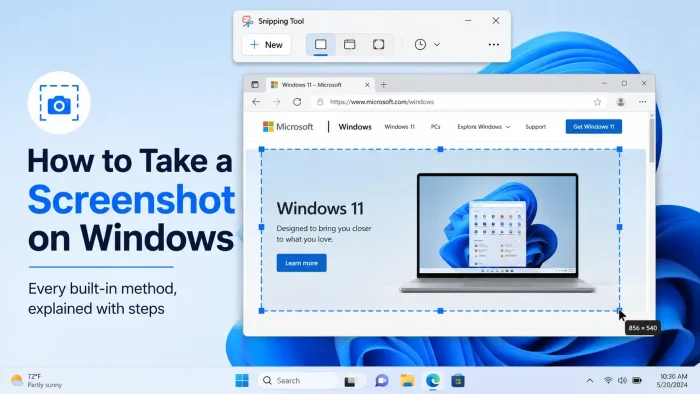
Windows has more built-in screenshot tools than most people know about. The fastest is pressing Windows key + Shift + S, which opens Snipping Tool so you can drag to select exactly what you want. This guide covers every method, what each one saves, and when to use which one.
What You Need to Know
- Win+Shift+S is the best default. It lets you pick what to capture, saves it automatically, and copies it to your clipboard (a temporary holding area so you can paste it anywhere with Ctrl+V).
- Win+PrtSc captures the entire screen and saves the file automatically to your Pictures > Screenshots folder.
- Win+Alt+R records your screen as a video clip using Xbox Game Bar. No download needed.
Quick Reference: All Screenshot Shortcuts
Not sure which shortcut to use? Start here.
| Shortcut | What It Does | Saves To |
|---|---|---|
| Win + Shift + S | Open Snipping Tool overlay, select area | Clipboard + Pictures/Screenshots |
| Win + PrtSc | Full screen capture, auto-saved | Pictures > Screenshots (file) |
| PrtSc | Full screen capture, clipboard only | Clipboard only (paste with Ctrl+V) |
| Alt + PrtSc | Active window only, clipboard | Clipboard only (paste with Ctrl+V) |
| Win + Alt + R | Start/stop screen video recording | Videos > Captures (MP4 file) |
| Win + Shift + R | Snipping Tool video clip, select area | Pictures > Screenshots (MP4 file) |
Method 1: Snipping Tool (Best Option)
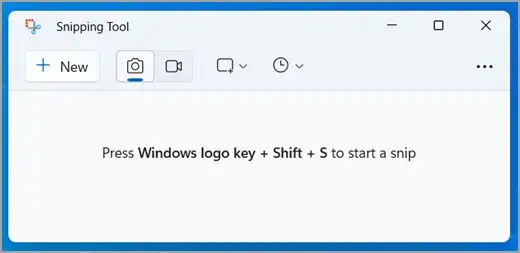
Snipping Tool is built into Windows 11 and 10. It gives you the most control over what you capture and automatically saves the file to your Screenshots folder. The keyboard shortcut Win+Shift+S opens it without needing to search for the app.
You can also open Snipping Tool from the Start menu: click Start, type snipping tool, and select it from the results. To keep it handy, right-click the app in search results and choose Pin to taskbar.
Snipping Tool Capture Modes
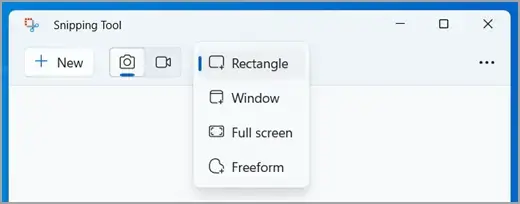
After pressing Win+Shift+S, four icons appear in a small bar at the top of your screen. Each one captures a different shape or area.
Rectangle
Click and drag to draw a rectangle around the area you want. The most common mode.
Freeform
Draw any shape you like with your mouse or stylus. Useful for capturing irregular content.
Window
Click on any open window to capture just that window, no background included.
Full screen
Captures everything on your screen instantly, no dragging needed.
How to Annotate, Save, and Share a Snip
After you take a snip, click the notification that appears in the bottom-right corner. This opens the full Snipping Tool window where you can edit and save your capture.
How to Delay a Screenshot (for Menus)
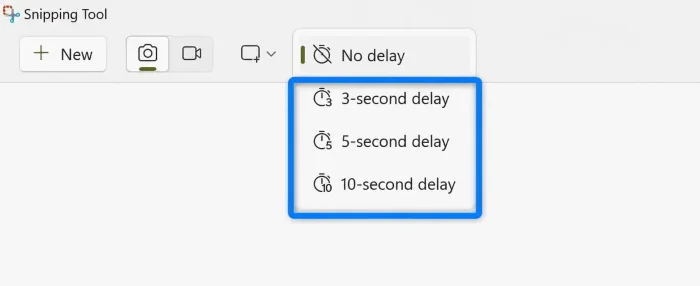
If you need to capture a menu or tooltip that disappears when you click away, use the delay feature.
Method 2: Print Screen (PrtSc)
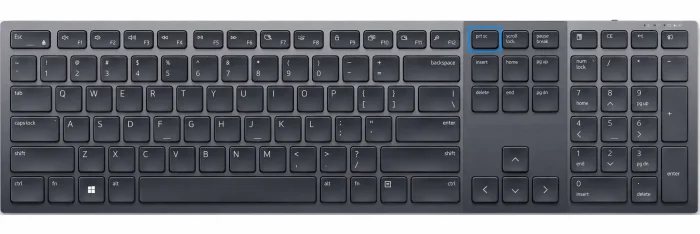
The Print Screen key (labeled PrtSc or PrtScn on most keyboards, usually in the top-right row) has been on Windows keyboards since the early days of PC. It still works and is useful when you just need a quick copy to paste somewhere.
PrtSc alone
Copies the entire screen to your clipboard. Nothing is saved as a file. Press Ctrl+V to paste it into Paint, Word, an email, or a chat message.
Best for: Pasting a quick screenshot into a document or chat.
Win + PrtSc
Captures the entire screen and saves it as a PNG file automatically. You will find it in Pictures > Screenshots. The screen briefly dims to confirm the capture.
Best for: When you want a saved file with no extra steps.
Alt + PrtSc
Captures only the currently active window (the one you clicked on last) and copies it to your clipboard. Nothing is saved as a file. Press Ctrl+V to paste.
Best for: Grabbing a single window without the rest of your desktop showing.
Note: On some laptops the PrtSc key requires pressing Fn + PrtSc. If PrtSc alone does nothing, try holding Fn first.
Method 3: Xbox Game Bar (Screen Recording)
Xbox Game Bar is built into Windows 10 and 11 and can record your screen as a video clip. You do not need to download anything. It records one application at a time and saves the video as an MP4 file.
Limitation: Xbox Game Bar cannot record your desktop or File Explorer. It only records apps. If you need to record your desktop or folders, use Snipping Tool video snip (Win+Shift+R) instead.
Method 4: Snipping Tool Video Snip
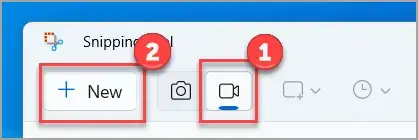
The Snipping Tool on Windows 11 can also record video clips. Unlike Xbox Game Bar, it lets you select a specific rectangular area of your screen to record, including your desktop or File Explorer.
Method 5: Copilot+ PC Features (Windows 11 Only)
If you have a Copilot+ PC (a newer Windows 11 device with a built-in AI chip), Snipping Tool gets two extra features.
Perfect Screenshot
After you drag to select an area, the tool automatically adjusts the crop to tightly frame the on-screen content. Less manual cropping needed.
Color Picker
Click anywhere on your screen to capture the exact color at that point. The color code copies to your clipboard so you can use it in design tools, CSS, or anywhere else you need a precise color match.
Not sure if you have a Copilot+ PC? Click Start > Settings > System > About and look for “Copilot+ PC” listed under your device specs.
Video Guide
Watch this walkthrough to see the main screenshot methods demonstrated on a Windows 10 or 11 PC, including Snipping Tool, Print Screen, and Xbox Game Bar.
Snipping Tool Keyboard Shortcuts
Use these shortcuts inside the Snipping Tool app to work faster.
| Shortcut | Action |
|---|---|
| Alt + M | Choose a snipping mode |
| Alt + N | Take a new snip in the same mode as last time |
| Alt + D | Delay capture by 1 to 5 seconds |
| Ctrl + C | Copy the snip to clipboard |
| Ctrl + S | Save the snip |
| Shift + Arrow keys | Move the cursor to select a different snip type |
Tips for Getting Better Screenshots
Pin Snipping Tool to your taskbar
Search for Snipping Tool in Start, right-click it, and choose Pin to taskbar. One click launches it any time without hunting through menus.
Use Win+PrtSc when you need files fast
If you are taking many screenshots in a row, Win+PrtSc saves each one automatically with a numbered filename. You will find them all in Pictures > Screenshots without opening any app.
Copy text that you normally cannot select
Open Snipping Tool, take a screenshot, then click the Text actions button. It reads the text in the image and lets you copy all of it or just the parts you need. Works on images, error messages, PDFs, or anything on screen that you cannot normally highlight and copy.
Use Alt+PrtSc to grab a single window cleanly
If your desktop background is messy or you have other windows open, Alt+PrtSc captures just the active window with no background. Paste it directly into an email or document with Ctrl+V.
Redact sensitive information before sharing
Snipping Tool has a Quick Redact button in the Text actions menu. It automatically finds and blurs email addresses and phone numbers in your screenshot before you share it. You can also draw over anything manually with the black pen tool.
Frequently Asked Questions
Support and Community
- Microsoft Community Forums: post questions and get answers from other Windows users and Microsoft staff.
- r/windows on Reddit: active community for Windows tips, help, and news.
- Windows release notes: see what changed in the latest Windows update, including Snipping Tool improvements.
More Windows tutorials: Windows Keyboard Shortcuts Guide · Xbox Game Bar for Windows · How to Disable Windows Error Reporting
Discover more from Windows Mode
Subscribe to get the latest posts sent to your email.
















Printscreen button does the job