

Readers like you help support this site. When you make a purchase using links on our site, we may earn an affiliate commission. All opinions remain our own.


This cloud storage app keeps your work organized and secure, perfect for personal or team projects.
You can download Google Drive for Desktop for free on your Windows PC via Google’s official site, requiring a Google account for access.
Developed by Google, it works on Windows 10 and 11, trusted by users for its fast syncing and integration with Google Workspace.
If you’re a student, professional, or team member managing files, you need a tool that’s simple and reliable.
This guide covers installing it on Windows, its key features, and tips to get started.
Share your favorite Google Drive organization tip below, or contact us for help.
How to Download Google Drive for Desktop on PC
To get the Google Drive for Desktop app on your Windows PC, download it from Google’s site. Here’s how:
- Google Website
- Visit the page: Google Drive for Desktop.
- Click Download for Windows (about 300 MB).
- Run the installer, sign in with your Google account, and choose folders to sync.
- Access files from File Explorer or start sharing.
Quick Tip: 💡 Drag and drop files into the Google Drive folder for instant syncing, saving time on uploads.

What is Google Drive for Desktop About?
Google Drive for Desktop, developed by Google since 2012, is a cloud storage app that syncs files to your PC, letting you access them via File Explorer.
It supports real-time collaboration, sharing, and integration with Google Workspace apps like Docs and Sheets.
Users on X praise its drag-and-drop ease but note slow uploads for large files.
It’s ideal for file storage, team collaboration, and hybrid work, with 15 GB free storage and paid plans from $1.99/month.
Core Features: Sync, store, and share files with cloud-powered ease.
Why Use Google Drive for Desktop on Windows?
It’s reliable, integrated, and perfect for file management.
- Sync files to access them offline or online
- Share files or folders with secure links
- Collaborate in real-time with Google Docs, Sheets, or Slides
- Access 15 GB free storage per Google account
- Integrate with Google Workspace for seamless workflows
Popular Industries and Use Cases for Google Drive
Google Drive is used across industries and tasks, including:
- Industries: Education (assignment sharing), Business (document storage), Creative (media backups)
- Use Cases: Storing project files, sharing team documents, backing up photos, collaborating on Docs, organizing hybrid workflows
Quick Start Guide for Google Drive
New to Google Drive for Desktop? Get going quick:
- Open the app and sign in with your Google account.
- Choose folders to sync with your PC.
- Drag files into the Drive folder to upload and share.
Best Settings for Google Drive on PC
Tweak these for a better experience:
- Sync: Select specific folders in Preferences to save disk space.
- Notifications: Enable alerts for shared file updates.
- Bandwidth: Adjust upload/download limits for faster performance.
Common Issues & Fixes for Google Drive
- Slow Uploads: Pause syncing or reduce bandwidth usage in Settings for large files.
- Storage Limits: Upgrade to Google One plans for more than 15 GB.
- Sync Errors: Restart the app or check internet connection.
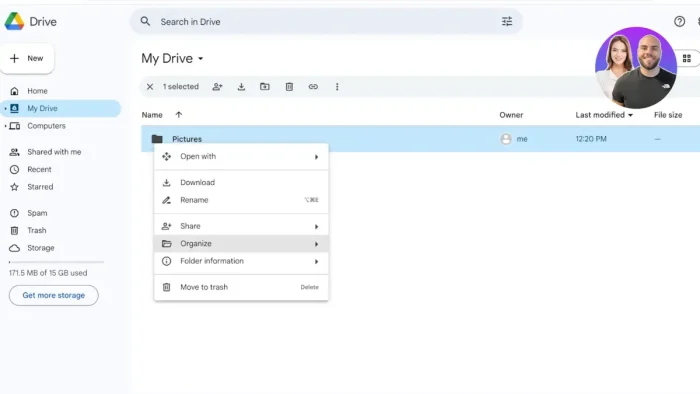
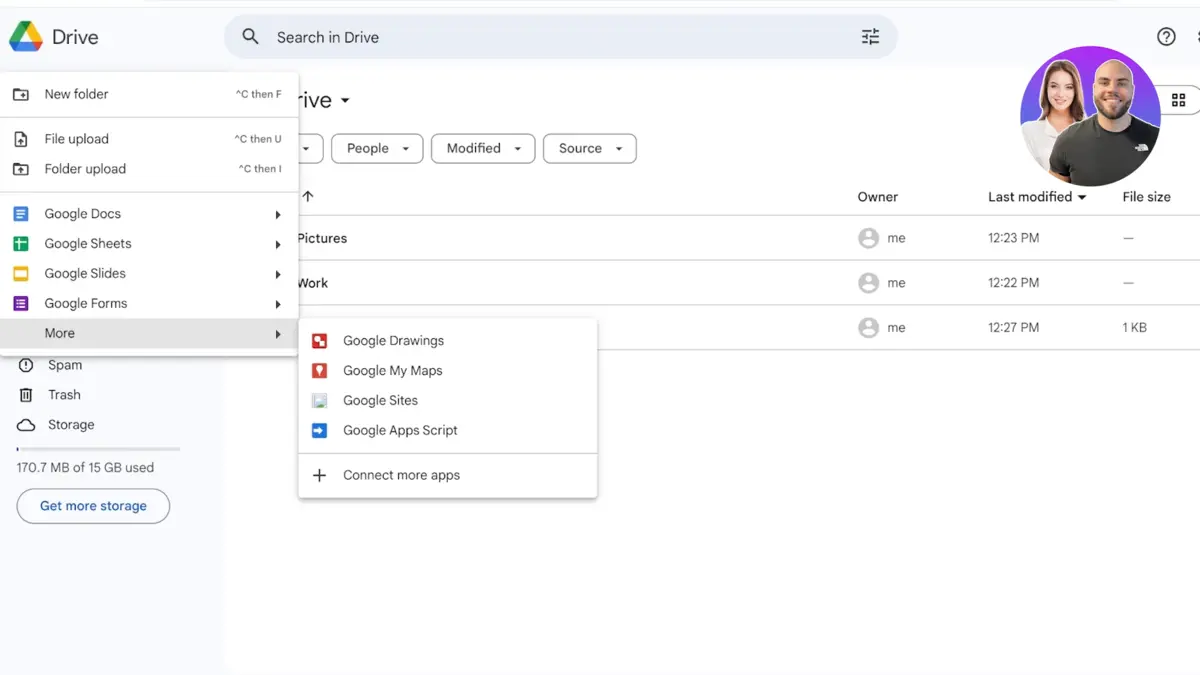
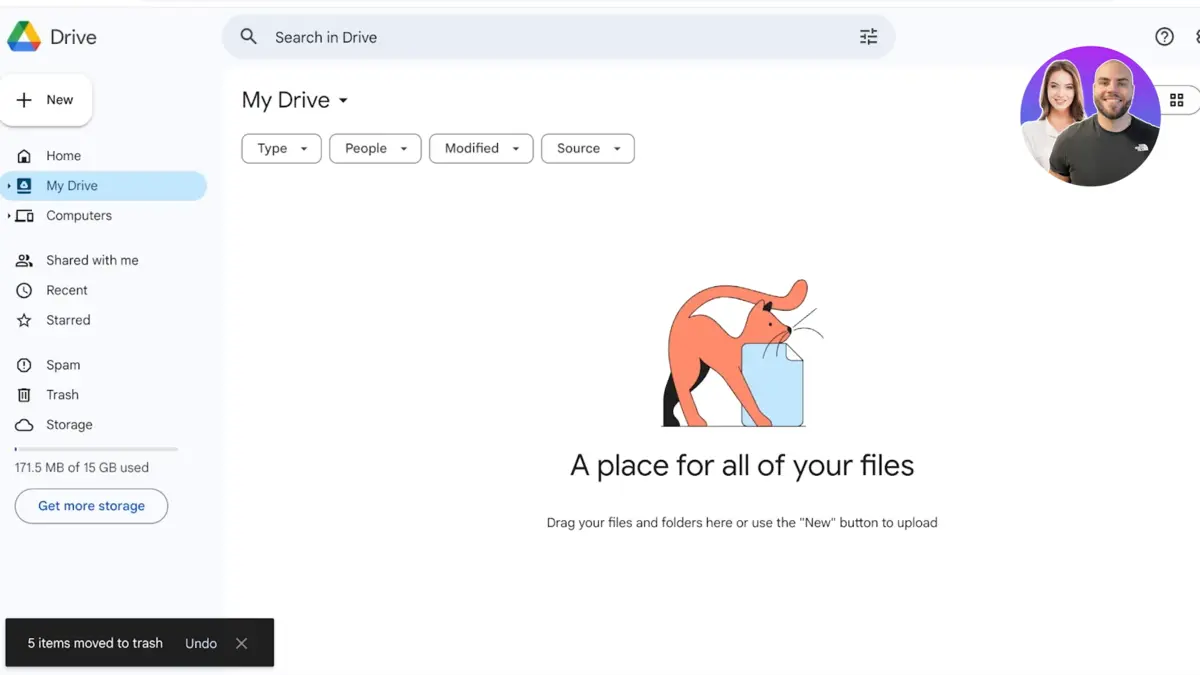
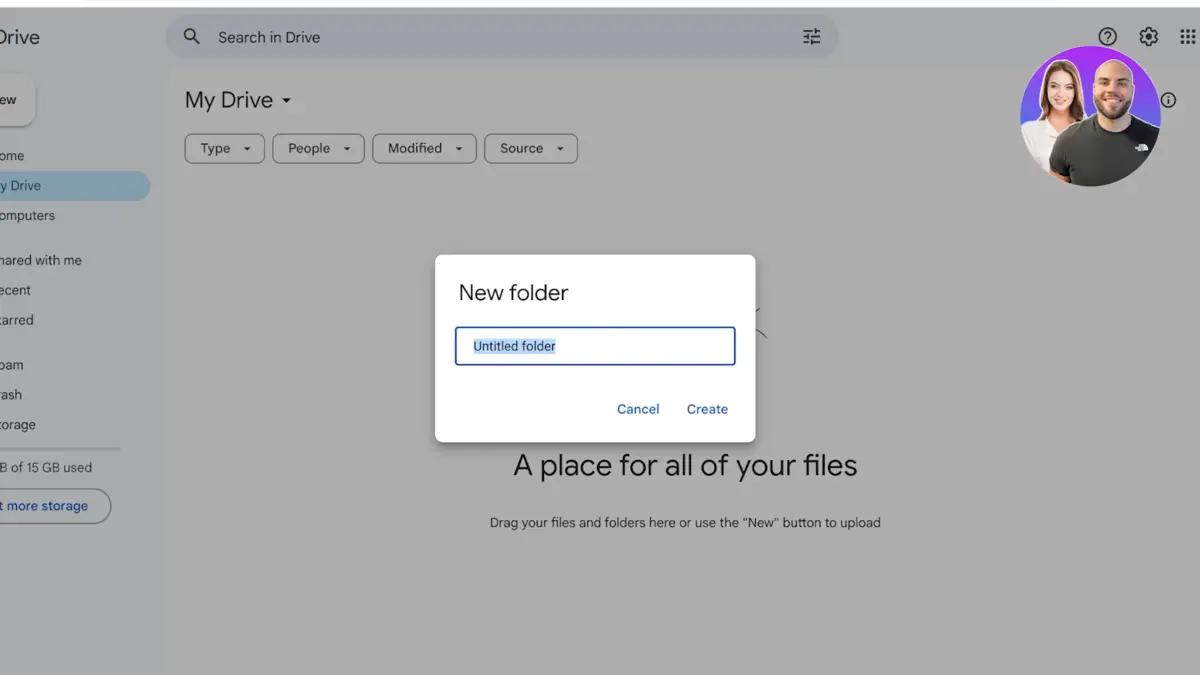
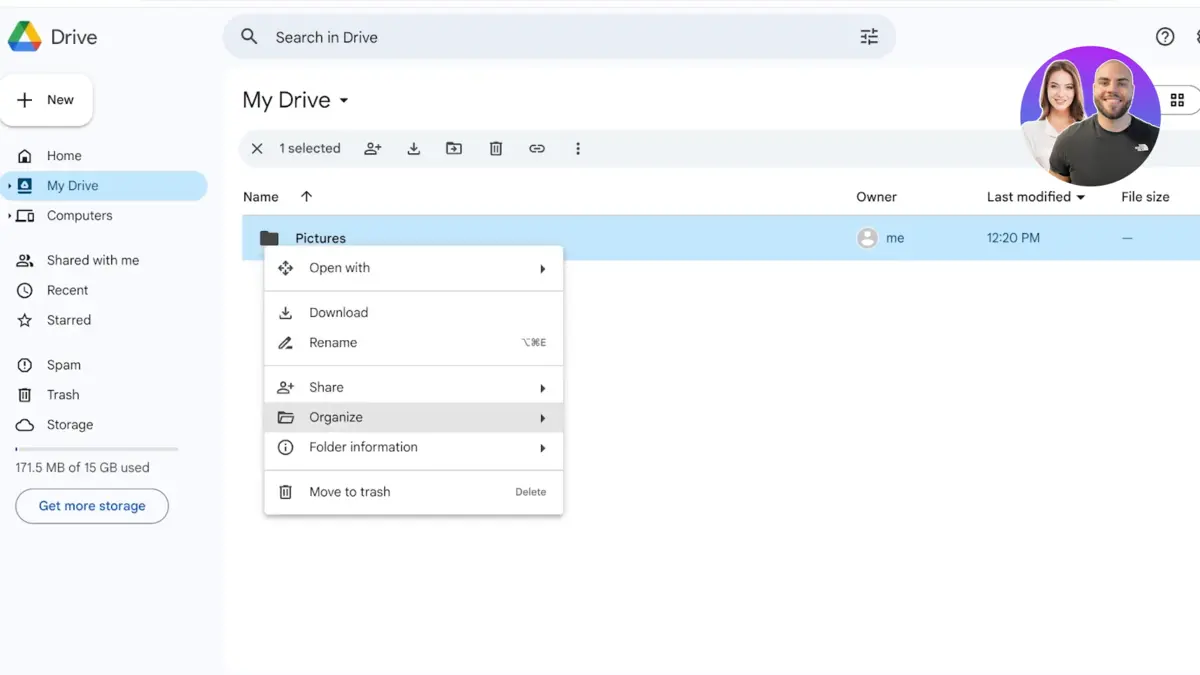
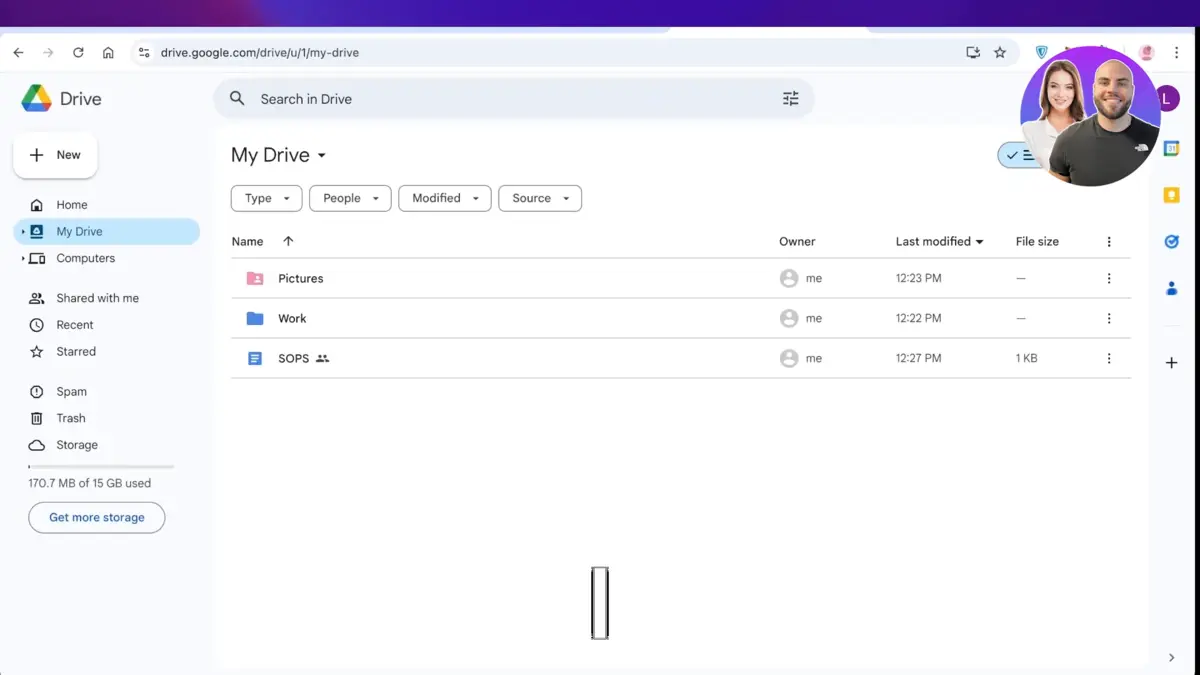
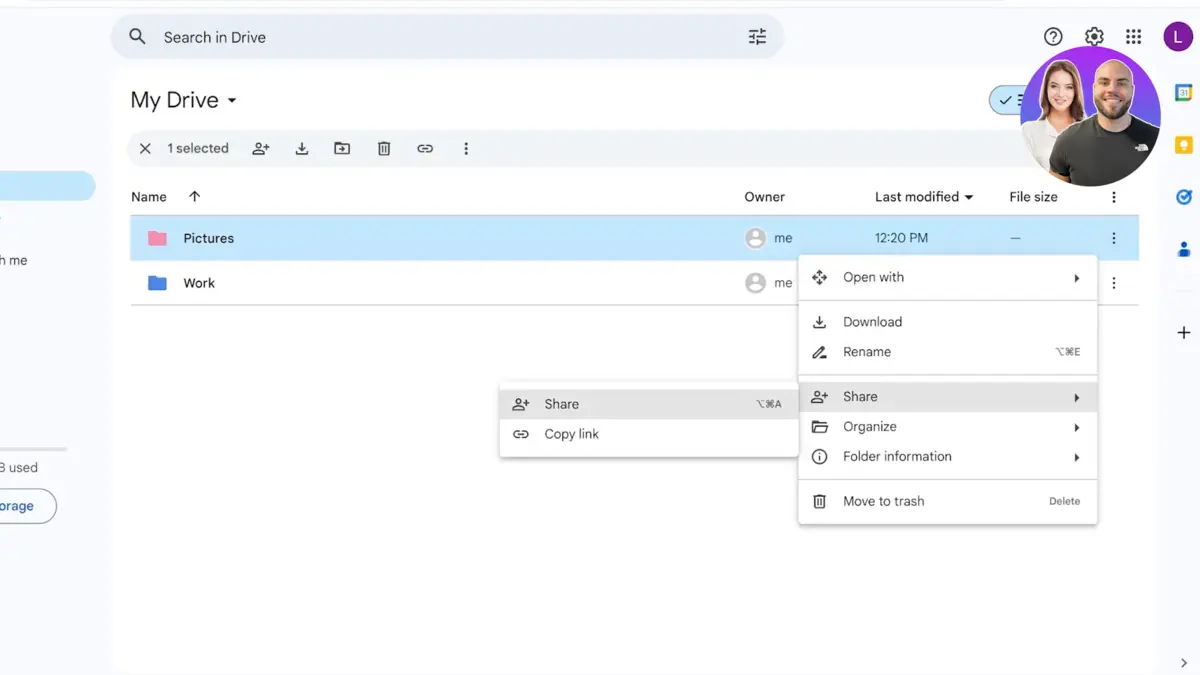
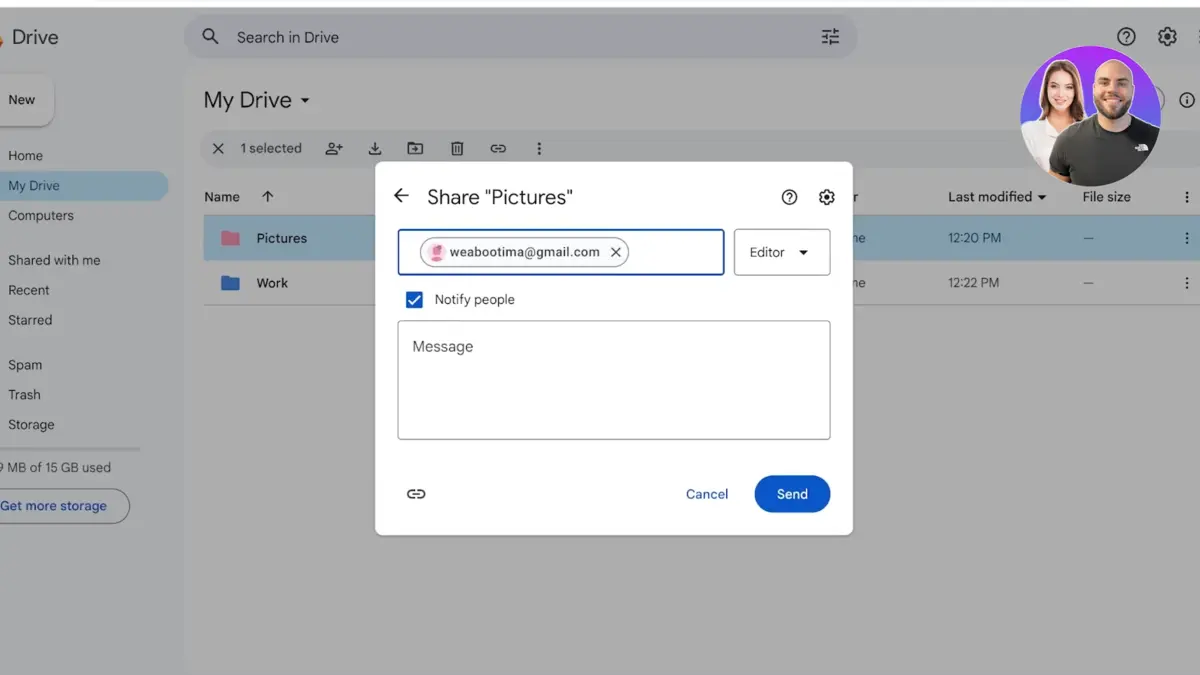
Google Drive Screenshots
Google Drive Beginner’s Video
Watch this quick guide to learn how to use Google Drive for Desktop:

System Requirements for Google Drive on Windows
- OS: Windows 10 (version 16299.0 or higher), 11
- CPU: 1 GHz or faster
- RAM: 4 GB minimum, 8 GB recommended
- Storage: 500 MB free for app, plus file storage
- Other: Internet for syncing and collaboration
Google Drive on Windows FAQ
- Is Google Drive for Desktop free? Yes, with 15 GB free storage; paid plans from $1.99/month.
- Can I access files offline? Yes, if synced to your PC.
- Does it integrate with other tools? Yes, with Google Workspace apps like Docs and Sheets.
Support and Community
Explore More Windows Apps: Zoom Workplace, Google App for PC, Zenkit, Trello, File Viewer Plus