Readers like you help support this site. When you make a purchase using links on our site, we may earn an affiliate commission. All opinions remain our own.

QuickBooks Online is Intuit’s cloud accounting platform. Unlike the old “Desktop” software, it runs entirely in your browser, meaning you can access your books from your Windows PC, laptop, or phone without installing heavy software.
Why choose Online over Desktop?
☁️ Access Anywhere
Log in from your work PC, home laptop, or mobile app. Your data is always live and synced.
💾 No Backups Needed
Intuit backs up your data automatically on their secure servers. No more “company file” corruption.
🔄 Auto-Updates
You are always on the latest version. New tax tables and features are added automatically.
Which QuickBooks Online plan fits you?
Pick the plan based on your workflow complexity. You can upgrade later as you grow.
Solo / Freelancers
Best for: Sending invoices, tracking income/expenses, and running basic tax reports. 1 User.
Service Business
Best for: Managing bills (Accounts Payable) and tracking time. Includes 3 Users.
Plus
Growth & Inventory
Best for: Selling products (Inventory tracking) and Project Profitability. Includes 5 Users.
Mid-Size / Teams
Best for: Complex workflows, batch invoicing, custom user roles, and deeper analytics. 25 Users.
How to set up QuickBooks Online on Windows
Create Account
Sign up using a professional email. This ID will be your master admin login for everything Intuit.
Link Bank
Connect your business bank/credit card. QBO will automatically pull in transactions for you to review.
Enable Features
Go to Settings (Gear Icon). Turn on Sales Tax, Payroll, or Payments only if you plan to use them.
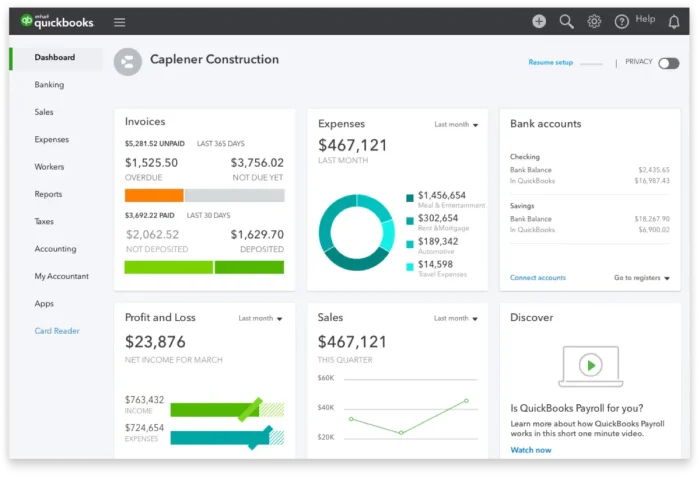
System requirements for Windows
| Operating System | Windows 10 or Windows 11 (64-bit recommended) |
| Browser | Latest version of Google Chrome, Microsoft Edge, or Firefox |
| Internet | High-speed connection (1.5 Mbps minimum) |
| Hardware | Core i3/i5 processor and 4GB RAM minimum for smooth browser performance |
Troubleshooting common issues
🐢 Loads Slowly
QuickBooks is heavy on scripts. Try clearing your browser cache/cookies or test in an Incognito/Private window.
🏦 Bank Disconnects
Banks change security often. Go to the Banking tab and click “Update” to refresh the connection manually.
🖨️ Printing Issues
If invoices won’t print, ensure your browser’s PDF viewer is enabled or download the invoice as a PDF first.
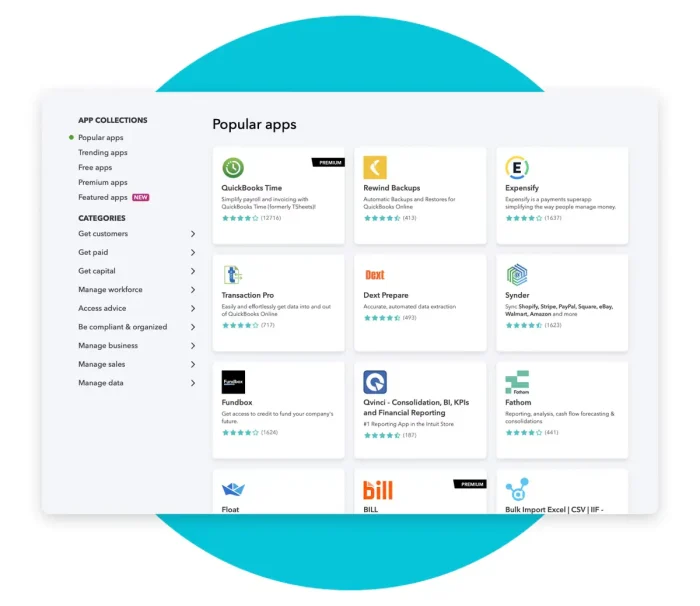
QuickBooks Online FAQ
Do I need to install QuickBooks on Windows?
No. QuickBooks Online runs entirely in your web browser. There is a Windows “app” available from Intuit, but it is essentially just a wrapper for the website.
Where do I log in?
Always go to qbo.intuit.com or the official QuickBooks homepage. Be careful of phishing sites that look similar.
Can I switch from Desktop to Online?
Yes. QuickBooks Desktop (Pro/Premier) has a “Migrate to Online” tool built-in. It moves your data to the cloud so you don’t have to start over.
Can multiple users access it at once?
Yes! This is a huge advantage over Desktop. Your accountant, partner, and you can all be logged in simultaneously from different locations.
Ready to start your books?
Get 50% off your first 3 months with our partner link.
Try some alternatives like H&R Block and TurboTax.
Discover more from Windows Mode
Subscribe to get the latest posts sent to your email.













Add your first comment to this post