Readers like you help support this site. When you make a purchase using links on our site, we may earn an affiliate commission. All opinions remain our own.

WinZip is a paid file compression app for Windows that adds encryption, cloud tools, and workflow features beyond basic zip and unzip.
It can create ZIP and ZIPX files, open many other archive formats, encrypt archives with AES, and connect to cloud services from inside the app.
For many people, Windows 11 now covers simple archive work on its own. WinZip only starts to make sense when you need stronger file protection, cloud sharing, SFTP, batch tools, or the extra paid utilities in its higher plans.
This guide explains what WinZip is, who it is for, what the plans include, how it compares with Windows built-in tools, and when it is worth paying for.
What You Need to Know
- WinZip offers a 21-day free trial.
- After the trial, a paid annual subscription is required.
- There are three main consumer plans: Standard, Pro, and Ultimate.
- WinZip supports AES encryption, cloud integration, and broad archive extraction support.
- Windows 11 version 24H2 already handles basic ZIP, RAR, 7z, and TAR work, so WinZip is mainly for people who need more advanced features.
- WinZip cannot create RAR archives.
Pricing
Paid subscription
Trial
21 days
Windows
10 / 11
Encryption
AES 128 / 256-bit
Best For
Security and cloud workflows
Who Should Use WinZip?
WinZip is best for people who need more than basic archive support. If your work involves password-protected archives, cloud storage, SFTP transfers, large email attachments, or paid extras like PDF tools, WinZip can save time by putting those features in one place.
- Use it if: you regularly share sensitive files, move files through cloud services, or want an all-in-one paid workflow tool.
- Skip it if: you only need simple zip and unzip. Windows 11 and free tools already cover that.
- Choose WinRAR instead if: you need to create RAR archives.
- Choose 7-Zip instead if: you want the strongest free option with no trial and no subscription.
What Is WinZip?
WinZip is a file compression and archive management app for Windows. It can create ZIP and ZIPX files, open many other archive types, encrypt files with AES, and connect to cloud services so you can manage and share files without constantly switching apps.
That is what separates it from free archive tools. WinZip is not mainly selling simple extraction. It is selling convenience for people who work with secure file sharing, cloud storage, email attachments, and document-heavy workflows.
If all you need is basic extraction, WinZip is usually more than you need. If you want encryption, built-in cloud management, and extra paid tools in one interface, that is where it starts to make more sense.
How to Install WinZip on Windows
WinZip installs from the official website. The trial build is the same product you will use after purchase, so it is a good way to test the full experience before deciding.
- Step 1. Open the official WinZip download page.
- Step 2. Download the installer and run it.
- Step 3. Go through the setup steps carefully and accept only the options you want.
- Step 4. Launch WinZip and start the 21-day trial.
- Step 5. Test the features you actually care about, such as encryption, cloud integration, or large-file sharing, before you decide whether to pay.
Key Features
AES Encryption
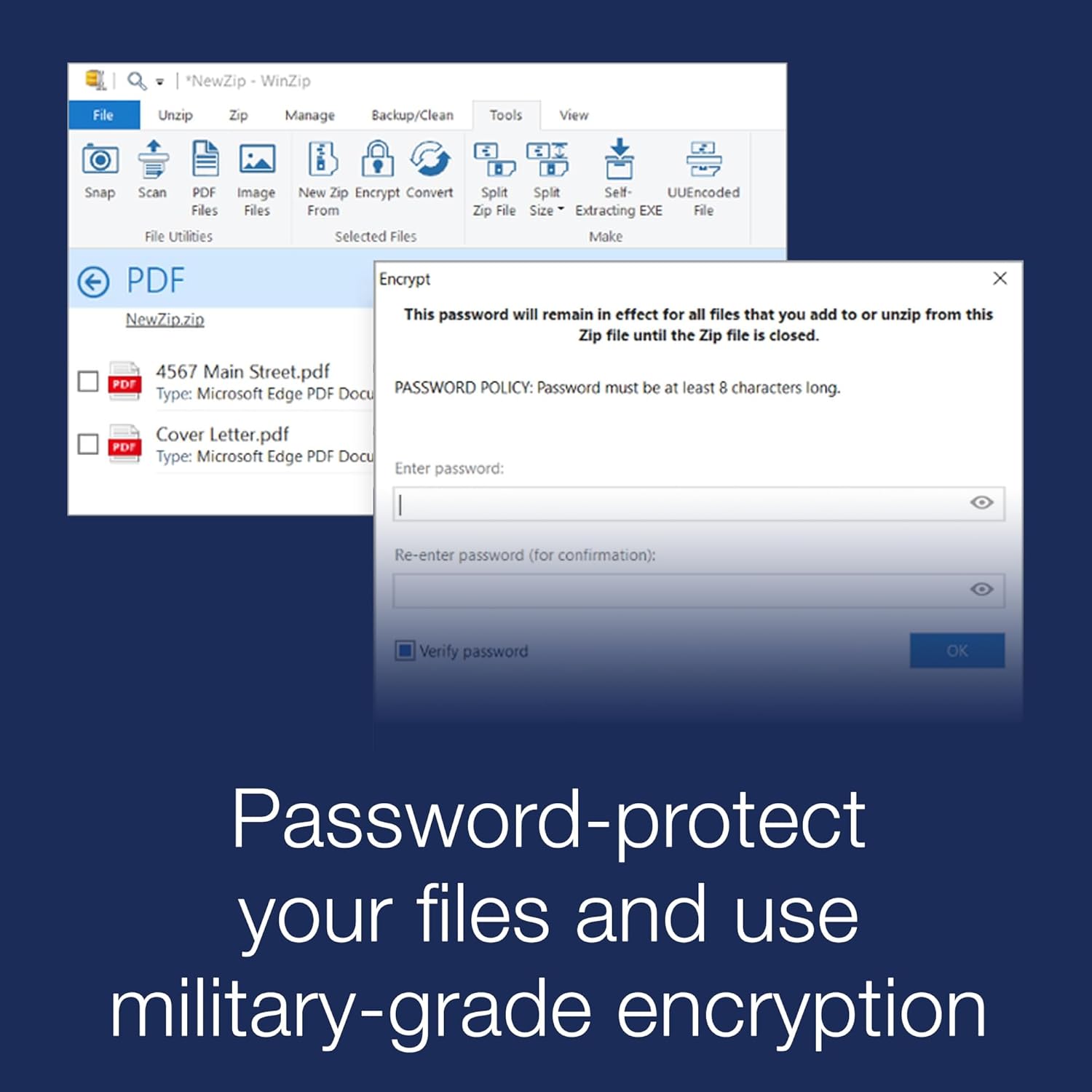
WinZip supports AES encryption for protecting files and archives. That matters if you send sensitive documents and want stronger protection than a normal ZIP file gives you.
Cloud Integration
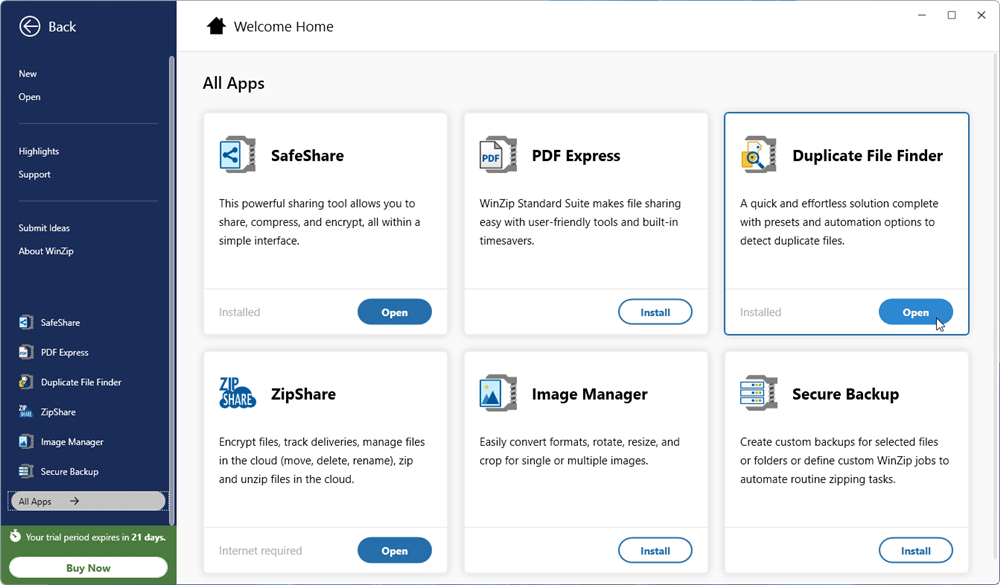
WinZip connects to services such as Dropbox, Google Drive, OneDrive, and others, so you can zip, encrypt, move, and share files from inside the app.
Secure FTP
Higher WinZip plans include secure FTP over SSH. That helps if you still move files to remote servers and want it built into the same tool.
Broad Archive Support
WinZip can open many archive formats, including RAR, 7z, ISO, TAR, CAB, XZ, VHD, and more. It cannot create RAR archives.
PDF and Extra Utilities
The higher plans add extras such as PDF Fusion and system utility tools. These are not the main reason to get WinZip, but they can matter if you want fewer separate apps.
Batch and Sharing Tools
WinZip includes tools for batch work, email sharing, and managing larger file transfers through its paid ecosystem.
Screenshots and Video
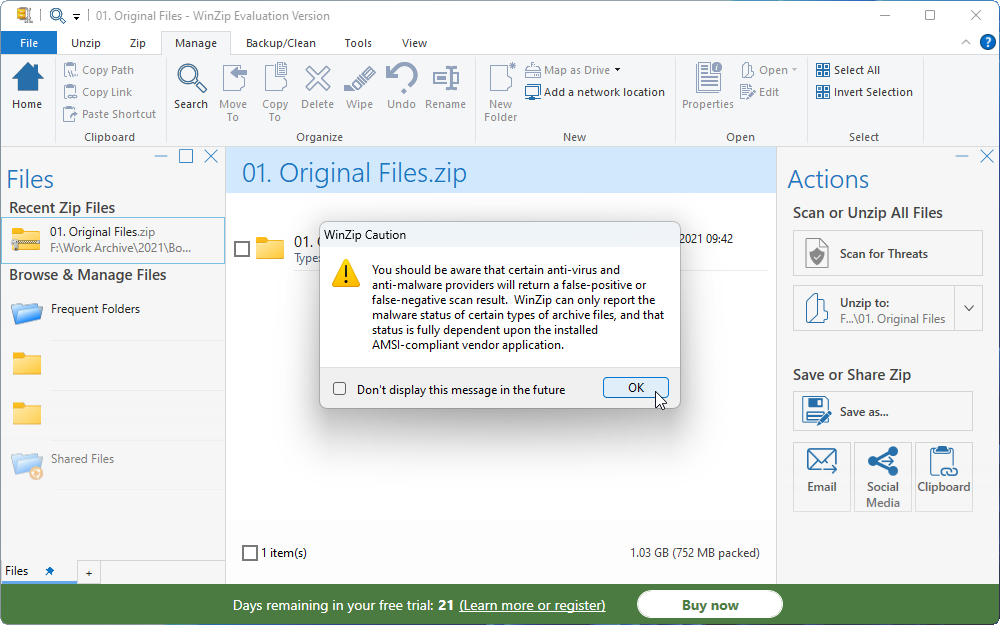
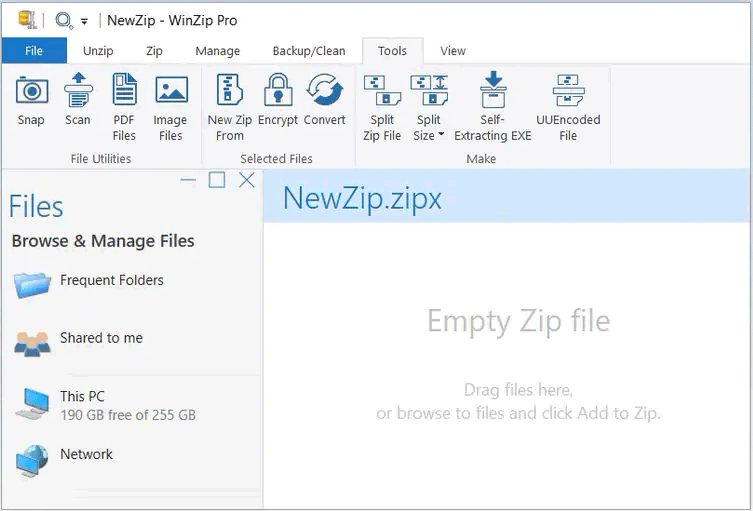
WinZip running on Windows showing the main interface, archive browser, and extraction options.
New to WinZip? This walkthrough covers compression, extraction, password protection, and cloud integration from start to finish.
Plans and Pricing
WinZip sells its consumer product as an annual subscription. The company currently offers Standard, Pro, and Ultimate plans. Prices can vary by region and promotions, so check the official page for the current amount where you live.
| Plan | Who it fits | What you get |
|---|---|---|
| Standard | People who want the core WinZip experience | Core compression, encryption, and WinZip Courier for protected email attachments. |
| Pro | People who move files through cloud services often | Everything in Standard plus ZipShare for multi-cloud management and larger file sharing. |
| Ultimate | People who also want PDF and utility extras | Everything in Pro plus PDF Fusion and WinZip System Utilities. |
For most people who actually need WinZip, Standard is enough. Pro makes more sense if you work across several cloud services. Ultimate only makes sense if you also want the bundled PDF and system utility extras.
WinZip vs Windows Built-in Archive Tools
Windows 11 version 24H2 covers a lot more archive work than older versions of Windows did. That means WinZip is no longer the obvious choice for everyone. Here is where WinZip still adds value.
| Capability | WinZip | Windows 11 24H2 Built-in |
|---|---|---|
| Create archives | Yes | Yes, for basic archive work |
| Open common formats | Yes, broad support | Yes, including ZIP, RAR, 7z, and TAR |
| Encrypted archives | Yes | No |
| Cloud integration | Yes | No |
| Secure FTP | Yes | No |
| PDF and paid extras | Yes, in higher plans | No |
WinZip vs WinRAR vs 7-Zip
These three tools overlap, but they are not aimed at the same user. This is the simplest way to compare them.
| Tool | Best for | Strengths | Trade-offs |
|---|---|---|---|
| WinZip | People who need encryption and workflow extras | Encryption, cloud integration, SFTP, paid productivity extras | Paid after trial, no RAR creation |
| WinRAR | People who need RAR creation | Creates RAR archives, good format support, keeps working after trial with reminders | Old-fashioned interface, fewer workflow extras |
| 7-Zip | People who want the best free tool | Free, open source, strong compression, broad format support | No cloud workflow extras, more basic interface |
Which one makes the most sense?
Choose WinZip if you need encryption, cloud file management, or paid add-ons such as PDF Fusion in the same workflow.
Choose WinRAR if you need to create RAR archives.
Choose 7-Zip if you want the strongest free option and do not need the workflow extras WinZip sells.
Tips for Getting Started
Use the trial to test what matters to you
You have 21 days with everything unlocked. Focus on the features you actually need, such as encryption, cloud integration, or SFTP, and decide whether paying makes sense for your workflow before the trial ends.
Use standard ZIP unless you have a reason not to
ZIPX can compress some files smaller, but the person receiving it needs WinZip to open it. Standard ZIP works everywhere.
Always use a strong password on encrypted archives
AES encryption is only as good as the password protecting it. Use something long and not guessable, and share the password separately from the file.
Watch the install steps carefully
The installer may offer optional browser extensions or companion tools. Go through each step and only accept what you actually want.
System Requirements
| Requirement | Details |
|---|---|
| Operating system | Windows 10 or Windows 11 |
| Internet connection | Needed for download, trial activation, updates, and cloud-based features |
| Storage and memory | Light enough for most modern Windows PCs, but the bundled extras in higher plans can use more space than a simple archive tool |
Frequently Asked Questions
Is WinZip free?
No. WinZip offers a 21-day free trial, but after that you need a paid subscription to keep using it.
Can WinZip open RAR and 7z files?
Yes. WinZip can open and extract many formats, including RAR and 7z. It cannot create RAR archives.
What is ZIPX?
ZIPX is WinZip’s own higher-compression format. It can make some files smaller than standard ZIP, but compatibility is not as universal, so normal ZIP is safer when you share files widely.
How secure is WinZip encryption?
WinZip supports AES encryption. The protection is only as good as the password you choose, so use a long, strong password and send it separately from the archive.
Do I need WinZip if I already have Windows 11?
Usually not for basic archive work. Windows 11 version 24H2 already supports common formats for everyday use. WinZip is mainly worth it if you need encrypted archives, cloud integration, or its paid extras.
What is the difference between WinZip and WinRAR?
WinZip focuses more on encryption, cloud tools, and paid workflow extras. WinRAR is the better choice if you specifically need to create RAR archives.
What plans does WinZip offer?
WinZip currently offers Standard, Pro, and Ultimate consumer plans, plus a separate Enterprise offering for organizations.
More Windows software guides: WinRAR for Windows · BreeZip for Windows · Best Free Windows Software
Discover more from Windows Mode
Subscribe to get the latest posts sent to your email.

















I haven’t used winzip since like 2009!! Wow, let me try it now lol!
lol!, It’s still great!