Readers like you help support this site. When you make a purchase using links on our site, we may earn an affiliate commission. All opinions remain our own.
VLC Media Player is a free, open-source media player known for its ability to play virtually any video or audio file without installing extra codec packs.
Unlike Windows 11’s built-in Media Player, which may struggle with specific formats like MKV or older AVI files, VLC includes all necessary playback codecs natively.
This guide covers everything you need to know about VLC: safe download instructions, how it compares to Windows default tools, advanced features like video conversion and network streaming, keyboard shortcuts, and troubleshooting common issues.
Free (No Ads)
Universal
Converter / Streaming
Win, Mac, Linux
📋 System Requirements
Operating System
Windows 11, 10, 8.1, 8, 7 (32/64-bit)
RAM
512 MB minimum (2 GB+ for 4K)
Storage
~150 MB for installation
How to Download and Install VLC Safely
⚠️ Important: Always download VLC from VideoLAN.org. Many unofficial sites bundle the player with adware or unnecessary toolbars.
1
Get the Official Installer
Navigate to the official VideoLAN website. The site will automatically detect your version of Windows (64-bit is standard for Windows 10 and 11).
2
Select Components
During installation, you can choose components. We recommend keeping “Web Plugins” unchecked unless specifically needed, but keep “File Type Associations” checked for the best experience.
3
Set as Default Player (Optional)
Windows 11 may keep the native Media Player as default. To change this, go to Settings > Apps > Default Apps, search for “VLC,” and set it as the default for .MP4 and .MKV files.
Version 3.0.21 for Windows 64-bit
Beginner’s Tutorial: Getting Started with VLC
New to VLC? This video tutorial covers the basics of playing videos, using keyboard shortcuts, adjusting playback settings, and exploring advanced features.
📚 What You’ll Learn:
- Basic playback controls and navigation
- Essential keyboard shortcuts for efficient viewing
- How to load and sync external subtitle files
- Adjusting audio and video settings
- Using playlists and managing media libraries
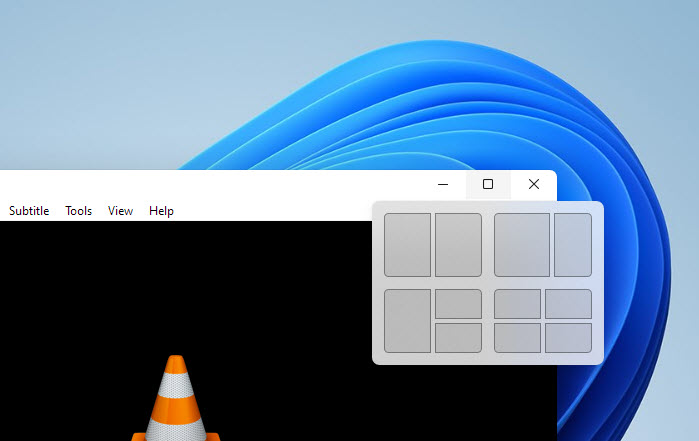
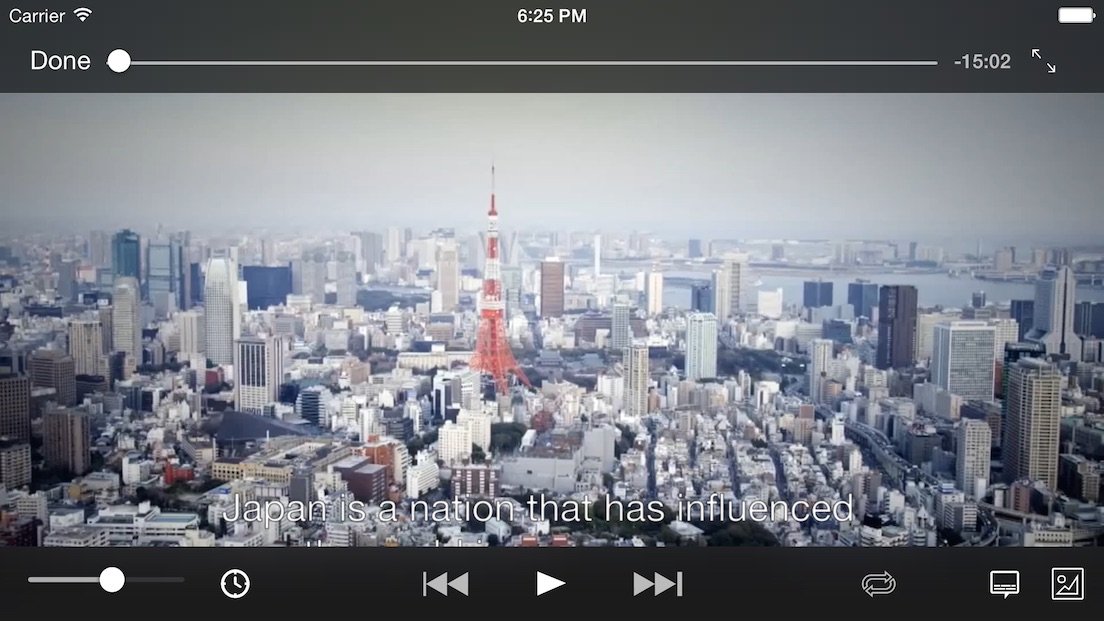
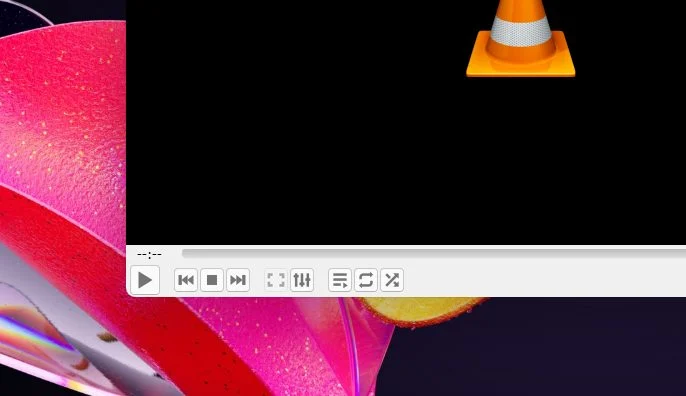
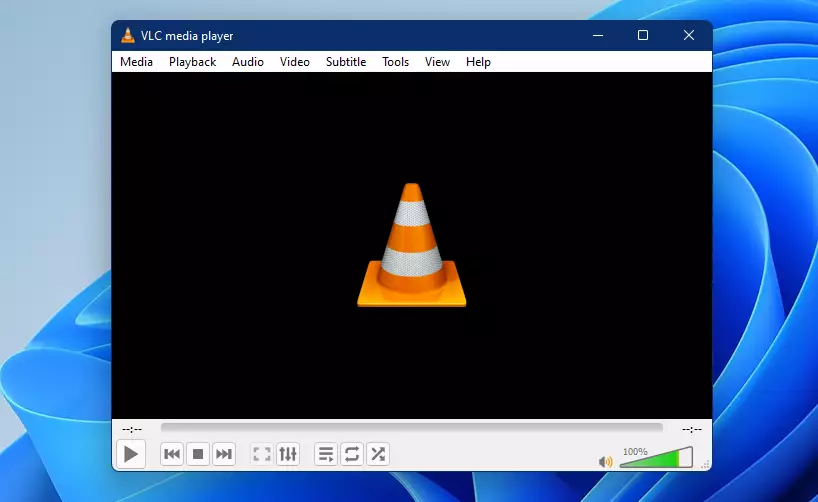
VLC Interface Screenshots
Here’s a visual overview of VLC’s interface and key features to help you understand how the player works.
VLC vs. Windows Media Player: Key Differences
Windows 11 introduced a redesigned Media Player that is significantly better than the legacy version, but it still lacks the extensive codec support and features found in VLC.
| Feature | VLC Media Player | Windows 11 Media Player |
|---|---|---|
| Codec Support | Plays almost everything (MKV, HEVC, FLV, AVI) | Good, but often requires paid HEVC extension |
| Volume Control | Up to 200% (boost) | Standard 100% |
| Subtitle Support | Advanced (sync, styling, external files) | Basic external support |
| Network Streaming | Yes (IPTV, NAS, Network URLs) | Limited (DLNA mainly) |
| Video Conversion | Built-in converter | No |
| Customization | Highly customizable (skins, extensions) | Matches Windows 11 theme |
Understanding the Differences:
Windows 11 Media Player works well for common video formats and integrates smoothly with the Windows interface. VLC becomes essential when you need to play unusual file formats, work with network streams, convert videos, or require advanced subtitle controls. Both are free, so many users keep both installed for different purposes.
Essential VLC Keyboard Shortcuts
Master these shortcuts to navigate videos faster and control playback without touching your mouse.
| Action | Shortcut |
|---|---|
| Play / Pause | Space |
| Fullscreen Toggle | F |
| Volume Up / Down | Ctrl + ↑ / ↓ |
| Mute Audio | M |
| Skip Forward 10 sec | Alt + → |
| Skip Back 10 sec | Alt + ← |
| Speed Up Playback | ] |
| Slow Down Playback | [ |
| Next / Previous in Playlist | N / P |
| Take Screenshot | Shift + S |
Advanced Features You Might Not Know
🔄 Convert Video and Audio
You don’t need a separate converter. Go to Media > Convert / Save to change video formats (e.g., MKV to MP4) or extract audio (MP3) from a video file.
🔊 Audio Normalization
If a movie has quiet dialogue but loud explosions, use the built-in Compressor. Go to Tools > Effects and Filters > Audio > Compressor to balance the volume levels.
🌐 Stream from Network Sources
VLC can play streams from network sources, including IPTV, NAS drives, and some online video URLs. Go to Media > Open Network Stream and paste the stream URL. Great for playing media stored on a home server.
⏺️ Record Your Screen
VLC can function as a basic screen recorder. Select Media > Open Capture Device and choose “Desktop” as the capture mode to record your screen activity.
📸 Frame-by-Frame Viewing
Press E to advance the video one frame at a time. Perfect for analyzing specific moments, creating thumbnails, or studying cinematography.
🎨 Video Effects and Filters
Apply real-time effects like rotation, color adjustment, cropping, and mirroring. Access via Tools > Effects and Filters > Video Effects for creative viewing or fixing improperly oriented videos.
Common Issues and Fixes
VLC video is choppy or lagging
Go to Tools > Preferences > Video and change the output module from “Automatic” to “DirectX (DirectDraw) video output” or “OpenGL video output.” Also try disabling hardware decoding under Input/Codecs > Hardware-accelerated decoding if your GPU drivers are outdated.
No audio in VLC
Check Audio > Audio Track to ensure a track is selected. If that doesn’t work, go to Tools > Preferences > Audio and set the output module to “Windows Multimedia Device Output.” Click “Reset Preferences” if issues persist.
Subtitles not showing
Ensure subtitles are enabled via Subtitle > Sub Track. For external subtitle files (.srt, .ass), they must be in the same folder as the video and ideally have the same filename. You can also drag and drop subtitle files directly onto the VLC window.
VLC crashes on startup
Delete VLC’s configuration folder to reset all settings. Press Win + R, type %APPDATA%\vlc and press Enter. Delete the entire vlc folder. Then restart VLC and it will regenerate fresh settings.
Audio and video are out of sync
While playing the video, press J to delay audio or K to speed it up. Each press adjusts by 50 milliseconds. You can also set a permanent adjustment in Tools > Track Synchronization.
Video plays too dark or colors look wrong
Go to Tools > Effects and Filters > Video Effects > Essential and adjust Brightness, Contrast, Saturation, and Gamma until the image looks correct. You can save these settings as a preset for future use.

Frequently Asked Questions
Is VLC completely free?
Yes. VLC is free and open-source software (FOSS) licensed under GPL. There are no paid “pro” versions, no subscription fees, and importantly, no advertisements within the player.
Does VLC play Blu-ray discs?
It can, but it requires some setup. Because Blu-ray discs are encrypted, you must download a specific keys database (KEYDB.cfg) and a dynamic library file (libaacs.dll) to play commercial discs. Out of the box, it does not play encrypted Blu-rays.
Is VLC safe to install?
VLC itself is extremely safe and open-source. However, because it is popular, many fake websites try to trick users into downloading “VLC” bundles that contain malware. Always download directly from VideoLAN.org.
Can I customize how VLC looks?
Yes. VLC supports “skins” which can completely change the interface. You can download skins from the official VideoLAN website. Note that skins mostly work on the standard Windows version, not the UWP (Windows Store) app version.
Should I install VLC from the Microsoft Store or the website?
Both are safe. The Microsoft Store version updates automatically and runs in a sandbox for extra security. However, the desktop version from VideoLAN.org offers more features, including full skin support and some advanced options not available in the Store version. For most users, either is fine.
Can VLC play damaged or incomplete video files?
Yes, often VLC can play partially downloaded or corrupted video files that other players cannot. It attempts to rebuild the index and skip damaged sections. While not perfect, it’s one of the most resilient media players for problematic files.
Does VLC collect my data or track my viewing?
No. VLC is open-source and does not collect any user data, track what you watch, or send telemetry back to servers. It operates entirely offline once installed. You can verify this by examining the source code, which is publicly available.
What video formats does VLC support?
VLC supports virtually all common and uncommon formats including MP4, MKV, AVI, MOV, WMV, FLV, WEBM, MPEG, 3GP, OGG, and many more. For audio, it handles MP3, AAC, FLAC, WAV, OGG, WMA, and others. If a media file exists, VLC can probably play it.
Helpful Resources and Community
Looking for more help with VLC or want to connect with other users? Here are some valuable resources:
📖 Official Documentation
Comprehensive guides on features, troubleshooting, and advanced usage.
💬 VLC Forum
Official support forum where you can ask questions and get help from the community.
🗨️ Reddit Community
Active subreddit with tips, troubleshooting help, and discussion about VLC features.
🎨 VLC Skins Gallery
Browse and download custom skins to personalize your VLC interface.
📥 Extensions Library
Download extensions to add extra functionality like subtitle downloaders and more.
Get VLC Media Player
The industry standard for video playback. Free, open-source, and secure.
Compatible with Windows 11, 10, 8, and 7
Related Windows Tools: Best Media Players on PC, Player for Media Gold, uTorrent for PC, WinZip for PC, Windows Media Player
Discover more from Windows Mode
Subscribe to get the latest posts sent to your email.













Add your first comment to this post