Stop code 0x139: find what crashed, then work through the fixes in order.
KERNEL_SECURITY_CHECK_FAILURE is a Windows stop code (0x139) that appears when Windows finds that some of its own core data has been damaged, and restarts before the damage spreads. It shows up on Windows 10 and Windows 11, often after a driver update, a new device or a big Windows upgrade.
The word security makes it sound like an attack. In almost every case it is a buggy driver or faulty memory, not a hacker. The “security check” is a built-in test that catches data being written where it should not be.
Below: what the error means in plain words, a table that sends you to the right fix, how to see which driver crashed, eight fixes in order, and a video walkthrough. Still stuck after trying them? Reach out to us directly.
What Does KERNEL_SECURITY_CHECK_FAILURE Mean?
The kernel is the core of Windows: the part that manages memory, drivers and hardware. It keeps careful lists and records in memory, such as which jobs are waiting and which memory is in use.
Windows checks those records as it works. When one turns out to be broken, for example a list that points somewhere it should not, or data that spilled past the space set aside for it, Windows stops on purpose. Carrying on with damaged core data could corrupt files or give malware a way in, so a restart is the safe choice.
Microsoft notes one thing that makes this error tricky: the damage is often found later than it happened. The driver that wrote bad data may be finished by the time Windows notices, so the file named on the crash screen is a strong clue, not always the final answer.
Am I hacked? Very unlikely. The name refers to the checks that caught the problem, not to an attack. Fix 6 runs a full malware scan anyway, since Microsoft lists it as a step worth doing.
What Causes KERNEL_SECURITY_CHECK_FAILURE?
Microsoft points mostly at drivers. In practice, memory and damaged system files are close behind.
A buggy or outdated driver
The most common cause. A driver mismanages memory Windows shares with it, and the kernel finds the mess. Graphics, network, storage and antivirus drivers are frequent culprits.
Drivers left over from an upgrade
After a big Windows update or an upgrade from Windows 10 to 11, an old driver that worked fine before can stop behaving.
Faulty or overclocked RAM
Memory that flips a bit now and then damages exactly the kind of data this check protects. Overclocked memory profiles (XMP or EXPO) can do the same.
Damaged system files
A failed update or a sudden power cut can leave Windows files broken, which drivers then trip over.
System tools with their own drivers
Antivirus, VPNs, RGB lighting, fan control and overclocking apps install low-level drivers. An old version can corrupt kernel data.
New hardware
A new device brings a new driver. If the crashes started when it arrived, start there.
Start Here: Which Fix Matches Your Symptom?
Find the row that sounds like your PC and jump to that fix. If nothing matches, go in order from Fix 1.
Can’t reach the desktop? Use Safe Mode first
If the crash hits before you can do anything, start Windows in Safe Mode. It loads only the basic drivers, so the crash usually stays away long enough to work through the fixes below.
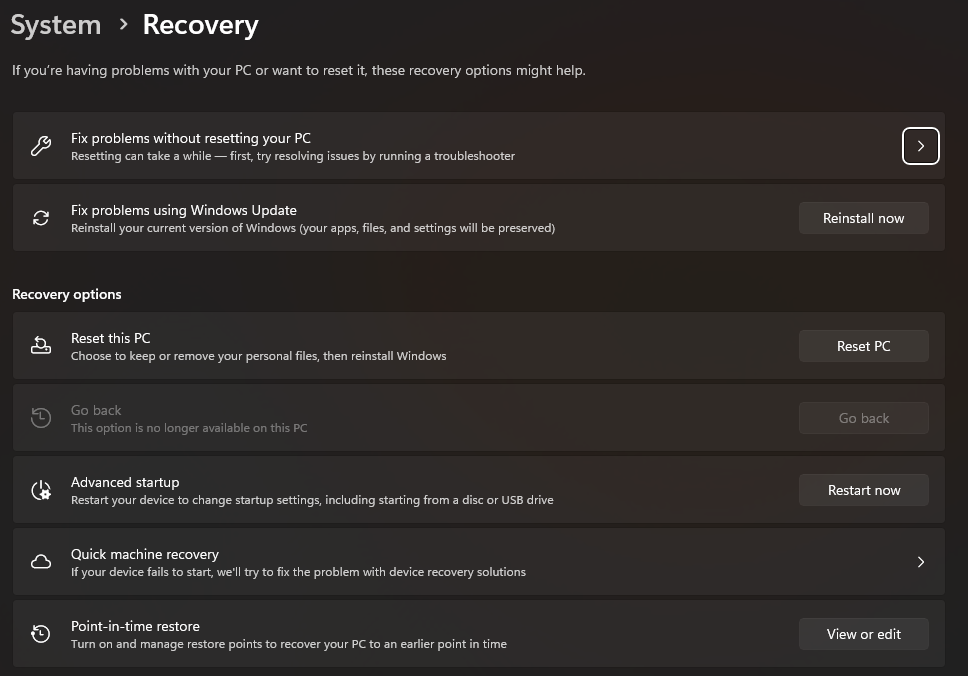
- From the desktop: open Settings > System > Recovery and select Restart now next to Advanced startup. On Windows 10 it is Settings > Update & Security > Recovery.
- From the sign-in screen: hold Shift while you select Power > Restart.
- If Windows won’t start at all: turn the PC on and hold the power button as soon as the logo appears, twice in a row. On the third start, Windows opens the recovery screen by itself.
- Then: select Troubleshoot > Advanced options > Startup Settings > Restart, and press 5 for Safe Mode with Networking.
Find Out Which Driver Crashed
Guessing wastes hours. Windows usually records the file that caused the crash, and you have three places to look, from quickest to most detailed.
1. Read the crash screen
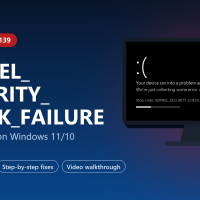
The crash screen (blue on Windows 10, black on recent Windows 11 versions) shows the stop code and, when Windows knows it, a What failed line with a file name such as ndis.sys or nvlddmkm.sys. Take a photo of it with your phone. A web search for that file name tells you which driver it belongs to.
2. Check Reliability Monitor
Type reliability in the Start menu and open View reliability history. Each red X in the Windows failures row is a crash. Select that day, then the entry, and choose View technical details. This error shows as a BlueScreen event with code 139.
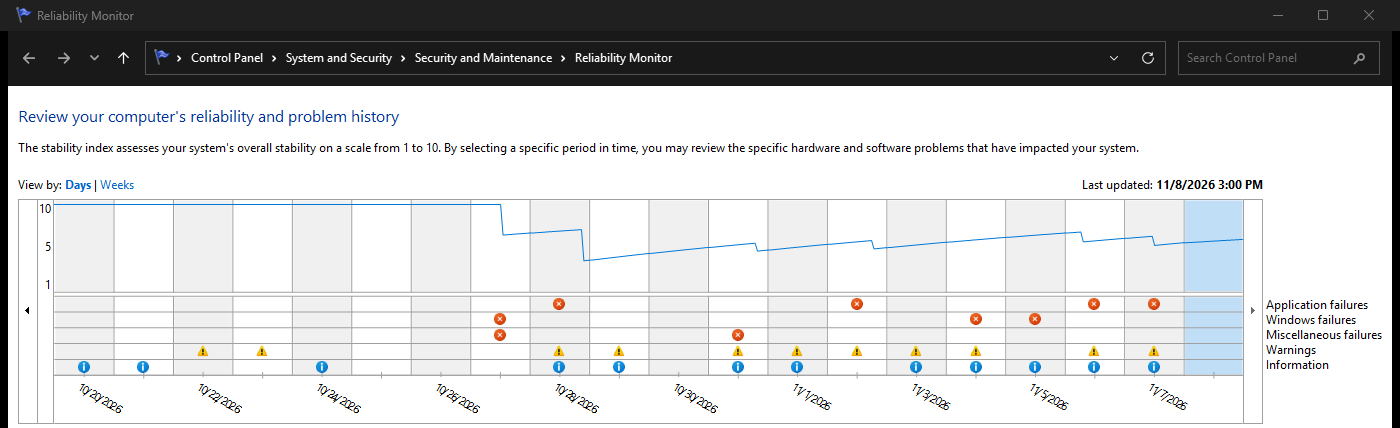
You can also open Event Viewer, go to Windows Logs > System, and look for errors just before the crash. Microsoft suggests this step to find the device or driver involved.
3. Open the crash dump in WinDbg (optional, most detail)
When Windows crashes it saves a small file called a minidump in C:\Windows\Minidump. WinDbg is Microsoft’s free tool for reading it. Install it from the Microsoft Store or with this command in Terminal:
winget install Microsoft.WinDbg- Open WinDbg as administrator, then select File > Open dump file and pick the newest file in C:\Windows\Minidump.
- Type the command below in the box at the bottom and press Enter. The first run takes a minute while it downloads symbols (labels that make the dump readable).
- Look for the lines MODULE_NAME and IMAGE_NAME. That is the driver to update, roll back or remove.
!analyze -vHow to Fix KERNEL_SECURITY_CHECK_FAILURE on Windows 10/11
Work through these in order and restart after each one. Most people are done by Fix 3.
Remove new hardware
Microsoft’s advice for this stop code starts here: if you added hardware recently, remove or replace it. Shut down and unplug anything new, plus docks, hubs and external drives you do not need to boot.
- Use the PC for a while. If the crashes stop, add devices back one at a time.
- When the crash returns, the last device is the cause. Look for a newer driver on its maker’s site, or replace it.
Update or roll back the driver behind the crash
If the crash screen, Reliability Monitor or WinDbg named a file, fix that driver first. The video below shows the roll back steps.
- Right-click Start and open Device Manager. Look for any device marked with a yellow warning sign, and for the device the named file belongs to.
- If the crashes started after a driver update, right-click the device, choose Properties > Driver, and select Roll Back Driver.
- Otherwise, get the newest driver from the PC or part maker’s website. After a Windows upgrade, check the maker’s support page for drivers made for your new version of Windows.
Network file named, such as ndis.sys? Update the Wi-Fi or Ethernet driver from your PC maker. Graphics driver named? Install the latest from NVIDIA, AMD or Intel; our NVIDIA driver guide shows how.
Test your memory and reset memory overclocks
Bad or unstable RAM corrupts the exact data this check guards. Windows has a free memory test built in.
- Press Windows + R, type mdsched and press Enter. Choose Restart now and check for problems. Save your work first.
- Let the test run. The PC restarts into a blue test screen and comes back to Windows when it finishes.
- See the result: a notification shows it after you sign in. You can also find it in Event Viewer under Windows Logs > System, from the source MemoryDiagnostics-Results.
If you turned on XMP or EXPO in the BIOS, or overclocked anything, set it back to default and see if the crashes stop. If the test finds errors, test one memory stick at a time to find the bad one and replace it.
Repair system files and check the drive
These built-in tools find and replace damaged Windows files and check the drive for errors. Right-click Start, choose Terminal (Admin), and run these one at a time:
DISM /Online /Cleanup-Image /RestoreHealth
sfc /scannow
chkdsk C: /scan
DISM repairs the source files that SFC uses, so run it first. Restart when all three are done.
Install Windows, chipset and BIOS updates
Windows updates often include fixed drivers. Bring Windows, your chipset driver and your BIOS up to date.
- Open Settings > Windows Update and select Check for updates. Then open Advanced options > Optional updates and install any driver updates listed.
- Get chipset and BIOS updates from your PC or motherboard maker: for example Dell, HP or Lenovo. Update the BIOS on mains power and follow the maker’s steps exactly.
Run a full malware scan
Microsoft lists a virus scan as a step for this error, because malware that hides in Windows can damage kernel data. The offline scan is the thorough one: it restarts the PC and scans before Windows fully loads.
- Open Windows Security from the Start menu, then Virus & threat protection > Scan options.
- Choose Microsoft Defender Offline scan and select Scan now. Save your work first; the PC restarts and the scan takes about 15 minutes.
Remove extra security software and system tools
Uninstall any third-party antivirus or VPN for a day and let Microsoft Defender take over. Do the same with RGB lighting, fan control and overclocking apps, which install their own low-level drivers.
To test the rest, do a clean boot: Windows starts with only Microsoft services. If the crashes stop, turn apps back on a few at a time to find the one causing it.
Undo a recent change, or reinstall Windows
If the crashes started right after an update or a new program, take the PC back to before it.
- Uninstall the update: Settings > Windows Update > Update history > Uninstall updates. Pick the newest one.
- Use System Restore: in Settings > System > Recovery, or from the recovery screen under Troubleshoot > Advanced options.
- Reinstall Windows and keep everything: on Windows 11, Settings > System > Recovery > Fix problems using Windows Update > Reinstall now replaces Windows files but keeps your apps, files and settings.
- Last resort, Reset this PC: on the same page. Choose Keep my files. It removes your apps, so note what you need first.
Still crashing after a reset, with nothing extra installed? Then hardware is the likely cause, most often the RAM or the drive. Run the memory test again overnight, or take the PC to a repair shop.
Video Walkthrough
This walkthrough from MDTechVideos shows Fix 2, rolling back a driver in Device Manager. It was recorded on Windows 10, and the steps are the same on Windows 11.
How to Stop It Coming Back
Update drivers after big upgrades
After a major Windows update, check your PC maker’s support page for new drivers, especially network, graphics and chipset.
Keep memory at stock speed if unstable
XMP and EXPO are safe on most PCs, but if crashes start after turning one on, run memory at default speed.
One antivirus is enough
Microsoft Defender is built in. If you add another, remove the old one instead of running both.
Make a restore point first
Before installing a new driver or system tool, create a restore point so you can go straight back if crashes start.
Frequently Asked Questions
Does KERNEL_SECURITY_CHECK_FAILURE mean my PC has a virus?
Can bad RAM cause KERNEL_SECURITY_CHECK_FAILURE?
Why did KERNEL_SECURITY_CHECK_FAILURE start after upgrading Windows?
Is KERNEL_SECURITY_CHECK_FAILURE the same as KERNEL_DATA_INPAGE_ERROR?
Will reinstalling Windows fix KERNEL_SECURITY_CHECK_FAILURE?
Support and Community
- Bug Check 0x139 KERNEL_SECURITY_CHECK_FAILURE on Microsoft Learn, Microsoft’s technical reference for this stop code.
- Troubleshoot unexpected restarts and stop code errors on Microsoft Support.
- WinDbg download and documentation on Microsoft Learn, for reading crash dumps.
- r/techsupport on Reddit, where you can post your WinDbg output and get help reading it.
More Blue Screen Fixes
- How to fix DPC_WATCHDOG_VIOLATION
- How to fix SYSTEM_SERVICE_EXCEPTION
- How to fix DRIVER_IRQL_NOT_LESS_OR_EQUAL
- How to fix WHEA_UNCORRECTABLE_ERROR
- How to fix CRITICAL_PROCESS_DIED
- How to fix PAGE_FAULT_IN_NONPAGED_AREA
- How to fix error 0xc0000005
- How to fix Code 43
- All Windows error code guides
Discover more from Windows Mode
Subscribe to get the latest posts sent to your email.














Add your first comment to this post