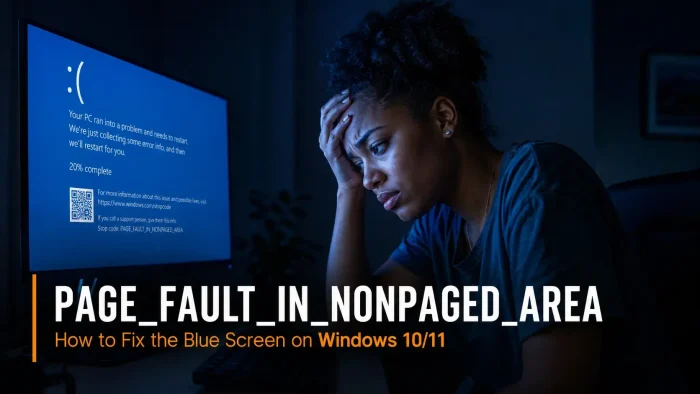
Getting a PAGE_FAULT_IN_NONPAGED_AREA blue screen on Windows? This crash means Windows tried to access a section of memory that was supposed to be available at all times, but was not there. The system cannot recover from this on its own, so it forces a full restart.
This error almost always points to a driver problem, a software conflict (antivirus is a common one), faulty RAM, or a corrupted system file. It shows up frequently after driver updates, new hardware installs, or after antivirus software makes a change in the background.
This guide covers the most effective fixes in order from quickest to most thorough. Most people solve it by Fix 2 or Fix 3. If the error started right after a driver update or software install, start there.
What This Error Means at a Glance
- Windows tried to access memory in the nonpaged area that was not present in RAM.
- Most common causes: bad or outdated drivers, antivirus conflicts, corrupted system files.
- Less common causes: faulty RAM, failing hard drive or SSD, bad Windows update.
- The nonpaged area is a section of RAM Windows reserves for critical operations. It must always be accessible.
- Affects Windows 10 and Windows 11. Very common after driver updates or new software installs.
Error Type
BSOD / Memory Access
Root Cause
Drivers / RAM / Software
Affects
Windows 10 / 11
Difficulty
Beginner to intermediate
Time to Fix
10 min – several hours
Video: How to Fix PAGE_FAULT_IN_NONPAGED_AREA on Windows
Watch the full fix walkthrough for PAGE_FAULT_IN_NONPAGED_AREA on Windows 10 and 11, covering driver rollback, SFC scan, RAM testing, and antivirus conflict steps shown below.
🛠️ Tip: Want a faster way? Try a trusted repair utility like Malwarebytes Premium to automatically fix broken Windows components.
What Causes PAGE_FAULT_IN_NONPAGED_AREA?
This error has several possible causes. Knowing which one fits your situation helps you skip straight to the right fix. Check the list below before working through the numbered steps.
Bad or Outdated Drivers (Most Common)
A driver running in the core of Windows can trigger this error if it tries to access memory incorrectly. GPU drivers, storage drivers, network drivers, and chipset drivers are the most frequent offenders. If the crash started after a driver update, rolling it back is usually the fastest fix.
Antivirus or Security Software Conflict
Security tools hook deep into Windows memory to scan for threats. Some antivirus programs, VPN clients, and firewall tools do this in ways that conflict with the nonpaged area. This is one of the more common non-driver causes of this specific blue screen, especially after a security software update.
Corrupted System Files
Windows system files that get corrupted by a bad update, a sudden power loss, or a forced shutdown can cause drivers or processes to reference memory that is no longer where they expect it. SFC and DISM can scan and repair these files without reinstalling Windows.
Faulty RAM
Bad memory can cause the nonpaged area to return corrupted data when Windows reads from it. RAM problems tend to produce random crashes with no clear pattern. If crashes happen at unpredictable times and other fixes have not helped, testing your RAM is the next step.
Failing Hard Drive or SSD
When Windows reads a file from a drive with bad sectors, the read can fail and crash whatever process depended on it. A drive check takes ten minutes and can rule this out quickly. CrystalDiskInfo (free) gives you the clearest picture of drive health.
Failed or Interrupted Windows Update
A Windows update that did not finish cleanly can leave system files or drivers in a broken state. If the error appeared immediately after an update, rolling back that update using Windows Update history or System Restore is worth trying before anything else.
How to Fix PAGE_FAULT_IN_NONPAGED_AREA Error
Work through these fixes in order. Most people are done by Fix 2 or Fix 3.
Quick Checklist: What to Try First
| Fix | Time Needed | Best If |
|---|---|---|
| Clean restart and check software conflicts | 5 – 10 min | Error is new or started after a software install |
| Update or roll back drivers | 10 – 20 min | Error started after a driver update |
| SFC and DISM scan | 15 – 30 min | Any situation. Always worth running |
| Uninstall Windows update or System Restore | 15 – 30 min | Error started right after a Windows update |
| RAM test (MemTest86) | 1 – 3 hours | Random crashes with no obvious trigger |
| Check drive health (CrystalDiskInfo) | 10 – 20 min | PC is old, slow to boot, or clicking sounds present |
Still Getting PAGE_FAULT_IN_NONPAGED_AREA? Advanced Steps
Read the minidump file to identify the exact driver or process
Every BSOD creates a small crash log called a minidump. Open Event Viewer (search in Start), go to Windows Logs, then System, and look for Critical errors near the crash time. You can also use WhoCrashed (free from Resplendence) to read minidump files in plain language. It usually names the exact driver or file that caused the crash, which tells you exactly where to focus your fix.
Run a malware scan
Malware can corrupt system drivers or replace them entirely, causing this blue screen. If no hardware test has found a problem and driver fixes have not helped, run a full scan before going further. Windows Defender is a solid start. For a deeper scan that checks for rootkits and hidden infections inside system processes, Malwarebytes Premium is worth running.
🔧 Tip: If Windows Defender is already running, a second-opinion scan from Malwarebytes Premium can catch threats that Defender misses, especially rootkits that replace or hook into system drivers.
Boot into Safe Mode to isolate the cause
Safe Mode loads Windows with only the minimum required drivers and services. If the crashes stop in Safe Mode, a third-party driver or service is the cause. Restart your PC and hold Shift while clicking Restart, then navigate to Troubleshoot, Advanced Options, Startup Settings, and select Safe Mode. From there, use Device Manager to roll back or uninstall the problem driver, or uninstall the conflicting software.
Disable hardware-level memory protection features temporarily
Some older drivers are not compatible with memory integrity (also called HVCI, which is a Windows security feature that isolates the core of the OS in its own protected memory space). Go to Windows Security, open Device Security, then Core isolation details, and toggle off Memory integrity. Restart and check if the crashes stop. If they do, the problem driver is the culprit. Find and update or remove it, then re-enable memory integrity afterward.
Reset Windows as a last resort
If every software fix has failed and hardware tests come back clean, a Windows reset (Settings, System, Recovery, Reset this PC) with the Keep my files option reinstalls Windows while leaving your personal files in place. This fixes deeply corrupted system files that SFC and DISM cannot reach. If crashes continue after a clean install, the fault is hardware and you will need to isolate and replace the failing component.
Frequently Asked Questions
What does PAGE_FAULT_IN_NONPAGED_AREA mean on Windows?
It means Windows tried to read or write a page of memory that was marked as non-pageable, meaning it should always be in RAM, but it was not there. This usually points to a driver bug, faulty RAM, or a corrupted system file. The nonpaged area is a section of RAM that Windows reserves for critical operations. When something tries to access it incorrectly, Windows stops everything and forces a restart.
What causes PAGE_FAULT_IN_NONPAGED_AREA most often?
Bad or outdated drivers are the most common cause, especially GPU, storage, and chipset drivers. Antivirus and security software can also trigger it by hooking into memory in ways that conflict with Windows. Faulty RAM, corrupted system files, and failing hard drives are less common but produce the same crash. If it started after a driver update or a new software install, that is almost certainly the cause.
Can antivirus software cause PAGE_FAULT_IN_NONPAGED_AREA?
Yes. Security software runs deep in the system and can interfere with memory access in ways that trigger this exact error. If you installed or updated antivirus software recently and the crashes started shortly after, try disabling it temporarily or uninstalling it to see if the crashes stop. This is one of the more common non-driver causes of this blue screen.
Will PAGE_FAULT_IN_NONPAGED_AREA delete my files?
No. The blue screen itself does not delete or damage your files. Windows forces a restart to protect the system. However, if the underlying cause is faulty RAM or a failing hard drive, your data is at risk from the hardware problem itself. Back up your files before running hardware tests.
How do I fix PAGE_FAULT_IN_NONPAGED_AREA if I cannot boot into Windows?
Boot from a Windows installation USB, choose Repair your computer, then open Command Prompt from Advanced Options. From there you can run SFC and DISM, access System Restore, and roll back recent changes. If you can reach Safe Mode by holding Shift while clicking Restart and navigating to Troubleshoot, Advanced Options, Startup Settings, use that first since Safe Mode is easier to work in than the recovery environment.
Can PAGE_FAULT_IN_NONPAGED_AREA be caused by hardware?
Yes. Faulty RAM is a known hardware cause, and a failing hard drive or SSD can produce it too. If all driver and software fixes fail, run MemTest86 from a USB drive to test your RAM, and use CrystalDiskInfo to check drive health. A result of Caution or Bad on either tool means the hardware needs to be replaced.
Is PAGE_FAULT_IN_NONPAGED_AREA fixable without reinstalling Windows?
In most cases, yes. Updating or rolling back drivers, running SFC and DISM, and removing conflicting software resolve the majority of cases. A full Windows reinstall is only needed when system files are too damaged to repair and no other fix works. Always try the software fixes first before resetting Windows.
Related Windows Error Fixes
- Fix: DRIVER_IRQL_NOT_LESS_OR_EQUAL
- Fix: CRITICAL_PROCESS_DIED (Core Windows process stopped)
- Fix: WHEA_UNCORRECTABLE_ERROR (Hardware fault blue screen)
- Fix: Error 0xc000007b (Application was unable to start correctly)
- Fix: Error 0xc0000005 (Application unable to start correctly)
- Fix: Error 0x80070005 (Access Denied)
- Fix: Error Code 43 (Device Manager)
- Fix: CrowdStrike Falcon BSOD Error on Windows
Still stuck? Leave a comment below or contact us directly and we will help you figure it out.
Discover more from Windows Mode
Subscribe to get the latest posts sent to your email.
















Add your first comment to this post