Readers like you help support this site. When you make a purchase using links on our site, we may earn an affiliate commission. All opinions remain our own.
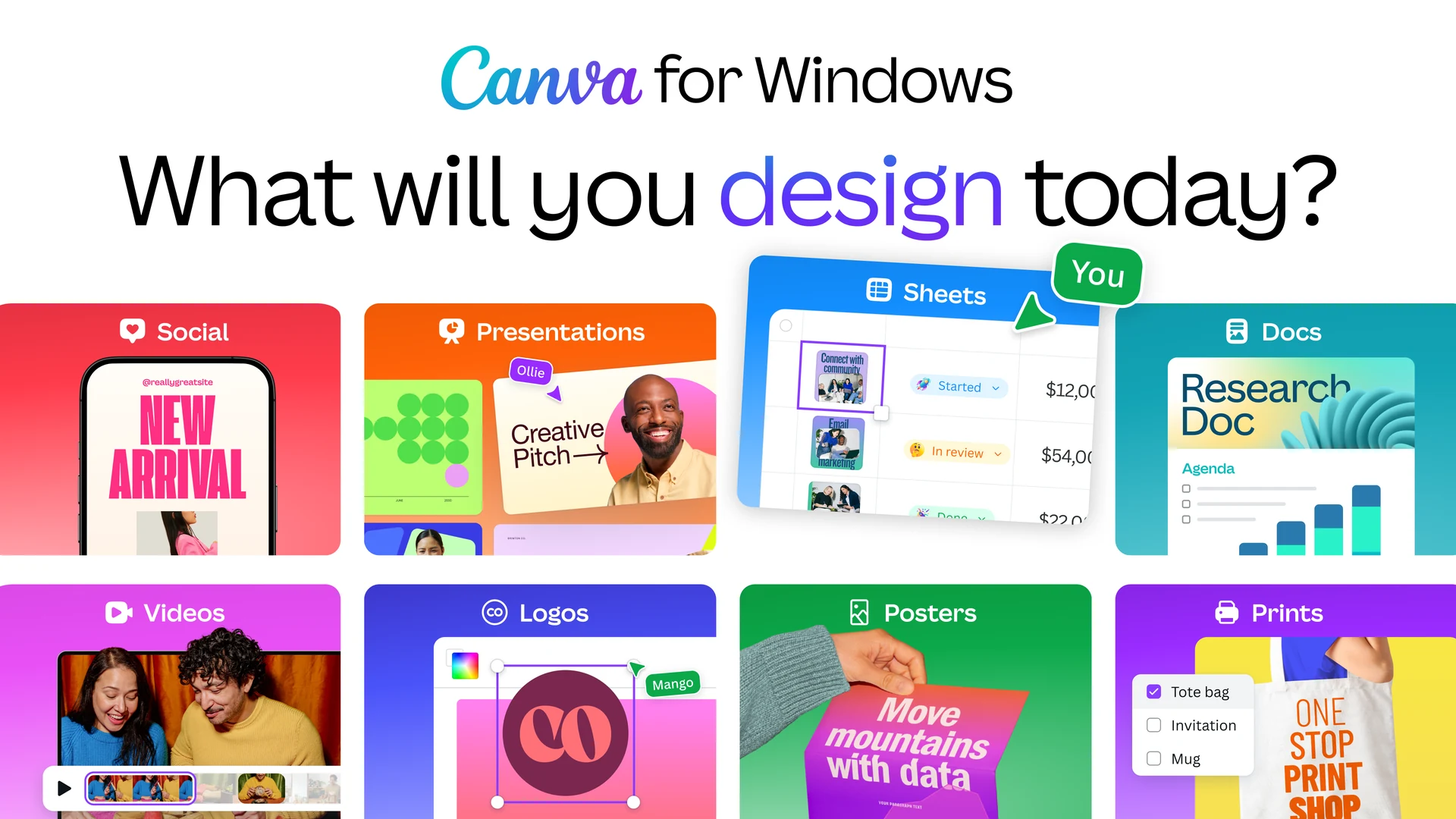
The Canva Windows app opens every Canva design type in its own window, from social posts to Sheets and Docs.
Canva is a free design app for Windows, available from the Microsoft Store or the official Canva website. You pick a template or a blank page, drag in text, photos and graphics, and download the result. Social posts, slides, videos, flyers and resumes all start the same way.
The free plan covers most everyday design. Canva Pro adds premium templates and photos, the background remover, one-click resizing and ten times the AI allowance. Both run in the same app with the same account.
The Windows app runs on Windows 10 (version 1909 or later) and Windows 11 and needs just 1 GB of RAM. It can also edit designs offline for up to 14 days.
Below: the main features with screenshots, how to install it, current prices, the desktop app vs the browser, and setup tips. Questions? Reach out to us directly.
What Is Canva?
Canva is an online design tool built around templates. Instead of starting from a blank canvas like in Photoshop, you start from a finished layout and swap in your own words, photos and colors.
It covers far more than social posts. One account opens Presentations, Docs, Whiteboards, Sheets, videos, websites, logos and print products such as mugs and t-shirts that Canva prints and ships.
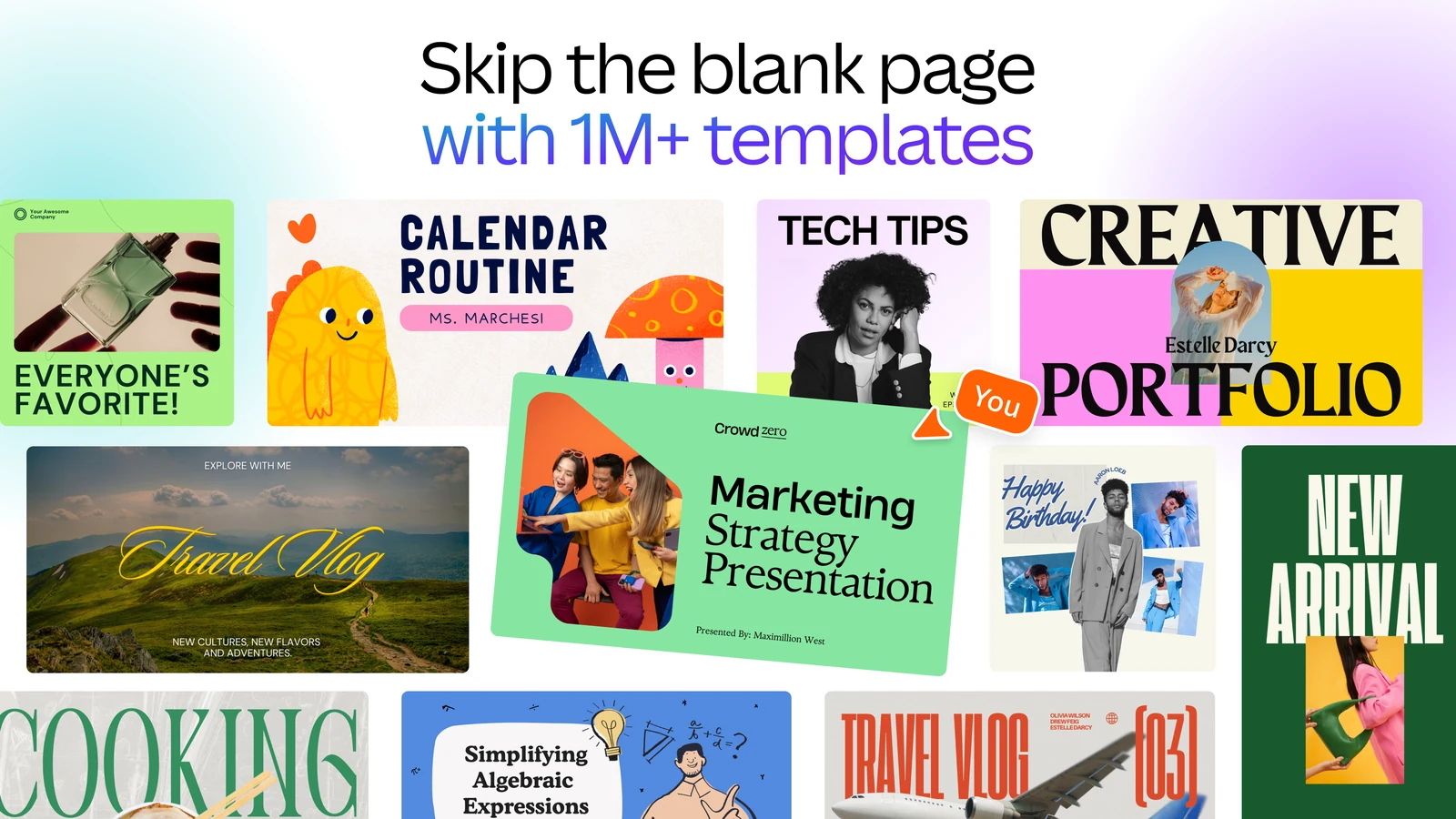
The Windows app is the same Canva you get at canva.com, in its own window. Your designs live in your Canva account, so anything you start on the PC is waiting on your phone or in a browser, and the other way around.
Key Features of Canva on Windows
These screenshots come from Canva's Microsoft Store listing. Features marked AI draw on a monthly AI allowance that depends on your plan.
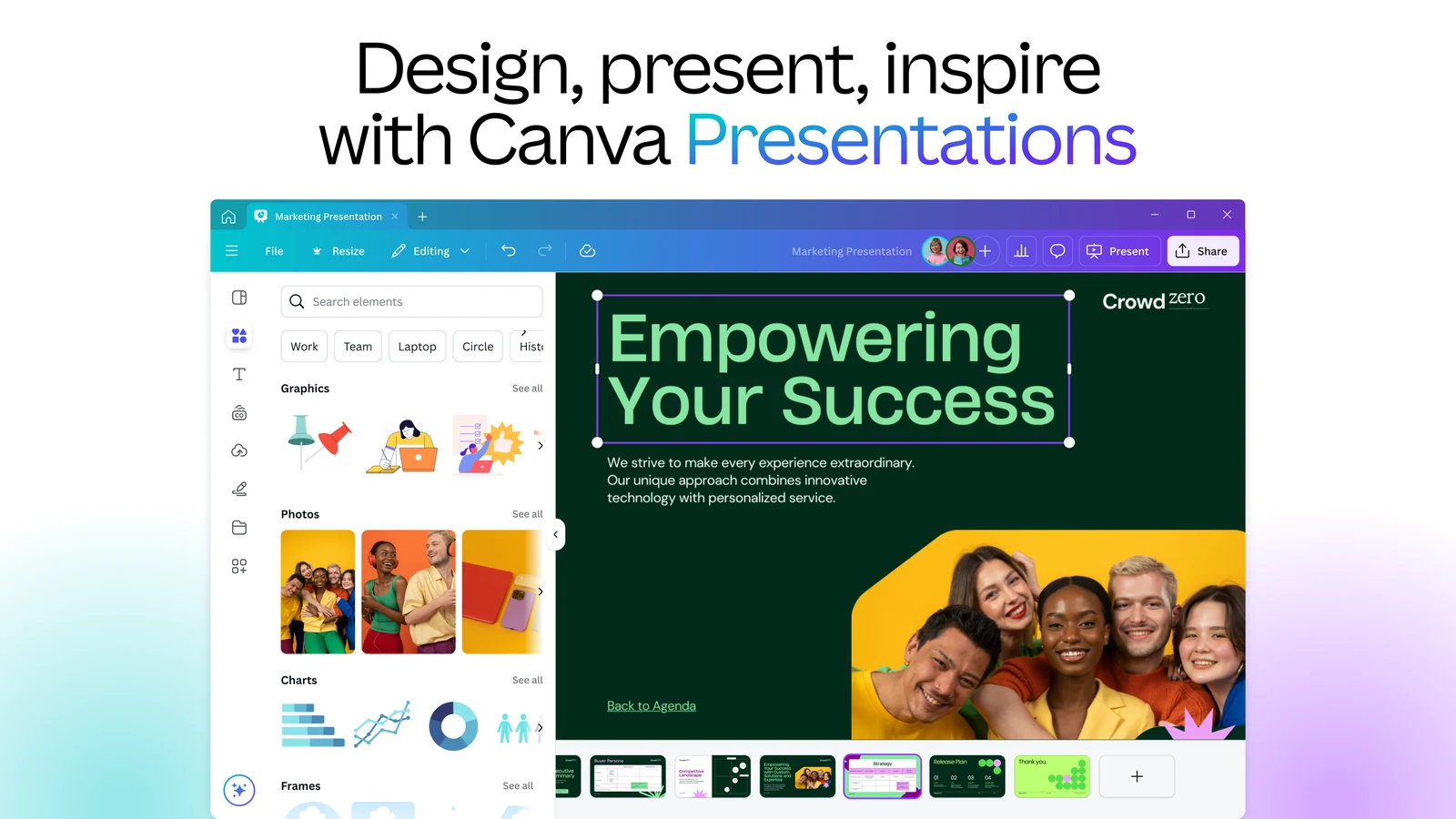
Build slides from a template
Pick a presentation template and edit each slide by dragging in photos, charts and graphics from the side panel. Present straight from the app, or download as PowerPoint or PDF.
Teammates can edit the same deck at the same time and leave comments.
AI
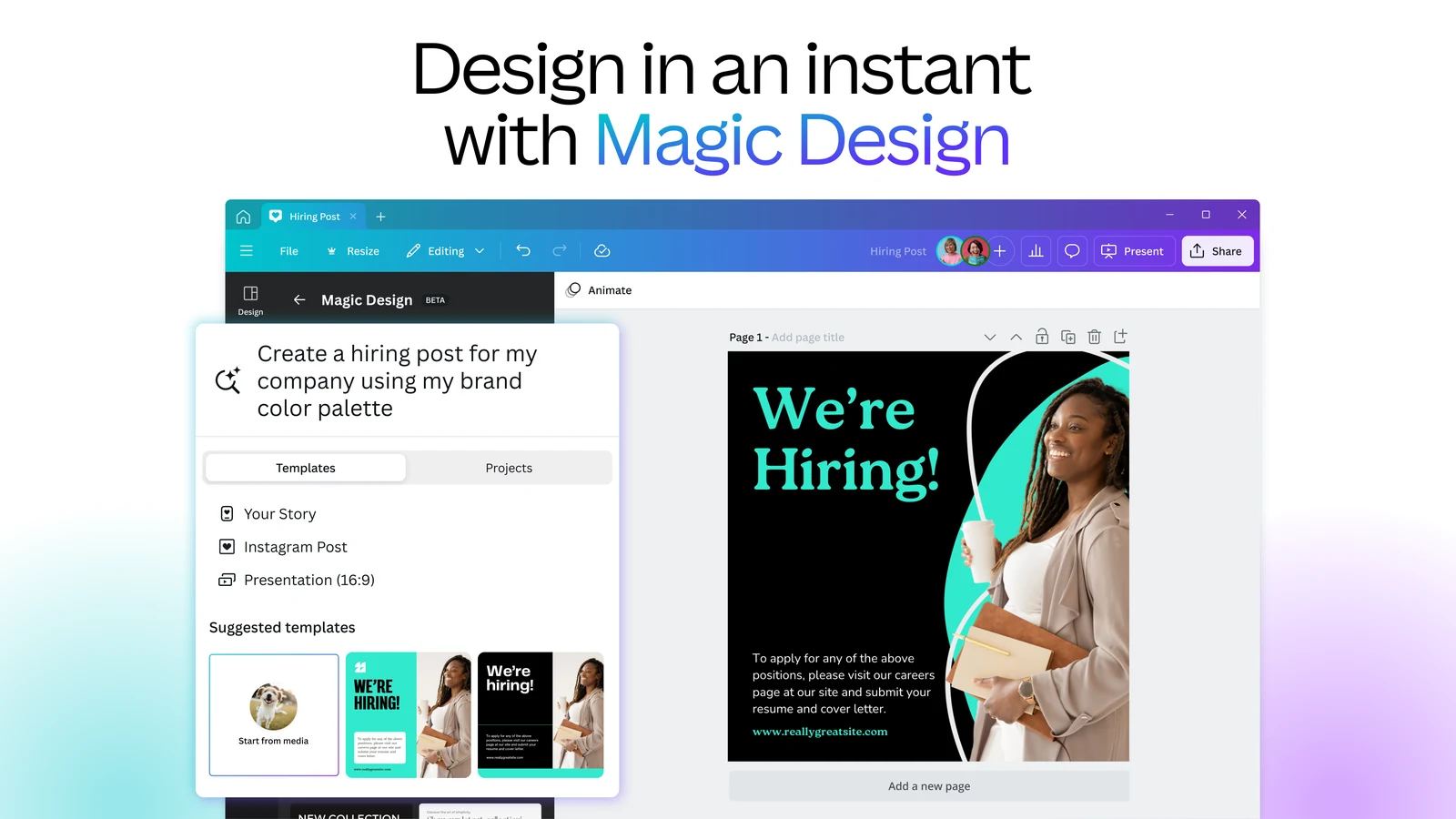
Describe a design and get a first draft
Type what you need, such as a hiring post in your brand colors, and Magic Design suggests ready-made layouts. Pick one and edit it like any other template.
It works best for posts and slides where a template would get you most of the way anyway.
AI
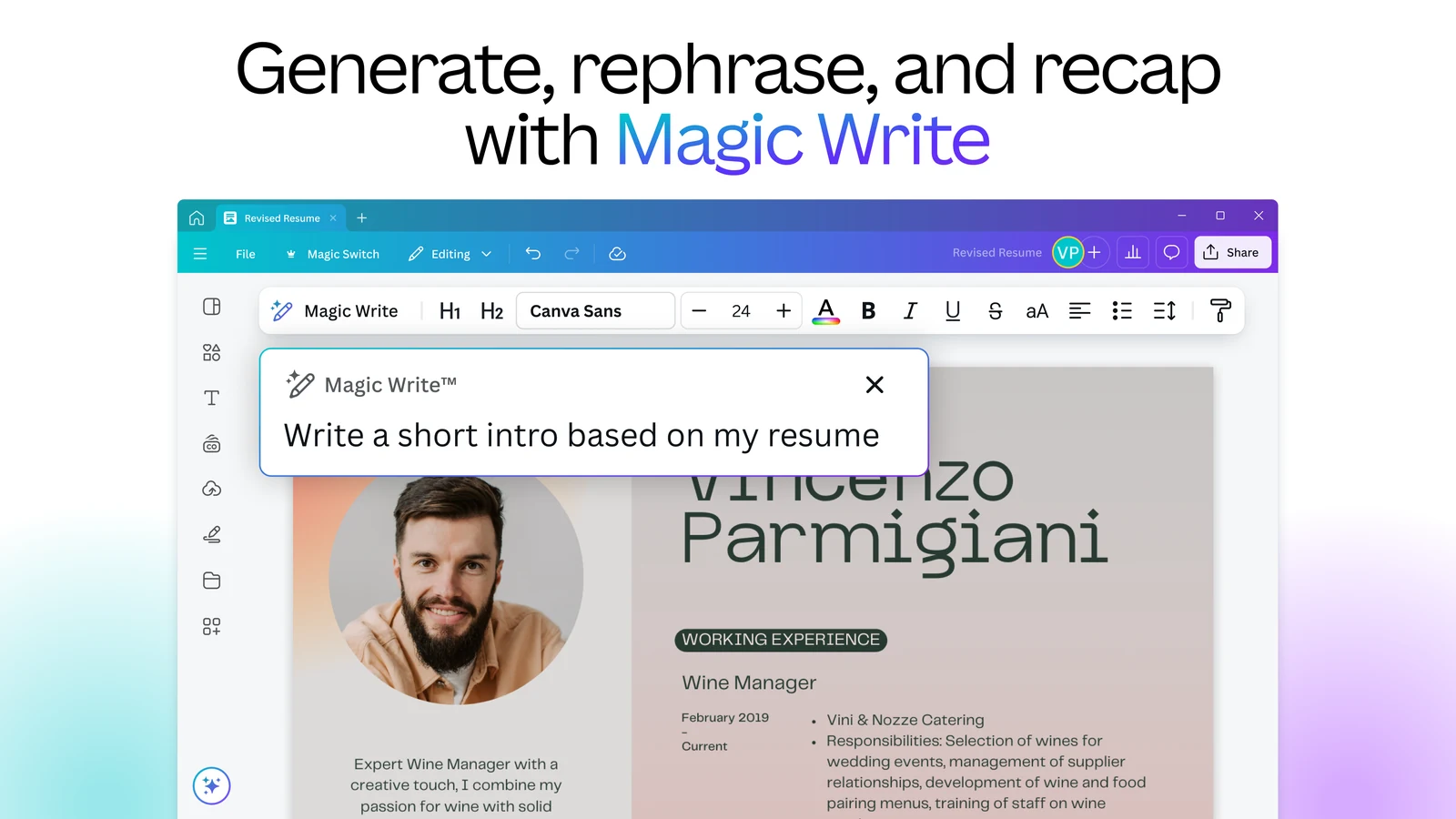
Write and rewrite text inside your design
Magic Write drafts headlines, captions and short intros, or rewrites text you already have to be shorter or more formal. On paid plans it does not count against your monthly AI allowance.
Read what it writes before you publish. It does not know facts about you that you have not given it.
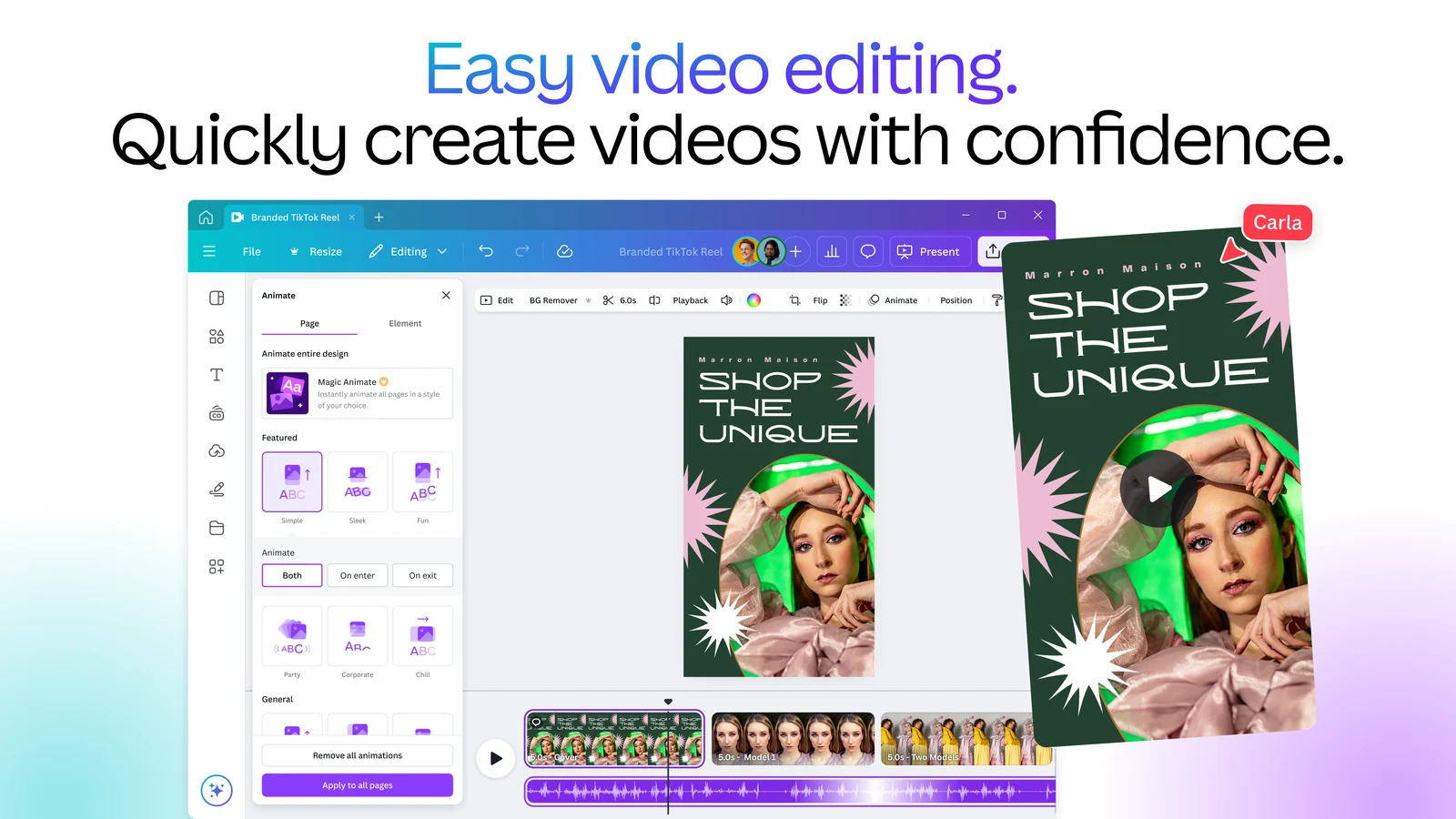
Edit short videos on a timeline
Trim, split and speed up clips, add music, then sync cuts to the beat. It is built for social clips and simple promos, not long films.
Animations and transitions apply with one click from the side panel.
AI
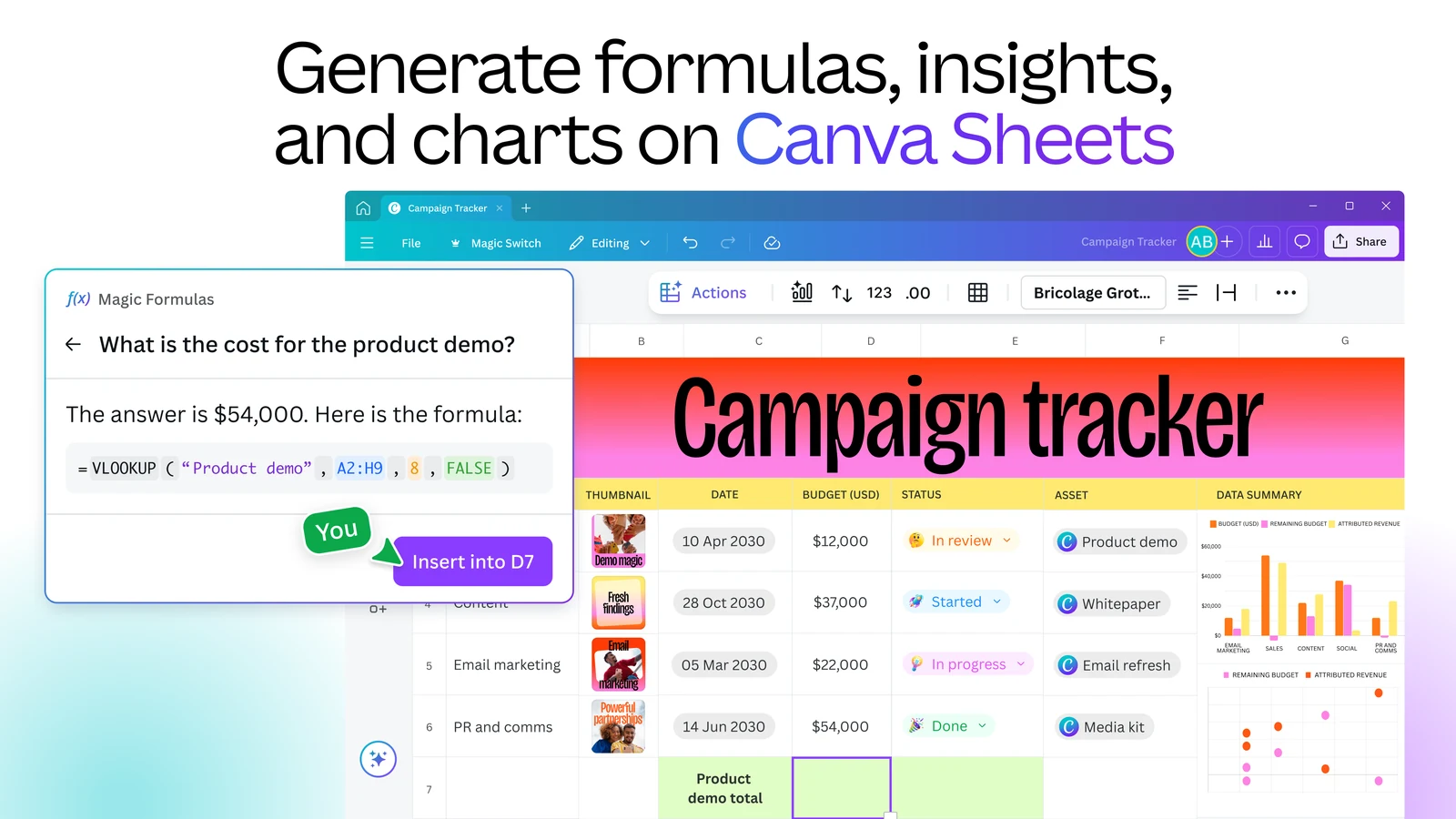
Spreadsheets that look like designs
Canva Sheets holds tables and charts you can drop into any design. Magic Formulas answers a plain question about your data and writes the formula for you. Handy for trackers and simple budgets; heavy spreadsheet work still belongs in Excel.
AI
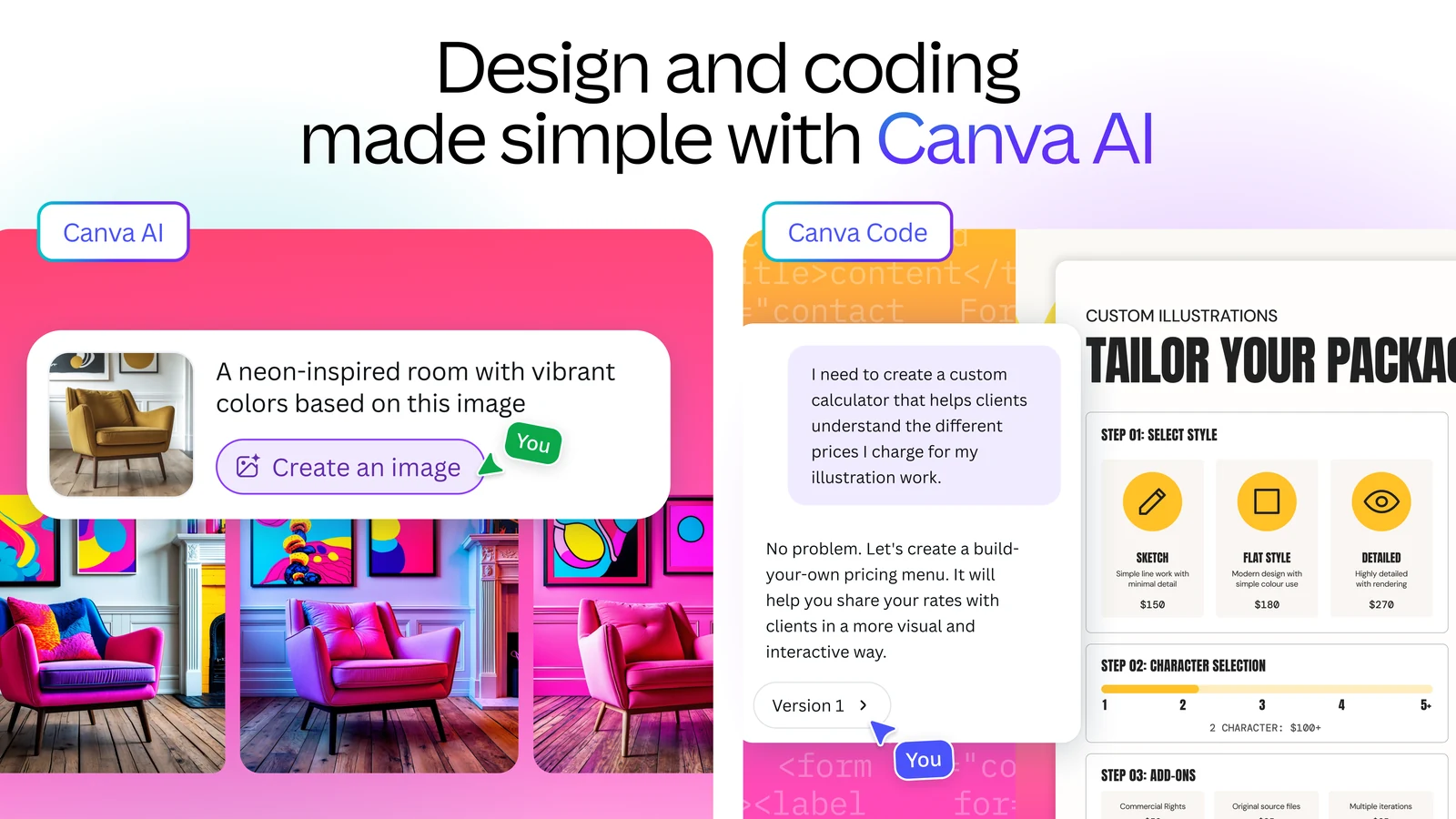
Chat to create images, designs and small apps
Canva AI is a chat box inside Canva. Ask for an image, a design or edits to one you already have, and it works on the canvas. Canva Code builds small interactive pages, such as a calculator or a quiz, from a written request.
Free accounts get up to 20 AI uses a month. Pro raises that to roughly 200 uses of Premium AI tools.
Pick up on any device
Every design saves to your Canva account as you work. Start on the Windows app, finish on your phone or in a browser on another PC.
Pro includes 100 GB of cloud storage, and the free plan 5 GB.
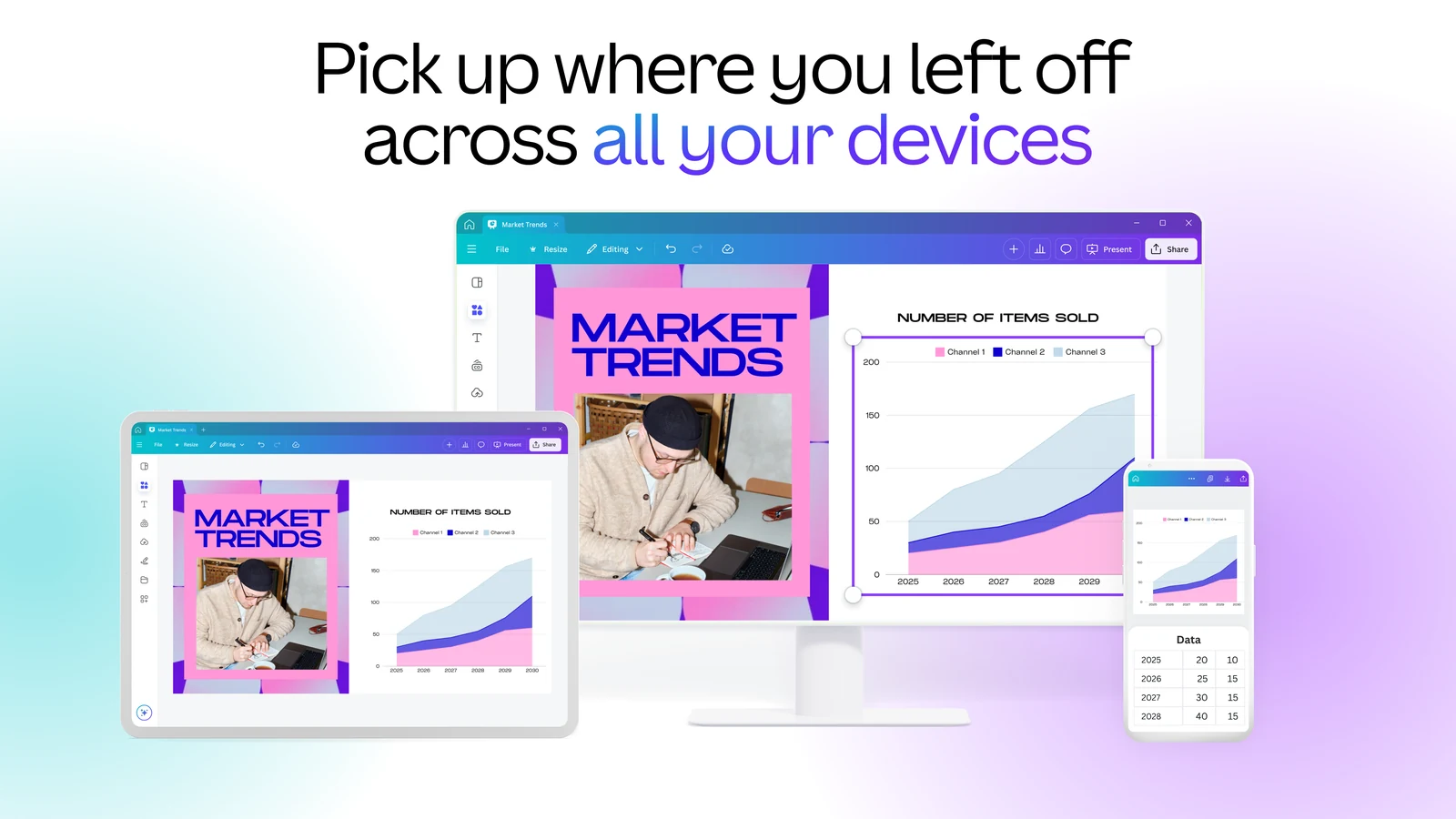
Canva Offline
Mark a design as available offline while you are online, then edit it with no connection for up to 14 days. Changes sync when you reconnect. You cannot start new designs, use AI or export while offline. Canva's offline guide lists the rest.
Affinity, free
Canva now gives away Affinity, its professional photo, vector and layout app, to anyone with a free Canva account. It is a separate download. The Canva AI tools inside Affinity need a paid plan.
Brand Kits
Save your logo, colors and fonts once and apply them to any design. Free includes one Brand Kit with three colors; Pro includes five.
Print and ship
Order your design printed on business cards, flyers, posters, mugs or t-shirts from inside the editor. Canva handles printing and delivery.
How to Install Canva on Windows
Canva is free to download from two places. Both install the same app; the Microsoft Store version updates through the Store.
1 Open the Canva page in the Microsoft Store, or the Canva for Windows download page.
2 Click Get or Download and let the installer finish.
3 Open Canva from the Start menu.
4 Sign in to your Canva account, or create a free one.
5 Pick a design type or search for a template to start your first design.
Want to try Pro first? Canva offers a free Pro trial when you sign up. You add a payment method, and Canva charges for the next billing period unless you cancel before the trial ends. During the trial your AI allowance stays at the free level.
Canva Free vs Pro vs Business: Plans and Prices
The Windows app is free on every plan. What you pay for is the content library, the pro editing tools and a bigger AI allowance.
Canva Teams is gone for new sign-ups. Existing Teams subscribers keep it, but new teams buy Business instead. K-12 teachers and students, and eligible nonprofits, can get most premium features free. An AI Pass add-on sells extra AI allowance to Pro and Business users.
Canva Desktop App vs Canva in Your Browser
Canva runs just as well at canva.com in Chrome or Edge, so the app is optional. Here is what actually changes.
Our take
If you open Canva a few times a month, the browser is fine. Install the app if Canva is part of your day: it keeps your designs out of a crowded tab bar, opens with one click and handles offline work the same way. The free plan is generous enough that many people never need Pro. Upgrade when you keep hitting premium templates, need the background remover, or resize the same design for several platforms every week. Want a free Microsoft option instead? See our Microsoft Designer guide.
Tips for Getting Started with Canva
1 Search templates by use, not by look. Type “YouTube thumbnail” or “wedding invitation” and Canva returns layouts already at the right size.
2 Filter out premium items. On the free plan, items with a crown are Pro only. Use the free filter in the template and element search so you do not design around something you cannot download.
3 Set up your Brand Kit first. Add your logo, colors and fonts once and every new design can use them in one click.
4 Make important designs available offline. Do it before a trip or a presentation in a room with bad Wi-Fi. It only works on the device where you set it up.
5 Download in the right format. PNG for sharp graphics, JPG for photos, PDF Print for anything going to a printer, MP4 for video.
Canva Tutorial Video
Watch this full beginner course from Patech to see the Canva home screen, templates, the editor and the AI tools in action.
Frequently Asked Questions
What are the system requirements for Canva on Windows?
Is the Canva Windows app free?
Can I use Canva offline on Windows?
Does Canva Pro have a free trial?
What happened to Canva Teams?
Is Affinity really free with a Canva account?
Support and Community
- Canva, the developer’s own website.
- Canva Help Center, with guides for every feature and a way to contact support.
- Canva technical requirements, for the app, browsers and phones.
- r/canva on Reddit, where users swap design help and report outages.
More Windows software guides: Microsoft Designer · Adobe Express Photos · CapCut · CorelDRAW Graphics Suite · Notion · Best Photo Editors for Windows
Discover more from Windows Mode
Subscribe to get the latest posts sent to your email.














Add your first comment to this post