 The best VS Code extensions for React Native developers in 2026 include Console Ninja for seeing logs instantly, Expo Tools for managing app settings, and Glean for cleaning up messy code. If you want to keep your files organized, FSD Slices Generator is the modern choice.
React Native has grown up. We aren’t just building simple mobile screens anymore. We are building powerful apps that run everywhere; on iPhones, Androids, and the Web.
To do this well, a basic text editor isn’t enough. You need a setup that helps you find bugs before they happen, keeps your code clean, and makes sure your app doesn’t get too big and slow.
We picked the 20 most useful tools to help you build a professional, crash-free mobile app.
Feel free to leave a comment below or contact us if you want to recommend an extension on this post.
What are the best Visual Studio Code extensions for React Native?
Professional apps die without good structure. These tools enforce order and help you move code around without breaking it.
1. FSD Slices Generator
Structure

What it does: Automates the creation of folders for “Feature-Sliced Design” (FSD). It instantly creates the standard `ui`, `model`, and `api` folders for new features.
Why you need it: In 2026, FSD is the standard for scalable apps. This tool stops you from manually creating nested folders and ensures your team follows the same structure.
SbokyZahodi.fsd-slices2. Glean
Refactoring

What it does: An advanced refactoring tool. It lets you highlight a block of JSX code and extract it into a separate file with one click.
Why you need it: React Native files can get huge. Glean automatically moves your `useState` logic and props to the new file, saving you 10 minutes of tedious copy-pasting every time you clean up a screen.
ext install wix.glean3. Todo Tree
Debt

What it does: Scans your project for `// TODO` and `// FIXME` comments and lists them in a sidebar.
Why you need it: In mobile development, you often leave notes like “Fix crash on Android.” This tool makes sure those notes don’t get lost in the code.
ext install Gruntfuggly.todo-treeDebugging & Logs
Stop switching windows. These tools bring your console logs and error messages directly into VS Code.
4. Console Ninja
Essential

What it does: Shows your `console.log` output right next to the code line that generated it.
Why you need it: It saves you from constantly switching between the editor and the terminal. You can see the value of a variable instantly as your app runs on the simulator.
ext install WallabyJs.console-ninja5. Error Lens
Visibility

What it does: Highlights errors and warnings directly in your code editor line-by-line.
Why you need it: It turns invisible problems into visible ones. You fix typos and linting errors the moment you make them, rather than waiting for the app to crash.
ext install usernamehw.errorlens6. React Native Tools (Microsoft)
Official

What it does: The official extension from Microsoft. It allows you to attach a real debugger to the Hermes engine.
Why you need it: This is the only way to step through your code line-by-line inside VS Code. It also adds a “Click to Code” feature, where clicking an element on the simulator opens the code file in the editor.
ext install msjsdiag.vscode-react-native7. Turbo Console Log
Speed

What it does: Automates typing logs. You select a variable and hit a shortcut to insert a log with the filename and line number.
Why you need it: It creates meaningful logs instantly. Best of all, it has a “Delete All Logs” command, so you can clean up your code before you push it to GitHub.
ext install Chakrarou.turbo-console-log8. Pretty TypeScript Errors
Clarity

What it does: Formats complex TypeScript errors into readable text.
Why you need it: React Native uses complex types for Navigation and Data Fetching. When an error occurs, it usually looks like a wall of text. This tool breaks it down so you can actually understand what went wrong.
ext install yoavbls.pretty-ts-errorsStyling & UI
9. Tailwind CSS IntelliSense
NativeWind

What it does: Provides autocomplete for Tailwind classes.
Why you need it: If you use NativeWind for styling (which is very popular now), this extension is mandatory. It prevents you from mistyping class names and shows you exactly what color or spacing you are applying.
ext install bradlc.vscode-tailwindcss10. Color Highlight
Design
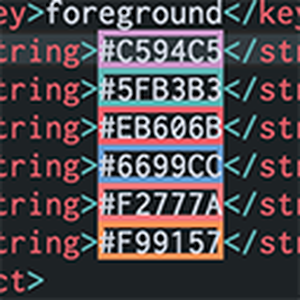
What it does: Highlights hex codes (e.g., `#3498db`) with their actual color in the editor.
Why you need it: React Native apps use a lot of custom colors. This tool instantly shows you if you are using the right shade of blue without having to run the app.
ext install naumovs.color-highlightMobile & Performance
React Native isn’t just JavaScript; it’s a mobile framework. These tools help you manage the native side of your app and keep your bundle size small.
11. Expo Tools
Essential

What it does: The official extension for Expo projects. It gives you autocomplete for `app.json` and `eas.json` files.
Why you need it: One typo in your config file can break your entire build. This tool validates your settings and lets you preview your native files (like `AndroidManifest.xml`) without ejecting.
ext install expo.vscode-expo-tools12. Import Cost
Performance

What it does: Displays the size of every package you import, right next to the line of code.
Why you need it: In mobile development, bundle size matters. This stops you from accidentally importing a massive library (like the whole `lodash` package) when you only needed one small function.
ext install wix.vscode-import-cost13. Unused Code Finder
Hygiene

What it does: Scans your workspace to find files and exports that are never imported anywhere.
Why you need it: As your app grows, you inevitably leave behind “dead code.” This tool helps you delete it safely, keeping your project clean and your build times fast.
ext install r3inb0w.unused-code-finderProductivity & Automation
14. ES7+ React/Redux Snippets
Speed

What it does: Provides instant shortcuts for common code blocks. Type `rnfes` and it generates a full React Native functional component.
Why you need it: It stops you from typing the same boilerplate setup code 50 times a day. It is the most popular extension for a reason, it just saves time.
ext install dsznajder.es7-react-js-snippets15. Qodo
AI Quality

What it does: An AI assistant focused on testing. It analyzes your components and automatically generates unit tests (Jest) for them.
Why you need it: Everyone hates writing tests. Qodo does it for you, ensuring your app has good test coverage without the manual effort.
ext install Codium.codium16. Auto Rename Tag
Utility

What it does: When you change an opening tag (e.g., “ to “), it automatically updates the closing tag for you.
Why you need it: In React Native, you are constantly swapping wrapper components. This tool saves you the frustration of having to hunt down the closing tag every time you make a change.
ext install formulahendry.auto-rename-tagThe Essentials
17. GitLens
History

What it does: Shows you exactly who wrote a line of code and when, right inside the editor.
Why you need it: Working on a team? This tool gives you the context you need to understand *why* a piece of code was written that way, preventing you from breaking legacy features.
ext install eamodio.gitlens18. Prettier
Formatting

What it does: Automatically formats your code every time you save.
Why you need it: It stops arguments about indentation and spacing. Your code always looks clean, consistent, and professional without you lifting a finger.
ext install esbenp.prettier-vscode19. Path Intellisense
Imports

What it does: Autocompletes filenames when you are writing import statements.
Why you need it: React Native projects have deep folder structures. This tool helps you find the right file quickly, preventing “Module not found” errors.
ext install christian-kohler.path-intellisense20. Code Spell Checker
Quality

What it does: Catches spelling mistakes in your code, comments, and strings.
Why you need it: A typo in a variable name can cause a bug, and a typo in a user-facing string looks unprofessional. This tool catches them all before you commit.
ext install streetsidesoftware.code-spell-checkerThe Senior Engineer’s Verdict
The difference between a junior and a senior React Native developer is often their workflow. By adopting Expo Tools for configuration, Console Ninja for debugging, and Glean for architecture, you stop fighting the framework and start shipping features faster. Either way, good luck!
More VS Code Resources:
- Getting Started: The Ultimate VS Code Setup Guide
- ⚡ Speed: VS Code Cheat Sheet: Shortcuts, God Mode & PDF
- 🎨 Aesthetics: 20 Best VS Code Themes: Dark, Light & Aesthetic
- Universal List: Best VS Code Extensions for All Developers
- AI & Vibe Coding: Best AI Coding Extensions for VS Code
- Flutter: Extensions for Flutter Developers
- JavaScript: Extensions for JavaScript Developers
- Web Design: Extensions for Frontend Developers
- Python: Extensions for Python Developers
- C++: Extensions for C++ Developers
- WordPress: Extensions for WordPress Developers
Discover more from Windows Mode
Subscribe to get the latest posts sent to your email.

















Add your first comment to this post