Readers like you help support this site. When you make a purchase using links on our site, we may earn an affiliate commission. All opinions remain our own.
Google Chrome is a free web browser developed by Google and built on the open-source Chromium engine. It is the most popular browser in the world, used by over 60% of desktop users globally. Chrome is known for its speed, security, seamless Google account integration, and the largest extension library of any browser.
This guide covers what Chrome offers in its latest version, how it compares to Edge, Firefox, and Opera, how to install it on Windows, how Gemini AI works, and tips to keep it running fast.
Free
Always free, no ads
All Platforms
Windows, Mac, Linux, Mobile
130,000+ Extensions
Largest library available
Gemini AI Built-in
Summarize, search, assist
📋 System Requirements
| Requirement | Details |
|---|---|
| Operating System | Windows 10 or later (64-bit) |
| Processor | Intel Pentium 4 or later (SSE3 capable) |
| RAM | 4 GB minimum (8 GB recommended for heavy use) |
| Storage | ~500 MB for installation |
| Account | Google account optional (required for sync) |
What Makes Chrome the Most Popular Browser
Chrome has held the top spot for over a decade. Here is what keeps it there and what is new in the latest version.
🤖 Gemini AI
Google’s AI assistant is built directly into Chrome. Summarize long articles, ask questions about the page you are viewing, get help with writing, and search smarter. Access it from the toolbar or address bar.
📑 Tab Groups and Management
Group tabs by color and label to organize your browsing sessions. Chrome also supports tab search, split-tab view for side-by-side browsing, and AI-powered tab organizer that automatically sorts your tabs into groups.
🔐 Password Manager and Safety
Chrome’s built-in password manager saves, fills, and generates strong passwords across all your devices. It alerts you if any saved password appears in a data breach and can automatically change compromised passwords on supported sites.
🧩 Extensions and Web Store
The Chrome Web Store offers over 130,000 extensions. Ad blockers, productivity tools, developer utilities, themes, and more. Most Chromium-based browsers also support Chrome extensions, but Chrome gets first access to new ones.
🔄 Cross-Device Sync
Sign in with your Google account to sync bookmarks, passwords, history, open tabs, extensions, and settings across Windows, Mac, Linux, Android, iOS, and ChromeOS. Pick up exactly where you left off on any device.
🛡️ Enhanced Safe Browsing
Chrome warns you before visiting dangerous sites, downloading suspicious files, or installing risky extensions. Enhanced Safe Browsing uses real-time protection and AI to stay ahead of new threats. Security updates are automatic.
⚡ Memory Saver
Memory Saver frees up RAM by putting inactive tabs to sleep. When you click an inactive tab, it reloads instantly. This keeps Chrome responsive even when you have many tabs open and reduces the browser’s overall memory footprint.
🔍 Google Lens Integration
Right-click any image to search with Google Lens. Identify objects, translate text in images, find similar products, or search visually without leaving the page. Also works by dragging to select any part of the screen.
How to Install Google Chrome on Windows
1
Visit google.com/chrome in any browser (including Edge, which comes pre-installed on Windows).
2
This downloads the ChromeSetup.exe installer to your Downloads folder.
3
Double-click ChromeSetup.exe. If Windows asks for permission, click Yes. The installer downloads the full browser and sets it up automatically.
4
Optional but recommended. Signing in syncs your bookmarks, passwords, and settings across all your devices. You can skip this step and sign in later.
5
Chrome will ask if you want to make it your default. Click “Set as default” to open all links in Chrome. You can also do this later in Windows Settings, Apps, Default apps.
Download Google Chrome (Free) →
Available on Windows 10 and Windows 11 (64-bit)
Screenshots of Google Chrome
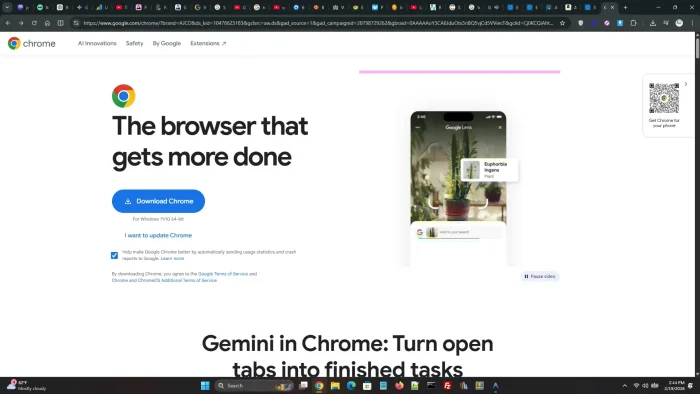 Screenshot of google chrome with many tabs open
Video of Google Chrome in action
If you want to learn how to use all the basic and advanced features of Chrome, check out this video we found.
Chrome vs. Edge vs. Firefox vs. Opera
How does Chrome compare to the other major browsers? Here is a practical side-by-side comparison.
| Feature | Chrome | Edge | Firefox | Opera |
|---|---|---|---|---|
| Built-in AI | ✅ Gemini | ✅ Copilot | ❌ | ✅ Aria |
| Extension Library | ✅ 130,000+ | ✅ Chrome-compatible | ✅ Own store | ✅ Chrome-compatible |
| Tab Groups | ✅ | ✅ Workspaces | ✅ | ✅ Tab Islands |
| Built-in Ad Blocker | ❌ | ❌ | ❌ | ✅ |
| Built-in VPN | ❌ | ❌ | 💲 Paid add-on | ✅ Free |
| Password Manager | ✅ + breach alerts | ✅ | ✅ | ✅ |
| Memory Usage | ⚠️ Higher | ✅ Sleeping tabs | ✅ Balanced | ✅ Lightweight |
| Cross-Device Sync | ✅ | ✅ | ✅ | ✅ |
| Open Source Engine | Chromium | Chromium | Gecko (independent) | Chromium |
Essential Google Chrome Keyboard Shortcuts
Master these shortcuts to browse faster without reaching for your mouse.
| Action | Shortcut |
|---|---|
| New Tab | Ctrl + T |
| Close Tab | Ctrl + W |
| Reopen Last Closed Tab | Ctrl + Shift + T |
| New Incognito Window | Ctrl + Shift + N |
| Jump to Address Bar | Ctrl + L |
| Bookmark Current Page | Ctrl + D |
| Find on Page | Ctrl + F |
| Open Downloads | Ctrl + J |
| Open History | Ctrl + H |
| Clear Browsing Data | Ctrl + Shift + Delete |
| Hard Refresh (Ignore Cache) | Ctrl + Shift + R |
| Open Chrome Task Manager | Shift + Esc |
| Jump to Tab 1-8 | Ctrl + 1 through Ctrl + 8 |
| Toggle Fullscreen | F11 |
Common Issues and Fixes
Chrome is using too much RAM
Enable Memory Saver in Settings, Performance. This puts inactive tabs to sleep and frees up RAM. You can also open Chrome’s Task Manager (Shift + Esc) to find and close tabs consuming the most memory. Disable extensions you do not actively use.
Chrome freezes or shows “Aw, Snap!” error
Clear your browsing data with Ctrl + Shift + Delete. Disable extensions one by one to find the problematic one. If the issue persists, reset Chrome settings to default from Settings, Reset and clean up. As a last resort, uninstall and reinstall Chrome.
Pages not loading (ERR_CONNECTION_REFUSED or similar)
Check your internet connection first. Try flushing your DNS cache by opening Command Prompt and typing ipconfig /flushdns. Switch to Google’s DNS (8.8.8.8 and 8.8.4.4) in your network settings. Temporarily disable your firewall or antivirus to check if it is blocking Chrome.
Chrome won’t open at all
Open Windows Task Manager (Ctrl + Shift + Esc), look for any chrome.exe processes still running, and end them. Then try opening Chrome again. If it still does not open, restart your computer. If the problem continues, uninstall Chrome, delete the leftover profile folder at %LOCALAPPDATA%\Google\Chrome, and reinstall from google.com/chrome.
Blank or white screen after Windows update
Go to Settings, System, and disable “Use hardware acceleration when available.” Restart Chrome. Hardware acceleration can conflict with certain GPU drivers, especially after Windows updates that change display drivers.
Extensions stopped working after update
Chrome is transitioning from Manifest V2 to V3, which affects how extensions work. Some older extensions may break. Check the Chrome Web Store for updated versions. If an extension is no longer available, search for an alternative that supports Manifest V3.
Frequently Asked Questions
Is Google Chrome free?
Yes. Google Chrome is completely free to download and use. There are no paid tiers or premium features. All Chrome features, including Gemini AI, are included at no cost.
Does Chrome use a lot of RAM?
Chrome can use more RAM than some browsers because it runs each tab as a separate process for stability and security. You can reduce usage by closing unused tabs, using tab groups, or enabling the Memory Saver feature in settings.
Can I use Chrome extensions?
Yes. Chrome has the largest extension library of any browser, with over 130,000 extensions available from the Chrome Web Store. Extensions add features like ad blocking, password management, productivity tools, and more.
Is Chrome safe to use?
Yes. Chrome includes Enhanced Safe Browsing, automatic security updates, a built-in password manager with breach alerts, sandboxed tabs, and site isolation. Google regularly patches security vulnerabilities.
How do I update Chrome?
Chrome updates automatically in the background. To check manually, click the three-dot menu, go to Help, then About Google Chrome. It will download and install any available update.
Does Chrome sync across devices?
Yes. Sign in with your Google account to sync bookmarks, passwords, history, open tabs, and settings across Windows, Mac, Linux, Android, iOS, and ChromeOS devices.
What is Gemini in Chrome?
Gemini is Google’s AI assistant built into Chrome. It can summarize web pages, answer questions about content you are viewing, help with writing, and assist with research directly from the browser toolbar.
Community Poll: Share Your Thoughts on Chrome
Helpful Resources and Community
Want to get more out of Chrome or troubleshoot an issue? These official and community resources help.
📚 Chrome Help Center
Official guides for setup, settings, privacy, and troubleshooting from Google.
🧩 Chrome Web Store
Browse and install extensions, themes, and apps to customize your browser.
💬 Chrome on Reddit
Community discussions, tips, extension recommendations, and troubleshooting.
📝 Chrome Release Notes
See what changed in every Chrome update, from new features to security patches.
🎨 Chrome Themes
Browse curated Chrome themes for every season, from minimal dark themes to colorful seasonal designs.
Get Google Chrome for Windows
The world’s most popular browser with Gemini AI, 130,000+ extensions, a built-in password manager, and seamless Google integration. Free forever.
Compatible with Windows 11 and Windows 10 (64-bit)
Related Guides: Opera Browser for PC, Arc Browser for PC, Brave Browser for PC, Firefox for PC, Edge Browser for PC.
Discover more from Windows Mode
Subscribe to get the latest posts sent to your email.

















Add your first comment to this post