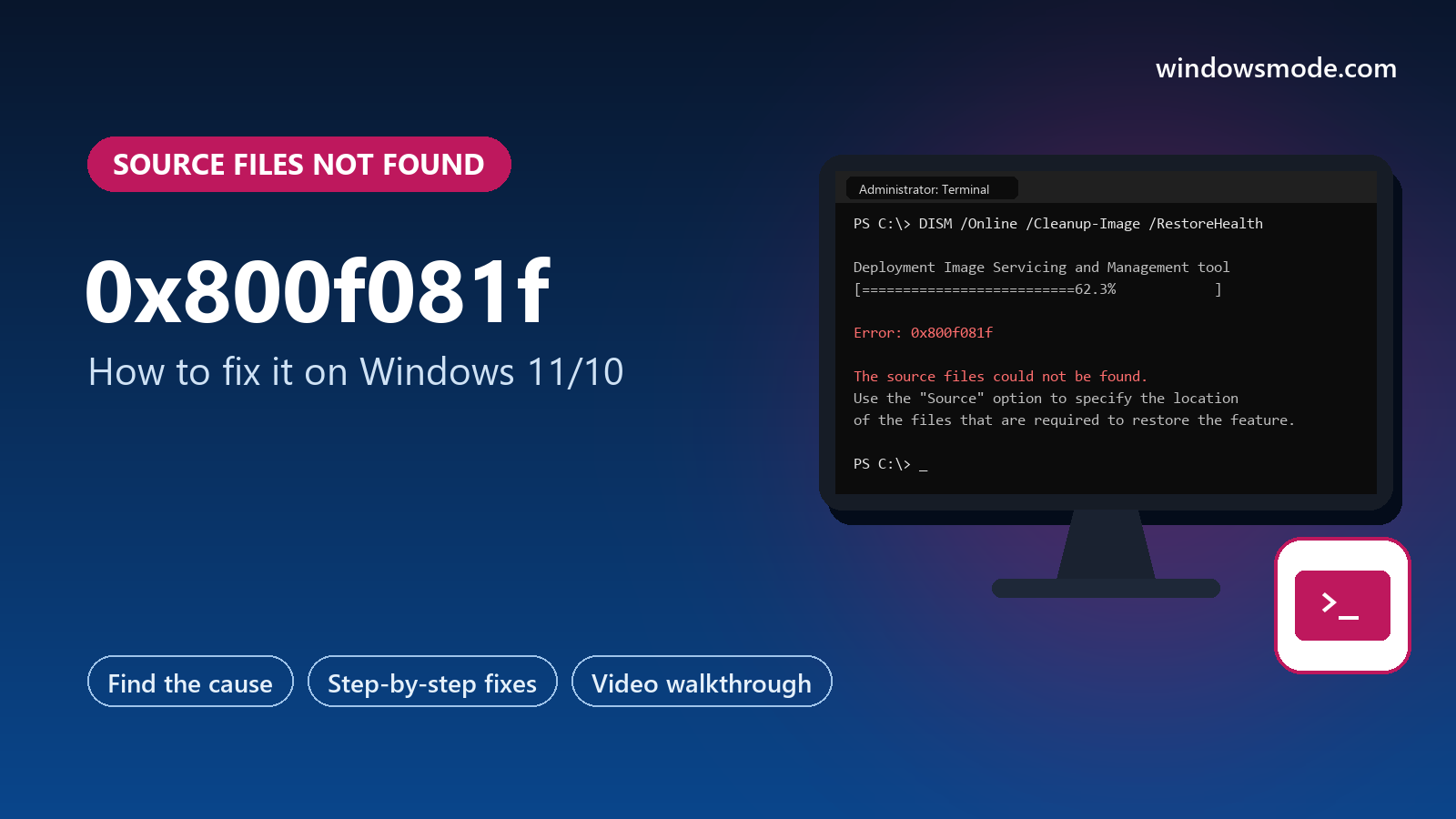
Error 0x800f081f: Windows can’t find the files it needs to add a feature or repair itself. Give it a source and it works.
Error 0x800f081f means Windows could not find the files it needed to install a feature, repair itself or finish an update. Microsoft’s name for it is CBS_E_SOURCE_MISSING: the source files are missing. It shows up on Windows 10 and Windows 11.
You will usually meet it in one of three places. Turning on .NET Framework 3.5, running the DISM repair command, or installing a Windows update. In each case the fix is the same idea: give Windows a working copy of the files.
Below: what the error means, a table for where you saw it, eight fixes in order, including Microsoft’s own commands, and a video that shows the DISM repair from a Windows ISO. Still stuck after trying them? Reach out to us directly.
What Does Error 0x800f081f Mean?
Windows does not keep every file for every feature on your drive. When you turn on an extra feature like .NET Framework 3.5, or ask DISM (Windows’ built-in image repair tool) to fix damaged files, Windows fetches the pieces it needs, normally from Windows Update.
Error 0x800f081f means that fetch failed. Microsoft lists the reasons: the source location did not contain the files, you did not have permission to read it, or the files there were damaged or did not match your version of Windows.
On home PCs the usual causes are a broken Windows Update connection, damaged Windows files, or a repair source that does not match. On work PCs, a company policy that blocks Windows Update downloads is common.
Start Here: Where Did You See the Error?
The right fix depends on what you were doing. Find your row and jump to it.
How to Fix Error 0x800f081f on Windows 10/11
Commands go in Terminal (Admin): right-click Start and choose it. Restart after each fix.
Let Windows download .NET Framework 3.5 itself
If the error came from turning on .NET Framework 3.5, first make sure Windows can reach Windows Update, then try the command Microsoft documents for an online install:
DISM /Online /Enable-Feature /FeatureName:NetFx3 /All- Stay connected and let it reach 100%. It downloads the files and turns the feature on.
- Prefer clicking? Search Start for Turn Windows features on or off, tick .NET Framework 3.5, and choose Let Windows Update download the files for you.
- Still 0x800f081f? Reset Windows Update first (Fix 5), or skip the download entirely with Fix 3.
Check the repair source policy (Pro, work and school PCs)
Microsoft’s article points to a Group Policy setting that decides where Windows gets these files. Companies often point it at their own update server, which may not have them.
- Press Windows + R, type gpedit.msc and press Enter. This tool exists on Pro, Enterprise and Education editions only; Home users can skip this fix.
- Go to Computer Configuration > Administrative Templates > System and open Specify settings for optional component installation and component repair.
- Set it to Enabled and tick Contact Windows Update directly to download repair content instead of Windows Server Update Services (WSUS). Select OK, then run the command below.
gpupdate /forceCompany PC? Ask IT before changing policies. They may prefer to add the files to their own server or install .NET 3.5 for you.
Install .NET Framework 3.5 from a Windows ISO
This skips Windows Update completely by using the files on Windows’ own installation media, Microsoft’s documented method for offline installs.
- Download the Windows ISO from Microsoft’s download page. It must be the same Windows version as your PC (Windows 11 for Windows 11, and ideally the same release).
- Double-click the ISO to mount it. It appears in File Explorer as a new drive. Note its letter, for example D:.
- Run Microsoft’s command, replacing D: with your ISO’s drive letter:
Dism /online /enable-feature /featurename:NetFx3 /All /Source:D:\sources\sxs /LimitAccess/LimitAccess tells DISM not to try Windows Update at all, so a broken update connection cannot get in the way.
Repair Windows with DISM using the ISO as the source
If DISM /Online /Cleanup-Image /RestoreHealth fails with 0x800f081f, DISM could not download clean copies of damaged files. Point it at the ISO instead. The video below shows these steps.
- Mount the matching Windows ISO as in Fix 3, and note the drive letter.
- Find your edition’s index number: the ISO holds several editions (Home, Pro and more). Run the first command below and note the Index for your edition.
- Run the repair with your drive letter and index number in place of D and 6.
dism /Get-WimInfo /WimFile:D:\sources\install.wim
DISM /Online /Cleanup-Image /RestoreHealth /Source:wim:D:\sources\install.wim:6 /LimitAccess
No install.wim, only install.esd? Some ISOs use that format. Use install.esd in both commands and write esd: instead of wim:. Either way, the edition and version must match your PC, or DISM reports the same error again.
Reset Windows Update
If the error came from Windows Update, or Fix 1 could not download, clear Windows Update’s cache so it starts fresh. Run these one at a time:
net stop wuauserv
net stop bits
ren C:\Windows\SoftwareDistribution SoftwareDistribution.old
net start bits
net start wuauserv
Then check for updates again, or retry Fix 1. Also run the built-in troubleshooter: Settings > System > Troubleshoot > Other troubleshooters > Windows Update.
Run SFC once DISM succeeds
DISM repairs Windows’ store of clean files; System File Checker then uses that store to fix the files Windows is actually running. Once a DISM repair from Fix 4 completes, run:
sfc /scannowIf it says it found and repaired files, restart and try the update or feature again.
Install the failed update by hand
For Windows Update failures, download the update yourself. Note its KB number in Settings > Windows Update > Update history.
- Search the KB number on the Microsoft Update Catalog and download the version for your PC (x64 for most).
- Double-click the file to install it, then restart.
Repair-install Windows and keep your files
If DISM cannot repair Windows even from an ISO, a repair install replaces all Windows files while keeping your apps, files and settings.
- Windows 11: Settings > System > Recovery > Fix problems using Windows Update > Reinstall now.
- Or from the ISO: mount it, run setup.exe, and choose Keep personal files and apps when asked.
- Back up first as a precaution, and plug in a laptop.
Video Walkthrough
This short walkthrough from Murugan S mounts a Windows ISO and runs the DISM repair with install.wim and /LimitAccess, as in Fix 4. Use your own drive letter and edition index.
How to Avoid It Next Time
Keep a matching ISO
Download the Windows ISO for your version once and keep it. It is the repair source for Fixes 3, 4 and 8.
Let updates finish
Interrupted updates are a common source of damaged Windows files.
Use the version that matches
After a big Windows upgrade, download a fresh ISO; an old one no longer matches.
Free space
DISM and updates need room to work. Keep at least 20 GB free.
Frequently Asked Questions
Do I still need .NET Framework 3.5 on Windows 11?
What is the difference between 0x800f081f and 0x800f0906?
Why does DISM still say the source files could not be found with an ISO?
Is error 0x800f081f a virus?
Can I fix 0x800f081f on Windows Home without Group Policy?
Support and Community
- .NET Framework 3.5 installation errors on Microsoft Learn, Microsoft’s reference for 0x800f081f and related codes.
- Deploy .NET Framework 3.5 by using DISM on Microsoft Learn, with the online and offline commands.
- Repair a Windows image on Microsoft Learn, covering DISM RestoreHealth and repair sources.
- r/techsupport on Reddit, where you can post your full DISM output for help.
More Windows Error Fixes
- How to fix Windows Update error 0x80070643
- How to fix error 0x80004005
- How to fix error 0x80070002
- How to fix error 0x80070005
- How to fix error 0x800f0923
- How to fix error 0xc0000005
- How to fix error 0xc000007b
- How to fix DPC_WATCHDOG_VIOLATION
- All Windows error code guides
Discover more from Windows Mode
Subscribe to get the latest posts sent to your email.













Add your first comment to this post