Error 0x80070643: find out which update failed, then use the fix for that kind of update.
Error 0x80070643 is a Windows Update message that means an update started installing and then failed partway through. Windows shows it in Settings > Windows Update as Install error – 0x80070643, often for the same update day after day.
The code itself is generic. What fixes it depends on which update failed: a Microsoft Defender update, a .NET Framework update and a Windows recovery update each need a different fix. So the first step is a 30-second look at your update history.
Below: what the code means, how to see which update failed, a table that matches the update to its fix, eight fixes in order, and a video that walks through resetting Windows Update. Still stuck after trying them? Reach out to us directly.
What Does Error 0x80070643 Mean?
Windows error codes that start with 0x8007 wrap an ordinary Windows error number. Here the last part, 0643, is error 1603 written in hexadecimal: Fatal error during installation.
In plain words: the update downloaded fine, the installer started, and then something stopped it. It is not a crash and it does not damage your PC. The update simply did not install, and Windows will keep offering it.
Because many kinds of updates use the same installer, this one code covers very different problems, from a full disk to a recovery partition that is too small. That is why the fixes below are grouped by update type.
Find Out Which Update Failed
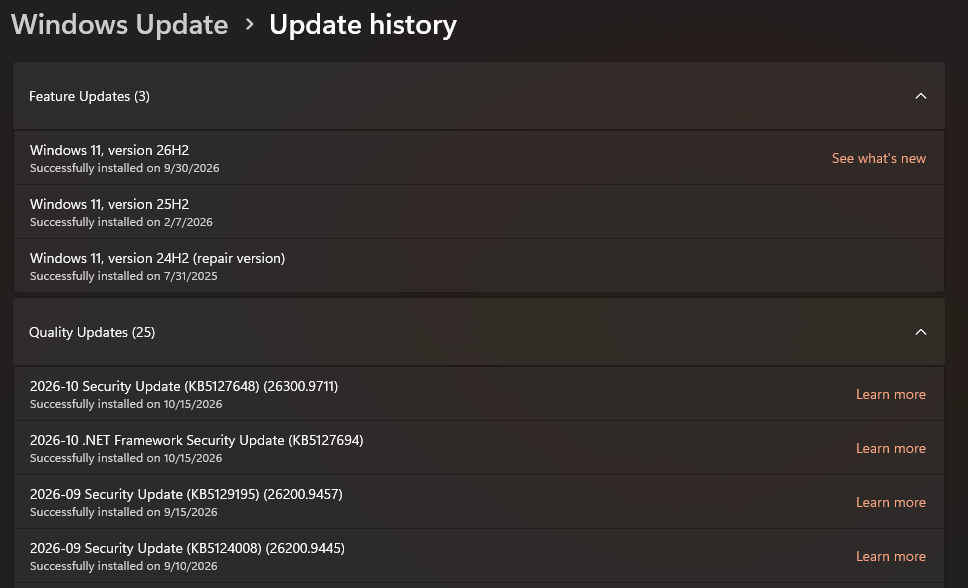
Open Settings > Windows Update > Update history. Look for the entry marked Failed to install and note its name and KB number (Microsoft’s ID for each update).
How to Fix Error 0x80070643 on Windows 10/11
Fixes 1 to 3 help with any update. Then jump to the fix for your update type.
Restart, then run the Windows Update troubleshooter
A pending restart from an earlier update often blocks the next one. Restart the PC (Restart, not Shut down), then try again from Settings > Windows Update > Check for updates.
- Still failing? Run Microsoft’s troubleshooter: Settings > System > Troubleshoot > Other troubleshooters, then Run next to Windows Update. On Windows 10 it is Settings > Update & Security > Troubleshoot > Additional troubleshooters.
- Let it apply any fixes it finds, restart, and check for updates again.
Free up space and check the date and time
Microsoft’s update troubleshooting page says a 64-bit PC needs at least 20 GB of free space for updates. A wrong clock can also break the secure download.
- Free space: Settings > System > Storage > Cleanup recommendations, or turn on Storage Sense. Empty the Recycle Bin and remove large files you do not need.
- Date and time: Settings > Time & language > Date & time. Turn on Set time automatically and select Sync now.
Reset Windows Update’s download cache
If an update file downloaded with errors, Windows keeps trying the same broken copy. Clearing the cache makes it download fresh. The video below shows this. Right-click Start, choose Terminal (Admin), and run these one at a time:
net stop wuauserv
net stop bits
ren C:\Windows\SoftwareDistribution SoftwareDistribution.old
net start bits
net start wuauserv
Then check for updates again. Windows rebuilds the folder by itself. Once updates work, you can delete the SoftwareDistribution.old folder.
Microsoft Defender update failed: update it directly
If the failed item is a Security Intelligence Update for Microsoft Defender, update the antivirus from Windows Security instead of Windows Update.
- Open Windows Security from the Start menu, then Virus & threat protection > Protection updates > Check for updates.
- Still failing? Microsoft offers the same update as a file you run yourself on its security intelligence updates page. Download the package for your PC (64-bit for most) and double-click it.
- Using another antivirus? Defender updates can fail while a third-party antivirus is active. That is harmless, since your other antivirus is protecting you, but you can hide the update (Fix 8).
.NET Framework update failed: repair .NET
.NET Framework updates fail when the existing .NET install is damaged. Microsoft has a free tool that finds and repairs common .NET problems.
- Download the Microsoft .NET Framework Repair Tool from the Microsoft Download Center and run it. Accept its suggested changes and let it finish.
- Restart and check for updates again.
- Still failing? Run the DISM and SFC repair in Fix 7, which also repairs the Windows parts .NET relies on.
Recovery update failed: check the recovery partition
Updates to the Windows Recovery Environment install into a small hidden partition on your drive. Microsoft says it needs 250 MB of free space, and on many PCs it has less. That was behind the widespread KB5034441 failures on Windows 10 in 2024.
- Check the recovery partition: in Terminal (Admin), run the command below. Windows RE status should say Enabled, and the location shows which disk and partition it uses.
reagentc /info- If the status is Disabled, run reagentc /enable and try the update again.
- If it is enabled and the update still fails, the partition needs to be bigger. Microsoft’s KB5028997 instructions shrink the Windows partition by 250 MB and rebuild the recovery partition with diskpart.
Back up before resizing partitions. The steps are safe when followed exactly, but a wrong disk or partition number in diskpart can erase data. If you are not comfortable with that, it is reasonable to hide this one update (Fix 8): it only updates the recovery tools, not Windows security.
Repair Windows files with DISM and SFC
Damaged Windows files can stop any update from installing. Microsoft’s update troubleshooting page recommends these two commands. In Terminal (Admin), run:
DISM.exe /Online /Cleanup-image /Restorehealth
sfc /scannow
Run them in that order, restart, and check for updates again.
Install the update by hand, or hide it
If Windows Update still cannot install it, get the update yourself, or stop it from being offered.
- Install by hand: search the KB number on the Microsoft Update Catalog, download the version for your Windows (x64 for most PCs), and double-click the file.
- Driver or firmware update? Get it from your PC maker’s support page instead, then let Windows Update skip it.
- Optional updates: updates listed under Advanced options > Optional updates can simply be left uninstalled. Monthly security updates should not be skipped for long.
Video Walkthrough
This walkthrough from Britec09 shows stopping the Windows Update service, clearing its cache and restarting it (Fix 3), and where to find Microsoft’s own update troubleshooting page.
How to Avoid Update Errors
Keep 20 GB free
Microsoft’s minimum for updates on a 64-bit PC. Big updates need room to unpack.
Restart weekly
A PC that is only ever put to sleep piles up pending restarts, and those block the next update.
One antivirus
Third-party antivirus can block Defender and .NET updates. Use one or the other, not both.
Check update history now and then
A failed update is easy to miss. A monthly look at Update history catches it early.
Frequently Asked Questions
Is my PC unprotected if error 0x80070643 keeps happening?
Can I just ignore error 0x80070643?
Why does the same failed update keep coming back?
Does error 0x80070643 mean my hard drive is failing?
Is error 0x80070643 the same as error 0x800f0923?
Support and Community
- Troubleshoot problems updating Windows on Microsoft Support, Microsoft’s step-by-step update repair guide.
- KB5028997: resize the recovery partition on Microsoft Support, for the recovery update case.
- Microsoft Update Catalog, for downloading any update by its KB number.
- r/techsupport on Reddit, where you can post the failed update’s name and KB number for help.
More Windows Error Fixes
- How to fix error 0x80070002
- How to fix error 0x80070005
- How to fix error 0x800f0923
- How to fix error 0xc0000005
- How to fix error 0xc000007b
- How to fix DPC_WATCHDOG_VIOLATION
- All Windows error code guides
Discover more from Windows Mode
Subscribe to get the latest posts sent to your email.













Add your first comment to this post