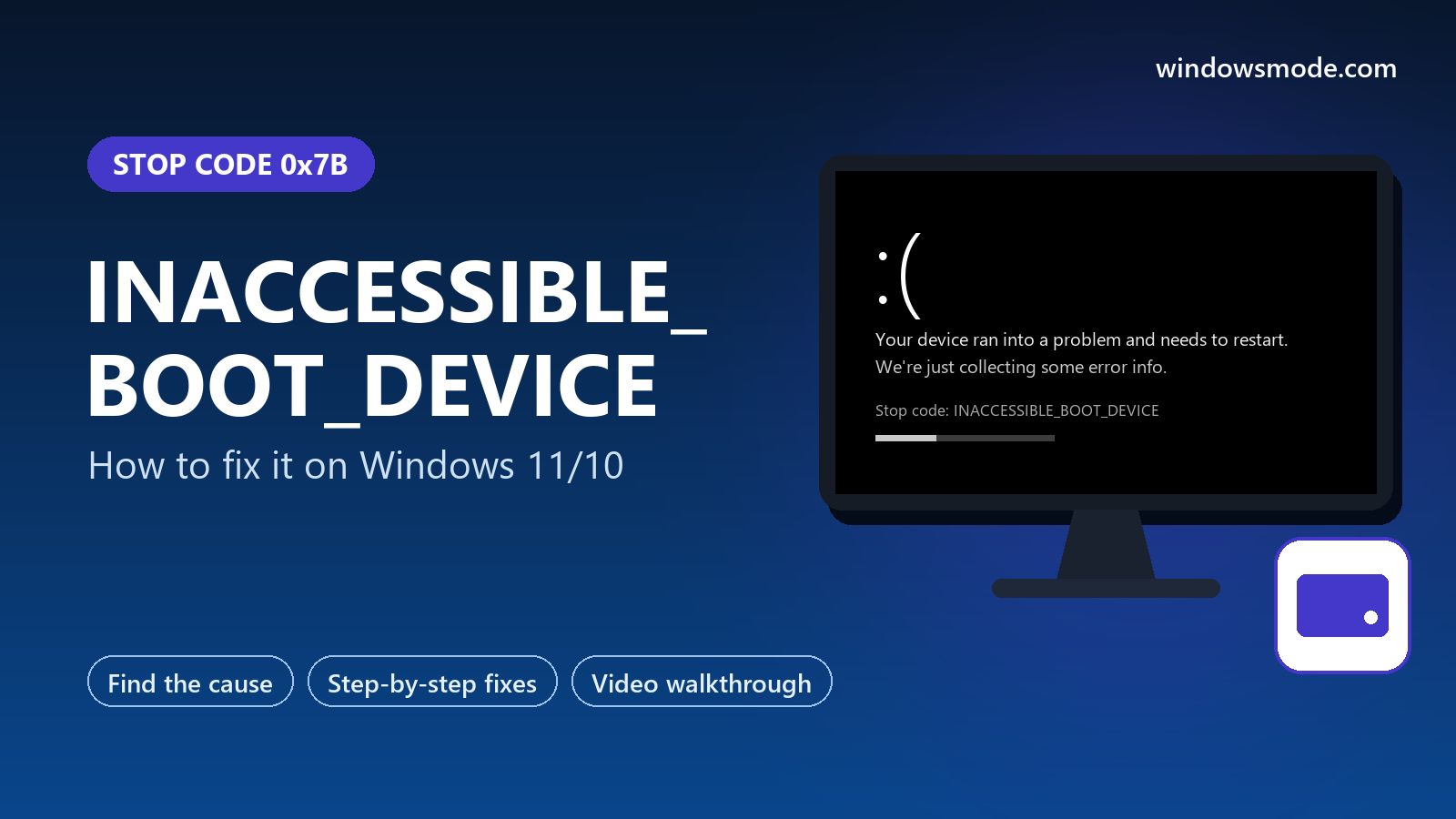
Stop code 0x7B: Windows can’t reach its own drive while starting up. Every fix below works from the recovery screen.
INACCESSIBLE_BOOT_DEVICE is a Windows stop code (0x7B) that appears during startup when Windows loses access to the drive it is installed on. Because it happens before the desktop loads, the PC usually restarts in a loop or lands on the Automatic Repair screen.
Your files are almost always still there. In most cases a storage setting changed, a Windows update did not finish, or the startup files were damaged, and the drive itself is fine. Every fix in this guide works from the recovery screen, with no desktop needed.
Below: how to reach the recovery screen when Windows will not start, a table to match what happened to the right fix, eight fixes in order, and a video filmed on a real Windows 11 laptop. Still stuck after trying them? Reach out to us directly.
What Does INACCESSIBLE_BOOT_DEVICE Mean?
When your PC starts, Windows loads a small set of drivers first, including the one that talks to your drive’s storage controller (the chip that connects the drive to the motherboard). Then it reads the rest of Windows from the drive.
INACCESSIBLE_BOOT_DEVICE means that step failed: the storage driver could not start the drive, or Windows could not read what was on it. Without the drive, Windows cannot continue, so it stops.
Microsoft lists the usual triggers: a changed BIOS storage setting, a new or different storage controller, an update that did not finish, damaged files, or a failing drive. Which one it is depends mostly on what happened just before the error first appeared.
First, Get to the Recovery Screen
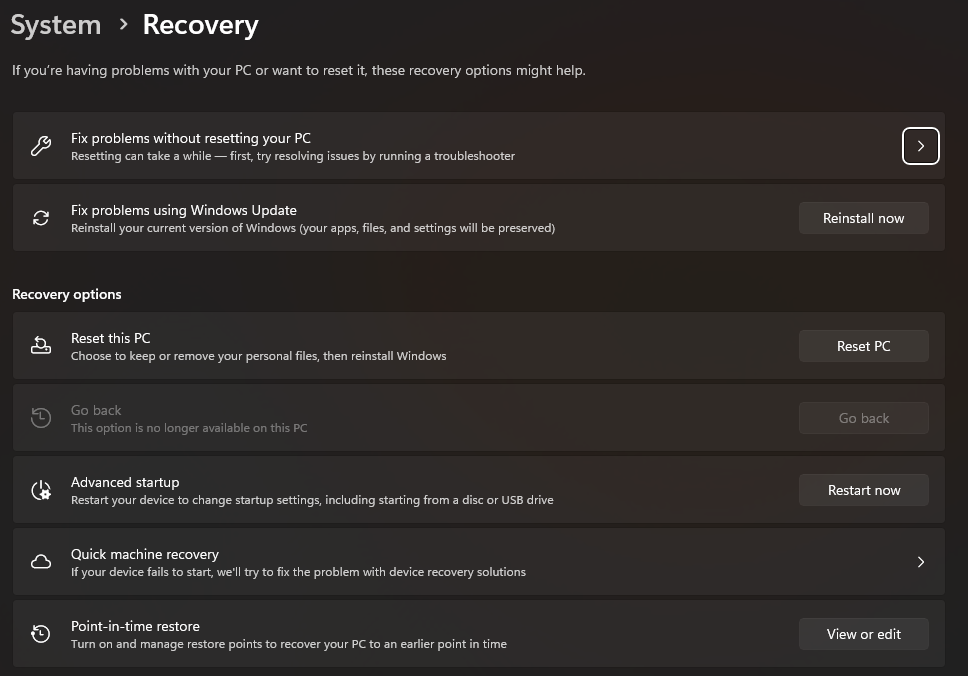
All the fixes below start from the blue Choose an option screen, called the Windows Recovery Environment. There are two ways to reach it when Windows will not start.
Let Windows open it
After two failed starts in a row, Windows shows Automatic Repair on the next start. If it does not, turn the PC on and hold the power button as soon as the logo appears, twice. On the third start, select Advanced options when Automatic Repair finishes.
Boot from a Windows USB drive
On another PC, download the Media Creation Tool from Microsoft and make a USB drive (8 GB or more). Boot from it (the boot menu key is usually F12, Esc, F9, F10 or F8), choose your language, then select Repair your computer, not Install.
Command Prompt tip: your Windows drive may not be C:
Inside the recovery screen, drive letters often change. Before typing any command below, open Troubleshoot > Advanced options > Command Prompt and run diskpart, then list vol, then exit. The volume with the size of your Windows drive (and usually the label Windows or OS) is the letter to use. If no volume like that appears at all, jump to Fix 8.
Start Here: What Happened Just Before?
This error almost always follows a specific event. Match yours and jump to that fix.
How to Fix INACCESSIBLE_BOOT_DEVICE on Windows 10/11
Try each fix, then restart normally to see if Windows starts. Most people are done by Fix 4.
Undo BIOS storage changes and new hardware
Microsoft’s first steps for this error: undo recent hardware changes and BIOS changes. The most common one is the storage mode, the setting that decides how the drive controller works. Windows only boots in the mode it was installed with.
- Enter the BIOS by pressing Delete, F2 or Esc as the PC starts.
- Find the storage or SATA mode setting. It is often under Advanced, Storage or Chipset, with options like AHCI, RAID, Intel RST or VMD. If you, a BIOS update or a BIOS reset changed it, switch it back. If you are not sure which it was, try the other option once and see if Windows starts.
- Remove new hardware: disconnect any drive or expansion card you added just before the error, and make sure the Windows drive is first in the boot order.
Moved Windows to a new PC or a new SSD? A new storage controller often needs its driver loaded before Windows can start from it. Set the new PC to the same storage mode as the old one if possible; otherwise a clean install (Fix 8) may be the reliable route.
Start in Safe Mode once, then restart normally
Microsoft suggests this simple step: start in Safe Mode, then restart normally. Safe Mode loads the storage drivers in a basic way, which can reset how they start next time.
- In the recovery screen, select Troubleshoot > Advanced options > Startup Settings > Restart.
- Press 4 or 5 for Safe Mode, or Safe Mode with Networking.
- Once Safe Mode loads, restart normally from the Start menu. If Windows now starts, run Windows Update and check Device Manager for devices with a yellow warning sign.
Run Startup Repair
Startup Repair is Windows’ automatic fixer for start-up problems. It checks the start-up files and settings and repairs what it can.
- Select Troubleshoot > Advanced options > Startup Repair, then pick your account and enter its password if asked.
- Let it finish. If it says it could not repair your PC, that is common; carry on with the next fix.
Remove a stuck or bad Windows update
If the error appeared during or right after an update, remove it. Start with the easy option, then use Microsoft’s command if that fails.
- Easy option: Troubleshoot > Advanced options > Uninstall Updates. Try Uninstall latest quality update first, then Uninstall latest feature update if that does not help.
- If that fails, cancel updates that never finished: open Command Prompt from Advanced options and run the command below, with your Windows drive letter in place of C (see the drive letter tip above).
dism /Image:C:\ /Cleanup-Image /RevertPendingActionsRestart when it finishes. Microsoft’s article also covers renaming a leftover pending.xml file and some registry steps; those are for advanced users only.
Check the drive and repair system files offline
A power cut or forced shutdown can damage the file system or Windows files. From Command Prompt in the recovery screen, run these one at a time, using your Windows drive letter:
chkdsk C: /f /r
sfc /scannow /offbootdir=C:\ /offwindir=C:\Windows
chkdsk /r reads the whole drive, which can take an hour or more on a large or slow one. Let it finish, then run the SFC command and restart.
Rebuild the start-up files
If the start-up records themselves are damaged, Windows cannot find its own drive. Microsoft’s article uses this command when the start-up data cannot be opened:
bootrec /rebuildbcd- It scans for Windows installations and asks whether to add each one to the start-up list. Type Y and press Enter.
- Restart. If you see Access is denied or the command does nothing useful, skip to the next fix rather than trying other boot commands from random guides.
Use System Restore
If restore points exist from before the error, System Restore puts Windows’ system files and drivers back to that point. Your personal files are not touched.
- Select Troubleshoot > Advanced options > System Restore, pick your account, then choose a restore point dated before the problem started.
- Let it finish and restart. It can take 20 minutes or more; do not turn the PC off during it.
Check the drive’s health, then reinstall if needed
If the drive does not appear in the BIOS or in diskpart, or nothing above helped, the drive, its cable or the Windows install itself is the problem.
- Check the drive is detected: in the BIOS, the drive should be listed by name. On a desktop, reseat its data and power cables, or move an M.2 SSD to another slot.
- Update the BIOS and storage firmware from your PC or motherboard maker, as Microsoft suggests, then try again.
- Get your files off first: boot from the Windows USB drive or another PC and copy your files to an external drive, if the drive is readable.
- Reinstall Windows from the USB drive made with the Media Creation Tool. If a fresh install cannot see the drive either, the drive or motherboard is faulty.
Video Walkthrough
This walkthrough from How To Fix Tech is filmed on a real Windows 11 laptop showing the error. It walks through the recovery screen’s Advanced options used in Fixes 2 to 7.
How to Stop It Coming Back
Note your BIOS storage mode
Take a photo of your BIOS storage settings now. After a BIOS update or reset, you can put them back exactly.
Let updates finish
Do not turn the PC off while it says Working on updates. Plug a laptop in before a big update.
Keep a Windows USB drive
A recovery or install USB drive made in advance saves hours when Windows will not start.
Back up regularly
This error rarely destroys files, but when the drive itself is failing, a recent backup is the only thing that helps.
Frequently Asked Questions
Will INACCESSIBLE_BOOT_DEVICE delete my files?
Why did INACCESSIBLE_BOOT_DEVICE appear after a BIOS update?
Can I fix INACCESSIBLE_BOOT_DEVICE without a USB drive?
Is INACCESSIBLE_BOOT_DEVICE a hardware failure?
Why does INACCESSIBLE_BOOT_DEVICE happen after cloning to a new SSD?
Support and Community
- Stop error 7B or Inaccessible_Boot_Device troubleshooting on Microsoft Learn, Microsoft’s detailed recovery steps, including advanced registry fixes.
- Bug Check 0x7B INACCESSIBLE_BOOT_DEVICE on Microsoft Learn, the technical reference for this stop code.
- Download Windows 11 from Microsoft, for the Media Creation Tool used to make a recovery USB drive.
- r/techsupport on Reddit, where you can describe what happened before the error and get help.
More Blue Screen Fixes
- How to fix DPC_WATCHDOG_VIOLATION
- How to fix KERNEL_SECURITY_CHECK_FAILURE
- How to fix SYSTEM_SERVICE_EXCEPTION
- How to fix MEMORY_MANAGEMENT
- How to fix VIDEO_TDR_FAILURE
- How to fix DRIVER_IRQL_NOT_LESS_OR_EQUAL
- How to fix WHEA_UNCORRECTABLE_ERROR
- How to fix CRITICAL_PROCESS_DIED
- How to fix PAGE_FAULT_IN_NONPAGED_AREA
- How to fix error 0xc0000005
- How to fix Code 43
- All Windows error code guides
Discover more from Windows Mode
Subscribe to get the latest posts sent to your email.














Add your first comment to this post