Stop code 0x1A: test the memory first, then work through the rest in order.
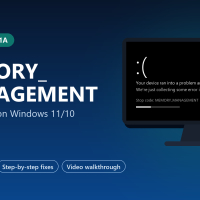
MEMORY_MANAGEMENT is a Windows stop code (0x1A) that appears when Windows finds a serious error in how memory is being tracked, and restarts to protect your files. It shows up on Windows 10 and Windows 11, often during games, big downloads or video editing, when memory is busiest.
Unlike most blue screens, this one points at hardware first. Microsoft’s own advice for it is to run the Windows Memory Diagnostic, and faulty or overclocked RAM is the most common cause. Drivers and damaged system files come next.
Below: what the error means, what the error number inside it tells you, how to test your RAM properly, eight fixes in order, and a video that shows the memory test step by step. Still stuck after trying them? Reach out to us directly.
What Does MEMORY_MANAGEMENT Mean?
Windows keeps a detailed map of your memory: which parts belong to which app, which parts are parked on the drive in the page file (space on the drive Windows uses as overflow memory), and which are free. Every app relies on that map being right.
MEMORY_MANAGEMENT means Windows found that map damaged or out of sync. It cannot trust where anything lives any more, so it stops before it writes data to the wrong place and corrupts your files.
The map can be damaged by RAM that flips bits, by a driver writing where it should not, or by a page file on a failing drive. That is why the memory test comes first in this guide.
What the Error Number Inside It Tells You
Optional. If you open the crash dump (see the WinDbg steps below), the first parameter narrows things down. These are the values Microsoft lists that people see most.
Can’t reach the desktop? Use Safe Mode first
If the crash hits before you can do anything, start Windows in Safe Mode. It loads only the basic drivers, so the crash usually stays away long enough to work through the fixes below.
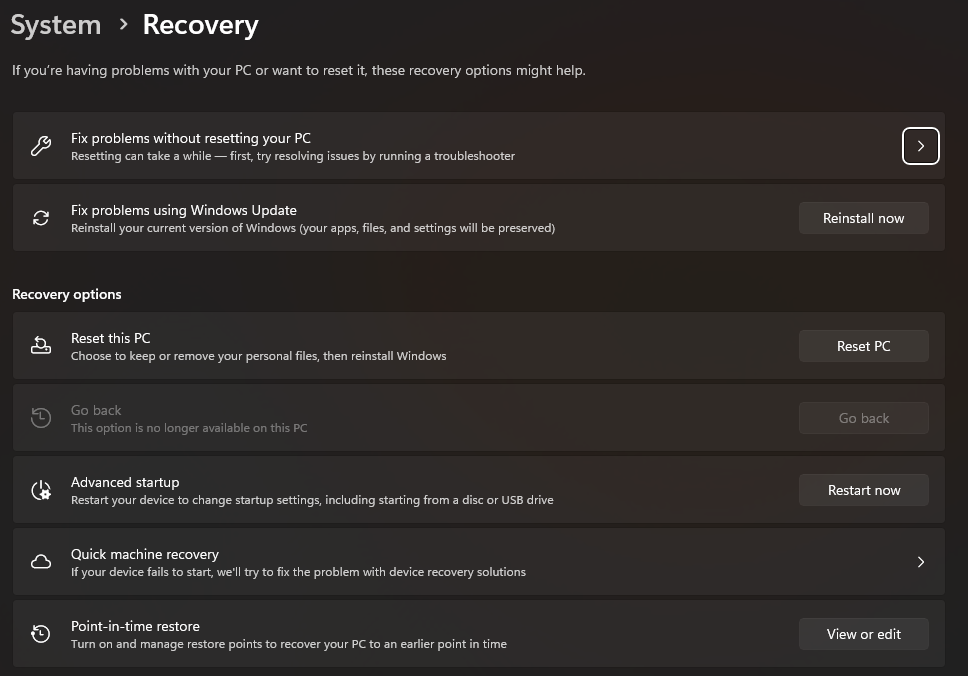
- From the desktop: open Settings > System > Recovery and select Restart now next to Advanced startup. On Windows 10 it is Settings > Update & Security > Recovery.
- From the sign-in screen: hold Shift while you select Power > Restart.
- If Windows won’t start at all: turn the PC on and hold the power button as soon as the logo appears, twice in a row. On the third start, Windows opens the recovery screen by itself.
- Then: select Troubleshoot > Advanced options > Startup Settings > Restart, and press 5 for Safe Mode with Networking.
Start Here: Which Fix Matches Your Symptom?
Find the row that sounds like your PC and jump to that fix. If nothing matches, go in order from Fix 1.
How to Fix MEMORY_MANAGEMENT on Windows 10/11
Restart after each fix and use the PC normally for a while before moving on.
Run Windows Memory Diagnostic
This is the step Microsoft recommends for this stop code. The tool is built into Windows and tests your RAM before Windows loads. The video below walks through it.
- Save your work and close apps. The PC restarts during the test.
- Press Windows + R, type mdsched and press Enter, then choose Restart now and check for problems.
- Let it finish. You will see a blue test screen with a progress bar. Press F1 there if you want the slower Extended test, which catches more faults.
- Read the result in the notification after you sign in. If you miss it, open Event Viewer > Windows Logs > System and look for the source MemoryDiagnostics-Results.
No errors? That is good news but not proof. Windows Memory Diagnostic can miss faults that only show up when RAM is warm and busy. Fix 4 covers a longer test.
Turn off XMP or EXPO and any overclock
XMP (Intel) and EXPO (AMD) are BIOS settings that run your RAM at its advertised speed, which is often faster than the default. Most PCs handle it fine, but if the crashes started after turning one on, or after adding RAM, it is a prime suspect.
- Restart and enter the BIOS, usually by pressing Delete, F2 or F10 as the PC starts. The key is shown on screen or in your PC’s manual.
- Turn XMP, EXPO or DOCP off, or load the BIOS defaults. Save and exit.
- Use the PC for a day or two. If the crashes stop, either keep the slower speed or try the profile again after a BIOS update (Fix 5).
Reseat the RAM and test one stick at a time
A stick that is slightly loose, or one bad stick out of two, is a common cause. This step is for desktops and laptops where the RAM can be removed; many thin laptops have it soldered in.
- Shut down, unplug, and hold the power button for a few seconds to drain leftover power. Touch a metal part of the case first to discharge static.
- Remove the sticks and push them back in firmly until the clips snap shut.
- Still crashing? Run the PC with one stick only, then swap. The stick that brings the crashes back is the faulty one. Your motherboard manual shows which slot to use for a single stick.
Mixed RAM kits (different brands, speeds or sizes) can be unstable together even when each stick tests fine alone. Matched kits are the safe choice.
Run a longer memory test overnight
For faults Windows Memory Diagnostic misses, MemTest86 from PassMark runs a deeper set of tests from a USB drive. The free version is enough for home use.
- Download it on a working PC and use the included tool to write it to a USB drive. This erases the drive.
- Boot from the USB drive (usually F12, F11 or Esc at startup opens the boot menu) and let it run at least four full passes, ideally overnight.
- Any error at all means faulty RAM or unstable memory settings. Retest one stick at a time to find which.
Update drivers and the BIOS
If memory tests come back clean, a driver writing to the wrong memory is the next suspect. Microsoft’s reference lists driver bugs among the causes of this stop code.
- Update your graphics driver from NVIDIA, AMD or Intel, using the clean install option. Our NVIDIA driver guide shows how.
- Install optional driver updates from Settings > Windows Update > Advanced options > Optional updates.
- Update the BIOS from your PC or motherboard maker (Dell, HP, Lenovo and so on). BIOS updates often improve memory compatibility. Do it on mains power and follow the maker’s steps exactly.
Repair system files and check the drive
The page file lives on your drive, so drive errors can look like memory errors. Right-click Start, choose Terminal (Admin), and run these in order:
DISM /Online /Cleanup-Image /RestoreHealth
sfc /scannow
chkdsk C: /scan
If chkdsk reports problems it cannot fix online, it offers to run at the next restart. Say yes and restart.
Reset the page file to automatic
A page file that was turned off, or set too small by a tweaking guide, can contribute to memory errors. Let Windows manage it again, and keep at least 10% of the drive free.
- Press Windows + R, type sysdm.cpl and press Enter. Open the Advanced tab, then Settings under Performance.
- On the Advanced tab, select Change under Virtual memory, tick Automatically manage paging file size for all drives, then OK and restart.
Undo a recent change, or reinstall Windows
If the crashes started after an update or a new program, and the memory tests are clean, go back to before the change.
- Uninstall the update: Settings > Windows Update > Update history > Uninstall updates.
- Use System Restore: in Settings > System > Recovery, or from the recovery screen under Troubleshoot > Advanced options.
- Reinstall Windows and keep everything: on Windows 11, Settings > System > Recovery > Fix problems using Windows Update > Reinstall now.
- Last resort, Reset this PC with Keep my files. If MEMORY_MANAGEMENT returns on a fresh reset, the RAM or motherboard is almost certainly at fault.
Find Out Which Driver Crashed
Guessing wastes hours. Windows usually records the file that caused the crash, and you have three places to look, from quickest to most detailed.
1. Read the crash screen
The crash screen (blue on Windows 10, black on recent Windows 11 versions) shows the stop code and, when Windows knows it, a What failed line with a file name such as ntoskrnl.exe or dxgmms2.sys. Take a photo of it with your phone. A web search for that file name tells you which driver it belongs to.
2. Check Reliability Monitor
Type reliability in the Start menu and open View reliability history. Each red X in the Windows failures row is a crash. Select that day, then the entry, and choose View technical details. This error shows as a BlueScreen event with code 1a.
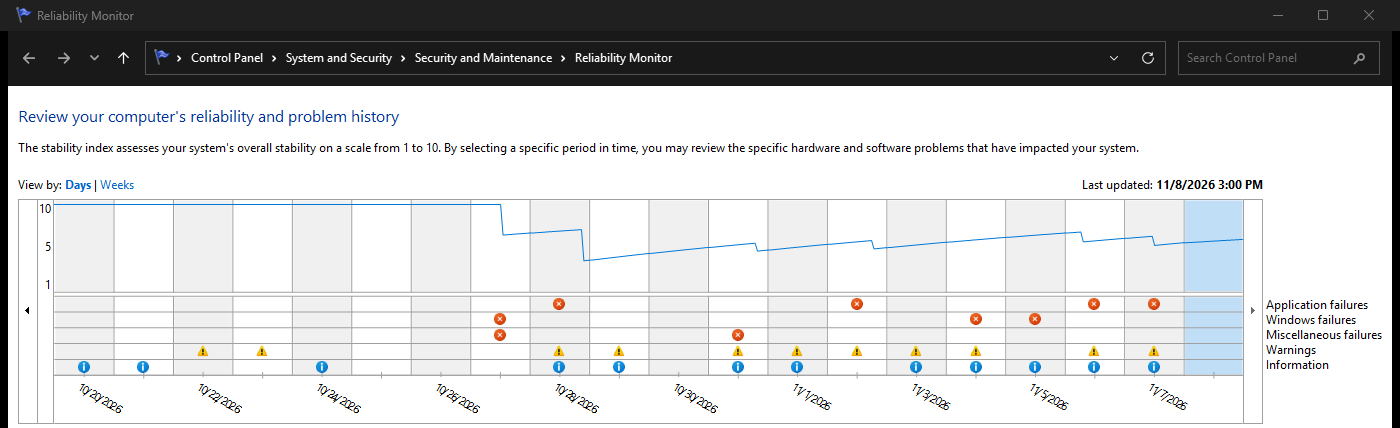
You can also open Event Viewer, go to Windows Logs > System, and look for errors just before the crash. Microsoft suggests this step to find the device or driver involved.
3. Open the crash dump in WinDbg (optional, most detail)
When Windows crashes it saves a small file called a minidump in C:\Windows\Minidump. WinDbg is Microsoft’s free tool for reading it. Install it from the Microsoft Store or with this command in Terminal:
winget install Microsoft.WinDbg- Open WinDbg as administrator, then select File > Open dump file and pick the newest file in C:\Windows\Minidump.
- Type the command below in the box at the bottom and press Enter. The first run takes a minute while it downloads symbols (labels that make the dump readable).
- Look for the lines MODULE_NAME and IMAGE_NAME. That is the driver to update, roll back or remove.
!analyze -vntoskrnl.exe named? That is the core of Windows itself. It is where memory errors get caught, not usually where they start, so treat it as a sign to test RAM rather than a clue to a driver.
Video Walkthrough
This walkthrough from MDTechVideos shows how to get into Safe Mode and run Windows Memory Diagnostic (Fix 1). It was recorded on Windows 10, and the memory test looks the same on Windows 11.
How to Stop It Coming Back
Test RAM after any change
New sticks, a new XMP profile or a BIOS update: run a memory test before trusting it with real work.
Buy matched kits
When adding memory, a kit of identical sticks is far more reliable than mixing what you have with something new.
Leave the page file alone
Tweaking guides that turn it off save nothing on modern PCs and can cause crashes. Let Windows manage it.
Keep the drive from filling up
Leave at least 10% free so the page file and updates have room.
Frequently Asked Questions
Does MEMORY_MANAGEMENT always mean my RAM is bad?
Can I keep using my PC with a MEMORY_MANAGEMENT error?
Is MEMORY_MANAGEMENT the same as VIDEO_MEMORY_MANAGEMENT_INTERNAL?
Can a Windows update cause MEMORY_MANAGEMENT?
How much does it cost to replace faulty RAM?
Support and Community
- Bug Check 0x1A MEMORY_MANAGEMENT on Microsoft Learn, with the full list of parameter values.
- Troubleshoot unexpected restarts and stop code errors on Microsoft Support.
- MemTest86 from PassMark, the free bootable memory test used in Fix 4.
- r/techsupport on Reddit, where you can post test results and crash details for help.
More Blue Screen Fixes
- How to fix DPC_WATCHDOG_VIOLATION
- How to fix KERNEL_SECURITY_CHECK_FAILURE
- How to fix SYSTEM_SERVICE_EXCEPTION
- How to fix VIDEO_TDR_FAILURE
- How to fix INACCESSIBLE_BOOT_DEVICE
- How to fix DRIVER_IRQL_NOT_LESS_OR_EQUAL
- How to fix WHEA_UNCORRECTABLE_ERROR
- How to fix CRITICAL_PROCESS_DIED
- How to fix PAGE_FAULT_IN_NONPAGED_AREA
- How to fix error 0xc0000005
- How to fix Code 43
- All Windows error code guides
Discover more from Windows Mode
Subscribe to get the latest posts sent to your email.













Add your first comment to this post