Key takeaways
- KB5132057 is now in the Release Preview channel for Windows 11 versions 25H2 and 26H2, bringing a redesigned Windows Search, a new Run dialog and brighter Windows Hello sign-in in the dark.
- Beta and Experimental builds for 26H1 let standard users set a BitLocker startup PIN without admin rights, on managed PCs.
- Only Insiders get these today. Release Preview is usually the last stop before an update reaches everyone.
Microsoft shipped a fresh batch of Windows 11 Insider builds on November 13, 2026, and the most useful part for regular users sits in the Release Preview channel. That is where KB5132057 lands, with a cleaner Windows Search, a modern Run dialog and a long list of fixes.
Business PCs get something too. New Beta and Experimental builds let people without admin rights add a BitLocker startup PIN when their company requires one, a job that used to need IT.
Which builds went out
Stephen Lines announced the builds on the Windows Insider Blog. Microsoft says the regular Beta and Experimental channels get their own updates next week.
| Channel | Build | Headline change |
|---|---|---|
| Release Preview (25H2/26H2) | 26200.10066 / 26300.10066 (KB5132057) | New Windows Search, Run dialog, Hello brightness, accessibility updates, fixes |
| Release Preview (26H1) | 28000.3612 | Update for PCs on the 26H1 release |
| Beta (26H1) | 28020.3532 | BitLocker PIN for standard users, Remote Desktop fix |
| Experimental (26H1) | 28120.3542 | BitLocker PIN for standard users, opt-in new Run dialog |
| Experimental (Future Platforms) | 29708.1003 | New builds for this test channel |
What KB5132057 adds in Release Preview
Most of these features arrive through a gradual rollout, so two PCs on the same build may not see the same things at the same time.
A faster, simpler Windows Search
Search results now show up in one simple list. Microsoft says it is also faster and uses less memory. You can do quick jobs right from the search box, such as turning on dark mode or Bluetooth, changing brightness, muting your PC or arranging open windows.
You can also preview files in search and see when a file was changed, where it lives and who made it. Search handles typos and similar words better, and it gives quick answers for weather, stocks and facts. It starts in English only.
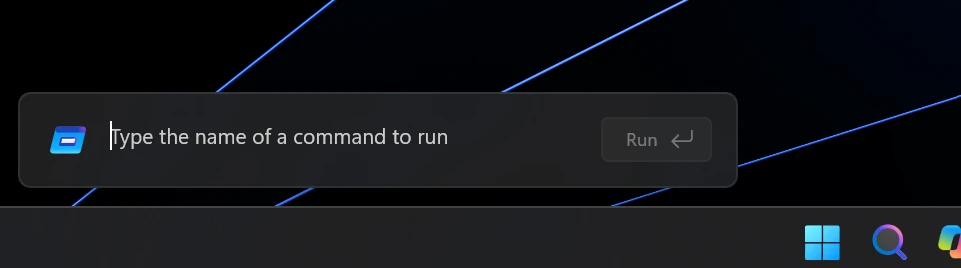
A modern Run dialog
The classic Win + R box gets a cleaner, modern look. It is off by default. Turn it on in Settings > System > Advanced with the New Run dialog switch. The same opt-in version is also in the Experimental (26H1) build.
More changes worth knowing
Windows Hello in the dark
Face sign-in can briefly brighten your screen in a dim room. Turn it on in Settings > Accounts > Sign-in options > Facial recognition (Windows Hello).
Red capture border
The border shown while your screen is being captured changes from yellow to red, so it is easier to spot.
Pointer indicator
A new aid helps people with low vision find the mouse pointer. Turn it on in Settings > Accessibility > Mouse pointer and touch, then toggle it with Win + Ctrl + Shift + X.
Faster File Explorer search
Searching from This PC now uses the search index, so it is much faster and matches search from File Explorer Home.
There is more. XBOX mode gets full Quick settings in its Gaming Task View bar. Widgets can tell you when a newly installed app adds a widget. Magnifier lets you choose whether Win + Plus (+) starts it, and it gets a help menu. If you trigger Sticky Keys, Filter Keys or Toggle Keys by accident, you can now turn the shortcut off right from the prompt.
For work PCs, web sign-in now also works on Microsoft Entra hybrid joined devices. People can sign in at the lock screen with a FIDO2 security key, a phone passkey or a Temporary Access Pass, and still reach on-premises file shares.
Fixes in this update
- Miracast connections that fell back to a lower resolution on some wireless displays.
- A false “Someone else is using this PC” warning when restarting or shutting down.
- Cross-device passkey sign-in with Android phones showing “Something went wrong.”
- Boot failures or TPM errors on some Arm-based PCs.
- Sage 50 Accounting closing unexpectedly, and a Microsoft 365 upgrade option that stayed visible after upgrading.
BitLocker PIN without admin rights
A BitLocker startup PIN is a number you type before Windows even loads. It adds a second lock on top of the PC’s security chip (TPM), so a stolen laptop is much harder to break into. Until now, only admins could add one, which left IT teams doing it by hand.
In Beta build 28020.3532 and Experimental build 28120.3542, standard users on managed PCs get a Startup PIN required notification when their company asks for a PIN. Selecting it opens a small window where they set it themselves.
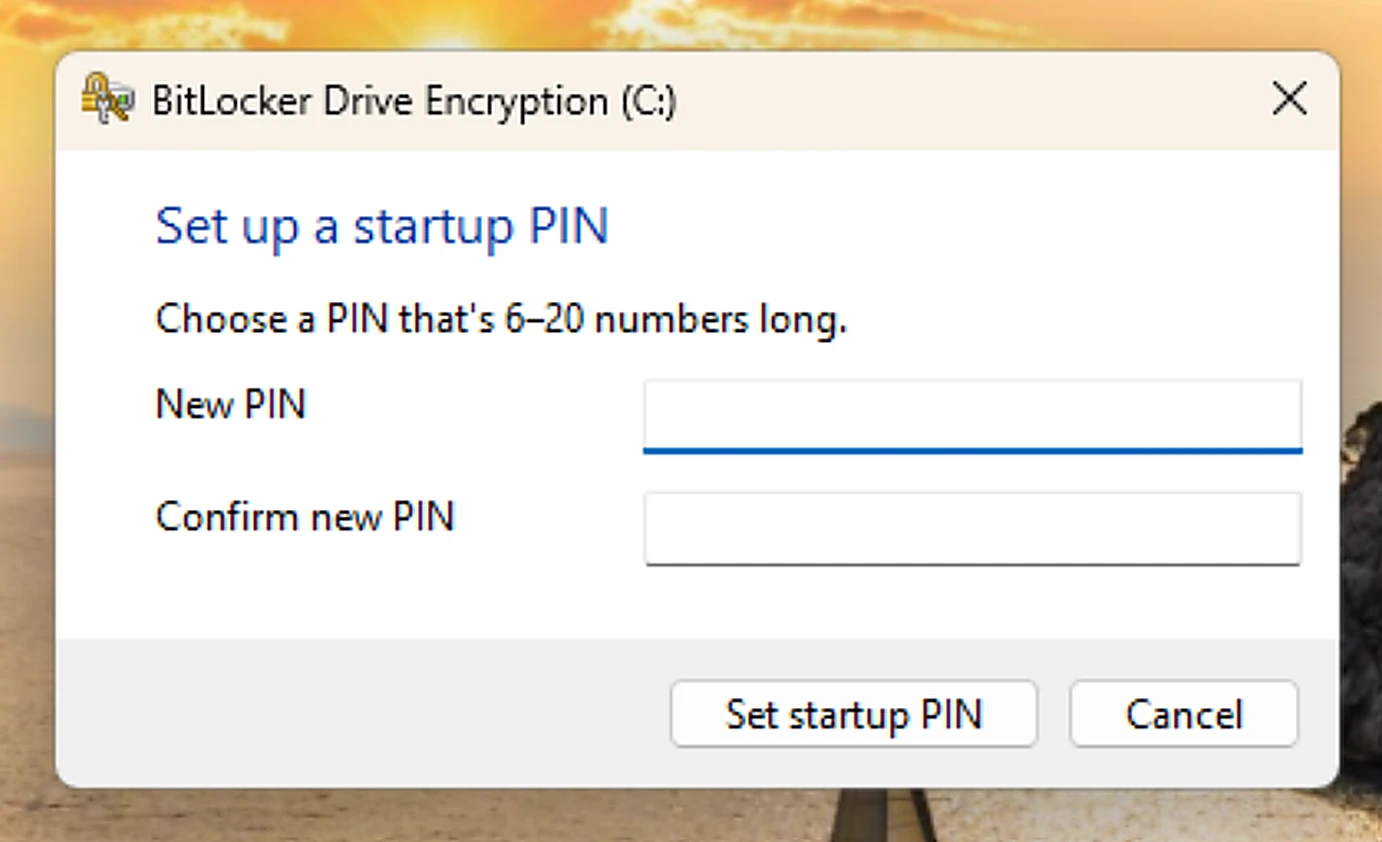
IT admins switch it on in Intune or a similar tool with four existing BitLocker policies:
| Policy | Value |
|---|---|
| AllowStandardUserEncryption | On |
| AllowWarningForOtherDiskEncryption | Off |
| RequireDeviceEncryption | On |
| SystemDrivesRequireStartupAuthentication | On |
Test group only
Microsoft warns admins to aim these policies only at test users on these Insider builds. On PCs without the feature, standard users cannot add the PIN, so encryption fails, and PCs already encrypted with TPM only will show as non-compliant.
The Beta build also fixes Remote Desktop connections that could fail because of a certificate mismatch after recent flights.
Should you install these builds?
If you just want the new Search and Run dialog early, the Release Preview channel is the safest Insider option, since its builds are close to final. Beta and Experimental builds are for testers who don’t mind bugs, and features there may change or never ship.
Everyone else can wait. Updates in Release Preview normally reach regular Windows 11 PCs in a later monthly update, though Microsoft has not given a date for KB5132057. For last week’s changes, see our look at the November 6 Insider builds, and our guide to the November 2026 Patch Tuesday update.
Have you tried the new Run dialog or Windows Search yet? Tell us what you think in the comments.
Source: Windows Insider Blog, Microsoft Learn
Discover more from Windows Mode
Subscribe to get the latest posts sent to your email.











Add your first comment to this post