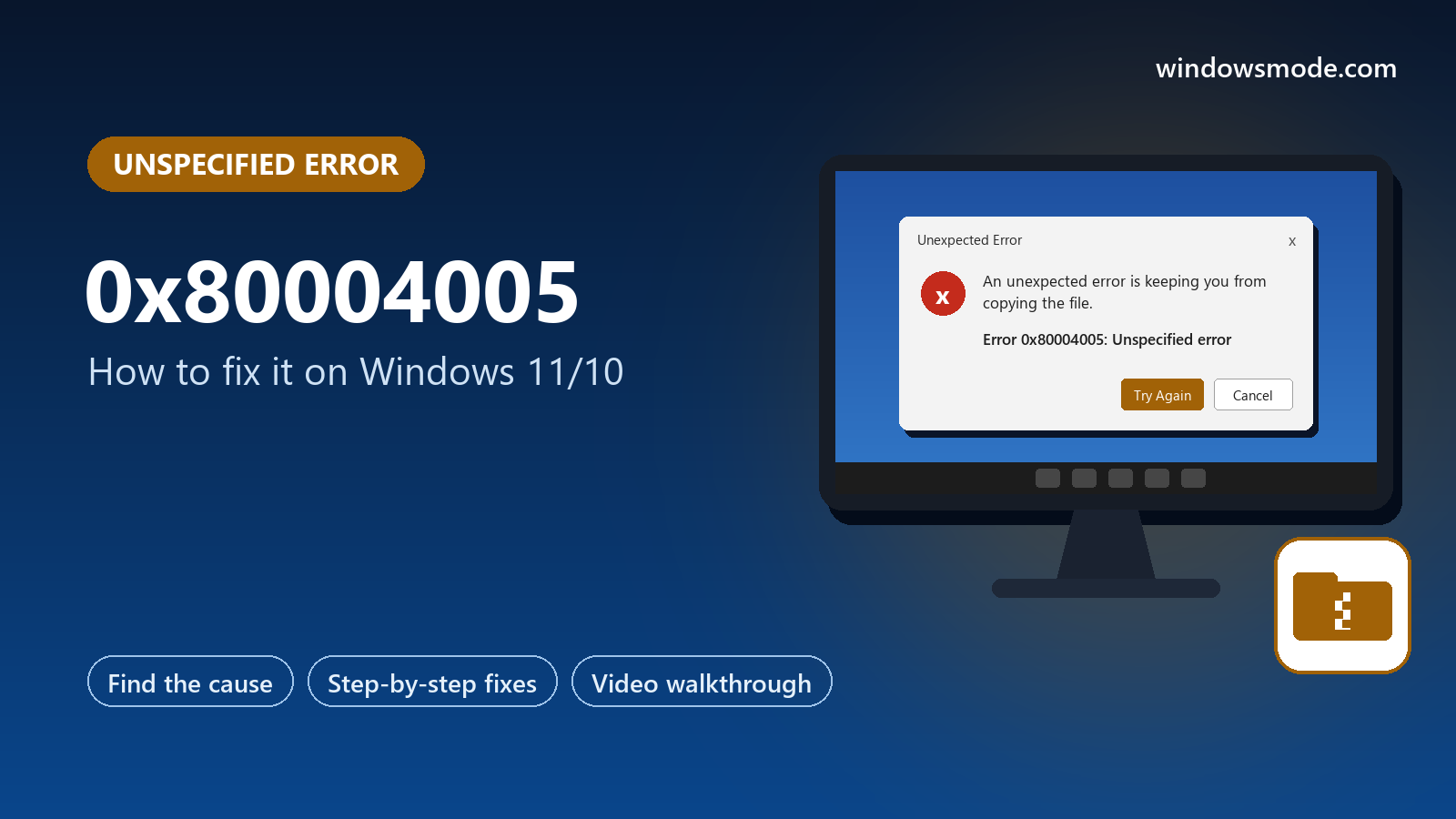
Error 0x80004005: an unspecified error. What you were doing when it appeared is the real clue.
Error 0x80004005 is Windows’ generic Unspecified error: something failed, and the program that hit it did not say why. It shows up on Windows 10 and Windows 11 when opening zip files, copying files, reaching a network share, installing updates and in some apps.
Because the code itself says nothing, the fix depends on the situation. What you were doing when it appeared tells you far more than the number does. Zip files and network shares are the two most common cases, and both have clear fixes.
Below: what the code means, a table that matches your situation to the right fix, eight fixes in order, and a video that walks through the system file repair. Still stuck after trying them? Reach out to us directly.
What Does Error 0x80004005 Mean?
Microsoft’s list of generic Windows error codes gives 0x80004005 the name E_FAIL and the description Unspecified error. It is the code a program returns when an action failed and it has no more specific code to offer.
So the same number can mean a blocked zip file, a network share that refused your sign-in, a file another app has open, or damaged Windows files. The number is a catch-all, not a diagnosis.
The good news is that each situation has a short list of real causes. Start from what you were doing, not from the code.
Start Here: What Were You Doing?
Find your situation and jump to its fix. If none fits, start with Fix 5.
How to Fix Error 0x80004005 on Windows 10/11
Start with the fix for your situation, then work down the list if it does not help.
Zip file won’t open or extract
This is the most common place people meet 0x80004005. Windows’ built-in zip tool cannot open every kind of archive, especially password-protected ones.
- Unblock the download: right-click the zip file, choose Properties, tick Unblock at the bottom of the General tab if it appears, and select OK. Then extract it again.
- Extract to a short folder, such as C:\Temp, so the file paths inside do not get too long.
- Use 7-Zip: the free 7-Zip opens password-protected archives (using strong AES encryption) and formats Windows cannot, and it gives a clear error if the file is actually damaged.
- Damaged download? If 7-Zip reports a CRC or data error, the file is broken. Download it again.
Copying, moving or deleting files fails
When Windows says 0x80004005 during a file operation, the file is usually locked, protected or too deeply nested.
- Close the file everywhere: an app, a preview pane or a sync tool (OneDrive, Dropbox) may have it open. Restart the PC if you are not sure.
- Check Controlled folder access: open Windows Security > Virus & threat protection > Ransomware protection. If it is on, it can block apps from writing to Documents, Pictures and similar folders. Use Allow an app through Controlled folder access rather than turning it off.
- Shorten the path: Windows’ classic limit is 260 characters for a full file path, as Microsoft documents. Move the folder closer to the drive root, or rename long folders.
- Check permissions: right-click the file or folder, Properties > Security. If your account has no access, select Advanced and change the Owner to your account (admin rights needed).
Network share or NAS gives 0x80004005
Windows now blocks guest access to shared folders by default on Windows 11 Pro and on business editions of Windows 10, for security. Windows 11 version 24H2 also requires SMB signing by default, which older NAS boxes and routers may not support. Either can make a share that used to open fail.
- Sign in with a real account: create a user with a password on the NAS or the sharing PC, then open the share and enter those details. Tick Remember my credentials.
- Save the sign-in: search Start for Credential Manager, open Windows Credentials > Add a Windows credential, and enter the share’s address (for example \\NAS), username and password.
- Update the NAS or router firmware so it supports signed, authenticated connections. Microsoft’s recommendation is to upgrade or replace devices that only support guest access.
Guides that say to enable insecure guest logons: Microsoft documents that setting but recommends against it, because guest connections cannot use signing or encryption and are open to spoofing. See Microsoft’s guest logon article before changing it, and prefer a real account.
Windows Update fails with 0x80004005
For update failures, reset Windows Update’s download cache and run the troubleshooter. In Terminal (Admin), run these one at a time:
net stop wuauserv
net stop bits
ren C:\Windows\SoftwareDistribution SoftwareDistribution.old
net start bits
net start wuauserv
Then check for updates again, and run Settings > System > Troubleshoot > Other troubleshooters > Windows Update. Our guide to error 0x80070002 covers more update repair steps.
Turn off third-party antivirus for a test
Antivirus tools that scan every file can interrupt zip extraction, file copies and installers, which then report a generic failure.
- Pause or uninstall the third-party antivirus for a short test, and try the action again. Microsoft Defender takes over automatically.
- If the error disappears, add an exclusion for the folder in that antivirus, or keep using Defender.
Repair Windows system files
Damaged Windows files can make all kinds of actions fail with an unspecified error. The video below shows the SFC part. In Terminal (Admin), run:
DISM /Online /Cleanup-Image /RestoreHealth
sfc /scannow
Run them in that order, restart, and try again.
The error is inside one app: repair or update it
If only one program shows 0x80004005, the fix is usually in that program, not in Windows.
- Update the app to its latest version from its own site or the Microsoft Store.
- Repair or reset it: Settings > Apps > Installed apps, select the three dots next to it, then Advanced options (Store apps) or Modify (desktop apps), and choose Repair. Reset clears its settings.
- VirtualBox and other virtual machine apps: update to the latest version and check the app’s own log, which names the real problem behind the generic E_FAIL message.
Find a conflicting app with a clean boot
If the error still appears in several places, a background app may be interfering. A clean boot starts Windows with only Microsoft services.
- Press Windows + R, type msconfig and press Enter. On the Services tab, tick Hide all Microsoft services, then Disable all.
- Open Task Manager > Startup apps and disable everything, then restart and try the action again.
- Error gone? Turn services and startup apps back on a few at a time until it returns. The last one you turned on is the cause.
Video Walkthrough
This walkthrough from MDTechVideos covers the system file repair with System File Checker (Fix 6) on Windows 11.
How to Avoid It
Keep 7-Zip installed
It handles archives Windows’ built-in tool cannot, and tells you clearly when a file is damaged.
Use accounts on shared folders
Give every shared folder and NAS a username and password. Guest access is blocked more and more by default.
Keep folder paths short
Deeply nested folders with long names run into Windows’ path limit during copies.
Update the NAS and router
Old firmware is behind many network share errors after a Windows upgrade.
Frequently Asked Questions
Why did my network share stop working after a Windows update?
Is error 0x80004005 a virus?
Why can’t Windows extract a password-protected zip?
Is 0x80004005 the same as 0x80070005?
Can a long file name cause error 0x80004005?
Support and Community
- COM Error Codes (Generic) on Microsoft Learn, where 0x80004005 is listed as E_FAIL, Unspecified error.
- Enable insecure guest logons in SMB2 and SMB3 on Microsoft Learn, explaining why guest access to shares is blocked.
- 7-Zip, the free archive tool used in Fix 1.
- r/techsupport on Reddit, where you can describe what you were doing when the error appeared.
More Windows Error Fixes
- How to fix Windows Update error 0x80070643
- How to fix error 0x800f081f
- How to fix error 0x80070057
- How to fix error 0x80070002
- How to fix error 0x80070005
- How to fix error 0x800f0923
- How to fix error 0xc0000005
- How to fix error 0xc000007b
- How to fix DPC_WATCHDOG_VIOLATION
- All Windows error code guides
Discover more from Windows Mode
Subscribe to get the latest posts sent to your email.












Add your first comment to this post