Readers like you help support this site. When you make a purchase using links on our site, we may earn an affiliate commission. All opinions remain our own.
Microsoft Edge is the default browser for Windows, built on the open-source Chromium engine. It is more than just a pre-installed browser. Edge now includes Copilot AI powered by GPT-5 directly in the sidebar, Sleeping Tabs that save up to 85% of memory per inactive tab, and a free built-in VPN with 5 GB of monthly data.
This guide covers what makes Edge worth using in 2026, how its AI features work, how to install or repair it on Windows, and keyboard shortcuts that make browsing faster.
Copilot (GPT-5)
AI built into sidebar
Sleeping Tabs
Saves 85% RAM per tab
Free VPN (5 GB)
Powered by Cloudflare
Chrome Extensions
Full compatibility
📋 System Requirements
| Requirement | Details |
|---|---|
| Operating System | Windows 10 or later (64-bit) |
| Processor | 1 GHz or faster with 2 or more cores |
| RAM | 4 GB minimum |
| Storage | ~600 MB available space |
| Account | Microsoft account optional (required for sync and VPN) |
What Makes Microsoft Edge Different
Edge has evolved from a simple replacement for Internet Explorer into one of the most capable browsers available. Here is what makes it stand out.
🤖 Copilot AI (GPT-5)
Access GPT-5 right in the Edge sidebar. Copilot can summarize the page you are reading, compare products across multiple open tabs, help with writing, generate images, and answer questions about what you are viewing. Smart Mode automatically selects the best reasoning depth for your question.
💤 Sleeping Tabs
Sleeping Tabs automatically puts inactive tabs to sleep after a set period (adjustable from 30 seconds to 12 hours). Each sleeping tab saves up to 85% of memory and 99% of CPU usage. This makes Edge significantly lighter on RAM than Chrome when you have many tabs open.
📑 Vertical Tabs
Move your tab bar from the top to the left side with one click. Vertical tabs show full page titles even when you have dozens of tabs open. This makes finding the right tab much easier compared to traditional horizontal tabs that shrink and become unreadable.
🔐 Edge Secure Network (Free VPN)
A built-in VPN powered by Cloudflare that provides 5 GB of free encrypted data per month. It masks your IP address and encrypts your connection, which is especially useful on public Wi-Fi. Sign in with a Microsoft account to activate it.
🛡️ Scareware Blocker
An AI-powered security feature that detects and blocks “scareware” pages, fake virus warnings, and tech support scams that try to trick you into calling a number or downloading malware. It works alongside Microsoft Defender SmartScreen for layered protection.
🏝️ Workspaces
Create separate tab groups for different projects like “Trip Planning” or “Work Research.” Workspaces save your tabs and layout separately, so you can close them and come back later with everything intact. You can also share a Workspace with others for real-time collaboration.
📖 Immersive Reader and Read Aloud
Strip away ads, popups, and clutter from any article with one click using Immersive Reader (press F9). You can also have Edge read the entire page aloud to you using natural-sounding text-to-speech voices. Great for long articles or accessibility needs.
🧩 Chrome Extension Support
Since Edge uses the Chromium engine, it supports virtually all extensions from the Chrome Web Store. Just visit the Chrome Web Store in Edge, and allow extensions from other stores when prompted. You get Edge’s performance benefits with Chrome’s massive extension library.
How to Download and Install Microsoft Edge on Windows
Option A: Download from the Official Website
1
Go to microsoft.com/edge/download in any browser.
2
This downloads the
MicrosoftEdgeSetup.exe installer.3
Double-click the file and follow the prompts. Edge will download the full browser and set itself up automatically.
4
Optional but recommended. Signing in enables sync across devices, activates the free VPN, and unlocks Copilot AI features.
Option B: Install from the Microsoft Store
1
Visit the Microsoft Edge page on the Microsoft Store or search for “Microsoft Edge” in the Store app.
2
The Store handles the download and installation. Updates are also managed through the Store automatically.
Download Microsoft Edge (Free) →
Get it on the Microsoft Store →
Pre-installed on Windows 10 and Windows 11
Edge Screenshots Gallery
-
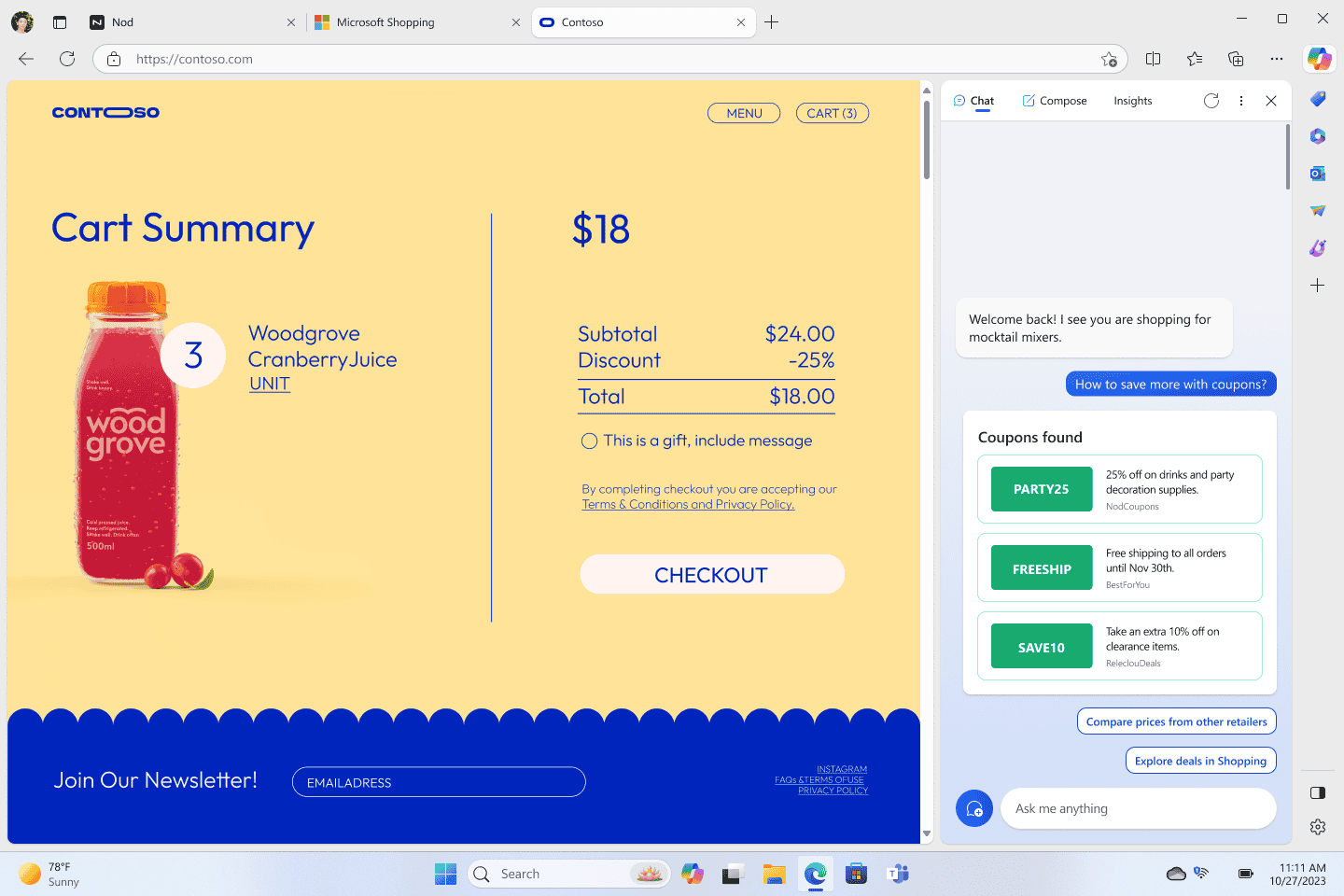
- Get shopping help with copilot ai in edge
-
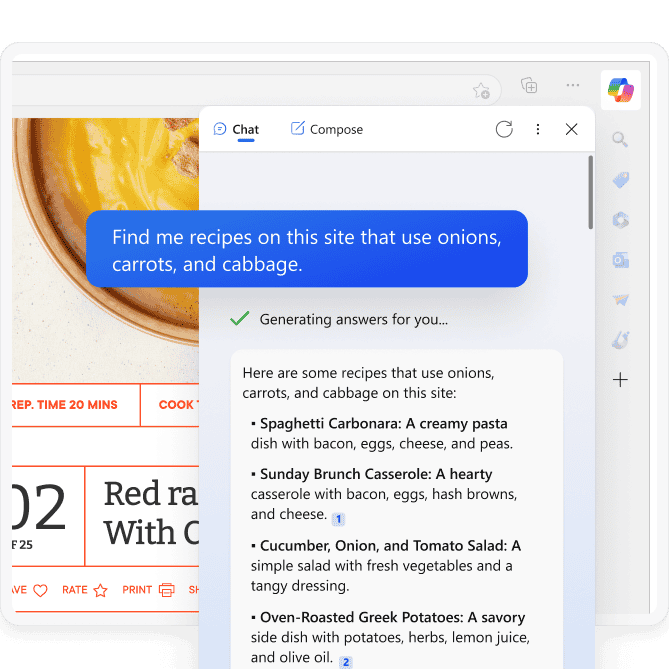
- Search any site with edg
-
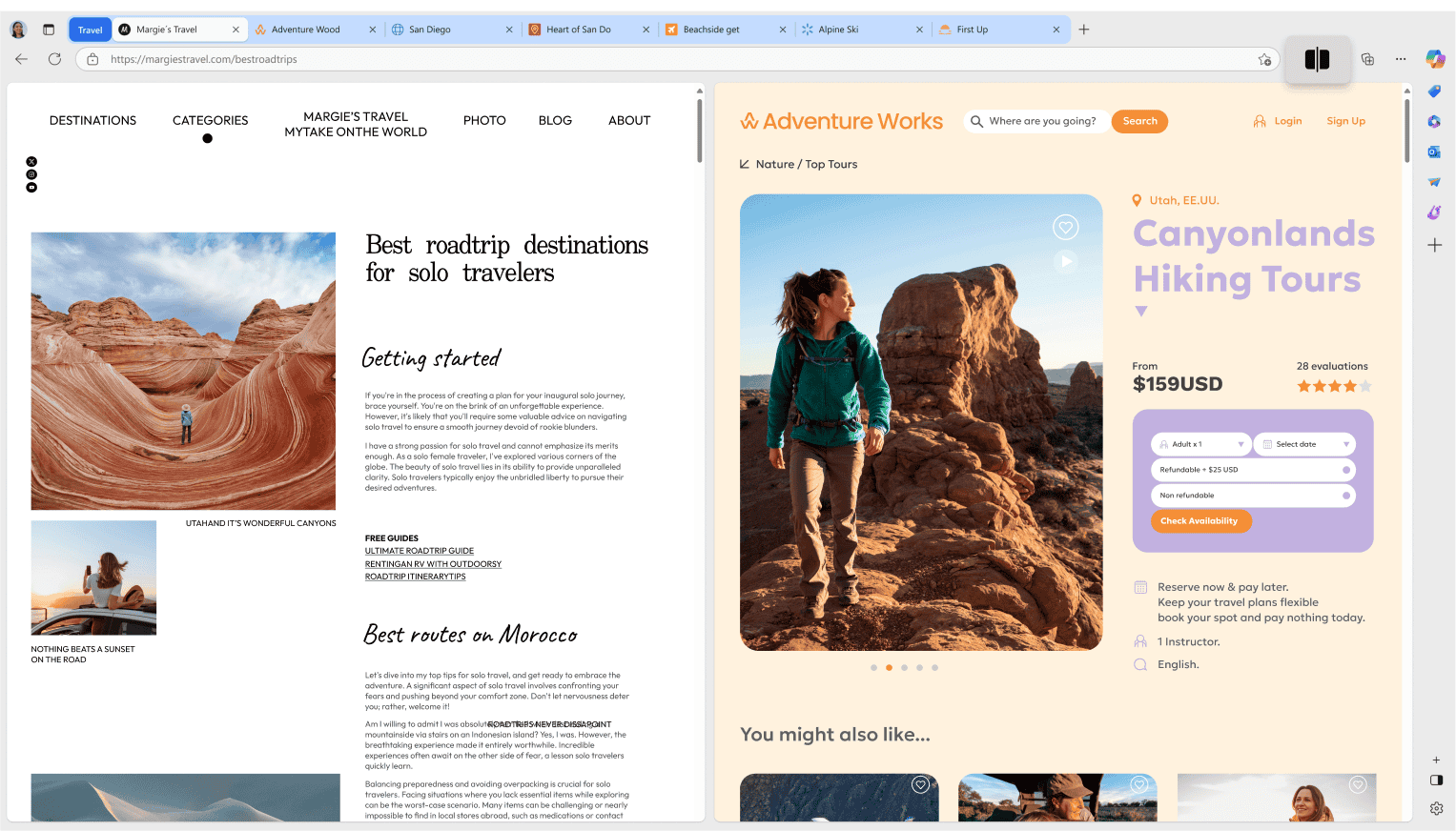
- Split view in edge
-
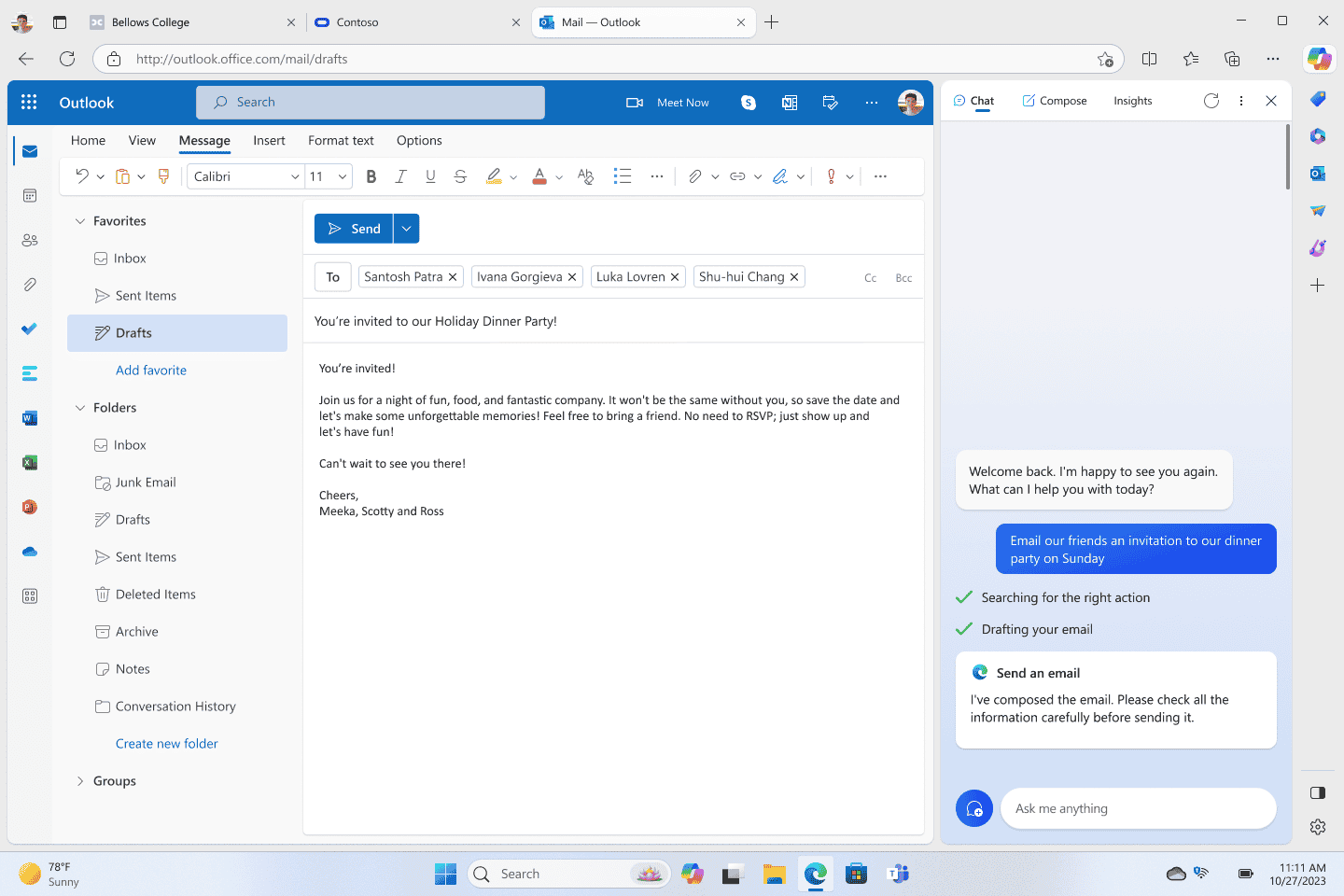
- Use ai in edge outlook
Video of Edge in action
Edge vs. Chrome vs. Firefox vs. Opera
How does Microsoft’s browser compare to the competition? Here is the breakdown.
| Feature | Edge | Chrome | Firefox | Opera |
|---|---|---|---|---|
| Built-in AI | ✅ Copilot (GPT-5) | ✅ Gemini | ❌ | ✅ Aria |
| RAM Optimization | ✅ Sleeping Tabs | ✅ Memory Saver | ✅ Balanced | ✅ Low usage |
| Vertical Tabs | ✅ Built-in | ❌ | ❌ | ❌ |
| Built-in VPN | ✅ 5 GB free | ❌ | 💲 Paid add-on | ✅ Unlimited |
| Built-in Ad Blocker | ❌ | ❌ | ❌ | ✅ |
| Shopping Tools | ✅ Coupons + price tracking | ✅ Basic | ❌ | ✅ |
| Reader Mode | ✅ + Read Aloud | ✅ Basic | ✅ Excellent | ✅ |
| Cross-Device Sync | ✅ | ✅ | ✅ | ✅ |
| Engine | Chromium | Chromium | Gecko (independent) | Chromium |

Essential Microsoft Edge Keyboard Shortcuts
Master these shortcuts to browse faster without reaching for your mouse.
| Action | Shortcut |
|---|---|
| New Tab | Ctrl + T |
| Close Tab | Ctrl + W |
| Reopen Last Closed Tab | Ctrl + Shift + T |
| New InPrivate Window | Ctrl + Shift + N |
| Open Copilot Sidebar | Ctrl + Shift + . |
| Toggle Vertical Tabs | Ctrl + Shift + , |
| Jump to Address Bar | Ctrl + L |
| Bookmark Current Page | Ctrl + D |
| Find on Page | Ctrl + F |
| Read Aloud | Ctrl + Shift + U |
| Immersive Reader | F9 |
| Web Capture (Screenshot) | Ctrl + Shift + S |
| Show All Open Tabs | Ctrl + Shift + A |
| Open Edge Task Manager | Shift + Esc |
| Hard Refresh (Ignore Cache) | Ctrl + Shift + R |
| Clear Browsing Data | Ctrl + Shift + Delete |
| Mute Current Tab | Ctrl + M |
| Toggle Fullscreen | F11 |
How to Uninstall Microsoft Edge
Because Edge is deeply integrated into Windows 10 and 11, uninstalling it is no longer as simple as removing a normal app. How you remove it depends entirely on where you live.
Method 1: The Official Way (European Union Users Only)
Due to the Digital Markets Act (DMA), Microsoft is legally required to allow users in the European Economic Area (EEA) to uninstall Edge natively without any hacks.
1
Press Win + I and navigate to Apps > Installed Apps.
2
Scroll down or search the list for Microsoft Edge. Click the three dots (•••) next to it.
3
Click Uninstall. Unlike users in other regions, this button will be active and will cleanly remove the browser.
Method 2: The Force Uninstall (USA and Rest of World)
If you are outside the EU, the “Uninstall” button in Settings will be greyed out. To bypass this, you must use a hidden PowerShell command.
1
Open File Explorer and go to
C:\Program Files (x86)\Microsoft\Edge\Application. Open the folder with the version number (e.g., 125.0.0.0), and then open the Installer folder inside it.2
Hold down the Shift key, right-click on an empty space inside the Installer folder, and select Open in Terminal (or Open PowerShell window here).
3
Copy and paste the exact command below into the terminal and press Enter:
.\setup.exe -uninstall -system-level -verbose-logging -force-uninstallNote: Because Microsoft really wants you to use Edge, a future major Windows Update may quietly reinstall the browser. If it comes back, you will simply need to run the command again.
Common Issues and Fixes
Edge runs slowly or freezes
Open Edge’s Task Manager (Shift + Esc) to find which tabs or extensions are using the most resources and close them. Make sure Sleeping Tabs is enabled in Settings, System and performance. Disable extensions you do not actively use by going to edge://extensions/.
Edge keeps crashing or will not open
Clear your browsing cache with Ctrl + Shift + Delete. If Edge will not open at all, repair it through Windows Settings: go to Apps, Installed Apps, find Microsoft Edge, click the three dots, then Modify, then Repair. This reinstalls Edge without losing your data.
Pages not loading or showing errors
Check your internet connection first. If other browsers work, try disabling the Edge Secure Network VPN and any third-party VPN or proxy. You can also try turning off “Use secure DNS” in Privacy, Search, and Services settings. Flushing your DNS cache by running ipconfig /flushdns in Command Prompt can also help.
High CPU or memory usage in the background
Edge can run background processes even when closed. Go to Settings, System and performance, and disable “Startup Boost” and “Continue running background extensions and apps when Microsoft Edge is closed.” This stops Edge from using resources when you are not browsing.
Chrome extensions not working on Edge
Visit the Chrome Web Store in Edge. You should see a banner saying “Allow extensions from other stores.” Click Allow. If you do not see it, go to edge://extensions/ and enable “Allow extensions from other stores” at the bottom of the page. Most Chrome extensions work, but a few may be incompatible.
Blank or white screen after a Windows update
Go to Settings, System and performance, and disable “Use hardware acceleration when available.” Restart Edge. Hardware acceleration can conflict with updated GPU drivers. If the problem continues, repair Edge from Windows Settings.
Frequently Asked Questions
Is Microsoft Edge free?
Yes. Microsoft Edge is completely free to download and use on Windows, Mac, Linux, Android, and iOS. It comes pre-installed on Windows 10 and 11.
Can I use Chrome extensions on Edge?
Yes. Edge is built on the same Chromium engine as Chrome, so you can install most extensions from the Chrome Web Store. Just visit the Chrome Web Store in Edge and allow extensions from other stores when prompted.
What are Sleeping Tabs in Edge?
Sleeping Tabs automatically puts inactive tabs to sleep to free up system resources. Each sleeping tab saves up to 85% of memory and 99% of CPU usage. You can adjust the inactivity timer from 30 seconds to 12 hours.
How do I access Copilot in Edge?
Click the Copilot icon in the top-right corner of Edge, or press Ctrl + Shift + period. Copilot is powered by GPT-5 and can summarize pages, answer questions, compare products across tabs, and help with writing.
Is Edge faster than Chrome?
In most cases, yes. Edge is optimized for Windows with features like Startup Boost and Sleeping Tabs, which make it start faster and use less RAM than Chrome, especially with many tabs open.
Does Edge have a built-in VPN?
Yes. Edge Secure Network is a free built-in VPN powered by Cloudflare. It provides 5 GB of free encrypted data per month. Sign in with a Microsoft account to activate it.
How do I update Microsoft Edge?
Edge updates automatically in the background. To check manually, click the three-dot menu, go to Help and feedback, then About Microsoft Edge. It will download and install any available update.
Community Poll: Share Your Thoughts on Edge
Helpful Resources and Community
Need help with Edge or want to go deeper? Check these official resources.
💬 Edge Insider
Download Canary, Dev, and Beta builds to test upcoming features first.
🗨️ r/MicrosoftEdge
Tips, bug reports, and discussions from the Edge community on Reddit.
Get Microsoft Edge for Windows
The fast, AI-powered browser built for Windows. Includes Copilot with GPT-5, Sleeping Tabs, and a free 5 GB VPN.
Download Microsoft Edge →
Get it on the Microsoft Store →
Pre-installed on Windows 10 and Windows 11 (64-bit)
Related Guides: Google Chrome for Windows, Opera Browser for Windows, Arc Browser for Windows, Brave Browser for Windows, Firefox for PC.
Discover more from Windows Mode
Subscribe to get the latest posts sent to your email.

















Add your first comment to this post