Readers like you help support this site. When you make a purchase using links on our site, we may earn an affiliate commission. All opinions remain our own.
Samsung Internet is a Chromium-based browser for Windows built specifically for Galaxy users, available for download from the official Samsung website. It allows you to sync your Galaxy phone bookmarks, open tabs, and Samsung Pass passwords directly to your PC so you can pick up right where you left off on your phone.
Currently in its 2026 beta phase, this browser bridges the gap between your Samsung phone and PC that Chrome and Edge simply cannot. It also supports Chrome extensions and has Galaxy AI browsing tools built in.
In this guide, we cover the key features, how to install it on your PC, common troubleshooting fixes, and FAQs.
If you need any help getting set up, feel free to contact us or leave a comment below.
Samsung Pass
Native password sync
Continuity
Sync tabs & history
Chromium Engine
Full extension support
Galaxy AI
Browsing assist tools
📋 System Requirements
| Requirement | Details |
|---|---|
| Operating System | Windows 11 or Windows 10 (Version 2004 or later) |
| Ecosystem | Samsung Account required for sync features |
| Hardware Notes | Optimized for Galaxy Books, but works on all PCs |
| Storage | ~500 MB available space |
What Makes Samsung Internet Different
If you don’t own a Samsung smartphone or tablet, there is very little reason to install this over Chrome. But if you are entrenched in the Galaxy ecosystem, the continuity tools provided here are an absolute game-changer for your workflow.
🔑 Native Samsung Pass Integration
You no longer need to manually copy passwords from your phone to your PC. By signing into the desktop browser, your entire Samsung Pass vault syncs over, utilizing Windows Hello (PIN or fingerprint) to securely autofill your credentials on any website.
🔄 Continue Browsing Across Devices
If you are reading an article on your phone and sit down at your PC, a prompt allows you to resume exactly where you left off. Your bookmarks, browser history, and open tab groups are continuously synced across the cloud between mobile and desktop.
✨ Galaxy AI “Browsing Assist”
The browser inherits Galaxy AI tools natively. You can instantly summarize dense web articles into readable bullet points or translate entire foreign webpages on the fly without needing third-party extensions.
🛡️ Smart Anti-Tracking Dashboard
The browser features a dedicated Privacy Dashboard that actively blocks invisible third-party trackers, preventing advertisers from following your session from site to site, and offers a robust built-in ad blocker.
How to Download and Install Samsung Internet on Windows
1
Head to the official Samsung Internet website and download the Windows installer. The browser is currently in beta, so you will be redirected to the beta download page.
2
Upon first launch, you will be prompted to sign in with your Samsung Account. This is a crucial step if you want to pull your mobile data over to the desktop.
3
Because the browser is powered by Chromium, you can immediately head to the Google Chrome Web Store to reinstall your favorite extensions and ad-blockers.
Screenshots of Samsung Internet
-
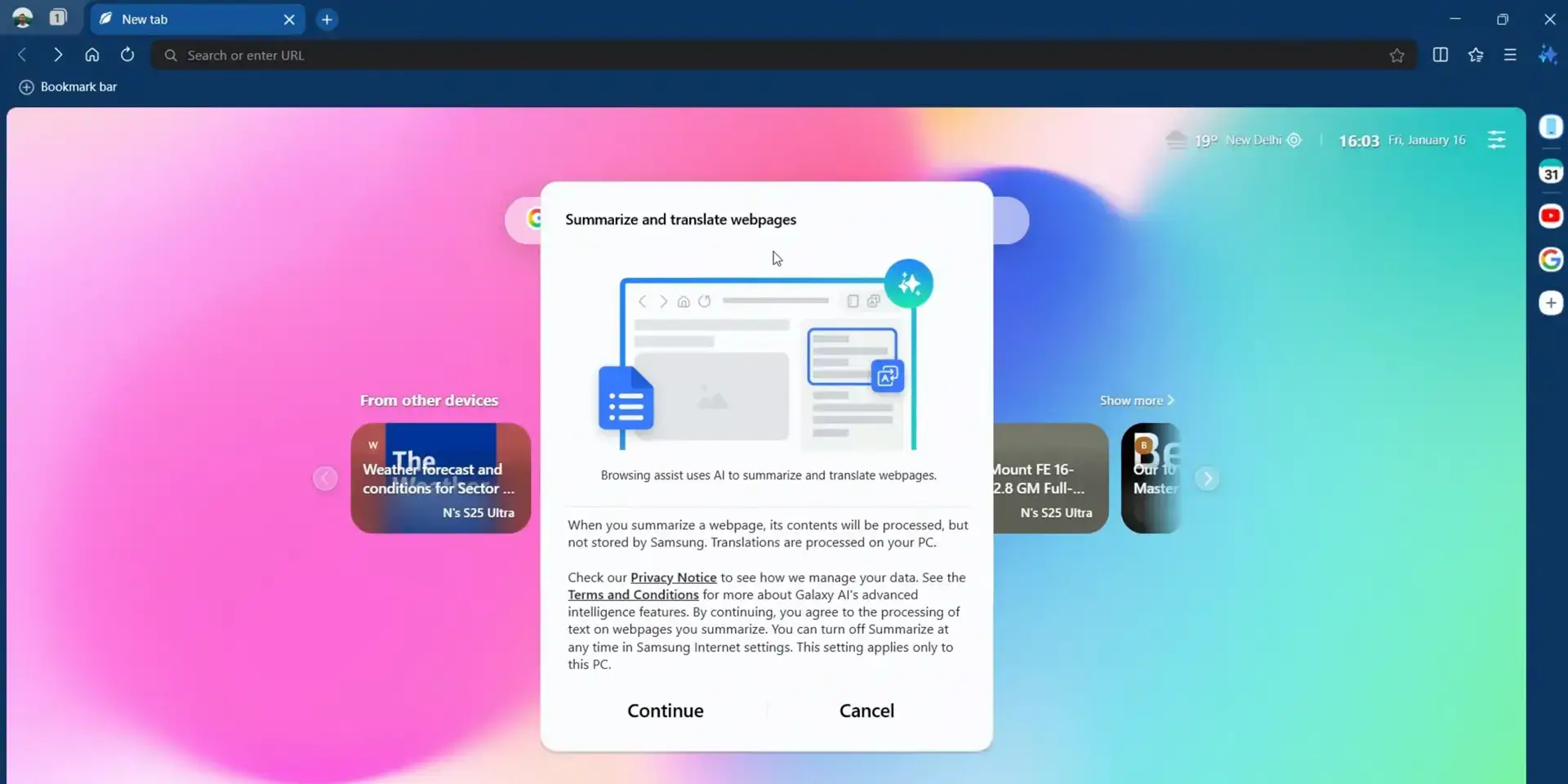
- Ai settings from Samsung Internet for Windows – Sync Your Galaxy Phone to PC
-
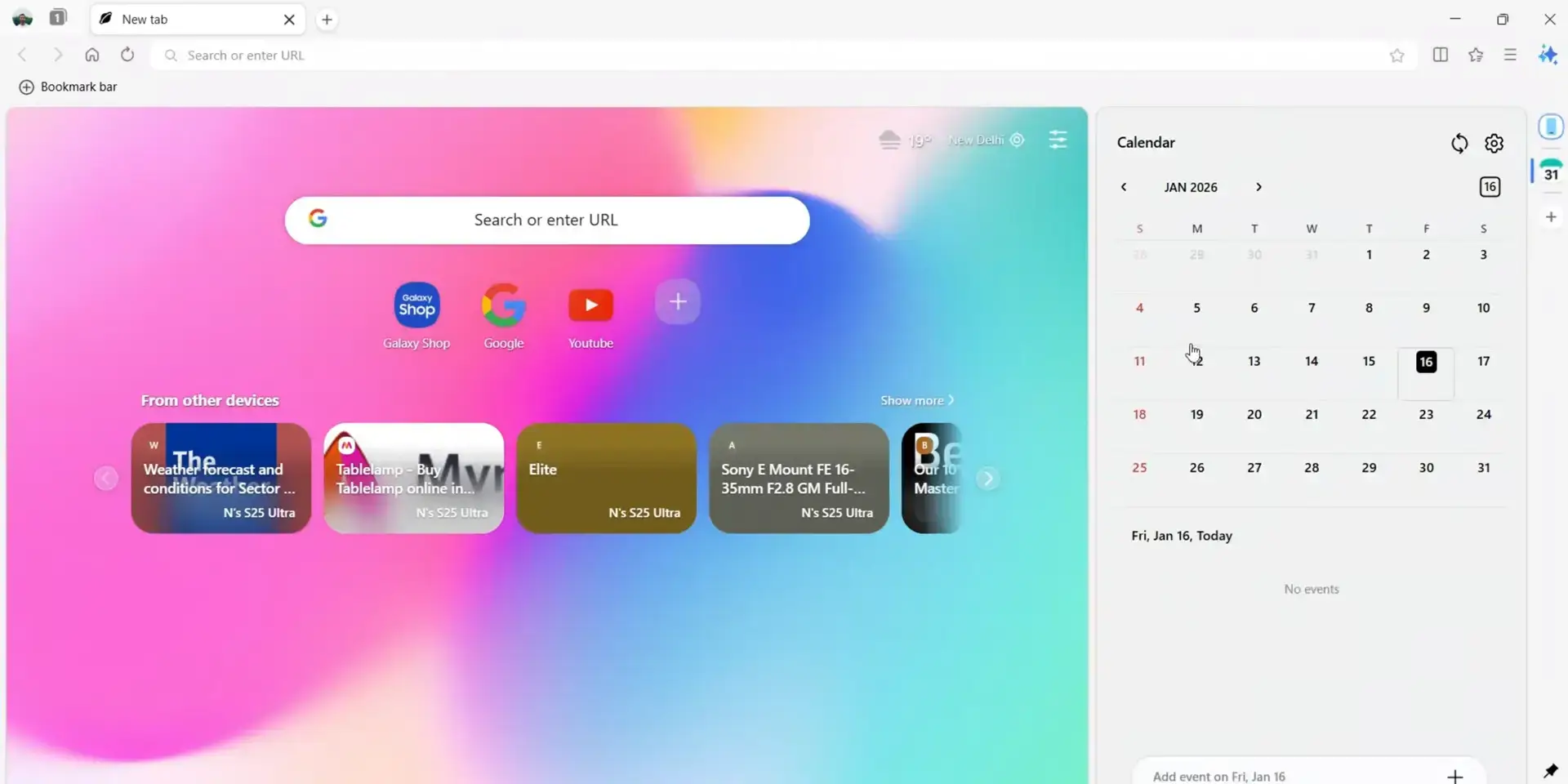
- Calendar from Samsung Internet for Windows – Sync Your Galaxy Phone to PC
-
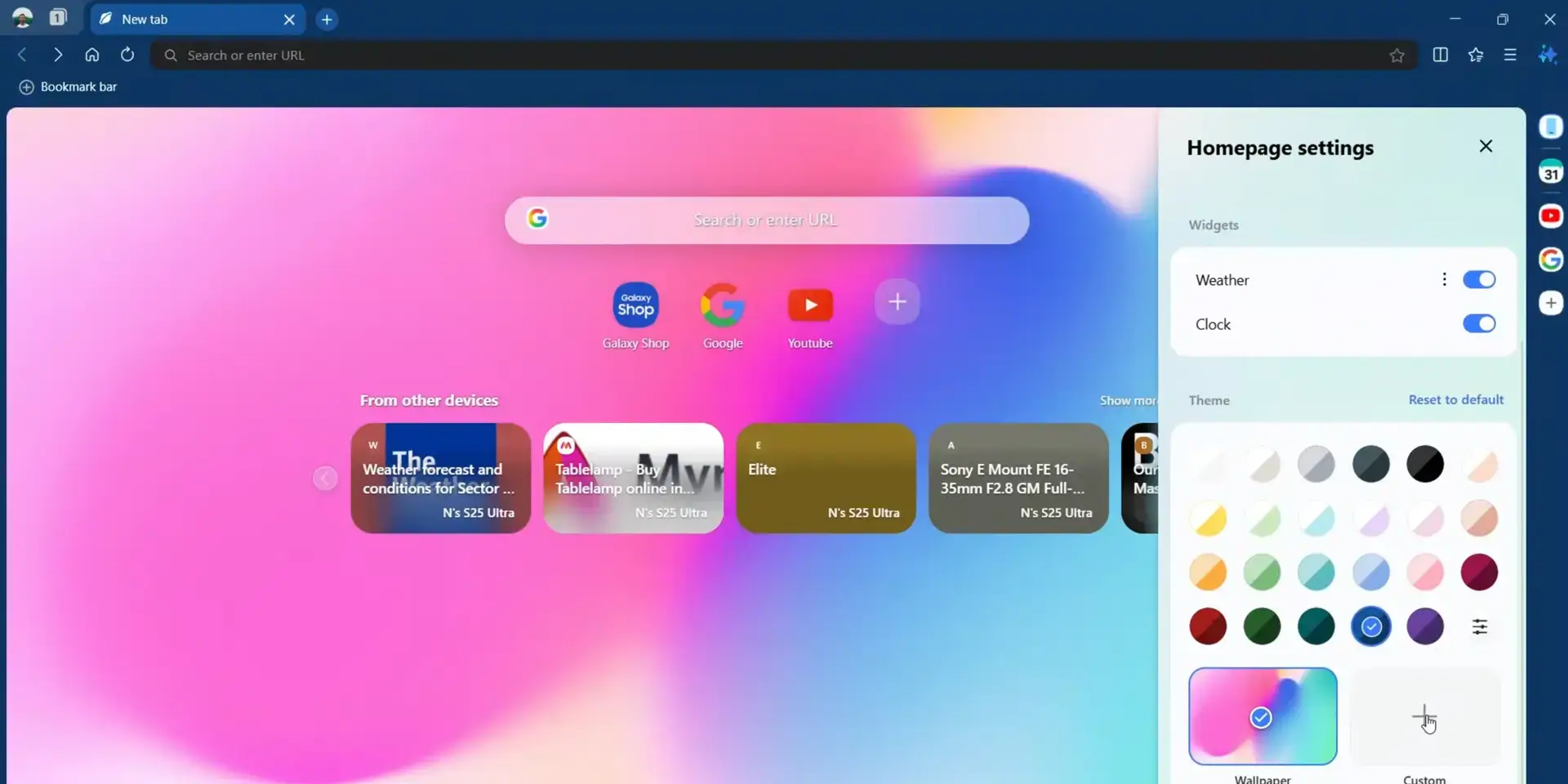
- Choose background from Samsung Internet for Windows – Sync Your Galaxy Phone to PC
-
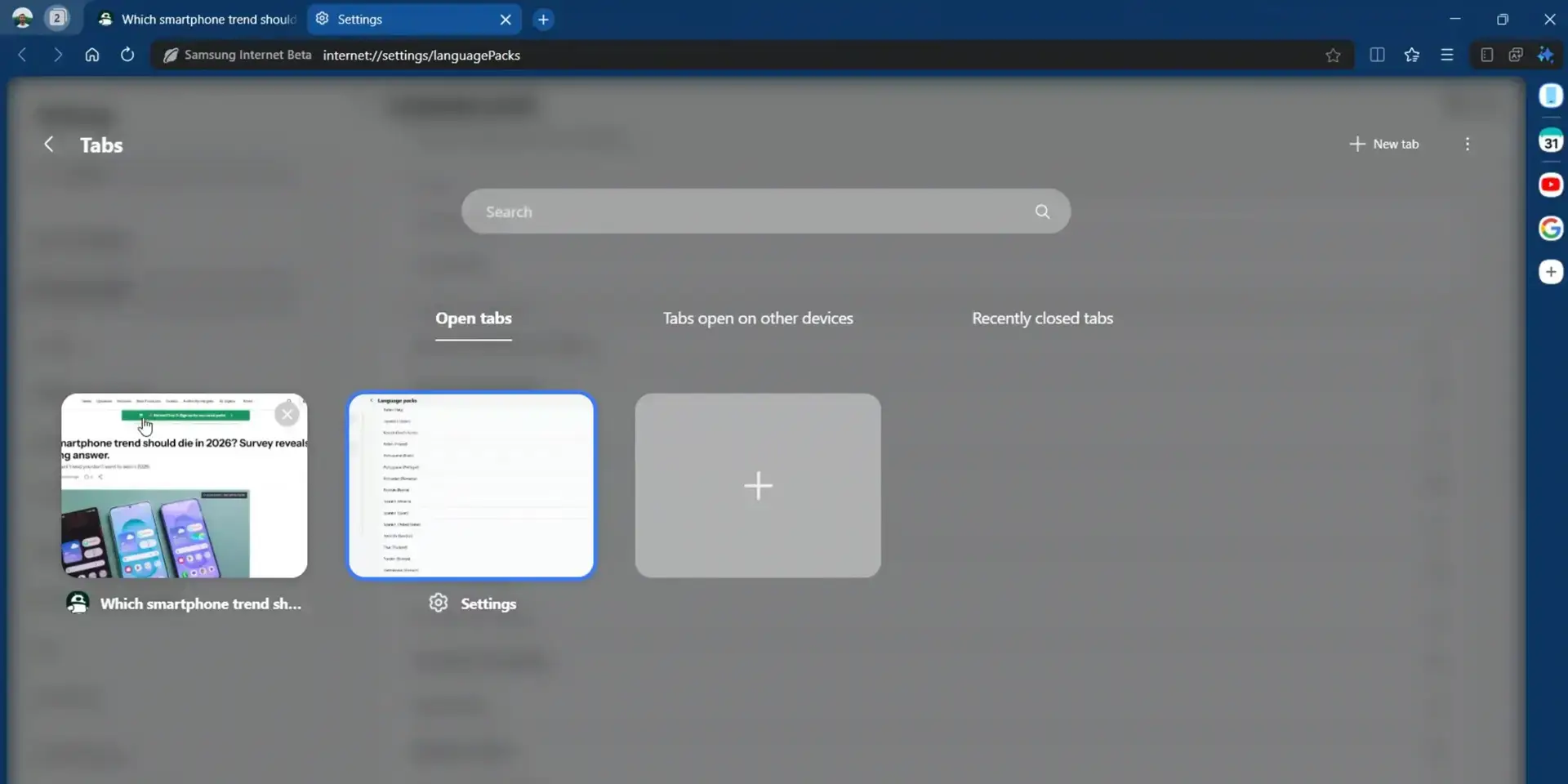
- Customize viewing tabs from Samsung Internet for Windows – Sync Your Galaxy Phone to PC
-
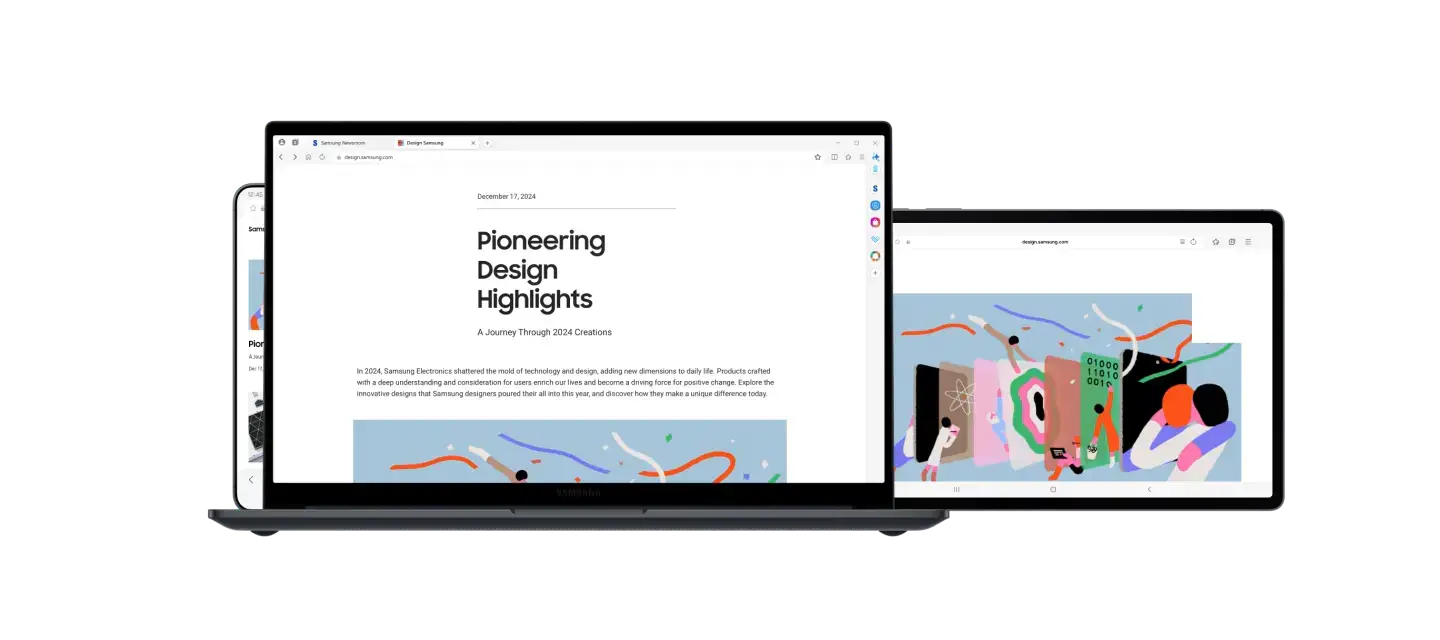
- On multiple devices from Samsung Internet for Windows – Sync Your Galaxy Phone to PC
-
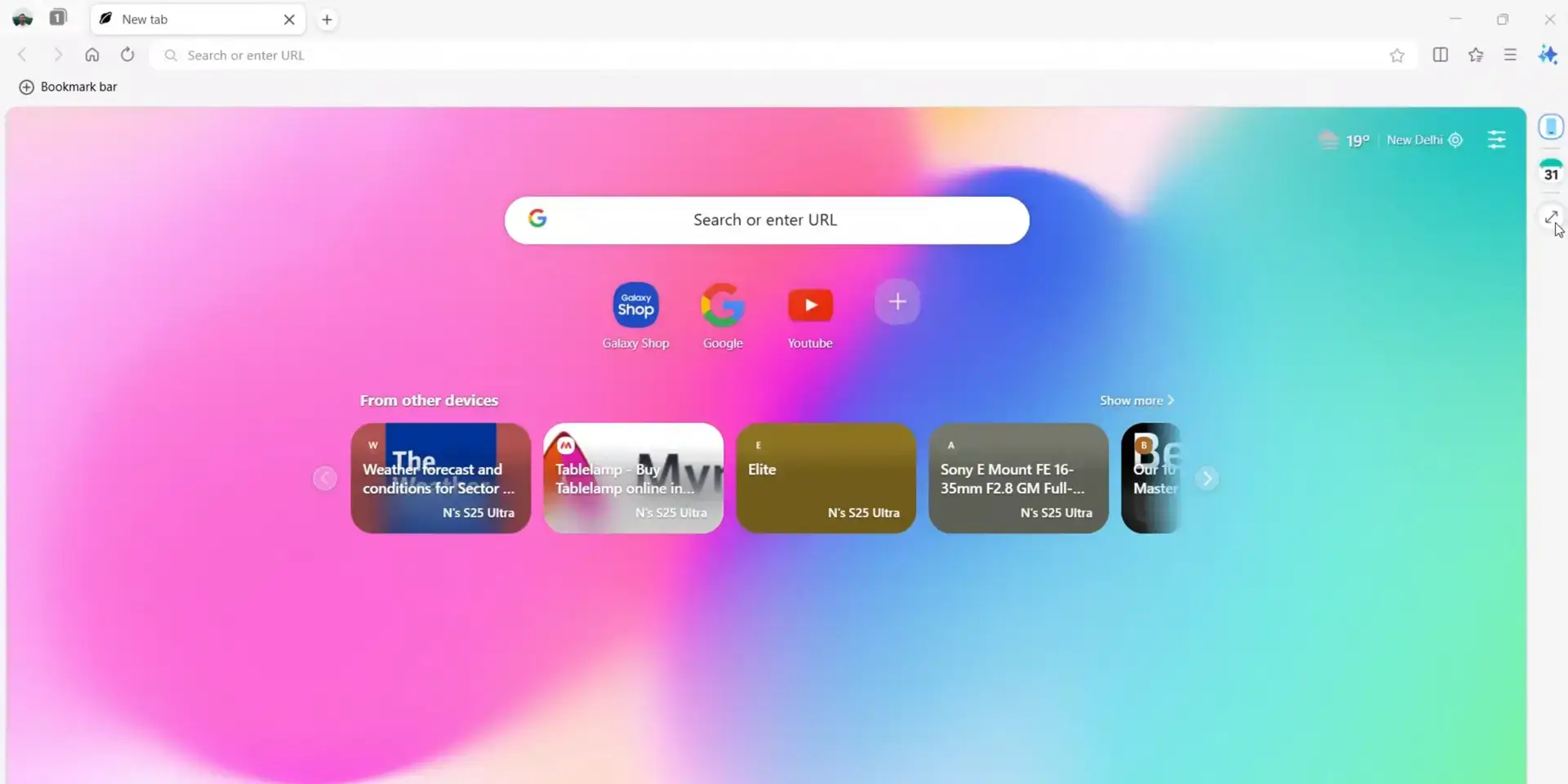
- Samsung internet homepage from Samsung Internet for Windows – Sync Your Galaxy Phone to PC
-
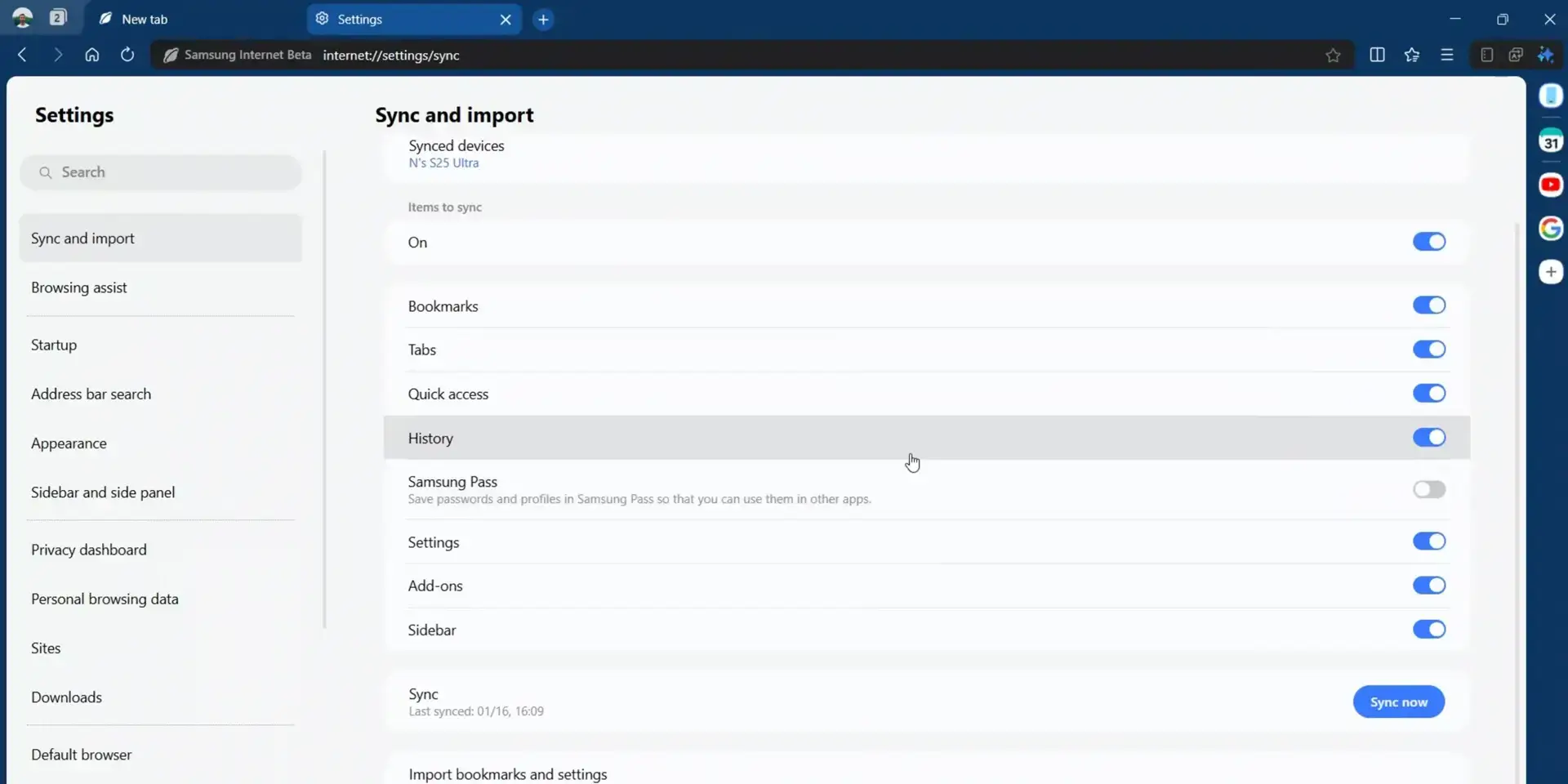
- Settings from Samsung Internet for Windows – Sync Your Galaxy Phone to PC
-
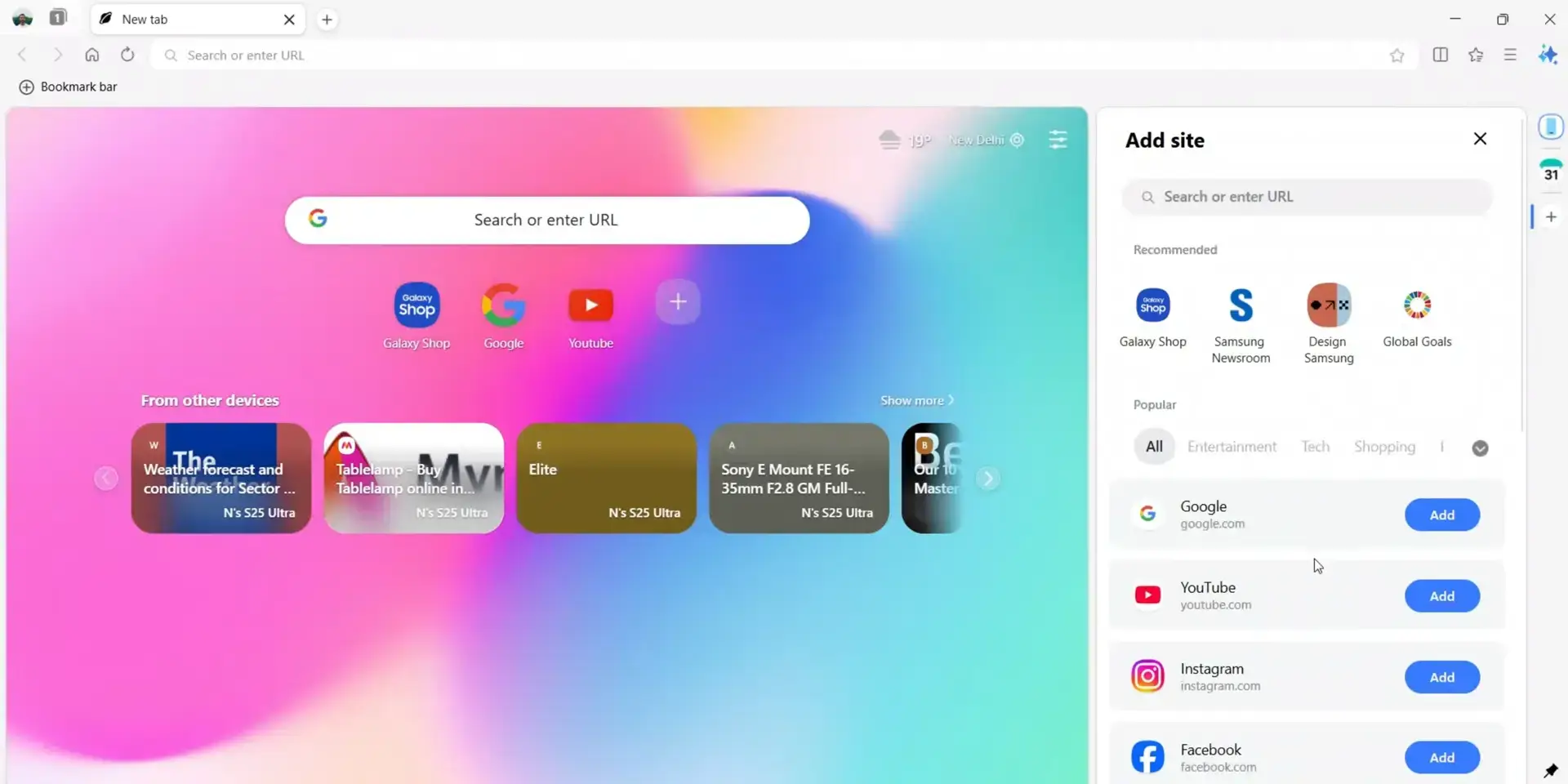
- Split view from Samsung Internet for Windows – Sync Your Galaxy Phone to PC
-
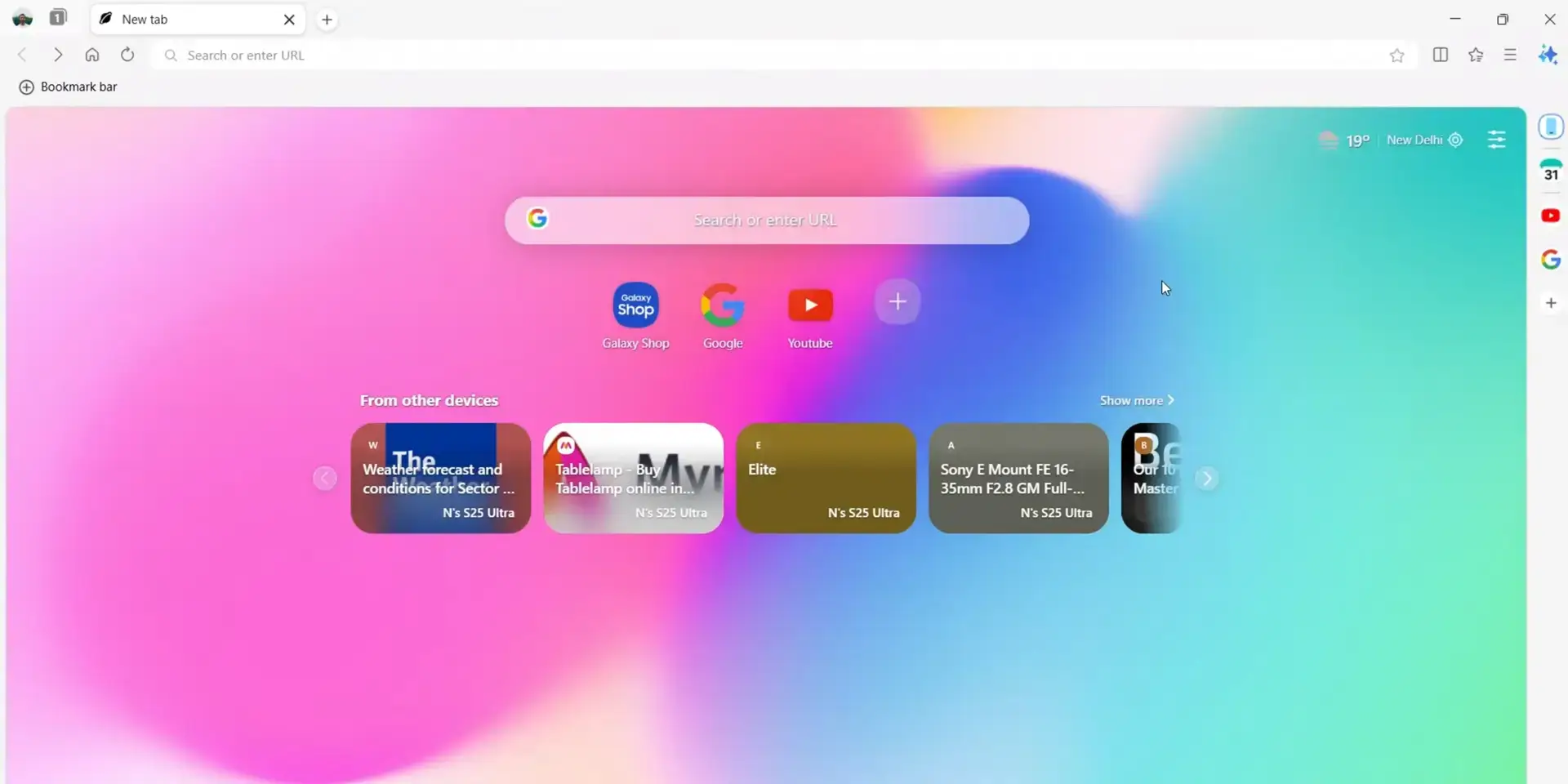
- Standard start page from Samsung Internet for Windows – Sync Your Galaxy Phone to PC
Video of Samsung Internet in Action
Common Issues and Fixes (Beta Limitations)
As this browser is still actively in active development, users on Windows (especially on hardware not manufactured by Samsung) may run into ecosystem handshake errors.
Samsung Pass or Bookmarks are not syncing
If you sign in and your data does not populate, there are two common culprits. First, ensure your Windows Account is linked to Windows Hello (a PIN or fingerprint is required to decrypt the vault). Second, open your Samsung phone, go to Settings > Advanced Features, and ensure “Continue apps on other devices” is toggled ON to allow the cloud handshake.
Browser feels sluggish or consumes heavy RAM
While highly optimized for Galaxy Book laptops, the beta build can sometimes experience high resource usage on generic PC hardware. If the browser feels sluggish, ensure you do not have conflicting Chrome extensions running in the background. Samsung regularly releases performance patches via the Microsoft Store, so ensure auto-updates are enabled.
“Computer does not support data encryption” error
This error prevents sync and usually means your Windows OS is out of date or lacking secure enclave verification. Ensure you have installed the latest cumulative Windows Updates. In some cases, logging completely out of your Samsung account in the browser setting and logging back in will force it to regenerate the encryption keys.
Frequently Asked Questions
Does Samsung Internet for PC support Samsung Pass?
Yes, the primary selling point of Samsung Internet for Windows is its native integration with Samsung Pass. After verifying with your Windows Hello sign-in, it instantly syncs all of your mobile saved passwords and autofill profiles to your desktop.
Can I use Chrome extensions on Samsung Internet?
Yes. Because Samsung Internet for Windows is built on the Chromium engine, it fully supports downloading and installing extensions directly from the official Google Chrome Web Store.
Why won’t my bookmarks or open tabs sync between my phone and PC?
Syncing requires both your smartphone and your PC to be logged into the exact same Samsung Account. Additionally, ensure the “Continue apps on other devices” feature is toggled on in your Galaxy smartphone’s advanced settings.
Is Samsung Internet for Windows available outside of the US and Korea?
Yes, as of 2026, Samsung has lifted the regional restrictions on the beta client. It is now widely available for global download directly through the Microsoft Store.
Why does the browser sometimes feel slow or unoptimized?
Samsung Internet for Windows is still technically in its “Beta” phase. While it runs smoothly on Galaxy Books, users on non-Samsung hardware may occasionally experience higher RAM usage or UI glitches until the stable 1.0 release is pushed.

Community Poll: Share Your Thoughts
Helpful Resources and Community
📚 Samsung Internet Help
Official documentation covering sync setup, Samsung Pass configuration, extension support, and troubleshooting for the Windows beta.
💬 Samsung Community Forum
Join the official Samsung community to discuss the Windows beta, report bugs, and connect with other Galaxy ecosystem users.
🗨️ r/SamsungBrowser
A community-driven subreddit for Samsung Internet users to discuss features, share tips, and troubleshoot issues on both mobile and desktop.
Get Samsung Internet for Windows
Built for Galaxy users who want their phone and PC in sync. Sync your phone tabs, bring over your Samsung Pass passwords, and continue browsing right where you left off.
Requires Windows 10 (v2004+) or Windows 11
Related Browsers: Thorium Browser for PC, Zen Browser for PC, Floorp Browser for PC and Waterfox for PC.
Discover more from Windows Mode
Subscribe to get the latest posts sent to your email.















Add your first comment to this post