Readers like you help support this site. When you make a purchase using links on our site, we may earn an affiliate commission. All opinions remain our own.
Helium is a free, open-source Chromium browser for Windows that you can download from helium.computer or from GitHub. It takes the same engine that powers Google Chrome and removes everything Google: no tracking, no data collection, no Google accounts, no proprietary services.
What sets Helium apart from other de-googled browsers is that it is designed to be easy to use out of the box. It ships with uBlock Origin pre-installed and routes your Chrome Web Store requests through a proxy so Google cannot see which extensions you install.
The browser is still in beta, but it already works well for everyday browsing.
This guide covers the key features, installation steps, limitations, and frequently asked questions.
If you need help, feel free to contact us or leave a comment below.
No Google
All services removed
uBlock Built-in
Ads blocked by default
Private Extensions
Anonymous Store access
Open Source
GPL-3.0 licensed
📋 System Requirements
| Requirement | Details |
|---|---|
| Operating System | Windows 10 or Windows 11 |
| Architecture | 64-bit (x64) |
| Memory | 4 GB RAM |
| Engine | Chromium (without Google services) |
What Makes Helium Different
Google Chrome is built on Chromium, which is open-source. But Chrome adds proprietary Google services on top of it: account syncing, usage tracking, crash reports, and connections to Google servers that you cannot turn off. Helium removes all of that.
🚫 Google Services Completely Removed
Helium does not connect to Google servers for anything. No Google Account login, no background pings, no safe browsing lookups through Google. The browser is fully functional without any Google infrastructure.
🛡️ uBlock Origin Pre-installed
Helium comes with uBlock Origin already set up and configured. Ads, trackers, and analytics scripts are blocked from the moment you open the browser. No extension installation needed.
🔒 Anonymous Extension Installs
When you install an extension from the Chrome Web Store, Google normally logs which extensions you download and ties it to your IP address. Helium routes these requests through a proxy, so Google does not know who is installing what.
💻 Clean, Minimal Interface
Helium strips out the clutter that Chrome has accumulated over the years. No Google Lens button, no side panel ads, no AI suggestions. The result is a focused, distraction-free browsing experience that still looks and feels like Chrome.
How to Download and Install Helium on Windows
1
Go to helium.computer and click the download button. The site detects your operating system and gives you the right installer. You can also download Windows builds from the GitHub releases page. The browser is currently in beta.
2
Open the downloaded file and follow the setup. Helium installs separately from Chrome, so both can coexist on your PC. After installation, the browser opens with a short onboarding screen.
3
Head to the Chrome Web Store and install any extensions you need. Helium handles the connection anonymously, so Google cannot track your extension choices. uBlock Origin is already installed and running.
Screenshot of Helium Browser
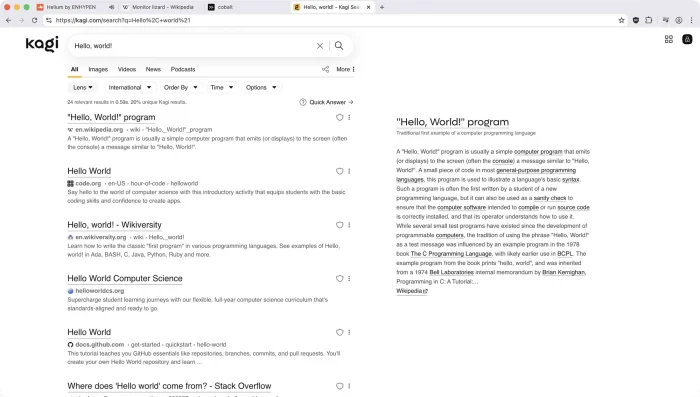 Searching kagi from Helium Browser for Windows – Chrome Without Google
Video of Helium Browser
Keyboard Shortcuts and Bangs
Helium uses the same keyboard shortcuts as Chrome. It also has a unique feature called Bangs: type a keyword starting with ! in the address bar to go directly to a website without searching first.
| Shortcut | What It Does |
|---|---|
| Ctrl + T | Open a new tab |
| Ctrl + W | Close the current tab |
| Ctrl + Shift + N | Open a new incognito window |
| Ctrl + L | Jump to the address bar |
| Ctrl + Shift + T | Reopen the last closed tab |
| Ctrl + Shift + C | Copy current page URL |
| Ctrl + D | Bookmark the current page |
| F11 | Toggle full screen |
Address Bar Bangs
Type these directly in the address bar to jump to a website instantly. Helium has over 10,000 bangs that work offline, so nothing is sent to a search engine.
| Bang | Where It Goes |
|---|---|
| !w search term | Search Wikipedia directly |
| !gh search term | Search GitHub directly |
| !yt search term | Search YouTube directly |
| !r search term | Search Reddit directly |
| !a search term | Search Amazon directly |
Things to Know Before Switching
Helium works like Chrome in most ways, but removing Google services means some things work differently.
No Google Account sync
Because Google services are removed, you cannot sign into a Google Account to sync bookmarks, passwords, or history. Use a dedicated password manager like Bitwarden or 1Password instead. For bookmarks, you can export them from Chrome and import them into Helium manually.
Beta software, expect occasional bugs
Helium is still in active development. You may encounter bugs like occasional crashes, rendering issues on specific websites, or settings that do not stick after an update. If something breaks, check the GitHub issues page for known problems or report a new one.
Google Safe Browsing is disabled
Chrome uses Google Safe Browsing to warn you about phishing sites and malicious downloads. Since Helium removes Google services, this feature is not available. Make sure you have a good antivirus running and be cautious with unfamiliar websites and downloads.
Frequently Asked Questions
Is Helium Browser safe to use?
Yes. Helium is fully open-source under the GPL-3.0 license, so anyone can audit the code. It removes Google’s tracking services from Chromium, which actually makes it more private than standard Chrome. Keep in mind that it is still in beta, so expect occasional rough edges.
Can I install Chrome extensions in Helium?
Yes. Helium connects to the Chrome Web Store but routes your requests through a proxy so Google cannot link your extension downloads to your identity. All Chromium-compatible extensions work.
Does Helium sync my bookmarks and passwords?
Helium does not use Google Sync, since all Google services are removed. You will need to use a third-party tool like a password manager (Bitwarden, 1Password) or export/import your bookmarks manually.
What is the difference between Helium and Ungoogled Chromium?
Both remove Google services from Chromium. The main difference is that Helium is designed to be user-friendly with a polished interface and built-in features like uBlock Origin. Ungoogled Chromium is more bare-bones and requires manual work to set up things like extension installation.
How often is Helium updated?
Helium tracks the Chromium release schedule closely. The developers aim to release updates shortly after each new Chromium version, so you get recent security patches. Check the GitHub releases page for the latest version.

Community Poll: Share Your Thoughts
Helpful Resources and Community
📦 Helium GitHub
The official open-source repository with source code, release builds for all platforms, and the bug tracker.
🗨️ Helium Community
Discuss Helium with other users, report bugs, and follow development updates on the project’s community channels.
🌐 Helium Website
The official homepage with auto-detected downloads for your OS and an overview of the browser’s privacy features.
Get Helium Browser for Windows
Chrome without Google. Open-source, pre-built ad blocking, and anonymous extension installs. Currently in beta.
Requires Windows 10 or Windows 11
Related Browsers: Waterfox for Windows, LibreWolf for Windows, Floorp Browser for PC or check out our list of the best browsers for PC.
Discover more from Windows Mode
Subscribe to get the latest posts sent to your email.
















Tried it yesterday, it is good, thanks.