Readers like you help support this site. When you make a purchase using links on our site, we may earn an affiliate commission. All opinions remain our own.
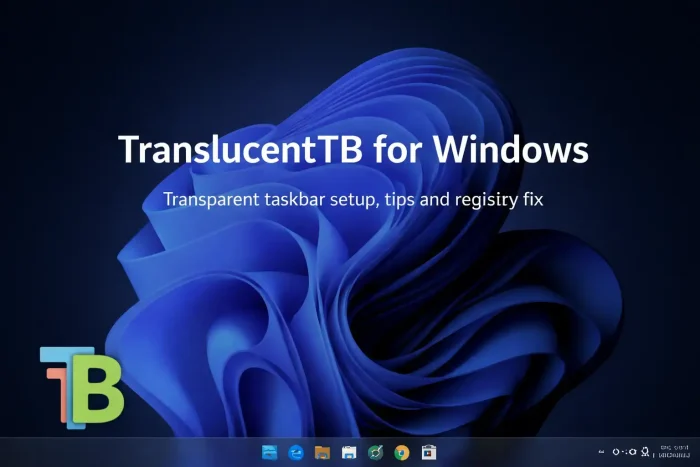
TranslucentTB is a free tool for Windows that makes your taskbar transparent, blurred, or frosted glass. It runs silently in your system tray, uses almost no RAM or CPU, and gives you more visual control over your taskbar than anything Microsoft ships by default.
It works differently depending on what is on your screen. You can set one look for a normal desktop, a different look when a window is maximized, and another when the Start menu opens. Each state gets its own color and effect. The result is a taskbar that feels like part of your wallpaper instead of a flat bar sitting on top of it.
TranslucentTB is open source (the code is public and free to use, share, and modify) and has over 19,000 stars on GitHub. It is available from the Microsoft Store and from GitHub. Both are the same app. The Microsoft Store version handles updates automatically.
Already running it? Drop your setup in the poll below. Got questions? Reach out to us directly.
What You Need to Know
- TranslucentTB is completely free, no subscriptions or paid features.
- It uses almost no RAM or CPU. Running it has no real performance cost.
- Dynamic modes let you set a different taskbar look for each state: desktop, maximized window, Start menu open, and more.
Price
Free
Developer
Charles Milette
Windows
10 / 11
License
GPLv3 (Open Source)
GitHub Stars
19,000+
How to Get TranslucentTB on Windows
The Microsoft Store is the easiest option. It installs in under a minute and updates automatically. The GitHub route gives you the portable ZIP or access to early test builds if you want to try features before they are officially released.
- Step 1. Open the Microsoft Store page for TranslucentTB and click Get.
- Step 2. Wait for the install to complete. No restart needed.
- Step 3. Launch TranslucentTB from the Start menu. It will appear as a small icon in your system tray (bottom right of your taskbar).
- Step 4. Right-click the tray icon to open the settings menu. Pick your preferred taskbar effect from the list.
- Step 5. Enable Open at boot if you want the effect to apply every time Windows starts.
Prefer the command line?
You can install TranslucentTB directly from PowerShell or Windows Terminal using winget:
winget install TranslucentTB.TranslucentTB
What Is TranslucentTB?
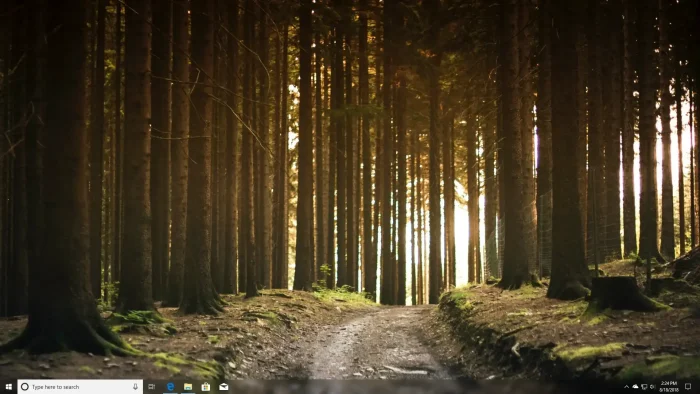
TranslucentTB is a small Windows utility that changes the appearance of your taskbar. Out of the box, Windows gives you one option: a solid colored bar at the bottom of your screen. You can customize the taskbar in Settings, but the visual options are very limited. TranslucentTB gives you several more, including fully transparent, blurred, and acrylic (frosted glass).
The app has been around for years and has built a large following among Windows users who care about how their desktop looks. It has over 19,000 stars on GitHub, a 4.6-star rating on the Microsoft Store from over 7,400 reviews, and more than 10 million downloads. It won a runner-up Community Choice Award in the 2022 Microsoft Store App Awards.
It runs entirely in the background. There is no main window to manage. Everything is controlled from a right-click menu on the tray icon. When you close the menu, TranslucentTB keeps doing its job quietly until you restart or tell it to stop.
Key Features
Taskbar Effects
Choose from five visual modes: Normal (default Windows style), Opaque (solid color, no transparency), Clear (tinted and see-through), Blur (soft background blur), and Acrylic (a frosted glass look, similar to what you see in the Windows 11 Start menu). Pick one and it applies instantly.
Dynamic Modes
This is what sets TranslucentTB apart. You can set a different effect for each situation: when the desktop is empty, when a window is maximized, when Start is open, when you are in Task View, or when the search panel is open. Each state can have its own color too.
Color Picker with Alpha
The built-in color picker lets you control both the color of your taskbar tint and how see-through it is. You slide the opacity up or down. Changes appear on your taskbar in real time as you adjust. Changes appear on your taskbar in real time as you adjust.
Startup Support
Enable Open at boot from the tray menu and TranslucentTB will start automatically every time Windows loads. Your taskbar effect is applied before you even see your desktop properly load in.
RoundedTB Compatible
TranslucentTB works side by side with RoundedTB, another popular taskbar tool that gives your taskbar rounded corners and a floating look. Running both together is a common setup in the Windows customization community.
Virtually Zero Performance Cost
TranslucentTB uses a few megabytes of RAM at most. CPU usage is almost nothing. You will not find it showing up in Task Manager as a resource drain. It is built specifically to be lightweight.
System Requirements
TranslucentTB is a very light app. It runs on most Windows 10 and Windows 11 PCs with no special hardware needed. The table below shows what you need and a few notes about specific effects.
| Requirement | Details |
|---|---|
| Operating System | Windows 10 version 18362 or later / Windows 11 (all builds) |
| Blur Effect | Windows 10 (all supported builds) and Windows 11 build 22000+ only |
| Portable Version | Windows 11 only |
| RAM Usage | A few MB (very small) |
| Internet | Not required after install |
| Account Required | No |
How TranslucentTB Works
Windows starts
TranslucentTB loads automatically if you enabled Open at boot.
It reads your current desktop state
Is a window maximized? Is Start open? Is the desktop clear? TranslucentTB checks this continuously.
It applies the right effect
Each state you configured gets its own color and visual style. The taskbar updates instantly as your state changes.
It sits quietly in your tray
No window, no notifications, no performance cost. Right-click the tray icon any time to change settings.
Tips for Getting Started
Start with Acrylic on the desktop
Set your default state (no windows open) to Acrylic. It gives a frosted glass effect that works with almost any wallpaper and makes the taskbar feel part of the desktop rather than floating over it.
Use Opaque when a window is maximized
A transparent taskbar behind a maximized app window can look cluttered. Set the Maximized window state to Opaque or a darker solid color so the taskbar reads clearly when you are focused on work.
Match your taskbar tint to your wallpaper
Use the color picker to pull a shade from your wallpaper. A low-opacity tint that matches the bottom edge of your wallpaper makes the whole setup look intentional rather than just switched on.
Pair it with RoundedTB for a floating taskbar
TranslucentTB and RoundedTB are built to work together. RoundedTB gives your taskbar rounded corners and a gap from the edges of the screen. Add TranslucentTB on top and the result is a small floating frosted bar that looks nothing like the default Windows taskbar.
Use winget to install and keep it updated
If you manage your apps from the terminal, run winget install TranslucentTB.TranslucentTB to install and winget upgrade TranslucentTB.TranslucentTB to update later.
Adding TranslucentTB to Startup
Right-click the tray icon and tick Open at boot. That is all it takes on most PCs. If the option is grayed out, keep reading.
If “Open at boot” is grayed out
Some Windows setups block apps from registering themselves at startup. You can fix this with a registry file. Copy the text below into Notepad, save it with a .reg extension (for example fix-startup.reg), then double-click it to apply. Restart your PC after.
Windows Registry Editor Version 5.00
[HKEY_LOCAL_MACHINE\SOFTWARE\Microsoft\Windows\CurrentVersion\Policies\System]
“EnableFullTrustStartupTasks”=dword:00000002
“EnableUwpStartupTasks”=dword:00000002
“SupportFullTrustStartupTasks”=dword:00000001
“SupportUwpStartupTasks”=dword:00000001
Using the portable version? Create a shortcut to the TranslucentTB executable and place it in %AppData%\Microsoft\Windows\Start Menu\Programs\Startup. Windows will load it automatically on next boot.
Poll
Screenshots
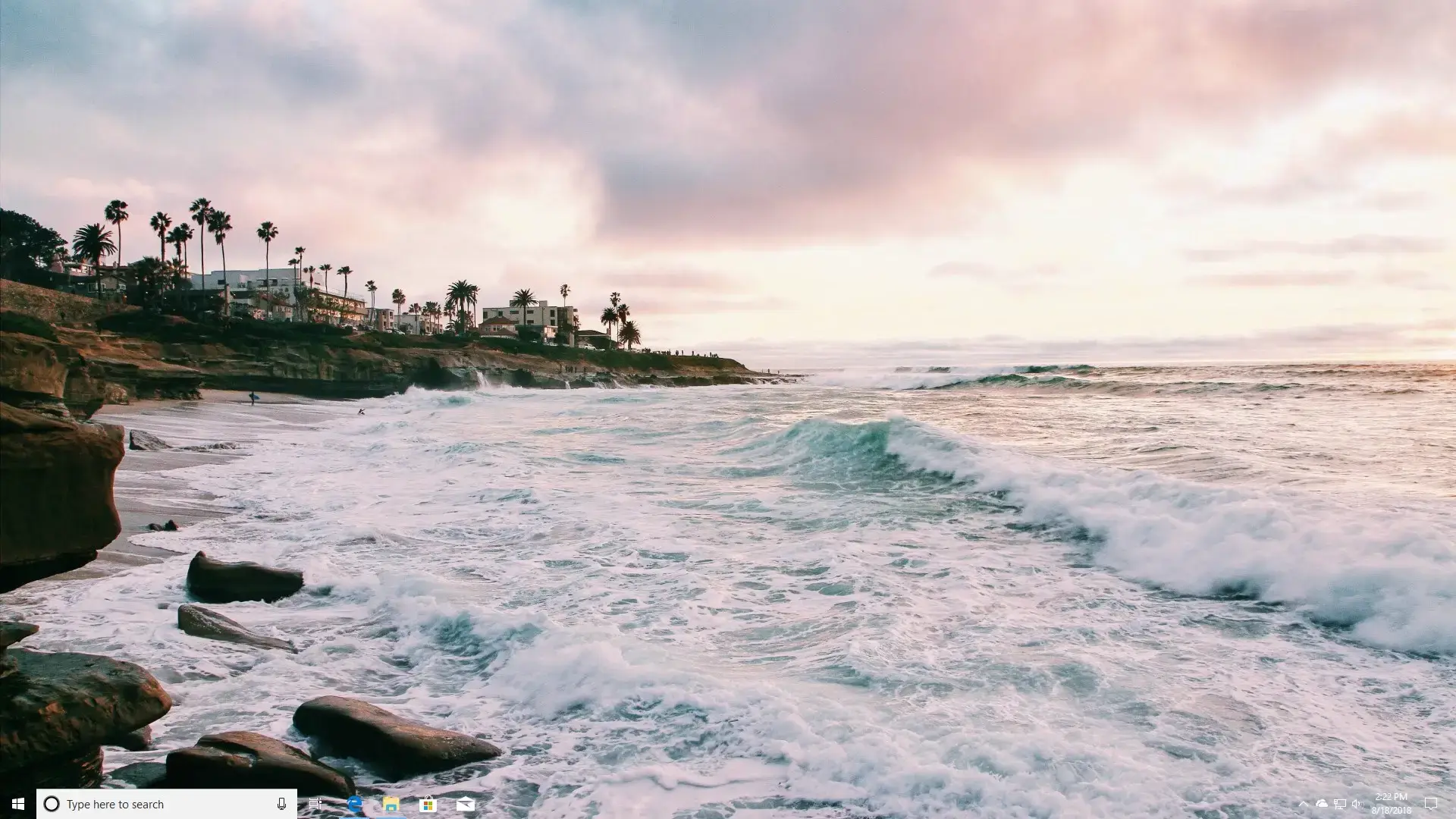
Screenshots of TranslucentTB running on Windows 11, showing the transparent and acrylic taskbar effects
-
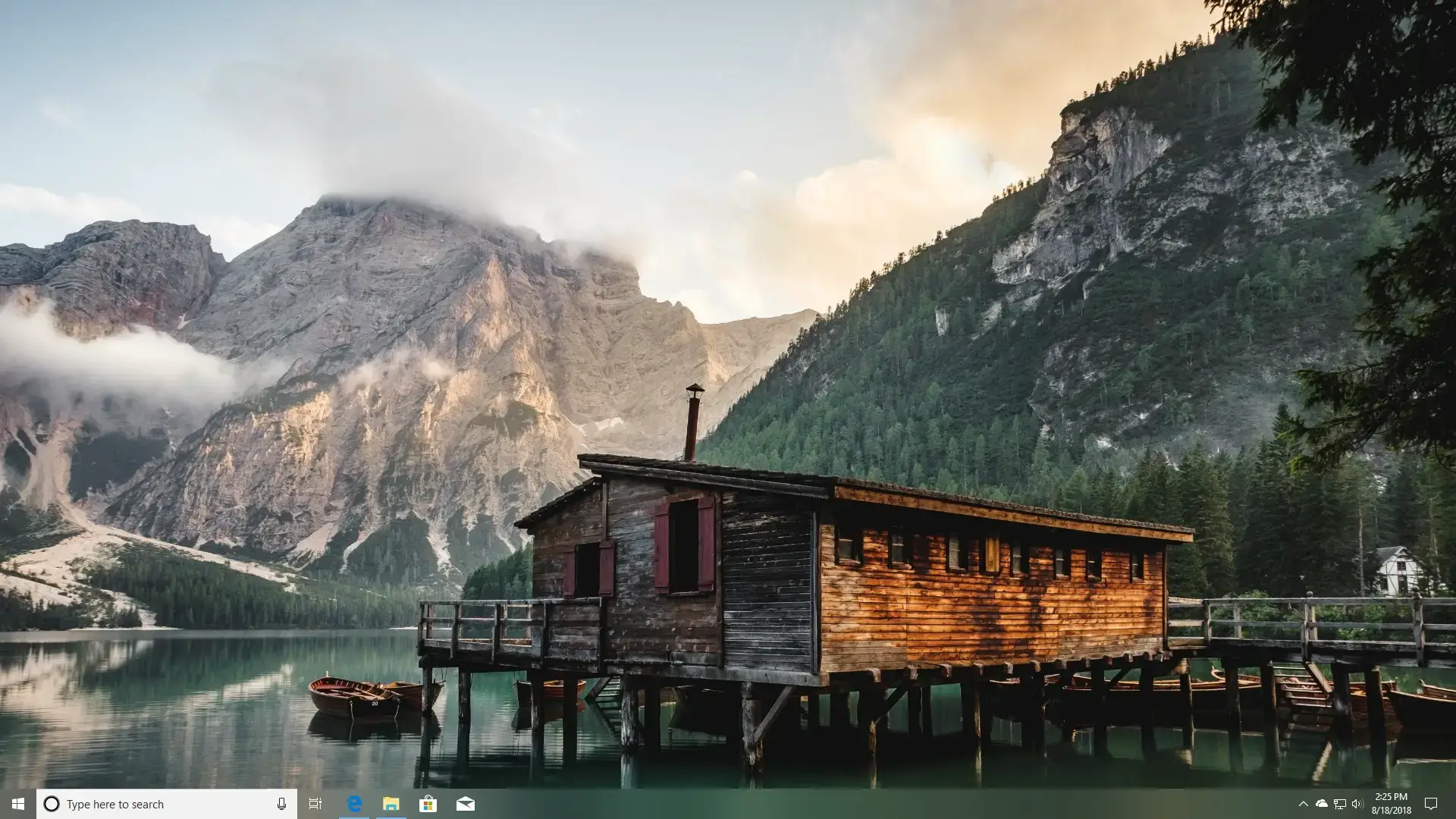
- Acrylic mode wallpaper from
-
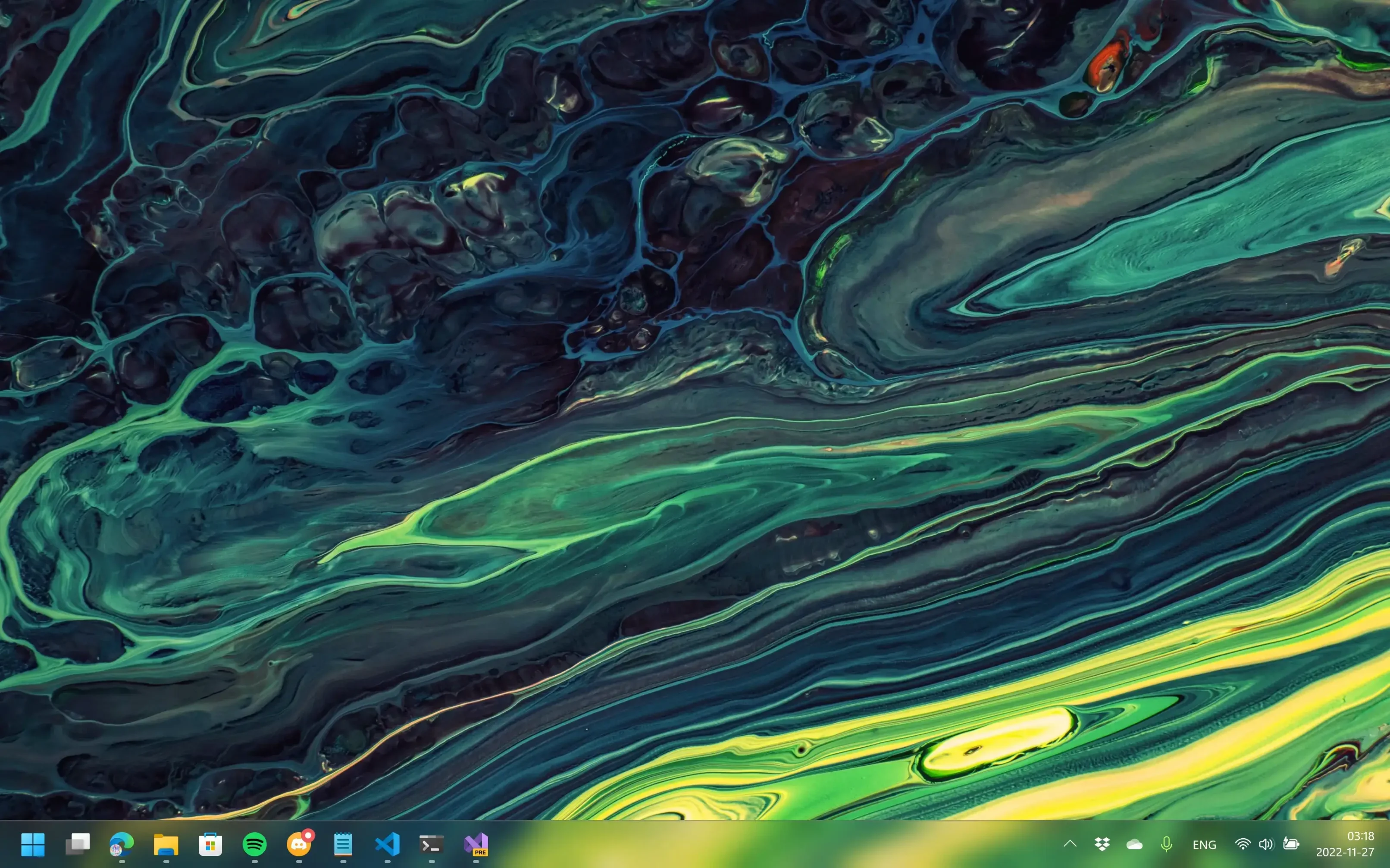
- Acrylic mode windows 11 from
-
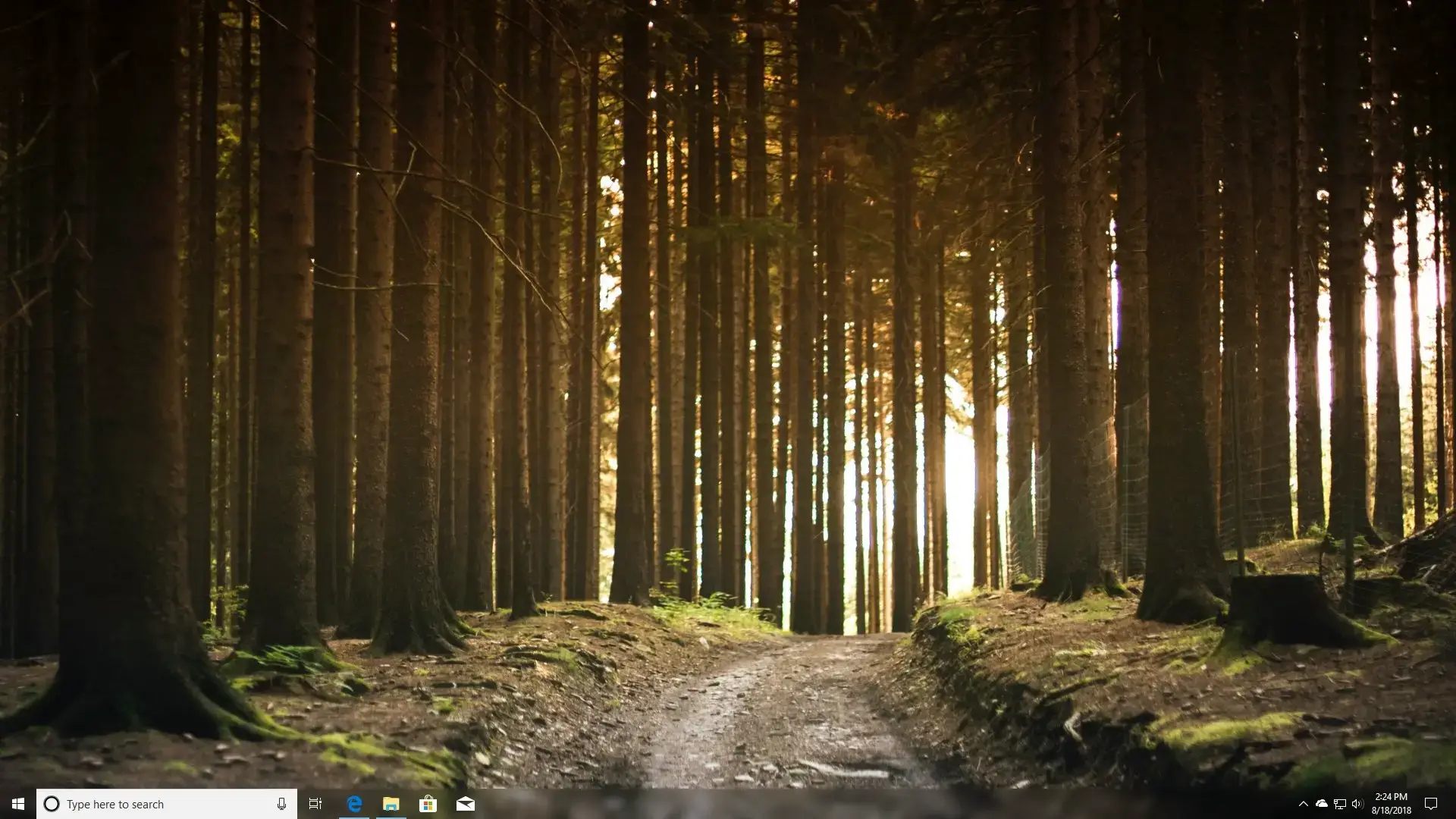
- Blur mode from
-
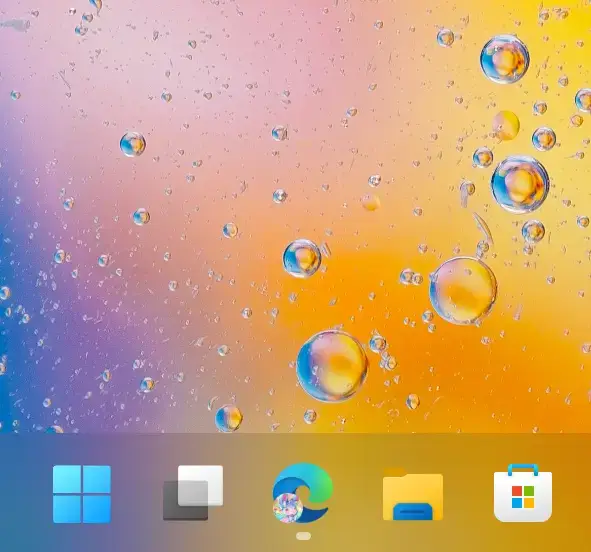
- Bubble from
-
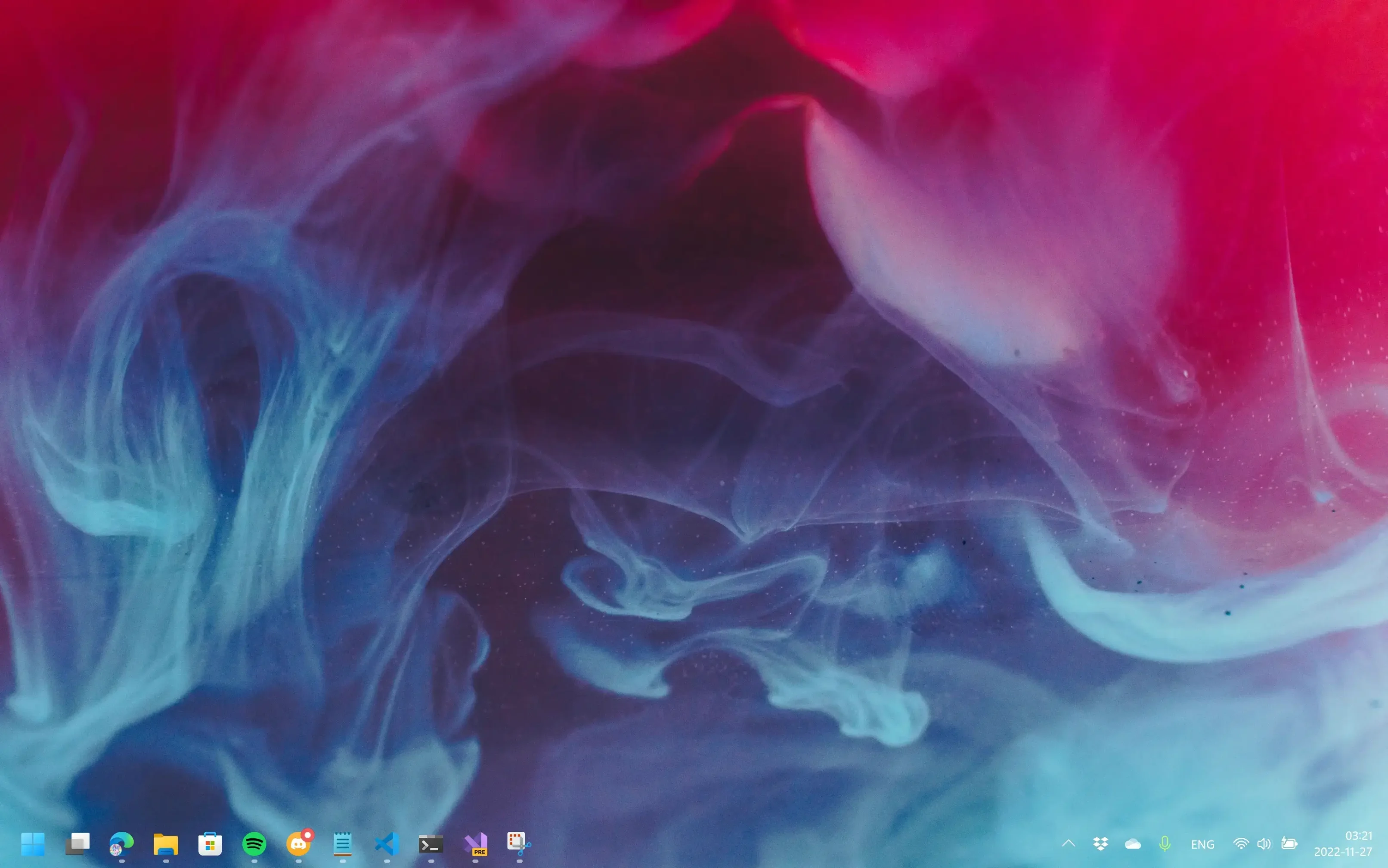
- Clear mode from
-
- Clear taskbar mode from
Video Guide
Watch this quick walkthrough to see how to install TranslucentTB and set up dynamic taskbar modes on Windows 11/10.
TranslucentTB vs the Alternatives
The table below compares it to the two most common alternatives by what each one actually does, so you can pick the right one for what you need, or run more than one at the same time.
| Feature | TranslucentTB | RoundedTB | ExplorerPatcher |
|---|---|---|---|
| Main purpose | Taskbar transparency and color effects | Rounded corners and floating taskbar shape | Deep taskbar behavior and layout changes |
| Price | Free | Free | Free |
| Works on Windows 10 | Yes | Yes | Yes |
| Works on Windows 11 | Yes | Yes | Yes |
| Transparent / blur effects | Yes, core feature | No | Limited |
| Rounded corners and floating shape | No | Yes, core feature | No |
| Changes behavior per desktop state | Yes | No | No |
| Changes taskbar layout or buttons | No | No | Yes |
| Can be used together | Yes, pairs well with RoundedTB | Yes, pairs well with TranslucentTB | Works alone; use carefully with others |
| Best for | Anyone who wants a see-through or frosted taskbar with no performance cost | Anyone who wants a floating, pill-shaped taskbar | Power users who want to rearrange taskbar buttons and restore older Windows behaviors |
Many users run TranslucentTB and RoundedTB at the same time since they do different things and work well together.
Frequently Asked Questions
Is TranslucentTB free?
Does TranslucentTB work on Windows 11?
Will TranslucentTB slow down my PC?
What is the difference between the GitHub version and the Microsoft Store version?
Does TranslucentTB run at startup?
%AppData%\Microsoft\Windows\Start Menu\Programs\Startup.Support and Community
- TranslucentTB Discord: official community server for help, tips, and setup sharing
- GitHub Issues: report bugs or follow development progress
- r/Windows11 on Reddit: active community where TranslucentTB setups are shared regularly
More Windows software guides: Customize the Windows Taskbar · Bing Wallpaper for PC · Seelen UI for PC · TranslucentTB for PC · Lively Wallpaper for PC · Best Free Windows Software
Discover more from Windows Mode
Subscribe to get the latest posts sent to your email.











Add your first comment to this post