Readers like you help support this site. When you make a purchase using links on our site, we may earn an affiliate commission. All opinions remain our own.
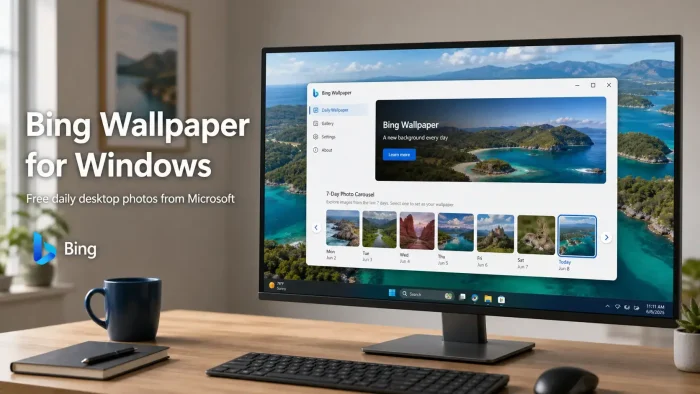
Bing Wallpaper is a free app from Microsoft for Windows 10 and Windows 11, available from the Microsoft Store and the official Microsoft Download Center. It sets a new photo on your desktop every day automatically. Each image is hand-picked by the Bing team and covers landscapes, landmarks, wildlife, and scenes from around the world. There are no subscriptions and no hidden costs.
What makes it different from just picking your own wallpaper is the daily discovery element. Every image comes with location info, a related quiz, a quote, and travel details you can read inside the app. You can also browse the last 7 days of images and pick one you want to keep.
This guide covers how to install it, what it does after setup, how it handles multiple monitors, and whether it is worth using over just setting your own photo.
What You Need to Know
- Bing Wallpaper is free. No trial, no subscription, no ads inside the app.
- It changes your desktop photo automatically every day without you doing anything.
- Each photo includes location info, a quiz, and travel details you can browse inside the app.
- You can see and choose from the last 7 days of photos at any time.
- The app runs silently in your system tray and uses almost no system resources.
- It works on Windows 10 (version 17763.0 and later) and Windows 11.
Price
Free
Developer
Microsoft
Windows
10 / 11
Also On
Android
Updates
Daily
Who Should Use Bing Wallpaper?
Bing Wallpaper is a good fit for anyone who wants a nicer desktop without putting any effort into it. You install it once, and it handles everything else. The photos are high quality and genuinely varied. You are not going to see the same kind of image every day.
- Use it if: you want a fresh, high-quality photo on your desktop every day without doing anything manually.
- Skip it if: you prefer to control exactly what image is on your desktop and never want it changed automatically.
- Be careful if: you are using Windows 10 older than the October 2018 Update (version 1809). The app will not install on older builds.
How to Install Bing Wallpaper on Windows
There are two official ways to get Bing Wallpaper. The Microsoft Store version is easier and updates automatically. The Microsoft Download Center version gives you a standalone installer (.exe) that works without signing into the Store.
Which download should you use?
- Microsoft Store: best for most people. Updates happen automatically. No extra setup needed.
- Microsoft Download Center (.exe installer): useful if you prefer not to use the Store, or if you are setting up PCs in bulk. Same app, same features.
- Step 1. Open the Microsoft Store page for Bing Wallpaper and click Get, or go to the Microsoft Download Center and download the .exe installer.
- Step 2. If using the installer, run the .exe file and follow the setup prompts. Windows may show a UAC prompt asking for permission. Click Yes to continue.
- Step 3. Once installed, Bing Wallpaper will launch automatically. Your desktop wallpaper will change to today’s Bing image right away.
- Step 4. Look for the Bing Wallpaper icon in your system tray (bottom-right of your taskbar). Click it to open the app and browse recent images.
- Step 5. To set a different image from the last 7 days, click the left or right arrows inside the app to browse, then click Set as wallpaper.
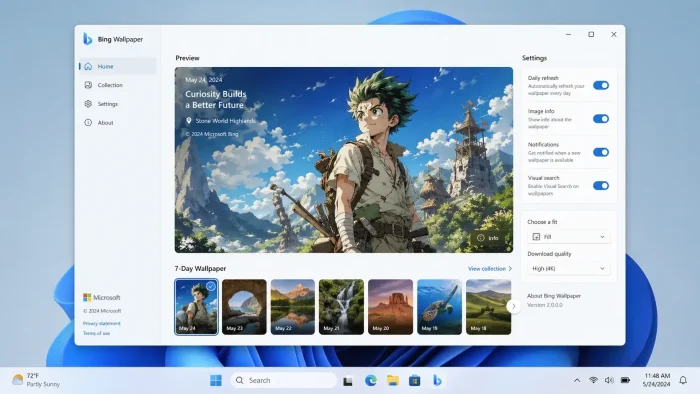
(photo of an anime you can choose to display from your bing wallpaper)
What Is Bing Wallpaper?
Bing Wallpaper is a lightweight Windows app from Microsoft that replaces your desktop background with the daily Bing homepage photo. The same image you see on bing.com when you open it in a browser appears on your desktop every morning without you having to do anything.
The photos are hand-selected by the Bing editorial team. They cover a wide range of subjects: mountain ranges, ocean scenes, wildlife, historic buildings, city skylines, and natural wonders from every continent. Each image is chosen to match what is happening in the world, like a seasonal event, a cultural moment, or a notable location.
Beyond just being a wallpaper changer, the app adds context to each photo. Click into the image inside the app and you can read where it was taken, learn more about the location, take a short daily quiz tied to the image, see a quote of the day, and get travel information if the location is somewhere you could visit. It is a small but genuinely interesting addition for anyone curious about the world.
Key Features
Daily Photo, Automatically
Your desktop wallpaper updates every day without any input from you. The image comes from the Bing homepage and is hand-selected by the Bing editorial team. You never see the same photo twice in the same cycle.
7-Day Image History
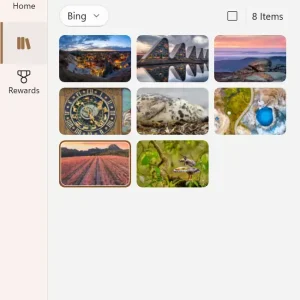
The app stores the last 7 days of Bing photos. Open the app from your system tray and use the arrows to go back and forward through the week. If you missed a photo you liked, it will still be there.
Photo Info, Quiz, and Travel Details
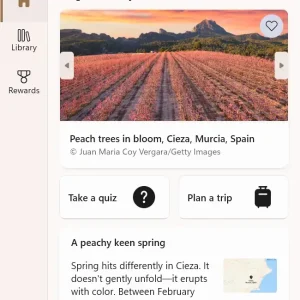
Each daily image comes with more than just a pretty picture. You get a location name, a short description, a daily quiz related to the image, a quote of the day, and travel information if the location is somewhere you can visit.
System Tray Access
Bing Wallpaper lives quietly in your system tray and does not add anything to your taskbar or Start menu in a disruptive way. Right-click the tray icon to quickly set today’s image, open the full app, or access settings.
Multi-Monitor Support
The daily photo applies across all your connected monitors. The images are shot in wide-format and look sharp on standard 16:9 and ultrawide displays. You do not need to do any extra configuration for this to work.
Runs Light in the Background
Unlike animated wallpaper apps that run constantly and use GPU resources, Bing Wallpaper connects to the internet once per day to fetch the new photo, then stays idle. It will not slow down your PC or affect gaming performance.
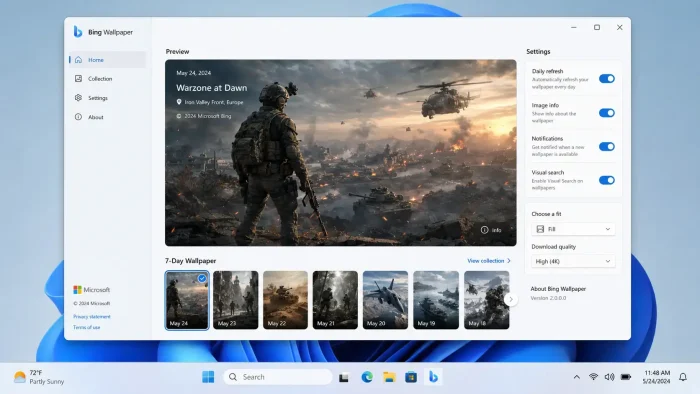
(photo of a video game you can choose to display from your bing wallpaper)
What You Get After Install
| Feature | What it does |
|---|---|
| Daily wallpaper | Changes automatically every day to the new Bing homepage photo |
| Image history | Browse and set any photo from the last 7 days |
| Photo context | Location name, description, quiz, quote, and travel info for each image |
| System tray icon | Quick access to the app, today’s image, and settings without opening a full window |
| Multi-monitor | Photo applies across all connected displays automatically |
| Background behavior | Runs silently with minimal CPU and memory use. Fetches once per day, then stays idle. |
System Requirements
| Requirement | Details |
|---|---|
| Operating System | Windows 10 version 17763.0 (October 2018 Update) or later, or Windows 11 |
| Architecture | 32-bit and 64-bit both supported |
| Storage | Small footprint. The app caches daily images locally but uses minimal disk space. |
| Internet | Required for daily image updates. The app connects once per day to fetch the new photo. |
| Price | Free |
Bing Wallpaper vs Setting Your Own Wallpaper
The main reason to use Bing Wallpaper instead of picking your own photos is variety and zero effort. Most people who set their own wallpaper never change it again. Bing Wallpaper removes that friction entirely.
| Feature | Bing Wallpaper | Manual wallpaper |
|---|---|---|
| Daily variety | Automatic, every day | Only if you manually change it |
| Photo quality | Professional, hand-selected | Depends on what you find |
| Control over image | Limited. You pick from 7 days. | Full control |
| Extra info per photo | Location, quiz, travel details | None |
| Setup effort | Install once, done | Manual each time |
| System resources | Minimal (fetches once per day) | None |
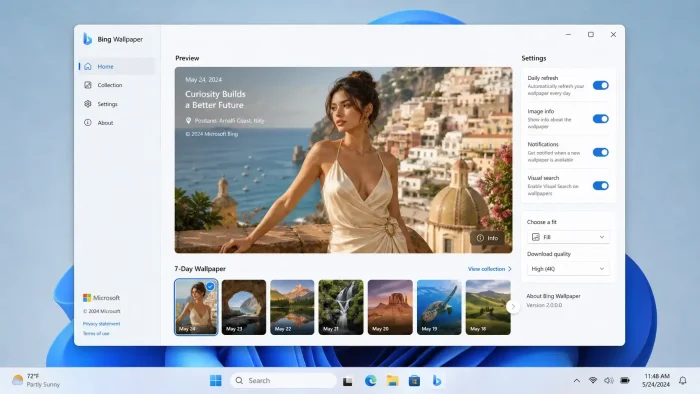
(photo of a model you can choose to display from your bing wallpaper)
Tips for Getting Started
Check the tray icon every morning
The system tray icon shows a small preview of today’s photo when you hover over it. Right-clicking gives you quick options to browse recent images or set today’s photo without opening the full app.
Browse back when you miss a good photo
You have 7 days of history inside the app. Open it, use the left arrow to go back, and set any previous image as your wallpaper. Good ones do not disappear immediately.
Read the photo info inside the app
Each image has a title, a location, and a description. Open the app and click the info link under the photo to read more. The daily quiz is also there if you want a quick knowledge challenge.
Let it run at startup
Bing Wallpaper adds itself to the Windows startup list during install. If you ever disable it in Task Manager, the wallpaper will stop updating. Keep the startup entry on to get daily changes without thinking about it.
Save a photo you really like
The app does not have a built-in save button, but images are cached locally. Open File Explorer and navigate to your AppData folder to find the stored images. You can copy them anywhere you want from there.
Screenshots
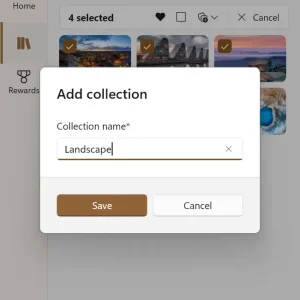
Bing Wallpaper running on Windows 11, showing the daily photo browser, the image info panel with location and quiz details, and the system tray interface.

Frequently Asked Questions
Does Bing Wallpaper work on Windows 10?
Yes. Bing Wallpaper supports Windows 10 version 17763.0 (October 2018 Update) and later, as well as Windows 11. If your Windows 10 is up to date, the app will work.
Does Bing Wallpaper change the wallpaper on all my monitors?
Yes, Bing Wallpaper applies the daily image across all connected monitors by default. The image is a wide-format photo designed to look good on standard and widescreen displays. There is no built-in option to set different images per monitor.
Can I keep a photo I like from Bing Wallpaper?
Yes. You can browse the last 7 days of images inside the app and set any of them as your wallpaper. The app does not include a built-in save-to-folder button, but the images are cached locally on your PC and can be found in your AppData folder.
Can I stop Bing Wallpaper from changing my wallpaper automatically?
Yes. Open the app from your system tray and look for the wallpaper change setting. You can turn off automatic daily changes and keep a specific image set manually. The app will still run in the tray and let you browse photos on demand without touching your wallpaper unless you choose to apply one.
Does Bing Wallpaper collect data or send anything to Microsoft?
Bing Wallpaper is a Microsoft product and is subject to Microsoft’s privacy policy. It connects to Microsoft servers once per day to fetch the daily image. Like most Microsoft apps, it may send basic diagnostic and usage data. If that concerns you, review Microsoft’s privacy dashboard at privacy.microsoft.com to see what is collected and opt out of optional data sharing.
How do I uninstall Bing Wallpaper?
Open Windows Settings, go to Apps, find Bing Wallpaper in the list, and click Uninstall. Your original wallpaper will not be restored automatically. After uninstalling, go to Settings, then Personalization, then Background, and set a new image manually.
Why did my Bing Wallpaper stop updating?
The most common cause is the startup entry being disabled. Open Task Manager, go to the Startup tab, and check that Bing Wallpaper is enabled. If it is turned off, the app never launches when Windows starts and the wallpaper never updates. A lost internet connection or a Microsoft server outage can also cause a missed daily update.
Support and Community
Bing Wallpaper is a Microsoft product. Official support goes through Microsoft’s own channels. For community discussion and tips, Reddit is the most useful spot.
- Official Bing Wallpaper page – overview, features, and FAQ from Microsoft
- Microsoft Bing Support – official help and troubleshooting
- r/bing on Reddit – community discussion, tips, and feedback
More Windows software guides: Lively Wallpaper for Windows · Seelen UI for Windows · Personalize Your PC with New Themes
Discover more from Windows Mode
Subscribe to get the latest posts sent to your email.
















Add your first comment to this post