Readers like you help support this site. When you make a purchase using links on our site, we may earn an affiliate commission. All opinions remain our own.
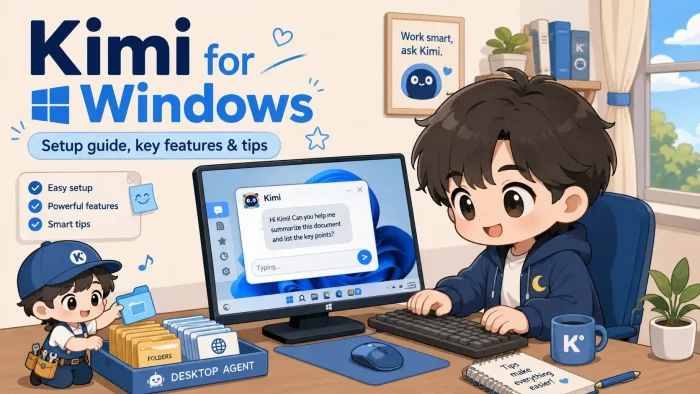
Kimi is a free AI assistant for PC from Moonshot AI, available via the Microsoft Store or the official website.
You get a chat app for everyday questions, and it works like ChatGPT or Claude. There is no credit card required to start, and the free plan covers real day-to-day use.
Kimi runs on Moonshot AI’s own line of AI models. At the time of this post, Kimi 3 is the newest and strongest version behind the app(at the time of this post), and Moonshot AI regularly ships newer versions as they become available. Moonshot AI also ships Kimi Work, a separate desktop agent that reads your local files, browses the web on its own, and finishes multi-step tasks while you do something else. Developers get a third option, Kimi Code, for coding help inside a terminal or VS Code.
All three run on Windows 10 and Windows 11, and all three are free to install. This guide covers what each one actually does and the exact steps to get each installed.
Already using Kimi? Tell us which of the three you rely on most in the comments. Got a question before you install it? Reach out to us directly.
What You Need to Know:
- Kimi has three separate apps: Kimi (chat), Kimi Work (a desktop agent), and Kimi Code (for developers)
- All three are free to download and use, no credit card required to start
- Kimi Work is the one worth trying first if you want more than chat, it can use your files and browser on its own
Who Should Use Kimi on Windows?
Kimi is not built for one type of user. Here is who gets the most out of it.
Students
Research and study help
Teachers
Lesson plans and grading
Writers
Drafting and editing
Creatives
Concepts and drafts
Office Workers
Reports and spreadsheets
Developers
Code and bug fixes
Worth knowing: Kimi has occasionally paused new paid signups when demand spikes, so heavy users may be stuck on the slower free tier at times. And if you give Kimi Work access to local folders, start with the “Ask permission” setting until you trust how it handles a task.
How to Download Kimi on Windows
Kimi is not one app, it is three. Each one is a separate download built for a different kind of task. Here is what each does and how to install it.
Kimi
The Chat App
This is the one most people want. Open it, ask a question, get an answer, back and forth, same as ChatGPT or Claude. No setup, no local files, nothing to configure. If you are not sure which app to start with, start here.
01
Open the Microsoft Store on Windows 10 or 11.
02
Search Kimi Assistant and select the Moonshot AI listing, or go straight to the Kimi Assistant Microsoft Store page.
03
Click Install and wait for it to finish.
04
Open the app and sign in, or create a free account.
Prefer not to install anything? Use it straight from your browser at kimi.com.
Kimi Work
The Desktop Agent
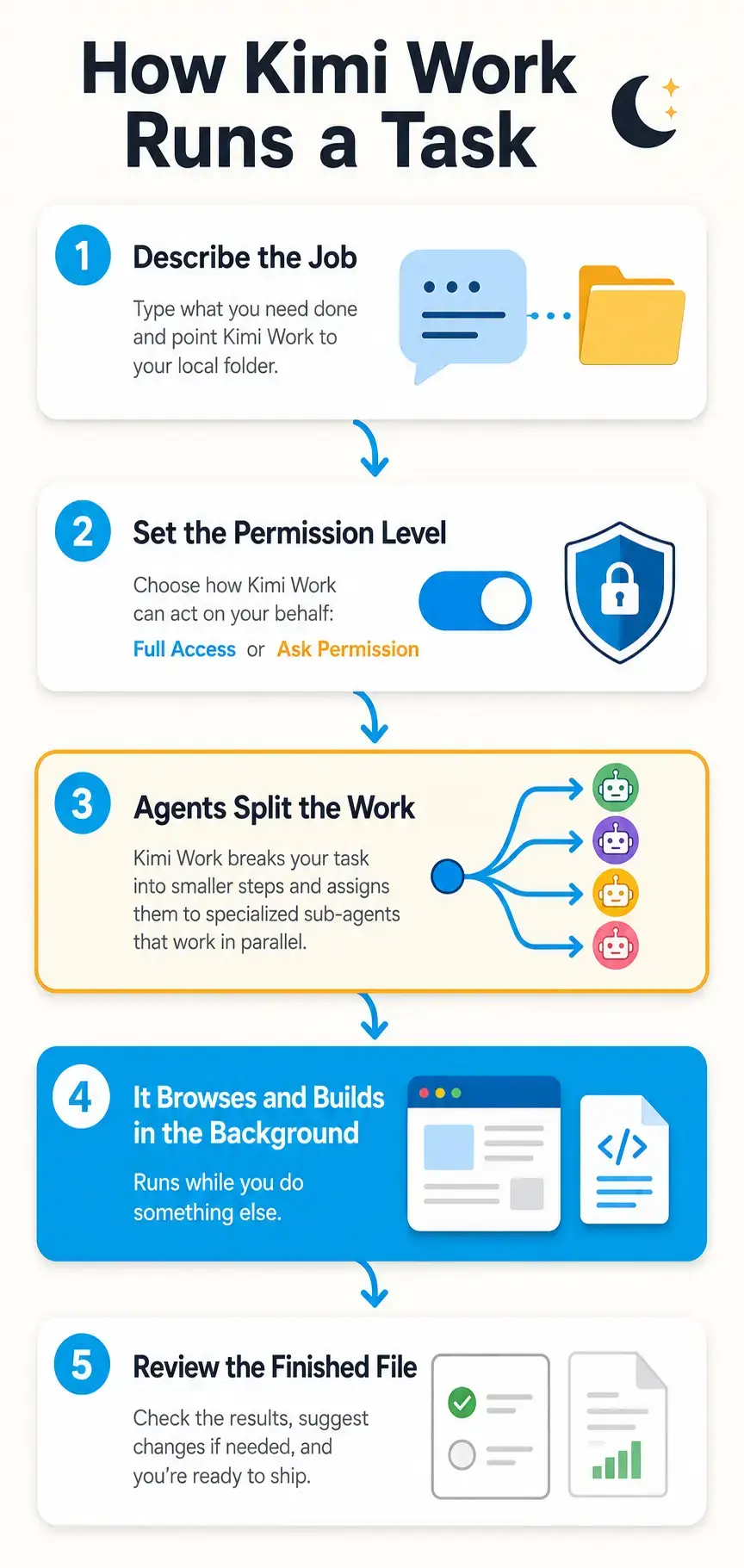
This one goes further than chat. Point it at a folder on your PC and describe a task, it reads your files, browses the web on its own, and hands back a finished document, spreadsheet, or report while you do something else. This is the app to reach for once you outgrow simple chat.
01
Go to the official Kimi Work page on kimi.com.
02
Click Download for Windows. No Microsoft Store needed.
03
Run the installer and open Kimi Work.
04
Sign in with your Kimi account, or create one.
05
Link a folder, set a permission level, and describe your first task.
Kimi Code
For Developers
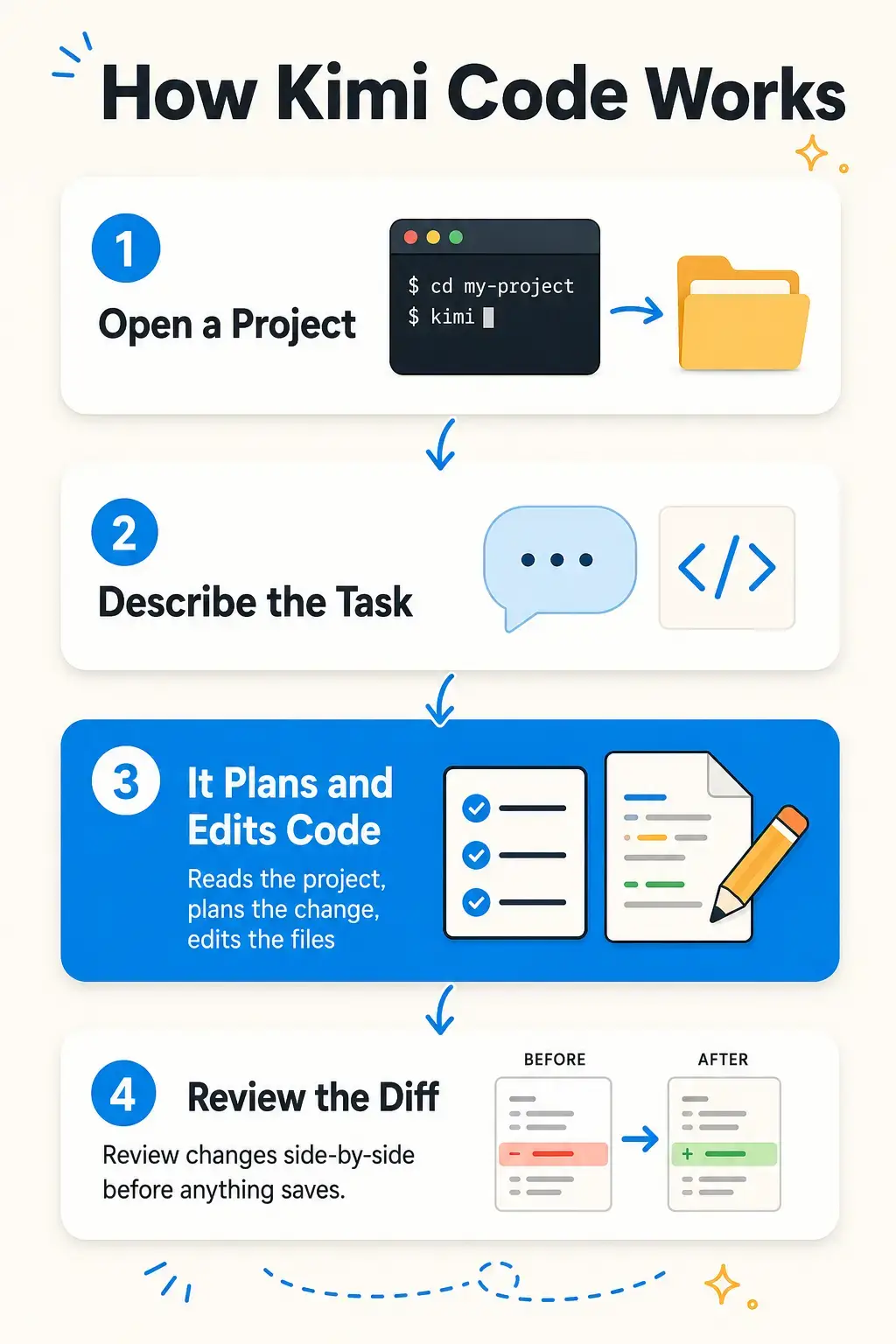
A separate coding tool, not something built into Kimi or Kimi Work. It lives in a terminal (a text-based command window) or as a VS Code extension, reads your project, and writes and edits code for you, showing every change before it saves. Skip this one unless you write code.
01
Install Git for Windows first, Kimi Code needs it to run.
02
Open PowerShell and run: irm https://code.kimi.com/kimi-code/install.ps1 | iex
03
Move into a project folder and type kimi to start it.
04
Type /login and follow the prompts to sign in.
Full setup steps are in the official docs, and it also works as a VS Code extension if you would rather stay in your editor.
What Is Kimi, Really?
Kimi is Moonshot AI’s free AI assistant. It started as a single chat app, and Moonshot AI later built two more apps around it for people who need more than a conversation. All three share the same underlying AI model and account, but each is its own download with its own install steps, which is the main source of confusion for new users. That is exactly why we split them out above.
Key Features
Free Chat
Unlimited basic chat on the free plan, with a smaller pool of agent credits for heavier features.
Local File Access
Kimi Work reads and writes files in a folder you choose, and saves finished output straight back into it.
Browser Automation
Kimi Work can navigate real webpages, click, scroll, and pull data using your existing logins.
Scheduled Tasks
Set a task to run once, daily, or weekly, and Kimi Work runs it in the background without you starting it by hand.
Code Editing
Kimi Code reads a project, writes and edits files, and runs tests, showing you every change before it saves.
Plugins
Kimi Work connects to third-party tools like Notion or Google Calendar so one instruction can pull in data or take action.
How Kimi Work Runs a Task
See how a task moves from a plain-language instruction to a finished file, in the infographic below.
How Kimi Code Works
See how Kimi Code moves from a plain-language request to a reviewed code change, in the infographic below.
System Requirements
| Requirement | Details |
|---|---|
| Operating System | Windows 10 or Windows 11 |
| Account | Free Kimi account, no payment required |
| Internet | Required, the AI runs in the cloud |
| Hardware | Any PC that runs everyday apps smoothly |
Tips for Getting Started
Start with Kimi Work’s “Ask permission” setting until you know how it handles a given type of task.
Point Kimi Work at a small, low-stakes folder first before handing it your main project directory.
Try off-peak hours if the free plan feels slow. Demand tends to be lower early morning or late at night.
Keep Kimi Code tasks small and specific. A focused request gets a cleaner result than a vague, open-ended one.
Always review a Kimi Work file or Kimi Code diff before approving it. Neither knows your specific rules, only the context you gave it.
Kimi Screenshots
A look at Kimi, Kimi Work, and Kimi Code on Windows.
-
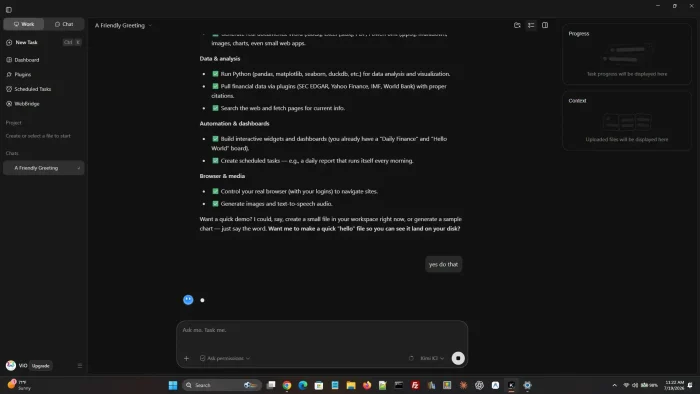
- Example of chat screenshot from Kimi for Windows: Kimi, Kimi Work and Kimi Code Setup Guide
-
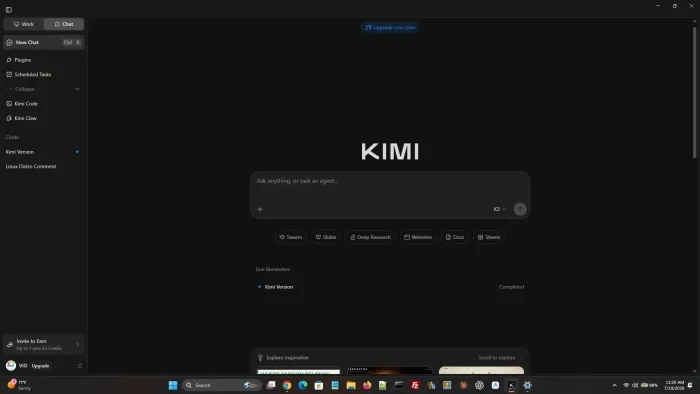
- Homescreen screenshot from Kimi for Windows: Kimi, Kimi Work and Kimi Code Setup Guide
-
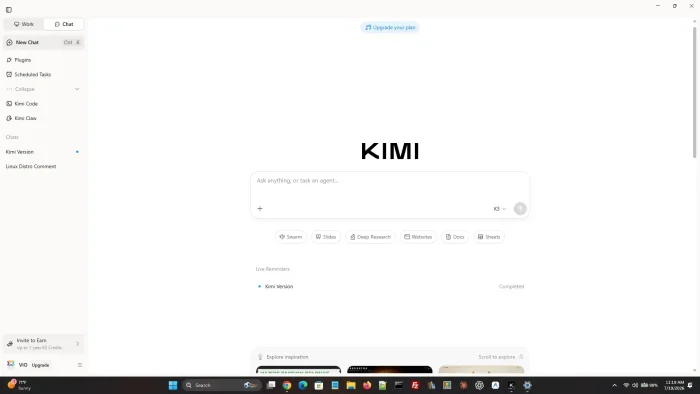
- Light theme from Kimi for Windows: Kimi, Kimi Work and Kimi Code Setup Guide
Frequently Asked Questions
Is Kimi free on Windows?
What is the difference between Kimi, Kimi Work, and Kimi Code?
Do I need to install all three Kimi apps?
Why does Kimi feel slow or say it’s busy sometimes?
Does Kimi Work require any coding knowledge?
Is Kimi available in English?
What are the system requirements for Kimi on Windows?
Support and Community
Need help or want to talk with other users? Visit the official Kimi Help Center or join the discussion on r/kimi on Reddit.
More Windows software guides: ChatGPT for Windows · Claude Desktop for Windows · Best Free Windows AI Software · Qwen Desktop for Windows
Discover more from Windows Mode
Subscribe to get the latest posts sent to your email.
















Add your first comment to this post