What’s new in Microsoft Edge 156? Three things you’ll notice: site permissions that look and work the same in the address bar, the site information panel and Settings; autofill for passports, driver’s licenses and other documents; and a key icon in the address bar that now opens full login details with copy buttons and notes. To get it, go to edge://settings/help and let Edge check for updates.
Version 156.0.4314.42 reached the Stable channel on October 22, 2026, according to Microsoft’s Edge Stable release notes. Updates roll out gradually, so some PCs get it a few days later than others. If you already see version 156 or higher, you’re up to date.
Before you start
Edge normally updates itself in the background, so you may already have version 156. On a work or school PC, updates and some of these features can be managed by your IT department. Our screenshots come from a fresh Edge 156 install on a Linux test machine. The settings pages are the same on Windows, but the window around them looks a little different.
How to update Microsoft Edge to version 156
You need an internet connection and about a minute. Edge restarts at the end, so save anything you’re typing first.
Open the About page
Type edge://settings/help into the address bar and press Enter. You can also open Settings and more (the three dots), then Help and feedback > About Microsoft Edge.
Check: Edge starts checking for updates as soon as the page opens.
Restart and confirm the version
If an update is found, Edge downloads it and shows a Restart button. Select it to finish. If you see Microsoft Edge is up to date, there is nothing to install.
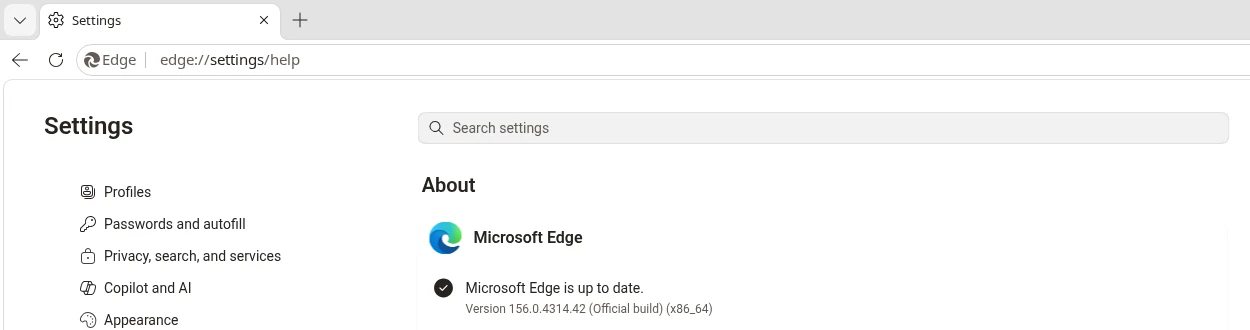
You’re finished when: the version line reads 156.0.4314.42 or a higher number. No update offered yet? The rollout is staggered, so check again in a day or two.
New to the browser or setting it up on a fresh PC? Our Microsoft Edge for Windows guide covers the basics.
Site permissions now look the same everywhere
When a site asks for your location, camera, microphone or notifications, Edge 156 uses one consistent design for the request and for the controls you use later. Microsoft says it changed the address bar prompt and the site information panel, and made permissions easier to see and change in Settings. Here’s where to find each one.
Answer the prompt in the address bar
When a site asks for access, a small panel drops down from the left of the address bar. Choose Allow, Just this time or Block.
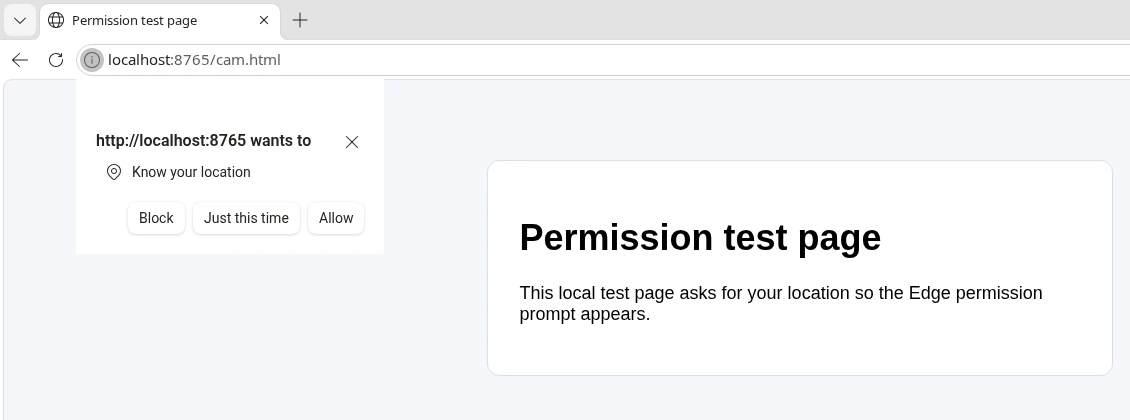
Check: after you allow access, a matching icon (a location pin, for example) appears on the right side of the address bar.
Change your mind from the site information panel
Select the icon at the far left of the address bar to open the site information panel. Under Permissions for this site, flip a toggle off or select Reset to default.
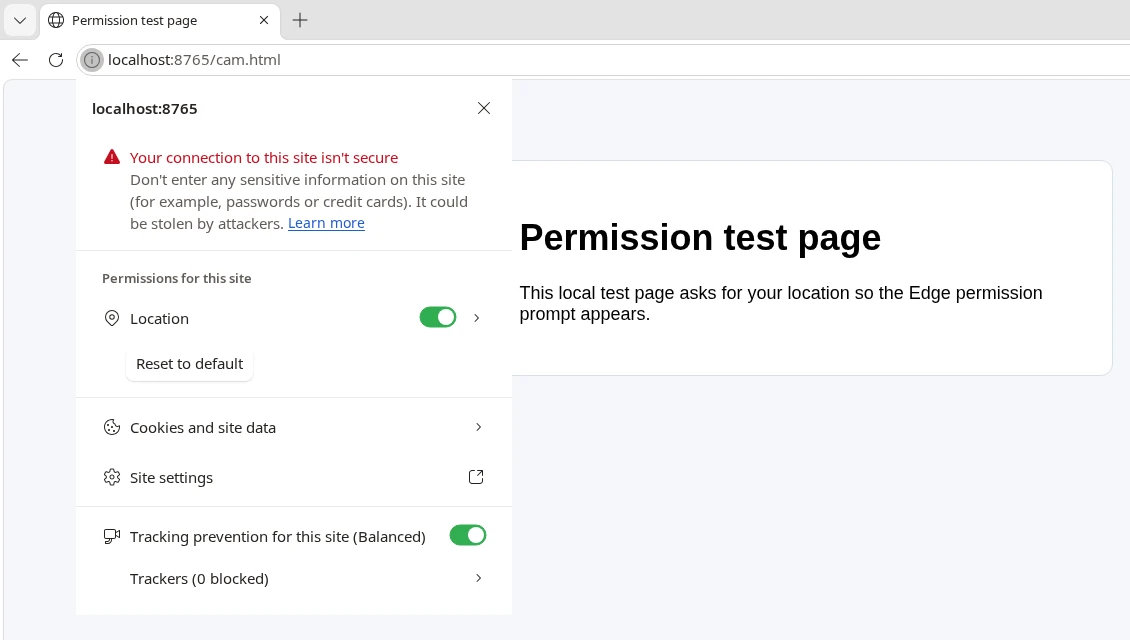
Check: the toggle turns gray and the site has to ask again next time.
Review every site in Settings
Go to edge://settings/privacy/sitePermissions, or Settings > Privacy, search, and services > Site permissions. Recent activity lists the latest changes, All sites shows everything you’ve granted, and each permission type has its own page.
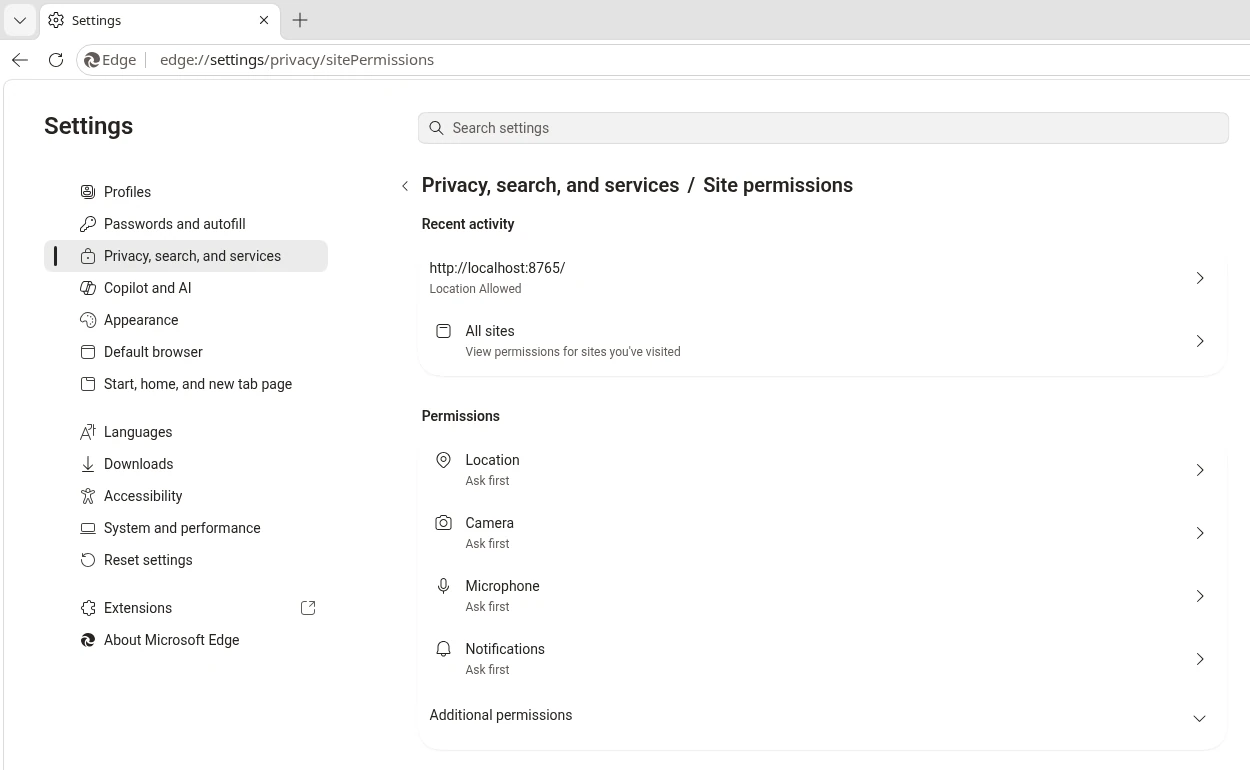
Check: the site you just allowed appears at the top with its permission listed under it.
Autofill now covers passports and driver’s licenses
Edge has filled in names and addresses for years. In version 156, Microsoft says the desktop browser can also fill in additional document types, including passports, driver’s licenses and other specialized forms. That helps with travel bookings, car rentals and government forms that ask for the same numbers every time.
Open Enhanced autofill
Go to Settings > Passwords and autofill > Enhanced autofill. You can also paste edge://settings/autofill/enhancedAutofill into the address bar.
Check: the page heading reads Passwords and autofill / Enhanced autofill.
Add a document
Select Add and pick a document type. Our Edge 156 install offered Driver’s license, ID card, Known Traveler Number, Passport, Redress number and Vehicle. Fill in the form that opens and save it.
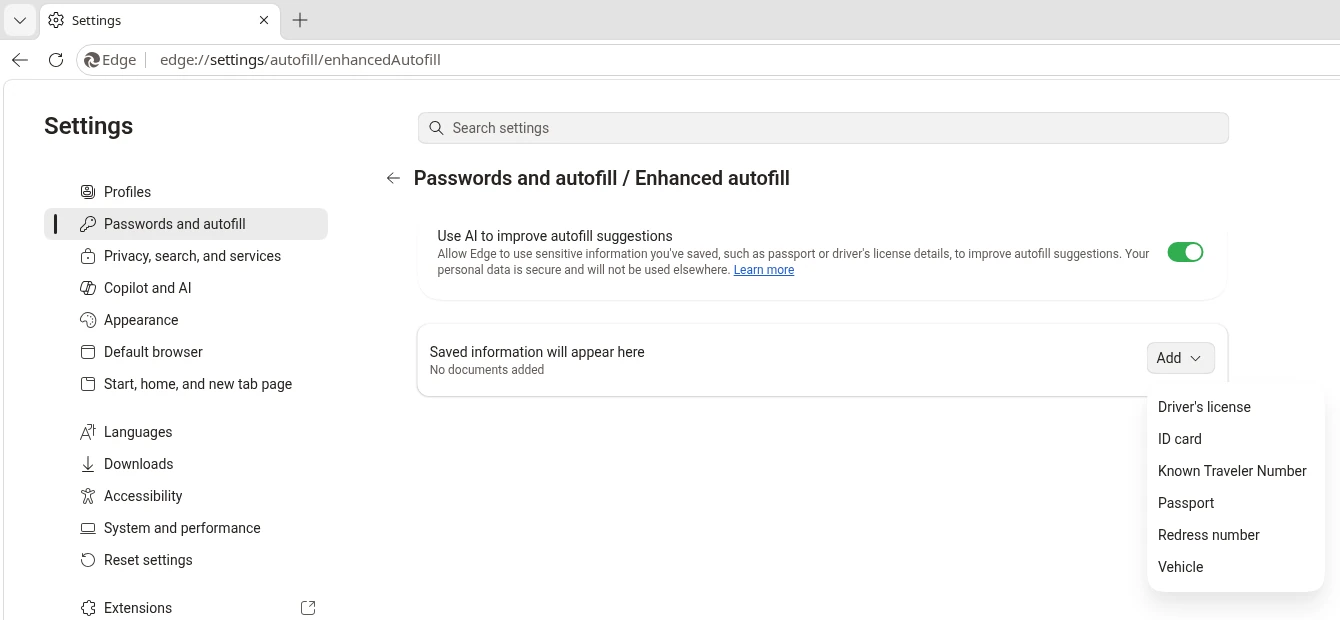
Check: the document replaces the No documents added line, and Edge suggests it the next time a form asks for those details.
Decide on the AI suggestions switch
At the top of the same page, Use AI to improve autofill suggestions lets Edge use the sensitive details you’ve saved, such as passport or driver’s license details, to improve its suggestions. It was turned on in our fresh test profile.
Think before you save: passport and license numbers are valuable to identity thieves. Only store them on a PC you control, with a Windows password or Windows Hello sign-in. On a shared or family PC, skip this feature or turn the AI switch off.
Check: the switch shows the setting you want before you add anything.
The key icon now shows full login details
When you visit a site with a saved password, a key icon appears in the address bar. In Edge 156 it does more than fill in the form. You can open any saved login for that site, copy the username or password, and keep notes alongside it without opening the full password manager.
Select the key icon
Open the sign-in page of a site you have a saved password for. Select the key icon on the right side of the address bar.
Check: a panel titled Saved passwords for this site lists your logins.
Open a login and copy what you need
Select a login to open its details. Use the copy buttons next to the username and password, or the eye icon to reveal the password first.
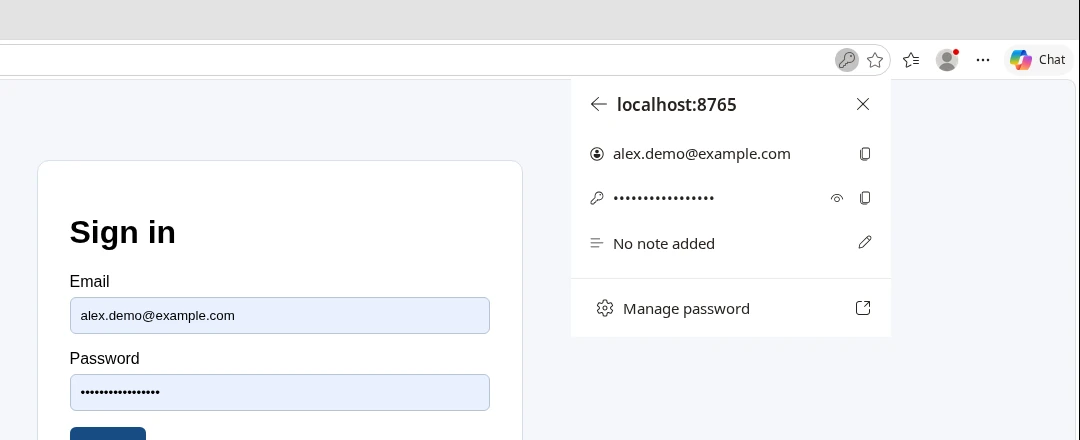
Check: pasting into another app or field gives you the username or password you copied.
Add a note to the login
Select the pencil next to No note added and type your note. Microsoft suggests using it for security question answers, what the account is for or recovery details. Manage password at the bottom opens the full password manager.
You’re finished when: your note shows in place of No note added the next time you open the panel.
The key icon is part of Microsoft Password Manager, which added passkey sync in late 2025, as we covered in Edge’s passkey sync launch.
Other Edge 156 changes that could affect you
Most of the remaining release notes are aimed at IT departments, but four items are worth knowing about:
- Sign in again after version 157, maybe. Microsoft is finishing a move to a newer sign-in system on Windows in Edge 157. Most profiles have already switched automatically. In rare cases you may need to sign in to Edge again after that update.
- XSLT is going away. Edge will stop running XSLT, an older technology for turning XML files into readable pages, by default in the Stable channel with version 159. A few older business apps and XML feeds use it. Most everyday websites don’t rely on it.
- Copilot address redirect. Microsoft is redirecting Microsoft 365 Copilot Chat in Edge, and companies that filter web traffic should allow cloud.microsoft addresses before it happens. Home users don’t need to do anything.
- Work PCs may ask about startup. On managed devices, Edge is starting to ask whether it should open automatically when Windows starts. It’s a gradual rollout, and your IT team can set the choice for you.
Microsoft also fixed a bug that stopped some existing profiles from opening Edge after a scheduled update restart from the Microsoft Edge management service, which also only affects managed PCs.
Watch: a quick Edge 156 walkthrough
BrenTech’s three-minute video shows how to check for version 156 and runs through the new permissions design and the expanded autofill.
When is Edge 157 coming?
Edge has moved to a new major version every two weeks since version 152. On Microsoft’s release schedule, Edge 157 is due in the Stable channel during the week of November 5, 2026, followed by Edge 158 in the week of November 19. Businesses on the Extended Stable channel get a major update every eight weeks instead, and version 156 is one of those releases.
For IT admins and web developers: policies and platform changes
Policies. New: RemixAvailability. Deprecated: AutofillAddressEnabled, AutofillCreditCardEnabled and NewPDFReaderEnabled, which becomes obsolete in Edge 162 at the earliest. The startup prompt on managed devices is controlled with LaunchEdgeOnWindowsStartupEnabled.
Sign-in. Check edge://signin-internals for managed profiles still listed as WAM before Edge 157 ships. Allow lists for Microsoft 365 Copilot Chat should include *.cloud.microsoft (Message Center MC1462915).
XSLT. Off by default in Canary, Dev and Beta with 157 and in Stable with 159. The XSLTEnabled policy and the deprecation origin trial work as temporary fallbacks until Edge 176 (MC1509789).
Tracing. edge://tracing no longer records traces. Use the Perfetto UI.
Web platform. The Edge 156 web platform notes list the CSS random() function, the :navigation-source pseudo-class, overflow: scroll clip for single-axis scroll containers, scroll-snap-type: pair, retryable failed module imports, a SQLite backend for new IndexedDB stores and WebTransport headers and responseHeaders.
Source: Winaero’s Edge 156 summary, alongside Microsoft’s release notes linked above.
Discover more from Windows Mode
Subscribe to get the latest posts sent to your email.














Add your first comment to this post