Readers like you help support this site. When you make a purchase using links on our site, we may earn an affiliate commission. All opinions remain our own.
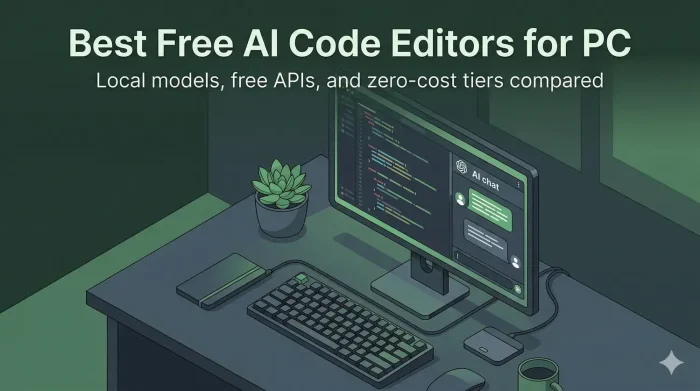
The best free AI code editors for Windows are Gemini Code Assist, Trae, Roo Code, Ollama, and Twinny. Gemini Code Assist works straight out of the box with a Google account and no setup. Trae is a full IDE from ByteDance that is completely free right now. Roo Code paired with OpenRouter gives you agent-level coding at zero cost. Ollama lets you run AI models on your own PC with no internet and no bills. Twinny connects to Ollama and adds AI coding directly inside VS Code.
One thing to know before you start: a tool that requires you to pay an AI provider per request is not actually free. Every editor in this list has a real path to zero cost, and we spell out exactly what that path is for each one.
Already using one of these? Drop a comment below. Got a question before you start? Reach out to us directly.
What Qualifies as Truly Free
Runs on Windows 10/11 · Zero monthly cost with no hidden billing · Local model OR free API OR built-in free tier · Genuine AI coding features, not just basic autocomplete
Three Ways to Get Free AI Coding on Windows
Before the list, it helps to understand the three paths. Every tool below falls into one of these categories.
🖥️Path 1: Local Models
Run a free open source model on your own PC using Ollama or LM Studio. No internet needed after setup. No API bills. Ever. Works best with a decent GPU but lighter models run on CPU too.
🔑Path 2: Free API via OpenRouter
Get a free OpenRouter API key and connect it to an open source coding tool like Roo Code or Continue. OpenRouter hosts dozens of free models with daily limits. Cloud quality at zero cost.
⚡Path 3: Built-In Free Tier
Tools like Gemini Code Assist and Trae give you real AI features for free with no setup. Just install and sign in. Usually backed by a company using free access as a growth strategy.
| Editor |
Type |
Free Path |
Agent Mode |
Best For |
| Gemini Code Assist |
Extension |
Built-in free tier |
Yes |
Easiest start |
| Trae |
Full IDE |
Built-in free tier |
Yes (SOLO) |
Free full IDE |
| Roo Code + OpenRouter |
VS Code Extension |
Free API |
Yes |
Agent + free models |
| Continue + OpenRouter |
VS Code Extension |
Free API |
Yes |
Flexible bring-your-own API key setup |
| Ollama |
Local runner |
Local model |
Via extensions |
100% offline AI |
| LM Studio |
Local GUI |
Local model |
Via API |
Local model GUI |
| Twinny |
VS Code Extension |
Local model |
No |
Offline autocomplete |
| CodeGeeX |
VS Code Extension |
Built-in free tier |
No |
Free autocomplete + chat |
| Refact.ai |
Extension / Self-hosted |
Built-in free tier |
Yes |
Free completions + agent |
| Fitten Code |
VS Code Extension |
Built-in free tier |
No |
Fast inline completion |
| Void Editor |
Standalone IDE |
Local / free API |
Yes |
Open source Cursor alt |
| PearAI |
Standalone IDE |
Local / free API |
Yes |
Open source IDE |
| Tabby |
Self-hosted |
Local model |
No |
Team / private server |
| Zed |
Standalone IDE |
Local model via Ollama |
Yes (ACP) |
Speed + local AI |
What Is the Best Free AI Code Editor for Windows?
Here are our top picks, all confirmed free to run on Windows 10 and Windows 11.
1Gemini Code AssistEditor’s Pick
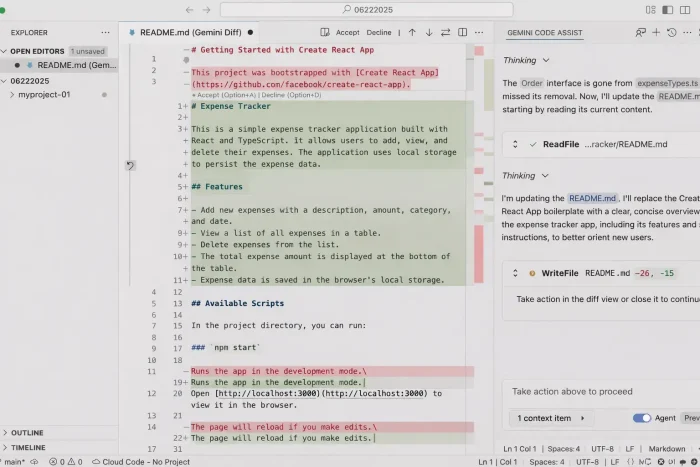
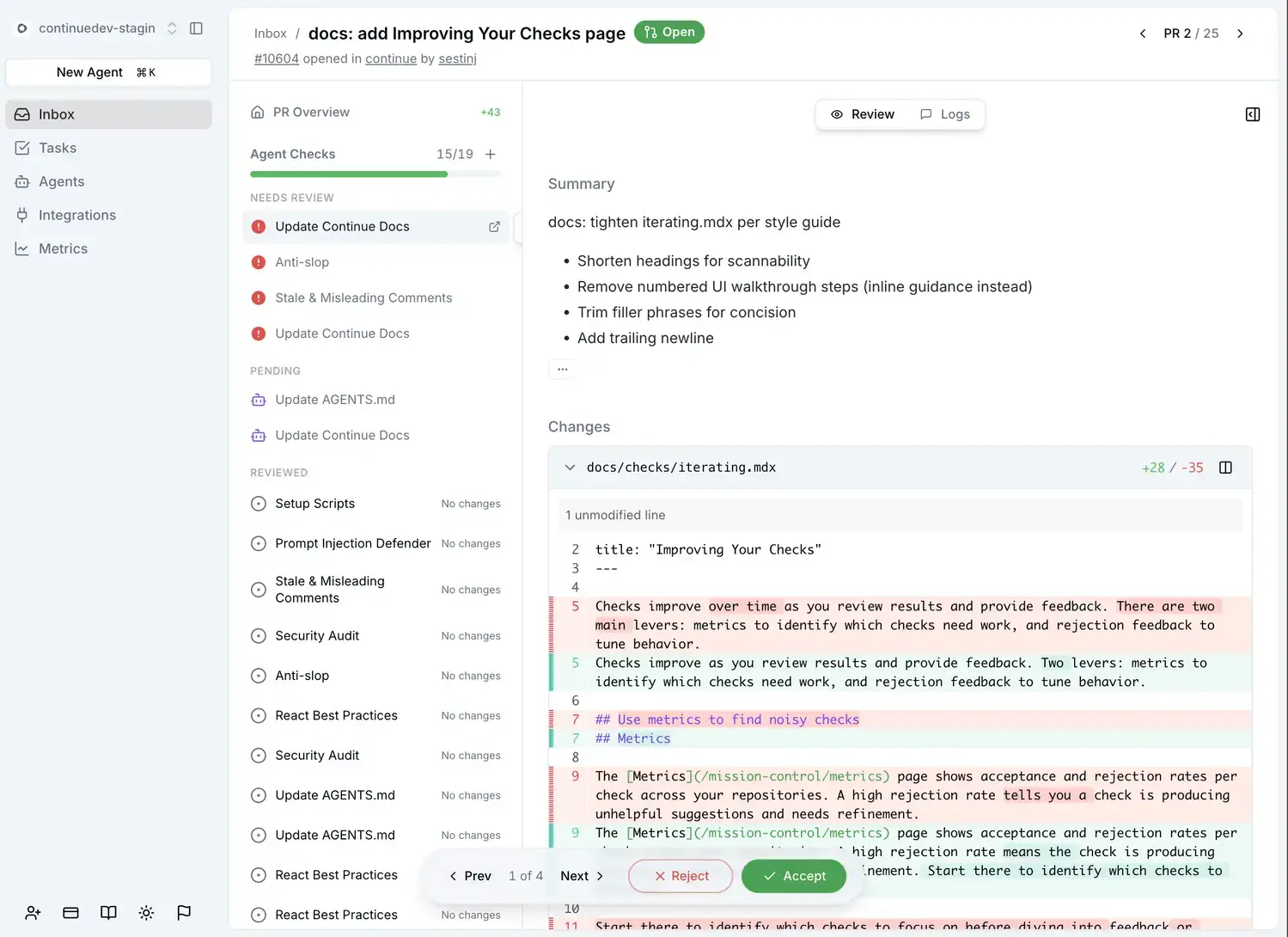
Gemini Code Assist is Google’s free AI coding extension for VS Code and JetBrains. You install it, sign in with a Google account, and you are up and running. No API key setup, no credit card, no trial period. It connects to Google’s Gemini models in the cloud and gives you code completions, inline chat, and multi-file context awareness immediately.
The free individual tier includes 6,000 code completions and 240 chat messages per day, which is enough for a full working day of development without hitting limits. The AI understands your entire workspace, not just the file you have open, so it can suggest code that fits your project’s actual patterns. One thing to know: on the free tier, Google uses your prompts and responses to improve their models. If you are working on private or commercial code, read their data policy before using it.
6,000 Completions/Day FreeNo API Key NeededWorks in VS Code + JetBrainsAgentic ChatWorkspace Context
Best for: Any developer who wants free AI coding in VS Code or JetBrains with zero setup. The easiest starting point on this list.
Free path: Built-in free tier. Sign in with a Google account. No credit card required.
2Trae
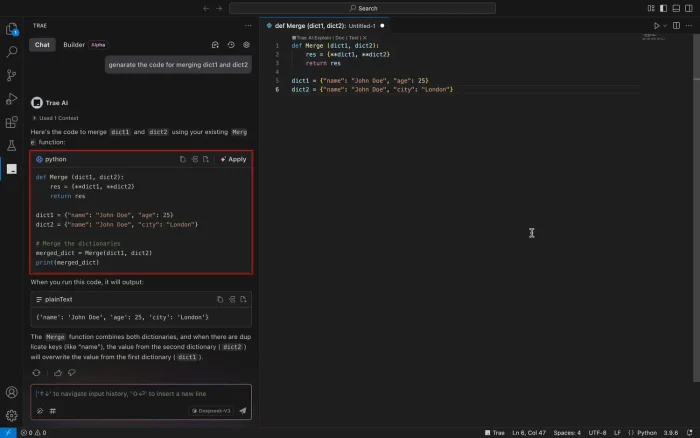
Trae is ByteDance’s free AI IDE for Windows, built as a VS Code fork. It comes with AI built in and does not require you to bring an API key or set up any external service. You download it, open it, and the AI is there. It uses Claude and other models via ByteDance’s backend and is completely free while in its current preview phase.
The standout feature is SOLO mode, which is a fully autonomous AI agent that takes a task description and builds an entire feature across multiple files without step-by-step direction. Builder mode is more interactive if you prefer to stay in control. Trae supports all VS Code extensions and themes so you keep your existing setup. The free access may change as the product matures, so it is worth using now while it lasts.
Fully Free IDESOLO Agent ModeVS Code CompatibleNo API Key NeededMulti-file Agent
Best for: Developers who want a full Cursor-style IDE completely free, with no API setup required.
Free path: Built-in free tier from ByteDance. Free during preview. No credit card required.
3Roo Code + OpenRouter
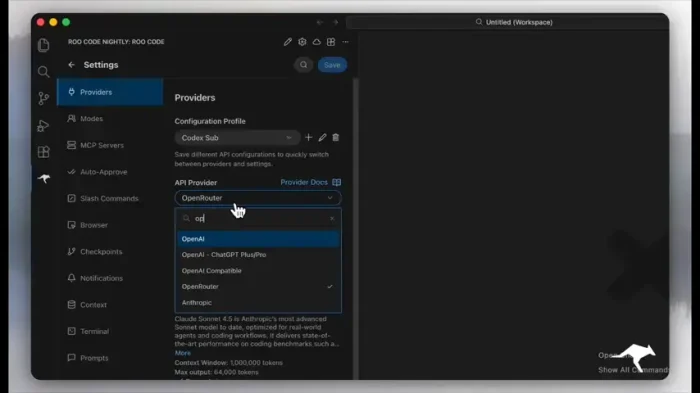
Roo Code is a free open source VS Code extension built for AI agent-powered coding. On its own it requires an API key and costs money to run. But paired with OpenRouter’s free model tier, it becomes a genuinely zero-cost setup. You sign up at OpenRouter, grab a free API key, paste it into Roo Code, and select one of the free models available such as DeepSeek or Llama. You get a daily allowance of requests that resets every 24 hours.
Roo Code’s real strength is its role-based execution system: Architect mode plans, Code mode builds, Debug mode fixes. You can switch modes mid-task so the AI is not writing code before it has figured out the right approach. It has over a million VS Code installs and an active community. For developers comfortable with a small amount of setup, this combo gives you Cursor-level agent capability at zero cost.
Architect / Code / Debug ModesOpenRouter Free ModelsOpen Source open sourceMulti-file Agent1M+ Installs
Best for: VS Code users who want powerful AI agent coding at zero cost. Pair with OpenRouter for free daily model access.
Free path: Install Roo Code free from VS Code Marketplace.
Go to openrouter.ai, sign up free, get an API key, and select a free model (search “free” in the model list).
4Ollama
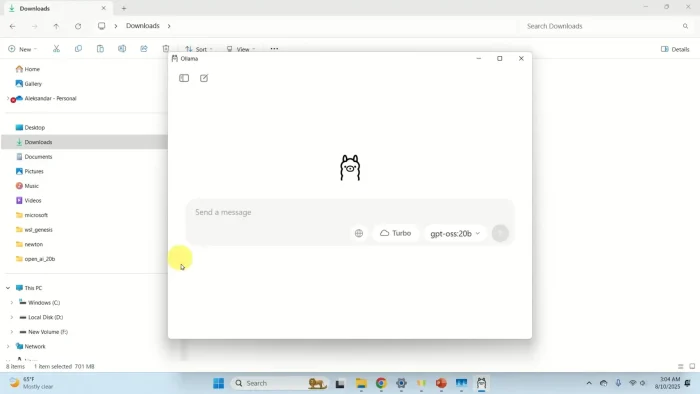
Ollama lets you download and run open source AI models directly on your Windows PC. Once a model is downloaded, it runs entirely offline with no internet connection, no API key, and no usage limits. You install Ollama, pull a model, and it serves a local server that coding tools like Twinny, Continue, and Roo Code can connect to.
For coding, the most useful free models to run locally are Qwen2.5+-Coder and DeepSeek-Coder-V2+, both of which punch well above their weight for code completion and chat. Qwen2.5-Coder 1.5B runs comfortably on a PC with 8GB of RAM and no GPU. The 7B version gives better results but needs a decent GPU. Once set up, your AI coding assistant costs nothing to run indefinitely.
100% OfflineNo API Bills EverWorks with VS Code ExtensionsQwen + DeepSeek ModelsWindows 11/10 Native
Best for: Developers who want a permanent zero-cost setup with no dependency on any external service. Pair with Twinny or Continue in VS Code for a complete free coding environment.
Free path: Download Ollama free at ollama.com. Run ollama pull qwen2.5-coder in PowerShell. Then connect Twinny or Continue to your local Ollama server.
5Twinny
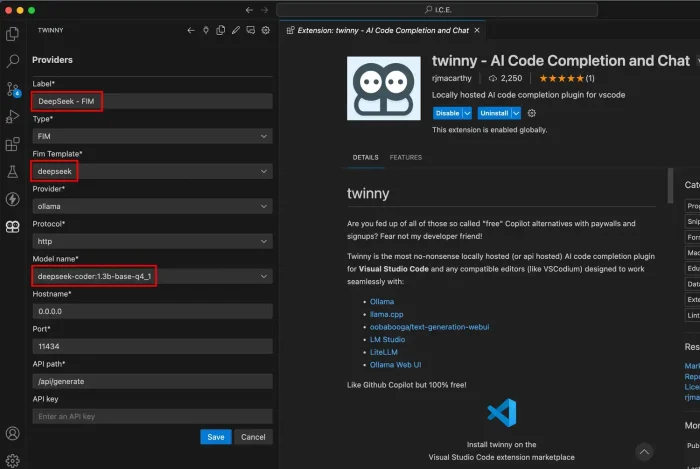
Twinny is a free open source VS Code extension built specifically for local AI coding. It connects directly to Ollama or LM Studio running on your machine and gives you inline code completion and a chat panel, all without sending a single character of your code to an external server. It is open source, which means you can use it for any project including commercial work.
What makes it different from just connecting Continue to Ollama is that Twinny scans and indexes your entire repository locally, so its suggestions understand your codebase’s specific patterns and naming conventions. It also supports the Symmetry network, which lets you share compute with other machines on your local network if your main PC is not powerful enough. Simple, private, and completely free.
Local-Only ProcessingRepo Vector IndexingOpen Source LicenseOllama + LM StudioNo Data Sent Externally
Best for: VS Code users who want fully local, fully private AI coding with no external dependency. Requires Ollama installed and a model downloaded first.
Free path: Local model via Ollama or LM Studio. Zero cost after initial model download. No account required.
6Continue + OpenRouter
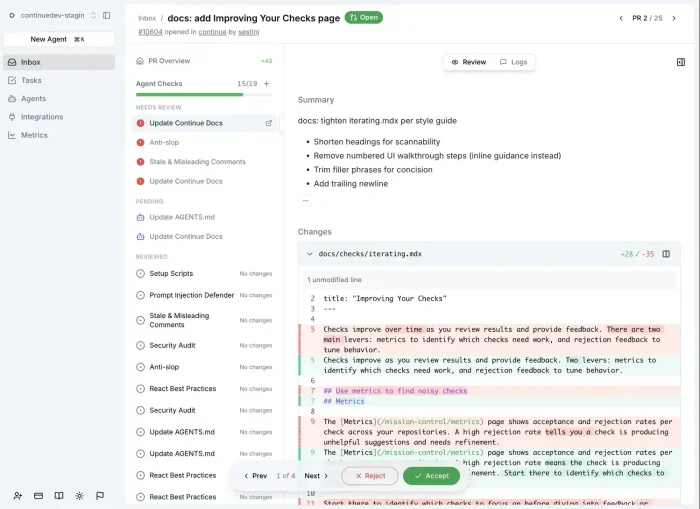
Continue is one of the most popular open source AI coding extensions, with support for VS Code and JetBrains. Like Roo Code, it needs an API key to do anything useful. Paired with OpenRouter’s free tier, it becomes a genuinely free setup. The main reason to choose Continue over Roo Code is flexibility: Continue lets you route chat to one model and autocomplete to a different model, so you can use a fast lightweight model for completions and a stronger model for complex questions.
It is highly configurable, supports over 40 different AI services and local model setups, and has a large community. If you later decide to switch from a free OpenRouter model to a local Ollama model, or to a paid provider for more power, you just change a config file. Nothing else changes in your workflow. Open source licensed and actively maintained.
Dual Model Routing40+ LLM ProvidersVS Code + JetBrainsOpenRouter Compatibleopen source
Best for: Developers who want maximum flexibility in how they route AI requests and plan to switch between local and cloud models over time.
Free path: Install Continue free from the VS Code Marketplace. Connect to OpenRouter with a free API key. Filter models by “free” on the OpenRouter model list.
7LM Studio
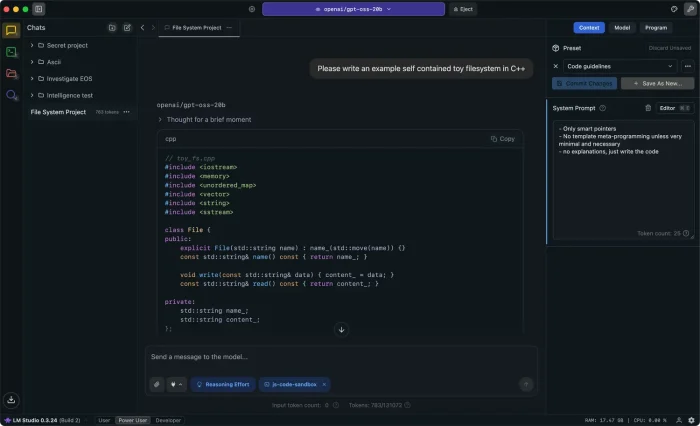
LM Studio is a free Windows desktop app for downloading and running AI models locally. It has a clean GUI where you browse available models, download them with one click, and run them as a local server. Any coding tool that supports a local connection point, including Roo Code, Continue, and Twinny, can connect to LM Studio as their AI backend.
The main advantage over Ollama is the graphical interface. Ollama is command-line-first. LM Studio is point-and-click. You can test a model in its built-in chat window before wiring it up to your code editor, which helps you pick the right model for your hardware before committing. It supports all major open model formats and has a background server mode for running without a visible window. Free to use, not open source.
GUI Model BrowserLocal API ServerWorks with VS Code Extensions100% OfflineWindows 10/11 Native
Best for: Developers who want to run local models but prefer a visual interface over the command line. Use as the backend for any bring-your-own API key coding extension.
Free path: Download free at lmstudio.ai. Pull a coding model like Qwen2.5-Coder or DeepSeek-Coder. Start the local server and point your VS Code extension to the local server address.
8Refact.ai
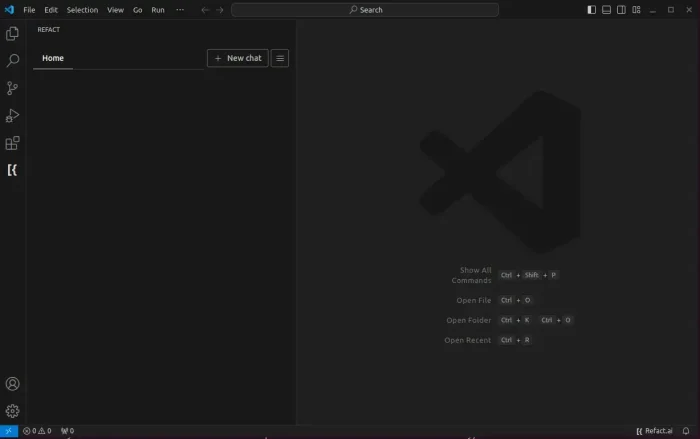
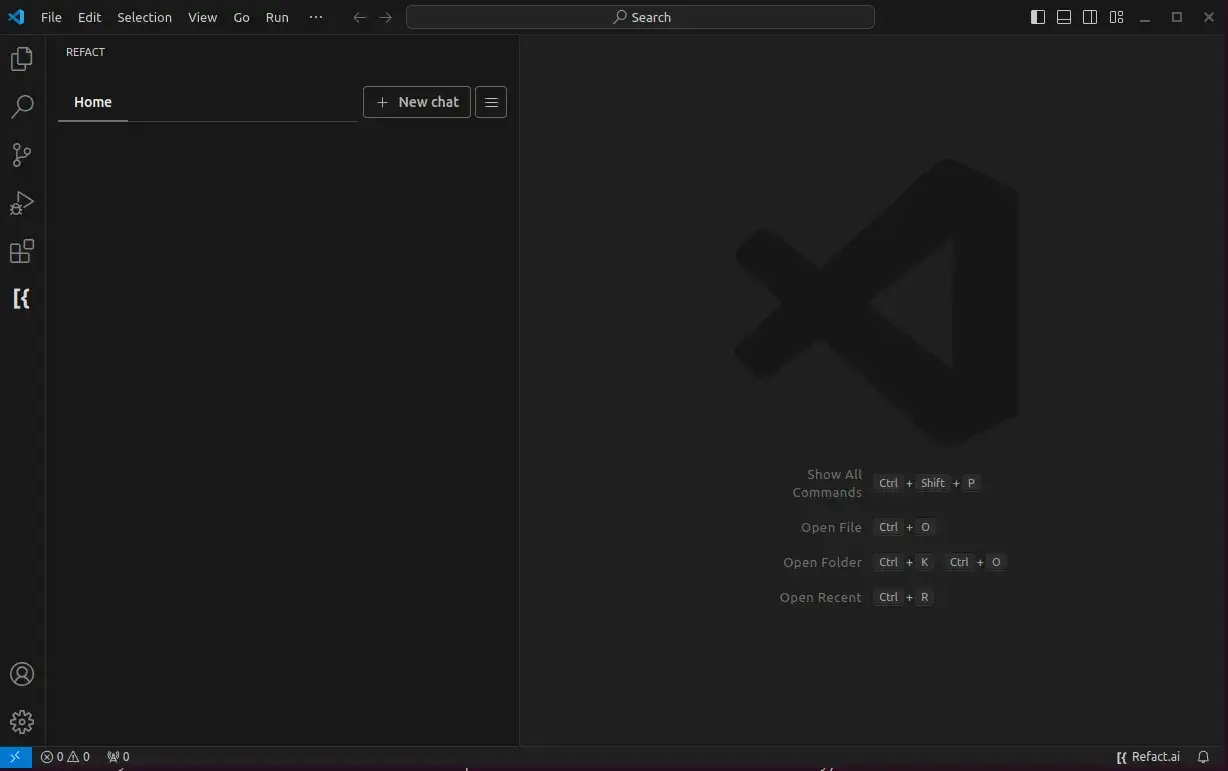
Refact.ai is a free AI coding extension with its own hosted models, meaning you do not need to bring an API key or set up a local server. The free personal plan gives you unlimited code completions powered by a capable open source coding model, plus an in-editor chat with a large reading window (how much code it can process at once). It works in VS Code and several other editors.
What makes it stand out is that Refact reads and indexes your entire project folder so its suggestions match your actual code patterns, not just the file you have open. It searches your codebase to find the most relevant context before generating each suggestion. For teams that need full privacy, Refact can also be self-hosted on your own server under its open source license. The free cloud tier has daily agent limits but completions are unlimited.
Unlimited Free CompletionsCodebase RAG IndexingNo API Key NeededSelf-HostableAgent Mode
Best for: Developers who want a no-setup free coding assistant with codebase awareness and the option to self-host for full privacy later.
Free path: Built-in free tier at refact.ai. Sign up free. No credit card. Completions are unlimited on the personal plan.
9CodeGeeX
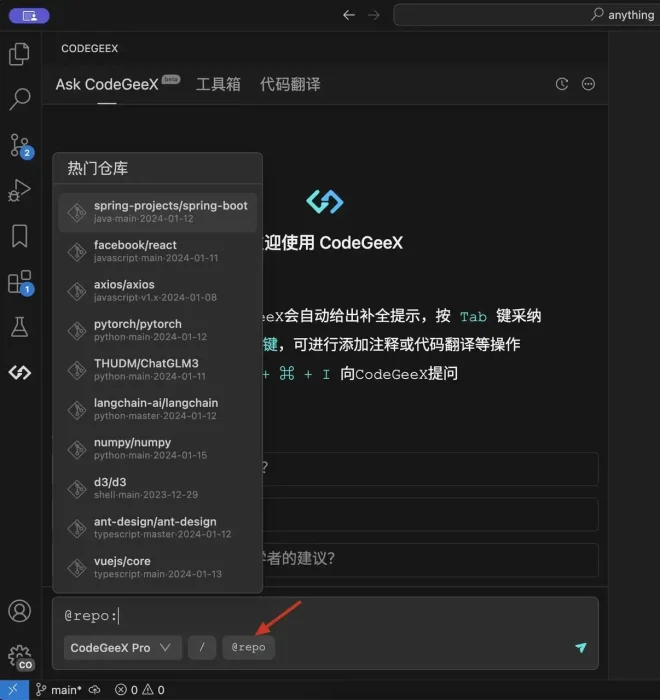
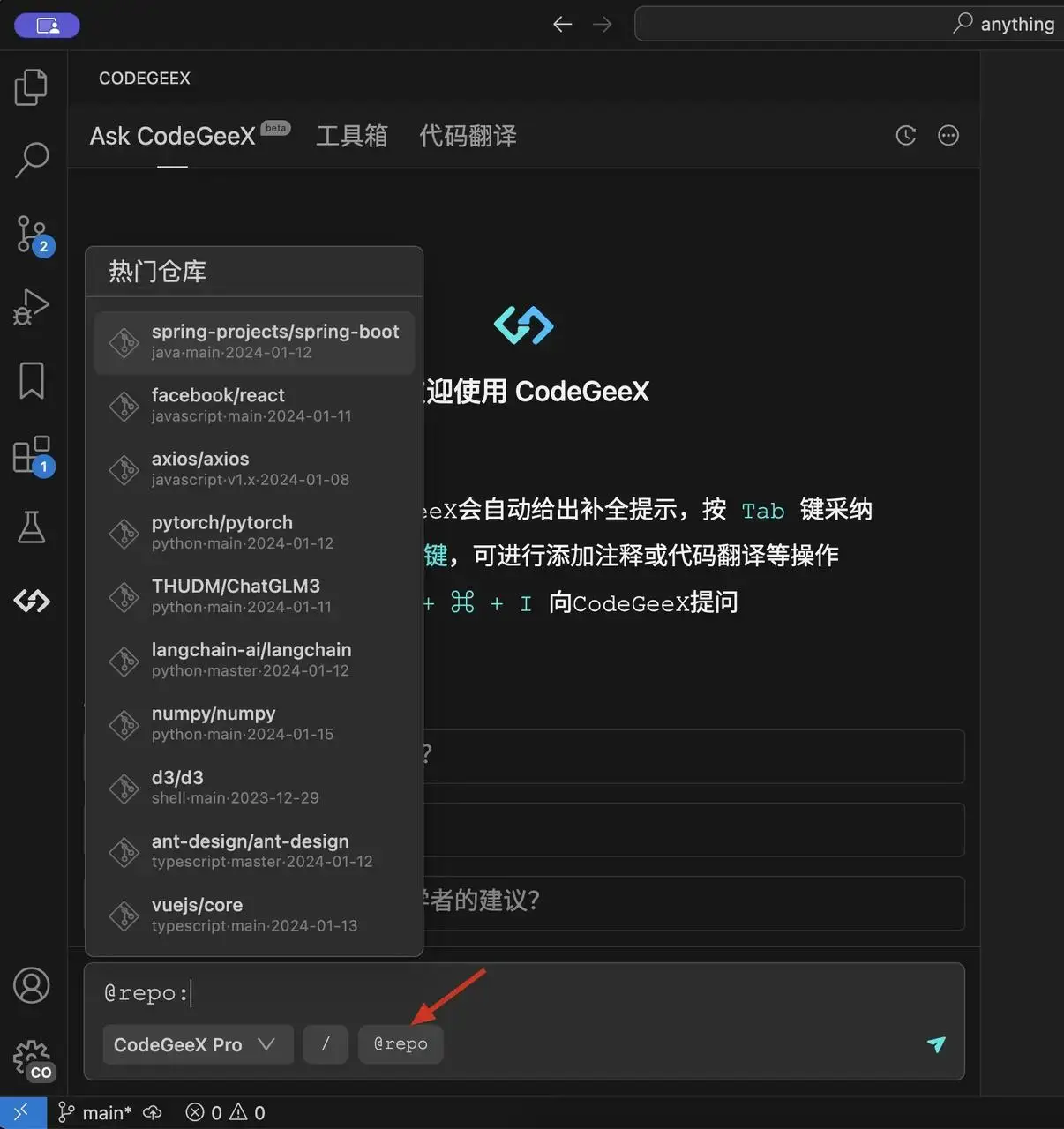
CodeGeeX is a free VS Code extension backed by a free open source coding model from Zhipu AI. It works out of the box with no API key and no account required. You install it and get code completion, inline chat, and code explanation right away. The model behind it was specifically trained on code, not adapted from a general language model.
It supports a large reading window (how much code it can process at once) and handles multi-language projects well, including translating code from one language to another. Three completion modes give you control over when suggestions appear: automatic on pause, manual trigger, or translation mode for porting code between languages. It is one of the few tools on this list that is completely no-setup and no-login.
No Account RequiredOpen Weights ModelCode Translation ModeLarge Context WindowMulti-Language
Best for: Developers who want a completely no-setup free coding assistant with no login, no API key, and no configuration. Install and go.
Free path: Install CodeGeeX from the VS Code Marketplace. No account, no API key, no setup needed.
10Fitten Code
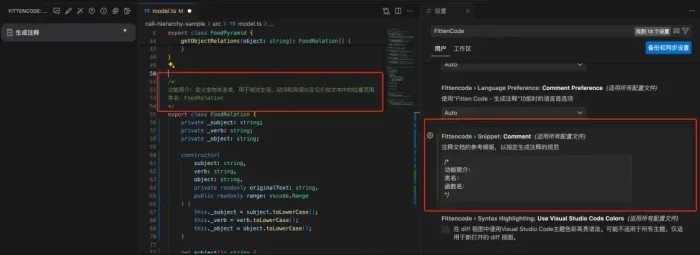
Fitten Code is a completely free VS Code extension from Fitten Tech with no paid tier at all. You install it, create a free account, and get fast inline code completion and a chat panel. The completion engine is built for speed, targeting suggestions that appear in under 250 milliseconds so they do not break your typing flow.
Beyond completion, it generates unit tests automatically and writes inline documentation comments on request. It also handles cross-language code translation, useful if you need to port logic from Python to JavaScript or similar. It is closed source on the backend, so you do not get the transparency of an open source tool, but it is genuinely free with no usage wall in sight for individual developers.
Completely Free, No Paid TierLow Latency CompletionsAuto Unit Test GenerationCode Translation100k+ Installs
Best for: Developers who want fast, uninterrupted inline AI completion with no usage caps and no subscription decisions to make.
Free path: Install from the VS Code Marketplace. Create a free account at fittentech.com. No credit card, no paid tier.
11Void Editor
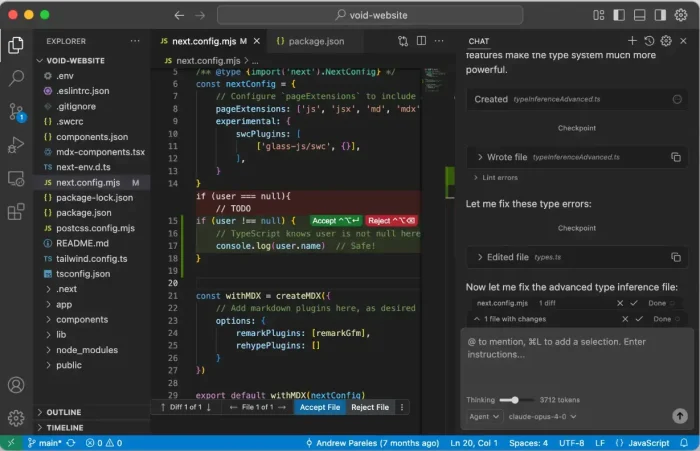
Void is an open source VS Code fork, similar to Cursor in layout and features but completely free and privacy-focused. You connect it to your own API key or to a local Ollama model, and all processing goes directly from your machine to the model with no Void server in the middle. Your code never touches a third-party backend that is not under your control.
It has an Agent mode for autonomous multi-file edits and a Gather mode for read-only codebase exploration. The project is backed by Y Combinator (the startup accelerator behind Dropbox and Airbnb) and has an active GitHub community, though development pace is slower than commercial alternatives. If your concern is code privacy and you want a Cursor-like IDE without paying or trusting a company’s servers, Void is the honest answer.
Open SourceNo Middleman ServerAgent + Gather ModesVS Code ForkOllama Compatible
Best for: Privacy-conscious developers who want a full standalone IDE with direct model routing and no corporate server handling their code.
Free path: Download free from voideditor.com. Connect to Ollama locally for zero cost, or use a free OpenRouter model via API key.
12PearAI
PearAI is an open source VS Code fork also backed by Y Combinator that bundles several of the best free AI coding tools into a single editor interface. Under the hood it integrates Continue for chat, Aider for multi-file edits, and Perplexity for web search. You get all three working together in one download rather than setting each up separately.
It has a free tier that covers personal use, and the core product is open source licensed. The PearAI Router picks the best available model for each task automatically, so you do not have to think about which model to use for each task. Optional hosted plans exist for convenience but are not required. A good choice if you want a polished free IDE that brings several open source tools together cleanly.
Bundles Continue + AiderSmart Model RouterPermissive Open Source LicenseY Combinator BackedVS Code Fork
Best for: Developers who want Continue, Aider, and web search in one editor without configuring each tool separately.
Free path: Download free at trypear.ai. Use with your own API key via OpenRouter free tier or connect to a local Ollama model.
13Zed
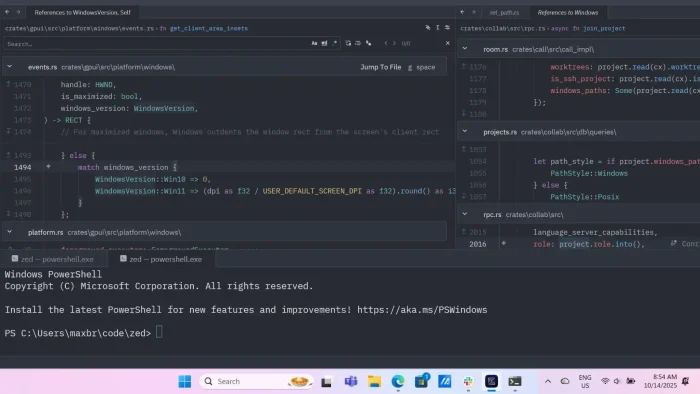
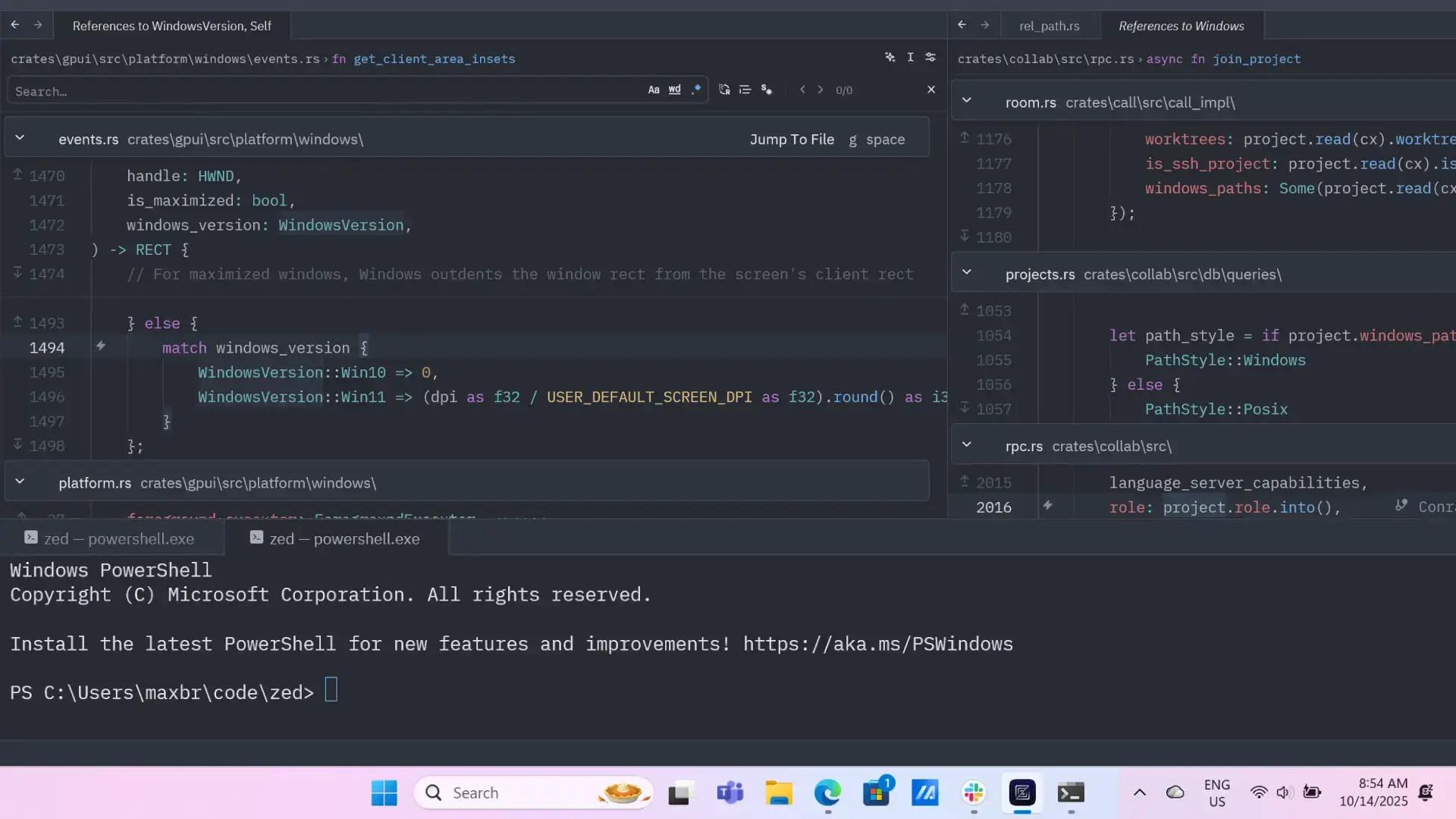
Zed is a standalone code editor built for raw speed. It opened up Windows support and has a free tier that includes AI features. You can use it for free by connecting it to a local Ollama model, which gives you unlimited AI at zero cost. The built-in hosted quota is limited on the free plan, but Ollama integration removes that ceiling entirely.
The editor itself is noticeably faster than VS Code for large files and projects. Zed can run multiple AI agents at the same time working on different parts of the same codebase. If you value editor speed as much as AI capability, Zed is the only free option here that genuinely competes with VS Code on performance. Open source under the open source license.
Fastest Free EditorOllama IntegrationACP Agent SupportFully Open SourceWindows 10/11
Best for: Developers who want a fast standalone editor with local AI via Ollama. Noticeably snappier than VS Code for large projects.
Free path: Download free at zed.dev. Connect to a local Ollama model for unlimited zero-cost AI. The built-in free quota is limited but Ollama removes that cap.
14Tabby
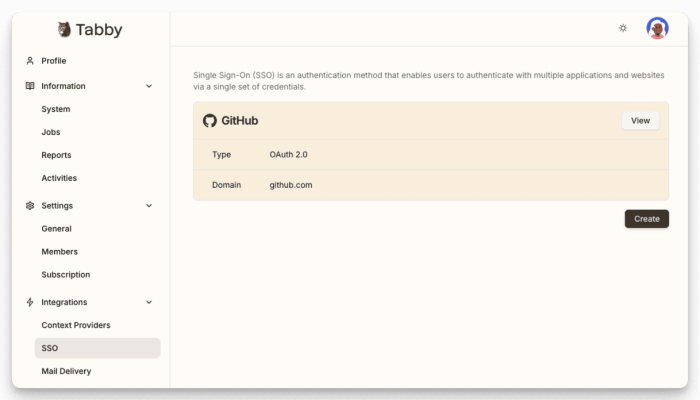
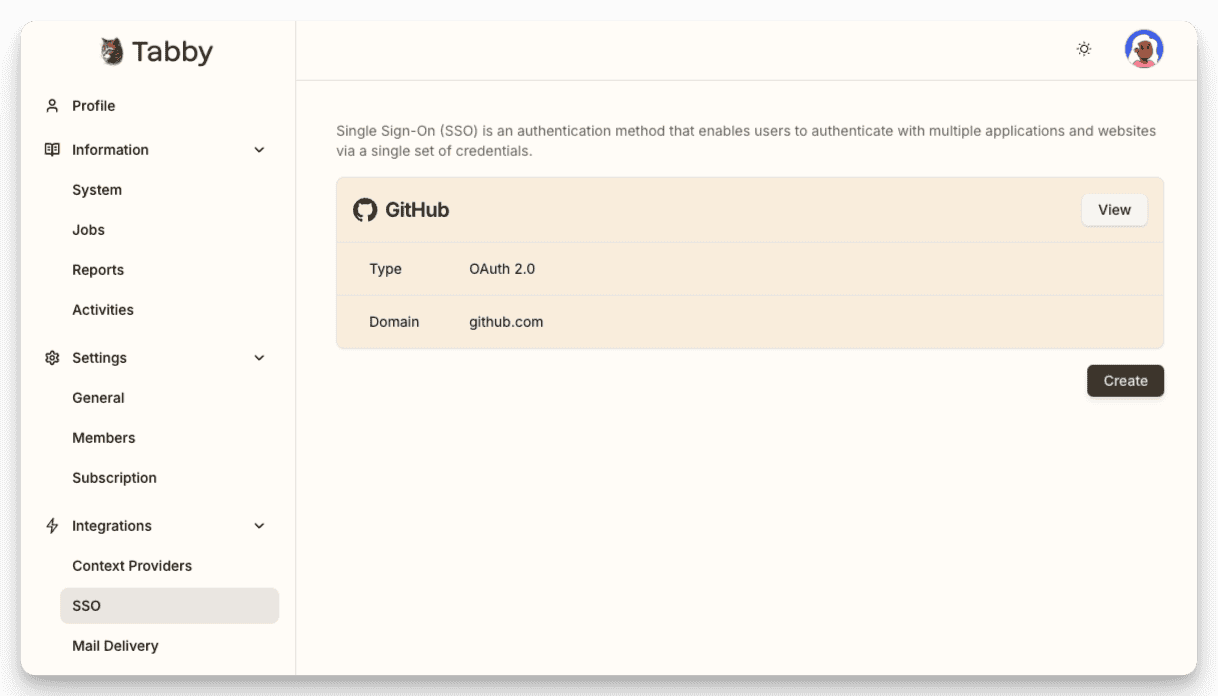
Tabby is a self-hosted, open source code completion server. You run it on your own machine or a local server, and connect your VS Code or JetBrains editor to it via a plugin. Once running, it provides fast inline code completion with no external API calls and no usage limits. Everything stays on your hardware.
It is the most technical setup on this list, but the payoff is complete control over your code and data, with no external server involved, at zero cost. Tabby reads and organizes your repository before running the AI, which means even smaller local models produce more accurate completions than they would on raw text. Teams with a shared server can host one Tabby instance for multiple developers. The Community plan is permanently free and open source.
Self-HostedNo External APITree-sitter ContextTeam ShareableOpen Source
Best for: Solo developers or small teams who want a self-hosted Copilot alternative with full data control and no recurring cost.
Free path: Run on your own machine using Docker (a free tool for running server software on Windows). Community plan is permanently free and open source. Requires some initial setup time.
Not sure which path to take?
If you want zero setup, start with Gemini Code Assist or CodeGeeX. If you want a free full IDE, download Trae. If you have a decent PC and want zero ongoing cost, install Ollama and pair it with Twinny. If you want cloud-quality AI for free, sign up at OpenRouter and connect Roo Code to a free model.
See All AI Code Editors Including Paid Tools
Frequently Asked Questions
Are these AI code editors really free with no catch?
Most of them are. The tools in this list either run entirely on your local machine using free open source models, or connect to free API tiers that reset daily. A few like Gemini Code Assist and Trae are backed by large companies offering their product free to get adoption. The main catch to watch for is tools that call themselves free but require you to bring an API key and pay a provider per token. Those are free to install but not free to use. We flag that clearly for each tool.
Do I need a powerful PC to run local AI models?
For lightweight code completion, a modern mid-range PC with 8GB of RAM can run smaller models like Qwen 1.5B or DeepSeek 1.3B through Ollama without any GPU at all. For heavier tasks like agent-powered coding or multi-file edits, you will get better results with a dedicated GPU. If your PC is not strong enough, the free API path using OpenRouter is a good alternative since the model runs in the cloud and your machine just sends and receives text.
What is OpenRouter and how does it make coding tools free?
OpenRouter is a service that connects you to dozens of AI models through one API key. Many of the models on OpenRouter have a free tier with a daily request limit. You sign up, get a free API key, paste it into a tool like Roo Code or Continue, and pick a free model. The AI coding tool is free and open source. The model is free via OpenRouter. Your total cost is zero, though you do hit a request cap each day.
Can I use these tools without VS Code?
Yes. Several tools on this list are standalone and do not need VS Code at all. Trae, Void, and PearAI are complete editors you download and use on their own. Ollama and LM Studio run locally and can be paired with any editor that supports a local server. Aider runs from the command line with no editor required.
What is the easiest free AI code editor to get started with on Windows?
Gemini Code Assist is the easiest starting point. Install it as a VS Code extension, sign in with a Google account, and you get 6,000 code completions per day at no cost with no API key setup needed. If you want a full standalone editor, Trae is the quickest to get running since it includes AI out of the box for free.
Support and Community
Have questions about any of these tools or need help with your setup?
Explore more free Windows software: Best Free Windows AI Software · Best AI Coding Extensions for VS Code · Best VS Code Extensions · Best Free Windows Software
Want to compare these against paid options? See our Best AI Code Editors for PC guide.
Post Views: 142
Related Posts
Discover more from Windows Mode
Subscribe to get the latest posts sent to your email.