Readers like you help support this site. When you make a purchase using links on our site, we may earn an affiliate commission. All opinions remain our own.
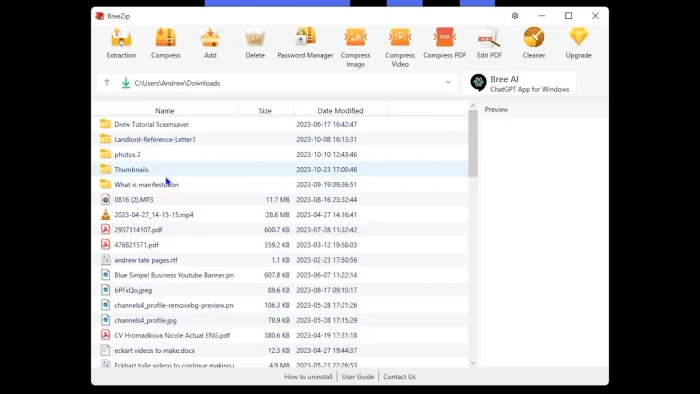
BreeZip is a Microsoft Store archive app for Windows that opens common compressed files such as ZIP, RAR, 7Z, ISO, TAR, GZip, BZip2, and XZ. It is built for simple jobs such as opening downloads, checking what is inside an archive, and extracting files to a normal folder.
The free version covers the basics most people need. You can open, browse, and extract archive files, create ZIP files, and add a password when you create a new archive. The trade-off is that the free version shows ads inside the app.
This guide explains what BreeZip does well, where it falls short, what Premium adds, and when a tool like 7-Zip, WinRAR, or WinZip makes more sense.
What You Need to Know
- BreeZip’s official download path is the Microsoft Store.
- The free version is good for everyday opening and extracting.
- You can also create ZIP files and add a password to them.
- The free version includes ads inside the app.
- If you want more control, no ads, or broader format handling, 7-Zip is still the stronger free alternative.
Price
Free / Premium upgrade
Developer
BreeZip
Windows
Windows 10 / 11
Best for
Simple archive opening and extraction
Formats
ZIP, RAR, 7Z, ISO, TAR, GZip, BZip2, XZ
Who Should Use BreeZip?
BreeZip makes the most sense for people who want a simple archive app from the Microsoft Store and mostly need to open or extract files. If your job is usually just “open this ZIP” or “extract this RAR,” BreeZip is easy to understand and easy to install.
- Use it if: you want a simple Store app for opening and extracting common archive files.
- Skip it if: you want the best no-cost power-user tool. 7-Zip gives you more control, no ads, and much broader format support.
- Choose WinRAR instead if: you need to create RAR archives, not just open them.
- Consider Premium only if: the ads bother you or you specifically want extras such as archive repair, image preview, or built-in file tools.
How to Install BreeZip on Windows
BreeZip’s official download path is the Microsoft Store. That is the simplest option because Windows handles the install for you and you do not need to hunt for a separate setup file.
- Step 1. Open the BreeZip Microsoft Store page.
- Step 2. Click Get or Install.
- Step 3. Wait for the app to finish installing. No separate setup wizard is needed.
- Step 4. Open BreeZip from the Start menu.
- Step 5. Open an archive file, look through the contents, then extract the files you actually need.
Is BreeZip Safe?
The main trust signal here is where it comes from. BreeZip is offered through the Microsoft Store, and its official site points people there for installation. That is generally safer than downloading a random archive tool from an unknown site.
That said, BreeZip is still an app that opens and extracts files, so it does need access to the files you choose. The bigger question is not “does it touch files?” because all archive tools do. The real question is whether you trust the app enough to make it one of your everyday file utilities. For cautious users, the Store-only distribution helps, but 7-Zip remains the higher-trust choice because it is open source, better known, and has no ads.
What Is BreeZip?
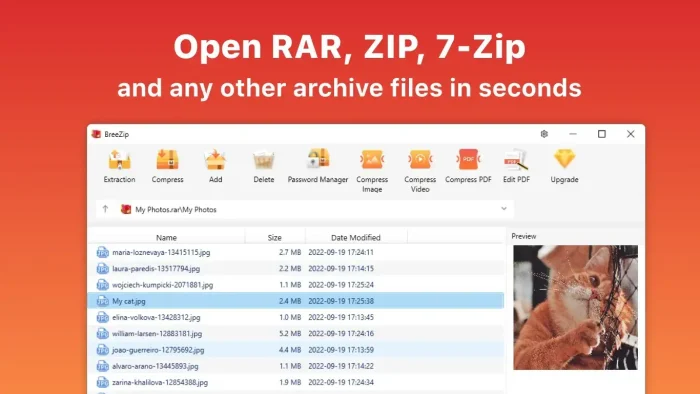
BreeZip is an archive app. An archive is just a compressed file that bundles one or more files together, such as a ZIP, RAR, or 7Z file. BreeZip lets you open those files, look inside them, and extract the contents to a normal folder.
It can also create ZIP files and add password protection when you make a new archive. That is enough for many everyday jobs, such as extracting downloaded files, opening software packages, or sending a protected ZIP file to someone else.
Where BreeZip stands out is simplicity. Where it falls behind is depth. It is easier for casual users than 7-Zip, but it gives you less control and includes ads in the free version.
Key Features
Open Common Archive Types
BreeZip opens common formats such as ZIP, RAR, 7Z, ISO, TAR, GZip, BZip2, and XZ. That covers the file types most people meet in downloads and email attachments.
Browse Before You Extract
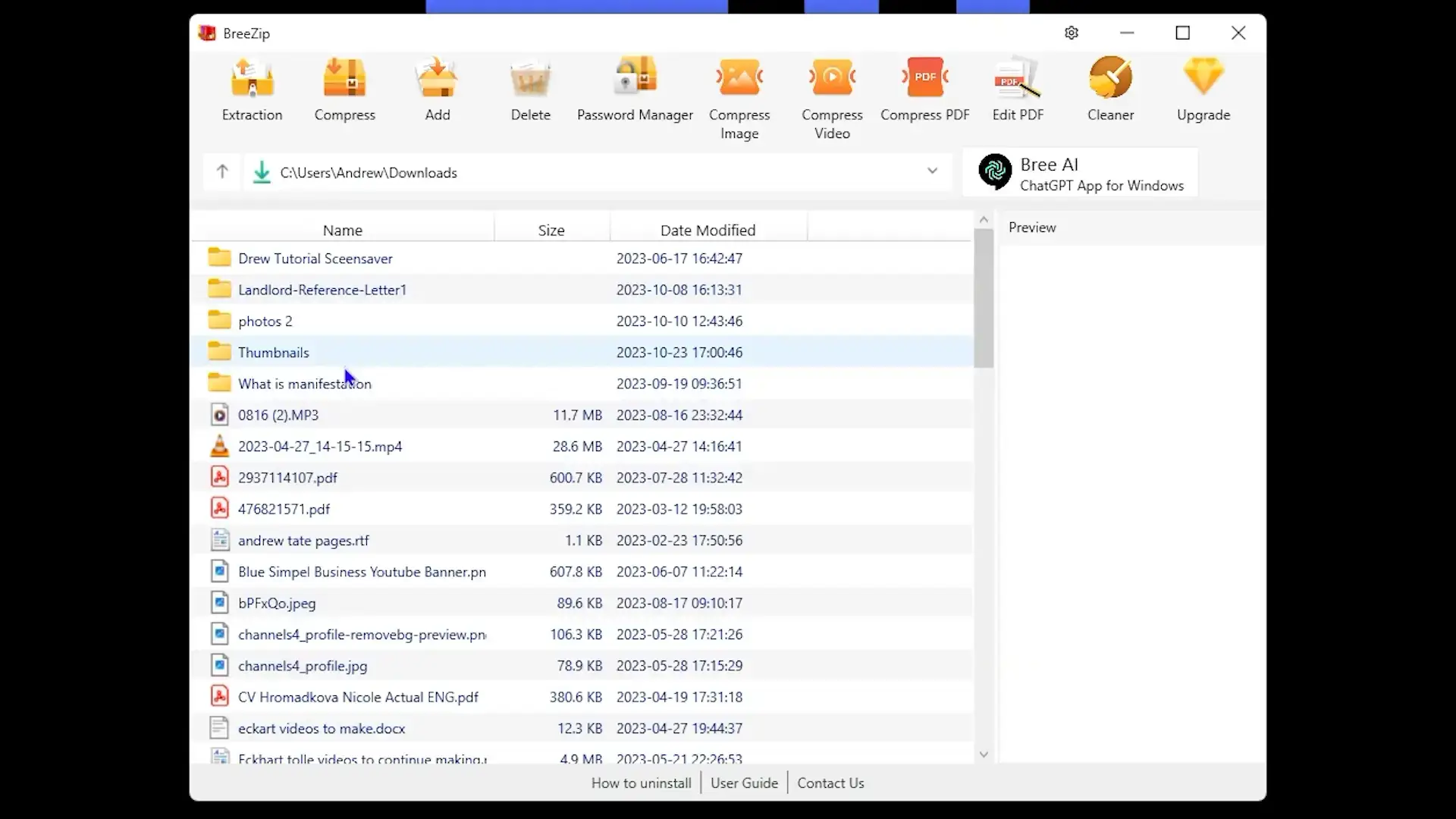
When you open an archive, BreeZip shows the files inside it first. That makes it easier to extract only what you need instead of dumping everything into one folder.
Create ZIP Files
BreeZip is not just for extraction. You can create new ZIP files from folders or selected files when you want to bundle something for sharing or storage.
Password-Protected Archives
You can add a password when creating a new archive. That is useful when you need a quick way to protect private files before sending or storing them.
RAR to ZIP Conversion
BreeZip can convert a RAR archive to ZIP format. That can help when the person receiving the file only expects ZIP files.
Premium Extras
Premium adds archive repair, image preview, built-in file tools, and an ad-free experience. Those extras may matter to some users, but they are not the main reason to install BreeZip.
Common Archive Jobs BreeZip Handles Well
| Job | How well BreeZip fits |
|---|---|
| Open a ZIP you downloaded | Very good. This is exactly the kind of task BreeZip is built for. |
| Extract a RAR or 7Z software package | Good in most cases. Keep 7-Zip as a fallback for older or odd archive types. |
| Make a password-protected ZIP | Good for simple sharing jobs. |
| Create advanced archives or work with many formats | Not the best fit. 7-Zip is stronger if you want more control. |
What You Can Do After Install
| Task | Free | Premium |
|---|---|---|
| Open and extract common archive files | Yes | Yes |
| Create ZIP files | Yes | Yes |
| Add password protection to a new archive | Yes | Yes |
| Convert RAR to ZIP | Yes | Yes |
| Ad-free experience | No | Yes |
| Repair damaged archives | No | Yes |
| Preview images without extracting | No | Yes |
| Built-in PDF, Office, and media tools | No | Yes |
System Requirements
| Requirement | Details |
|---|---|
| Operating system | Windows 10 or Windows 11 |
| Download source | Microsoft Store |
| Internet | Needed to download the app from Microsoft Store |
Plans and Pricing
BreeZip keeps the main archive features free. Premium adds convenience features and removes ads. Because Store pricing can vary by region and offer, check the Microsoft Store listing for the current price before you buy.
| Plan | Who it fits | What you get |
|---|---|---|
| Free | Most home users | Open, browse, and extract archives. Create ZIP files. Add password protection when creating a new archive. Includes ads inside the app. |
| Premium | People who want extra tools or no ads | Archive repair, image preview, password tools, built-in file tools, and an ad-free experience. Some Store listings also show yearly and lifetime options. |
Common Issues and Compatibility Notes
A file will not open
If an archive fails to open, the file may be damaged, password-protected, or saved in an older or less common format. Try the file again with 7-Zip before assuming the archive itself is broken.
Ads in the free version
The free version includes ads inside the app window. They are part of the product model, not a bug. If you do not want that, you either upgrade or use a no-cost alternative such as 7-Zip.
Password-protected archives will not extract
If BreeZip asks for a password, make sure you have the exact one used when the archive was created. If the archive was only partly downloaded, BreeZip may still show a password prompt even though the real problem is file damage.
You need more format support or more control
BreeZip is aimed at convenience, not depth. If you work with many archive types, create archives often, or care about advanced options, switch to 7-Zip or WinRAR instead of fighting the limits.
BreeZip vs 7-Zip vs WinRAR vs WinZip
These tools overlap, but they are not aimed at the same user. This is the simplest way to think about them.
| Tool | Best for | Strengths | Trade-offs |
|---|---|---|---|
| BreeZip | People who want a simple Microsoft Store archive app | Easy install, simple interface, common format support, ZIP creation, password-protected archives | Ads in the free version, less control, weaker free-value story than 7-Zip |
| 7-Zip | Users who want the strongest free option | Free, open source, no registration, no ads, very broad format support, strong compression and encryption | More technical-looking interface |
| WinRAR | People who need native RAR creation | Creates RAR and ZIP archives, long-standing Windows tool, strong encryption | Trial product with buy reminders |
| WinZip | Business users who want a paid suite with extra file tools | Paid suite with compression, protection, sharing, and business-focused extras | Paid product, heavier than what most home users need |
Which one makes the most sense?
Choose BreeZip if you want a simple Store app and mostly care about opening and extracting archives without fuss.
Choose 7-Zip if you want the best no-cost archive tool overall and do not mind a more technical-looking interface.
Choose WinRAR if you need to create RAR archives regularly.
Choose WinZip if you are in a work environment that already pays for it or needs its broader paid toolkit.
Tips for Getting Started
Look inside the archive before extracting
BreeZip shows the contents first. Use that to extract only the files you actually need.
Extract to a named folder
That keeps large archives from dumping dozens of files straight onto your desktop.
Use passwords for files you share
If you are sending private documents, create a ZIP with a password instead of sending the files loose.
Do not force BreeZip to be your only archive tool
BreeZip is fine for simple work. Keep 7-Zip installed too if you ever deal with odd or stubborn archive files.
Do not pay for Premium unless you know why
For many people, BreeZip’s paid extras are nice to have, not essential. Decide based on ads and the specific extras you need, not because the app asks.
Screenshots
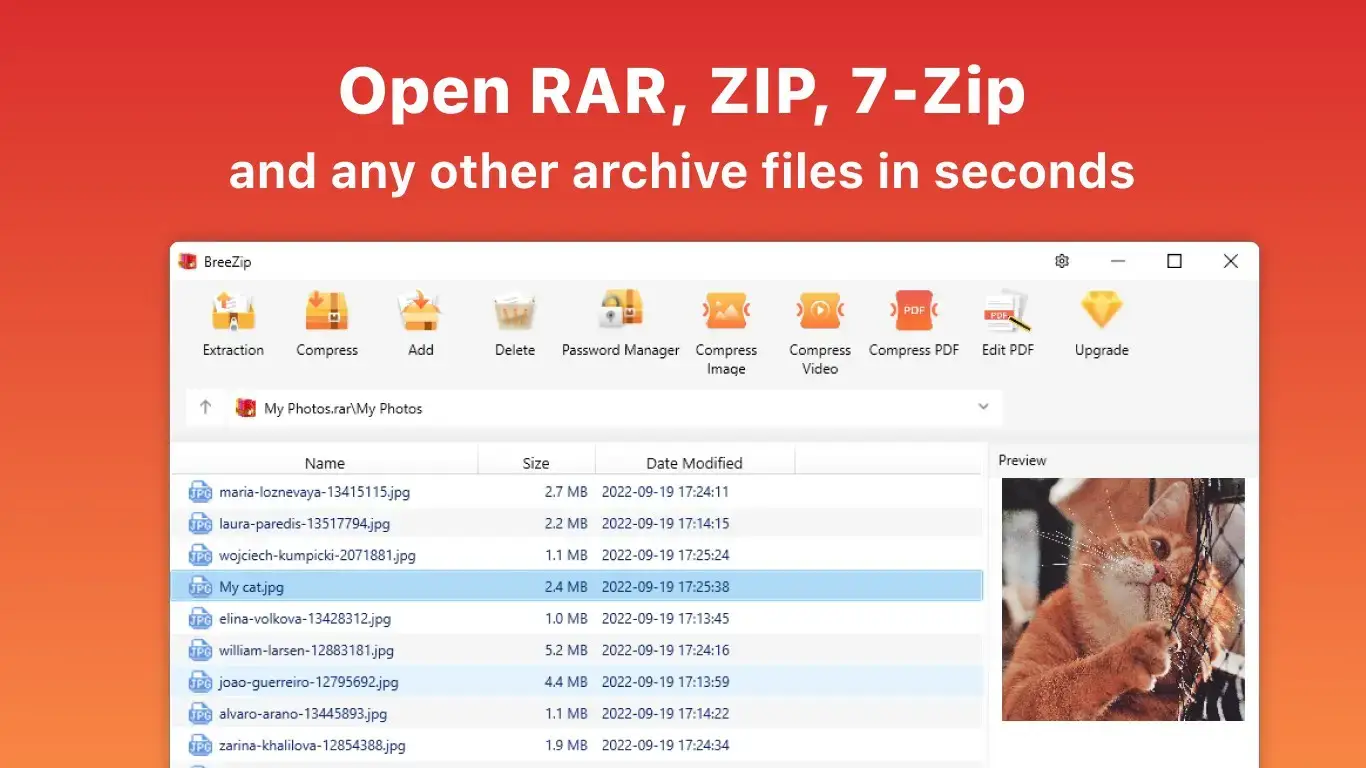
BreeZip running on Windows 11, showing the main archive browser, the extraction window, and the archive creation screen.
-
- Breezip screenshot from BreeZip for Windows: Setup Guide, Features, Pricing, and Alternatives
-
- Main homepage from BreeZip for Windows: Setup Guide, Features, Pricing, and Alternatives
Frequently Asked Questions
Is BreeZip free?
Yes, the core app is free to use for opening, browsing, and extracting archives. BreeZip also sells a Premium upgrade for people who want extra tools and an ad-free experience.
What file types does BreeZip support?
BreeZip supports common archive types such as ZIP, RAR, 7Z, ISO, TAR, GZip, BZip2, and XZ.
Can BreeZip create archives too?
Yes. BreeZip can create ZIP archives, and it can add password protection when you create a new archive.
Is BreeZip safe to install?
Its biggest safety signal is that the official site sends users to the Microsoft Store for installation. That does not make it automatically the best archive tool, but it is a cleaner download path than grabbing a random installer from the web.
Does BreeZip have ads?
Yes. The free version includes ads inside the app. Premium removes them.
Is BreeZip better than 7-Zip?
Not overall. BreeZip is easier for some casual users because it comes through the Microsoft Store and looks simpler. But 7-Zip is still the stronger free option if you care about no ads, broader format support, and more control.
Can BreeZip create RAR files?
No. BreeZip can open RAR files, but if you need to create RAR archives, WinRAR is the better fit.
Support and Official Links
Keep the support links simple here. BreeZip does not have a large public community around it, so the official website and the Microsoft Store listing are the two most useful places to start.
- BreeZip official website – official overview and guide pages
- BreeZip on Microsoft Store – official install page
Have a question or spotted something outdated? Leave a comment below or contact us.
More Windows software guides: WinRAR for Windows · WinZip for Windows · Best Free Windows Software
Discover more from Windows Mode
Subscribe to get the latest posts sent to your email.