Readers like you help support this site. When you make a purchase using links on our site, we may earn an affiliate commission. All opinions remain our own.
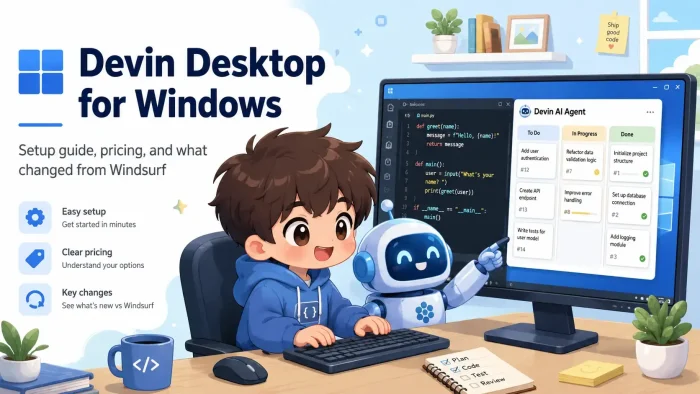
Devin Desktop is a free AI code editor for Windows from Cognition, available at devin.ai.
It is the same editor that used to be called Windsurf, rebuilt around an Agent Command Center that lets you run several AI coding agents side by side instead of just one.
You still get the full code editor. The agent panel underneath it is just a lot more capable now.
If you used Windsurf before, this is the same product with a new name and a bigger job. Windsurf became Devin Desktop on June 2, 2026, when Cognition folded it into the Devin brand alongside Devin Cloud, Devin CLI, and Devin Review. Existing users got the change as a normal app update with no lost work, and their plan and pricing stayed the same.
This guide covers how to download Devin Desktop, what changed from Windsurf, what each plan includes, and tips to get the most out of it. Got questions? Reach out to us directly.
What You Need to Know
- Devin Desktop is the new name for Windsurf. Same download, same account, new agent tools on top.
- Devin Local is the built-in AI agent, a faster rebuild of the old Cascade agent. Cascade still works through July 1, 2026 for anyone mid-migration.
- Tab completions and inline edits are free on every plan and never touch your usage allowance.
- You can run other agents, like Codex or Claude Agent, inside the same window through an open standard called ACP (Agent Client Protocol, a shared connection format that lets different AI agents plug into the same editor).
Price
Free plan available
Developer
Cognition
Windows
10 / 11
Also On
Mac, Linux
Who Should Use Devin Desktop?
- Use it if: you were already on Windsurf, or you want an editor where an AI agent can plan and execute multi-file changes instead of suggesting one line at a time.
- Skip it if: you only want light autocomplete and prefer to write most code by hand. A plain extension on your current editor may suit you better.
- Be careful if: your company manages devices with strict app allowlists. The renamed app shows up as Devin.exe on Windows, so IT may need to approve it again even if Windsurf was already allowed.
How to Get Devin Desktop on Windows
- Step 1. Go to devin.ai/download and choose Windows, then pick x64 or ARM64 depending on your PC.
- Step 2. Run the installer. It sets up like any standard Windows app, no account needed yet.
- Step 3. Open Devin Desktop and create a free account, or log in if you already have a Devin or Windsurf account.
- Step 4. During onboarding, choose to import settings from VS Code or Cursor if you are switching over, or start fresh.
- Step 5. Open a project folder. The agent panel sits on the right side of the window and is ready to use immediately.
What Is Devin Desktop?
Devin Desktop is an AI code editor made by Cognition, the company behind Devin, an autonomous AI software engineer. It started life as Windsurf, an editor built by Codeium, which Cognition acquired in 2025. On June 2, 2026, Cognition renamed Windsurf to Devin Desktop and folded it into the wider Devin product line alongside Devin Cloud, Devin CLI, and Devin Review.
The editor itself did not change much. What changed is the AI agent layer sitting on top of it. Windsurf’s old agent, Cascade, has been rebuilt from scratch in Rust and renamed Devin Local, a faster, more efficient version of the same idea: an agent that reads your project, plans changes, and edits across files from a single instruction.
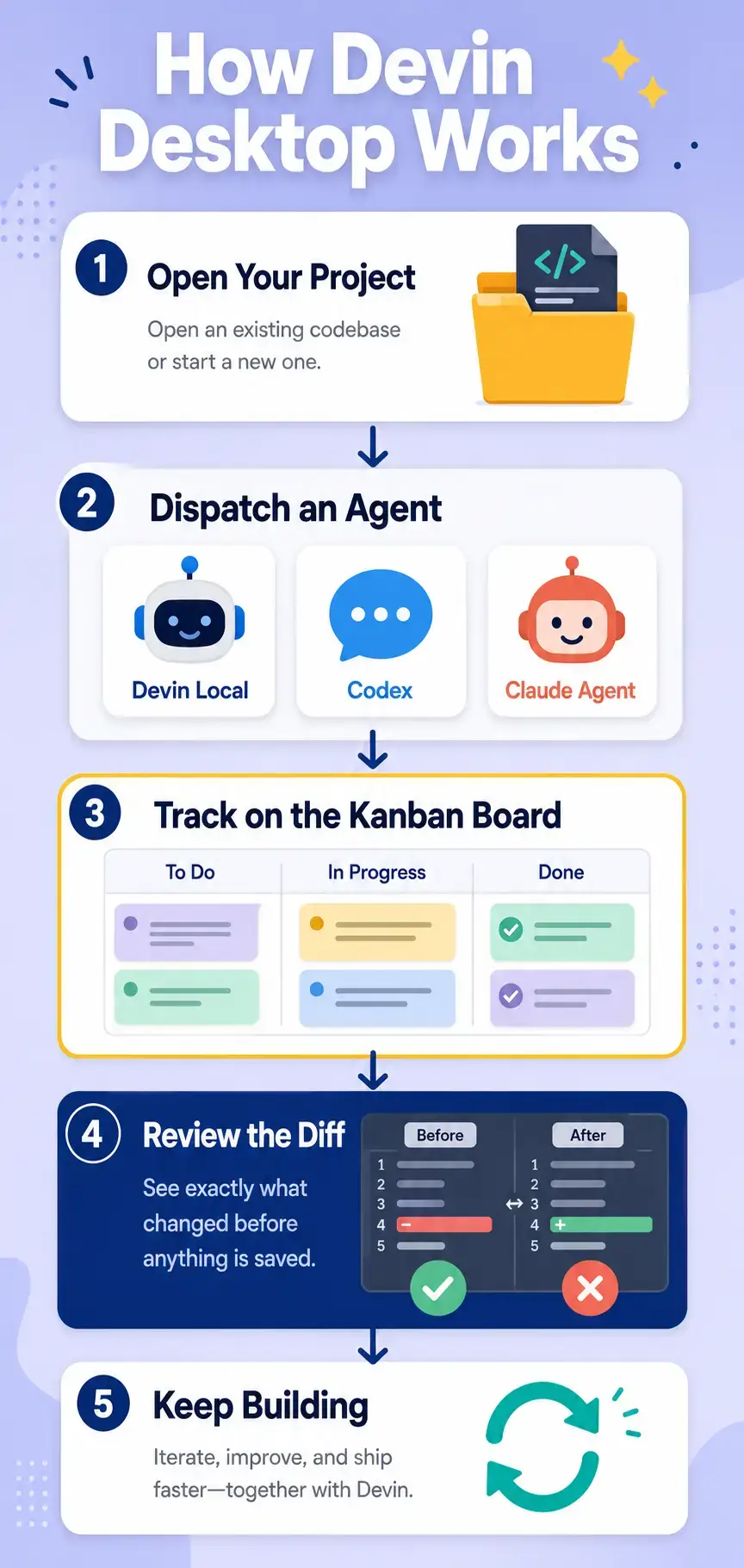
The bigger shift is the Agent Command Center, a Kanban-style board (a task board with columns like To Do, In Progress, and Done) for managing multiple coding agents at once instead of one chat window. It works with Devin Local, but also with outside agents like OpenAI’s Codex and Anthropic’s Claude Agent through the open ACP standard, which lets any compatible agent plug into the same interface and share project context.
Key Features
Agent Command Center
A Kanban-style board for dispatching and tracking every local and cloud agent working on your project. See what each agent is doing at a glance instead of switching between chat windows.
Devin Local Agent
Describe what you want in plain language. Devin Local reads your project, plans the changes, edits files, and runs terminal commands to get there, using the same daily allowance system Cascade used.
Spaces
A way to group sessions, pull requests, files, and context together so multiple agents working on related tasks can share what they know instead of starting from zero each time.
Tab and Inline Edits
Autocomplete and small inline edits are unlimited on every plan, including Free, and never count against your daily agent usage allowance.
VS Code Compatible
Devin Desktop is a VS Code fork, same as Windsurf was. Your themes, extensions, keybindings, and settings carry over, whether you are updating from Windsurf or importing from VS Code or Cursor for the first time.
Devin CLI and Devin Review
Part of the same product family: Devin CLI brings the same agent into your terminal, and Devin Review checks code diffs, so the agent you use in the editor follows your code all the way to review.
AI Agents You Can Run Inside Devin Desktop
Devin Desktop is not locked to one AI agent. Because it supports the open Agent Client Protocol (ACP), you can run other companies’ coding agents inside the same window as Devin Local, all managed from the same Agent Command Center. This is one of the biggest changes from the old Windsurf setup, where Cascade was the only agent option.
Every agent above shows up in the same Kanban board, side by side, no separate windows.
Keyboard Shortcuts
| Action | Shortcut |
|---|---|
| Open command palette | Ctrl + Shift + P |
| Quick file search | Ctrl + P |
| Go to line | Ctrl + G |
| Go to definition | F12 |
These base editor shortcuts are confirmed in Cognition’s own docs. If you are coming from Windsurf, your existing custom keybindings carry over automatically since Devin Desktop reads your old settings file.
Plans and Pricing
| Plan | Starting Cost | What’s Included |
|---|---|---|
| Free plan | Free | Light daily usage allowance for the agent, limited model access, unlimited Tab completions and inline edits |
| Pro plan | $ per month | Increased usage allowance, full access to OpenAI, Claude, and Gemini models, access to Devin Cloud, extra usage at API pricing |
| Max plan | $$$ per month | Everything in Pro, with a significantly higher usage allowance for heavy daily sessions |
| Teams plan | Flat fee + per seat | Everything in Pro, unlimited team members, centralized billing, admin dashboard, priority support |
| Enterprise plan | Contact sales | Everything in Teams, SSO, dedicated account management, private cloud deployment options |
Devin Desktop vs the Alternatives
| Tool | Starting Cost | AI Approach | Best For |
|---|---|---|---|
| Devin Desktop | Free / $ | Multi-agent command center, runs Devin Local plus other ACP agents in one window | Devs who want to manage several coding agents in one place |
| Cursor | Free / $ | Single agent, strong developer control over every edit | Devs who want to stay in charge of every change |
| GitHub Copilot | $ | Inline suggestions and chat inside VS Code | Teams already on GitHub with VS Code |
| VS Code + Extensions | Free | Mix and match AI tools via extensions | Devs who want full control over their setup |
Price shown is relative starting cost for the lowest paid tier: $ is roughly under $25 a month, $$$ is well above that. Check each provider’s site for exact current rates.
How Devin Desktop Works
How Devin Desktop works on your PC with it’s agentic abilities and unique tools.
Tips for Getting Started
Tip 1. Import your VS Code or Cursor settings during setup
The onboarding flow offers a direct import option. Bringing over your linters, formatters, and themes means Devin Desktop feels familiar right away.
Tip 2. Give the agent a specific goal, not a vague question
Instead of asking “how do I add auth?”, say “add email and password login to this Express app using Passport.js and store sessions in Redis.” Specific instructions use less of your daily allowance.
Tip 3. Use the Agent Command Center for parallel tasks
If you have two unrelated tasks, dispatch them as separate sessions instead of one long chat. Check on both from the Kanban view without losing your place in either.
Tip 4. Always review the diff before accepting
The agent shows exactly what changed before anything is saved. Catching a small logic error at the diff stage takes seconds compared to finding it later.
Tip 5. Alias the old surf command if you use it in scripts
The terminal command changed from surf to devin-desktop. If you have scripts or muscle memory tied to surf, alias it to the new command instead of retyping everything.
Common Issues and Fixes
System Requirements
| Component | Requirement |
|---|---|
| Operating System | Windows 10 (64-bit) or Windows 11 |
| Architecture | x64 or ARM64 |
| RAM | 4 GB minimum, 8 GB recommended |
| Storage | 2 GB free disk space |
| Internet | Required for AI features (agent processing runs in the cloud) |
| GPU | Not required, AI processing is server-side |
Devin Desktop Full Tour
Watch Cognition’s official Devin Desktop Full Tour to see the Agent Command Center, Spaces, and Devin Local running inside the editor.
Screenshots
Here is what Devin Desktop looks like on Windows.
-
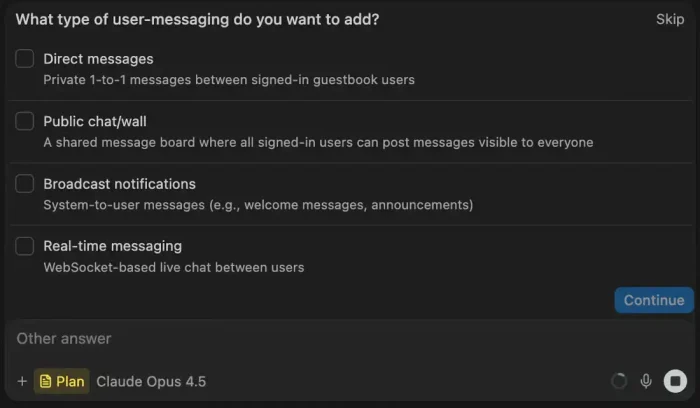
- Cascade questions screenshot from Devin Desktop for Windows: Complete Setup Guide (2026)
-
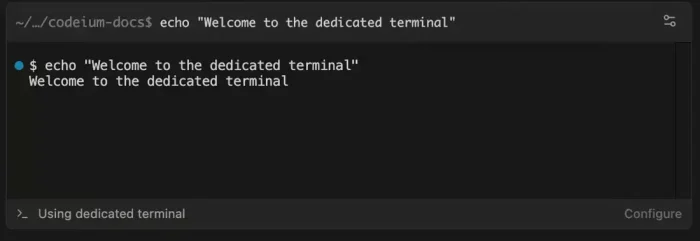
- Dedicated terminal screenshot from Devin Desktop for Windows: Complete Setup Guide (2026)
-
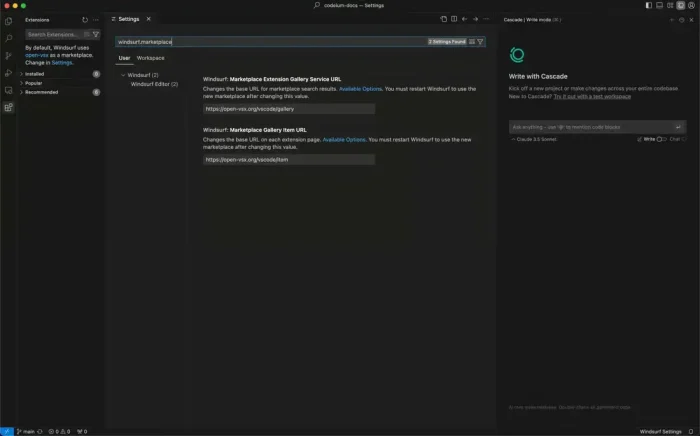
- Marketplace user from Devin Desktop for Windows: Complete Setup Guide (2026)
-
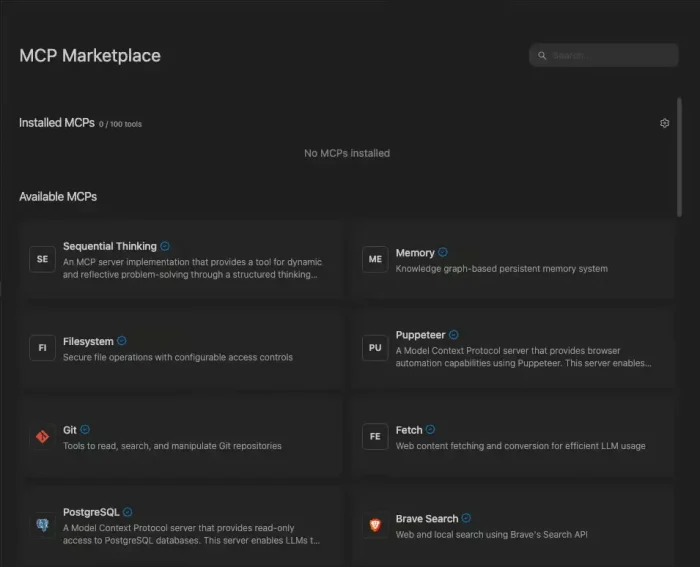
- Mcp marketplace homepage from Devin Desktop for Windows: Complete Setup Guide (2026)
-
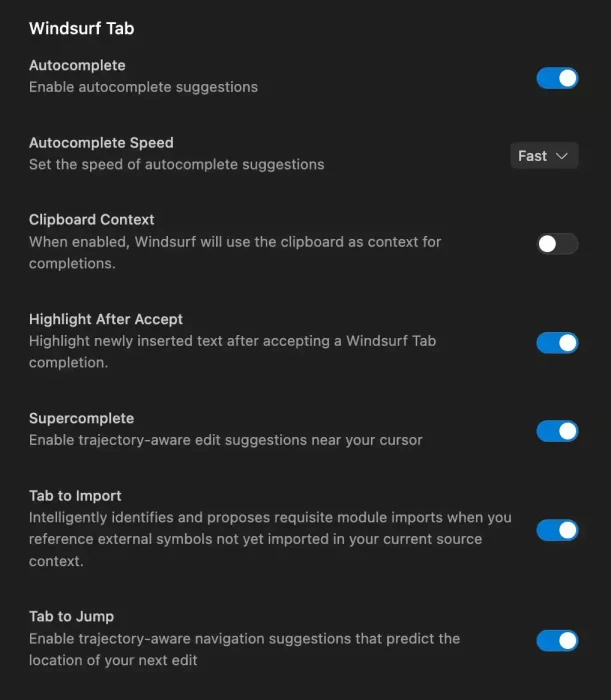
- Tab settings screenshot from Devin Desktop for Windows: Complete Setup Guide (2026)
-
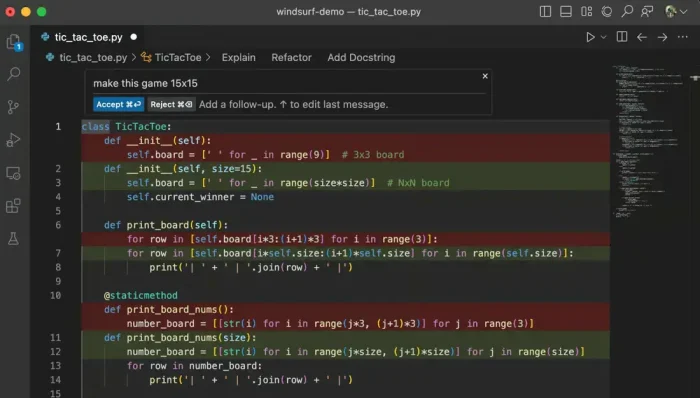
- Tic tac toe game by devon screenshot from Devin Desktop for Windows: Complete Setup Guide (2026)
Frequently Asked Questions
What happened to Windsurf?
Windsurf was renamed Devin Desktop on June 2, 2026. Cognition, the company that owns both Windsurf and the Devin AI agent, folded Windsurf into the wider Devin product line. If you already used Windsurf, the update arrived automatically and your plan, pricing, extensions, and settings carried over with no action needed.
Is Devin Desktop free?
Yes. The Free plan includes unlimited Tab completions, unlimited inline edits, and a light daily usage allowance for the AI agent. Paid plans start at $20 a month and add higher usage allowances and full access to premium AI models. Check devin.ai/pricing for current rates, since plans and prices change from time to time.
Does Devin Desktop work on Windows 10?
Yes. Devin Desktop requires Windows 10 (64-bit) or later, including Windows 11, on both x64 and ARM64 machines.
What is Devin Local?
Devin Local is the AI agent built into Devin Desktop. It replaces Cascade, the agent Windsurf used before the rename. Cognition rewrote it in Rust, and it is up to 30 percent more token efficient than Cascade while supporting the same settings and adding new features like subagents, smaller helper agents that a main task can delegate pieces of work to.
Can I still use other AI agents inside Devin Desktop?
Yes. Devin Desktop supports the Agent Client Protocol (ACP), an open standard that lets other coding agents run inside the same window. At launch this includes Codex, Claude Agent, OpenCode, and any custom agent your team builds that supports ACP.
Will my old Windsurf settings and extensions still work?
Yes. Devin Desktop is built on the same codebase as Windsurf. Your extensions, keybindings, themes, and settings all carry over automatically, and the app still reads your old .windsurfrules files alongside the new .devin/ format.
Can I use Devin Desktop without paying for Devin Cloud?
Yes. Devin Desktop works out of the box with local-only agents on the Free and Pro plans. Devin Cloud, the separate autonomous cloud agent product, is an optional add-on for teams that want it, not a requirement to use the desktop app.
Support and Community
- Devin Desktop changelog (official release notes)
- Devin Desktop documentation
- Devin Desktop Discord community
- r/windsurf on Reddit (community discussions and tips)
More Windows software guides: Cursor IDE for Windows · Visual Studio Code for Windows · Best AI Coding Extensions · Best AI Code Editors for Desktop
Discover more from Windows Mode
Subscribe to get the latest posts sent to your email.
















Add your first comment to this post