Readers like you help support this site. When you make a purchase using links on our site, we may earn an affiliate commission. All opinions remain our own.
Disney+ is Disney’s video streaming service, available on Windows through a free app from the Microsoft Store or directly in your browser.
A subscription unlocks Disney, Pixar, Marvel, Star Wars, and National Geographic titles, plus Originals you won’t find anywhere else.
What sets the Windows app apart from a browser tab is picture quality. The app supports 4K UHD, HDR, and Dolby Atmos on eligible titles with the right plan, while a browser is capped lower. That gap catches a lot of people off guard after they sign up.
This guide covers how to install the app or use the browser, what each plan actually gets you, and the features that only show up once you know where to look, like profile PINs and curated Hulu and ESPN+ content.
Already a subscriber? Jump to the install steps below. Got questions about plans or quality before you sign up? Reach out to us directly.
What You Need to Know
- The Disney+ app is free to install, but you need an active subscription to watch anything.
- The Windows app supports 4K, HDR, and Dolby Atmos on supported titles with a Premium plan. A browser tab does not match that quality.
- Offline downloads are mobile-only. Neither the Windows app nor the browser lets you save titles to watch without an internet connection.
Price
Free app, subscription to stream
Developer
Disney
Windows Versions
Windows 10/11
Also On
Mac, Mobile, TV, Consoles
Who Should Use the Disney+ App on Windows?
- Use it if you want the best picture quality your PC can show, since the app supports 4K, HDR, and Dolby Atmos on eligible titles with Premium, while a browser does not.
- Skip it if you only watch occasionally and don’t care about picture quality. A browser tab plays the same catalog with no install.
- Be careful if you were hoping to download shows for offline viewing. That feature only exists on the mobile apps, not on Windows in any form.
How to Get Disney+ on Windows
- Step 1. Open the Start menu and search for “Microsoft Store.”
- Step 2. Search for “Disney+” inside the Store and select the official app from Disney.
- Step 3. Click Get or Install. The app itself is free.
- Step 4. Open Disney+ from the Start menu once installed.
- Step 5. Sign in with your Disney+ account email and password, or create a new account.
- Step 6. Pick a profile, or create one, and start watching.
Prefer a browser instead? Go to disneyplus.com, sign in, and press play. No install needed, and GroupWatch works from here too. Just know that a browser tab won’t match the 4K and HDR quality the Windows app can reach.
What Is Disney+?
Disney+ is Disney’s video streaming service. It brings together the Disney, Pixar, Marvel, Star Wars, and National Geographic libraries in one app, alongside Originals you can’t watch anywhere else.
The Windows version is not a separate product. It streams the same catalog as the phone, TV, and web versions, with your watchlist, watch progress, and profiles synced across every device you use. Content availability can vary by region, so a few titles shown in the app may not be playable depending on where you’re signed in.
Disney has also started folding in a curated selection of Hulu and ESPN+ content for US subscribers, plus a live ABC News feed and select live sports streams on the Premium plan, so the app covers more than just movies and shows.
Key Features
4K UHD and HDR
Over 100 titles stream in 4K UHD and HDR through the Windows app on eligible titles with a Premium plan, including Dolby Atmos sound on supported content.
GroupWatch
Watch the same title with up to seven people at once, synced across each person’s screen, through a browser tab.
Profile PIN and Kids Profiles
Lock any adult profile behind a four-digit PIN, and set up dedicated Kids profiles that only show family-friendly content.
Up to Seven Profiles
Each profile keeps its own watchlist, recommendations, and content rating settings, so the whole household can share one account.
IMAX Enhanced
Select Marvel and Pixar titles play in IMAX’s expanded aspect ratio, showing more of the frame than the standard widescreen version.
Curated Hulu and ESPN+ Content
US subscribers get a selection of Hulu and ESPN+ titles right inside the Disney+ app, with no separate app to manage for that content.
System Requirements
| Requirement | Minimum |
| Operating System | Windows 10 version 19041 or higher |
| Browser (if not using the app) | Microsoft Edge, Google Chrome, or Firefox, latest version |
| Internet Connection | Broadband, faster speeds recommended for 4K playback |
| Maximum Picture Quality | 4K UHD, HDR, and Dolby Atmos on eligible titles in the Windows app with Premium. Browser playback is capped lower. |
| Account | Disney+ account with an active subscription |
Plans and Pricing
Disney+ offers an ad-supported plan and a Premium plan, plus bundle options that pair it with Hulu and ESPN. Premium is the only plan with 4K UHD, HDR, and Dolby Atmos on supported titles.
| Plan | Ads | 4K, HDR, Atmos | Concurrent Streams |
| Disney+ Basic | Yes, on demand content | No | Fewer streams than Premium |
| Disney+ Premium | No, on demand content | Yes, on eligible titles | More streams than Basic |
Live and linear programming, like the ABC News feed, can include ads regardless of plan. Disney changes plan prices and bundle offers often enough that printing exact figures here would go stale fast. Check the official Disney+ plans page for current prices and bundle options in your country before you sign up.
Keyboard Shortcuts
These shortcuts work the same way in a browser and in the Windows app, since both use the same player.
| Key | Action |
| Space | Play or pause |
| A ← | Rewind 10 seconds |
| D → | Fast-forward 10 seconds |
| ↑ ↓ | Increase or decrease volume |
| M | Mute or unmute |
| F | Enter full screen |
| Esc | Exit full screen |
| Tab | Move forward through on-screen controls, like captions and back buttons |
| Enter | Select whatever control is highlighted |
Common Issues and Compatibility Notes
Video looks stuck in a lower resolution in a browser
This is expected. Browsers on Windows don’t support the copy protection Disney requires for 4K playback, so the app is the only way to reach top quality on a PC.
Can’t find a download button anywhere
Offline downloads only exist on the iOS and Android apps. Neither the Windows app nor the browser version supports it, and that isn’t tied to your plan.
GroupWatch won’t start in the Windows app
GroupWatch runs through disneyplus.com in a browser. Open the site in Edge or Chrome instead of the Windows app to start or join a session.
App won’t sign in or keeps logging out
Make sure the Microsoft Store and the app are both fully updated. Signing out and back in on disneyplus.com first can also clear up account sync issues.
Tips for Getting Started
Set up separate profiles right away
Give each person in your household their own profile before you start watching. It keeps recommendations accurate and keeps kids out of adult content.
Lock adult profiles with a PIN
Set a four-digit PIN on any profile you don’t want kids opening by accident. Kids profiles can’t carry their own PIN, so this is the actual safeguard.
Use the Windows app for the best picture quality
If 4K, HDR, and Dolby Atmos matter to you, watch through the installed app on Premium, not a browser tab.
Switch to a browser for GroupWatch
Planning a watch party with friends in another location? Open disneyplus.com in a browser instead of the app to start a GroupWatch session.
Check the Hulu and ESPN+ hubs before subscribing elsewhere
US subscribers already get a curated slice of Hulu and ESPN+ inside the app. Look there first before paying for a separate subscription.
Disney+ Screenshots
These screenshots show Disney+ running in the Windows app, from browsing the home screen to playback and profile selection.
-
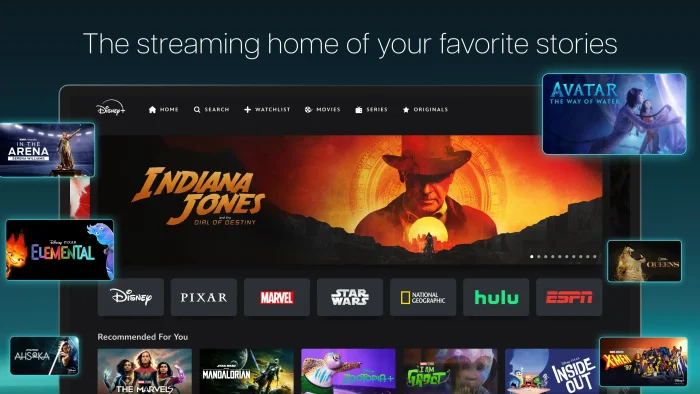
- Disney plus lineup from Disney+ for Windows: Setup, 4K Quality & Plans
-
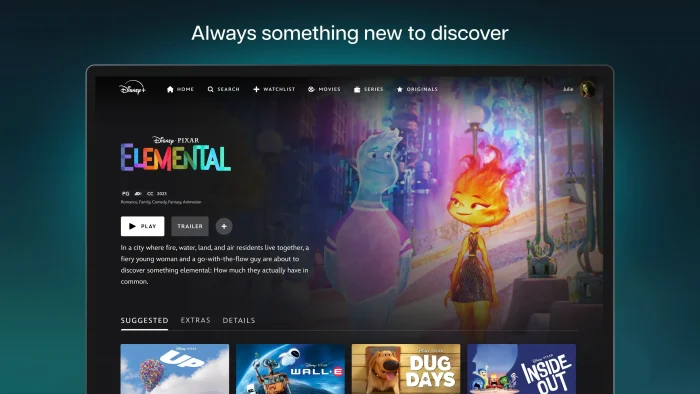
- Elemental pixar on disney plus from Disney+ for Windows: Setup, 4K Quality & Plans
-
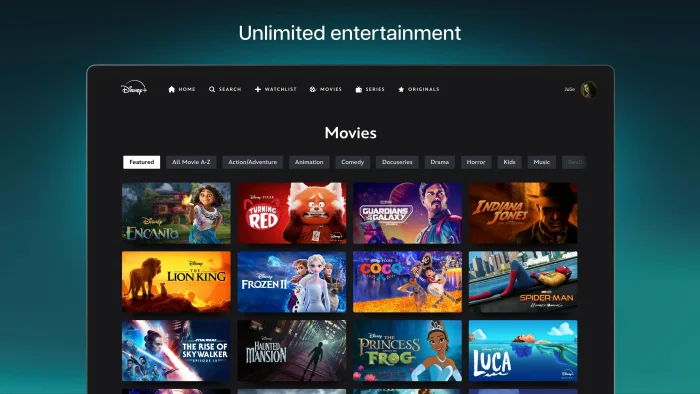
- Movies list ui disney plus from Disney+ for Windows: Setup, 4K Quality & Plans
-
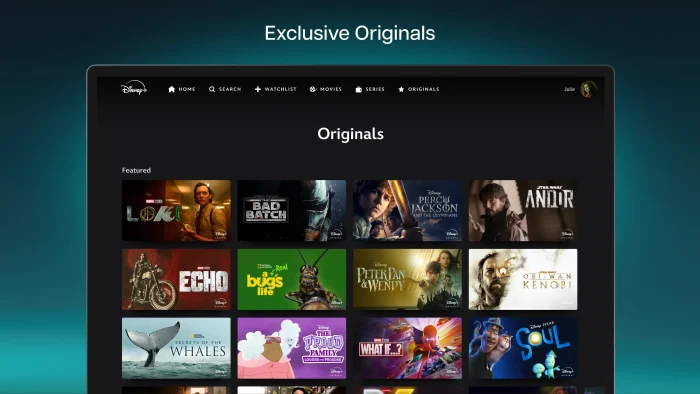
- Original exclusive from Disney+ for Windows: Setup, 4K Quality & Plans
-
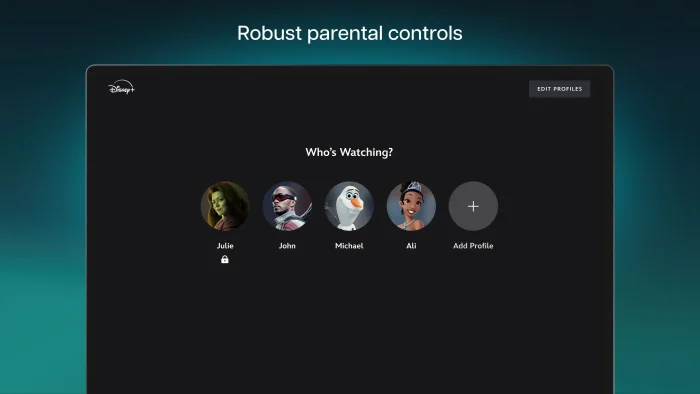
- Parental controls logins from Disney+ for Windows: Setup, 4K Quality & Plans
Frequently Asked Questions
Can I download Disney+ shows to watch offline on Windows?
No. Disney+ only supports offline downloads on the mobile apps for iOS and Android. The Windows app and the browser version both require an internet connection every time you watch.
Does Disney+ support 4K, HDR, or Dolby Atmos on a Windows PC?
It depends on how you watch. The Windows app supports 4K UHD, HDR, and Dolby Atmos on eligible titles with a Premium plan. A browser tab on Windows is capped at a lower resolution because browsers don’t support the copy protection Disney requires for high-quality playback.
How many profiles can I create on Disney+?
Up to seven profiles per account. Any profile can be set up as a Kids profile, which limits content to family-friendly ratings, and you can lock adult profiles behind a four-digit PIN.
Does Disney+ have GroupWatch on Windows?
Yes, through a browser. GroupWatch lets up to seven people watch the same title together with synced playback and reactions. It works on disneyplus.com in a browser and on the mobile and TV apps, though support varies by device.
What’s the difference between the Disney+ plans?
The ad-supported plan costs less but shows ads during movies and shows. The Premium plan removes ads on demand content, adds 4K UHD, HDR, and Dolby Atmos on supported titles, and allows more simultaneous streams. Live and linear programming can still include ads on either plan.
Can I get Hulu or ESPN+ content inside the Disney+ app?
Yes, partially. Disney+ subscribers get a curated selection of Hulu and ESPN+ content inside the app at no extra cost. Full access to everything on Hulu or ESPN+ requires upgrading to a Disney Bundle, and this is limited to US residents 18 and older.
What are the system requirements for the Disney+ app on Windows?
Windows 10 version 19041 or higher, with the Microsoft Store kept up to date, plus a broadband internet connection for streaming. Full details are in the System Requirements section above.
Support and Community
Stuck on something this guide didn’t cover? Disney’s official Disney+ help center covers app-specific troubleshooting, account, and billing questions. The r/DisneyPlus subreddit is also active and useful for real-world troubleshooting from other users.
More Windows software guides: Netflix for Windows · Crunchyroll for Windows · Prime Video for Windows · Best Free Media Players for Windows
Discover more from Windows Mode
Subscribe to get the latest posts sent to your email.















Add your first comment to this post