

Readers like you help support this site. When you make a purchase using links on our site, we may earn an affiliate commission. All opinions remain our own.
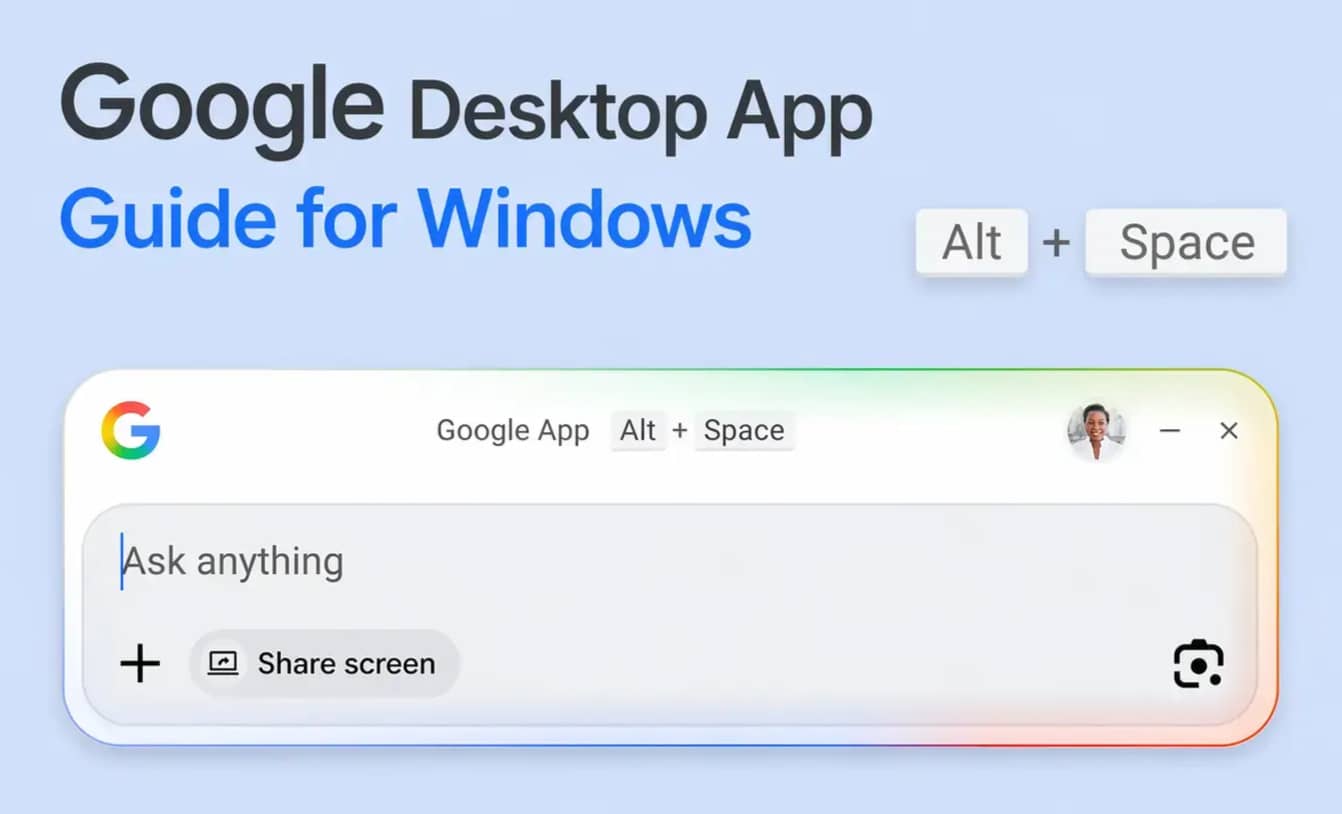
The Google App for Windows is a free desktop tool from Google LLC, available directly from Google’s official site. It puts a floating search bar on your desktop that you can open at any time with a single keyboard shortcut. From it you can search the web, find local files, browse your Google Drive, and ask Gemini AI questions about what is on your screen.
The shortcut is what makes it different from just opening Chrome. Alt + Space brings up the search bar from anywhere on your desktop, even if another app is in full screen. You never have to minimize your work to get a quick answer.
This post covers the main features, how to download and install it, and a startup setting you should turn off immediately after installing.
Already using it? Let us know what you think.
What You Need to Know
- Instant access: Alt + Space opens a floating search bar from any app or window on your PC.
- AI with screen context: You can share a window or your full desktop with Gemini so it can answer questions about exactly what you are looking at.
- Turn off startup launch: The app adds itself to startup by default. Switch it off in Settings to keep your boot time fast.
Who Should Use the Google App?
- Use it if you live in Google Drive and want to find your cloud files as fast as a local file.
- Use it if you want quick AI answers from Gemini without switching to a browser tab.
- Skip it if you do not use Google services and have no Google account to connect.
- Be careful if you are sensitive about screen permissions. The screen-sharing feature requires you to grant access each time, but it is worth reading what you are agreeing to before you click yes.
How to Download and Install the Google App
The installer is around 11MB and the process is nearly identical to installing Chrome. The whole thing takes under two minutes.
- Step 1. Go to the official Google release page linked in the download button above.
- Step 2. Click the blue Download the app button on the page.
- Step 3. Run the downloaded installer file when it appears in your browser’s download bar.
- Step 4. Follow the on-screen prompts. You will be asked to sign in with your Google account. This step is optional but required if you want Google Drive file search to work.
- Step 5. Once installed, press Alt + Space to open the floating search bar for the first time.
Do this right after installing: Turn off startup launch
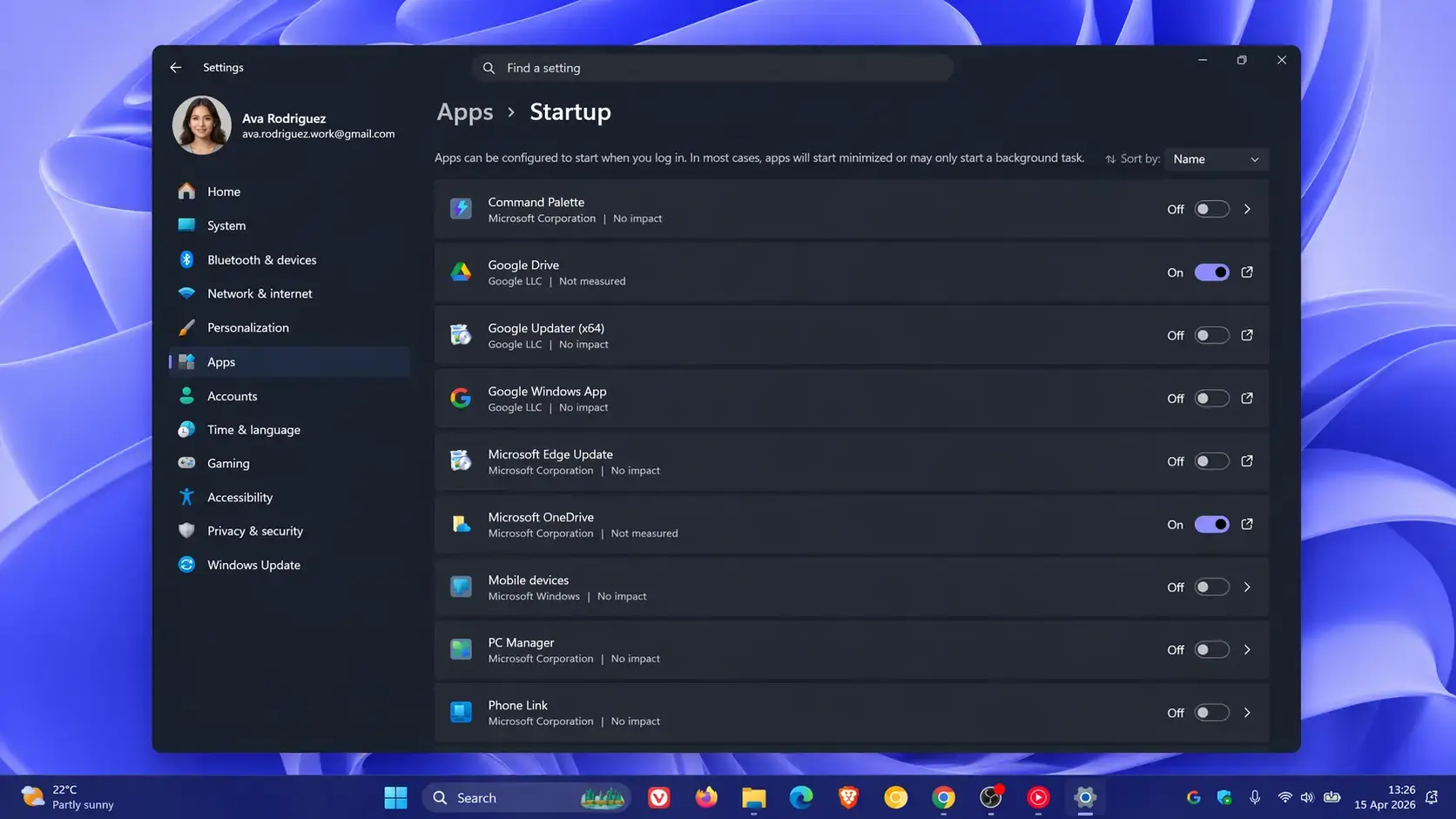
By default, the Google App launches every time you boot Windows. To keep your startup fast, go to Settings > Apps > Startup, find “Google Windows App”, and toggle it to Off. You can still use the app whenever you want. This just stops it from loading in the background before you need it.
What Can the Google App Actually Do?
Here are the four things you will actually use on a daily basis.
Floating Search Bar
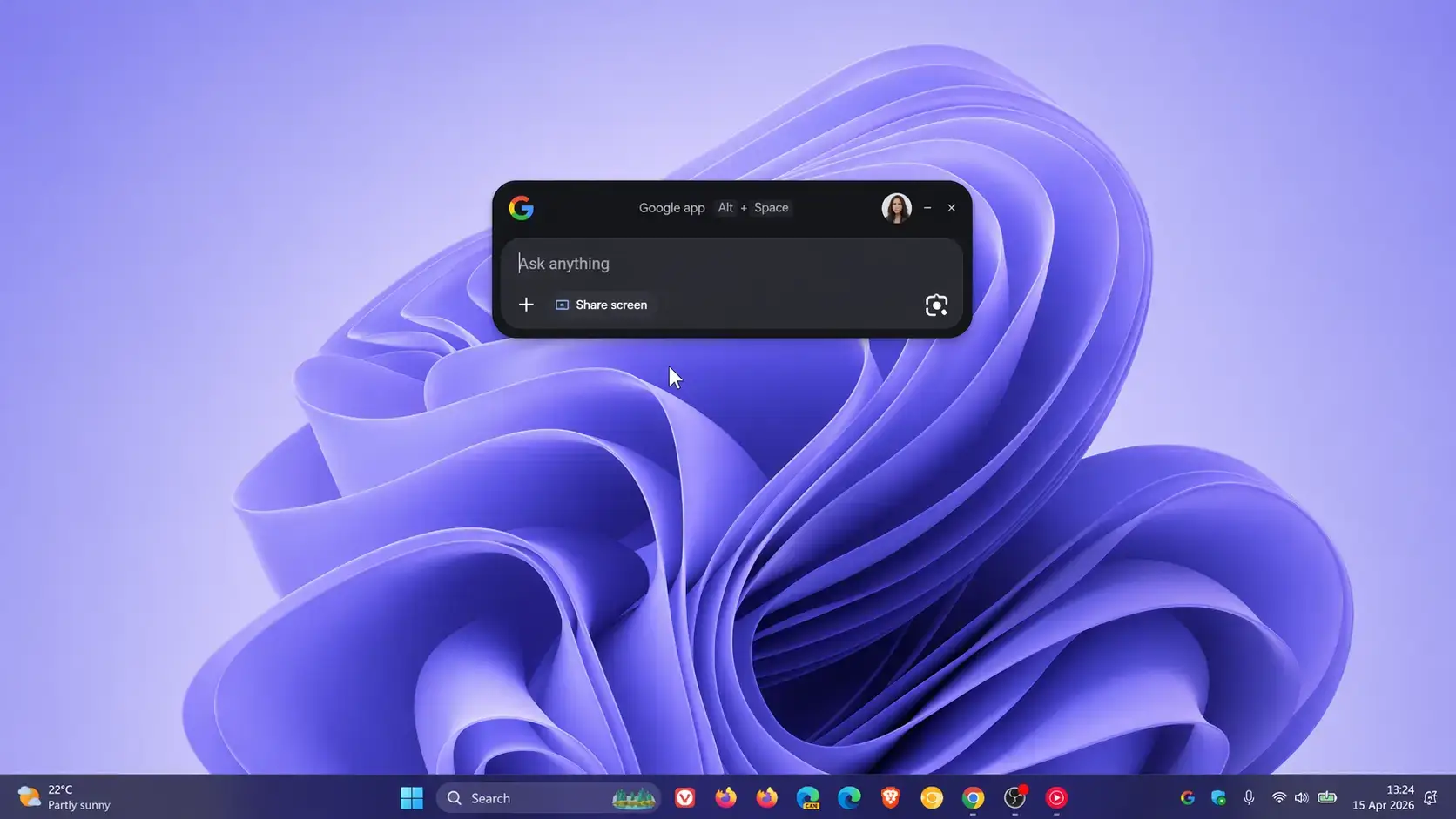
Alt + Space opens a small search box that floats on top of whatever is on your screen. Type a web search, a question for Gemini, a local app name, or a file name. You never have to minimize what you are working on.
Screen Context for Gemini
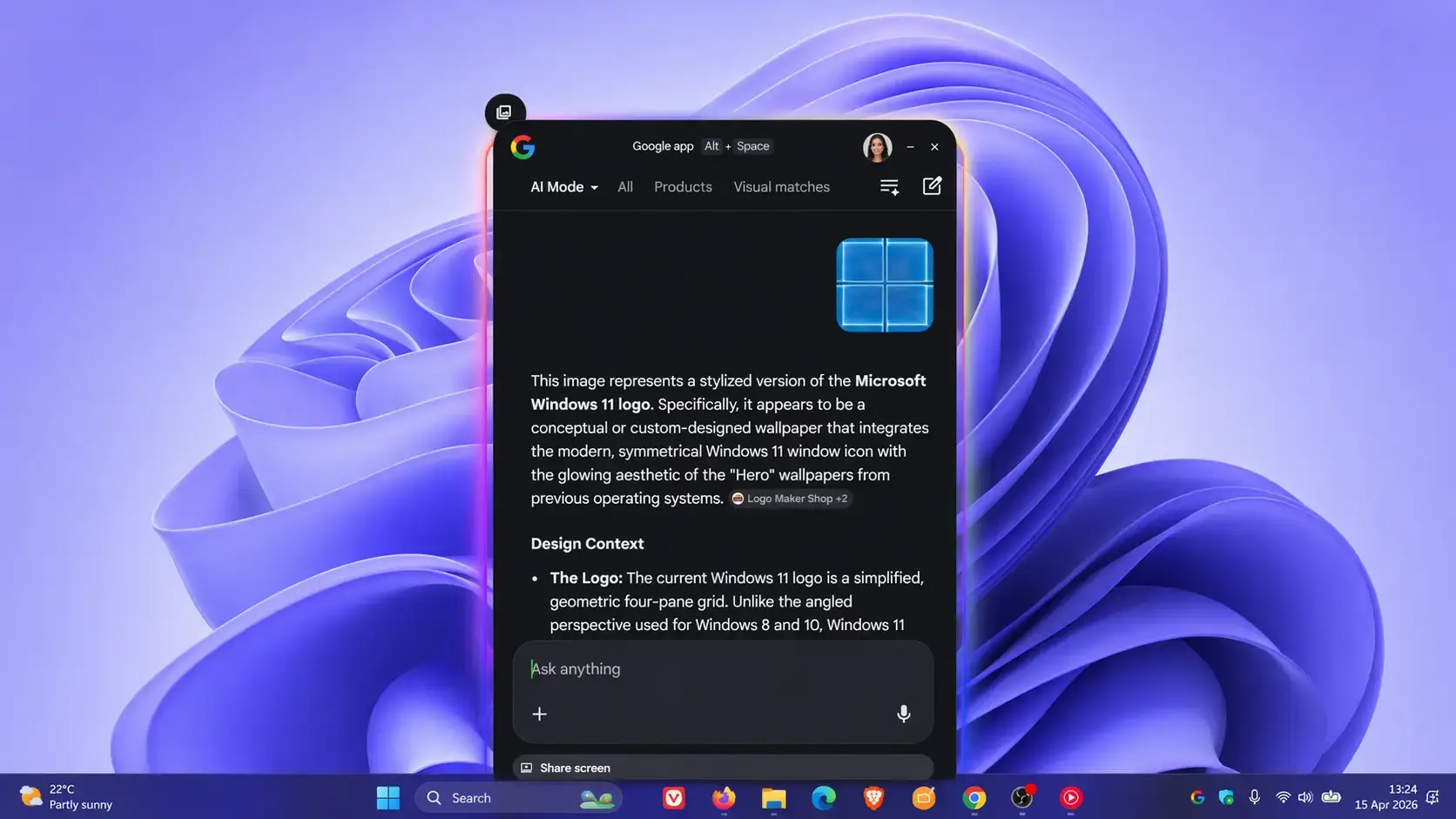
Click the screen share button inside the app to let Gemini see a specific window or your full desktop. You can then ask things like “summarize this document” or “what does this error mean” and the AI reads your screen to answer.
Google Lens on Desktop
Draw a selection box over any image or text on your screen. The app can then translate text, search for visually similar items online, or help you solve a math problem shown in an image. It is the same Lens feature you probably already use on your phone.
Unified File and Drive Search
When you sign in with your Google account, the search bar pulls results from your local PC folders, your installed apps, and your Google Drive cloud storage all in one list. No more opening a browser tab just to find a cloud document.
Why does the Google Drive integration matter?
Without this app, finding a cloud document means opening a browser, loading Google Drive, and searching from there. With the app connected to your account, a Google Doc shows up in the same search results as a file sitting on your hard drive. It bridges local and cloud storage in one input box.
The App in Action: Screenshots
Here is what each main feature looks like on a real Windows 11 desktop.
The Floating Search Bar
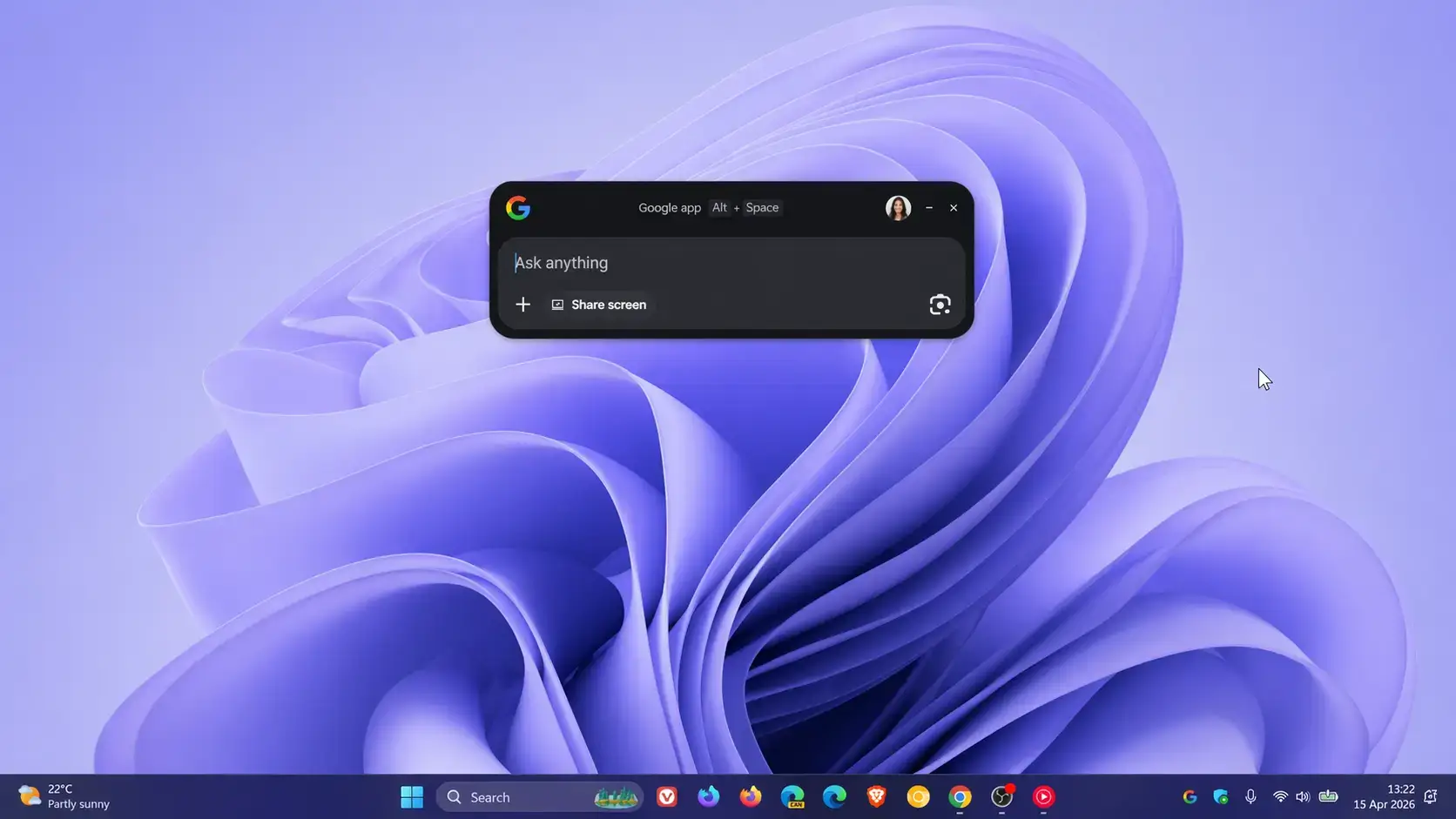
Triggered by Alt + Space, this search box floats on top of anything on your desktop. You can move it anywhere and resize it.
Search Results: Web, Files, and Drive Together
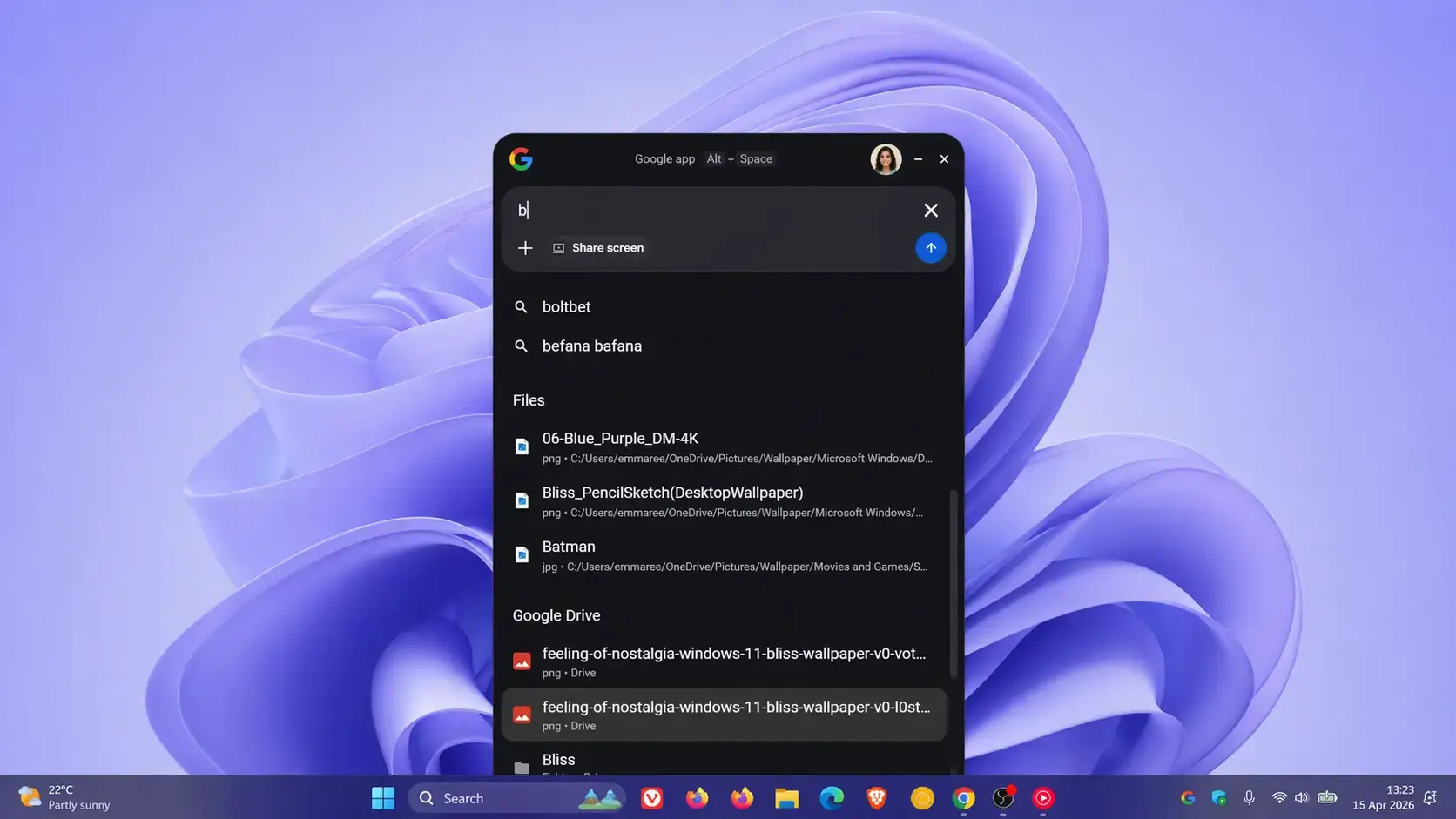
One search shows results from three places at once: the web, files on your PC, and documents in your Google Drive.
Sharing Your Screen with Gemini
Click the screen share button to let Gemini read your active window. Ask it a question about exactly what is on your screen and it answers based on what it sees.
Google Lens Selecting Part of Your Screen
Draw a box around any image or text on your screen. Lens identifies it and lets you search for it, translate it, or get more information about it.
Google App vs. Chrome vs. Windows Search
You probably already have two search tools on your PC. Here is how this app compares to both.
| Tool | Best For | Main Drawback |
|---|---|---|
| Google App for Desktop | Quick AI answers, Google Drive files, screen analysis | Runs in background, adds a system tray icon |
| Google Chrome | Full web browsing, deep research, heavy web apps | Requires switching away from your active window |
| Windows Search (taskbar) | Finding OS settings, Control Panel tools, local apps | Web results open in Edge with Bing, not Google |
System Requirements
| Requirement | Details |
|---|---|
| Operating System | Windows 10 or Windows 11 |
| Storage | ~11 MB installer (minimal footprint) |
| Internet Connection | Required for web search, Gemini AI, and Google Drive features |
| Google Account | Optional for basic search. Required for Google Drive file search. |
| Language | English only at launch |
Tips for Getting Started
Turn off startup launch first
Before anything else, go to Settings > Apps > Startup and disable “Google Windows App”. Use the shortcut when you need it instead of letting it eat boot time in the background.
Connect your Google account for Drive search
The unified file search is the most useful feature in the app. Sign in during setup to activate it. If you skipped that step, you can connect your account from the app settings.
Use Google Lens for on-screen text you cannot copy
If you are watching a video, looking at an image, or dealing with a locked PDF, open the app and use the Lens crop tool to select the text you need. It reads and translates any text visible on your screen.
Share a specific window, not your full screen
When using the Gemini screen share feature, select just the window you need help with rather than sharing your full desktop. It is more precise and limits what the AI can see.
Quit from the system tray, not the search bar
Pressing X on the search bar hides it but keeps the app running. To actually close it and free up memory, right-click the Google icon in the system tray near the clock and choose Quit.
Get the Google App for Windows
Bring Gemini AI and Google Search directly to your Windows desktop. Free. No subscription.
Read the official Google announcement for full release details.
Frequently Asked Questions
How do I open the Google App on Windows?
Press Alt + Space on your keyboard. This opens the floating search bar instantly, no matter what app you are currently using. The Google App icon also appears in your system tray near the clock.
How do I fully close the Google App?
Clicking the X on the search bar only hides it. The app keeps running in the background. To shut it down completely, right-click the Google icon in your system tray (near the clock in the bottom-right corner) and select Quit.
Does the Google App work in other languages?
At launch, the app is available globally but only supports English interactions. Other languages have not been announced yet.
Is this different from Chrome’s built-in AI?
Yes. Chrome’s Gemini features only work inside the browser. The Google App runs directly on Windows, so you can get AI answers without opening a browser at all.
Does the Google App slow down my PC at startup?
By default it launches at every boot, which adds a small load. To turn this off, go to Windows Settings, then Apps, then Startup. Find “Google Windows App” and toggle it off.
Can the Google App see my screen?
Only when you allow it. You can choose to share a specific window or your full desktop with the Gemini AI. You control this each time by clicking the screen share button inside the app. It does not run in the background watching your screen.
Do I need a Google account to use it?
You need a Google account to unlock Google Drive search. The basic web search and keyboard shortcut work without signing in, but the unified file and cloud search requires an account connected during setup.
Support and Community
- Google Search Help Center: official support documentation for the Google App and Search products.
- r/google on Reddit: community discussion, tips, and user questions about Google products on PC.
- Google Search Blog: follow this for product updates and new feature announcements.
More Windows software guides: Google Drive for Windows · Google Chrome for Windows · Microsoft Copilot for Windows · Google Antigravity