Readers like you help support this site. When you make a purchase using links on our site, we may earn an affiliate commission. All opinions remain our own.
 You have installed Ollama. You have downloaded the models. But right now, you are likely interacting with them through a black command line window.
Open WebUI changes that.
Formerly known as “Ollama WebUI,” this is the industry-standard interface for local AI. It runs offline on your PC but looks and feels almost exactly like ChatGPT.
It allows you to drag-and-drop images for vision models, upload documents for analysis, and switch between your installed models with a simple dropdown menu.
This guide will show you how to install it and how to configure it to control your entire local AI collection.
The Local AI Cheat Sheet
Before we install the dashboard, you need to know which engine to use. You can switch between these instantly inside Open WebUI.
| Model | Best Use Case | Efficiency |
|---|---|---|
| Gemma 3 | Mobile / Quick Chat | High (Low RAM) |
| Ministral 3 | Battery Saver / Laptop | Very High |
| Phi-4 | Math / Logic / STEM | Medium |
| Llama 4 | General Assistant | Medium/Heavy |
| DeepSeek-R1 | Complex Reasoning | Heavy |
| Qwen 3 VL | Vision / Images | Medium |
| GPT-OSS | Agents / Planning | Very Heavy |
Prerequisite: Ensure Ollama is Running
Open WebUI is just the interface; Ollama is the engine. Ensure Ollama is running in your taskbar before proceeding.
Method 1: The Python Way (Recommended)
This is the easiest method for Windows users. It runs Open WebUI as a standard Python application.
Step 1: Install Python
If you haven’t already, download and install Python 3.11. Ensure you check the box that says “Add Python to PATH” during installation.
Step 2: Install Open WebUI
Open your Command Prompt or PowerShell and run the following command:
pip install open-webui
This may take 1-2 minutes as it downloads the necessary libraries.
Step 3: Launch the Dashboard
Once installed, type:
open-webui serve
Your browser should automatically open to http://localhost:8080.
Method 2: The Docker Way (Expert)
If you prefer keeping your environment clean and isolated, Docker is the industry standard. This requires Docker Desktop to be installed and running.
Run this single command in PowerShell. It tells Docker to run Open WebUI and allows it to talk to the Ollama instance running on your main Windows system:
docker run -d -p 3000:8080 --add-host=host.docker.internal:host-gateway -v open-webui:/app/backend/data --name open-webui ghcr.io/open-webui/open-webui:main
You can then access the dashboard at http://localhost:3000.
How to Configure Your Dashboard
When you first load the page, you will be asked to “Sign Up.”
Note: This is entirely offline. You are creating an admin account that lives only on your PC. No data is sent to the cloud.
1. Switching Models
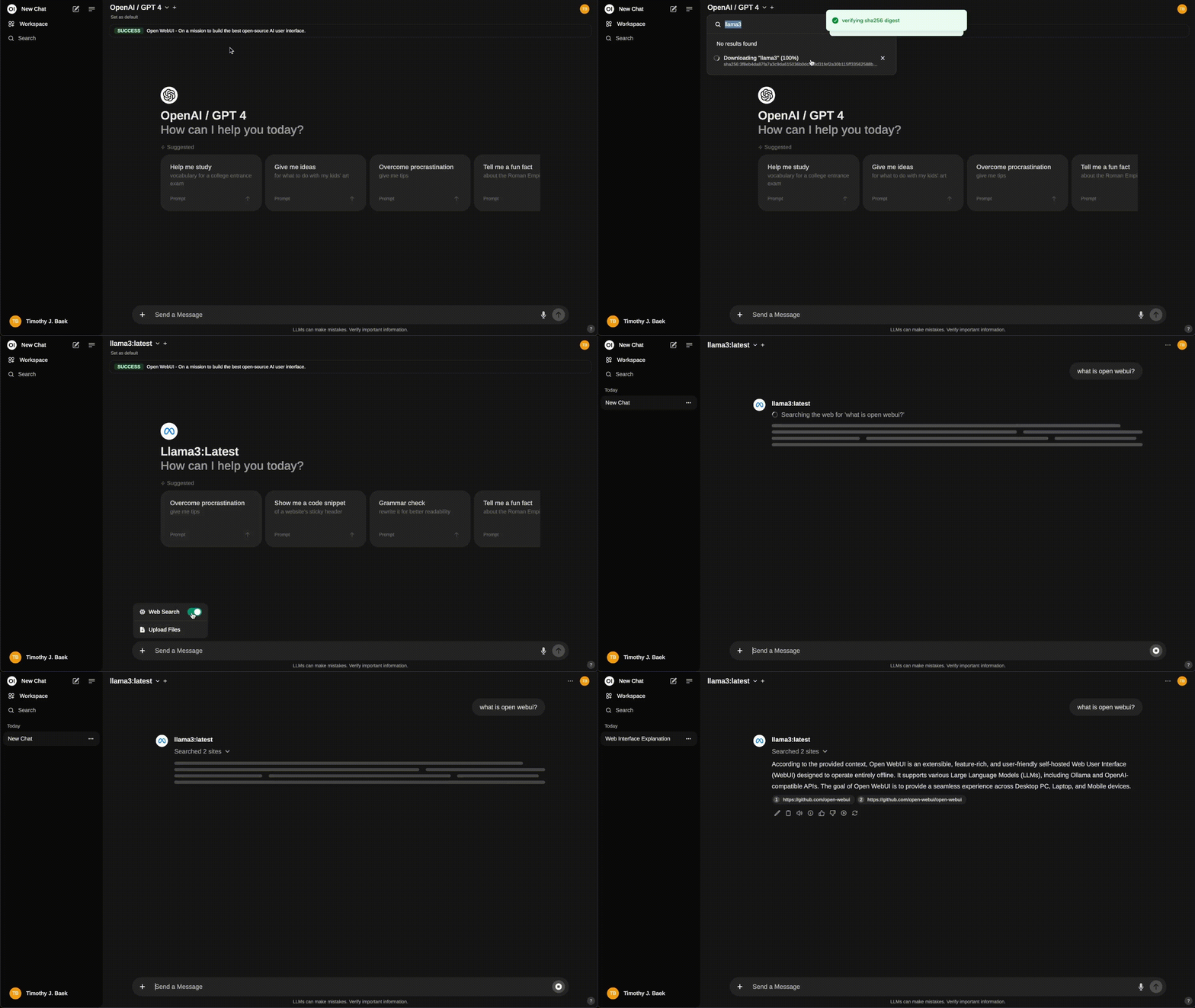
At the top left of the screen, you will see a dropdown menu. Click it to see every model you have downloaded via Ollama (e.g., Llama, Mistral). Select one to begin chatting.
2. Using Vision (Images)
If you select Qwen 3 VL or Llama 3.2 Vision, a small “Image Upload” (+) icon will appear in the chat bar. Click this to upload screenshots or photos for the AI to analyze.
3. Chatting with Files (RAG)
Open WebUI has a built-in “Knowledge” system. You can upload PDF manuals or text files by clicking the Documents (#) button. You can then activate these documents in a chat, allowing any model (even small ones like Ministral) to answer questions about your specific files.
Troubleshooting
“Connection Error / Offline”
If Open WebUI loads but says it cannot connect to the model, it usually means Ollama is not running. Open your Start Menu, launch Ollama, and refresh the webpage.
“Port 8080 Already in Use”
If Method 1 fails because the port is busy, you can specify a different port:
PORT=8888 open-webui serve
Reader Poll
Discover more from Windows Mode
Subscribe to get the latest posts sent to your email.