Readers like you help support this site. When you make a purchase using links on our site, we may earn an affiliate commission. All opinions remain our own.
 Microsoft Photos is the default photo viewing and editing application included with Windows 10 and Windows 11. It provides a clean, modern way to view your image collection, perform basic edits, create videos, and manage your photos across devices.
The Microsoft Photos app comes pre-installed on every copy of Windows 10 and Windows 11. The app receives regular feature and security updates automatically through the Microsoft Store to ensure you have the latest version and capabilities.
Developed by Microsoft, this app is deeply integrated into the Windows experience, offering seamless access to your pictures folder and OneDrive cloud storage.
Whether you’re a casual user quickly browsing vacation pictures, a hobbyist doing light photo editing, or someone creating simple video slideshows, the Photos app offers a straightforward and capable solution.
This guide covers using the built-in Photos app, accessing its key features, and troubleshooting common issues.
Share your favorite Photos app tips below, or contact us for help with specific problems.
How to Access Microsoft Photos
The Microsoft Photos app is already on your Windows PC. Here’s how to find and open it:
- Open from Start Menu
- Click the Start button or press the Windows key.
- Type “Photos” and select the app from the search results.
- Open an Image Directly
- Navigate to a folder containing your photos.
- Double-click on any supported image file (like .jpg or .png).
- It will automatically open in the Photos app.
Quick Tip: 💡 If the app is missing or has issues, you can get the official version from the Microsoft Store to reinstall or update it.
The Photos app is regularly updated with new features through the Microsoft Store. If your app looks different from older tutorials, you likely have a newer, more feature-rich version!
What Is the Microsoft Photos App?
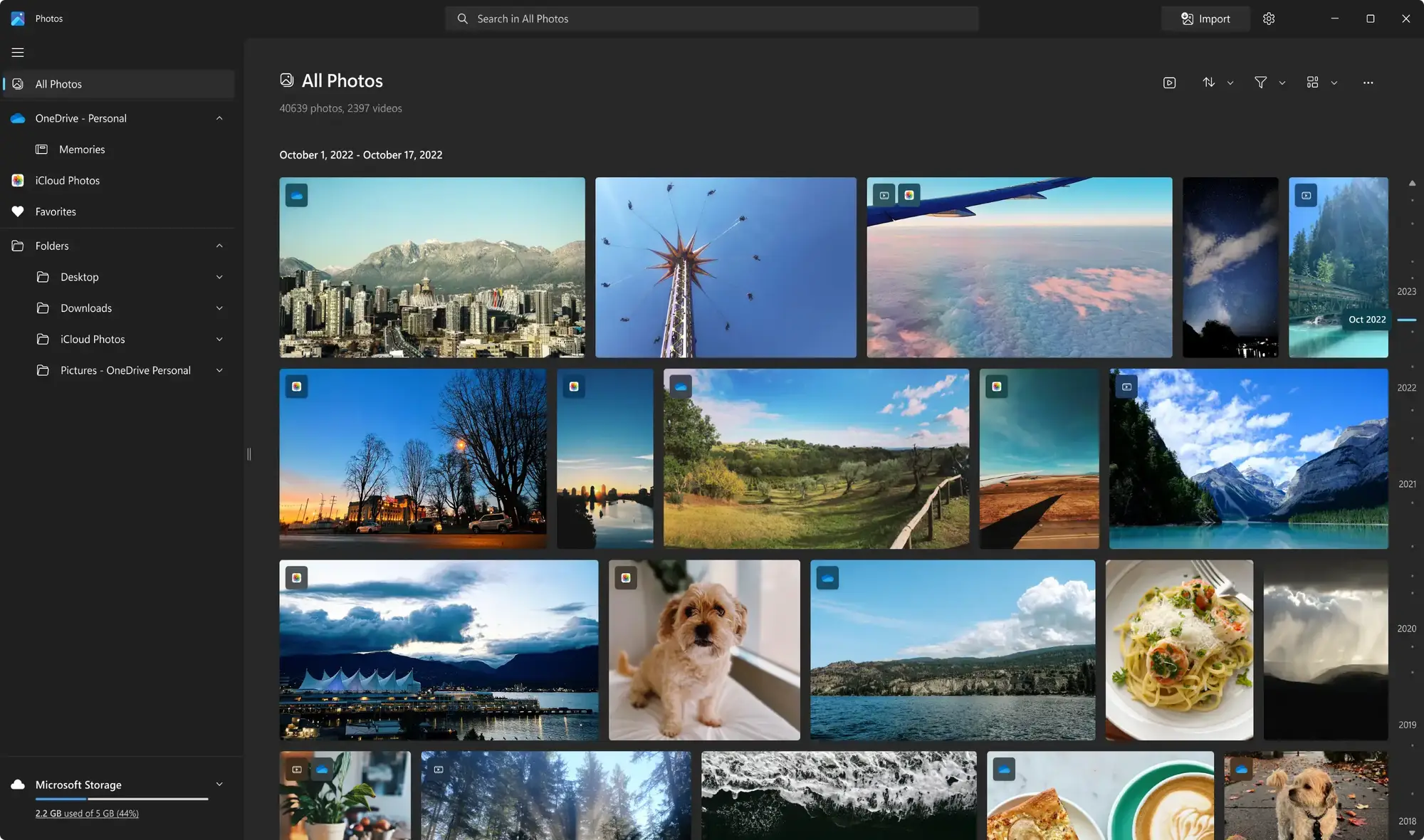
The Microsoft Photos app is the built-in image and video viewer for Windows 10 and 11. It has evolved from a simple viewer into a versatile hub for organizing, editing, and creating with your visual media.
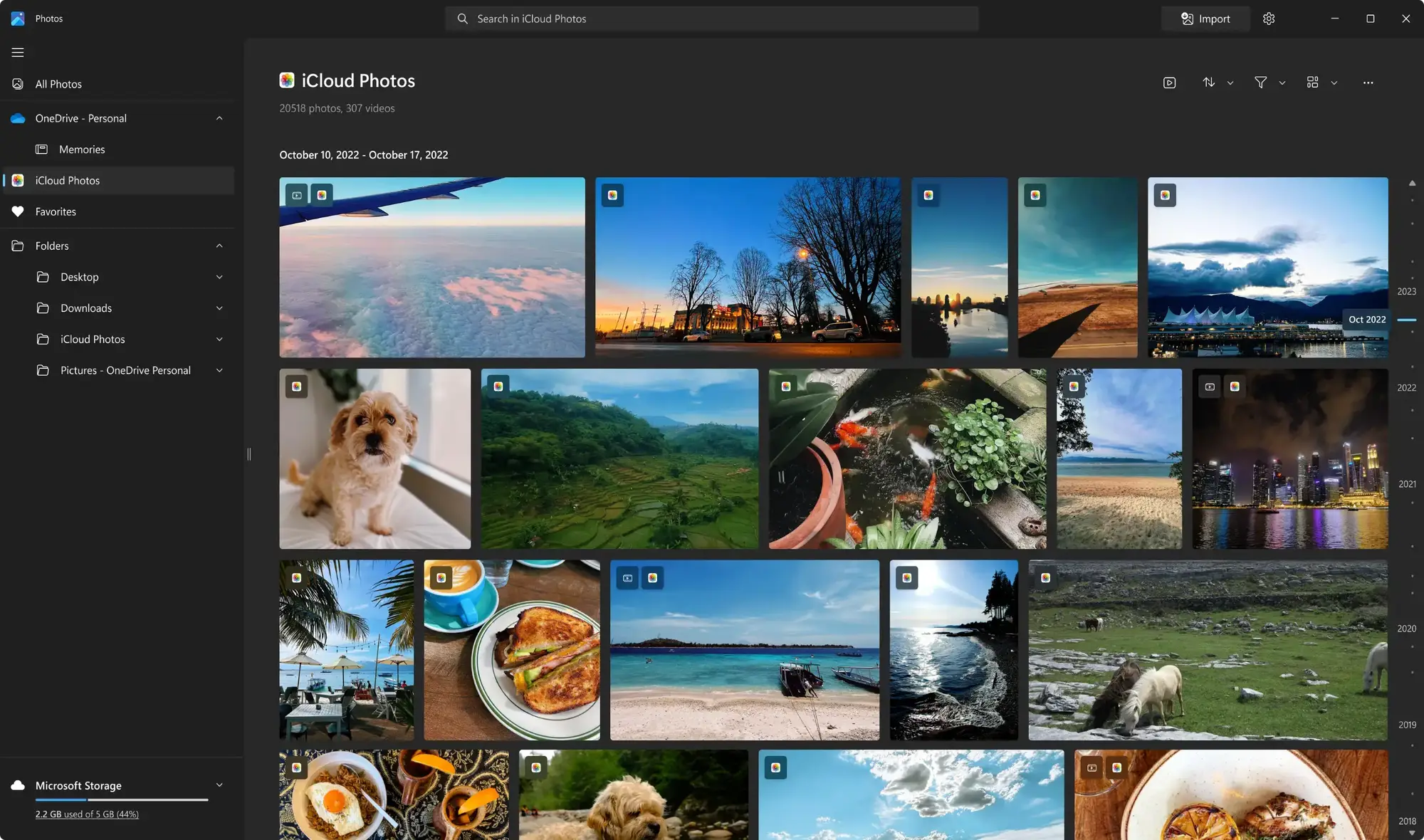
Beyond just opening files, it connects to your OneDrive to sync your photos across all your devices and uses AI to help you find people, specific objects, and places in your collection.
The app is free and designed to be the default and most integrated way to experience your photos on a Windows PC.
Key Features of Microsoft Photos
- Photo & Video Viewer: Opens all common image and video formats in a clean, focused interface.
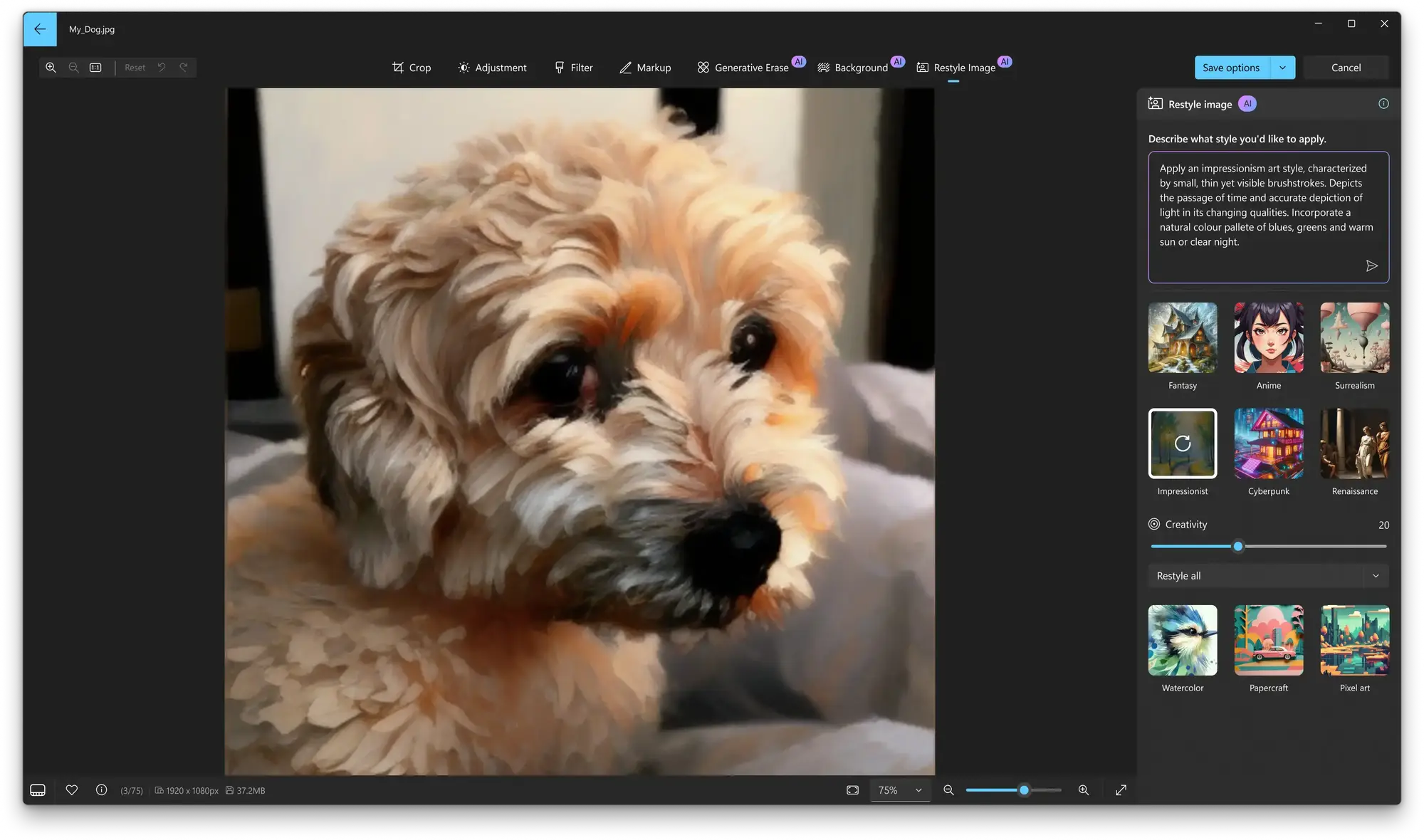
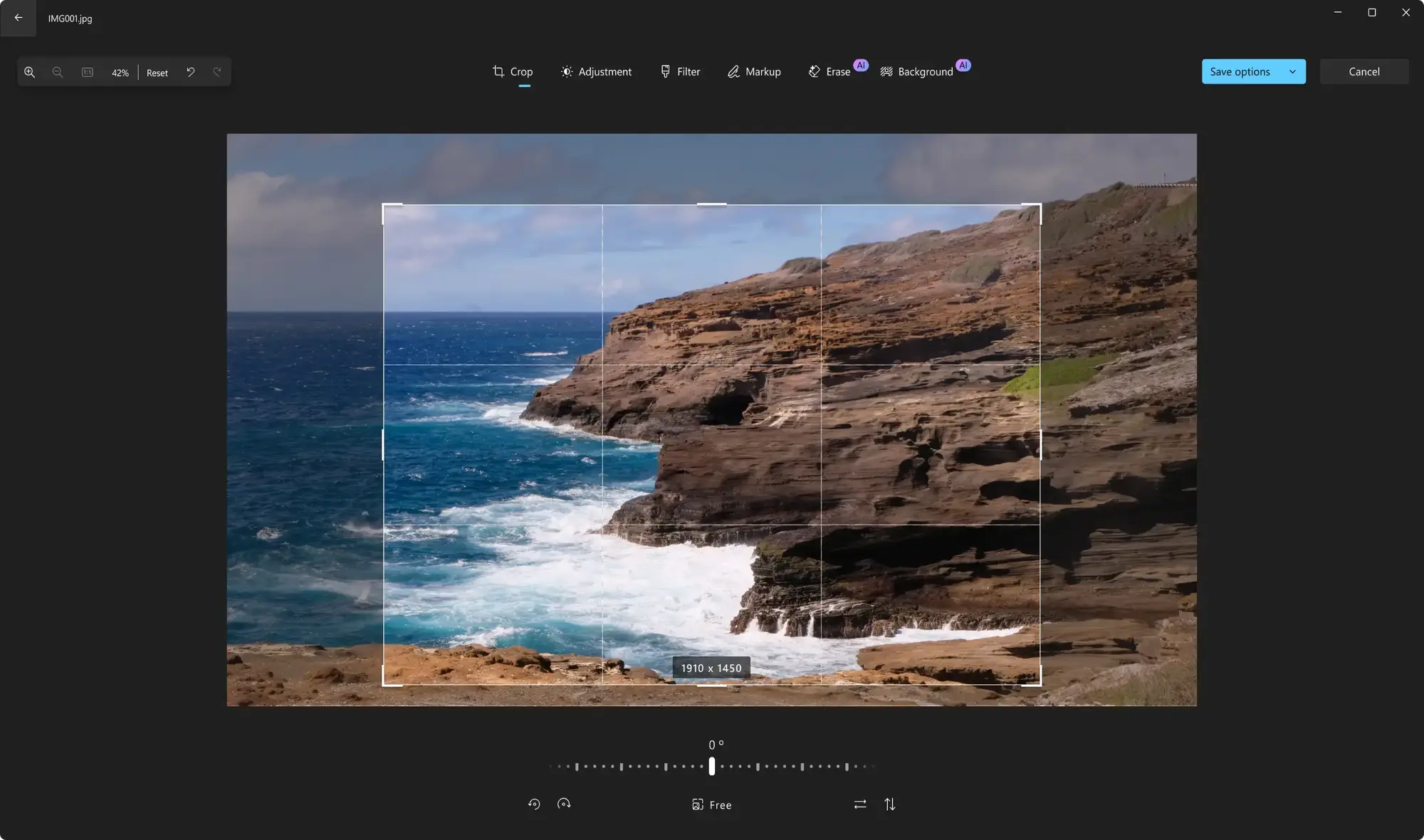
- Basic Photo Editing: Crop, rotate, adjust filters, correct red-eye, and fine-tune light and color.
- Video Creation: Create custom videos with music, text, motion, and 3D effects from your photos and video clips.
- OneDrive Integration: Automatically syncs your photos across your PCs and mobile devices when enabled.
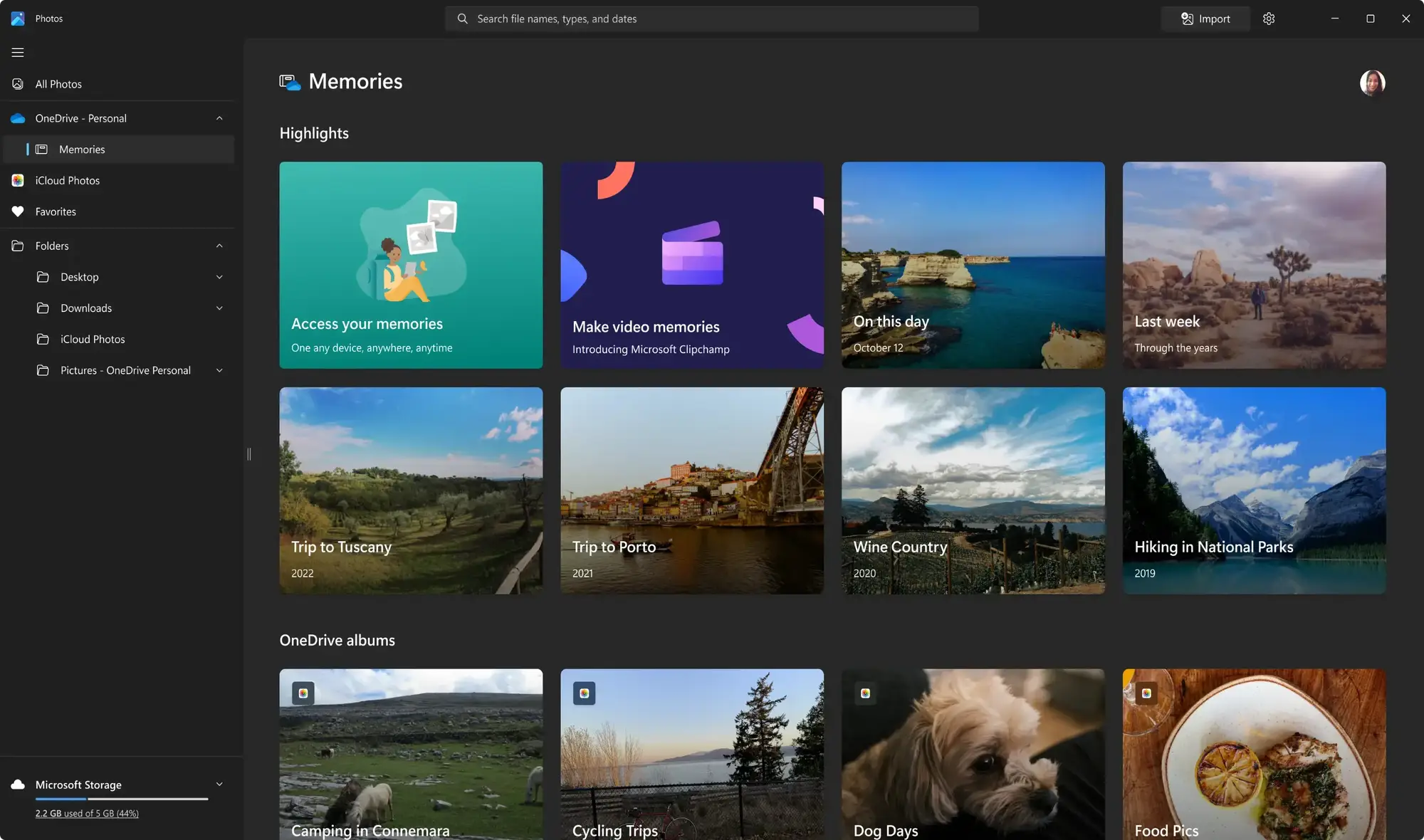
- Album Management: Use AI to automatically curate albums based on people, places, and events.
- Search & Organization: Find photos by person (with face recognition), location, object type, or date.
Troubleshooting: What to Do If Photos Is Missing
Some users have reported the Photos app disappearing after a major Windows update. If you can’t find it, here are the steps to get it back.
- Reinstall via Microsoft Store (Recommended)
- Visit the official Microsoft Photos page on the Store.
- Click Install. This will download the latest version directly from Microsoft.
- Use Windows PowerShell (Advanced)
- If the Store method fails, you can re-register the app using PowerShell (run as Administrator).
- Command example:
Get-AppxPackage -AllUsers Microsoft.Windows.Photos | Foreach {Add-AppxPackage -DisableDevelopmentMode -Register "$($_.InstallLocation)\AppXManifest.xml"}
System Requirements
| OS | Windows 10 or Windows 11 |
| Cost | Free (Pre-installed) |
| Updates | Via Microsoft Store |
Quick Start Guide
Jump right in and start using the Photos app effectively:
- Open and Navigate: Launch the app and use the arrow keys or click to navigate through your image collection.
- Basic Edit: Select a photo and click Edit Image to crop, adjust light/color, or add filters.
- Create a Video: Go to the Video Editor section to start a new project and add your media.
- Enable OneDrive Sync: In the app settings, turn on “OneDrive” to back up and access your photos anywhere.
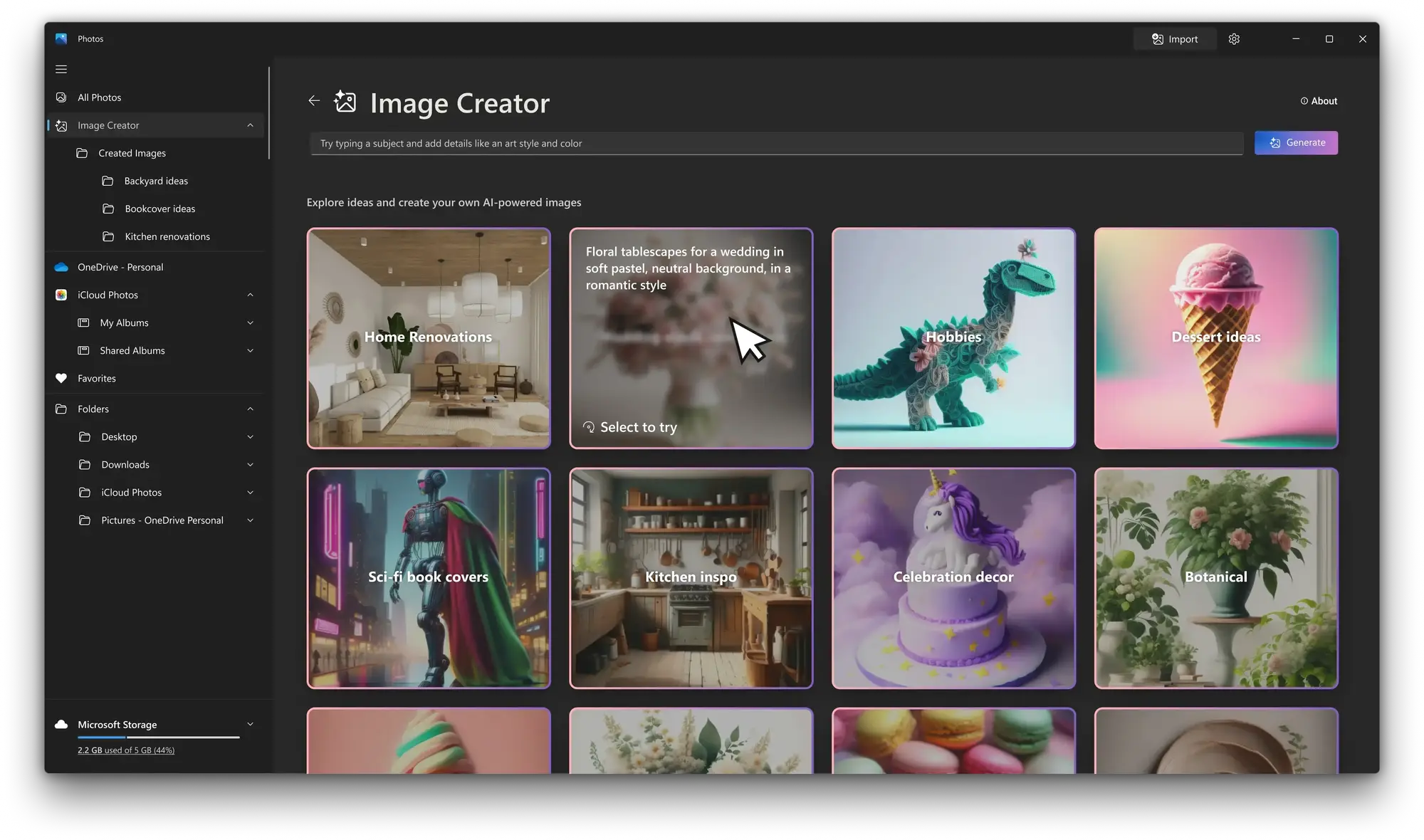
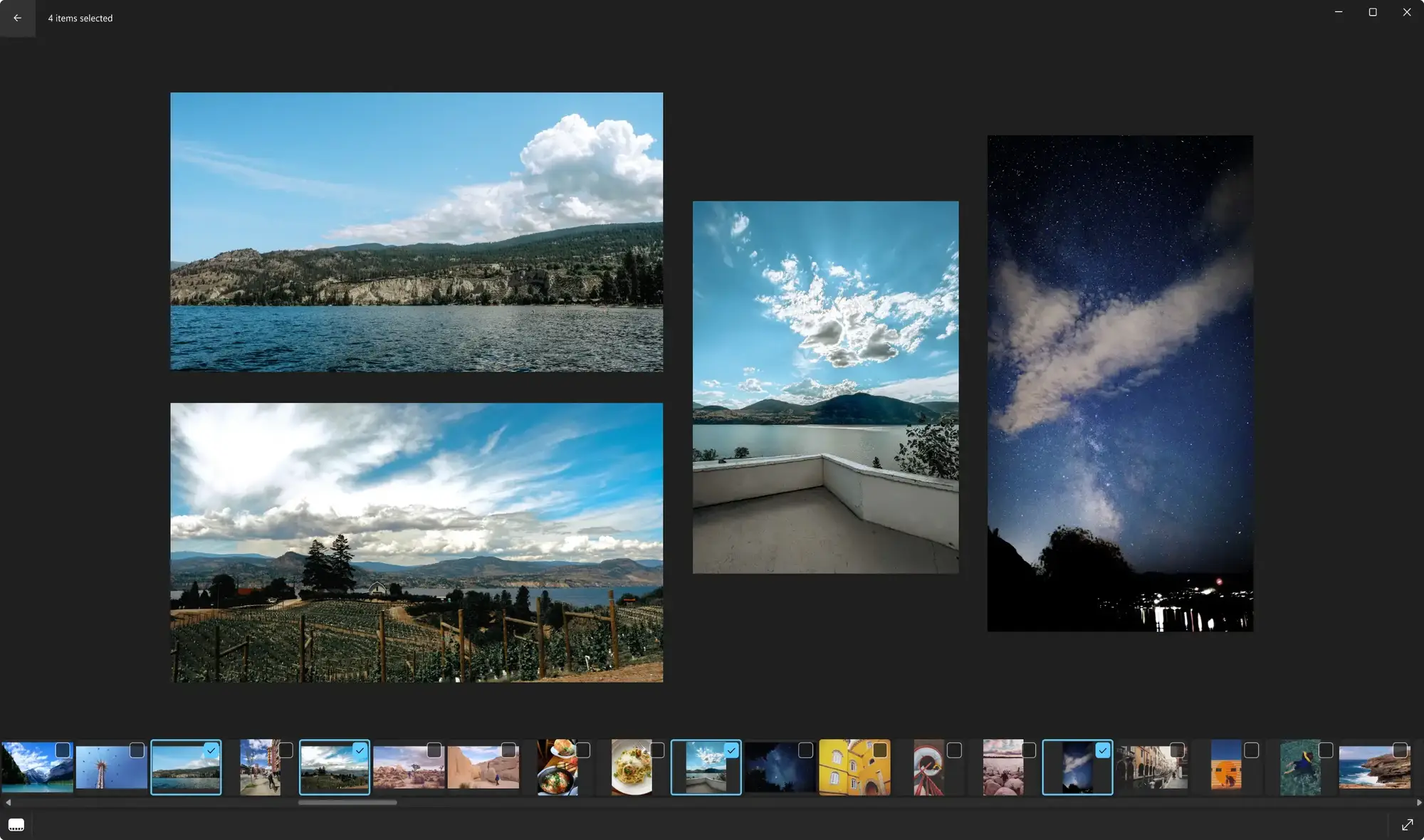
Microsoft Photos Screenshots

Community Poll
Common Issues and Fixes
- App disappeared after an update: This is a known issue for some users. The fastest solution is to reinstall it directly from the Microsoft Store page.
- Can’t set as default for image files: Go to Windows Settings > Apps > Default apps, search for “Photos,” and set it as the default for each file type (like .jpg, .png).
- App crashes or is slow: Try repairing or resetting the app via Settings > Apps > Installed apps > Microsoft Photos > Advanced options.
Microsoft Photos FAQ
- Is the Microsoft Photos app free? Yes, it is completely free and comes pre-installed with Windows 10 and Windows 11.
- What is Photos Legacy? “Photos Legacy” is an older version of the app available in the Store for users who prefer the previous interface and feature set.
- Can I use it without OneDrive? Absolutely. OneDrive integration is optional. The app works perfectly with photos stored locally on your PC.
- What file formats does it support? It supports common formats including JPEG, PNG, GIF, BMP, HEIC, and MP4 for videos.
Support and Community
Explore More Windows Apps: Microsoft Forms, Microsoft Designer & the new Outlook for Windows.
Discover more from Windows Mode
Subscribe to get the latest posts sent to your email.