Readers like you help support this site. When you make a purchase using links on our site, we may earn an affiliate commission. All opinions remain our own.
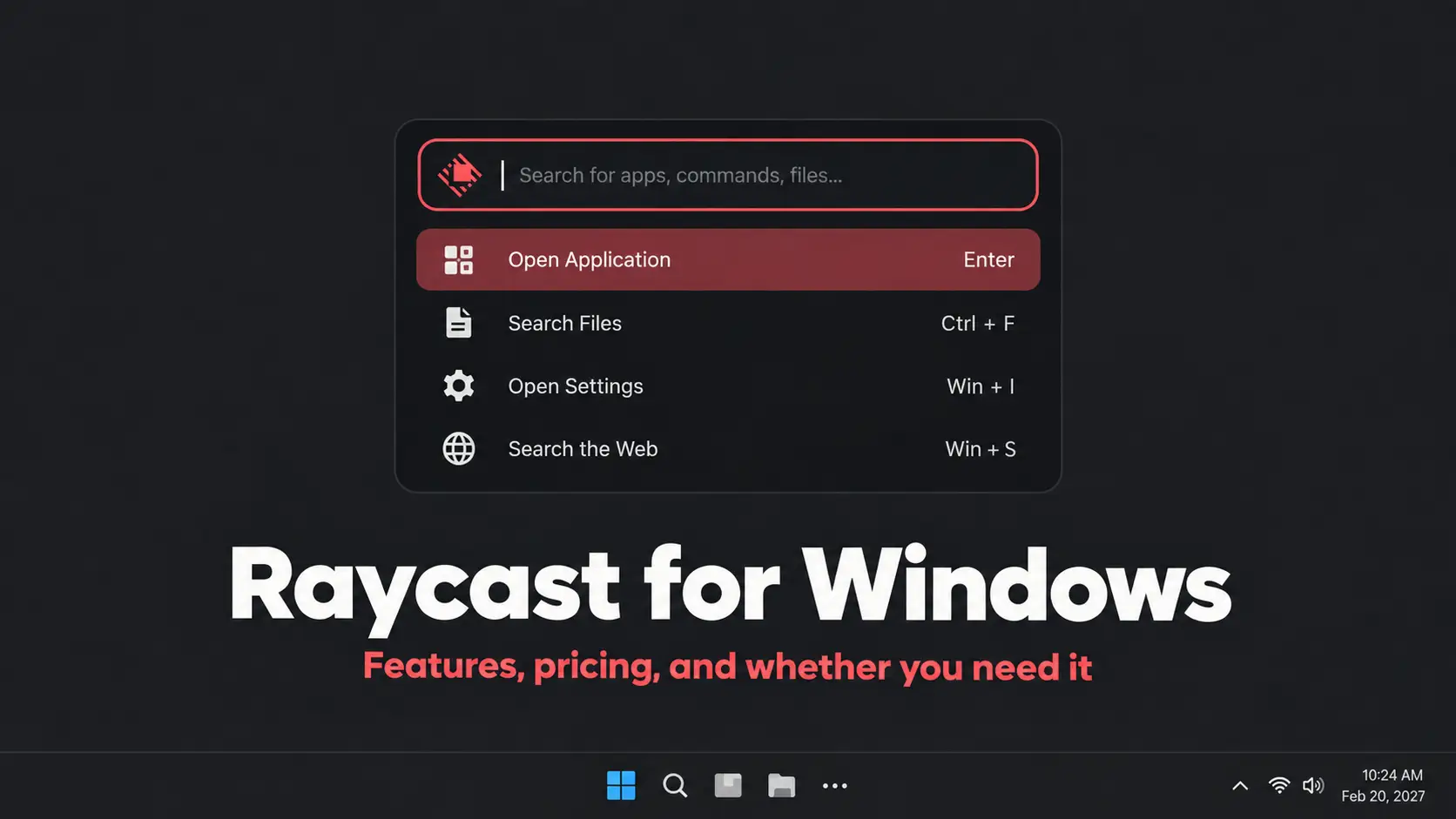
Press the Raycast hotkey and the command bar appears over Windows, ready to search apps, files, commands and more.
Raycast is a keyboard-first command launcher for Windows that puts apps, files, clipboard history, shortcuts, scripts and extensions behind one search bar.
Windows already has Start and Search, so Raycast is not solving a problem every PC user has. Its appeal is speed and consolidation. Instead of reaching for separate launchers, clipboard tools, snippets and small scripts, Raycast tries to put them in one place.
The free version already covers most of what makes the app interesting. This guide shows you how to install it, what the main features do, which shortcuts matter, how Script Commands work, and how it compares with PowerToys Run.
What Is Raycast on Windows?
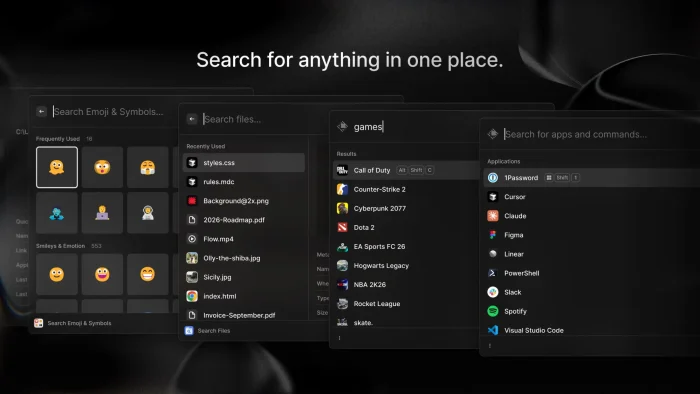
Raycast is a command launcher that opens over your desktop when you press a keyboard shortcut. Start typing and it can return installed apps, files, commands, clipboard entries, snippets, extensions and other actions.
That makes it broader than a normal Windows launcher. Raycast is also trying to replace some of the small utilities power users often install separately, while keeping everything searchable from the same interface.
What Can You Actually Do With Raycast?
Launch apps and find files
Search for an installed application or file and open it without digging through Start or File Explorer.
Search clipboard history
Find text and other items you copied earlier instead of losing them when something new reaches the clipboard.
Save snippets and Quicklinks
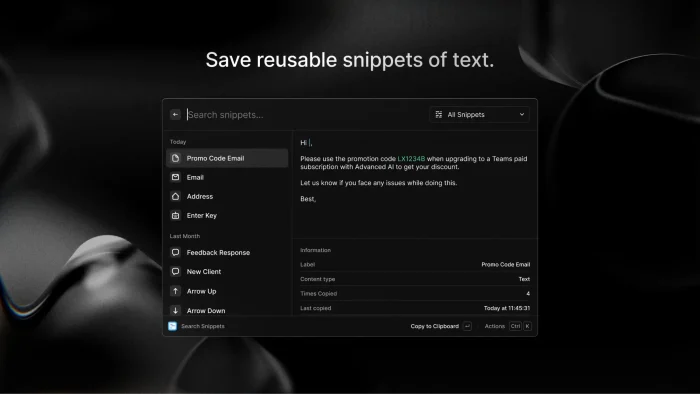
Keep reusable text, frequent replies, website shortcuts and other repeated actions close at hand.
Run your own scripts
Script Commands can expose PowerShell, Python, Node.js and other scripts directly inside Raycast search.
Install extensions
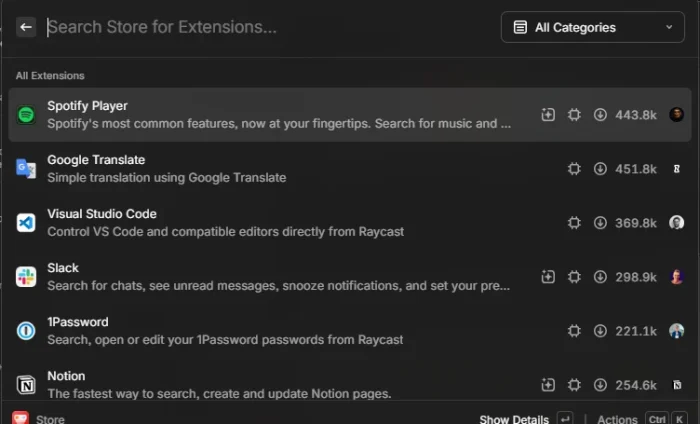
Extensions add commands and integrations for other apps and online services.
Manage windows
Move, resize and arrange open windows using keyboard commands instead of dragging them around manually.
How to Download Raycast for Windows
The Microsoft Store is the simplest installation method for most people. You can also get Raycast through its official website or install it from Windows Terminal with winget.
Three installation options
- Microsoft Store, recommended for most users
- Official Raycast Windows download
winget install raycastfrom Windows Terminal
Step 1. Open the Microsoft Store listing or visit the official Raycast Windows page.
Step 2. Install Raycast and launch it from the Start menu.
Step 3. Complete the short onboarding process and check which hotkey Raycast assigns.
Step 4. Open Raycast and try searching for an app, a file or one of its built-in commands.
How to Set Up Raycast After Installing It
You do not need to configure everything on day one. Start with the main hotkey, then add features only when you find a reason to use them.
The General settings page is where you can change the Raycast hotkey, control startup behavior and adjust the interface.
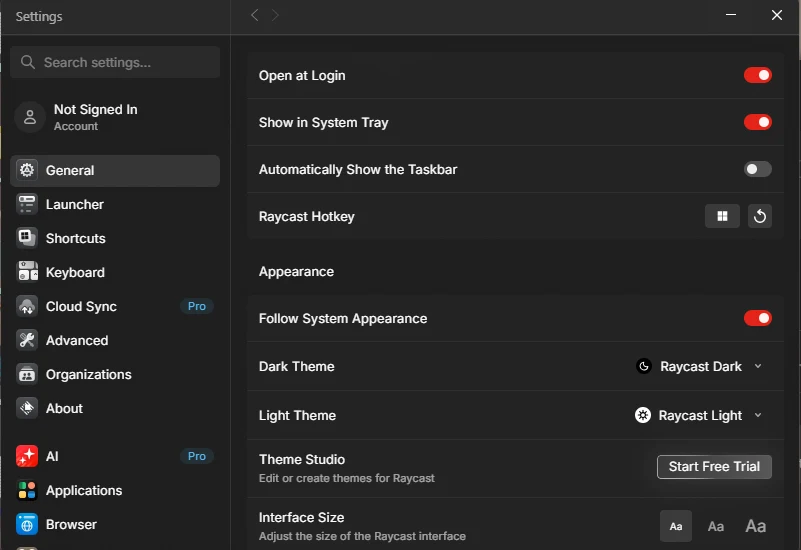
Raycast General settings, including the configurable hotkey, startup behavior, system tray option and interface controls.
Getting started tip: use Raycast for app search and clipboard history first. Once the basic workflow feels natural, add snippets, Quicklinks, extensions or Script Commands.
>_
Script Commands for Developers and Power Users
Script Commands turn small scripts into commands you can find and run directly from Raycast search. If you already use PowerShell, Python or Node.js, this is one of the more interesting reasons to install Raycast.
You could restart Docker, check disk space, query a local service, open a development project or run one of your own maintenance scripts without leaving the launcher.
Save the script in a folder Raycast watches for Script Commands. After Raycast indexes it, searching for the command title lets you run it like any other built-in action.
Essential Raycast Shortcuts
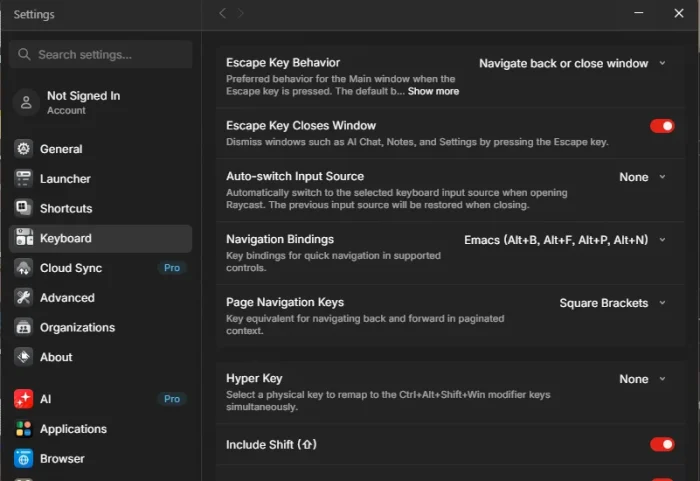
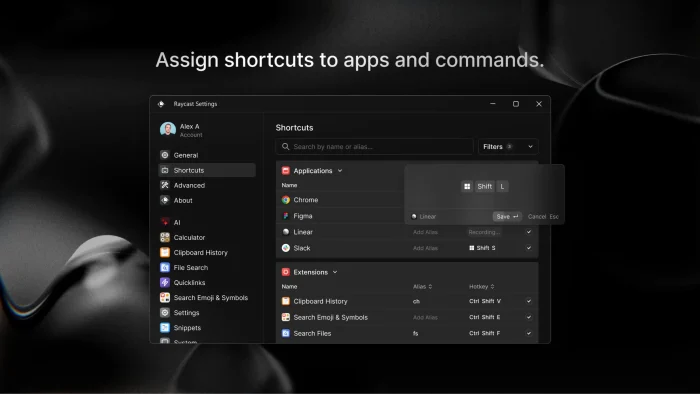
Raycast is built around keyboard use, so a few shortcuts matter more than memorizing every feature. The main Raycast hotkey can be changed in Settings, so use the combination shown in your installation.
You can reassign the main Raycast hotkey if it conflicts with PowerToys Run, another launcher or an existing Windows shortcut.
Raycast vs PowerToys Run
PowerToys Run is the obvious comparison on Windows because both tools let you press a hotkey and search for apps, files and actions. The main difference is scope.
PowerToys Run
- Focused primarily on launching and search
- Part of Microsoft’s free PowerToys package
- Good choice if you want a simpler launcher
- Works well alongside other Windows tools
Raycast
- Launcher plus clipboard history and snippets
- Supports Script Commands
- Includes an Extensions Store
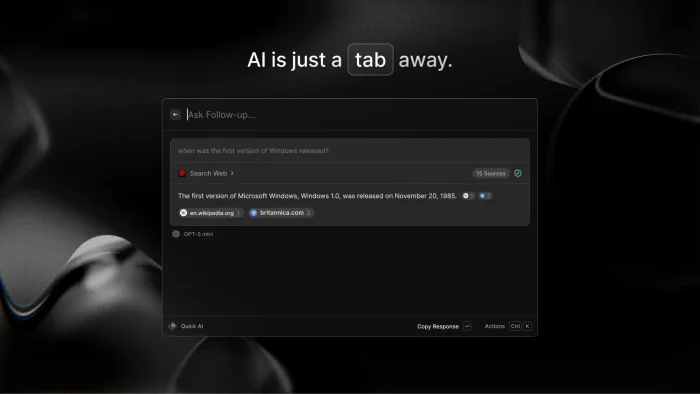
- Adds optional AI and cloud features
If PowerToys Run already does everything you need, there is no reason to replace it just because Raycast has more features. Raycast becomes more interesting when you also want clipboard history, snippets, extensions or custom scripts in the same interface.
Raycast Free vs Pro
You do not need Pro to understand why people use Raycast. The free version includes the core launcher and several of its most practical productivity features.
Free
- App and file launcher
- Clipboard history
- Snippets and Quicklinks
- Window management
- Script Commands
- Extensions
Pro adds
- Raycast AI features
- Cloud Sync
- Additional personalization options
- Other premium features tied to a Raycast account
The AI settings page shows where Raycast’s paid AI features live. You can ignore this entire area and still use most of the app.
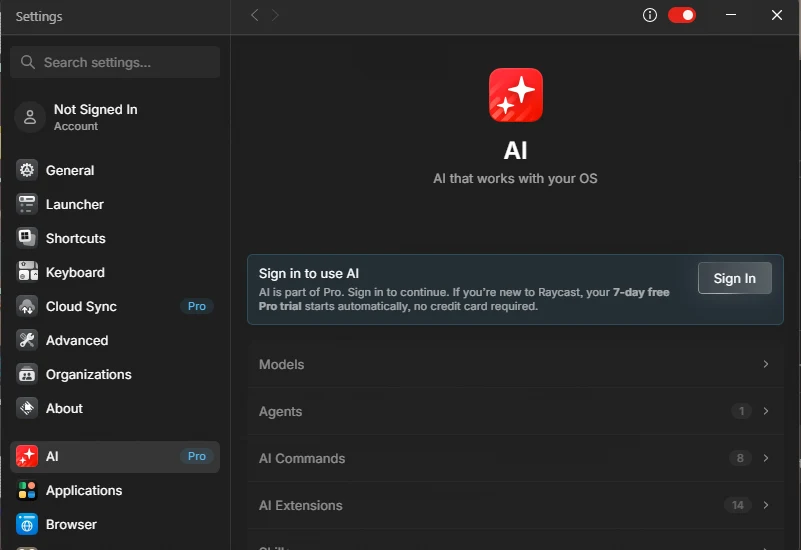
The AI section is separate from the core launcher, clipboard tools, Script Commands and other free features.
Common Issues and Fixes
⚠
Hotkey conflicts with another app
Open Raycast Settings and assign a different hotkey. This is especially useful if PowerToys Run or another launcher already uses the same combination.
⚠
AI features ask you to sign in
AI features are separate from the free launcher. You can continue using app search, clipboard history, Script Commands and other core features without using Raycast AI.
⚠
A Script Command does not appear
Check that Raycast is watching the correct script folder, then reload Script Commands so it scans for new or edited files.
⚠
An extension asks for account access
Some extensions connect to third-party services. Read the permission request before signing in and remove extensions you no longer use.
⚠
Search feels busy after installation
Start with the built-in launcher and only enable extensions you actually need. A smaller command list is often easier to use than installing everything at once.
⚠
Raycast opens when another shortcut should
Change the global Raycast hotkey in General settings. You do not need to reinstall the app or disable Windows Search.
Video: See Raycast for Windows in Action
Want to see how Raycast behaves before installing it? This walkthrough shows the Windows version in use, including the launcher, search experience and some of the tools covered above.
What to look for: how quickly the command bar opens, how search results are presented, and how Raycast moves beyond simply launching apps.
Raycast for Windows in use, showing how its keyboard-first interface works during normal desktop tasks.
Who Raycast Is Best For
Raycast makes the most sense when its extra tools replace several small actions you already repeat during the day.
Keyboard-heavy Windows users
A good fit if you prefer launching, searching and navigating without reaching for the mouse.
Developers and sysadmins
Script Commands can turn frequent PowerShell, Python or development tasks into searchable actions.
People who reuse text and links
Clipboard history, snippets and Quicklinks can reduce repetitive copying, typing and browser navigation.
Users already happy with Windows Search
You may not gain much from another launcher unless the clipboard, extension or Script Command features solve a problem you already have.
Tips for Getting Started
Set a Raycast hotkey that does not interfere with your existing Windows shortcuts.
Use the launcher and clipboard history for a few days before adding a large number of extensions.
Create snippets for text you repeatedly type, such as support replies, URLs or email signatures.
If you already write scripts, turn one frequent task into a Script Command before deciding whether you need more advanced features.
-
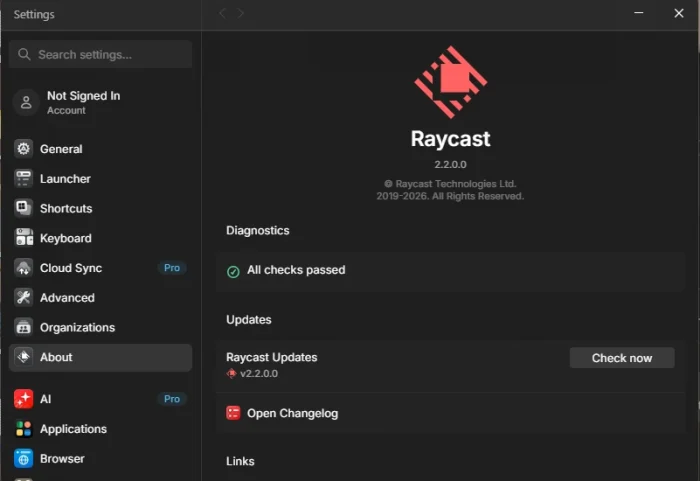
- Raycast settings about diagnostics from
-
- Raycast settings keyboard shortcuts from
-
- Raycast store extensions browse from
-
- Ai tab from Raycast for Windows: Features, Pricing and Whether You Need It
-
- Assign shortcuts from Raycast for Windows: Features, Pricing and Whether You Need It
-
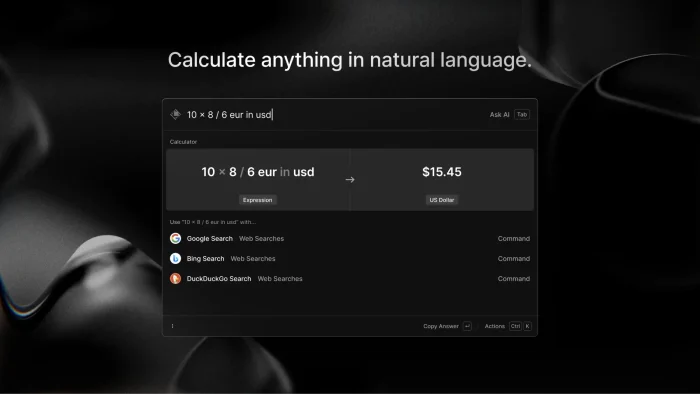
- Calculate with natural language from Raycast for Windows: Features, Pricing and Whether You Need It
-
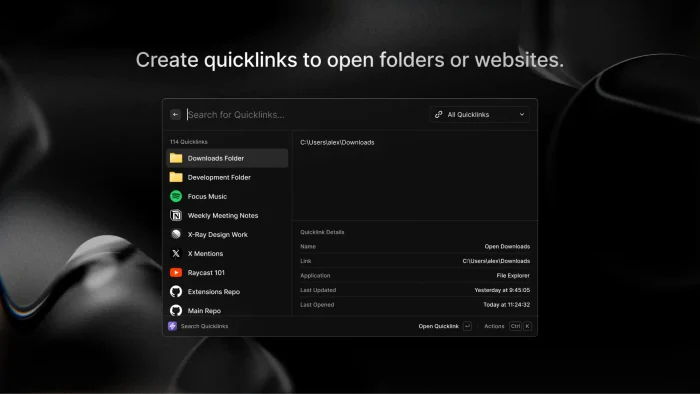
- Create quick links from Raycast for Windows: Features, Pricing and Whether You Need It
-
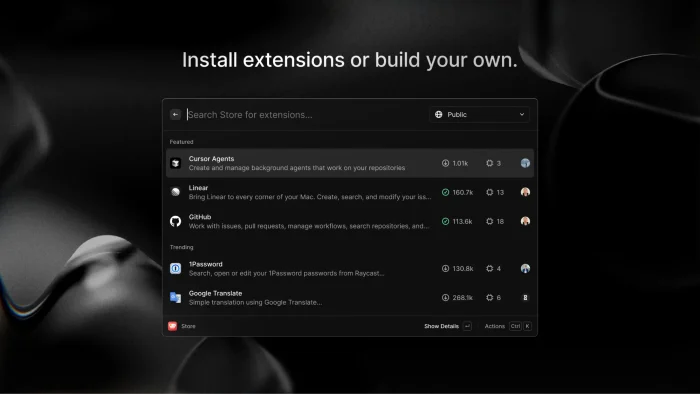
- Custom extensions or build from Raycast for Windows: Features, Pricing and Whether You Need It
-
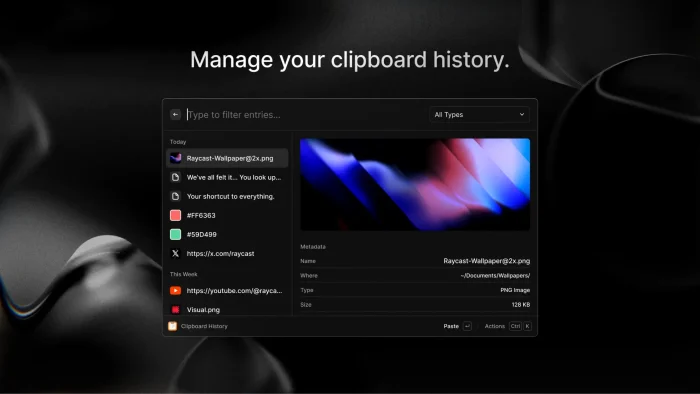
- Manage clipboard from Raycast for Windows: Features, Pricing and Whether You Need It
-
- Reusable snippets from Raycast for Windows: Features, Pricing and Whether You Need It
-
- Search for everything from Raycast for Windows: Features, Pricing and Whether You Need It
Raycast FAQ
Is Raycast free for Windows?
Does Raycast replace Windows Search?
Can I change the shortcut that opens Raycast?
What is a Raycast Script Command?
Is Raycast better than PowerToys Run?
Is Raycast available in the Microsoft Store?
Support and Community
The official Raycast website has Windows downloads, feature information and updates. Developers can also browse Raycast’s GitHub projects, including resources for extensions and Script Commands.
More Windows software guides:
Discover more from Windows Mode
Subscribe to get the latest posts sent to your email.











Add your first comment to this post