Readers like you help support this site. When you make a purchase using links on our site, we may earn an affiliate commission. All opinions remain our own.
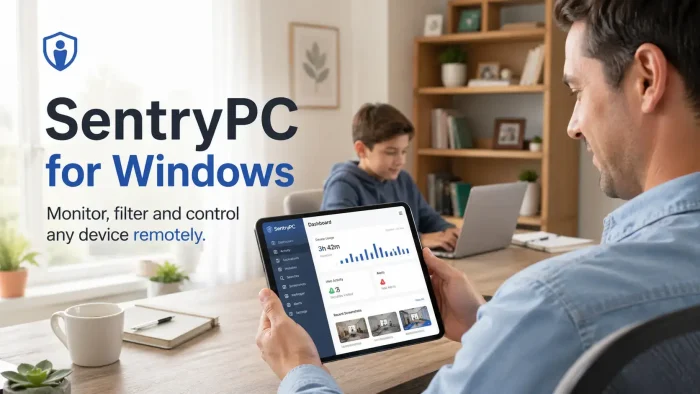
SentryPC is cloud-based monitoring and control software for Windows, Mac, Android, and Chromebook, available directly from sentrypc.com. You install it once on the device you want to watch, then log in to your online account from anywhere to see exactly what that user has been doing. It records keystrokes, websites, apps, screenshots, files, and more in real time.
The cloud dashboard is what sets it apart from older monitoring tools. You do not need to be near the monitored computer to check logs or change settings. Any browser on any device gives you full access to the activity feed, blocking rules, and time schedules you have set.
SentryPC has been around since 2005 and is used by parents, small businesses, and schools. It supports Windows 7 through 11, Mac, Android 7 and up, and Chromebook. This page covers how to get it on Windows, what it monitors, how filtering works, and what the plans cost.
Already using SentryPC? Drop a question in the comments below. Need help choosing a plan? Reach out to us directly.
What You Need to Know
- SentryPC runs in stealth mode. The monitored user will not see it running unless you choose to show them a notice.
- All plans include the same features. The only difference between plans is the number of devices you can monitor and screenshot storage.
- Antivirus software will flag SentryPC during install. This is expected. You need to add it to your exclusion list for it to work correctly.
Who Should Use SentryPC?
- Use it if you manage devices for your children, employees, or students and need a full record of what they do on those computers or phones.
- Skip it if you only want basic website blocking. SentryPC is a full monitoring platform. Simpler parental control apps may be a better fit for light use.
- Be careful if you are in a jurisdiction with strict employee privacy laws. In some regions, monitoring employees without clear written notice is illegal regardless of what software you use.
How to Install SentryPC on Windows
SentryPC is downloaded directly from sentrypc.com after you purchase a plan. There is no Microsoft Store version. Here is how the install works on Windows.
- Step 1. Go to sentrypc.com and choose a plan. Your cloud account and installer are available immediately after purchase.
- Step 2. Before downloading, temporarily disable your antivirus software. Windows Defender and most third-party scanners will block or delete the installer because of its monitoring capabilities. This is expected behavior, not a sign the software is dangerous.
- Step 3. Log in to your SentryPC account and go to the Download page. You will see an option called “Require confirmation during installation.” If you check this, the target device will show a prompt asking the user to confirm before SentryPC installs. Leave it unchecked if you want a silent install.
- Step 4. Download the installer and copy it to the device you want to monitor. Right-click the file and choose “Run as administrator.” If Windows SmartScreen appears, click “More info” then “Run anyway.”
- Step 5. After install, re-enable your antivirus and add SentryPC to its exclusion list. SentryPC’s support page has specific instructions for all major antivirus programs. Without this step, your scanner may remove SentryPC files and break the monitoring.
- Step 6. Log in to your account at sentrypconline.com from any browser. Activity logs and device settings will appear there shortly after installation. You do not need to touch the monitored device again.
Note: You need one license per device you want to monitor. The device you use to access your cloud account (your own phone or laptop) does not count as a license.
Is SentryPC Safe?
SentryPC does not modify Windows system files, does not install rootkits, and does not send data to third parties outside of your account. It communicates only with sentrypconline.com to deliver logs and receive your settings. The software has been commercially available since 2005 and is featured in PCWorld and Business.com.
That said, SentryPC does have deep access to the device it is installed on. It reads keystrokes, takes screenshots, and tracks app usage across all user accounts on that machine. This is exactly what it is designed to do. If your antivirus runs a heuristic scan after install and flags it again, that is the scanner doing its job. The fix is adding the SentryPC folder to your exclusion list, not uninstalling it.
What Is SentryPC?
SentryPC is monitoring and control software built around a cloud dashboard. You install a small agent on the device you want to watch, and from that point everything that user does is recorded and sent to your online account. You can check logs, run reports, create charts, and change filtering rules from any web browser without ever going near the monitored machine.
It is used in three main situations: parents monitoring children at home, businesses tracking employee activity, and schools enforcing acceptable use policies on lab computers. The same software and the same cloud account handle all three. You just set up different rules for different users or devices.
Key Features
Activity Monitoring
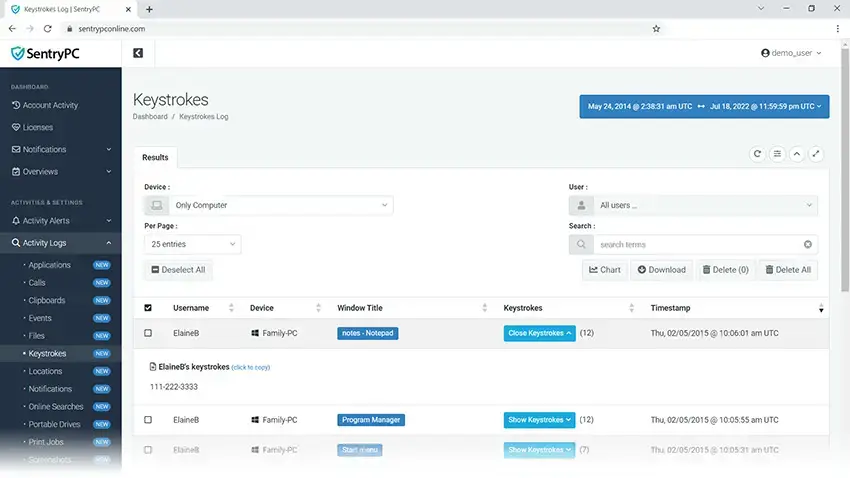
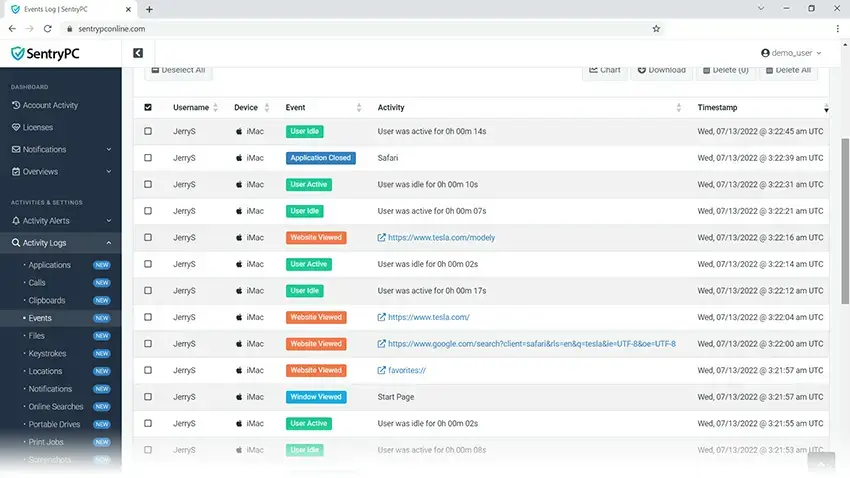
Records 20+ activity types in real time: keystrokes, websites, apps, files, screenshots, mouse clicks, clipboard contents, print jobs, USB drives, login and logout times, online searches, social networks, text messages, calls, and more. All stored in your cloud account for up to 30 days.
Content Filtering
Block specific apps, websites, or keywords either completely or only during the hours you define. You can also lock down Windows features like Task Manager, Control Panel, and network settings so the monitored user cannot work around your rules.
Time Scheduling
Set daily and weekly schedules that define exactly when the device can be used. Add daily and weekly maximum usage limits on top of the schedule. SentryPC shows you in real time how much time each user has left for the day.
Remote Cloud Access
Log in from any device with a browser to view logs and change settings instantly. Settings pushed from your account apply to the remote computer right away. You never need physical access to the monitored machine after the initial install.
Geofencing
Draw a virtual fence around a home address or office location. SentryPC tracks the device’s location and creates an alert whenever it enters or leaves that area. Location is updated continuously and shown on a map in your account.
Stealth Operation
SentryPC runs in the background without showing in the taskbar, system tray, or app list. The monitored user will not know it is running unless you choose to display a warning message. Optional email alerts notify you when a blocked activity is attempted.
What SentryPC Monitors
Here is the full list of activity types SentryPC records on Windows devices:
Websites
Keystrokes
Screenshots
Files
Emails
Online Searches
Social Networks
Text Messages
Calls
Clipboard
Print Jobs
USB / Portable Drives
Login and Logout
Mouse Clicks
IP Addresses
Locations
Dark Web Activity
Games
Notifications
Sessions
Windows
Video
A quick video explaining how SentryPC works and how you can use it to monitor your children or company employees.
System Requirements
| Requirement | Details |
|---|---|
| Windows | Windows 7, 8, 10, or 11 (32-bit and 64-bit) |
| Disk Space | 1 MB |
| Internet | Required (communicates with your cloud account) |
| Also Supports | Mac OS X 10.6+, Android 7+, Chromebook (browser activity only) |
| Cloud Account Access | Any device with a web browser and internet connection |
Plans and Pricing
All plans include every feature. The only differences are the number of devices you can monitor and the screenshot storage included.
Home / Family
1 device license. 500 screenshot storage. Best for monitoring one child’s computer or phone. Add more licenses at $29.95/yr each.
$69.95/year
Business 50
Small Business
50 device licenses. 500 screenshot storage. Good for small teams and offices. Works out to $29.90 per device per year.
$1,495/year
Mid-Size Business
100 device licenses. 1,000 screenshot storage. Covers larger offices or school labs. Works out to $24.95 per device per year.
$2,495/year
Business 250 ($4,995/yr), Business 500 ($7,495/yr), and Business 1,000 ($9,995/yr) plans also available. Screenshot storage can be expanded by 500 slots for $29.95/yr.
SentryPC vs the Alternatives
| Feature | SentryPC | Qustodio | Norton Family |
|---|---|---|---|
| Cloud dashboard | Yes | Yes | Yes |
| Keystroke logging | Yes | No | No |
| Screenshot capture | Yes | No | No |
| Employee / business plans | Yes | No | No |
| Stealth mode | Yes | No | No |
| Geofencing | Yes | Yes | No |
| Time scheduling | Yes | Yes | Yes |
| Starting price | $69.95/yr | From ~$55/yr | From ~$50/yr |
Tips for Getting Started
Deal with your antivirus before anything else
The biggest cause of failed installs is antivirus interference. Disable it before downloading, run the installer, then add SentryPC’s folder to the exclusion list before re-enabling your scanner. Skipping this step will cause random monitoring gaps or outright failures.
Give each device a clear name during setup
When you install SentryPC on a device, you assign it a name that shows up in your cloud account. Use something descriptive like “Jake’s laptop” or “Office PC 3” instead of accepting the default. It becomes much harder to sort through logs when all your devices have generic names.
Download logs before the 30-day cutoff
SentryPC purges logs older than one month automatically. If you ever need to review older activity, download and archive those logs locally before they disappear. Your cloud account has a download option that lets you filter by device, user, and date range.
Use keyword filtering to catch specific phrases
The keyword filter does two things: it blocks those words from being typed, and it alerts you when someone tries. This is useful for preventing children from sharing personal information like a home address or phone number, or for catching employees typing confidential data into unauthorized apps.
Check local laws before monitoring employees
Employee monitoring rules vary a lot by country and state. In many places you are legally required to notify employees that monitoring is in place before you start. SentryPC gives you the option to display a notice during install. Whether or not you use it, make sure your monitoring policy is documented and disclosed to staff.
Screenshots
-
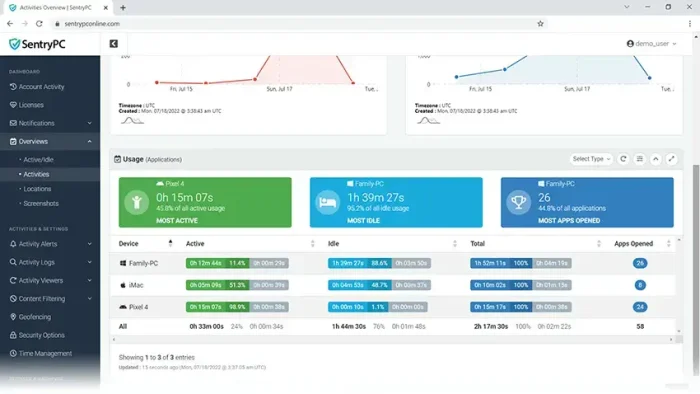
- Activities charts from SentryPC for Windows: Complete Setup Guide (2026)
-
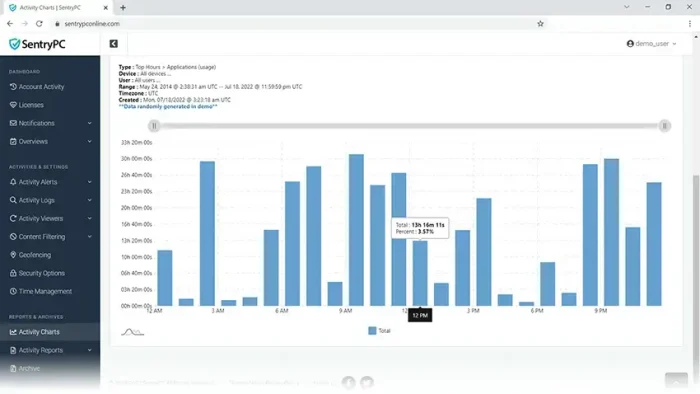
- Charts applications from SentryPC for Windows: Complete Setup Guide (2026)
-
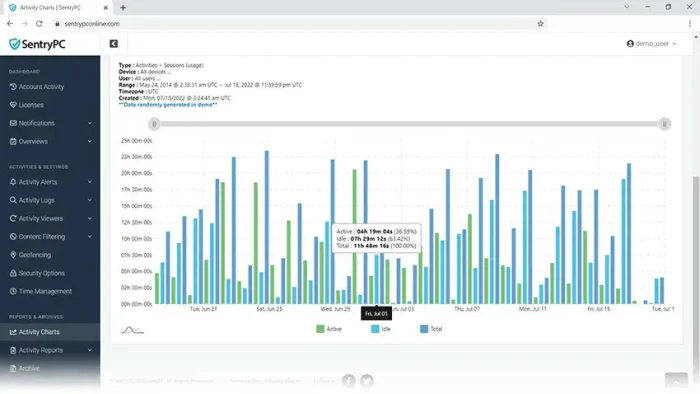
- Charts sessions from SentryPC for Windows: Complete Setup Guide (2026)
-
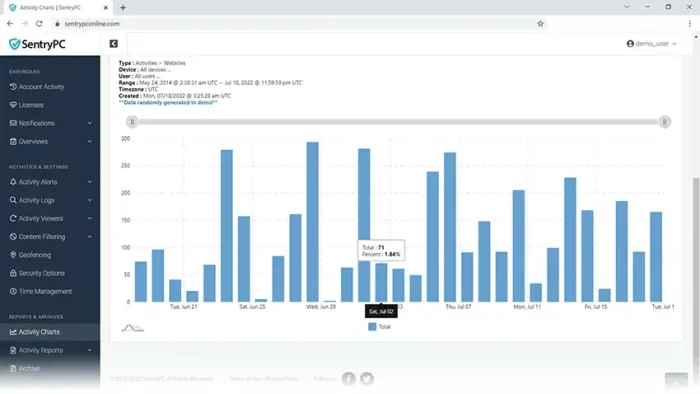
- Charts websites from SentryPC for Windows: Complete Setup Guide (2026)
-
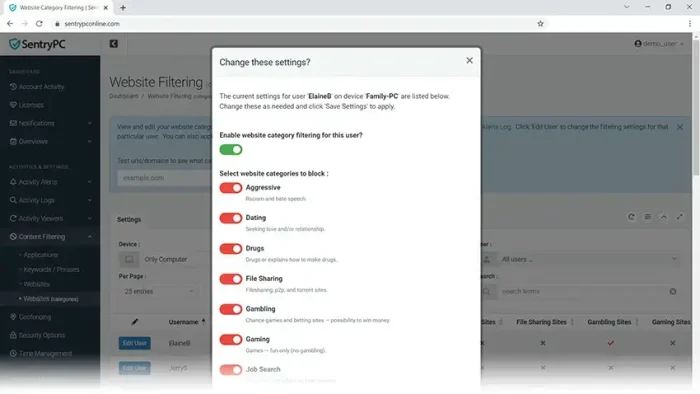
- Filtering websites categories from SentryPC for Windows: Complete Setup Guide (2026)
-
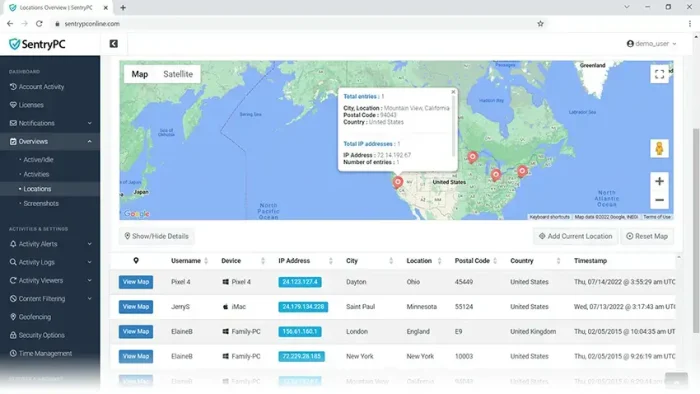
- Map locations from SentryPC for Windows: Complete Setup Guide (2026)
-
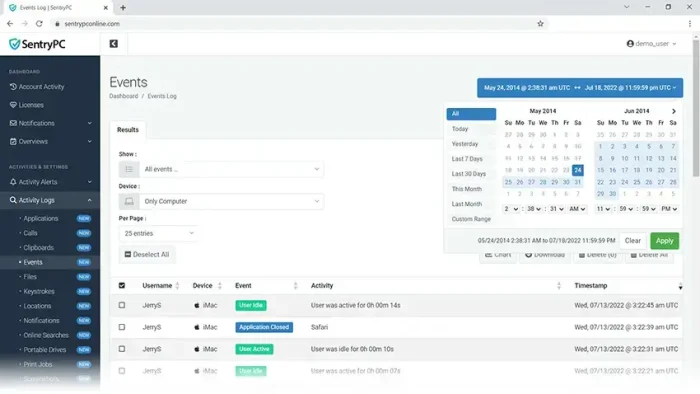
- Monitoring events date time from SentryPC for Windows: Complete Setup Guide (2026)
-
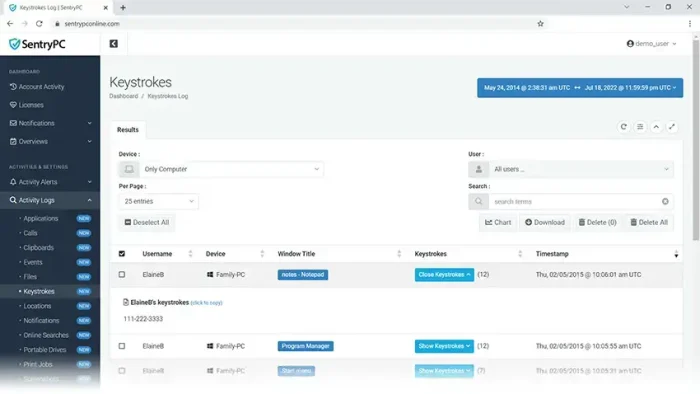
- Monitoring keystrokes from SentryPC for Windows: Complete Setup Guide (2026)
-
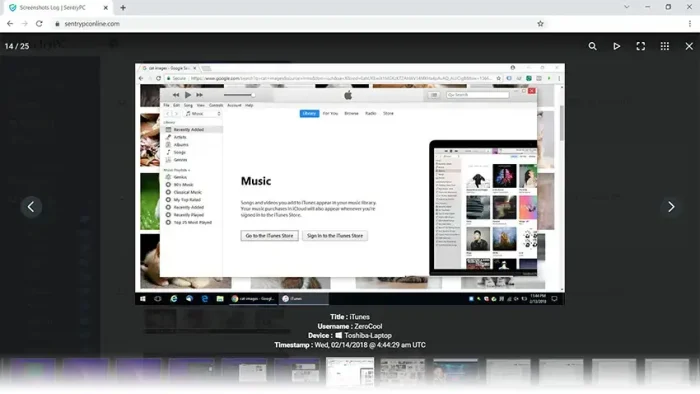
- Monitoring screenshot from SentryPC for Windows: Complete Setup Guide (2026)
-
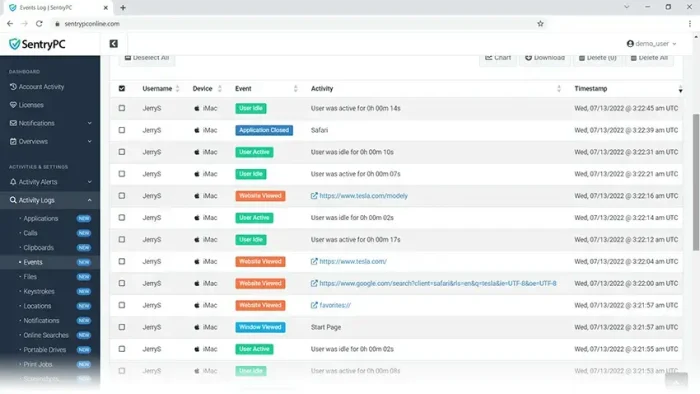
- Monitor sites visited from SentryPC for Windows: Complete Setup Guide (2026)
-
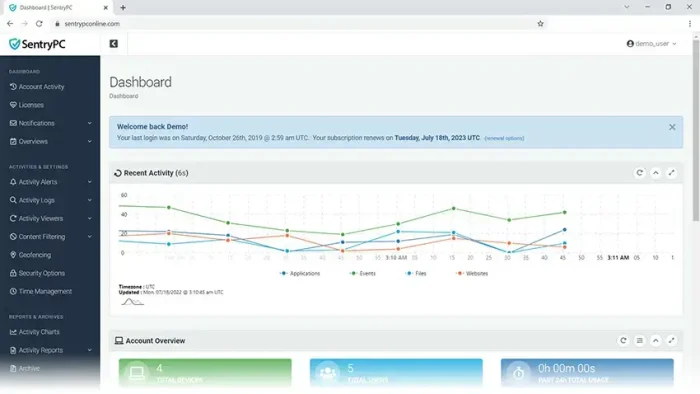
- Sentrypc dashboard online from SentryPC for Windows: Complete Setup Guide (2026)
-
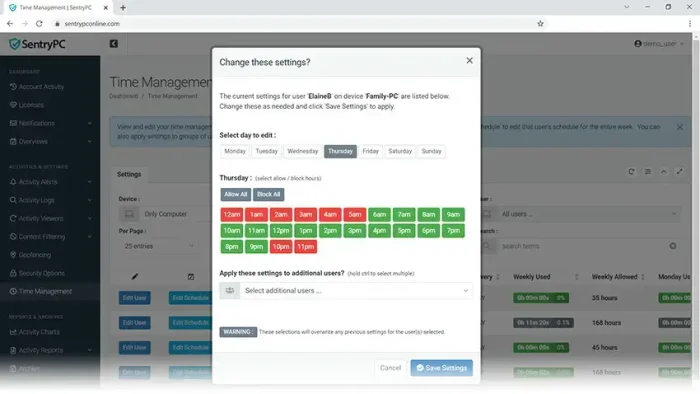
- Time management schedule from SentryPC for Windows: Complete Setup Guide (2026)
-
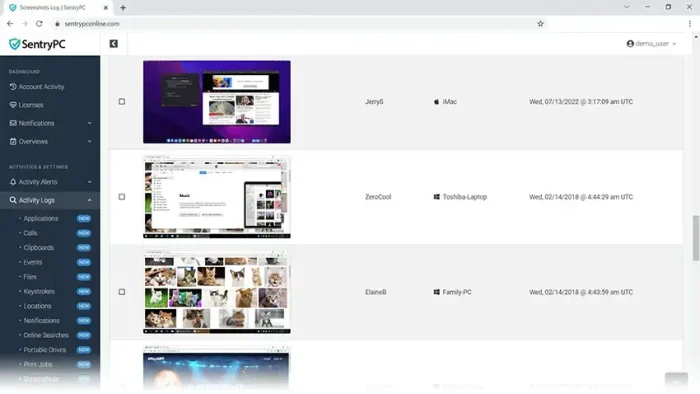
- Which websites you browsed from SentryPC for Windows: Complete Setup Guide (2026)
Frequently Asked Questions
Can the monitored user uninstall SentryPC themselves?
Not easily. SentryPC is designed to resist removal by the person being monitored. It does not appear in the standard Windows app list, and removing it requires account credentials and deliberate steps through your SentryPC cloud account. A determined user with admin access to the device could potentially remove it, which is why SentryPC recommends limiting admin privileges on monitored devices.
Is there a free trial for SentryPC?
There is no free trial. SentryPC offers a demo you can request from their site, but the full software requires a paid subscription to download and use. The Basic plan starts at $69.95 per year for one device. There is no refund policy listed publicly, so if you are unsure, contact SentryPC support before purchasing.
Can SentryPC monitor multiple users on the same Windows device?
Yes. SentryPC monitors all user accounts set up on the device once it is installed. You do not need a separate license per user on that machine. One license covers the device, and all user accounts on it are monitored under that single license.
What happens to my data if I cancel my SentryPC subscription?
When your subscription ends, your account is terminated and you lose access to all stored logs and settings. SentryPC does not keep your data after the account closes. If you need to keep a record of activity before cancelling, download your logs from the account before your subscription expires.
Can SentryPC monitor activity in private or incognito browser windows?
Yes. Because SentryPC monitors at the system level rather than through a browser extension, it records activity regardless of whether the user is browsing in private or incognito mode. Keystrokes, websites visited, and screenshots are all captured the same way in incognito as in a normal browser window.
Can SentryPC monitor a device on a different network or in a different country?
Yes. SentryPC is fully cloud-based, so it works on any device with an internet connection regardless of location or network. You can install it on a device in one country and monitor it from a browser anywhere else in the world.
Does SentryPC work on Windows in S Mode?
No. Windows S Mode only allows apps installed through the Microsoft Store, and SentryPC is not available there. You would need to switch out of S Mode before installing SentryPC. This is a free and permanent switch done through Windows Settings.
Support and Community
- SentryPC Support Center: help documentation, how-to guides, and ticket support
- r/pcmasterrace on Reddit: community discussion on monitoring and parental control tools for Windows
- SentryPC Blog: product updates and guides
More Windows software guides: Avast Premium Security · Bitdefender for Windows · Microsoft PC Manager · CapCut for Windows
Discover more from Windows Mode
Subscribe to get the latest posts sent to your email.
















Add your first comment to this post