Readers like you help support this site. When you make a purchase using links on our site, we may earn an affiliate commission. All opinions remain our own.
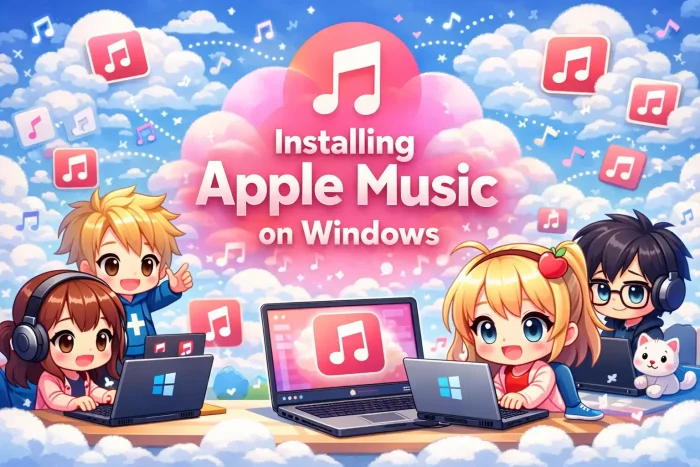
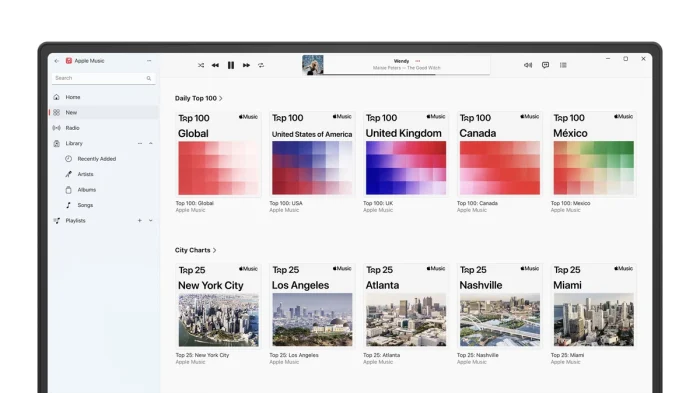
Apple Music for Windows is the official app for streaming Apple Music on a PC. It replaces iTunes for music streaming, giving you access to the Apple Music catalog, Lossless Audio, and time-synced lyrics directly on Windows.
Unlike the old iTunes, this is a modern Microsoft Store app built for Windows. You can sign in with your Apple Account, sync your library, download music for offline listening, and play supported Spatial Audio formats on compatible hardware.
What Apple Music for Windows does (and doesn’t)
- It does: stream Apple Music, sync your library (iCloud Music Library), show lyrics, and enable Lossless/Spatial Audio options where supported.
- It does not replace: device backup/sync workflows that many people still associate with “iTunes.” If you manage iPhones/iPads on PC, you may need Apple’s separate device-management app(s) or services depending on your setup.
Why this matters: It prevents the most common confusion, Apple Music is for listening, not for being an all-in-one “everything Apple” PC manager like the old iTunes era.
How to Install Apple Music on PC
1
Download the official app
Get Apple Music from the Microsoft Store (link below). Avoid “offline installers” from random sites.
2
Sign in
Launch the app and sign in with your Apple Account. Your library can sync automatically.
3
Enable Lossless (optional)
Go to Settings > Playback and turn on Lossless Audio if you want higher quality streaming.
Download App (Microsoft Store)
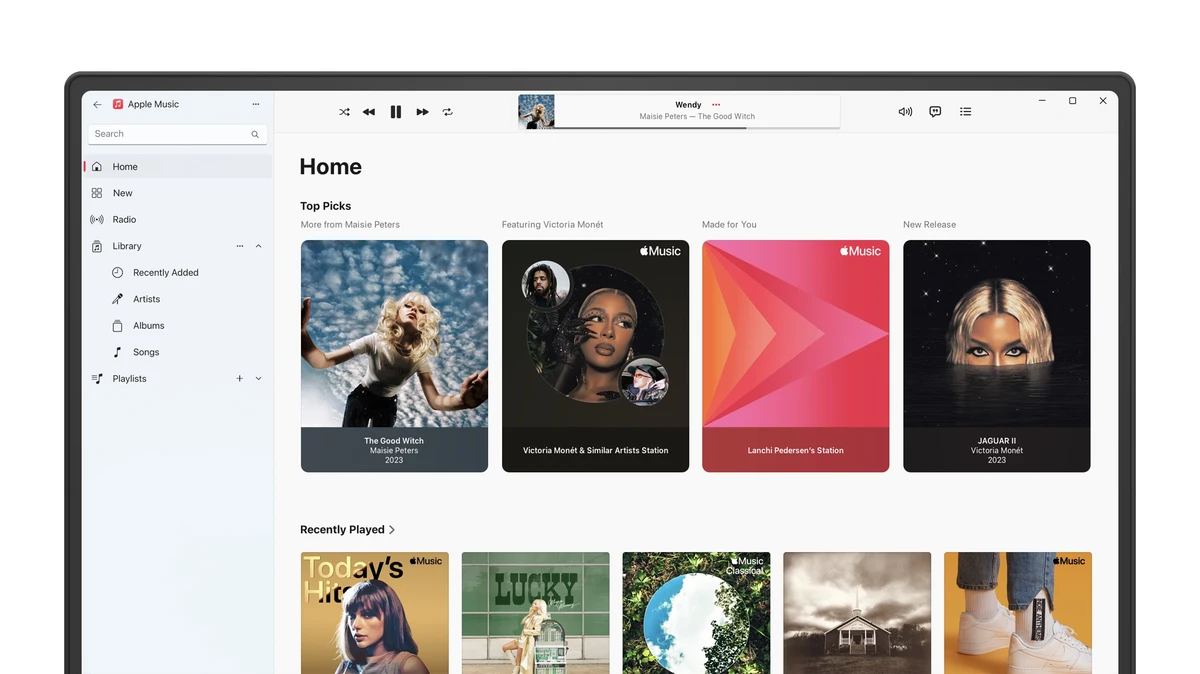
Apple Music Interface Gallery
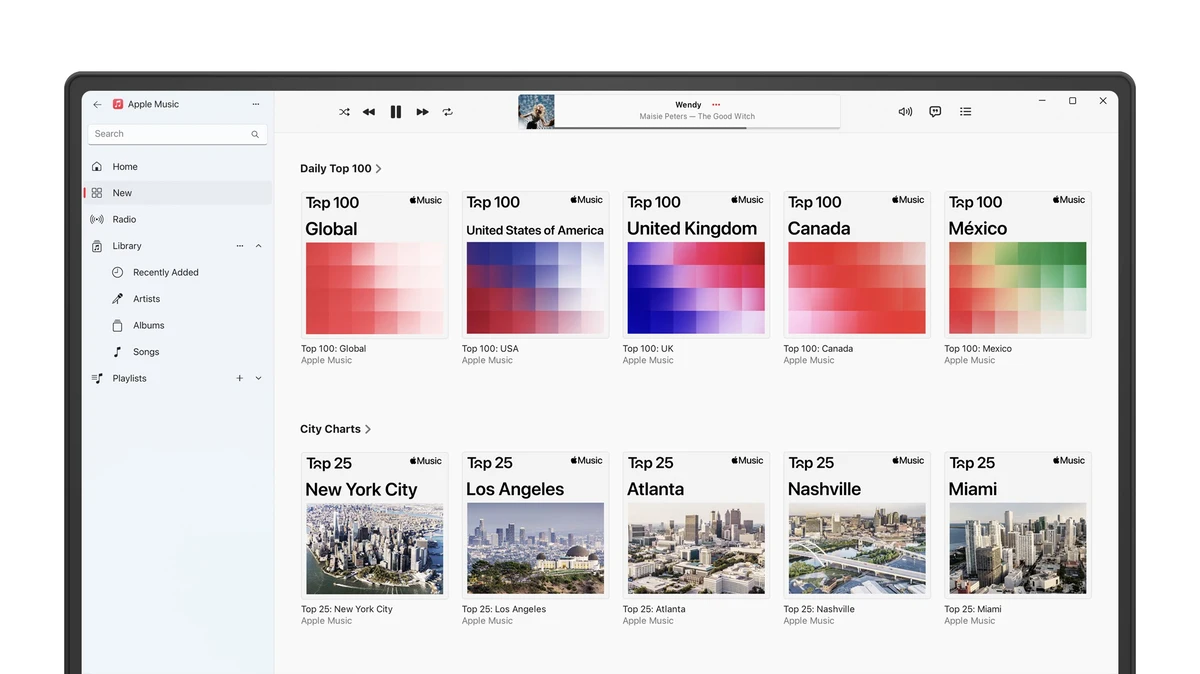
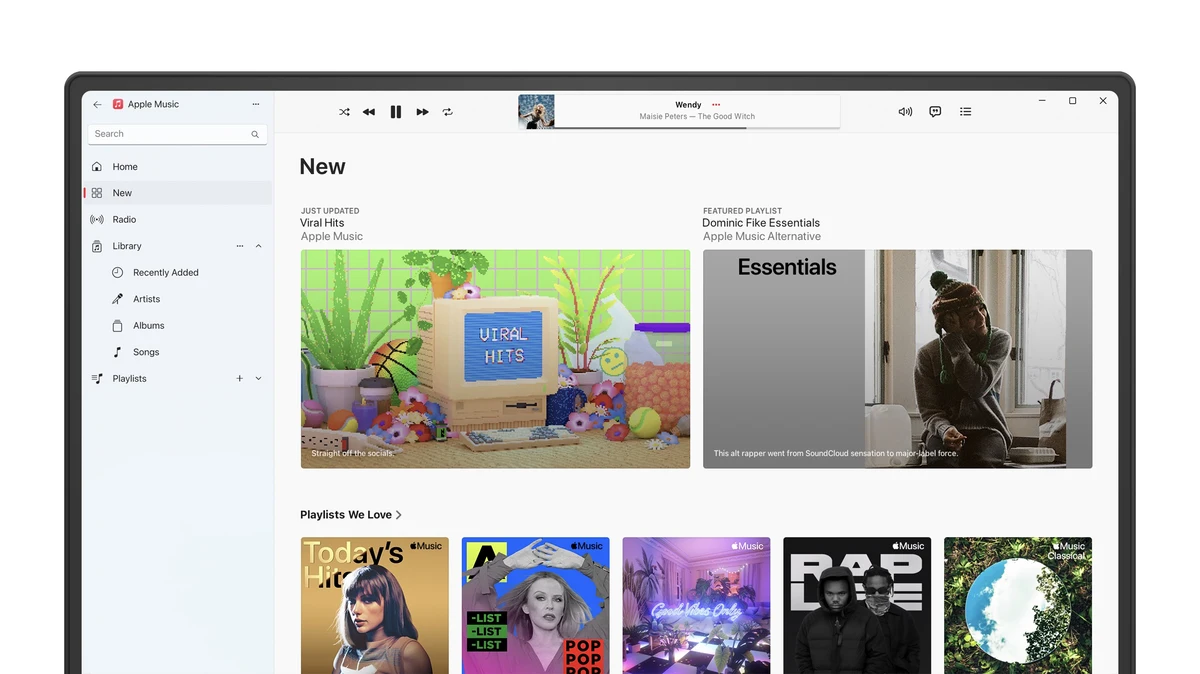
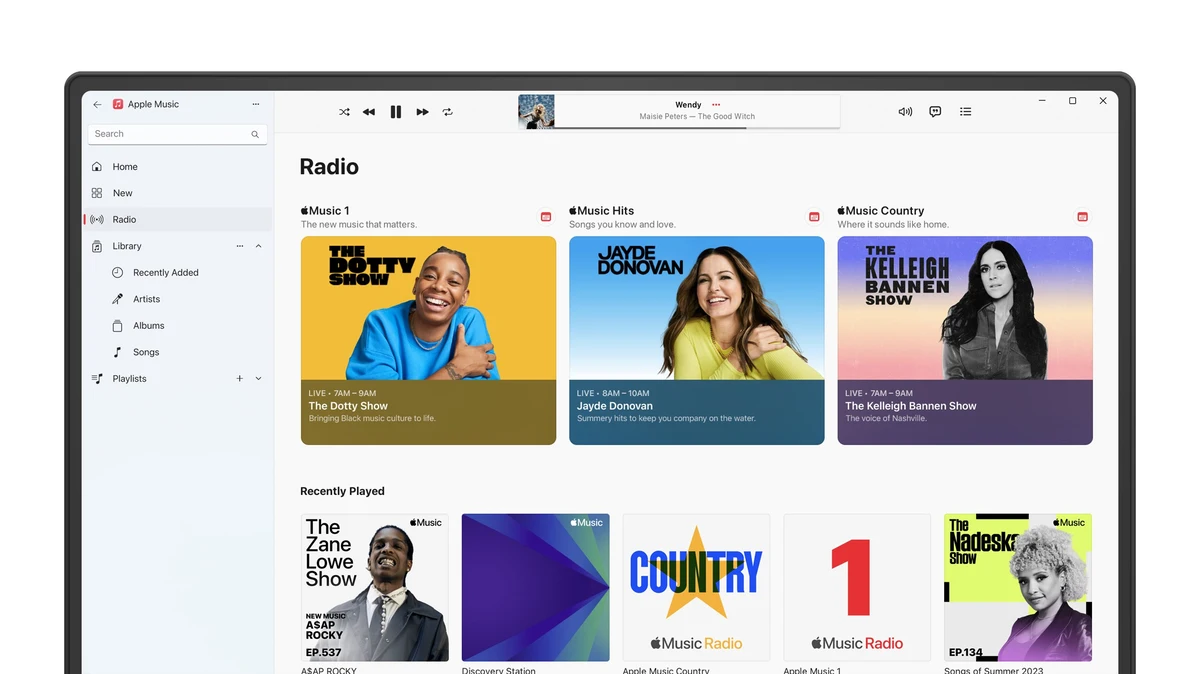
Key Features
The Windows app focuses on streaming, library sync, and playback quality. Some features may vary by region, device, or audio hardware.
🎧 Lossless Audio
Stream supported tracks in ALAC (Apple Lossless) up to high-resolution quality (where available).
Note: Lossless availability can vary by country/region and your playback settings.
🔊 Spatial Audio (Dolby Atmos)
Play supported Spatial Audio tracks on compatible headphones or speakers for a more immersive mix.
Note: Atmos playback on Windows typically requires the Dolby Access app and compatible audio hardware.
🎤 Time-Synced Lyrics
View lyrics that scroll in real time on supported songs, which is useful on a second monitor or while working.
⬇️ Offline downloads
Download music for offline listening (helpful on laptops or metered connections) and manage storage from the app settings.
Apple Music vs. Spotify
| Feature | Apple Music | Spotify |
|---|---|---|
| Audio Quality | Lossless options available | Varies by plan/features |
| Spatial Audio | Dolby Atmos on supported tracks | Not a core standard feature |
| Free Plan? | No (subscription) | Yes (ad-supported) |
| Best for | Lossless/Atmos-focused listening + Apple ecosystem users | Free listening + playlists/social discovery |
Tip: If your priority is maximum audio quality on a wired setup (DAC/headphones), Apple Music’s Lossless option is the main differentiator on Windows.
Video: Apple Music vs Spotify (overview)
- Quick differences in sound quality and plan structure
- What matters most on PC: output device + audio settings
System Requirements
- Best supported: Windows 11 (Microsoft Store will show the exact minimum version on your device).
- CPU: x64 or ARM64 (if the Store offers it for your hardware, it’s supported).
- Storage: Allow a few hundred MB for the app + additional space for offline downloads.
- Audio: For Lossless/Hi-Res listening, a wired setup (DAC/headphones) gives the most noticeable improvement.
Note: Requirements can change with app updates. The Microsoft Store listing is the most reliable source for the current minimum Windows version.
Troubleshooting (Common fixes)
Apple Music won’t install from Microsoft Store
- Run Windows Update, reboot, then try again.
- Reset the Store cache: press Win + R, type wsreset, press Enter.
- Open Store > Library > Get updates.
Sign-in loop or blank screen
- Close the app fully (Task Manager) and reopen.
- Settings > Apps > Apple Music > Advanced options > Repair, then Reset if needed.
- Temporarily disable VPN/proxy and retry sign-in.
Lossless option missing
- Update the app from Microsoft Store > Library.
- Check Settings > Playback and confirm streaming quality options.
- Some features vary by region or account status, try signing out/in once after updating.
Dolby Atmos not working
- Install/open Dolby Access and enable Atmos for your device.
- Confirm your output device supports Atmos (many speakers/headphones do not).
- In Windows Sound settings, set the correct output device and disable enhancements if audio glitches occur.
FAQ
Is Apple Music available on Windows 10?
It depends on the current Microsoft Store requirements for your device. Windows 11 is the most consistently supported. Check the Store listing on your PC to confirm compatibility.
Do I still need iTunes?
For streaming Apple Music, no. But if you rely on legacy iTunes workflows (like older device management or certain media types), you may still keep iTunes or use Apple’s newer device-management options depending on your setup.
Does Apple Music for Windows support Lossless?
Yes, Lossless settings are available for supported content, though availability can vary by region and playback configuration.
Does it support Dolby Atmos on PC?
It can, on supported tracks and compatible hardware. On Windows, you may need the Dolby Access app to enable Atmos for your output device.
Can I download songs for offline listening?
Yes, offline downloads are designed for subscribers. Storage use depends on quality settings and how much you download.
Explore More Windows Apps
- Apple TV for PC – Watch Apple TV+ shows and movies on Windows.
- iCloud for Windows – Sync Photos and Passwords to your PC.
- iTunes for Windows – The classic app for older Apple media workflows.
- Best iTunes Alternatives – Top free replacements for local music.
Discover more from Windows Mode
Subscribe to get the latest posts sent to your email.