Readers like you help support this site. When you make a purchase using links on our site, we may earn an affiliate commission. All opinions remain our own.

The Installation Assistant upgrades the PC you are using, keeping your apps and files.
The Windows 11 Installation Assistant is Microsoft’s free tool for upgrading the PC you are using to Windows 11, available from Microsoft’s official download page. It moves Windows 10 PCs to Windows 11, and it brings older Windows 11 versions up to the latest release, while keeping your apps, settings and files.
It always installs the latest version, which is Windows 11 26H2. Our Windows 11 26H2 guide covers what is new. Already on 24H2 or 25H2? Windows Update is quicker there, because 26H2 arrives as a small update with one restart.
Share how your upgrade went in the comments, or contact us if you get stuck.
Price
Free
Straight from Microsoft
Runs on
Windows 10 2004+
Or any Windows 11 version
Free space
9 GB
On the PC you are upgrading
Keeps
Apps and files
An in-place upgrade
How to Use the Windows 11 Installation Assistant
Check your PC with the free PC Health Check app first, and back up anything important. Then:
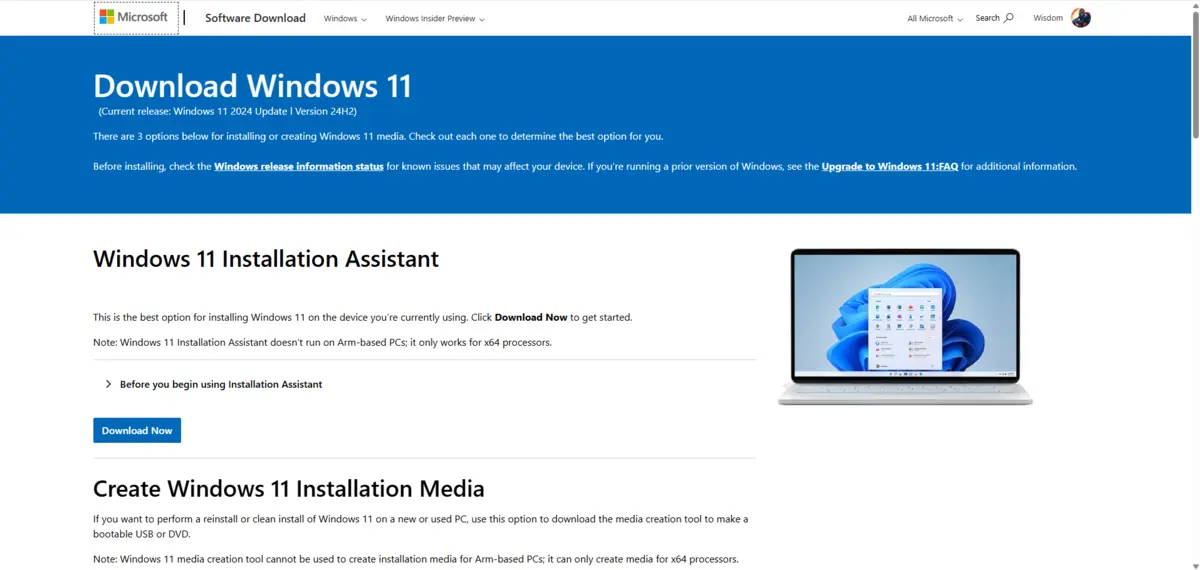
Open Microsoft’s Windows 11 download page and select Download now under Windows 11 Installation Assistant.
Run the file you downloaded. You need to be signed in as an administrator.
Select Accept and install once the tool confirms your PC is compatible.
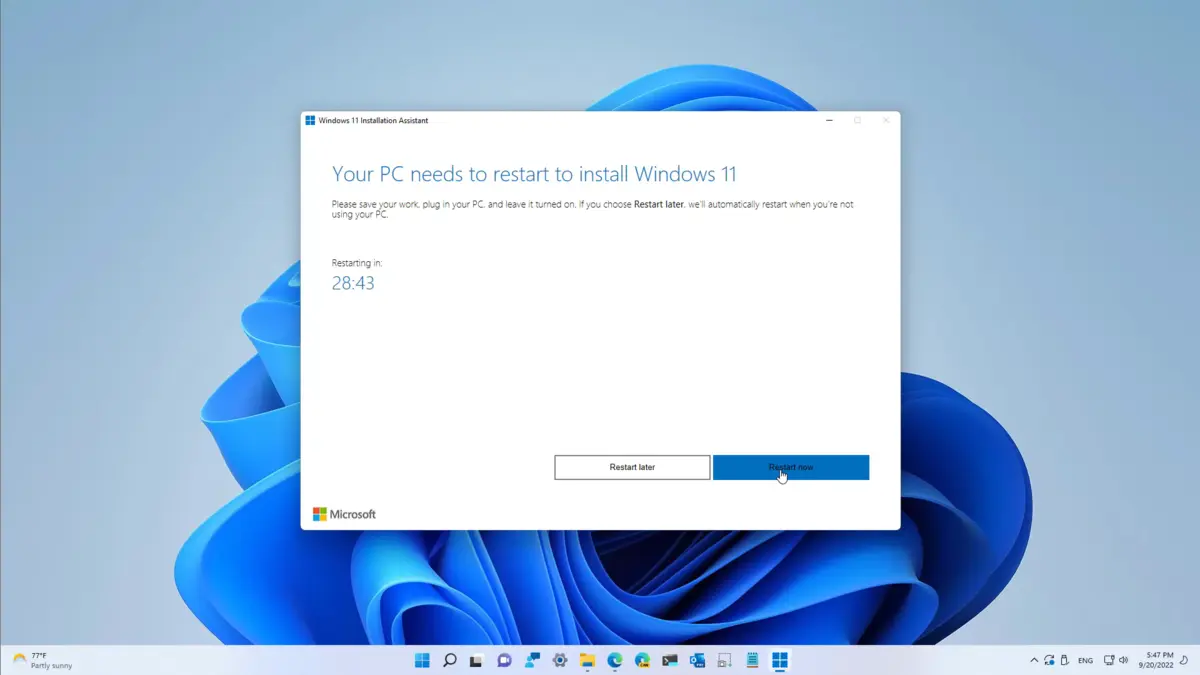
Select Restart now when the tool is ready.
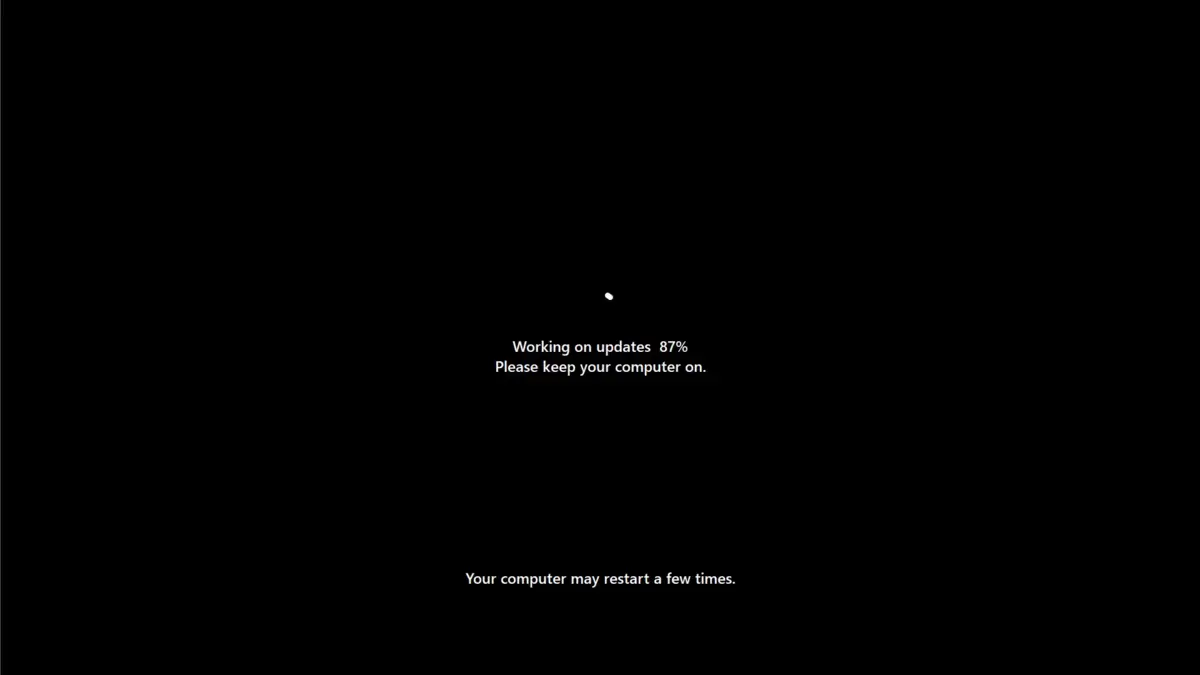
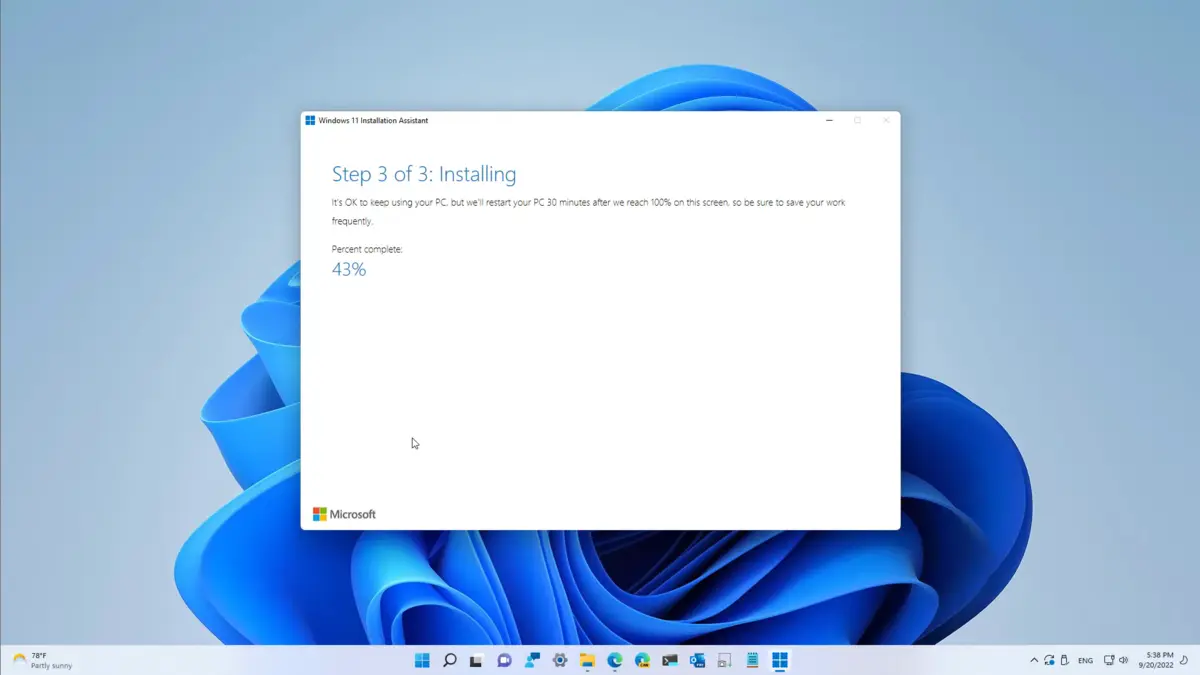
Leave the PC on while it installs. It restarts a few times, and that is normal.

Where the Installation Assistant sits on Microsoft’s download page.
Arm-based PC? The Installation Assistant only works on PCs with x64 processors. Microsoft says it does not run on Arm-based PCs. Use Windows Update, or Microsoft’s Windows 11 Arm64 ISO for a fresh install.
What Is the Windows 11 Installation Assistant?
It is a small app that downloads the latest Windows 11 and installs it over your current system. Because it upgrades in place, your apps, settings and files stay where they are. It checks your hardware first, so it will stop before installing on a PC that does not meet the requirements.
The main reason to use it is timing. Windows Update releases new versions in waves, so your PC can wait weeks for an update. The Installation Assistant lets you install the latest version today.
When to Use It
Moving from Windows 10
Windows 10 stopped getting regular updates on October 14, 2025. If your PC meets the requirements, this is the simplest way to move it to Windows 11.
Windows Update has not offered it
If the latest version has not shown up in Windows Update yet, the Installation Assistant installs it without waiting for the rollout.
Windows Update keeps failing
When an update keeps failing in Windows Update, a fresh install of the latest version with this tool is often the fix.
Getting to the latest version
It always installs the newest release, so one run takes an older Windows 11 PC all the way to the current version.
Need something else? Use the Media Creation Tool for a bootable USB drive, or the Windows 11 ISO for clean installs and virtual machines. On Windows 10, see the Windows 10 Update Assistant and Windows 10 Installation Media guides.
Tips for Getting Started
Free up space first
Clear at least 9 GB on your C: drive before you start. Disk Cleanup and uninstalling unused apps are the quickest ways.
Plug in your laptop
The install takes a while and restarts several times. Running out of battery halfway is the one thing you want to avoid.
Back up your files
The upgrade keeps your files, but a backup to OneDrive or an external drive costs little and protects you if something goes wrong.
Save your work
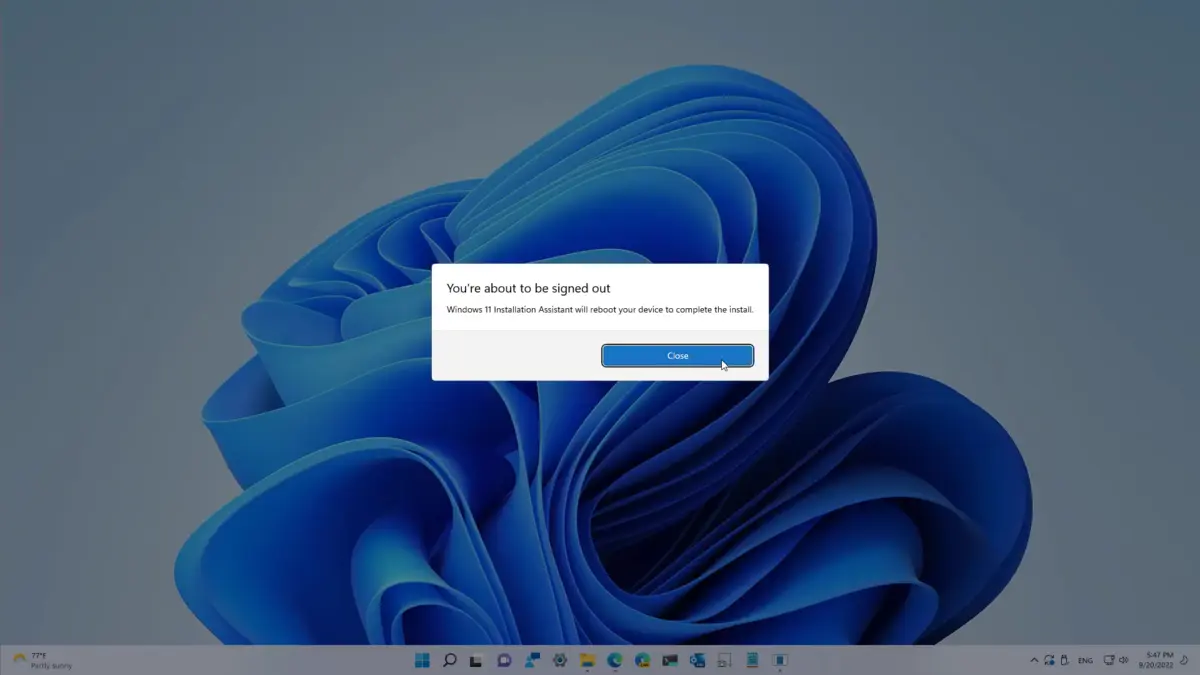
The tool restarts the PC on its own once it is ready, so close your apps before you select Restart now.
Common Issues and Fixes
Stuck at 99 percent
Give it time first, since the last step can be slow. If nothing moves for a long time, hold the power button for 5 to 10 seconds, wait a minute, and turn the PC back on.
Compatibility errors
Run PC Health Check to see what fails. TPM 2.0 and Secure Boot can often be turned on in your PC’s BIOS or UEFI settings.
The tool will not run
Make sure you are on Windows 10, version 2004 or newer, and signed in as an administrator. On Arm-based PCs it will not run at all.
Slow download
Use a wired connection if you can and pause other downloads on your network.
Installation Assistant Screenshots
A look at the tool’s screens, from the compatibility check to the install.
Watch: Upgrade With the Installation Assistant
This beginner’s video shows how to install Windows 11, including the Installation Assistant method.
What You Need
Frequently Asked Questions
Is the Windows 11 Installation Assistant free?
Can Windows 11 users use it?
Can I go back to Windows 10?
Support and Community
Get help on Microsoft Support, read more on the official Windows site, or ask other users on r/Windows11.
More Windows software guides: Windows 11 26H2 · Upgrade to Windows 11 · Media Creation Tool · Windows 11 ISO · Microsoft PC Manager
Discover more from Windows Mode
Subscribe to get the latest posts sent to your email.
















Add your first comment to this post