Readers like you help support this site. When you make a purchase using links on our site, we may earn an affiliate commission. All opinions remain our own.
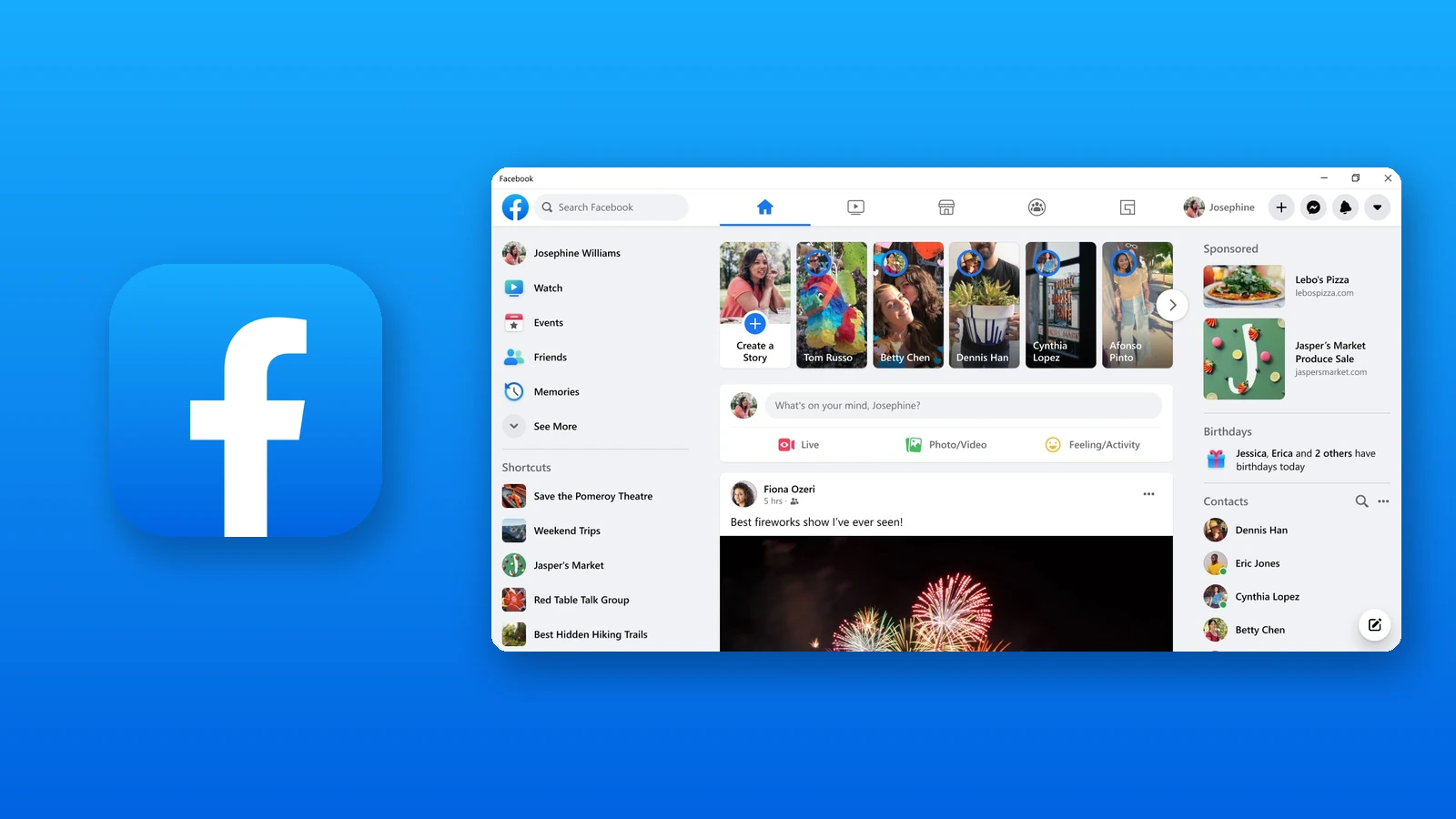
The Facebook app on a Windows PC. App screenshot: Meta, from its Microsoft Store listing.
Facebook for Windows is the free Facebook app for PC from Meta, available on the Microsoft Store. You can scroll your feed, post updates and stories, browse Groups and Marketplace, and chat with friends from your computer.
The app matters more now than it used to. Meta retired the Messenger desktop app in December 2025, and on Windows it now sends people to the Facebook app instead. Your chats live there, next to the feed.
It is a small download that runs on Windows 10 and Windows 11, including PCs with Arm chips. You log in with the same account you use on your phone.
This guide covers how to install it, what changed for Messenger, how to post a story from your PC, and fixes for common problems. Questions? Reach out to us directly.
What Is the Facebook App for Windows?
The Microsoft Store version of Facebook is a light app that shows Facebook’s website in its own window. That is why the download is only about 5 MB, and why it picks up new Facebook features without a big update.
It does what facebook.com does in a browser. The difference is convenience: it gets its own Start menu entry and taskbar icon, and Facebook is not lost among your browser tabs.
The Store listing says it needs Windows 10 version 1709 or later and 2 GB of memory, and it runs on regular Intel and AMD PCs as well as Arm PCs.
What You Can Do in Facebook on PC
These screenshots come from Meta’s own Microsoft Store listing. Facebook’s menus have moved around since they were taken, but the feed, stories and profile work the same way.
Your feed, Groups and Marketplace
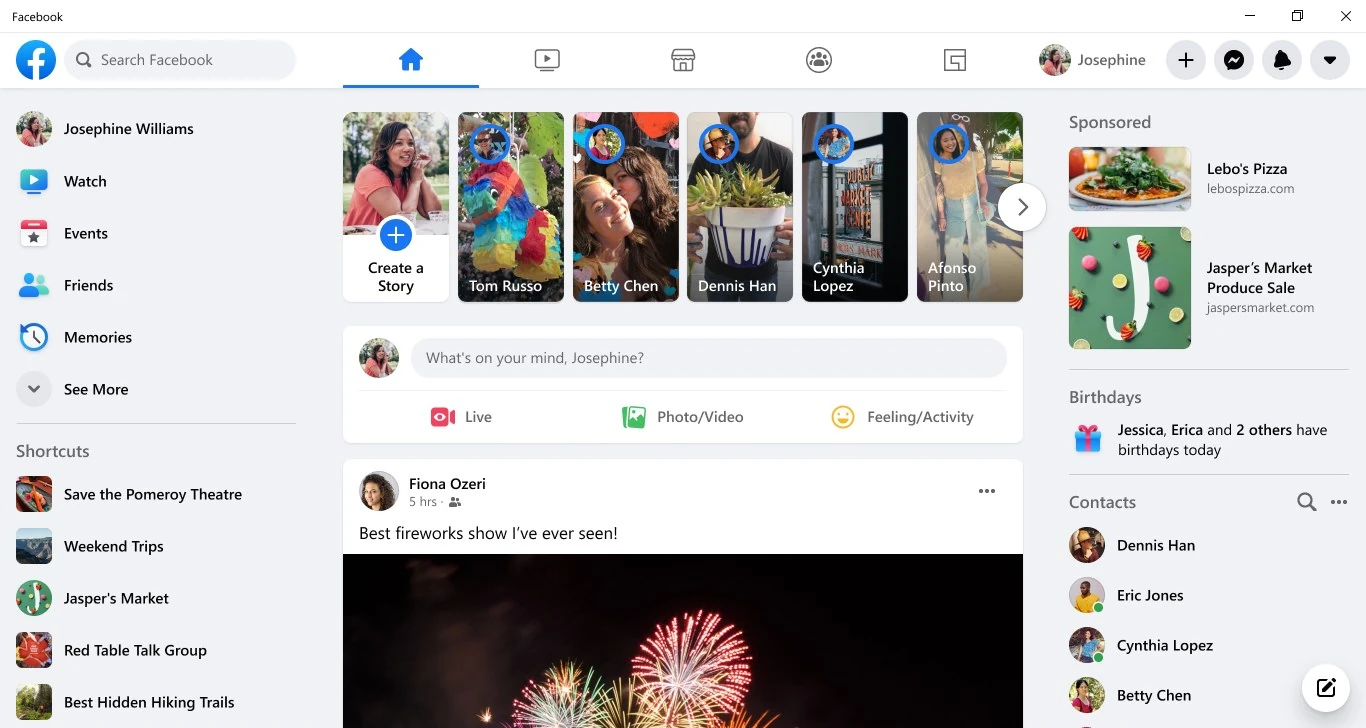
Scroll posts from friends, Pages and Groups, with stories across the top. Shortcuts on the left take you to Groups, Marketplace, Events and Memories.
A big screen makes long posts, photo albums and Marketplace listings easier to look through than a phone does.
Your profile and stories
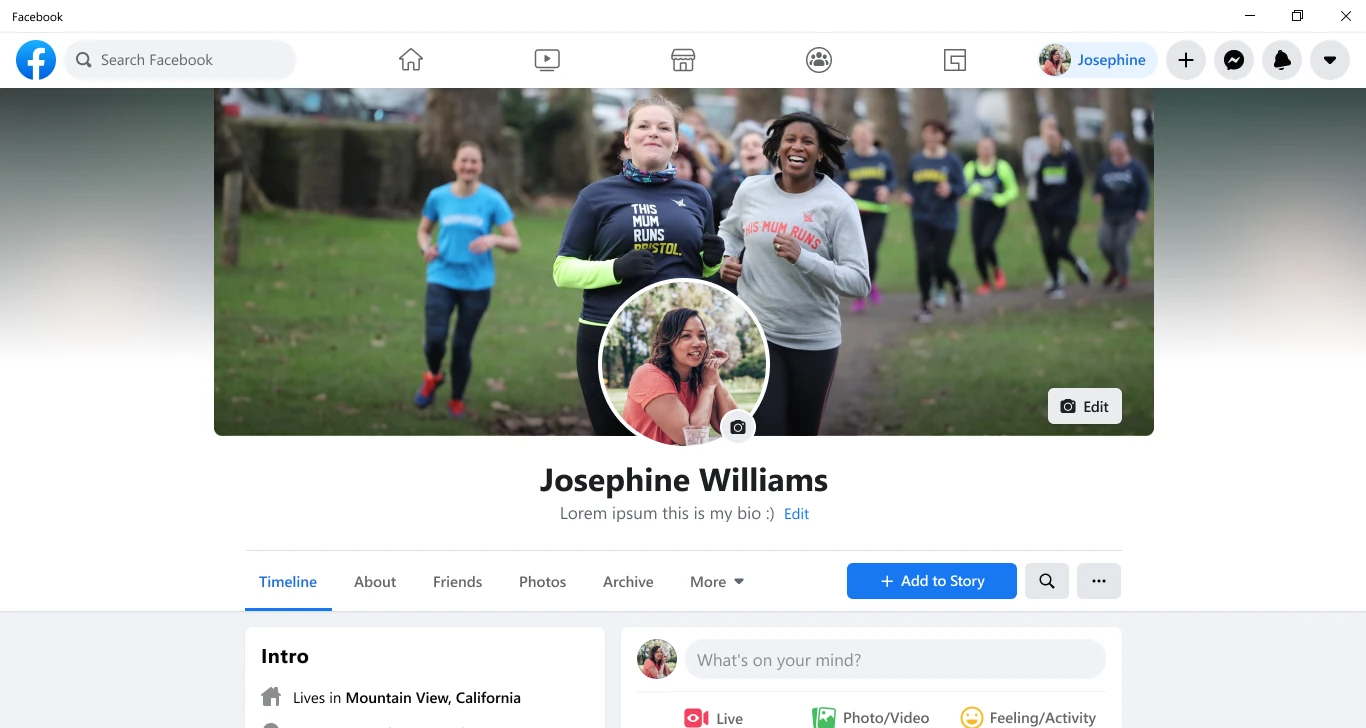
Edit your profile and cover photo, check your Timeline, and post to your story with Add to Story. Unlike Instagram, Facebook lets you post a story from a computer.
Dark mode for late scrolling
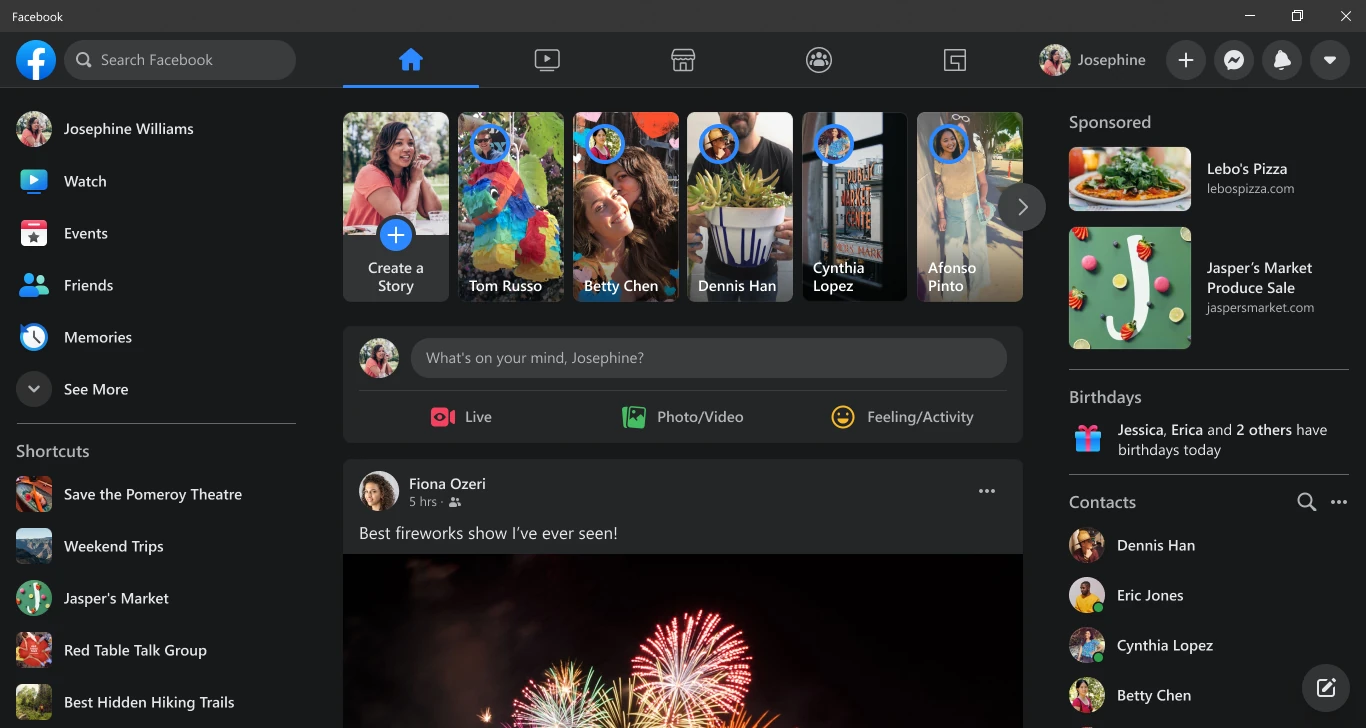
Click your profile picture in the top right, choose Display & Accessibility, then set Dark Mode to On.
Chat and call without a second app
Click the Messenger icon in the top right to open your chats. Open a chat and use the call buttons at the top to start an audio or video call. Your conversations are the same ones you see on your phone.
Messenger Now Lives Inside the Facebook App
Meta shut down the Messenger desktop app for Windows and Mac on December 15, 2025. Its Help Center now says the desktop app is no longer available and points computer users to messenger.com. On Windows, opening the old Messenger app sends you to the Facebook app instead.
Meta’s notice said your conversations and desktop calling carry over to the Facebook app, as Windows Report covered at the time. If you used Messenger without a Facebook account, you go to messenger.com instead.
You have a Facebook account
Install the Facebook app and use its Messenger icon. Chats, calls and your story all sit in one window.
You only want your chats
Use messenger.com in a browser. You can install it as its own app from Microsoft Edge, so it opens without the feed.
Our Messenger on Windows guide walks through messenger.com, installing it as an app, and the PIN that restores your encrypted chats.
How to Install Facebook on Windows
The install takes under a minute.
1 Open the Facebook page on the Microsoft Store. Check that the publisher reads Meta.
2 Click Get or Install, then open Facebook from the Start menu.
3 Log in with the email or phone number and password you use on your phone.
4 Pin it to the taskbar: right-click the Facebook icon while it is open and choose Pin to taskbar.
No Store? Open facebook.com in any browser and log in. It is the same Facebook, and you can install it as an app from Microsoft Edge under Settings and more, More tools, Apps.
How to Post a Story From Your PC
These are Facebook’s own steps for computers. A story stays up for 24 hours, and your chosen audience sees it on both Facebook and Messenger.
1 Click Create a Story at the top of your Feed.
2 Click Create a photo story and choose a photo or video from your computer.
3 Pick your audience: click the selector next to Your story, such as Public or Friends.
4 Click Share to Story. You can find it later in your story archive.
Facebook App vs facebook.com vs messenger.com
All three use the same account and show the same chats. Pick the one that matches how you use Facebook on your PC.
Common Problems and Fixes
The Messenger app opens Facebook instead
That is expected since the Messenger desktop app was retired. Your chats are under the Messenger icon in the Facebook app. You can uninstall the old Messenger app.
Calls have no sound or no video
Open Windows Settings, then Privacy & security, then Camera and Microphone. Make sure app access is on and Facebook is switched on in the list.
The app looks out of date or will not load
Open the Microsoft Store, go to Library, and click Get updates. If it still fails, uninstall Facebook, restart, and install it again.
Some older chats are missing
Encrypted chats need your Messenger PIN to show up on a new device. Enter it when Facebook asks, or reset it from a device where you set it up.
Tips for Getting Started
1 Pin Facebook to the taskbar. Now that it carries your Messenger chats too, one click from the taskbar is worth having.
2 Turn on dark mode at night. Profile picture, Display & Accessibility, Dark Mode. It is easier on the eyes in a dark room.
3 Check your story audience before you share. The selector next to Your story decides who sees it, and it applies on Facebook and Messenger.
4 Use messenger.com for focused chatting. If the feed pulls you in, install messenger.com as a separate app from Edge and keep Facebook closed.
5 Set up your Messenger PIN. It is what brings your encrypted chats back if you sign in on a new PC.
Frequently Asked Questions
What are the system requirements for Facebook on Windows?
Does the Facebook app work on Windows PCs with Arm chips?
Can I use Messenger on Windows without a Facebook account?
Will my old Messenger chats show up in the Facebook app?
How do I uninstall Facebook from Windows?
Support and Community
- Meta, the developer’s own site.
- Facebook Help Center, with Computer Help tabs for most tasks.
- Facebook Help: Share a photo or video to your story, the computer steps for stories.
- Messenger Help: Download or update your Messenger app, Meta’s note on the retired desktop app.
- r/facebook on Reddit, the large user-run community for Facebook questions.
More Windows software guides: Messenger on Windows · Instagram for Windows · WhatsApp for Windows · Threads for PC · Snapchat for Windows · Microsoft Edge
Discover more from Windows Mode
Subscribe to get the latest posts sent to your email.













Add your first comment to this post