Readers like you help support this site. When you make a purchase using links on our site, we may earn an affiliate commission. All opinions remain our own.
PhotoGIMP is a free, community-driven patch that reshapes GIMP so the layout, panels and keyboard shortcuts feel closer to Adobe Photoshop. It is open source under the GNU GPL-3.0 license. The only official source is the Diolinux/PhotoGIMP GitHub repository.
If you already looked at our ArtCraft for Windows guide, PhotoGIMP is a different kind of option: it does not replace GIMP with a new app. It patches GIMP’s own settings so Photoshop muscle memory carries over.
The latest release at the time of writing is PhotoGIMP 3.1. It is built for GIMP 3.0 and newer. It will not work with GIMP 2.10.
Price
Free
License
GPL-3.0
Needs
GIMP 3.0 or newer
Latest release
PhotoGIMP 3.1
What you need before installing
- GIMP 3.0 or newer from the official GIMP downloads page.
- Run GIMP once, then close it. That creates the config folders PhotoGIMP overwrites.
- A backup of your current GIMP settings if you have customized shortcuts, docks or preferences. PhotoGIMP replaces those config files.
Backup tip
On Windows, press Windows + R, type %APPDATA%\GIMP, and copy your version folder (for example 3.0) somewhere safe before you install.
How to install
Install PhotoGIMP on Windows
- Install GIMP from gimp.org, open it once, then close it.
- Download PhotoGIMP.zip from the latest GitHub release (Windows package).
- Extract the zip to a temporary folder (Desktop is fine).
- Inside the extracted files, copy the version folder (for example
3.0). - Press Windows + R, type
%APPDATA%\GIMP, and press Enter. - Paste the version folder into that GIMP settings folder. When Windows asks, choose Replace the files in the destination.
- Open GIMP. You should see the PhotoGIMP splash and the remapped layout.
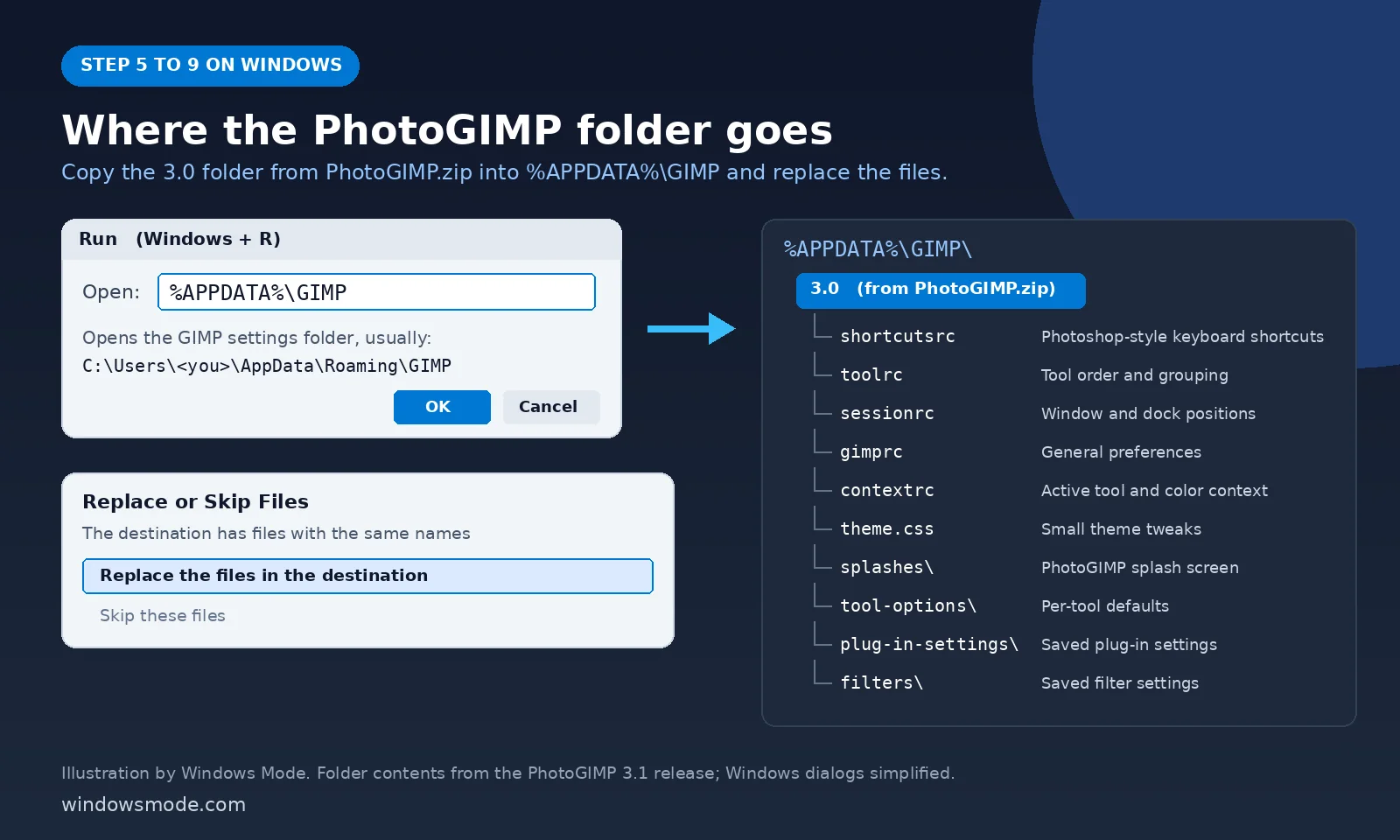
3.0 folder from PhotoGIMP.zip goes inside %APPDATA%\GIMP. The file list matches the PhotoGIMP 3.1 Windows package. Image: Windows Mode.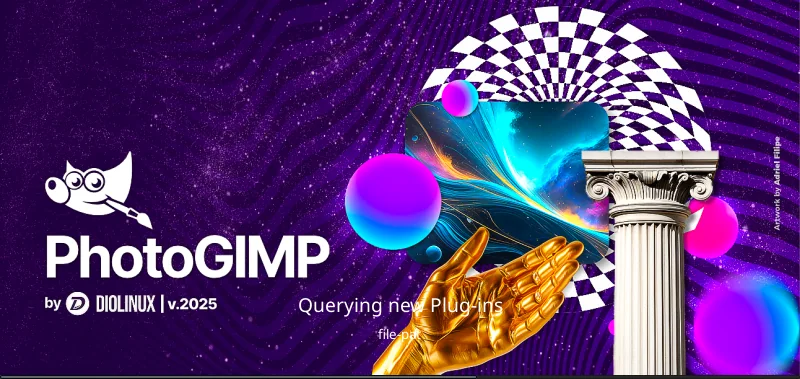
Optional: the release also includes a photogimp.ico file if you want a custom Start Menu shortcut icon. Chocolatey users can run choco install photogimp as an alternative path maintained outside the main repo.
What PhotoGIMP changes
PhotoGIMP swaps GIMP configuration files. According to the project docs, that includes:
- Keyboard shortcuts mapped to match Adobe’s documented Photoshop shortcuts for Windows.
- Tool order and layout rearranged toward a Photoshop-style arrangement.
- Session and dock settings for window and panel positions, plus preferences that favor a larger canvas.
- Splash screen and small theme tweaks.
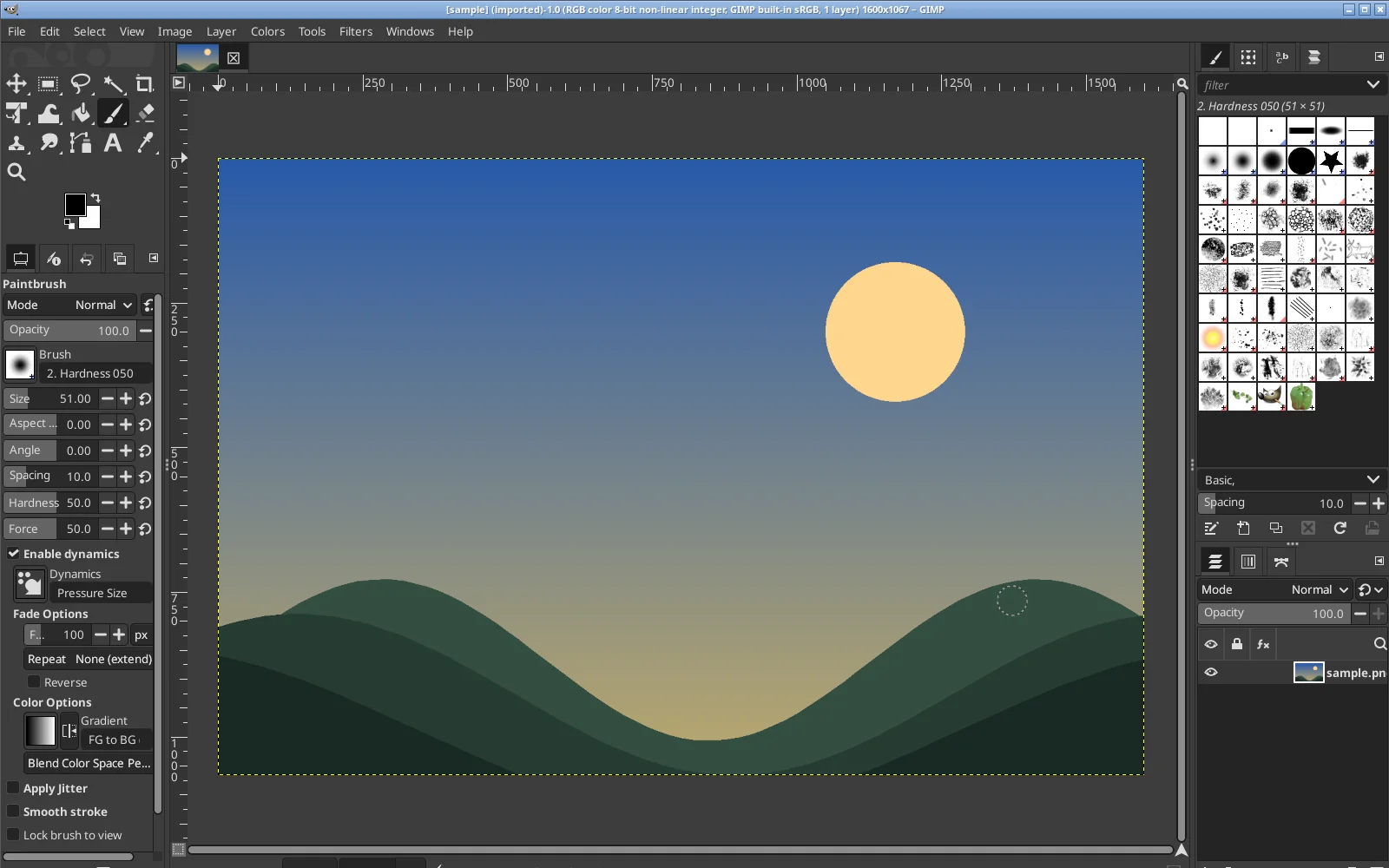
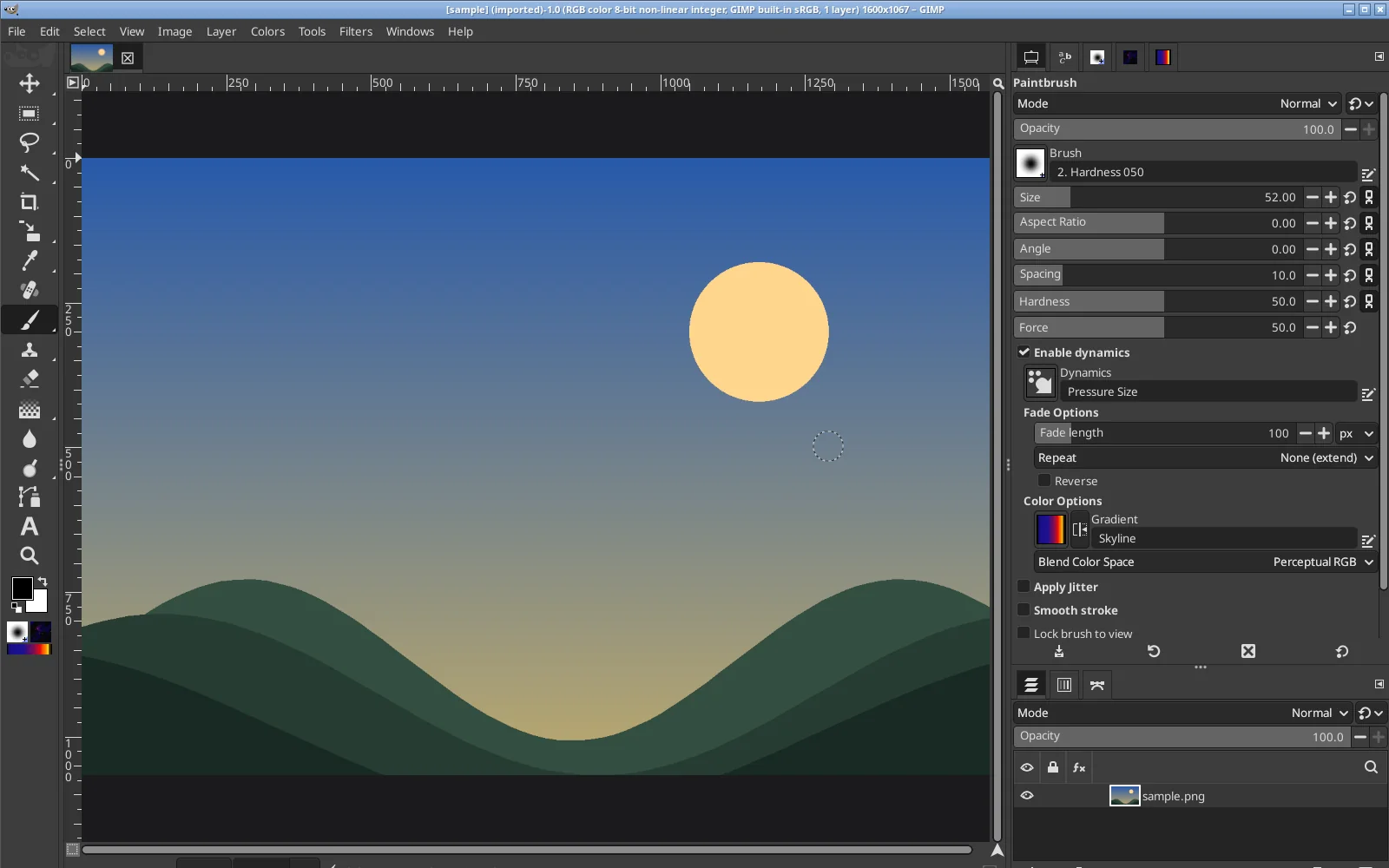
We captured both screenshots in GIMP 3.0.4 on our Linux test machine, using the 3.0 folder from the Windows PhotoGIMP.zip. Those are the same config files you paste into %APPDATA%\GIMP, so the panel layout is the same on Windows, though window borders and fonts will look like your Windows theme.
| Key | What it does in PhotoGIMP |
|---|---|
| V | Move tool |
| M | Rectangle Select (Shift + M for Ellipse Select) |
| L | Free Select (lasso) |
| W | Fuzzy Select (magic wand) |
| C | Crop |
| B | Paintbrush |
| E | Eraser |
| S | Clone |
| J | Heal |
| I | Color Picker |
| Ctrl + T | Unified Transform |
| Ctrl + J | Duplicate layer |
| Ctrl + D | Select None |
| [ and ] | Smaller or larger brush |
These come straight from the shortcutsrc file in the PhotoGIMP 3.1 release. You can change any of them later in GIMP under Edit, Keyboard Shortcuts.
Your brushes, fonts, gradients and plug-ins stay in place. PhotoGIMP only touches configuration, not those personal assets.
How to undo it
To restore stock GIMP defaults, delete the version folder under %APPDATA%\GIMP (for example 3.0), then open GIMP again so it rebuilds fresh settings. If you kept a backup, paste that folder back instead.
Get the patch, release notes and troubleshooting from github.com/Diolinux/PhotoGIMP. The maintainers warn that PhotoGIMP has no official website beyond that repository.
PhotoGIMP FAQ
Does PhotoGIMP work with GIMP 2.10?
Will PhotoGIMP delete my brushes, fonts or plug-ins?
Can I change the shortcuts after installing PhotoGIMP?
Does PhotoGIMP have an official website?
Related on Windows Mode
- ArtCraft for Windows: free, open-source apps built to replace Adobe, including the Photoshop-style PhotoCraft.
- The new Windows 11 Photos app: Microsoft’s built-in option for quick edits.
- How to take a screenshot on Windows: grab an image to open in GIMP.
Discover more from Windows Mode
Subscribe to get the latest posts sent to your email.














Add your first comment to this post