Smart App Control grayed out after KB5127648? Microsoft has a temporary workaround: back up the registry, run two commands as administrator, then restart your PC and turn protection on in Windows Security.
This guide covers the October 13, 2026 update for Windows 11 24H2, 25H2 and 26H2. If Smart App Control is already on, your PC is not affected. Leave it on.
Before you start
Check Settings > Windows Update > Update history for KB5127648, then open Windows Security > App & browser control > Smart App Control settings. These steps address the update bug where the On option is unavailable after protection was turned off. For a work or school PC, contact IT.
How to turn Smart App Control back on
Use these steps on your own PC. You will need administrator access and a restart.
Back up the registry
Before changing anything, follow Microsoft’s registry backup and restore guide. Make sure you know how to restore the backup.
Do this first: an incorrect registry edit can cause Windows problems. A system restore point gives you another recovery option.
Open Command Prompt as administrator
Select Start and type cmd. Next to Command Prompt, choose Run as administrator. Approve the Windows permission prompt if asked.
Check: the window title should include Administrator.
Run both commands, one at a time
Copy the first line below into Command Prompt and press Enter. Then copy the second line and press Enter again. Each command must be entered as one line.
reg add "HKLM\SYSTEM\CurrentControlSet\Policies\Microsoft\FeatureManagement\Overrides" /v 2883193997 /t REG_DWORD /d 1 /f
reg add "HKLM\SYSTEM\CurrentControlSet\Policies\Microsoft\FeatureManagement\Overrides" /v 2850574478 /t REG_DWORD /d 1 /f
Expected result: “The operation completed successfully.” after each command. If you see an error, check that Command Prompt is running as administrator and that you copied the complete line.
Restart your PC
Save your work, then choose Start > Power > Restart. The restart applies the changes before you try the switch again.
Turn protection on in Windows Security
Open Windows Security from Start. Select App & browser control, open Smart App Control settings, then select On.
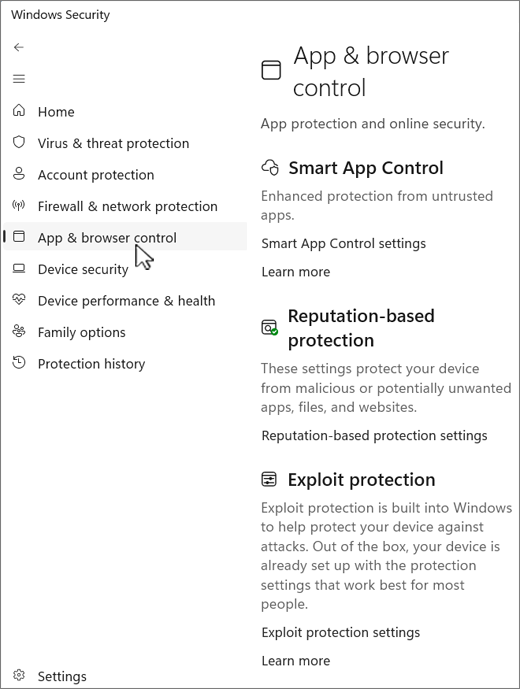
You’re finished when: Smart App Control shows On. The registry commands restore the ability to enable it; check the setting after restarting.
What do the commands change?
They add two DWORD registry values, both set to 1, under FeatureManagement\Overrides. Microsoft supplies them together to restore the option to turn on Smart App Control. It does not explain the two feature IDs individually.
How to undo the registry workaround
Microsoft has not said whether the values should be removed once its permanent fix arrives. If you want to reverse the change, run these two commands in an administrator Command Prompt and restart, or restore your registry backup:
reg delete "HKLM\SYSTEM\CurrentControlSet\Policies\Microsoft\FeatureManagement\Overrides" /v 2883193997 /f

reg delete "HKLM\SYSTEM\CurrentControlSet\Policies\Microsoft\FeatureManagement\Overrides" /v 2850574478 /f
IT admins: use the Group Policy workaround
For devices managed by an IT department, Microsoft offers two special Group Policy packages instead of a registry edit. Microsoft says both are required: the first turns on Smart App Control, and the second keeps logging available so problems can be diagnosed.
- Download #1: KB5074105 261015_19222 Feature Preview (turns on Smart App Control)
- Download #2: KB5074105 261015_19221 Feature Preview (keeps troubleshooting logs available)
Both files are MSI installers from Microsoft’s download servers and apply to Windows 11 versions 24H2, 25H2 and 26H2. After installing them, the settings appear in the Group Policy Editor under:
Computer Configuration > Administrative Templates > {Group Policy name} > Windows 11, version 24H2, 25H2Set both settings to Enabled, then restart the affected devices so the policies apply. The package names refer to KB5074105, the January 2026 preview update in which Microsoft first documented turning Smart App Control on or off without a clean install.
Still grayed out? Check these other causes
This workaround only addresses KB5127648
Microsoft’s FAQ lists other reasons Smart App Control can be unavailable: the PC is managed by an organization, Developer Mode is on, Windows is in S mode, or optional diagnostic data is turned off. The workaround above does not change those requirements. If optional diagnostic data is off, Microsoft says you still need to reset or reinstall Windows and choose to send optional diagnostic data during setup.
What Smart App Control does
Smart App Control is a Windows 11 feature that blocks apps it considers malicious or untrusted before they run. According to Microsoft’s Smart App Control FAQ, it first asks Microsoft’s cloud security service whether it can confidently predict that an app is safe. If the service cannot decide, Smart App Control checks for a valid digital signature, and unsigned apps are blocked. It works alongside Microsoft Defender or another antivirus app rather than replacing it.
Until this year, Smart App Control could only be turned on during a clean Windows install. Microsoft’s FAQ now says recent Windows updates let you turn it on again without reinstalling. That is exactly the scenario this bug breaks: if you switched it off to install an app it blocked and planned to switch it back on afterwards, KB5127648 may leave you stuck with it off.
Is there a permanent fix?
Microsoft says only that it “is working on a resolution and will provide an update in an upcoming release.” It has not given a date, so the workarounds are the only option for now. Until a fix lands, leave Smart App Control on if it is on, because turning it off may mean you cannot easily turn it back on.
Smart App Control is not the only known issue in KB5127648. Microsoft also lists a Remote Desktop failure with error 0xC000000D for non-admin users connecting to PCs that have Administrator protection enabled, which mainly affects managed environments. Credit to PCWorld and BleepingComputer for flagging the Smart App Control issue.
If Windows is blocking a download rather than an app, the cause is usually SmartScreen, which is a separate feature. Our guide on fixing SmartScreen blocking downloads covers that, and our Windows 11 26H2 overview explains the newest version this update applies to.
Source: Microsoft’s KB5127648 release notes. Workaround checked October 20, 2026.
Discover more from Windows Mode
Subscribe to get the latest posts sent to your email.
















Add your first comment to this post