What You Need to Know
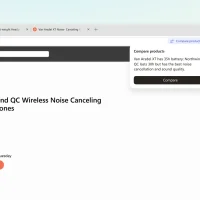
- Product comparison: When you have similar products open in different tabs, Edge now offers to compare them. One click and Copilot shows prices, specs and the key differences in a panel next to the page.
- Checkout Savings: At checkout, Edge looks for a working coupon in the background and shows it to you if it finds one.
- Where it works: Edge for Windows 11/10 and Mac. Comparison is available in all Copilot markets. Checkout Savings is US English (en-US) only for now.
- Nothing to install: Both are built into Edge, next to the existing Price Comparison, Price History, Price Tracking and Cashback tools.
- You can switch it off: Edge only offers a comparison when it spots similar products, and it reads those pages in full only after you click Compare. You can turn shopping features off in Settings.
Microsoft has added two new shopping tools to Edge just in time for Black Friday and the holidays. The idea is simple: fewer tabs to flip between and no more hunting coupon sites when an empty promo code box appears at checkout.
Microsoft announced both features on November 9, 2026, and says product comparison starts rolling out now. Here’s what each one does, where it works, and how to turn it off if you’d rather shop without it.
Edge Now Offers to Compare Products Across Tabs
Say you’re down to three pairs of headphones, each in its own tab. Instead of switching back and forth to check battery life or price, Edge can notice that the tabs show similar products and pop up a Compare products prompt in the address bar.
Click Compare and Copilot builds a side-by-side summary next to the page you’re on. It lists specs and prices and points out what makes each product stand out. You can then ask Copilot follow-up questions, and it already has those tabs as context, so you don’t need to explain what you’re looking at again.
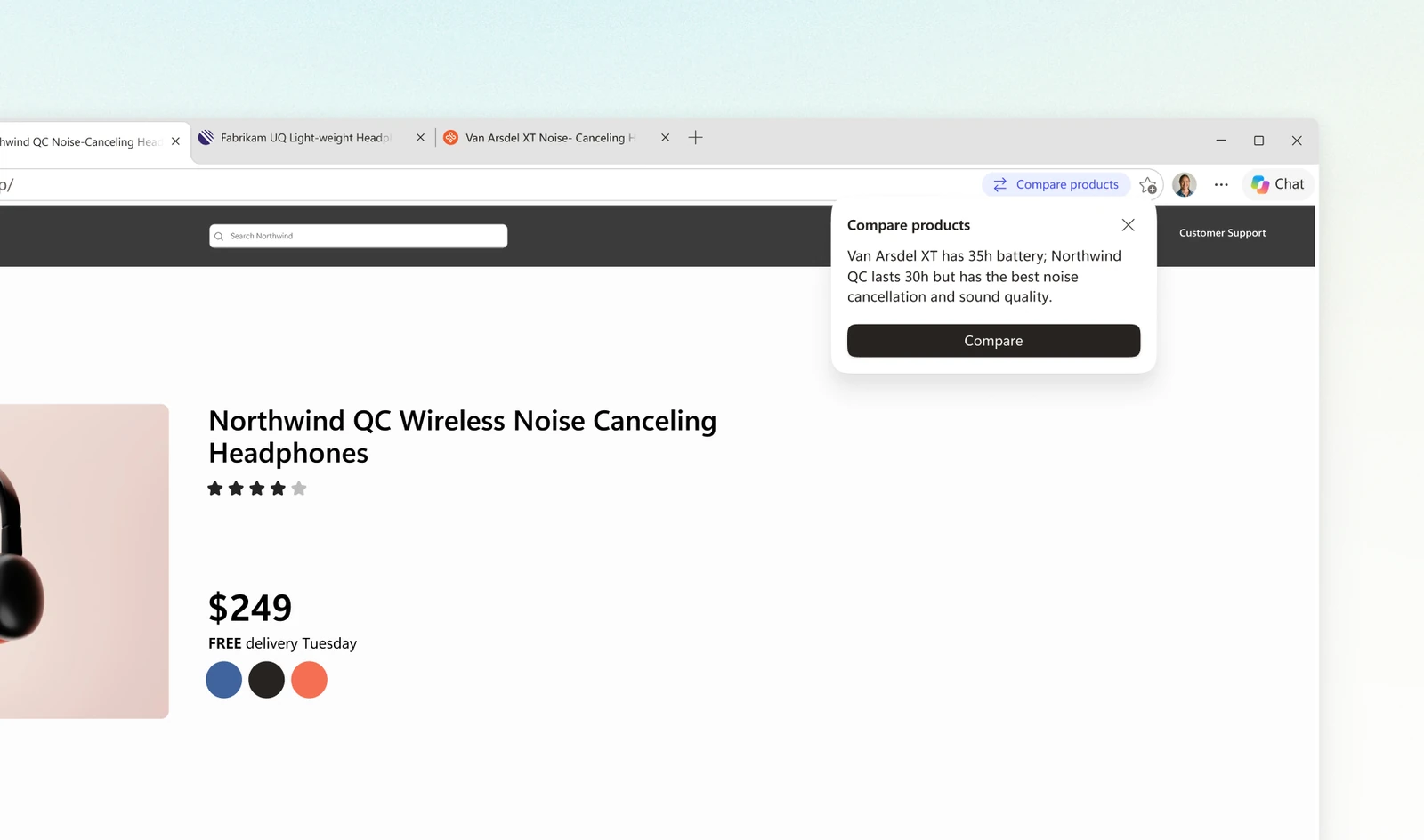
A note on privacy: Microsoft says Edge only offers to help when it notices similar products in your open tabs, and it reviews those pages in full only after you choose to compare. If you have turned off Copilot’s access to page content, the comparison will not work.
Checkout Savings Finds Coupons for You
The second new tool targets the moment at checkout when you see a promo code box and wonder if you’re missing a deal. Checkout Savings looks for coupons in the background once you reach the checkout page, and shows one if it finds an offer that works.
It’s built into the browser, so there’s no coupon extension to install and no detour to a coupon site. There are two catches. It is only available in US English right now, and Microsoft says results vary by website, so it will not find a code for every cart.
The Shopping Tools Edge Already Had
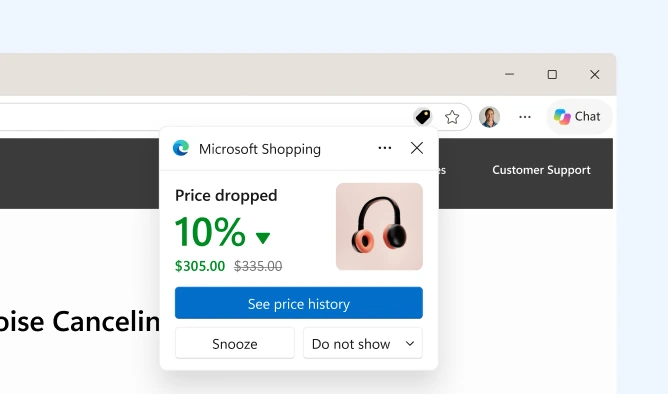
The new features sit alongside shopping tools that were already in Edge. Here’s how they fit together:
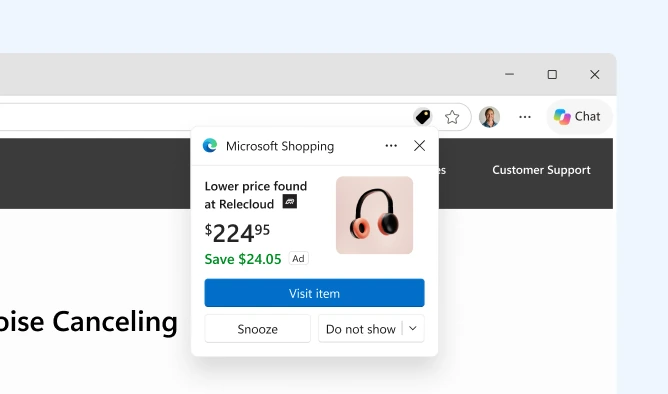
Price History is the one worth checking during Black Friday. A big “sale” sticker means little if the price was the same a month ago, and the history chart shows you that at a glance.
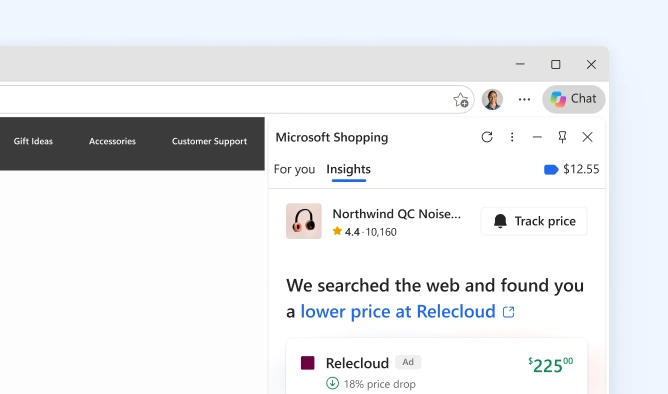
On stores that take part, a Shopping tag icon appears in the address bar. Click it to open a side pane with Price Comparison, Price History and the Track price button in one place. Microsoft says Edge has helped shoppers save nearly $30 million in total so far this year.
How to Turn Edge Shopping Features On or Off
If the pop-ups get in the way, or you want to make sure they’re on, this is where to look:
- Open Edge, click the three dots menu (top right) and choose Settings.
- Go to Privacy, search, and services, then Search and connected experiences.
- Switch Save time and money with Shopping in Microsoft Edge on or off.
The tab comparison also depends on Copilot being allowed to read page content, which is a separate Copilot setting. Microsoft’s support page also says some shopping features need you to be signed in with a Microsoft account and on the latest version of Edge. If you just want to hide one alert type, the Do not show option on each pop-up does that without turning everything off.
Our Take
Comparing products across tabs is a genuinely useful idea. Most of us end up with a row of near-identical product pages and a lot of back and forth. If the summaries are accurate, it saves real time. Still, check the important specs on the product page before you pay, because AI summaries can get details wrong.
Checkout Savings is less exciting outside the US, since it’s limited to en-US for now. If you already use a coupon extension, this could replace it, with one fewer extension having access to your shopping pages.
Have you tried the new compare button yet? Tell us in the comments whether it picked the right differences.
Source: Microsoft Edge Blog, Microsoft Support
Discover more from Windows Mode
Subscribe to get the latest posts sent to your email.
















Add your first comment to this post