Key takeaways
- Microsoft released Beta Build 26320.10003 and Experimental Build 26340.10013 on November 16, 2026.
- The everyday features are in the Experimental build: a taskbar list view, Magnifier touchpad and touch gestures, and a way to remove single passkeys from a security key.
- IT admins also get Remote Lock, which locks a lost or stolen work PC from Intune without wiping it.
Do you squint at tiny window thumbnails when you hover over a busy taskbar app? Windows 11 is testing a fix. The newest Experimental build lets you swap those previews for a simple list of window titles.
The same build lets you zoom with Magnifier using three-finger gestures, and clean up passkeys on a hardware security key one at a time. These features are rolling out gradually to Windows Insiders, so they are not on regular PCs yet.
Which builds went out
Microsoft shipped two builds this week. Both are based on Windows 11, version 26H2 through an enablement package. If you are new to that release, our Windows 11 26H2 guide covers the basics.
| Channel | Build | Main changes |
|---|---|---|
| Experimental | 26340.10013 | Taskbar list view, Magnifier gestures, security key passkey management, Remote Lock, plus the Beta changes |
| Beta | 26320.10003 | Faster This PC search in File Explorer, BitLocker PIN for standard users, Offline Maps removed, bug fixes |
Channel switch paused
Microsoft is temporarily blocking moves from the Experimental or Beta channel to Experimental (Future Platforms). It says it is working to fix this as soon as possible.
Taskbar list view: open windows by name
Today, when you hover over a taskbar app with several windows open, Windows shows a small preview of each one. That works for photos and videos, but three Word documents or five browser windows can look almost the same at thumbnail size.
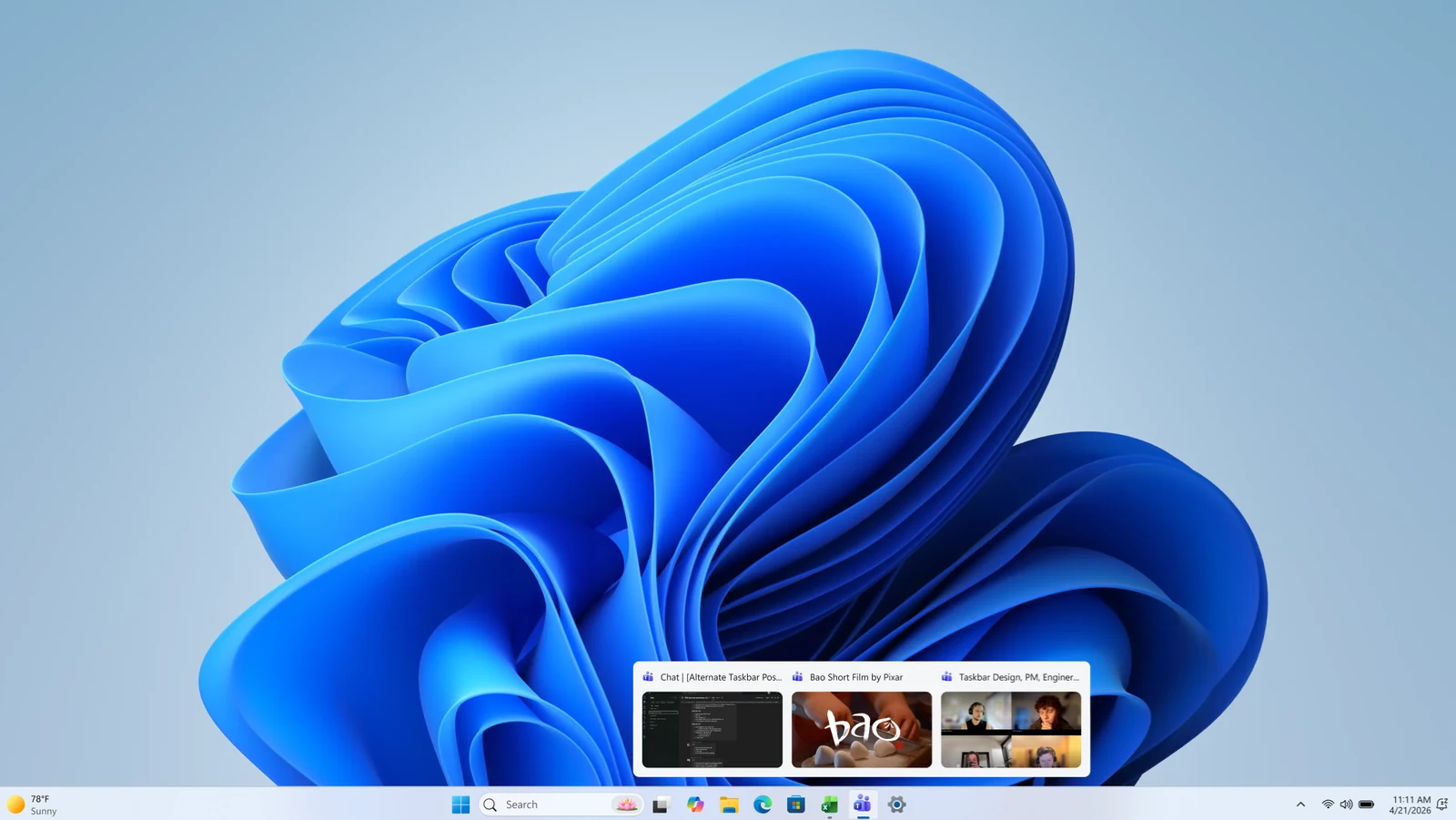
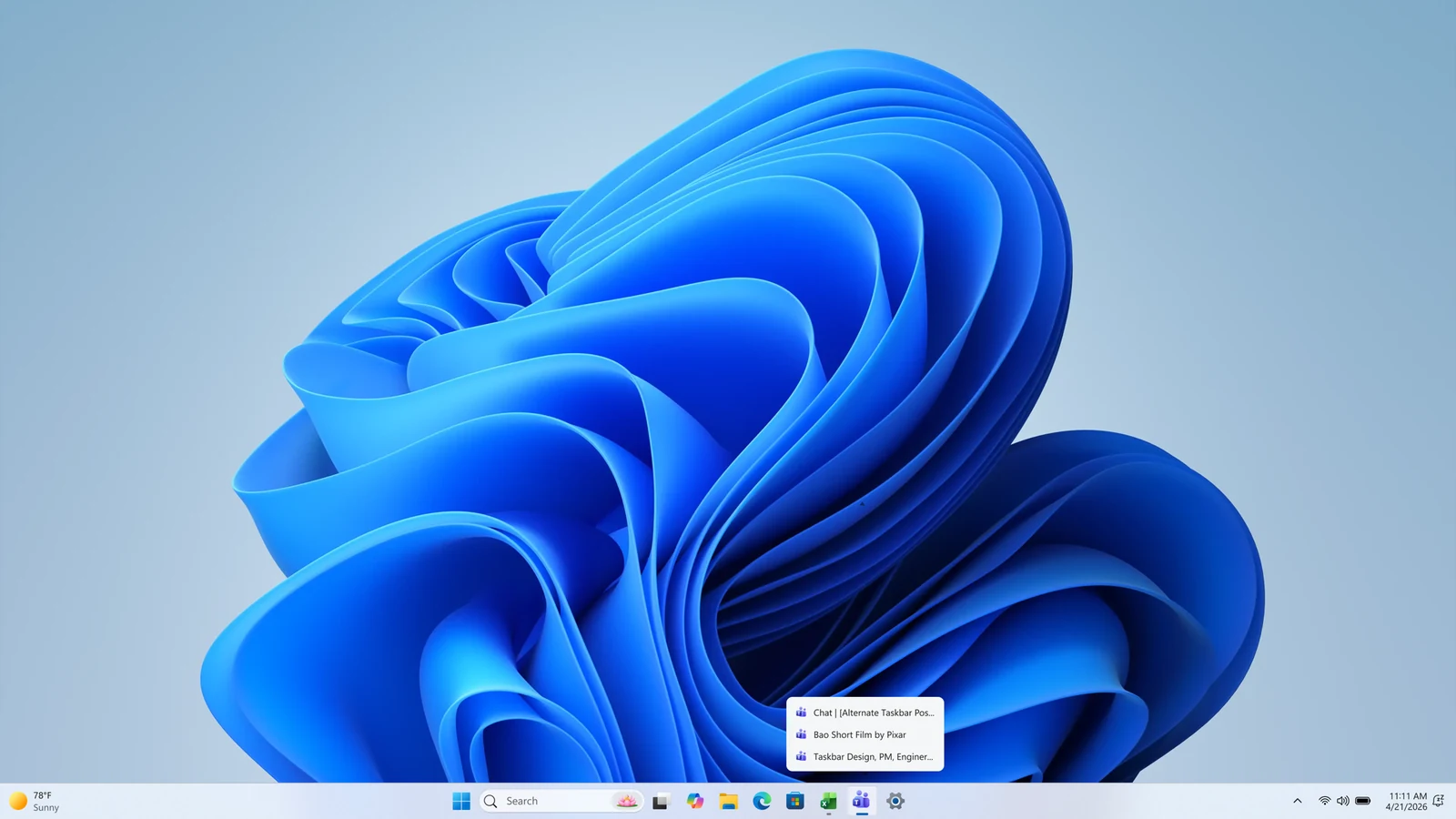
With list view on, the same hover shows every open window of that app by its title, stacked in a short list. You read the name and click, instead of guessing from a thumbnail.
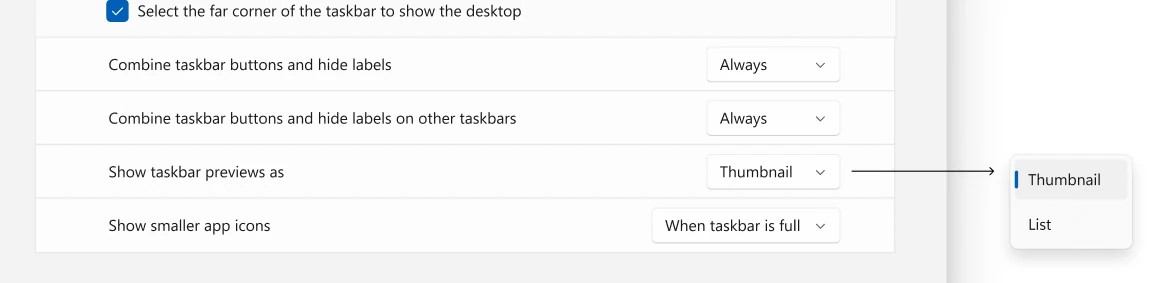
How to turn on list view
- Open Settings > Personalization > Taskbar.
- Expand Taskbar behaviors.
- Set Show taskbar previews as to List. Choose Thumbnail to go back.
Magnifier now works with touchpad and touch gestures
Magnifier, the built-in Windows zoom tool, already worked with the keyboard, mouse and scroll wheel. Now you can also zoom and move around with a laptop touchpad or a touchscreen.
The gestures only work while Magnifier is running. Press Windows key + Plus (+) to start it.
On a touchpad
- Zoom in: swipe up with three fingers.
- Zoom out: swipe down with three fingers.
- Move around: move one finger as usual, and the magnified view follows your pointer.
- Jump to 100% and back: tap with three fingers.
On a touchscreen
- Move around: drag with three fingers.
- Zoom: tap once with three fingers, tap again and keep them down, then drag up to zoom in or down to zoom out.
- Jump to 100% and back: double-tap with three fingers.
Both gesture sets are on by default. To turn either set off, go to Settings > Accessibility > Magnifier and turn off Control Magnifier with touchpad gestures or Control Magnifier with touch gestures.
Magnifier’s toolbar also gets a new help (?) button. It opens the Magnifier support articles, a what’s new page and Feedback Hub.
Manage passkeys on a security key without resetting it
A passkey lets you sign in to a site or app without a password. Some people store passkeys on a FIDO2 security key, a small hardware key you plug in or tap. FIDO2 (Fast Identity Online 2) is the standard these keys use.
In this build, Windows can show the passkeys saved on that key and let you remove them one at a time. Before, the option was to reset the entire key, which removes everything on it.
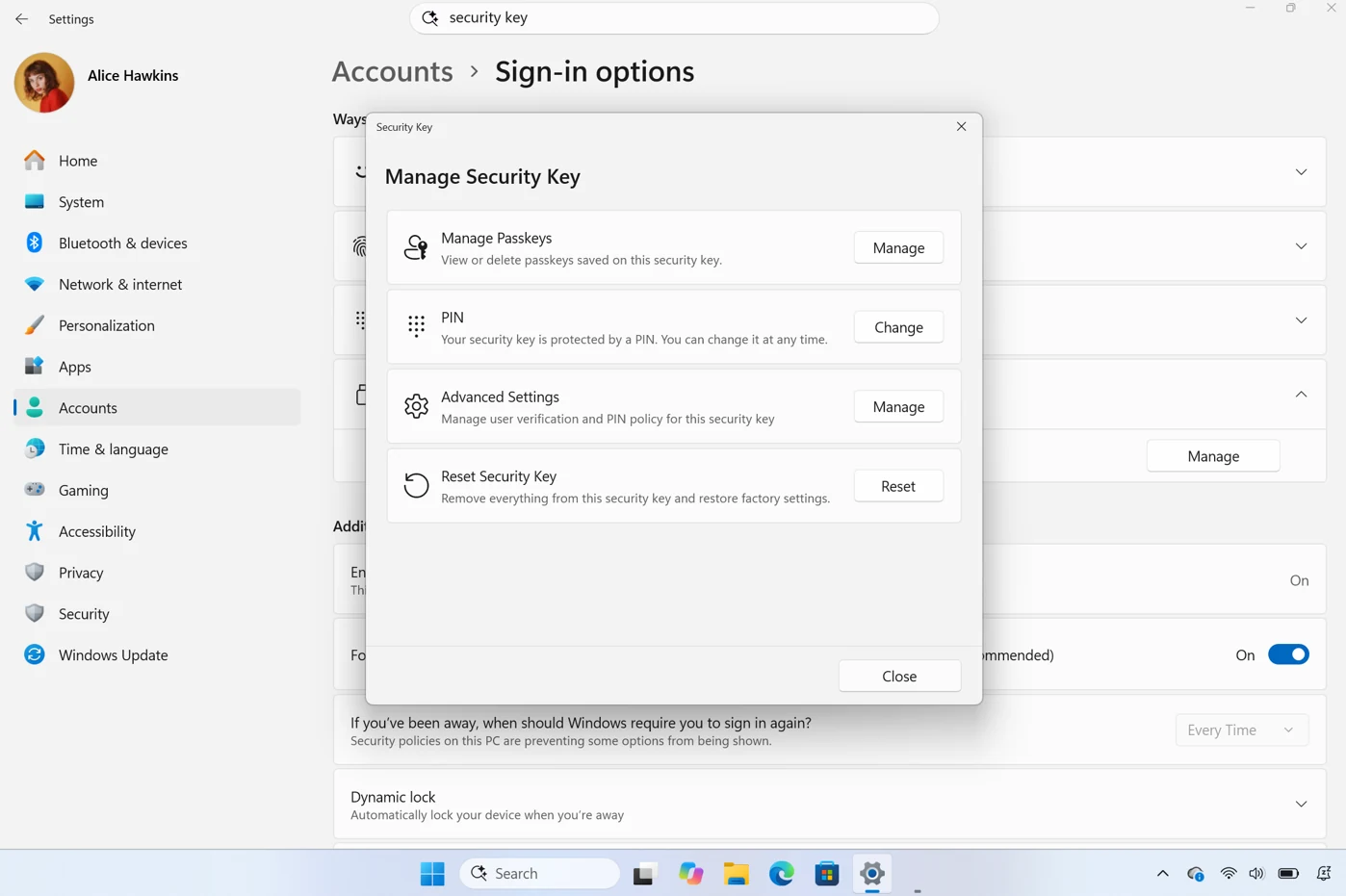
For work PCs, admins can also set enterprise options on the key, such as a minimum PIN length, always-required user verification and enterprise attestation (a way for an organization to confirm which keys are in use).
Remote Lock for lost or stolen work PCs
Remote Lock is for business PCs managed with Microsoft Intune. If a laptop is lost, stolen or compromised, IT can lock it remotely instead of wiping it.
Windows then signs out every active session, hides all sign-in options and shows a Device Locked screen. Nothing is erased. The PC stays enrolled and managed, BitLocker stays on and the user’s files stay in place. Only an admin can lift the lock remotely, so the user picks up where they left off.
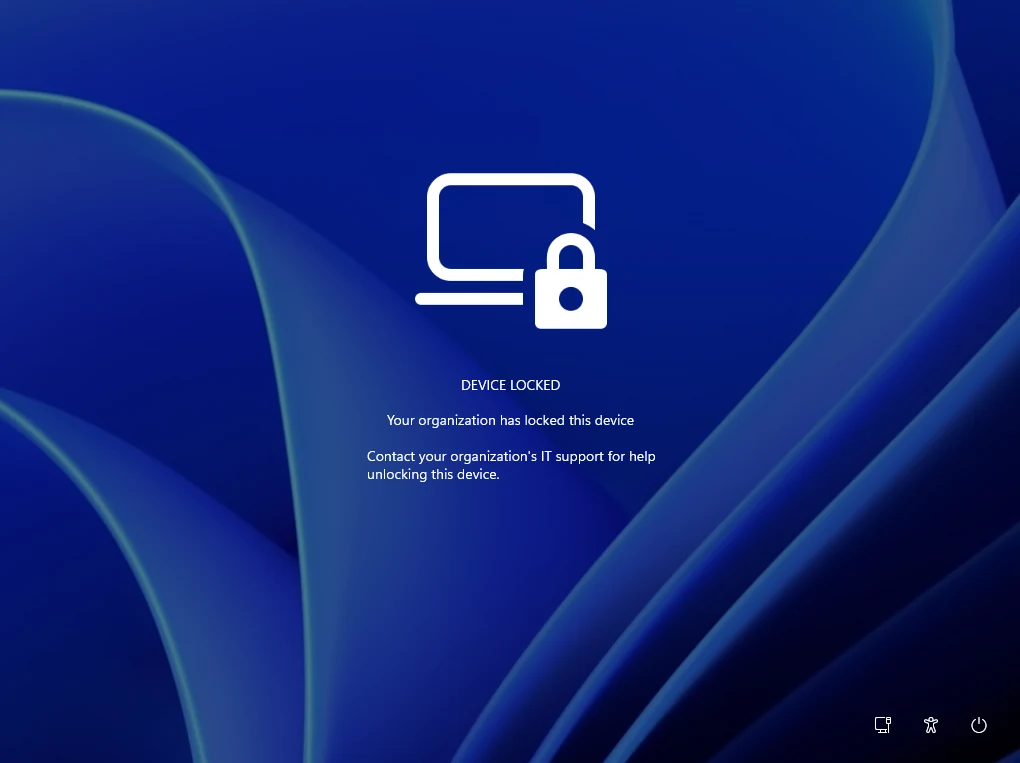
Microsoft has more details on its Remote Lock page.
What the Beta build changes
Beta Build 26320.10003 has none of the features above. Its main changes:
- Faster This PC search: searching from This PC in File Explorer now uses the Windows search index, matching search from File Explorer Home. Regular PCs can already get this in the optional KB5132057 update.
- Clearer loading: File Explorer shows better progress when a location such as a network drive takes a while to open.
- BitLocker PIN for standard users: on managed PCs, users without admin rights can add a BitLocker preboot PIN themselves. We explained how it works in last week’s Insider builds.
- Offline Maps removed: the Offline Maps and Maps storage pages are gone from Settings, because Microsoft is retiring the Windows Maps control and platform APIs.
- Fixes: Remote Desktop connections that could fail with a certificate mismatch, and a mouse cursor that could turn invisible.
Both builds share one known issue: the CPU speed shown in Task Manager may stop updating.
Should you install these builds?
Only if you are fine with test software. Beta and Experimental builds are for testers who don’t mind bugs. Microsoft rolls features out to a small group of Insiders first, so even after you install Build 26340.10013, list view or the Magnifier gestures may not show up right away.
Microsoft also says features in these builds can change or never ship. If you just want the taskbar list view or easier passkey cleanup on your main PC, the safer choice is to wait for them to reach a regular Windows 11 update.
Source: Windows Insider Blog.
Discover more from Windows Mode
Subscribe to get the latest posts sent to your email.









Add your first comment to this post