
Readers like you help support this site. When you make a purchase using links on our site, we may earn an affiliate commission. All opinions remain our own.
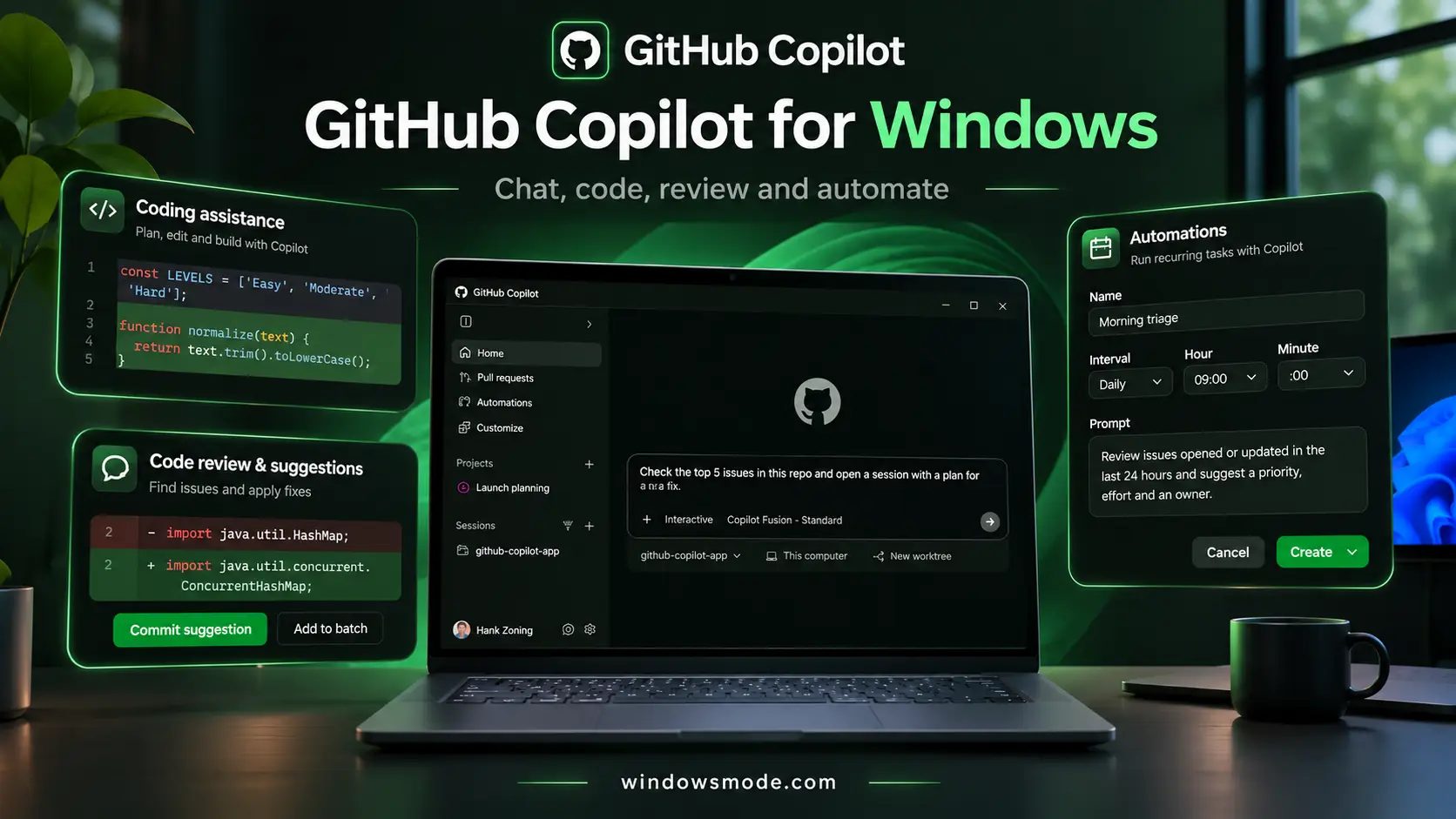
GitHub Copilot on Windows: chat, code, review and automate.
GitHub Copilot is an AI coding agent from GitHub, and on Windows you can get it as a desktop app, a command-line tool, or inside VS Code and Visual Studio. You describe a task in plain words, and Copilot plans it, writes the code, runs tests and opens a pull request for you to review.
It started as autocomplete for code. Today it can work on several tasks at once, each in its own session, while you keep coding. You stay in charge: Copilot asks before it runs commands, and every change waits for your OK.
The desktop app has Windows builds for regular x64 PCs and Arm laptops. All you need to start is a free GitHub account, and the Free plan has no time limit.
Below: what each part of Copilot does, three ways to install it, what the plans cost, and how it differs from Microsoft Copilot. Questions? Reach out to us directly.
What Is GitHub Copilot?
GitHub Copilot is an AI helper for programmers, built by GitHub, the code-hosting site Microsoft owns. It reads your project, suggests code as you type, answers questions about your code, and can take on a whole task by itself.
That last part is the big change. In agent mode (Copilot works through a task step by step on its own), it edits files, runs commands in the terminal and checks its own work. It can also take an issue from GitHub and come back with a pull request (a proposed set of changes you review before they go in).
Copilot does not use one AI model. You can pick models from OpenAI, Anthropic, Google, xAI and Microsoft’s own MAI models, or let Copilot choose the right one for each task.

The GitHub Copilot desktop app on Windows. Image from GitHub.
Key Features of GitHub Copilot on Windows
The screenshots come from GitHub’s own Copilot demos, most of them recorded on Windows.
Run several coding tasks at once
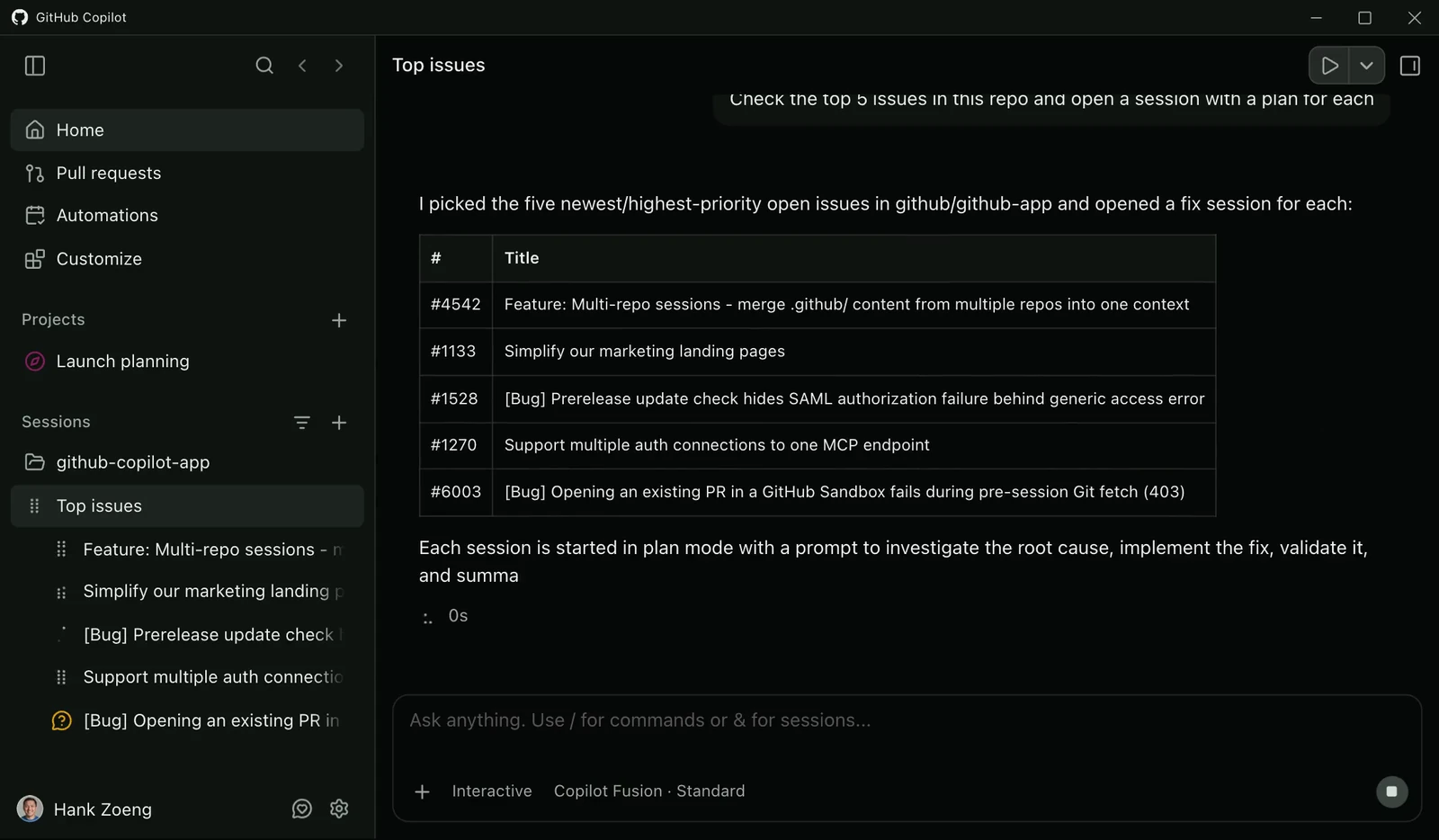
The desktop app is built around sessions. Each session is one task, with its own copy of your code, so several can run side by side without stepping on each other.
Ask it to look at your top issues and it opens a session with a plan for each one. You track them all from the sidebar and step in where needed.
An agent inside VS Code and Visual Studio
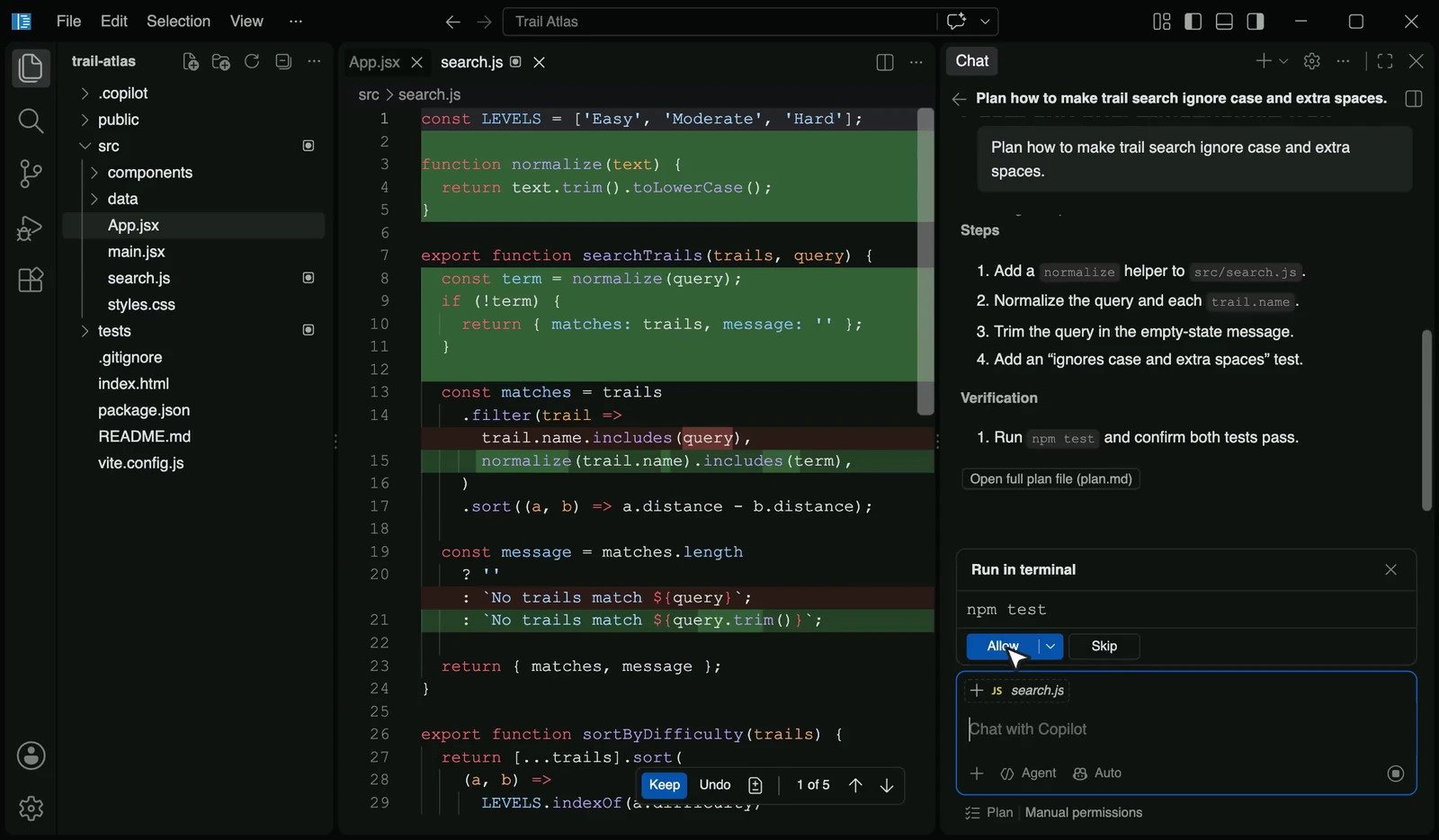
Open Copilot Chat in your editor, describe what you want, and it writes a plan first. Then it edits the files, and each change shows up in green with Keep and Undo buttons.
When it needs to run a command, such as your tests, it asks first. Agent mode is included on every plan, Free too.
Copilot in your terminal
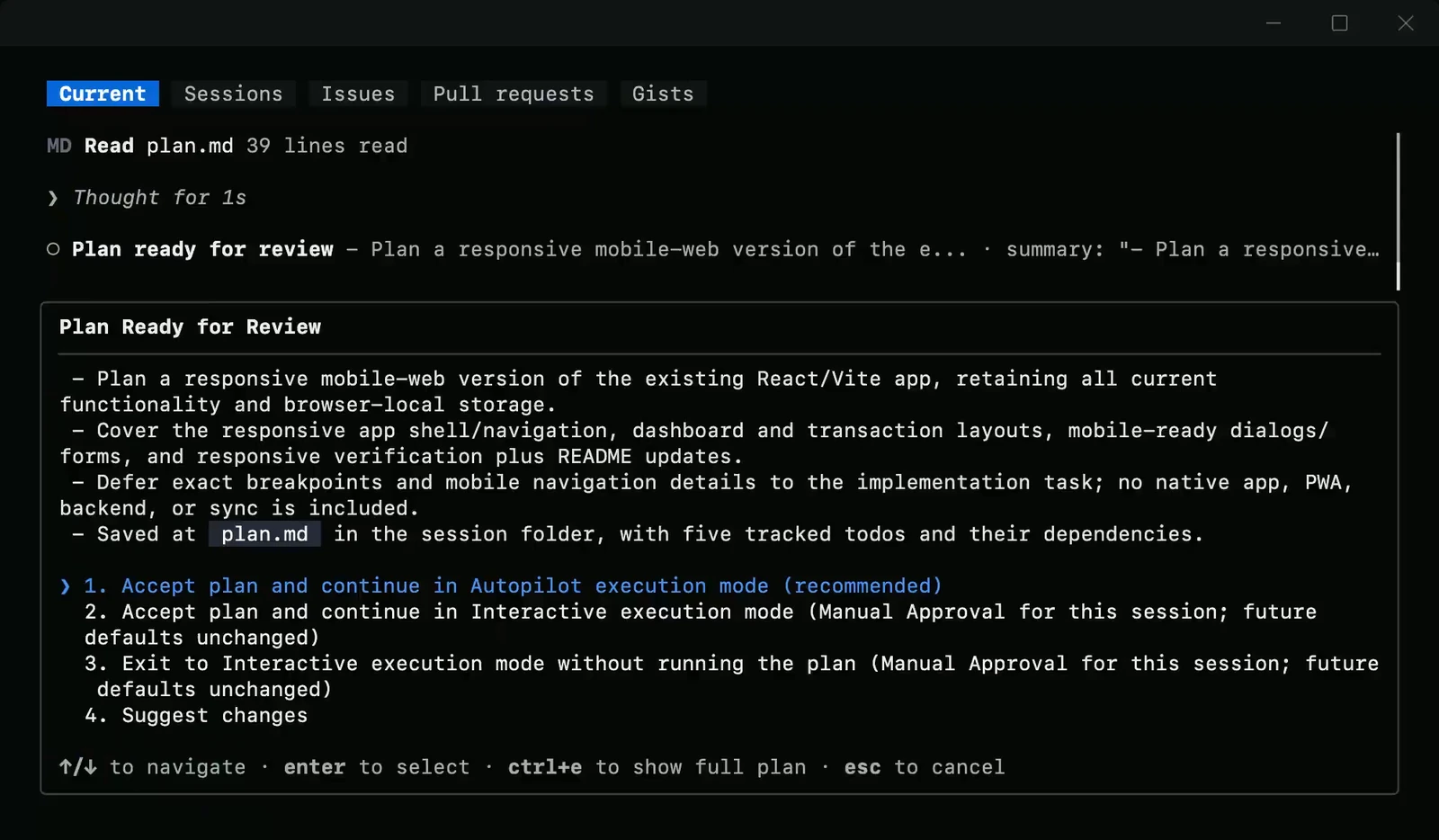
Copilot CLI brings the same agent to PowerShell or Windows Terminal. Type a request, review the plan it writes, then choose how much freedom to give it.
Interactive mode asks before each step. Autopilot mode carries out the whole plan on its own.
A second pair of eyes on every change
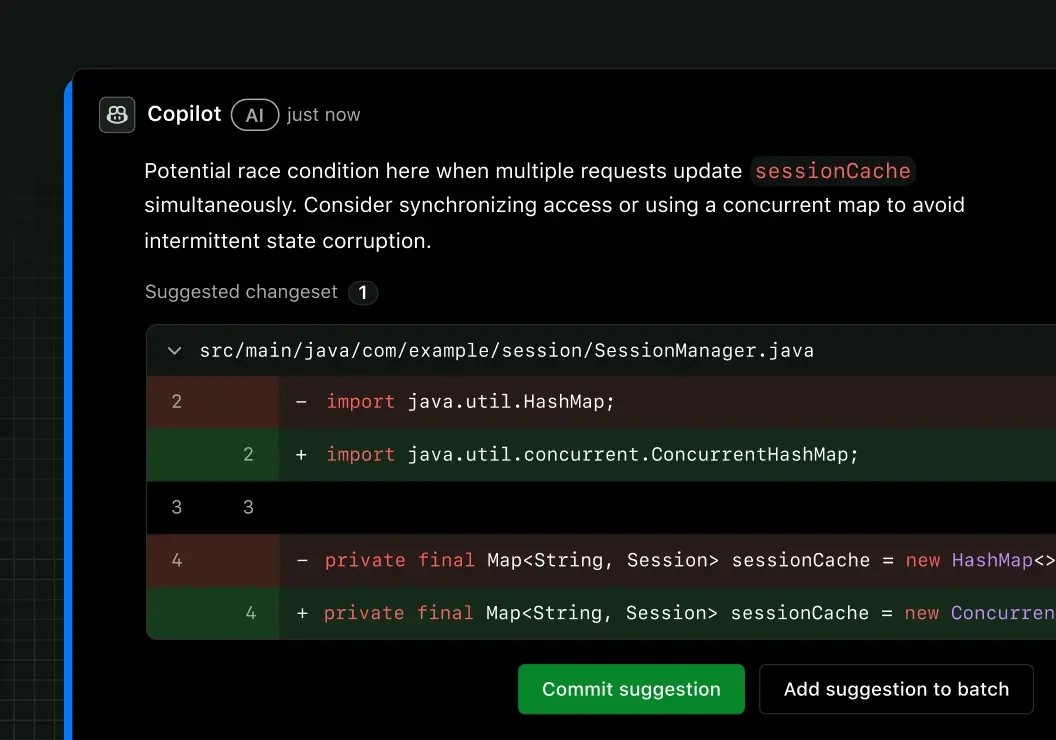
Copilot can review a pull request on GitHub, or your local changes before you even open one. It leaves comments like a teammate would, with a fix you can commit in one click.
Code review comes with the paid plans, not Free.
Chores that run on a schedule
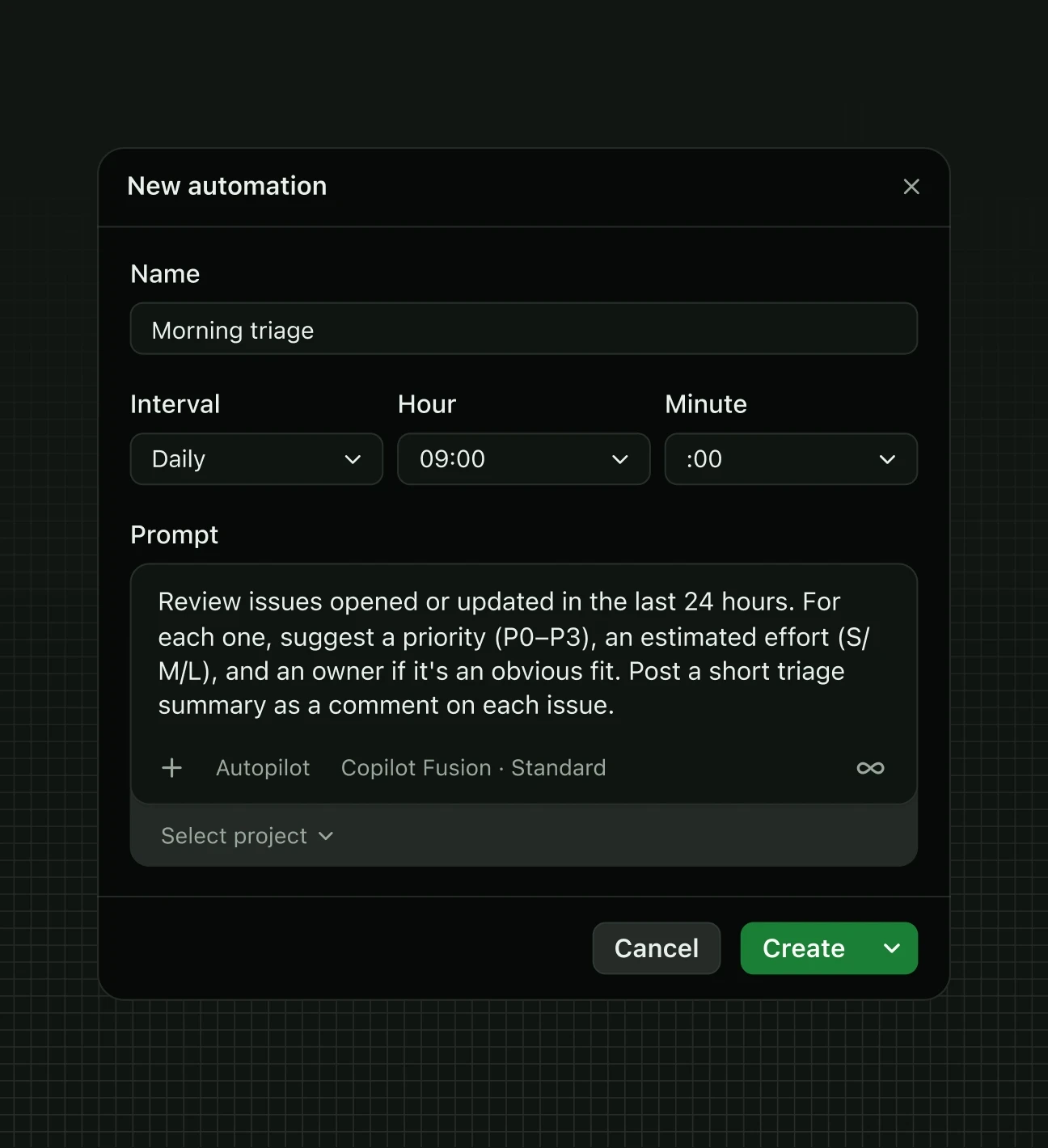
In the desktop app, an automation is a saved task that runs on demand or on a timer. A daily morning triage, for example, can sort new issues and suggest who should take each one.
Suggestions as you type
Copilot finishes the line or the whole function while you type, and next edit suggestions guess the next change you will make. Press Tab to accept.
Pick a model, or let Copilot pick
Choose a specific model, or let Copilot Fusion match each task to a model for you. You can also add your own API key, or run local models with Ollama or Foundry Local.
Teach it your rules
Add instructions to a repository so Copilot follows your coding style, and connect MCP servers (add-ons that give Copilot new tools and data).
Pick up anywhere
Start a task in the app and continue it in the CLI, your editor, on github.com or in GitHub Mobile.
How to Get GitHub Copilot on Windows
There are three main ways to use Copilot on a Windows PC. They all sign in with the same GitHub account and share one plan, so you can use one, two or all three.
Option 1: The GitHub Copilot app
Best if you want Copilot to handle whole tasks while you watch
1 Go to the GitHub Copilot app page and download the Windows version (x64 or Arm).
2 Run the installer and open the app.
3 Click Sign in to GitHub and log in, or create a free account.
4 Pick a repository or a local folder to work in. You can also skip this and add one later.
5 Start a session with the + button next to Sessions and type your first task.
Prefer winget? Run winget install GitHub.CopilotApp in PowerShell. The app also needs Git installed on your PC.
Option 2: VS Code or Visual Studio
Best if you already write code in one of these editors
1 Open VS Code or Visual Studio. New to VS Code? See our VS Code for Windows guide.
2 Click the Copilot icon at the top of the window.
3 Choose Sign up for Copilot Free and sign in with your GitHub account.
4 Open Copilot Chat with Ctrl + Alt + I and ask your first question.
Option 3: Copilot CLI
Best if you live in the terminal
1 Open PowerShell or Windows Terminal.
2 Run winget install GitHub.Copilot
3 Type copilot in the folder of your project to start it.
4 Type /login and follow the prompts to sign in with GitHub.
Using Node.js? You can install the CLI with npm install -g @github/copilot instead. It needs Node.js 22 or later. Windows PowerShell 5.1 works too.
GitHub Copilot Plans and Pricing
Copilot is free to start, and the Free plan includes agent mode and the CLI. Free caps you at 2,000 code completions a month and a limited amount of chat and agent use. Paid plans remove the completion cap and give you a monthly allowance of AI credits, where one credit equals one cent.
Teams pay per seat: Copilot Business is $19 and Copilot Enterprise is $39 per user per month. Verified students get the Copilot Student plan for free, and some teachers and open source maintainers qualify for free Pro. See GitHub’s plans page for the current numbers.
GitHub Copilot vs Microsoft Copilot
The names cause a lot of confusion, because Microsoft owns GitHub. They are two separate products for two different jobs.
Our take
If you write code, even as a hobby, GitHub Copilot is the one to install, and the Free plan is enough to see if it fits how you work. If you never touch code, you want Microsoft Copilot for Windows instead. Comparing coding tools? Our best AI code editors list puts Copilot next to Cursor and the rest.
GitHub Copilot Shortcuts and Commands
These work in VS Code on Windows and in Copilot CLI. Learn the first three and you will use Copilot twice as often.
GitHub Copilot App Video Tour
Watch this episode of GitHub Checkout from GitHub’s own channel to see sessions, plans and pull requests in the GitHub Copilot desktop app.
Tips for Getting Started with GitHub Copilot
1 Ask for a plan first. Use /plan or plan mode on anything bigger than a small fix. Reading the plan takes a minute and saves you from undoing an hour of wrong changes.
2 Start in Interactive mode. Let Copilot ask before each step until you trust how it works on your project. Switch to Autopilot later.
3 Write project instructions. Run /init in the CLI, or add an instructions file, so Copilot knows your language, style and test command.
4 Keep tasks small and clear. One bug or one feature per session gets far better results than a vague request to fix everything.
5 Watch your credits. Chat and agent work use AI credits, while plain code completions do not. Set a budget in your GitHub settings so a long agent run cannot surprise you.
Frequently Asked Questions
What are the system requirements for GitHub Copilot on Windows?
Is GitHub Copilot free for students?
Which editors does GitHub Copilot work in?
Can I use GitHub Copilot with my own API key or a local model?
What happens when I run out of AI credits?
Support and Community
- GitHub Copilot, GitHub’s own Copilot website.
- GitHub Copilot Docs, with setup guides for the app, the CLI and every editor.
- GitHub Changelog, to see what changed in each update.
- GitHub Community Copilot discussions, where GitHub staff and users answer questions.
- r/GithubCopilot on Reddit, a large user community for tips, model comparisons and help.
More Windows software guides: VS Code · Visual Studio 2026 · Cursor · Windows Terminal · AI Coding Extensions for VS Code · Microsoft Copilot
Discover more from Windows Mode
Subscribe to get the latest posts sent to your email.















Add your first comment to this post