Readers like you help support this site. When you make a purchase using links on our site, we may earn an affiliate commission. All opinions remain our own.
The best remote desktop apps for Windows are Chrome Remote Desktop for free personal use, RemotePC for best value, TeamViewer for IT support, and Parsec for gaming.
We tested 9 popular remote desktop tools and compared them for ease of setup, connection speed, security, and pricing. Whether you need to access your home computer from work, help a family member fix their PC, game on your powerful desktop from a laptop, or manage business computers remotely, there is a solution here for you.
All of these apps work with Windows 11, Windows 10, and older versions. Most also support macOS, Linux, iOS, and Android.
🔍 What We Tested
Ease of Setup
How quickly can you connect?
Connection Speed
Lag and responsiveness
Security
Encryption and privacy
Pricing
Free vs paid options
Quick Comparison: All 9 Remote Desktop Apps
| Software | Best For | Price | Rating |
|---|---|---|---|
| 1. Chrome Remote Desktop | Free Personal Use | Free | ⭐⭐⭐⭐⭐ |
| 2. RemotePC | Best Paid Value | Paid (Affordable) | ⭐⭐⭐⭐⭐ |
| 3. TeamViewer | IT Professionals | Free / Paid | ⭐⭐⭐⭐⭐ |
| 4. Parsec | Gaming | Free / Paid | ⭐⭐⭐⭐⭐ |
| 5. AnyDesk | Speed on Slow Internet | Free / Paid | ⭐⭐⭐⭐½ |
| 6. Splashtop | Creative/Video Work | Paid | ⭐⭐⭐⭐⭐ |
| 7. RustDesk | Privacy / Self-Hosted | Free (Open Source) | ⭐⭐⭐⭐ |
| 8. Windows Quick Assist | Helping Family/Friends | Free (Built-in) | ⭐⭐⭐⭐ |
| 9. Microsoft Remote Desktop | Local Network Access | Free (Built-in) | ⭐⭐⭐⭐ |
Feature Comparison
| Feature | Chrome RD | RemotePC | TeamViewer | Parsec | RustDesk |
|---|---|---|---|---|---|
| File Transfer | Limited | ✅ Drag & Drop | ✅ Secure | ❌ | ✅ |
| Multiple Monitors | ❌ Basic | ✅ | ✅ | ✅ | ✅ |
| Gaming Performance | ❌ | ❌ | Okay | ✅ Best | Okay |
| Open Source | ❌ | ❌ | ❌ | ❌ | ✅ Yes |
| Self-Hosted Option | ❌ | ❌ | ❌ | ❌ | ✅ Yes |
Detailed Reviews
1. Chrome Remote Desktop
🏆 Best Free Option for Personal Use
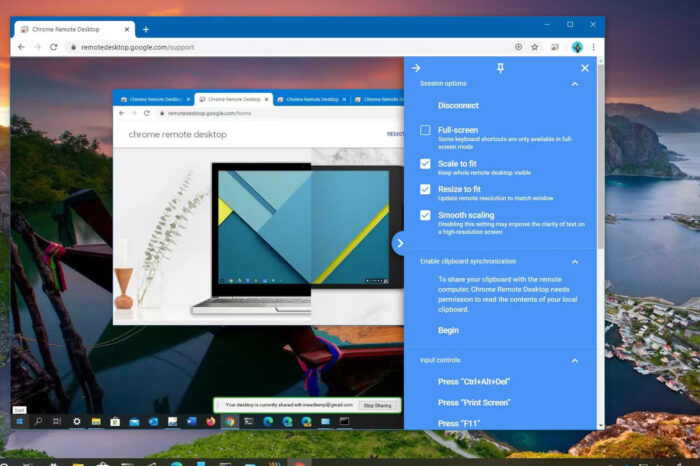
If you just want to access your home computer occasionally or help a family member fix their PC, Chrome Remote Desktop is the easiest option. It runs through the Chrome browser and Google’s secure servers, so there is nothing complicated to set up.
Key Features:
- ⚡ Quick Setup: Install the extension and you are ready to go
- 🌐 Works Everywhere: Runs on anything with Chrome
- 🔓 No Software Needed: The person you are helping just opens a webpage
✅ The Good
- Completely free, no limits
- Incredibly easy to set up
- Works on Chromebooks
❌ The Bad
- Limited file transfer
- No remote printing
- Requires Chrome browser
2. RemotePC
🏆 Best Value for Small Businesses
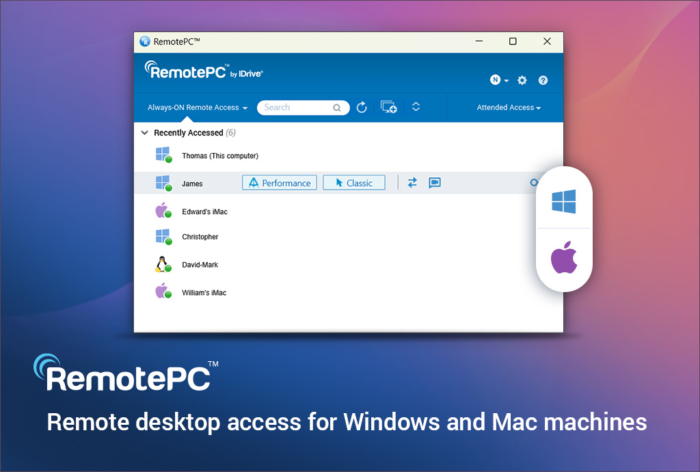
Made by the same company behind iDrive backup, RemotePC offers the best balance of features and price. It is significantly cheaper than TeamViewer while including most of the same features. Setup is simple and it works instantly across desktop, web, and mobile.
✅ The Good
- Much cheaper than TeamViewer
- Always-on access to your PCs
- Remote printing included
❌ The Bad
- Interface looks dated
- No free plan for business
3. TeamViewer
🏆 Industry Standard for IT Support
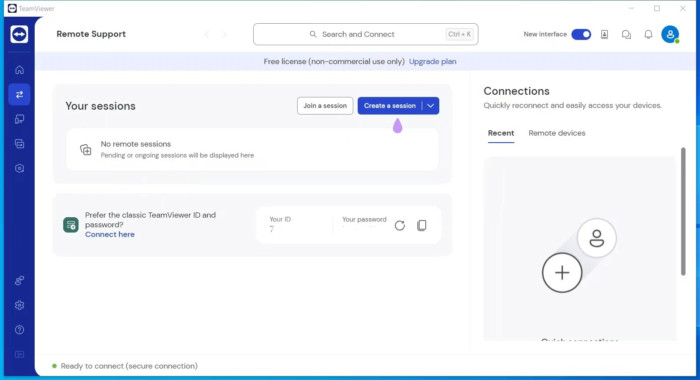
TeamViewer is the most well-known remote desktop software in the world. It has the most features, works on the widest range of devices, and offers enterprise-grade security. If you are an IT professional managing dozens of computers, this is the tool to use.
✅ The Good
- Free for personal use
- Most feature-rich option
- Wake sleeping PCs remotely
❌ The Bad
- Expensive for business
- Shows “commercial use” warnings
4. Parsec
🏆 Best for Gaming and Low Latency
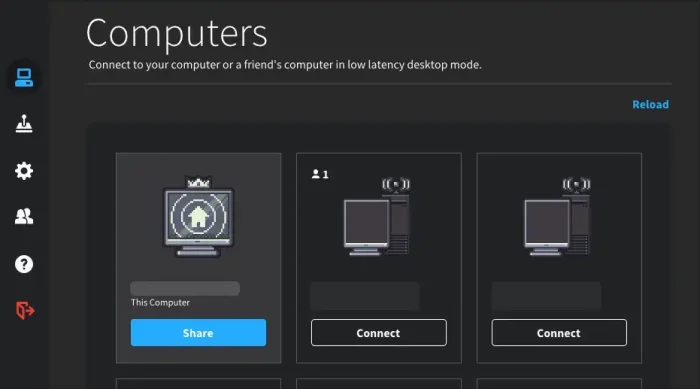
Parsec was built specifically for gamers who want to play their PC games from anywhere. It offers ultra-low latency streaming at up to 4K resolution and 60 frames per second. If you want to game on your powerful desktop from a laptop, tablet, or even another PC, Parsec is the best choice.
Key Features:
- 🎮 Ultra-Low Latency: Designed specifically for gaming
- 📹 4K at 60fps: Crystal clear video streaming
- 🎯 Controller Support: Works with gamepads seamlessly
- 👥 Co-op Gaming: Play local multiplayer games online with friends
✅ The Good
- Free for personal use
- Best gaming performance
- Play couch co-op games online
- Works with controllers
❌ The Bad
- No file transfer
- Focused on gaming, not work
- Requires decent internet
5. AnyDesk
Best for Speed on Slow Internet
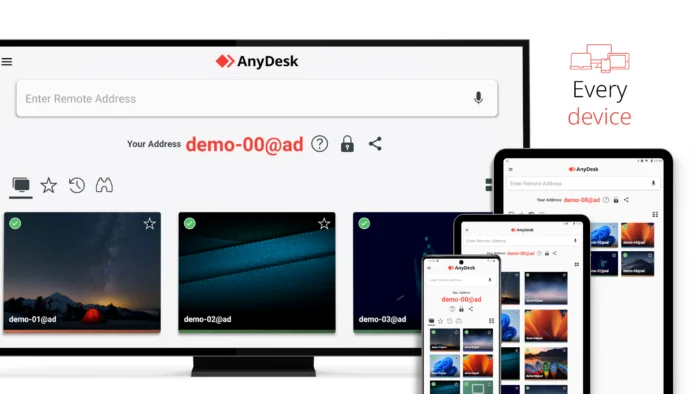
AnyDesk is known for being incredibly fast, even on slow or unreliable internet connections. It uses special video compression that keeps the remote screen smooth. The app is tiny (under 5MB) and can run without installing it.
✅ The Good
- Free for personal use
- Extremely lightweight
- Works great on bad internet
❌ The Bad
- Free version has limits
- Fewer features than TeamViewer
6. Splashtop
Best for Video Editing and Creative Work
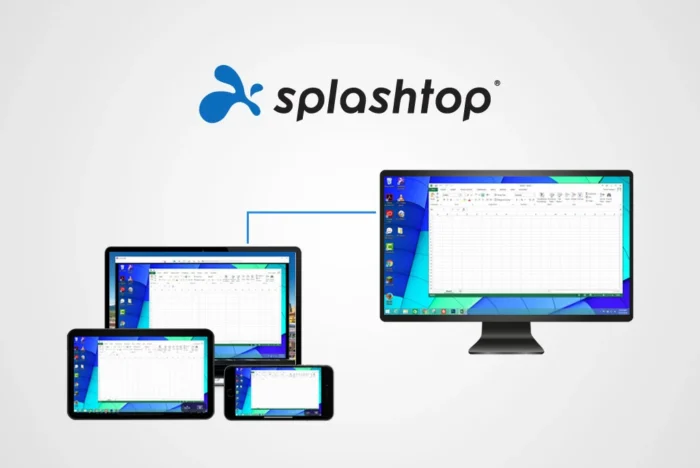
Splashtop specializes in high-quality video streaming. If you need to edit videos, work with graphic design software, or do anything where smooth visuals matter, Splashtop offers picture quality up to 4K at 60 frames per second. Great for creative professionals who need to work remotely.
✅ The Good
- Best video quality available
- Supports drawing tablets
- Multi-monitor support
❌ The Bad
- No free version
- Needs good internet on both ends
7. RustDesk
🏆 Best for Privacy and Self-Hosting
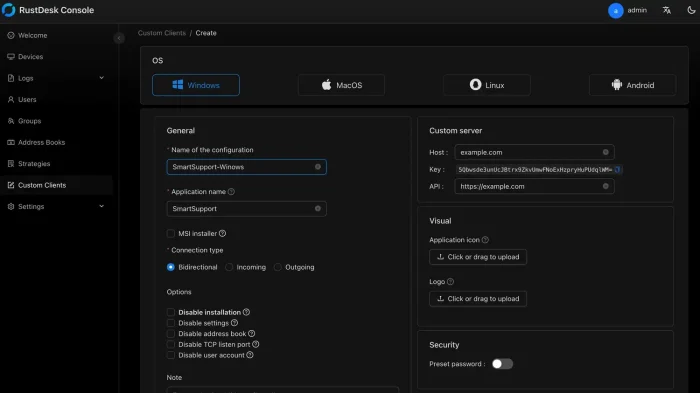
RustDesk is a free, open-source remote desktop app that gives you full control over your data. Unlike other tools that route connections through their servers, RustDesk lets you run your own server. This means your remote sessions never touch a third-party company. Perfect for privacy-conscious users and businesses with strict data policies.
Key Features:
- 🔓 Open Source: Anyone can inspect the code for security
- 🏠 Self-Hosted: Run your own server for complete privacy
- 🌐 Cross-Platform: Works on Windows, Mac, Linux, iOS, and Android
- 💰 Completely Free: No paid tiers or usage limits
✅ The Good
- 100% free and open source
- Host your own server
- No data goes to third parties
- File transfer included
❌ The Bad
- Self-hosting requires technical knowledge
- Public servers can be slower
- Less polished than commercial options
8. Windows Quick Assist
🏆 Easiest Way to Help Family and Friends (Built into Windows)
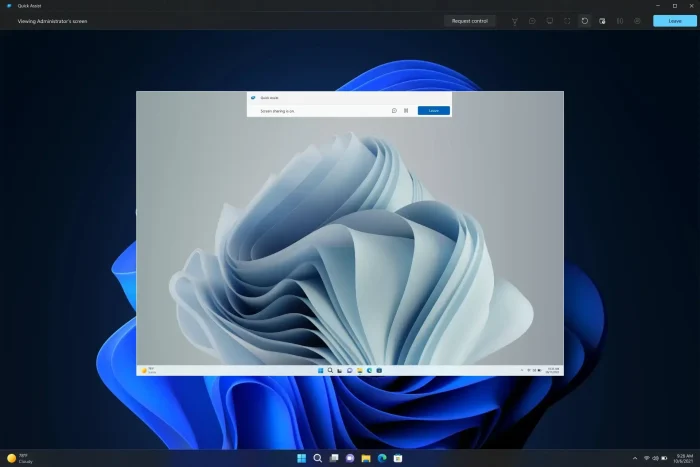
Quick Assist comes pre-installed on Windows 10 and Windows 11. It is specifically designed for one-time help sessions, like fixing a family member’s computer problem. You generate a code, share it with them, and you can see and control their screen. No accounts, no downloads, no complicated setup.
💡 How to Open Quick Assist:
Press the Windows key, type “Quick Assist” and hit Enter. Or search for it in the Start menu.
✅ The Good
- Already installed on Windows
- No download needed
- Simple code-sharing system
- Completely free
❌ The Bad
- Windows only (both sides)
- No unattended access
- No file transfer
- Sessions time out
9. Microsoft Remote Desktop
Built-in Windows Option (Best for Local Networks)
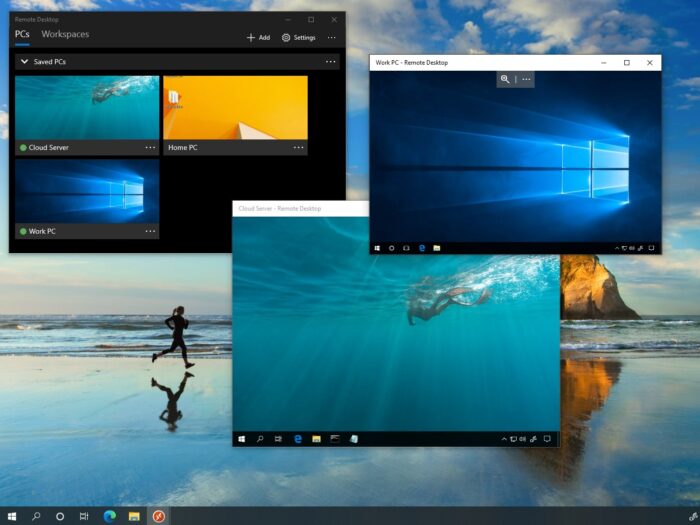
Microsoft Remote Desktop is built into Windows, so there is nothing extra to download. It works great for connecting to another computer on the same home or office network. However, connecting from outside your network requires extra setup that most people find complicated.
⚠️ Important Note:
Microsoft Remote Desktop is not included in Windows Home editions. You need Windows Pro, Enterprise, or Education to use this feature.
✅ The Good
- Completely free (built-in)
- No third-party servers
- Fast on local networks
❌ The Bad
- Hard to set up for outside access
- Not on Windows Home
- Cannot help others easily
What Can You Do With Remote Desktop?
Remote desktop software lets you control another computer as if you were sitting in front of it. Here are the most common things people use it for:
📂 Access Files From Anywhere
Forgot a document on your home computer? Connect remotely and open it from your laptop or phone.
🔧 Help Family With Tech Problems
Take control of a relative’s computer to fix issues without driving to their house.
💼 Work From Home
Access your office computer from home to use work software or check files.
🎮 Game on Any Device
Play games from your powerful desktop on a laptop, tablet, or weaker PC using Parsec.
Common Problems and Solutions
The connection is slow or laggy
Try lowering the display quality in your remote desktop app settings. Most apps have options like “Optimize for speed” that reduce visual quality but make the connection more responsive. Also, close any video streaming or large downloads on either computer.
I cannot connect to the remote computer
Make sure the remote computer is turned on and connected to the internet. Check that the remote desktop app is running on that computer. If using Microsoft Remote Desktop, verify that Remote Desktop is enabled in Windows Settings > System > Remote Desktop.
The screen is black when I connect
This usually happens when the remote computer’s display driver has an issue. Try reconnecting, or restart the remote desktop app. In some cases, you may need to restart the remote computer. Some apps also have a “Blank screen” privacy option that may be enabled.
Games are stuttering on Parsec
Make sure both computers are on a wired ethernet connection if possible. WiFi adds latency. In Parsec settings, try lowering the resolution or bandwidth. Also ensure your host PC’s GPU drivers are up to date and that hardware encoding is enabled.
My antivirus is blocking the remote desktop app
Remote desktop apps sometimes trigger antivirus warnings because they control your computer. Add your remote desktop app to your antivirus’s exception list. All the apps listed in this guide are safe and trusted by millions of users.
Frequently Asked Questions
What is the best free remote desktop app?
Chrome Remote Desktop is the best completely free option for general use. Parsec is the best free option for gaming. RustDesk is the best free option if you want open-source software or need to host your own server for privacy.
Is remote desktop secure?
Yes, all the apps in this guide use strong encryption to protect your connection. For extra security, use two-factor authentication when available and never share your access codes with strangers claiming to be “tech support.”
Can I play games remotely?
Yes! Parsec is specifically designed for gaming with ultra-low latency and controller support. Splashtop also works well for casual gaming. Regular remote desktop apps like TeamViewer are not great for gaming due to higher latency.
Can I use remote desktop on my phone?
Yes! All the apps listed here have mobile versions for iOS and Android. You can control your Windows PC from your phone or tablet. The experience is better on tablets due to the larger screen.
What is the difference between Quick Assist and Remote Desktop?
Quick Assist is for one-time help sessions (like fixing a friend’s PC). It is simple and requires no setup. Microsoft Remote Desktop is for accessing your own computers regularly, but requires more setup and Windows Pro or higher.
Does the remote computer need to be turned on?
Usually, yes. The remote computer must be powered on and connected to the internet. However, some tools like TeamViewer offer “Wake-on-LAN” which can turn on a sleeping computer remotely (requires specific network setup).
Which Should You Choose?
For free personal use: Start with Chrome Remote Desktop. It is the easiest to set up and completely free.
For gaming: Use Parsec. It is free and designed specifically for low-latency gaming.
For small business: Choose RemotePC for the best value, or TeamViewer for maximum features.
For privacy: Pick RustDesk if you want open-source software or need to host your own server.
For creative work: Go with Splashtop for the smoothest, highest-quality video.
For quick family tech support: Use Windows Quick Assist. It is already on their computer.
Our Personal Recommendation
If you need something that is stable, great support for both personal and business go with RemotePC.
Related Guides: Best Free Torrent Apps, iTunes Alternatives, Free Microsoft Office Alternatives, Best Antivirus Software.
Discover more from Windows Mode
Subscribe to get the latest posts sent to your email.















Nothing beats Teamviewer to be honest, it’s still the best even on Windows 10 and it has the financial backing of big companies(including microsoft) so it’s also the most stable/secure on this list.
Try RAdmin, it’s best!
We are trying to install realvnc but it won’t get past the first install page. We are on Windows 8.1(network)
I’d
also recommend to try free for business AEROADMIN.
It’s quite easy-to-use, with no registration, installation or
configuration. I switched to it from teamviewer and pretty happy.