 The best VS Code extensions for 2026 include Prettier for code formatting, GitHub Copilot for AI assistance, and Live Server for real-time web previews. For productivity, Error Lens and GitLens are industry standards, while Windows users should consider the WSL extension for seamless Linux integration.
Visual Studio Code is the most popular code editor in the world, but out of the box, it is just a text editor. To turn it into a powerhouse, you need the right extensions.
We have tested hundreds(well fine, like 50) of plugins to bring you the 21 must-haves for any developer. These tools improve your workflow and productivity so you get some work done, regardless of whether you write Python, JavaScript, or simple HTML.
Feel free to leave a comment below or contact us if you want to recommend an extension on this post.
Top Visual Studio Code Extensions for Developers
1. Prettier – Code Formatter
#1 Essential

What it does: Prettier is an opinionated code formatter. It automatically formats your code (spacing, commas, brackets) every time you save the file.
Why you need it: It removes all mental effort regarding code style. You can type messy code, hit Save (Ctrl+S), and it snaps into a professional structure instantly.
ext install esbenp.prettier-vscode2. GitHub Copilot
AI Standard

What it does: Your AI pair programmer. It suggests whole lines or entire functions as you type. It also includes a Chat interface to ask questions about your code.
Why you need it: In 2026, coding without AI is like coding with one hand tied behind your back. It speeds up boilerplate code and helps you learn new syntax faster.
ext install GitHub.copilot3. Material Icon Theme
Visuals

What it does: Replaces the boring default file icons with crisp, colorful Material Design icons. It covers hundreds of file types.
Why you need it: It reduces cognitive load. When your React files look like React icons and your Python files look like Python icons, you scan your project tree twice as fast.
ext install PKief.material-icon-theme4. Error Lens
Productivity

What it does: VS Code usually hides errors under a tiny “red squiggly” line. Error Lens prints the error message inline, right next to your code.
Why you need it: It catches typos instantly. You don’t have to hover over lines to see what is wrong; the error is visible immediately, speeding up your debugging loop.
ext install usernamehw.errorlens5. GitLens – Git Supercharged
Version Control

What it does: It reveals the history of every line of code. Click a line, and it shows you who wrote it and when right next to the cursor.
Why you need it: Essential for teams. It solves the “Who broke this?” mystery in seconds without running complex Git commands in the terminal.
ext install eamodio.gitlensWeb, Design & API Tools
6. Live Server
Web Essential

What it does: Launches a local development server with a live reload feature for static and dynamic pages.
Why you need it: Stop clicking the “Refresh” button in your browser. Every time you save your HTML or CSS file, this extension automatically updates the browser page instantly.
ext install ritwickdey.LiveServer7. Auto Rename Tag
Time Saver

What it does: When you rename an opening HTML/XML tag (e.g., changing a <div> to a <section>), it automatically renames the matching closing tag.
Why you need it: It prevents broken code. You never have to hunt for the closing tag at the bottom of a file manually again.
ext install formulahendry.auto-rename-tag8. Thunder Client
Trending 2026

What it does: A lightweight API client that lives inside VS Code. It allows you to send HTTP requests and test APIs without opening external apps like Postman.
Why you need it: Postman has become heavy and slow. Thunder Client is the modern, fast alternative that keeps your API testing workflow right next to your code.
ext install rangav.vscode-thunder-client9. Color Highlight
Design
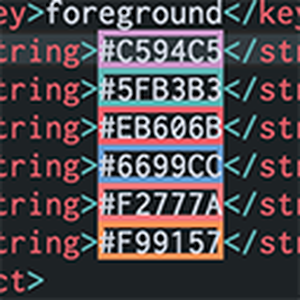
What it does: It highlights Hex codes (e.g., #ff0000) and RGB values with their actual color in your editor background.
Why you need it: You can’t visualize hex codes in your head. This tool lets you see exactly what colors you are working with without checking the browser.
ext install naumovs.color-highlight10. Path Intellisense
Utility

What it does: Adds autocompletion for filenames. When you type ./images/, it automatically suggests the files inside that folder.
Why you need it: It prevents broken links and 404 errors. You don’t have to memorize file paths or switch windows to copy a filename.
ext install christian-kohler.path-intellisensePro Workflow & Windows Integration
11. WSL (Windows Subsystem for Linux)
Windows Essential

What it does: It allows you to run a full Linux environment (like Ubuntu) directly inside Windows. You can edit files stored in Linux using your Windows VS Code interface.
Why you need it: This is non-negotiable for Windows users. It gives you the power of Linux terminals with the comfort of the Windows UI.
ext install ms-vscode-remote.remote-wsl12. Docker
Pro Tool

What it does: Adds a sidebar to manage Images, Containers, and Registries. You can start/stop containers and view logs without leaving the editor.
Why you need it: Docker is complex. This extension simplifies it by making everything visual. It helps you debug containers right from VS Code.
ext install ms-azuretools.vscode-docker13. Live Share
Collaboration

What it does: Think of it as Google Docs for code. It creates a link that allows other developers to join your VS Code session in real time. They can edit and debug using their own settings.
Why you need it: Perfect for pair programming. You do not need to clone your colleague’s repository to help them fix a bug.
ext install ms-vsliveshare.vsliveshare14. CodeSnap
Sharing

What it does: It takes beautiful, export-ready screenshots of your code. You highlight the text, and it generates a polished image with padding and shadows.
Why you need it: Essential for documentation, sharing tips on social media, or asking for help in Slack without sending a messy phone photo of your screen.
ext install adpyke.codesnap15. Todo Tree
Organization

What it does: It scans your code for comments like // TODO and // FIXME and displays them in a dedicated sidebar.
Why you need it: It stops you from forgetting unfinished tasks. Instead of searching through files manually, you have a master list of everything that still needs work.
ext install Gruntfuggly.todo-treeTrending & Next-Gen Tools
16. Console Ninja
Viral Trend

What it does: It shows your console.log output directly in your editor, right next to the line of code that generated it. You don’t need to open the browser dev tools.
Why you need it: It stops the context switching loop. You write code, hit save, and see the value immediately without leaving VS Code.
ext install WallabyJs.console-ninja17. Biome
Speed King

What it does: A lightning-fast formatter and linter built in Rust. It aims to replace both Prettier and ESLint with a single, faster tool.
Why you need it: Speed. In massive projects, Prettier can lag. Biome is instant. It is becoming the new standard for high-performance web development.
ext install biomejs.biome18. Codeium
Free AI

What it does: A powerful AI autocomplete tool that is completely free for individuals. It offers chat, autocomplete, and search capabilities similar to Copilot.
Why you need it: If you don’t want to pay the monthly subscription for GitHub Copilot, this is the best free alternative on the market right now.
ext install Codeium.codeium19. Import Cost
Performance

What it does: Displays the file size of every package you import inline. You immediately see if a library adds 5KB or 500KB to your bundle.
Why you need it: It stops you from accidentally bloating your app. It forces you to think about performance every time you write an import statement.
ext install wix.vscode-import-cost20. Blackbox AI
New Challenger

What it does: A massive AI agent that can generate code from screenshots (Image-to-Code) and search millions of public repositories.
Why you need it: It offers features that Copilot currently does not, like turning a screenshot of a UI design directly into HTML/CSS code.
ext install Blackboxapp.blackbox21. Bookmarks
Navigation

What it does: Allows you to mark specific lines of code with a blue bookmark icon and jump between them using a hotkey.
Why you need it: In large files (1000+ lines), scrolling is slow. This tool lets you teleport between your “API call” and your “Data processing” logic instantly.
ext install alefragnani.BookmarksHow to keep VS Code fast
Installing all 15 extensions at once can slow down your editor. You do not need your Docker tools when you are just fixing a typo in a Readme file.
The solution is to use Extension Profiles. This feature lets you switch between different “modes” instantly:
- The “Full Power” Profile: Enable everything (Docker, WSL, AI) for your main development work.
- The “Speed” Profile: Enable only the basics (Prettier, GitLens) for quick edits and writing.
Check this video out that explains exactly how to use profiles.
If you aren’t sure how to configure your base settings yet, check our VS Code Setup Guide first to get the fundamentals right.
More VS Code Resources:
- ⚡ Speed: VS Code Cheat Sheet: Shortcuts, God Mode & PDF
- 🎨 Aesthetics: 20 Best VS Code Themes: Dark, Light & Aesthetic
- JavaScript: Best Extensions for JS Developers
- AI & Vibe Coding: Best AI Coding Extensions for VS Code
- Flutter: Extensions for Flutter Developers
- Python: Extensions for Python Developers
- Web Design: Extensions for Frontend Developers
- React: Extensions for React Native Developers
- C++: Extensions for C++ Developers
- WordPress: Extensions for WordPress Developers
Discover more from Windows Mode
Subscribe to get the latest posts sent to your email.